Three to five seconds is all you get to make a first impression, good or bad.
The way your app looks in the app store decides whether a shopper taps download or moves on. Strong app screenshots are the biggest part of that impression and the best tool you have for convincing someone to install. StoreMaven's 2020 app store research found that a good first impression can lift visitor-to-installer conversion by 35%. Salla uploads a professional-looking set of screenshots for your app by default, but customizing them pays off. In this guide, you'll learn what app store screenshots are, why improving them matters, how to update yours, and the design standards to follow.
App store screenshots are the main visual block on your app's store listing. Salla adds a default set when your app is published, and you can replace them with custom images through the app data update service. Well-designed screenshots carry your brand identity, set you apart from competitors, and increase downloads.
📌 Article overview
- What app store screenshots are
- Why improving your app store screenshots matters
- How to update your app screenshots from Salla
- Design standards for custom app screenshots
- Frequently asked questions
🎯 What app store screenshots are
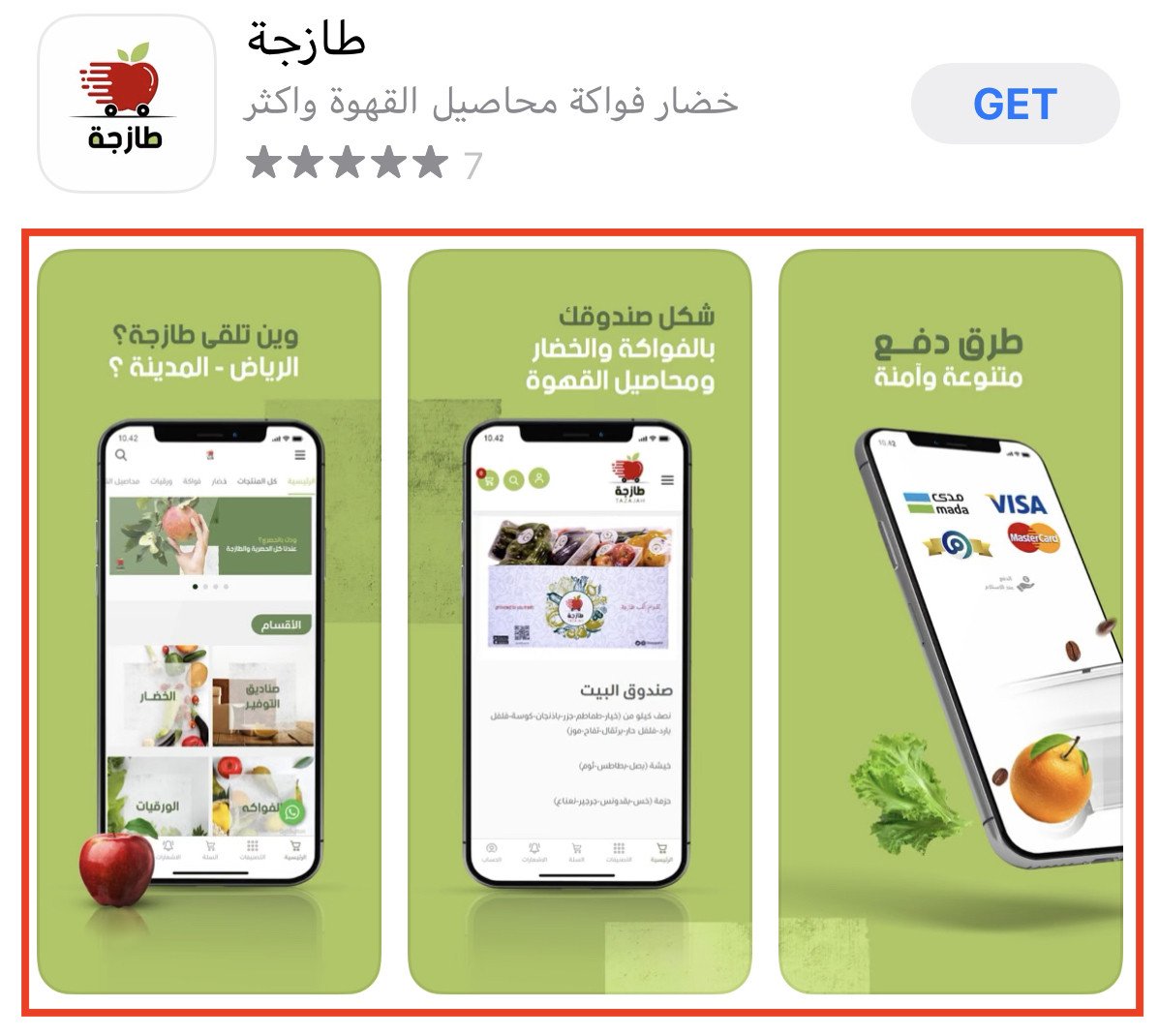
Screenshots are the main visual element on your app's product page in the app store. They appear in the screenshot gallery, like this:
✅ Why improving your app store screenshots matters
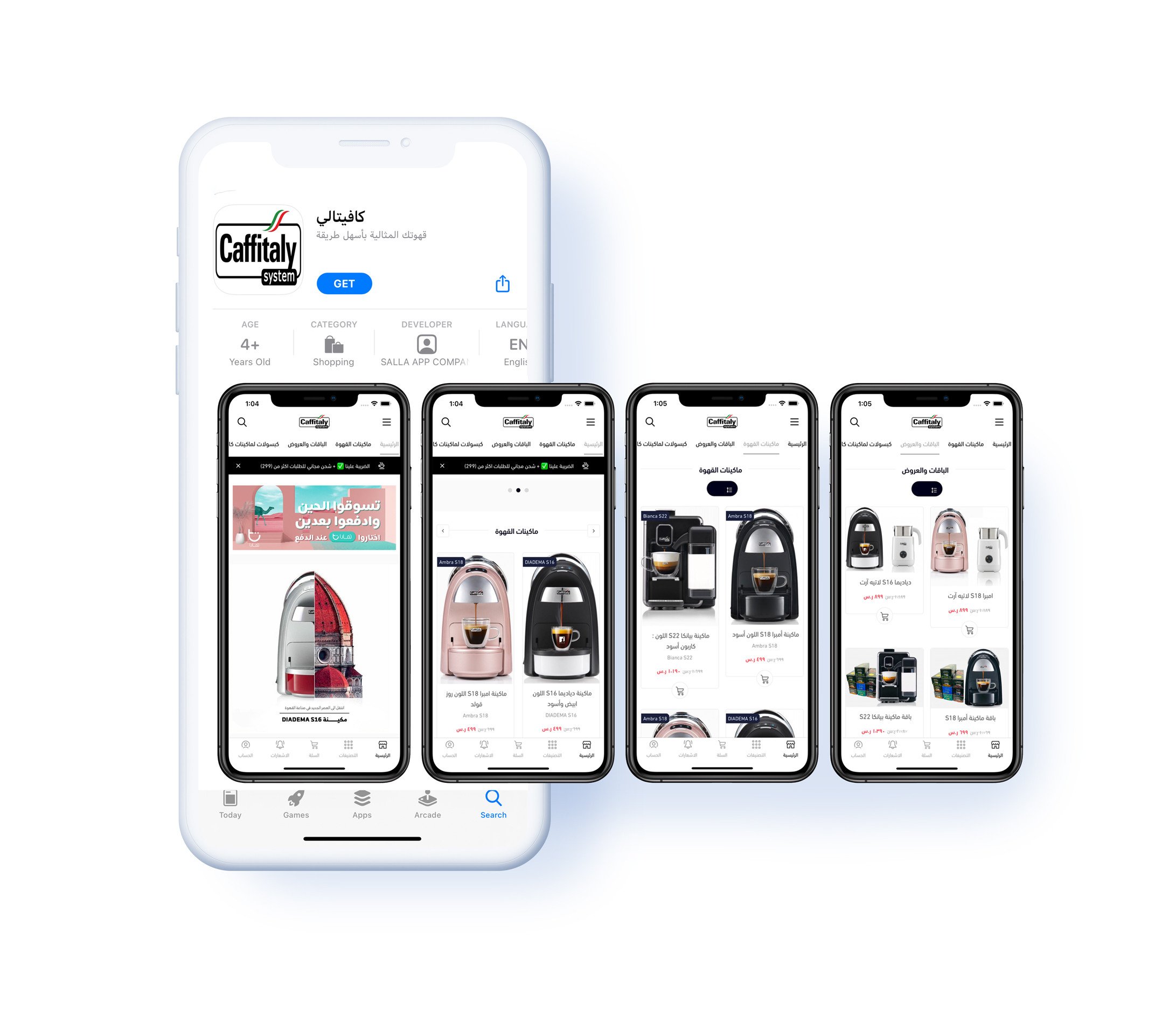
Images are what catch a shopper's eye and push them to download. Salla uploads a default set of screenshots for your app so your store looks professional from day one, for example:
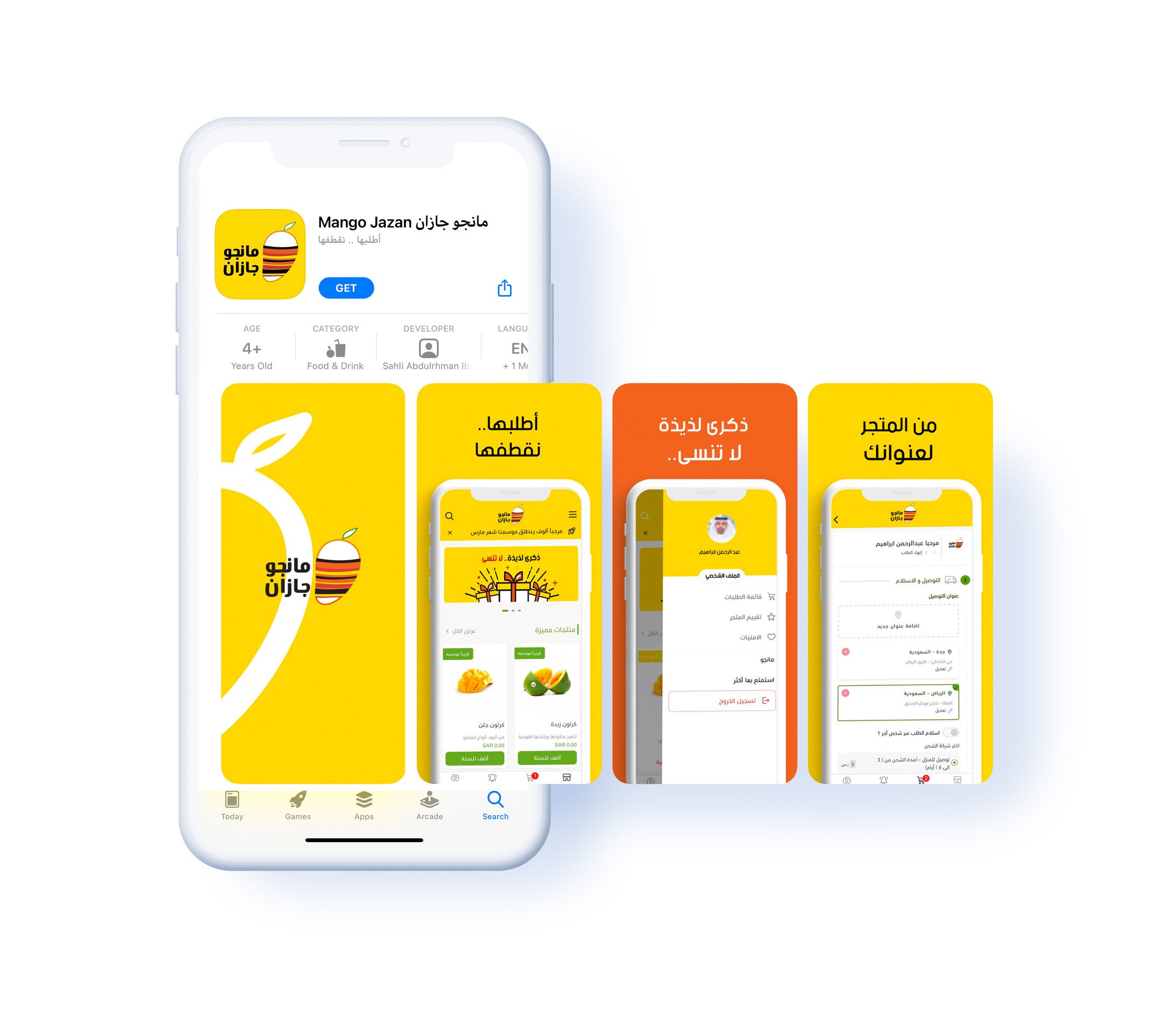
Customizing them goes further. Your own screenshots carry your brand identity and build brand awareness, which is what separates your business from competitors, brings visitors to your store, and grows your revenue. For example:
🚀 How to update your app screenshots from Salla
To upload custom screenshots to the app store, you first need a published app.
For more detail, see the steps for publishing your app.
Once your app is live, you can update your screenshots through the app data update service.
📝 Important notes
- Keep refreshing these images as your app changes. Up-to-date screenshots help your app rank and convert better in the store.
👣 Design standards for custom app screenshots
Take the chance to design screenshots that match your brand, hold a shopper's attention, and make them want to install. These four standards will get you there:
1. Follow the app store requirements: how many images, what sizes, and which formats.
2. Choose the order your screenshots appear in carefully.
3. Focus on the main benefits of your business.
4. Describe each screenshot with text.
Here is each one in detail.
1. Follow the app store requirements
Sticking to the screenshot guidelines for both the Apple and Google stores saves you from upload problems. The requirements are:
Requirement |
iOS |
Android |
Number of images required |
Minimum 3 images, maximum 10 images |
Minimum 2 images, maximum 8 images |
Uploaded image sizes |
iPhone 11 Pro, a 6.5-inch screen (2688 × 1242 pixels), and iPhone 8 Plus, a 5.5-inch screen (2208 × 1242 pixels) |
1280 × 720 pixels |
Accepted image formats |
jpg, png |
jpg, png |
Image background |
No transparency |
No transparency |
2. Choose the order your screenshots appear in carefully
The order matters more than most merchants think: 60% of shoppers never look past the first two images, so put your strongest screenshots first.
For example, lead with the home screen, then give a quick look at what the app contains. Ordering the images to follow how someone actually uses the app, from the first screen through to the last, works well.
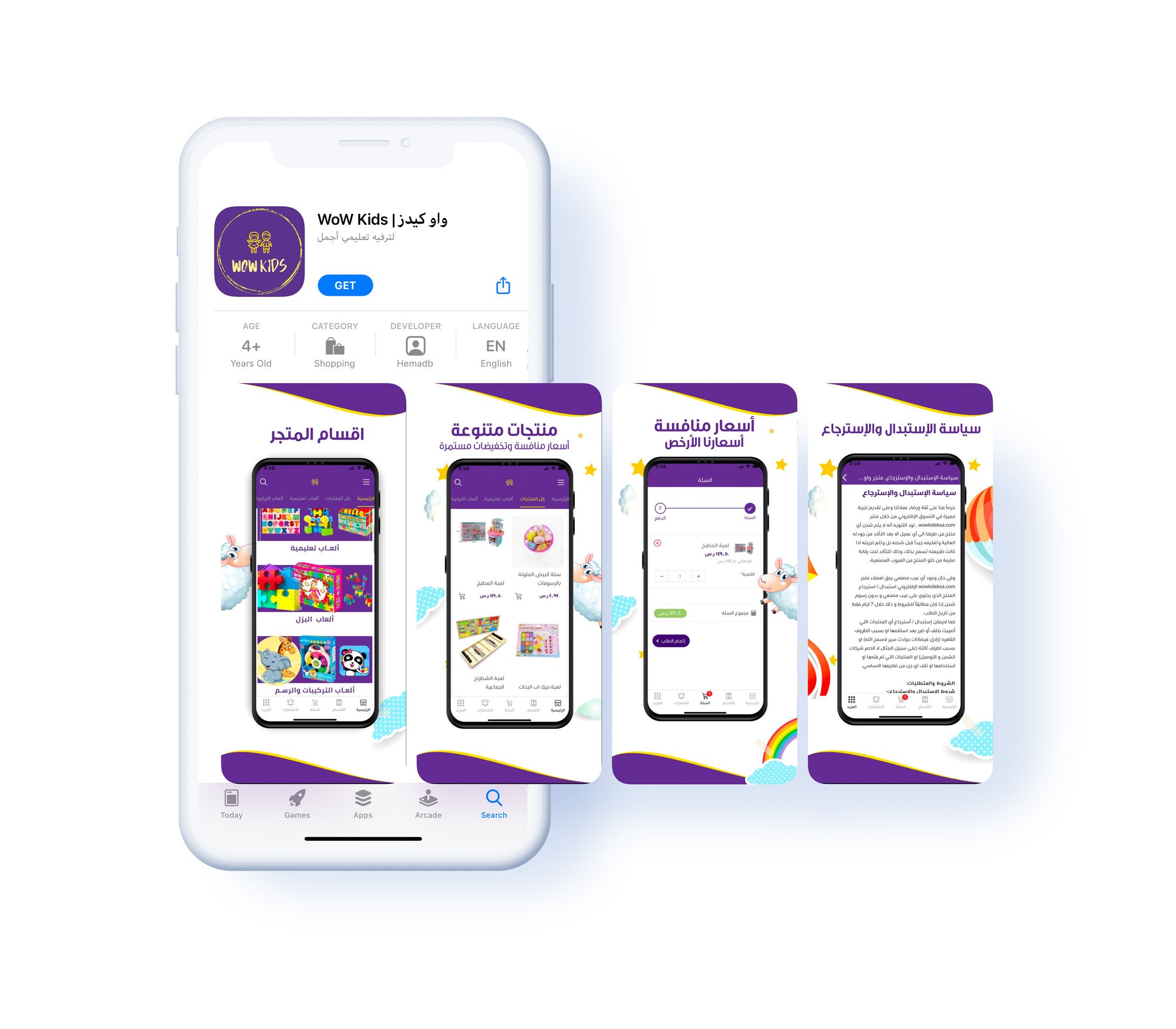
📝 Note: take these images from inside the app itself so they match what the customer finds after installing.
3. Focus on the main benefits of your business
Showing what your features actually do for the customer is worth more than listing the features themselves.
For example, use a screenshot to show how your app solves a problem your customers have.
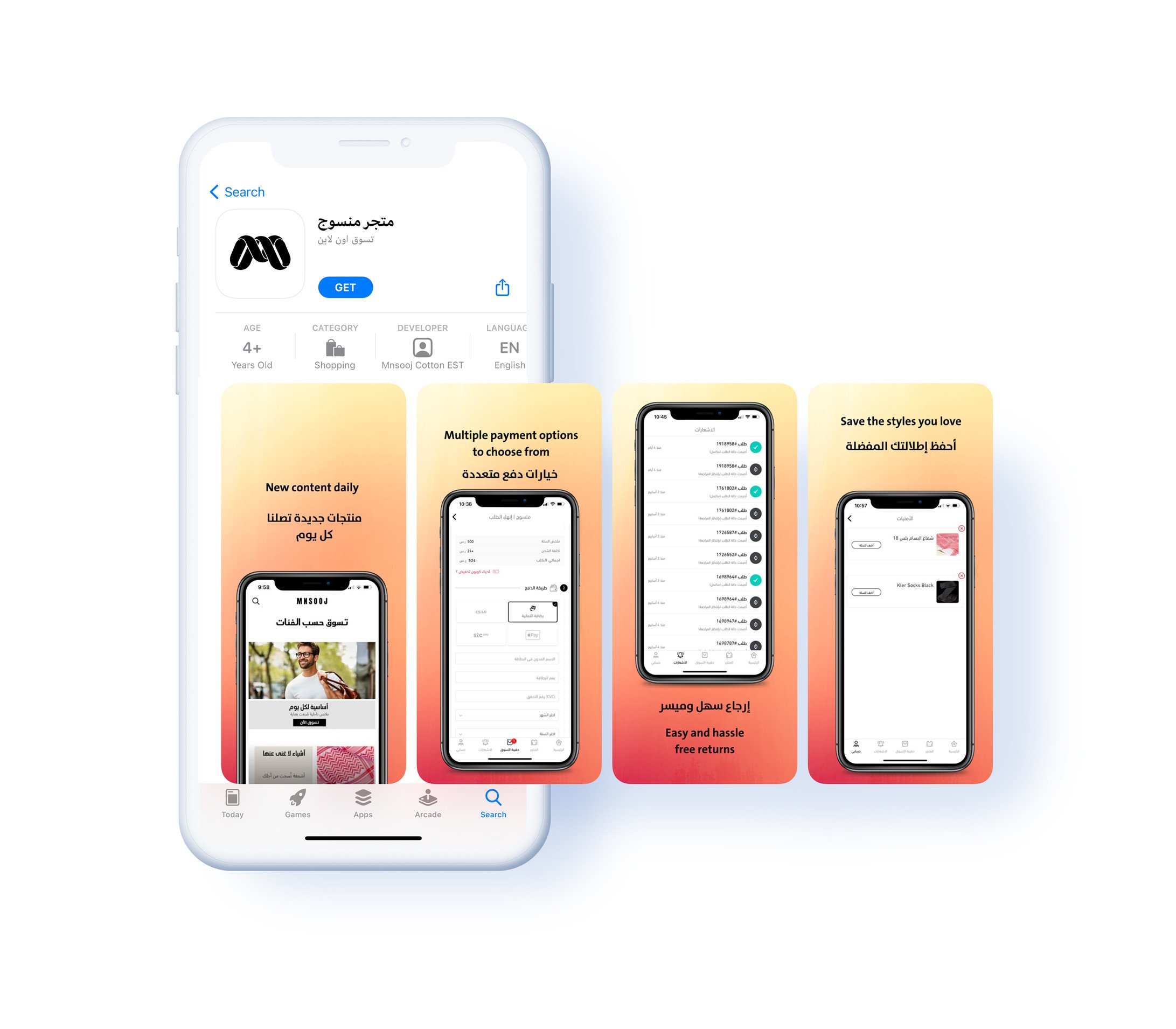
4. Describe each screenshot with text
Clear descriptive text helps a first-time viewer understand your app. Keep the text relevant to the image and small enough that it does not take over the screenshot.
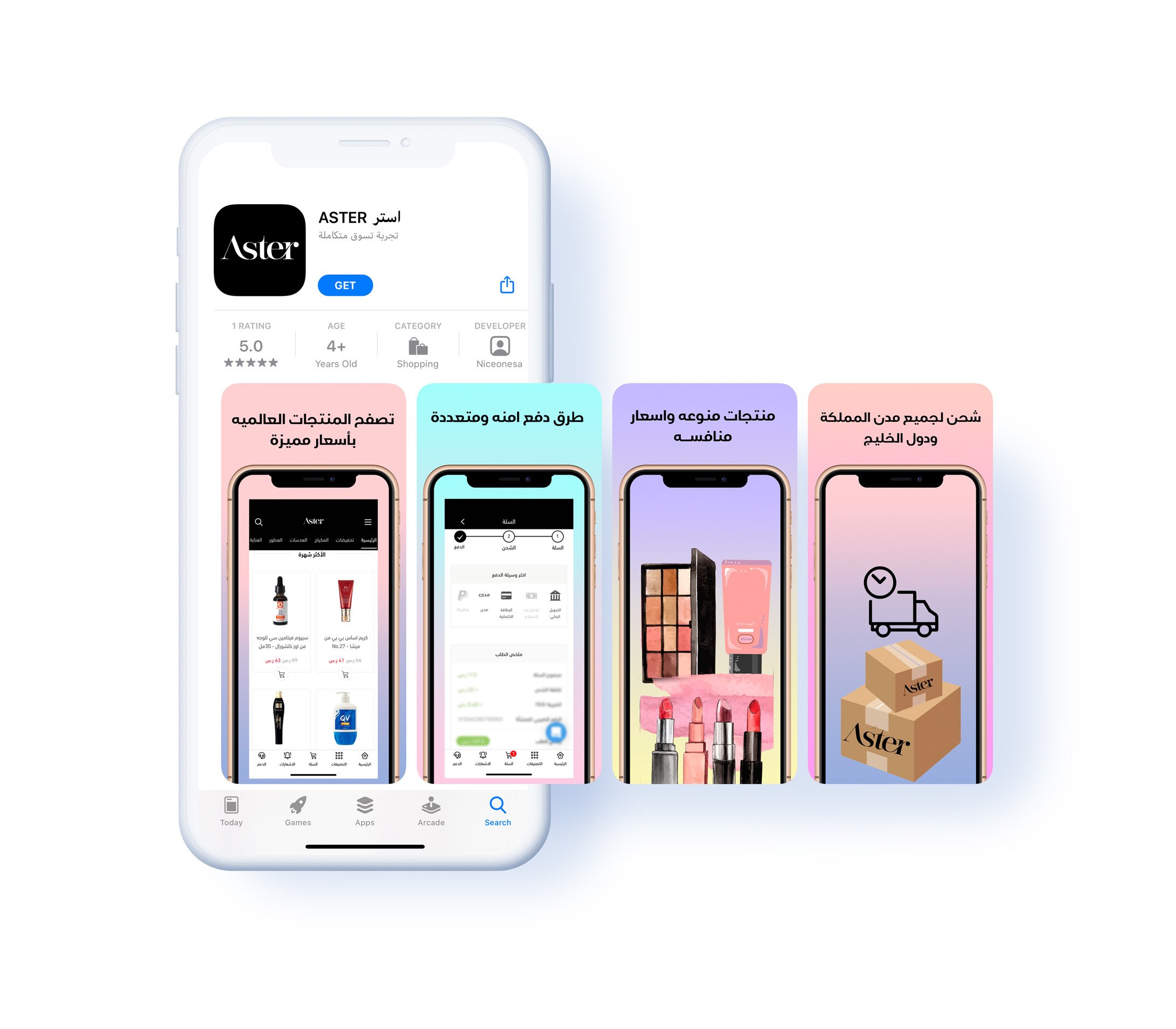
📝 Note: the app store will reject a set where every image is purely marketing copy.
For more detail, see the policies for publishing an app in the app store.
❓ Frequently asked questions
Do I need to upload screenshots myself?
No. Salla uploads a default set so your app looks professional. Custom screenshots are an improvement you can make when you want to show your own brand.
How do I replace the default screenshots?
Publish your app first, then use the app data update service to upload your own images.
How many screenshots can I upload?
iOS accepts 3 to 10 images and Android accepts 2 to 8, in jpg or png with no transparency.
Which screenshot should come first?
Your strongest one. Around 60% of shoppers never scroll past the first two images.
Can my screenshots be pure marketing designs?
No. The app store rejects listings where all the images are purely marketing text, so base them on real screens from the app.
Screenshots are the cheapest download-rate improvement available to you. Refresh them whenever the app changes, and treat the first two as the ones that do the selling.