Are the products in your Facebook ads still showing prices you stopped charging weeks ago?
Social media is where a lot of your customers first meet your products, and a well-built Facebook catalog is what puts your Salla store's items in front of them on a Facebook page or an Instagram profile. The catalog holds everything you want to advertise or sell across both platforms, and the quality of the information inside it decides how easily shoppers find your items and how confident they feel buying. Better catalog data usually means better ad performance and more sales. In this guide, you'll learn what a catalog is, what it gives you, and the practices that keep it accurate.
A Facebook catalog is a single container that holds every product you want to advertise or sell on Facebook and Instagram. You build and manage it in Commerce Manager. Keep all your products in one catalog, refresh prices and availability often, and use accurate titles, descriptions and images throughout.
📌 Article overview
- Before you start
- What is a product catalog?
- What a Facebook catalog gives your store
- Best practices for a high-quality catalog
- Frequently asked questions
✅ Before you start
- Create a Facebook page for your business if you don't have one yet.
- Create a Business Manager account so you can assign the catalog to your business, and make sure you are a Business Manager admin.
- For more details, see connecting Facebook Feed to manage your product catalogs.
- For more details, see setting up Business Manager on Facebook.
🎯 What is a product catalog?
A catalog is a container that holds information about the items you want to advertise or sell on Facebook and Instagram.
You can build catalogs for different kinds of inventory, including products for e-commerce, hotels, flights, destinations, home listings and vehicles. Commerce Manager is the platform you use to create and manage them.
✅ What a Facebook catalog gives your store
1. One place for product information. Once the catalog exists, adding and maintaining the details of your Salla store's products gets easier. A catalog entry can carry the title, images, price, description and more.
2. Less repeated work. Uploading all of your product information into a single catalog saves you from maintaining the same items in several places.
3. Product segmentation. You can build product feeds for Facebook ads and product sets for Facebook shops, which means creating subsets of products inside your catalog.
4. Permission control. Facebook catalog ads let you assign permissions to the people who work on your business, so a partner can maintain the catalog the way you want it maintained.
5. Catalog ads. A catalog lets you build a range of different Facebook catalog ad formats.
6. Dynamic ads. This is one of the strongest reasons to have a catalog. Dynamic ads promote the items from your catalog that match what a customer is searching for, by matching a catalog item to a Facebook Pixel event or an SDK snippet installed on your store's site.
🚀 Best practices for a high-quality catalog
1. Use one catalog for both ads and your shop
Put every item in a single catalog rather than splitting them across several. Inventory stays easier to manage, building audiences for your ads gets simpler, and every item you sell is available to your shops.
2. Keep the catalog current, especially prices and availability
Update items whenever a price or stock level changes, and make sure the catalog matches your website. If shoppers see items in your Facebook or Instagram ads or shop that are out of stock or priced wrong, that is a bad experience for them and a wasted click for you.
3. Write accurate titles and descriptions
Titles and descriptions shape the first impression of an item, and the two should say different things rather than repeat each other. Include the details that matter, avoid keyword stuffing, spell-check both, and never put links in these fields.
For Meta's own guidance, see product title and description specifications.
4. Use high-quality images
Supply high-resolution images so your items display cleanly, at least 500 x 500 pixels. For shops, several images per product works better than one.
5. Check that product links work
Make sure every product link starts with http:// or https:// and is not broken. Each link should also land on the correct product page for that item on your website, hosted on your own business domain.
6. Add product categories
Assign as many Google product categories, or Facebook-specific ones, as you can to each item in the catalog. Doing so lets you supply more relevant information per category, and it helps customers search for and discover your items. If you use checkout, the product category also matters for tax calculation.
7. Set up variants
If you sell several versions of the same item, such as different sizes or colors, set them up as variants in the catalog so they display correctly in your ads and your shop.
8. Create subsets of items
Build subsets, also known as product sets or collections, from the items in your catalog. Use them to control which items appear in your ads, or to feature a collection in your Facebook or Instagram shop.
9. Check for rejected items
Items that don't comply with the advertising policies or the commerce policies show up as rejected in your catalog and won't appear in your ads or your shop. You can edit a rejected item to bring it into compliance, or request a review if you believe it was rejected by mistake.
10. Make sure you have the right permissions
Actions on a catalog, such as adding items or creating sets, require the right catalog permission level in Business Manager. There are two levels: manage catalog, and create ads.
For Meta's own guidance, see catalog permissions.
❓ Frequently asked questions
How does catalog management affect social media performance?
Good catalog practice translates straight into campaign results. Correct, up-to-date formatting, image sizing and grouping information improve the experience for shoppers, lift click-through rates, and raise return on ad spend. That lift comes from two places: your campaign is prioritized in the Facebook feed, which lowers costs, and on-site conversion rates go up.
How do I use my product catalog in a marketing campaign?
You can point a campaign at the people most likely to care about your products by setting it up this way:
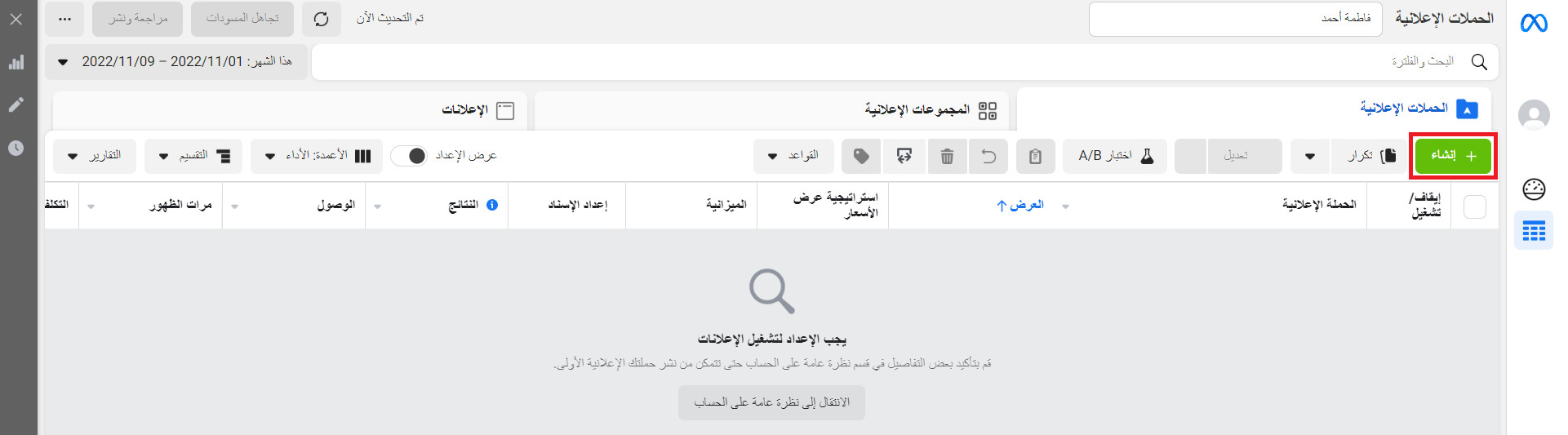
1. From the Facebook Ads Manager page, click (Create) to start a new campaign.
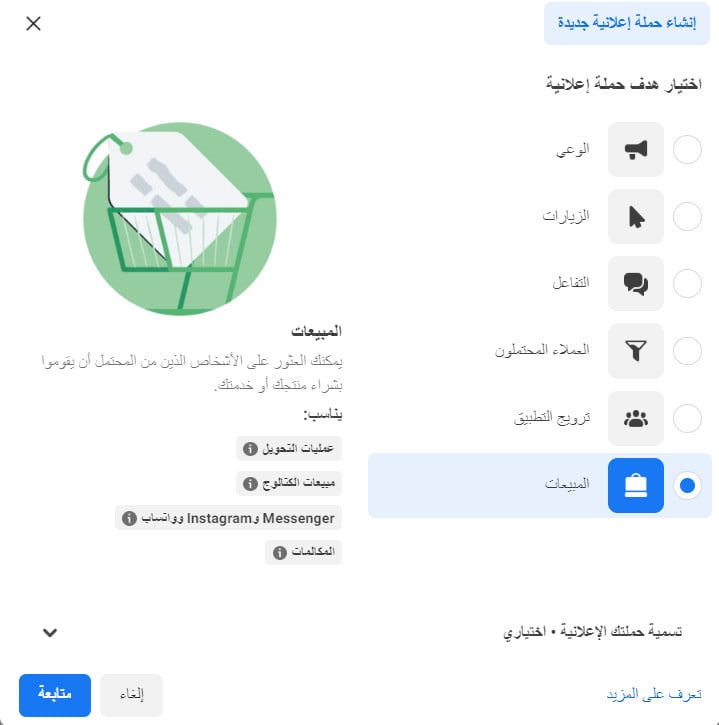
2. Choose (Sales) as the campaign objective, then click (Continue).
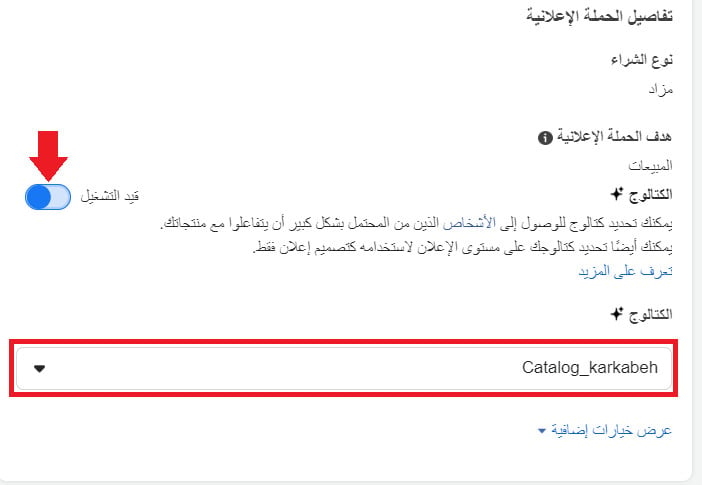
3. In the campaign details, turn on the (Catalog) option to reach people likely to engage with your products, pick the catalog you want from the list, then click (Continue).
4. Finish the rest of the campaign setup, including where the campaign runs on Facebook and Instagram, complete the ad settings, review everything, then publish.

Where do I see my catalog's issues?
Open the Commerce Manager home page and go to the issues panel shown below. [Verify: the Arabic sentence stops before naming the control to click.]

Every issue carries a severity level, and there are two of them:
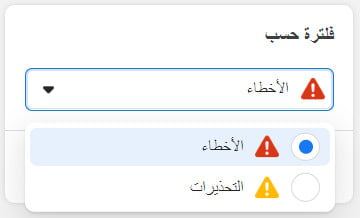
Errors: marked in red. These are serious problems that can stop items from uploading to your catalog and stop them appearing in your ads or sales channels.
Warnings: marked in yellow. These don't stop items appearing in your ads or sales channels, but they can hurt your catalog's quality. An item might be missing a recommended field that isn't strictly required, for example.
How do I fix catalog issues?
Select (Review) next to an issue. In the pop-up, click the (i) beside each issue to see more information, then follow the troubleshooting steps shown for it.
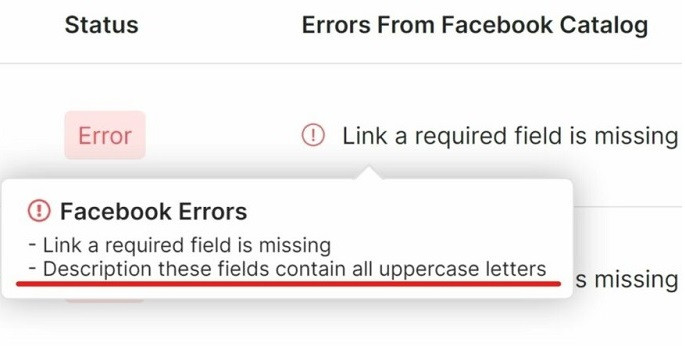
Here is how to approach the most common types:
Missing or invalid information: select (Download report) to get a CSV file with a sample of the affected items. Use it to fix the problem yourself or hand it to someone else, such as your agency or developer. Note that anyone you share it with needs the manage catalog permission to add or edit items.
Policy violations: edit rejected items so they comply with the advertising or commerce policies, and they will be reviewed again automatically. If you believe an item was rejected in error, request a review.
Items not showing: some items have problems that keep them out of your ads or your shop. Meta's guidance covers how to diagnose and fix those.
Missing or invalid event information: selecting (Review) takes you to your Pixel settings on the events tab, where you can see which events aren't being tracked properly. You'll need to update the Pixel or the SDK code on your website or app to fix the missing or invalid events.
For Meta's own guidance, see finding and fixing items that don't appear in your shop or ads.
Does Facebook document catalogs anywhere?
Yes. You can find explanations of many catalog tools and processes here.
A catalog is not something you build once and forget. The stores that get the most out of Facebook and Instagram are the ones whose catalog data matches what's actually on the shelf today.