Do you need to measure your campaign's conversions precisely, so you can improve how your Google campaigns perform?
Google has improved the way conversions are measured. When a customer completes a conversion on your site, you may receive first-party customer data — an email address, a name, a home address, a phone number, or all of it. That data can be recorded by your conversion tracking tags, sent to Google, and used to sharpen your conversion measurement. Turning on enhanced conversions is what makes that happen. In this guide, you'll learn how to set enhanced conversions up for your Salla store.
In Google Ads, open your website purchase conversion, turn on enhanced conversions, and set them up through the Google tag or Google Tag Manager. Then copy the conversion ID and conversion label into the Google Ads app settings in your Salla dashboard and click (Save).
📌 Article overview
- What a conversion is
- What enhanced conversions are
- What to do before you start
- How to set up enhanced conversions
- Frequently asked questions
🎯 What a conversion is
A conversion is counted when someone interacts with your ad or your free product listings — clicking a text ad or watching a video ad, for example — and then does something you've decided is valuable to your business, such as buying online or calling you from a mobile phone.
Conversions are measured with conversion tracking. Which tracking you use depends on the action the customer takes after interacting with your ad or your free listings.
🎯 What enhanced conversions are
Enhanced conversions is a feature that improves the accuracy of your conversion measurement and makes stronger bidding possible. It works alongside your existing conversion tags by sending hashed first-party conversion data from your site to Google, in a way built to meet privacy standards.
📝 Before you start
Your Salla store needs to be connected to your Google Ads account first.
For more details, see connecting your store to Google Ads.
🚀 How to set up enhanced conversions
1. From your Google Ads home page, click (Tools and settings), then under measurement click (Conversions).
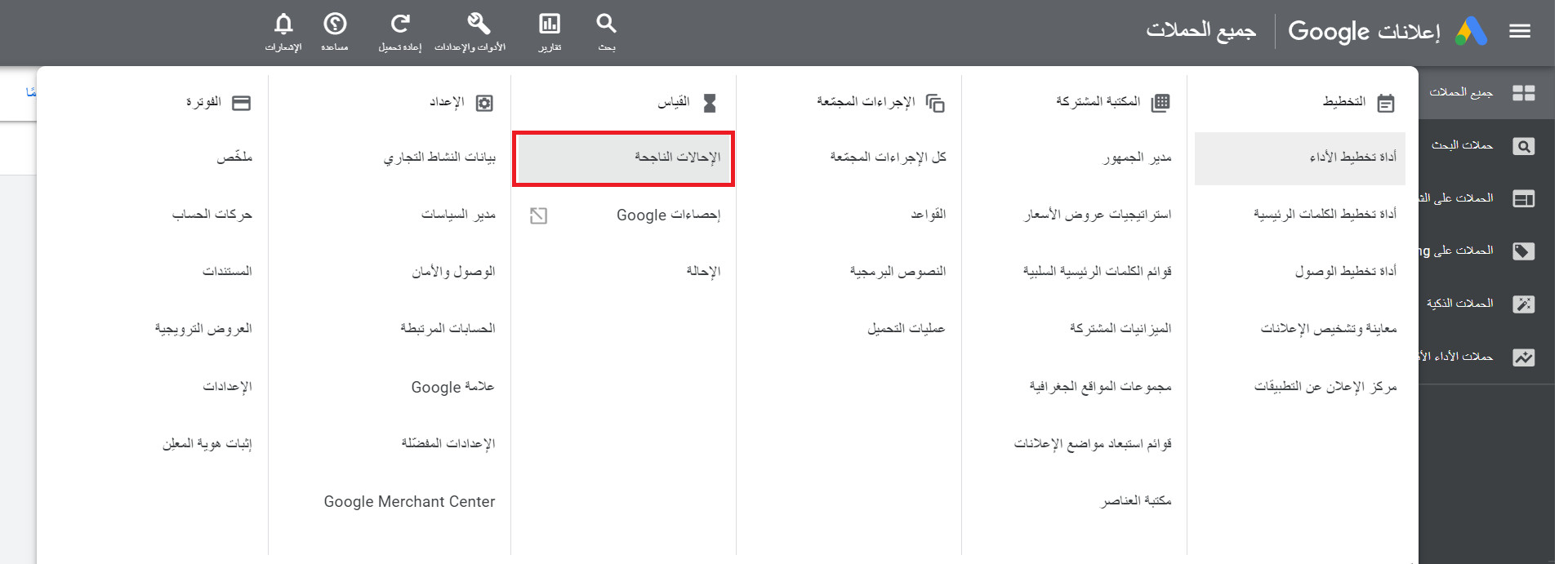
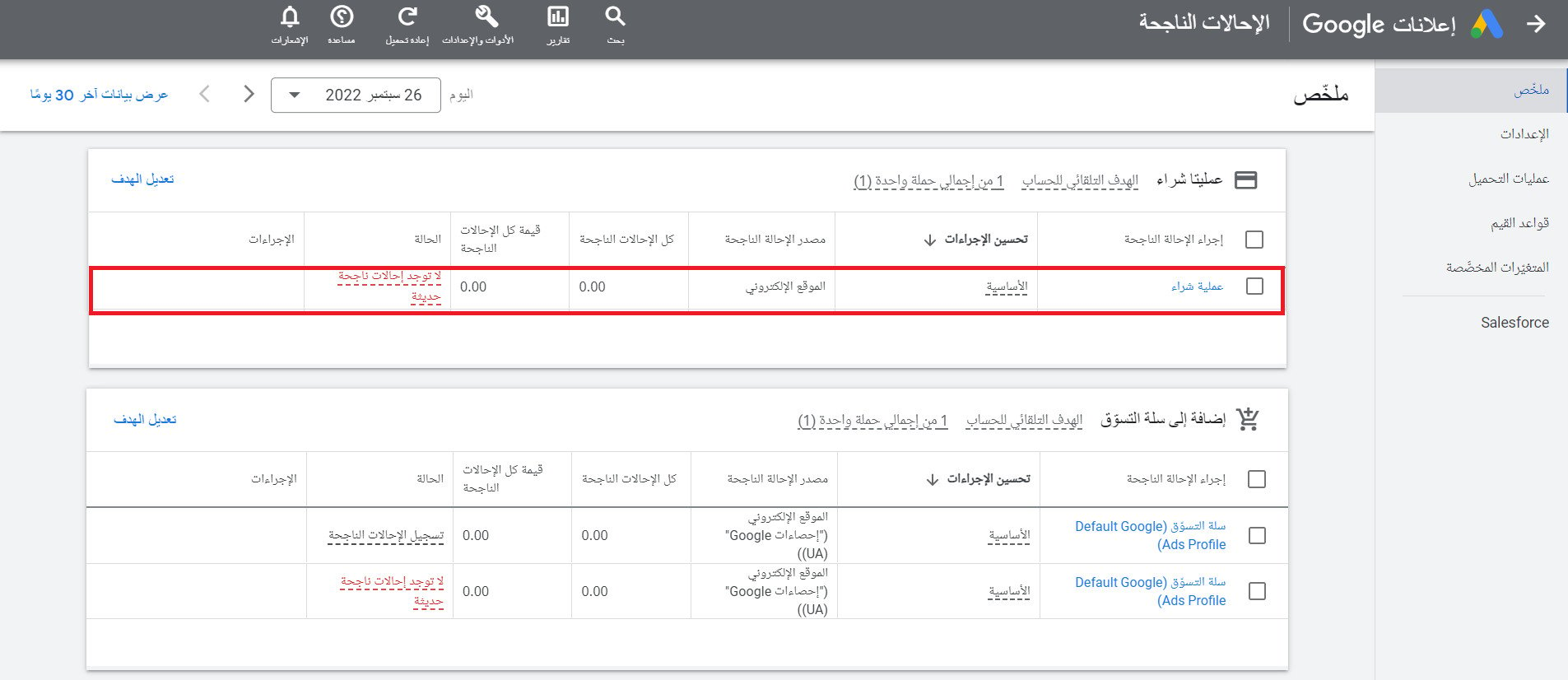
2. On the Conversions page, in the (Purchases) section, click the (Website) purchase event you already set up as a conversion.
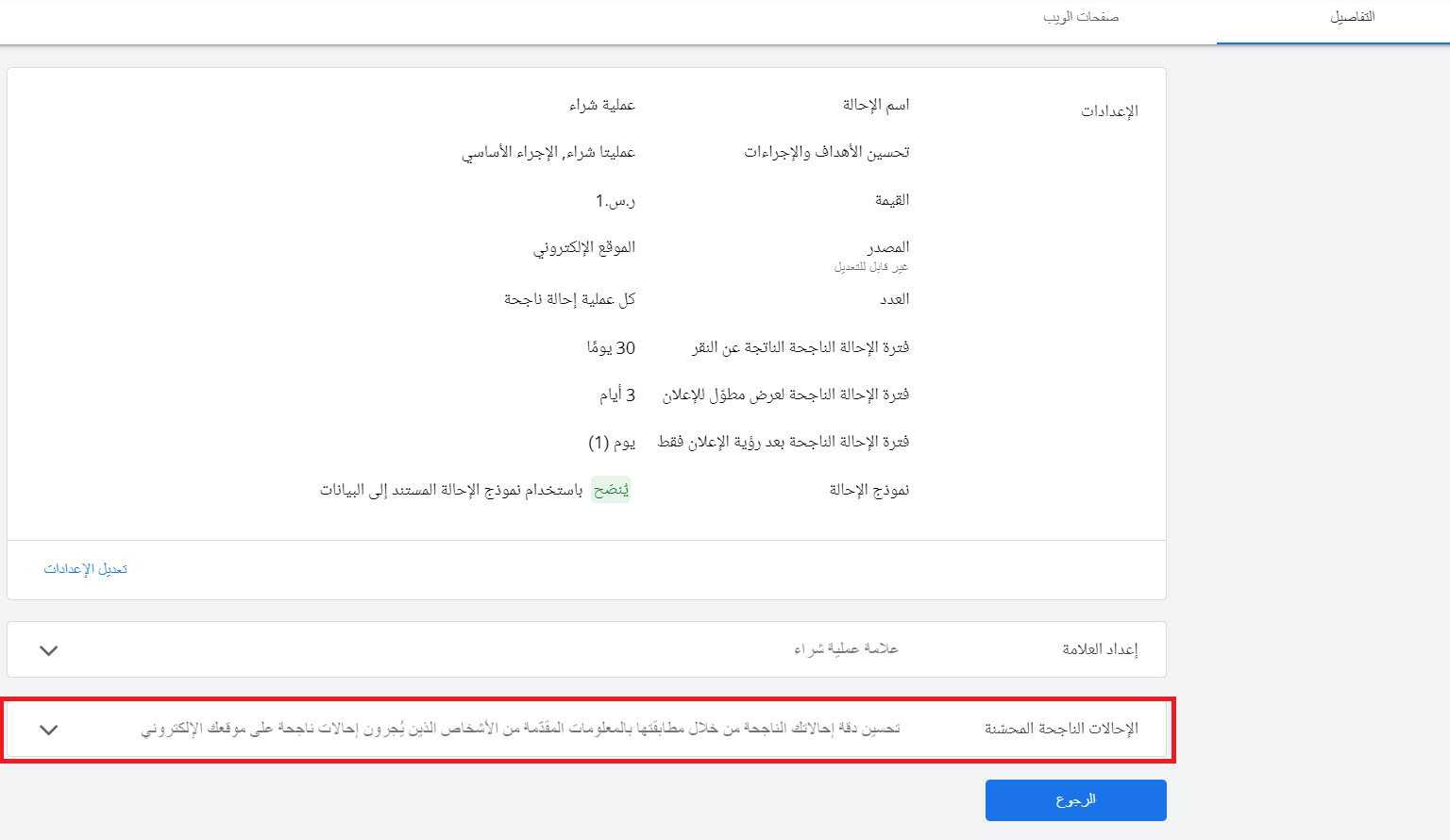
3. Scroll to the bottom of that purchase event's page and click (Enhanced conversions).
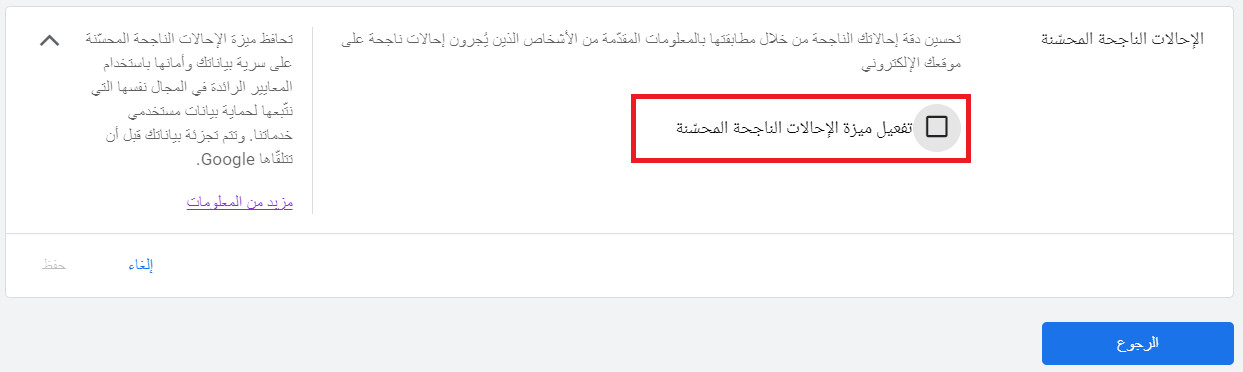
4. Select (Turn on enhanced conversions).
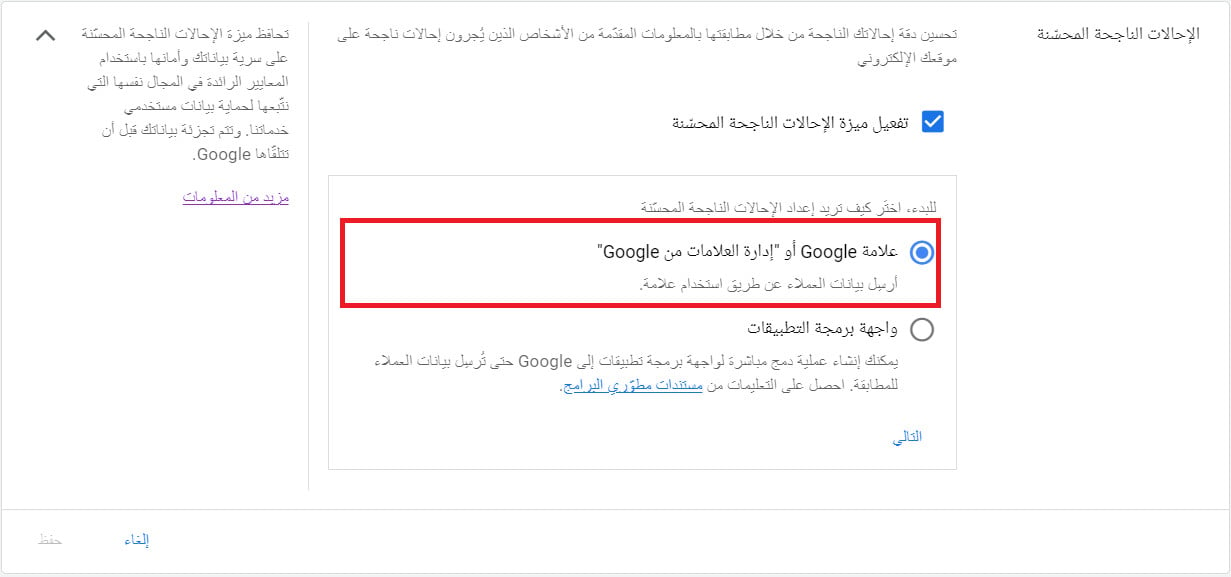
5. Choose how you want to set enhanced conversions up: click (Google tag or Google Tag Manager), then click (Next).
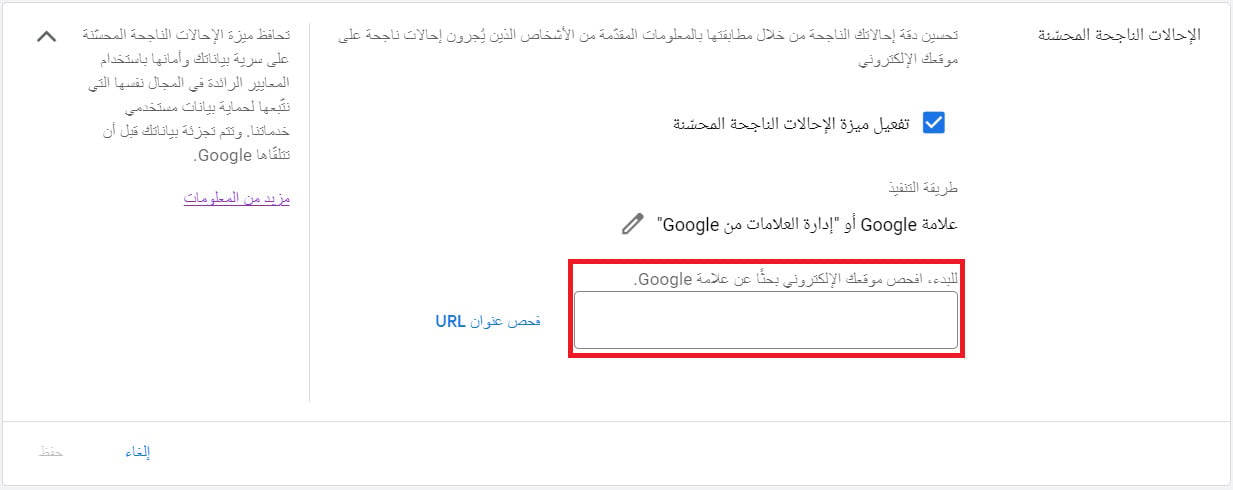
6. Enter your store's URL, then click (Check URL).
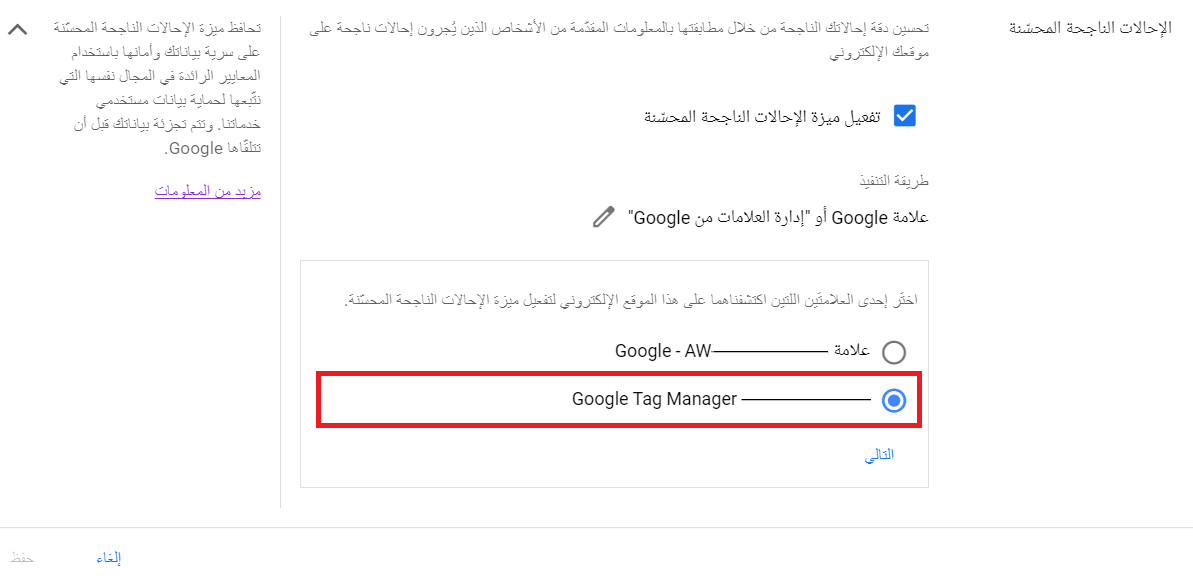
7. From your store's tags, choose the one that starts with Google Tag Manager, then click (Next).
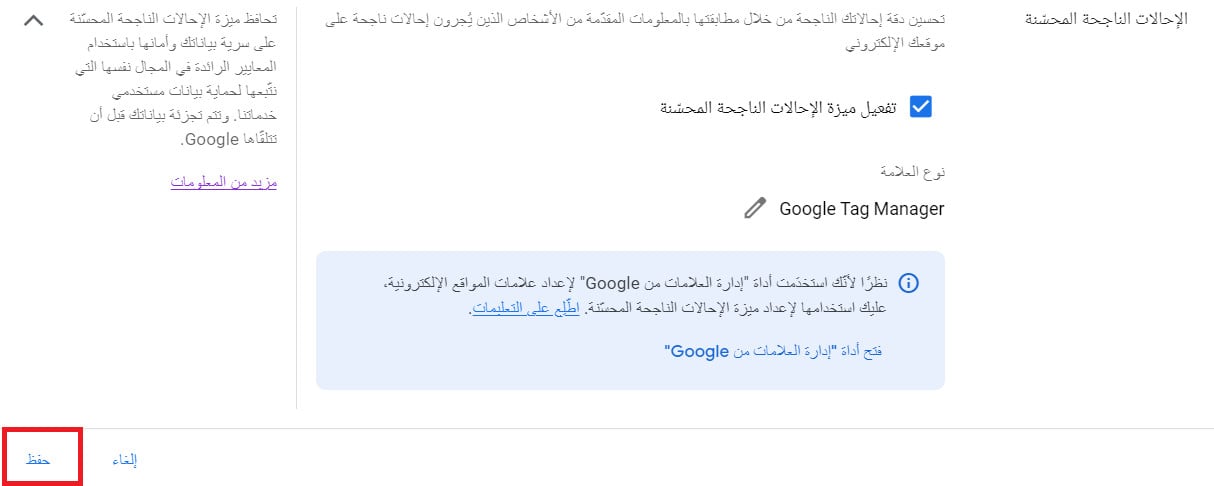
8. Click (Save) to finish turning enhanced conversions on.
9. Back on the Conversions page, click your website purchase conversion again.

10. On the purchase conversion settings page, click (Use Google Tag Manager).
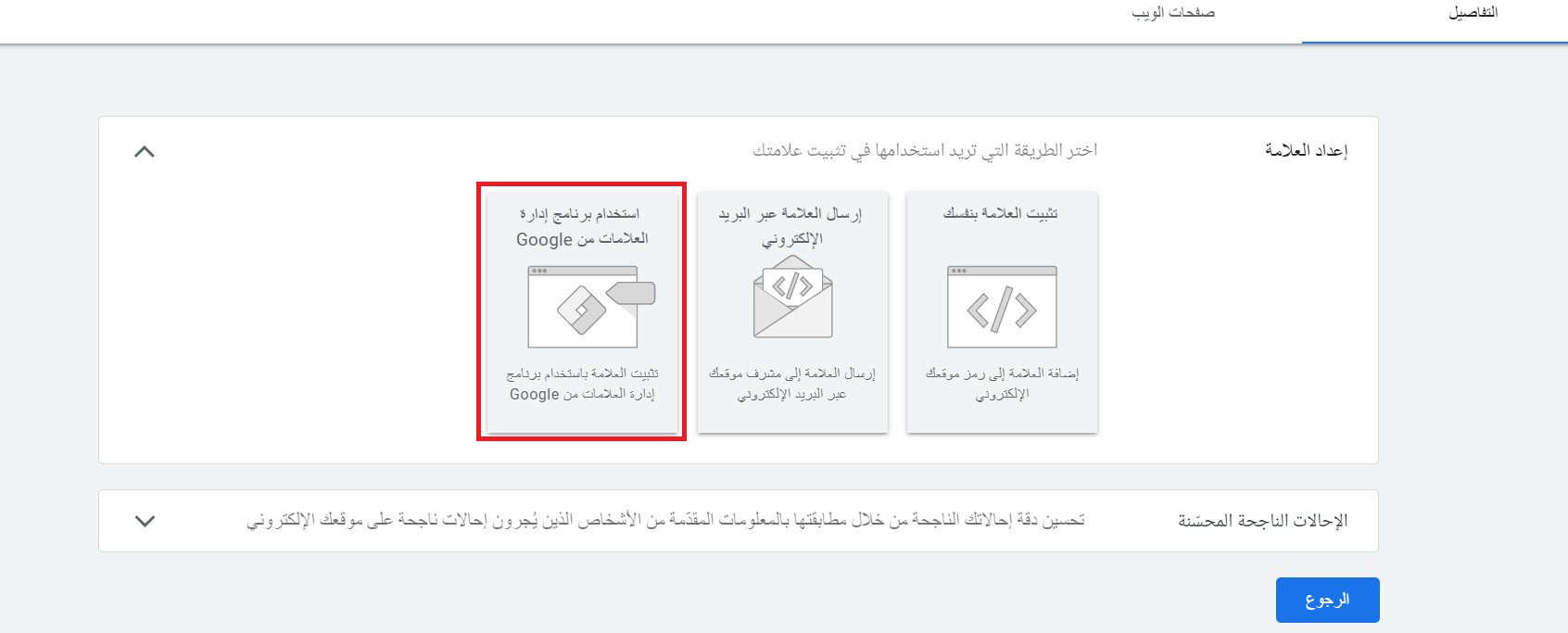
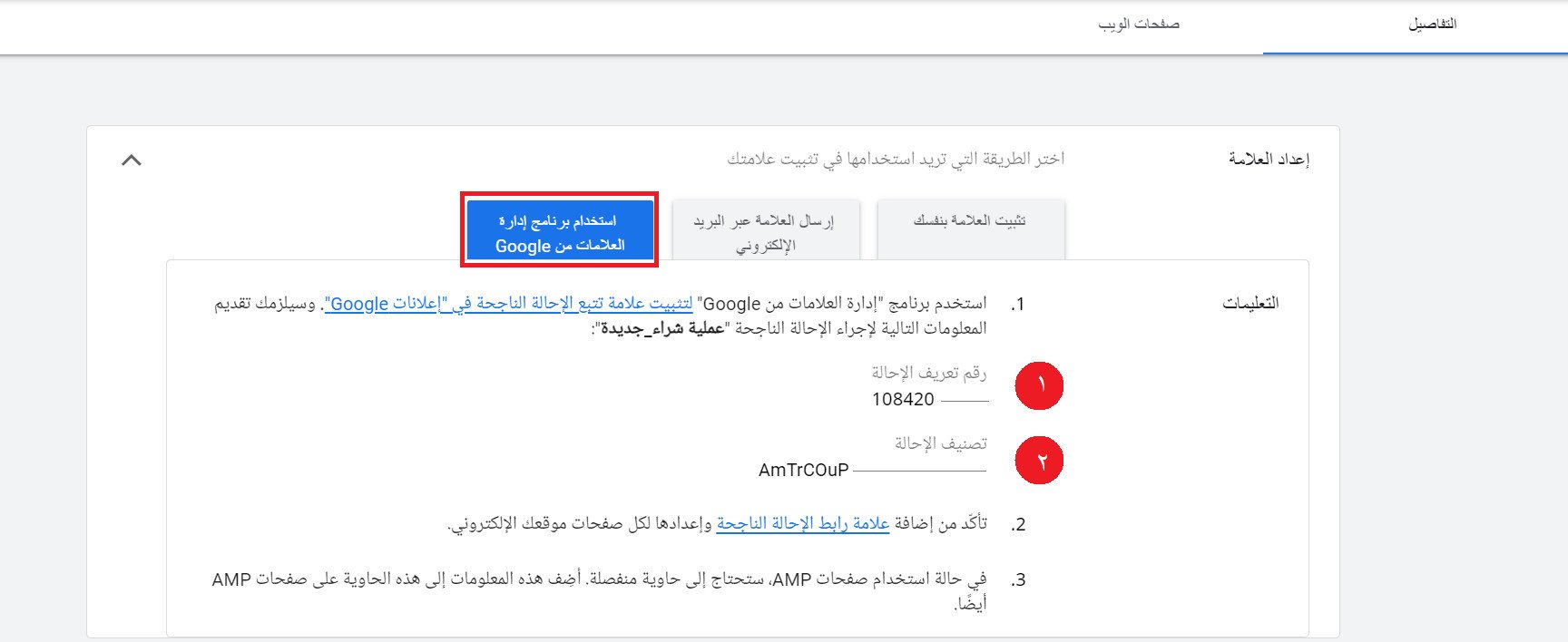
11. On the Use Google Tag Manager page, copy the (Conversion ID) and the (Conversion label).
12. Now switch back to your Salla dashboard. On the installed apps page, find Google Ads and click (App settings).

Paste the conversion ID and conversion label you copied in step 11 into the (Conversion ID) and (Conversion Label) fields, in that order, then click (Save).
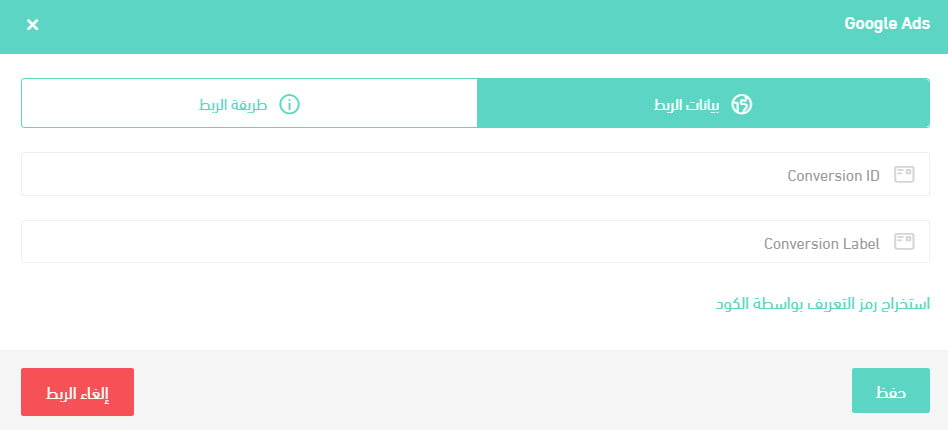
That's it — enhanced conversions are live. From now on, every purchase made in your store sends Google the details of that purchase, so you can measure campaign performance accurately and tune your campaigns around your actual goals.
❓ Frequently asked questions
What types of enhanced conversions are there?
1. Enhanced conversions for web
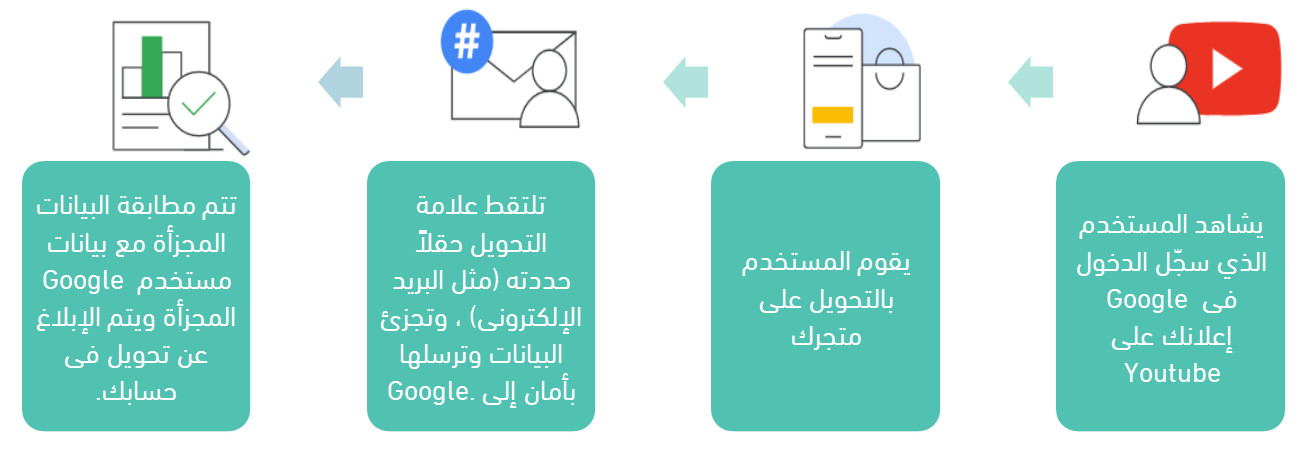
With enhanced conversions for web, first-party customer data such as an email address, name, home address, or phone number is recorded by your conversion tracking tags, hashed, and sent to Google in that hashed form. Google then uses it to match your customers to the Google accounts they were signed into when they interacted with one of your ads.
Benefits:
1. Records conversions that otherwise wouldn't be measured at all.
2. Improves bid optimization by giving it better data to work with.
3. Meets privacy standards, because first-party customer data is hashed.
2. Enhanced conversions for leads
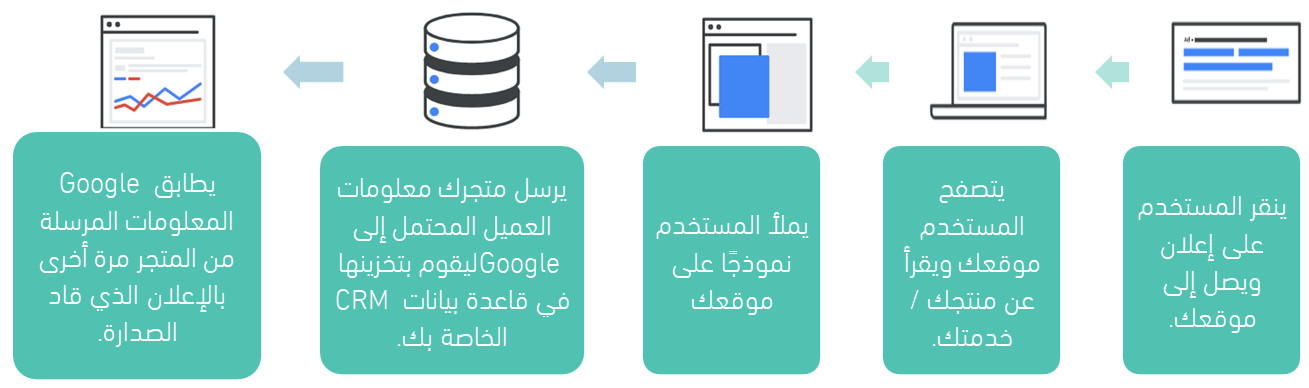
This one measures conversions using information you already hold about your leads, such as their email addresses.
Benefits:
1. Simple to set up. The whole measurement setup happens inside your Google Ads account.
2. Better performance. You can optimize campaigns for sales and transactions that happen away from your website.
3. More flexibility. You can implement it with the Google tag or through Google Tag Manager.
How do I create a new conversion?
1. In your Google Ads account, open (Tools and settings) and, under the measurement tools, click (Conversions).
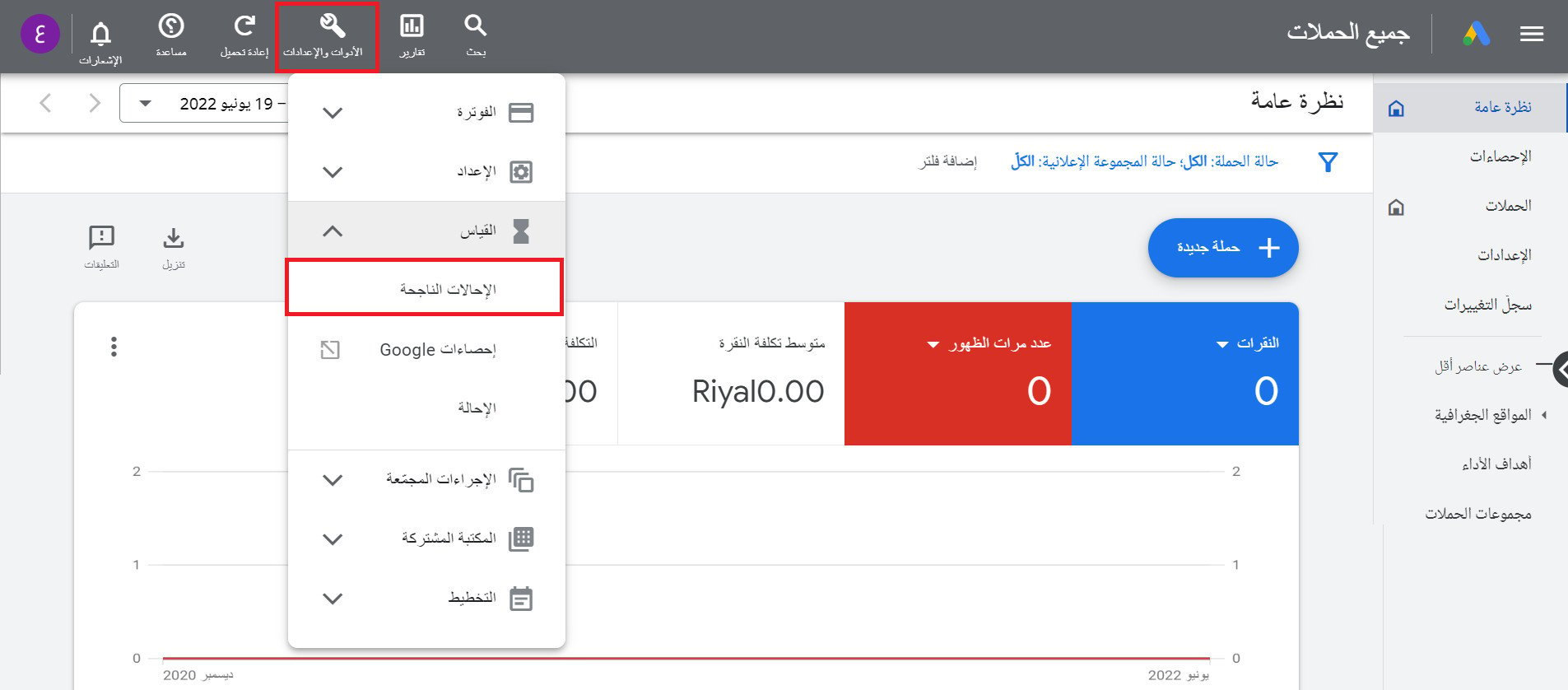
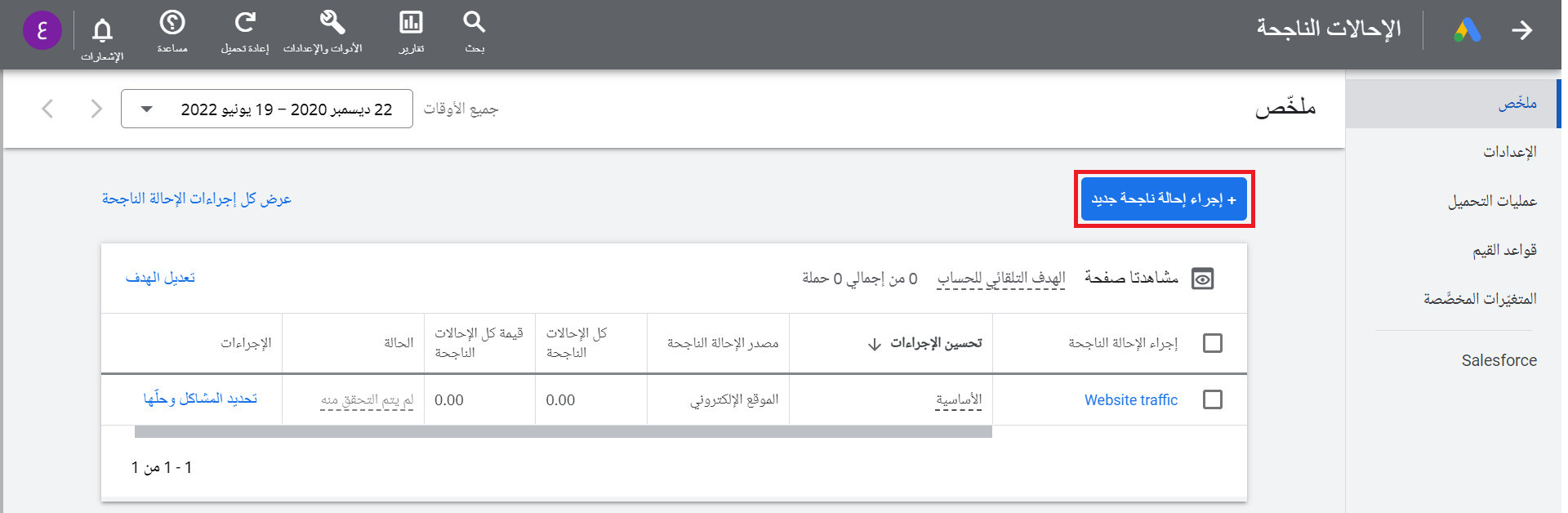
2. On the conversions page, click (New conversion action).
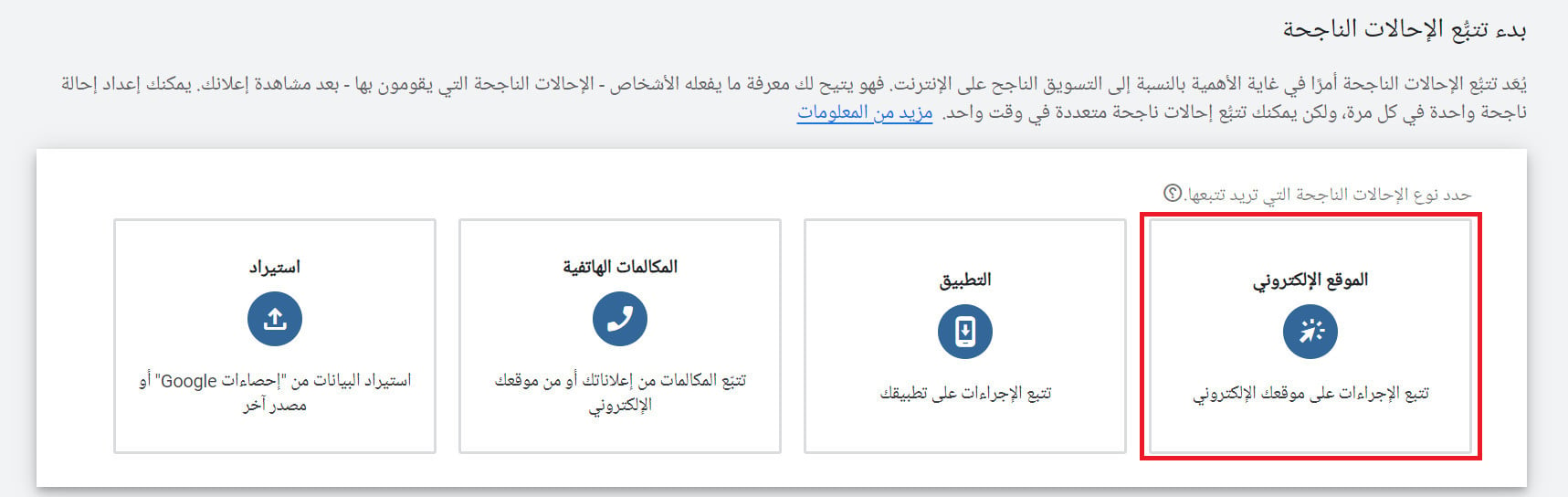
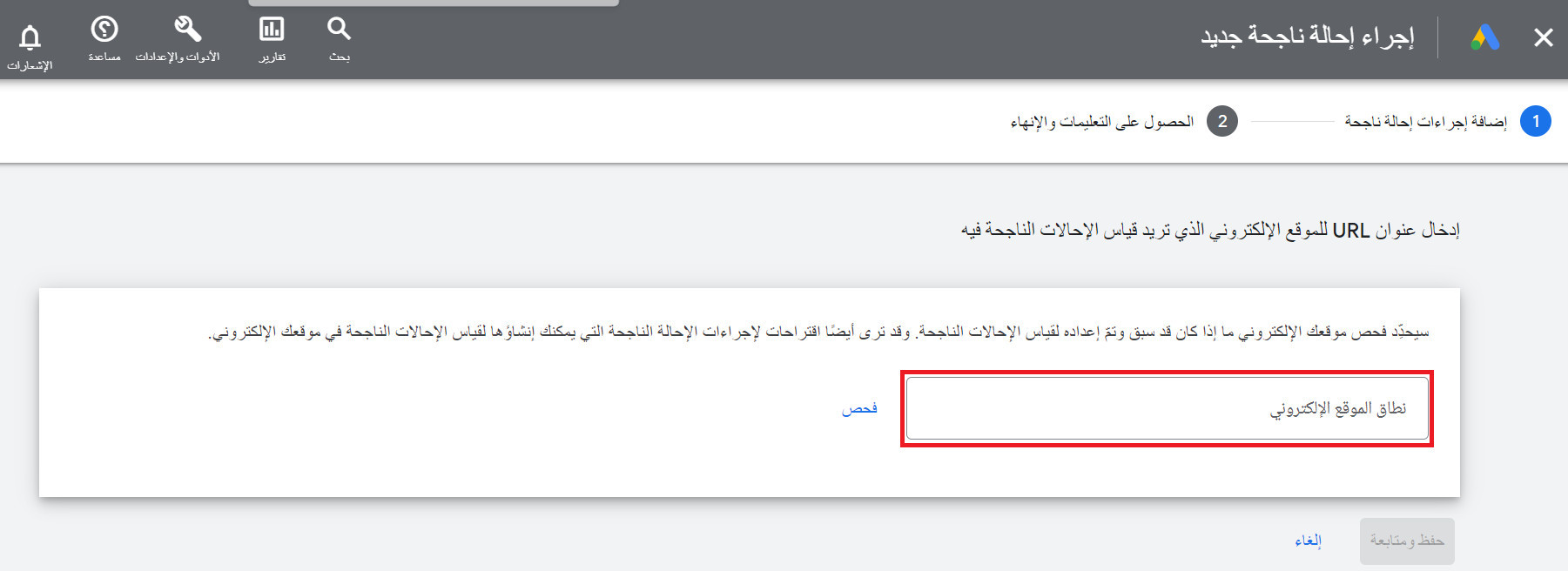
3. To create a conversion that tracks actions in your store, click (Website).
4. Paste your store's URL into the field provided, then click (Scan).
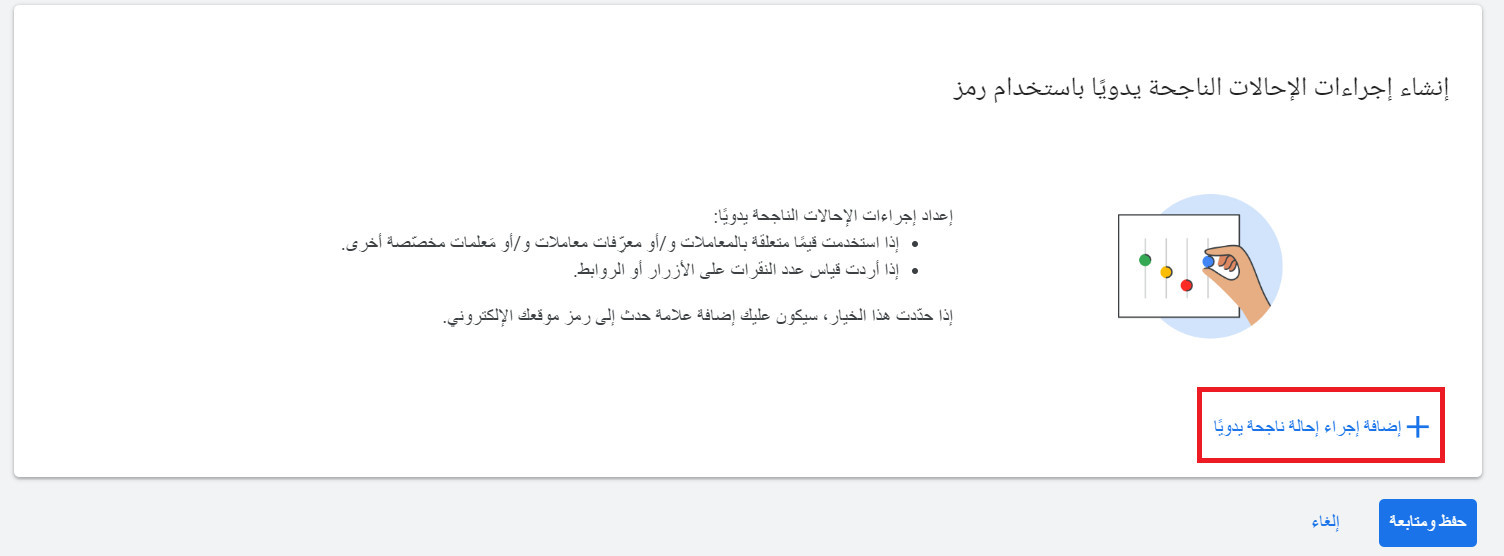
5. In the section for creating conversion actions manually using code, click (+ Add a conversion action manually).
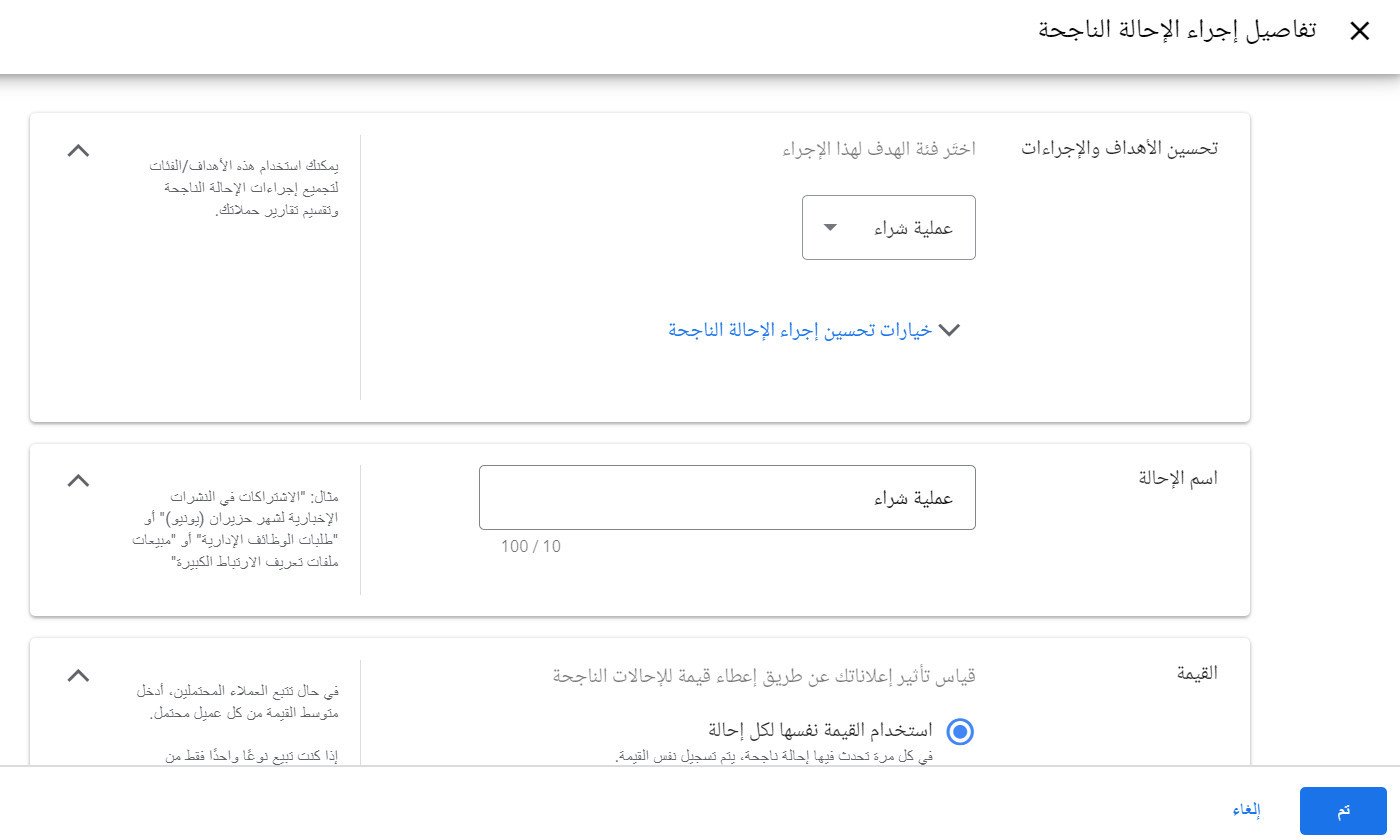
6. Fill in the conversion action's details — its category, its name, its value, and the rest — then click (Done).
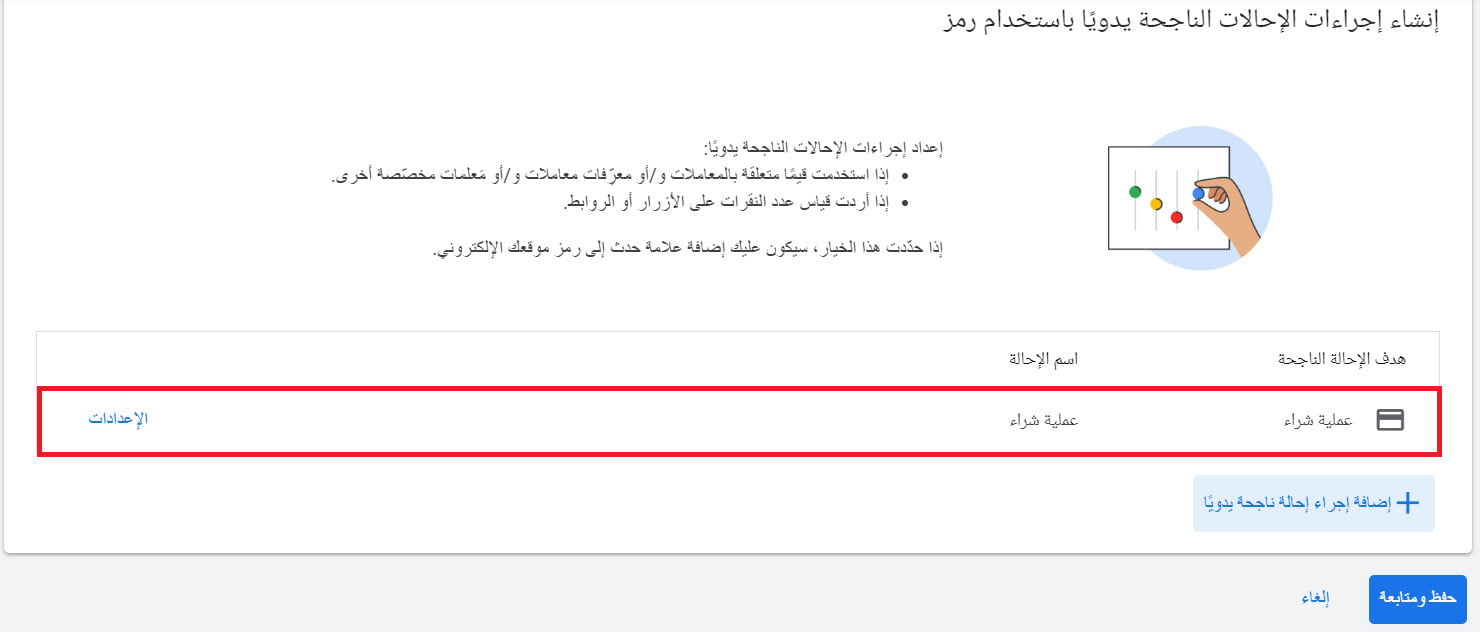
Your conversion is set up. Click (Save and continue) to finish.
Accurate conversion data is what every bidding decision rests on. Get enhanced conversions switched on early, and the campaigns you run afterwards are optimizing against what really happened rather than what Google could guess.