Custom order products are designed for services that do not have a fixed price. The final price is determined based on specific customer requirements or predefined criteria. This product type is ideal for businesses offering personalized services such as handmade crafts, crochet work, custom illustrations, nutrition plans, research services, and similar offerings that rely on direct customer input.
This guide explains how to create and manage a custom order service product, from setup to order forms and notifications.
📌 Article overview
- Adding and managing a new custom order service
- Basic product information
- Advanced settings
- Quantities
- Order form
- Custom fields
- Notifications
Add and manage a new custom order service
1. Go to Products
From the main menu, click Products.

2. Create a new custom order product
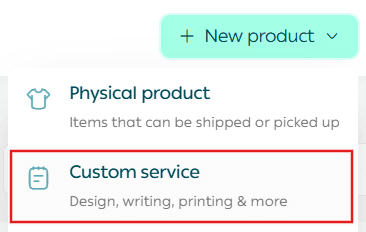
From + Create New Product, click Add and select Custom Service.
1. Basic product information
Enter the basic product details, then click Save.
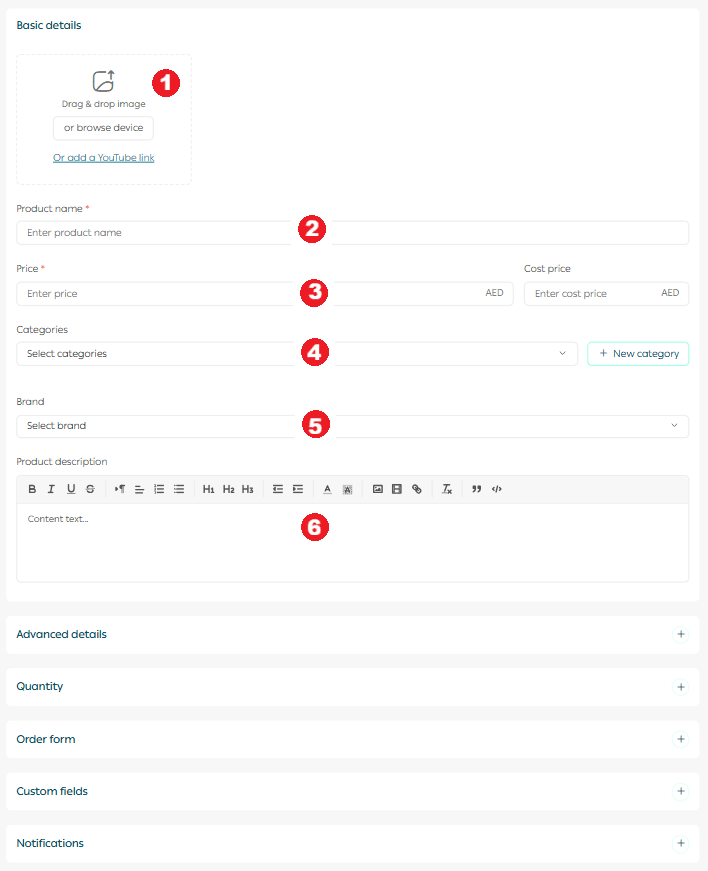
Required fields
- Product images
Upload one or more images that clearly represent the service.
For more details, see Upload Product Images and Videos.
2. Product name
This is the name displayed to customers in your store.
3. Product price
Set the selling price and cost price to track net profit accurately.
4. Product category
Helps organize products, generate reports, and improve product discovery.
5. Brand
Used to organize and group products within your store.
6. Mahally category
Select the appropriate Mahally category if applicable.
7. Product description
Add a detailed description explaining the service. You can format text, add images, videos, and links to clearly communicate the value and requirements.
Important note: Mahally and Souq Eljomla categories are currently available only for stores in Saudi Arabia.
After saving, the product card will appear in your store.
2. Advanced settings
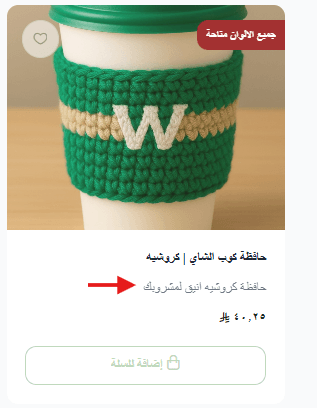
1. Product subtitle
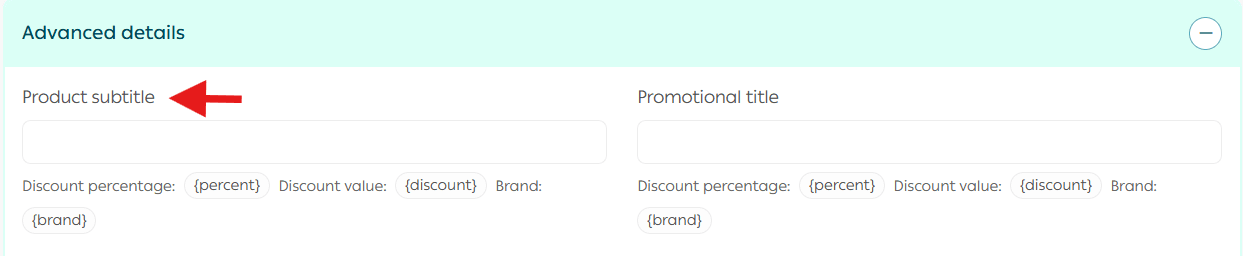
Appears as a highlighted detail under the product name to emphasize a key feature or benefit.
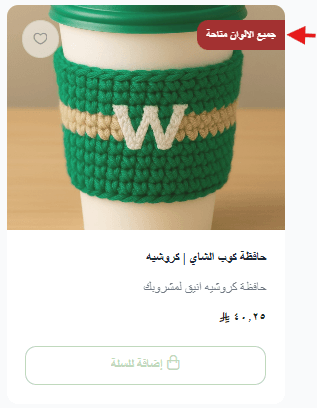
2. Promotional title
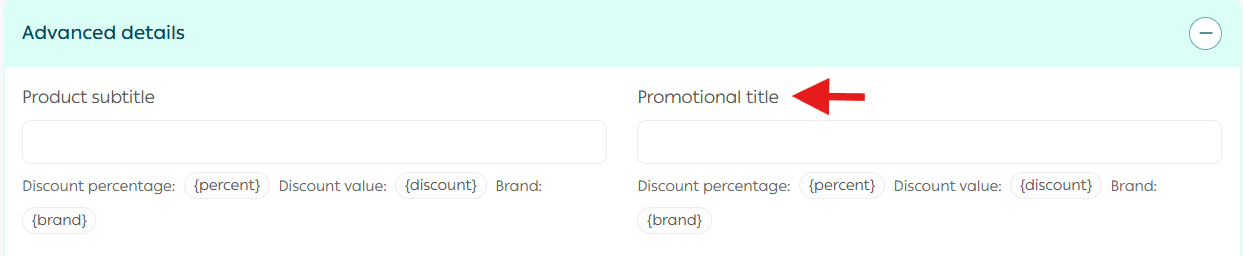
Displayed on the product image to attract attention to an offer, feature, or unique value.
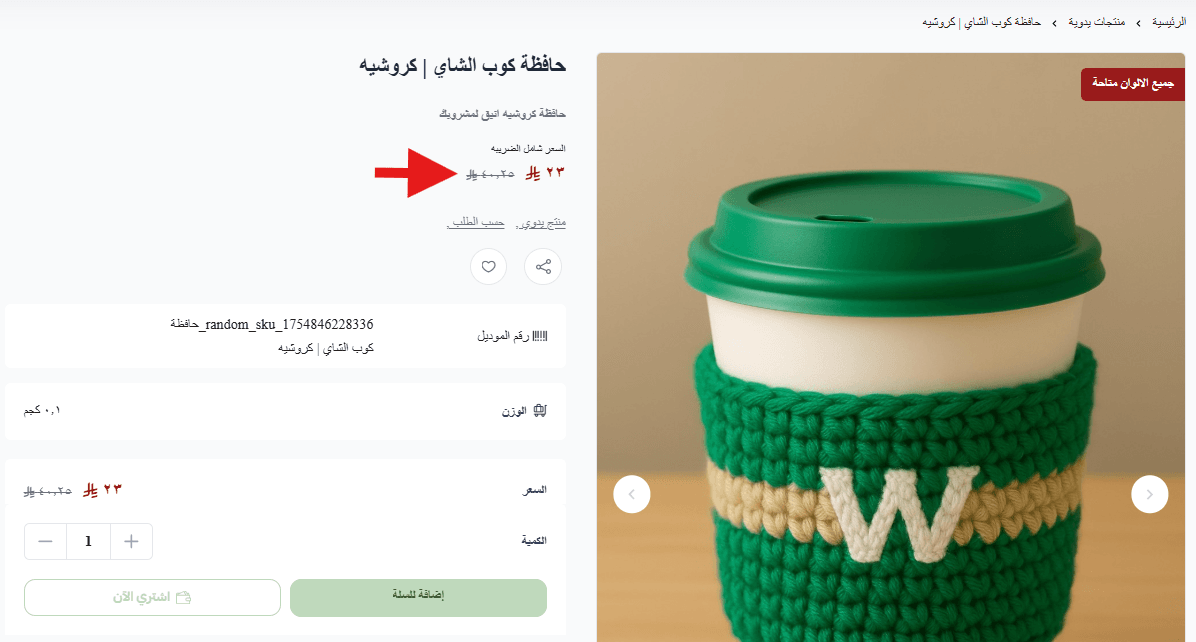
3. Discounted price and schedule

Enter the discounted price and define the start and end dates for the promotion.
4. Sales channels
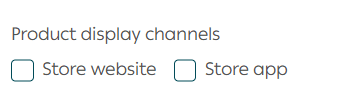
Control whether the product appears on:
- Store website
- Store mobile app
You can also hide or show the product per channel.
5. Product requirements

- File upload on order
Allow customers to upload files when placing an order. This is essential for custom services such as cake designs, embroidery references, or custom artwork.
- Order notes
Enable customers to write notes to clarify instructions and personalize the service.
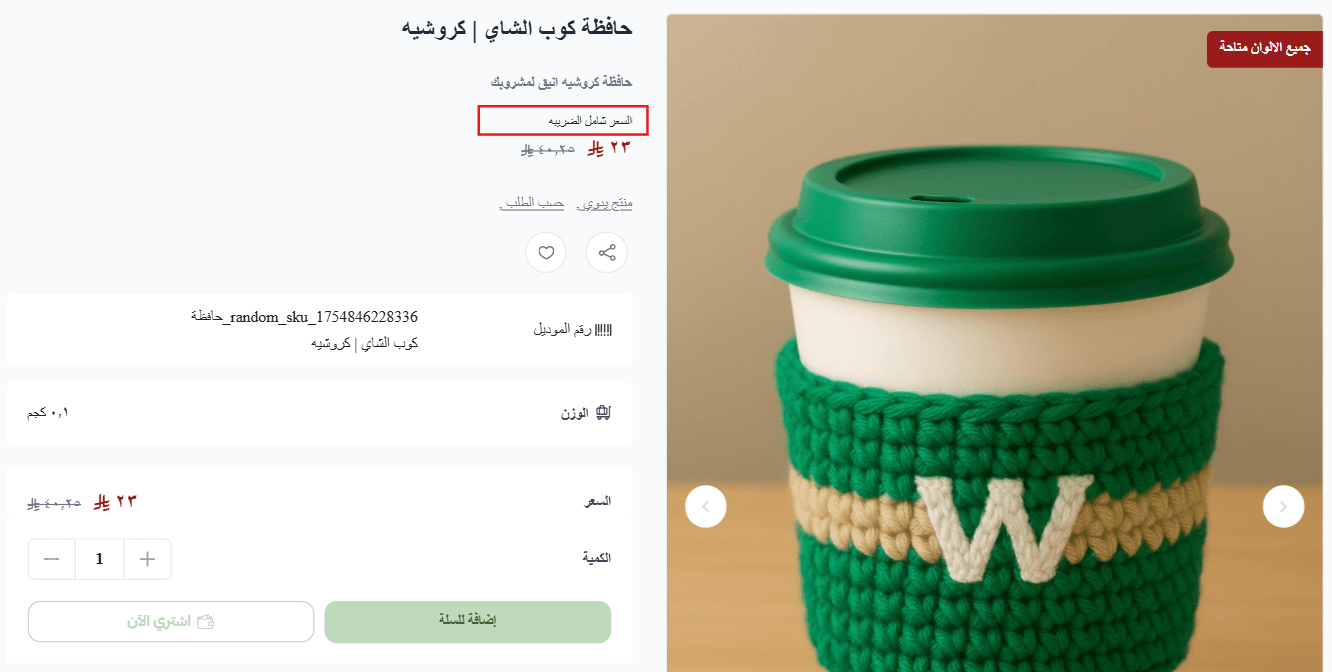
- Taxable product
Specify whether the service is subject to tax. A tax note will appear next to the price for customers.
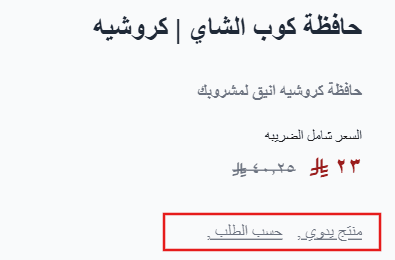
6. Product tags
Add multiple tags to improve organization and discoverability.
To remove a tag, click the X icon.

Tags appear on the product card, and clicking a tag shows all products with the same tag.
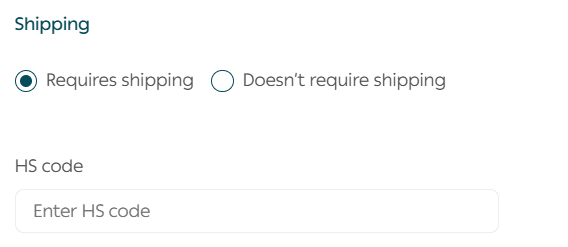
7. Shipping
Specify whether the service requires shipping.
8. Inventory
Enter the product weight, set the maximum quantity per customer, and add the SKU.
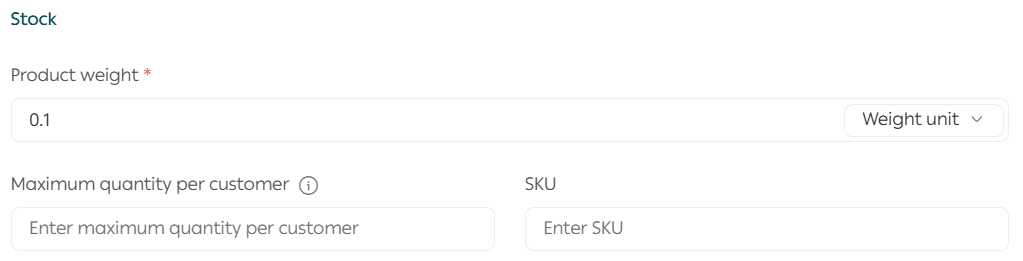
Benefits of adding SKU to the product URL
- Improved search engine indexing accuracy
- Easier differentiation between similar services
- Faster access for customers searching by SKU
9. SEO optimization
Optimizing your custom service improves visibility in search engines and attracts qualified customers. Salla provides built-in SEO tools:
- Product page title
Include the product name, category, and brand.
- Custom product URL
Customize the URL using the product name, category, brand, and SKU.
- Meta description
Write a clear description that includes the product name, category, and brand.
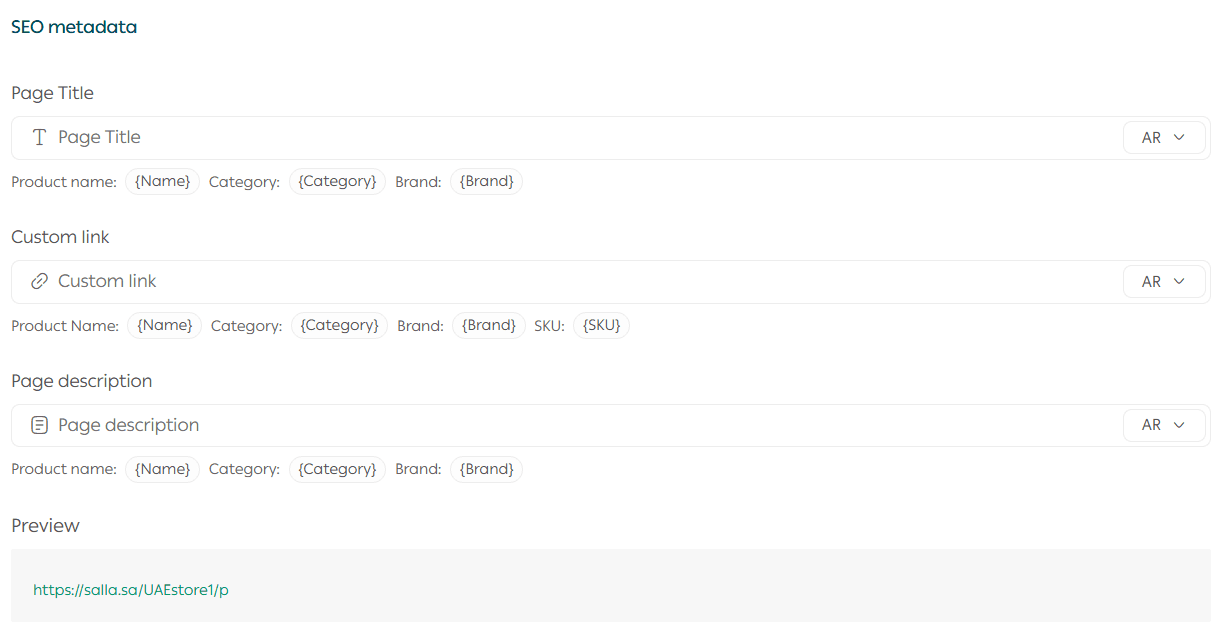
SEO reminder: The clearer and more readable your product URLs are, the stronger your customer experience and search results will be.
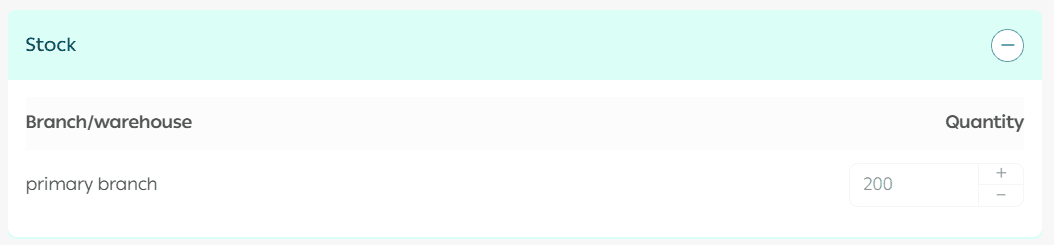
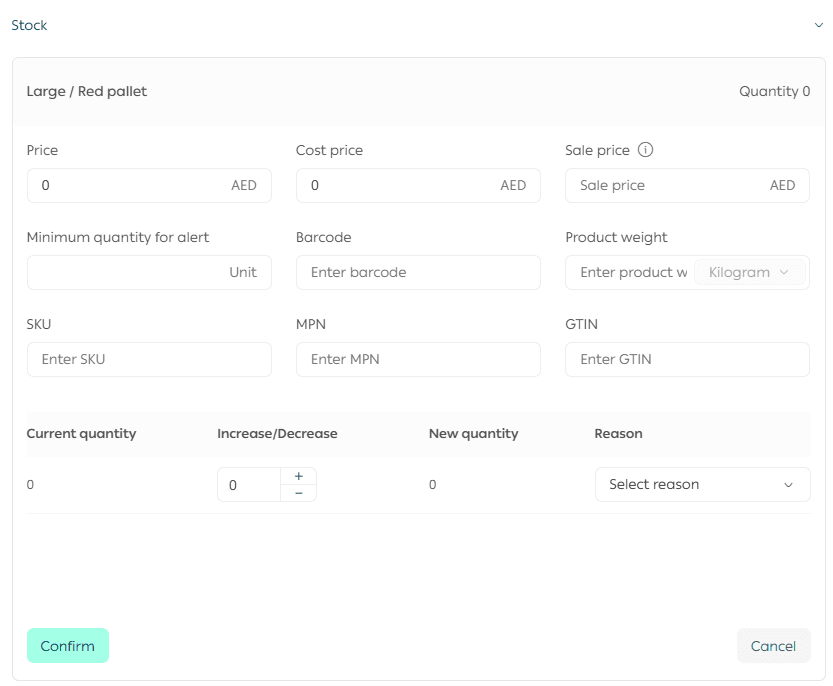
3. Quantities
Add the quantity available for ordering.
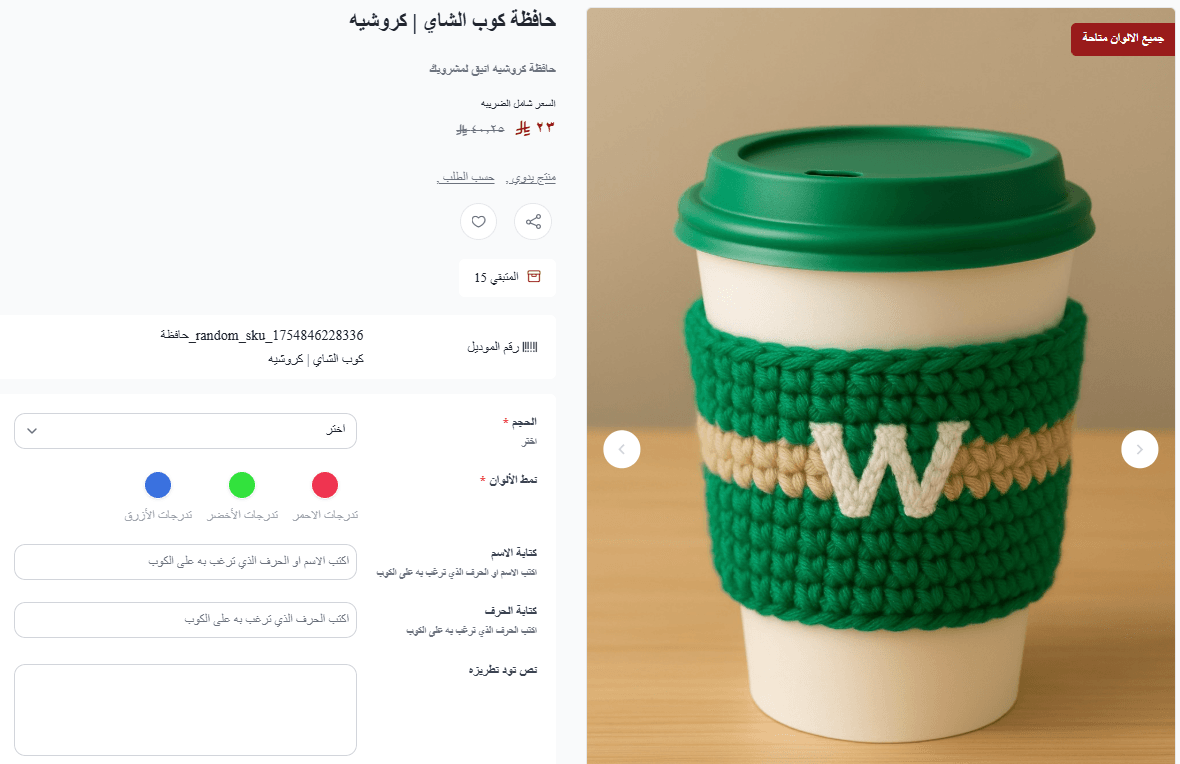
Then configure custom service options. These options can be text-based, color-based, or image-based.
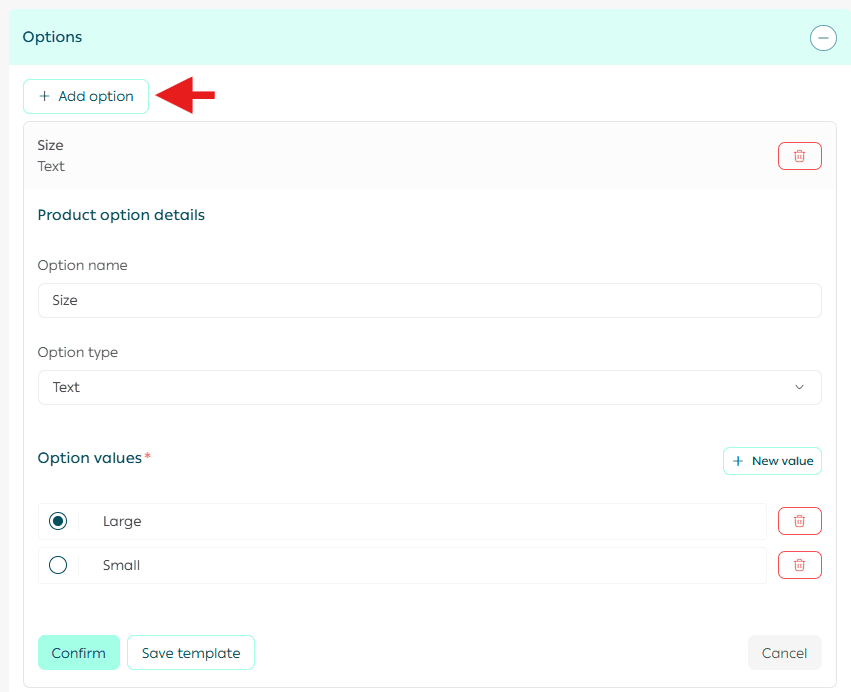
After defining the options, enter prices and quantities for each option.
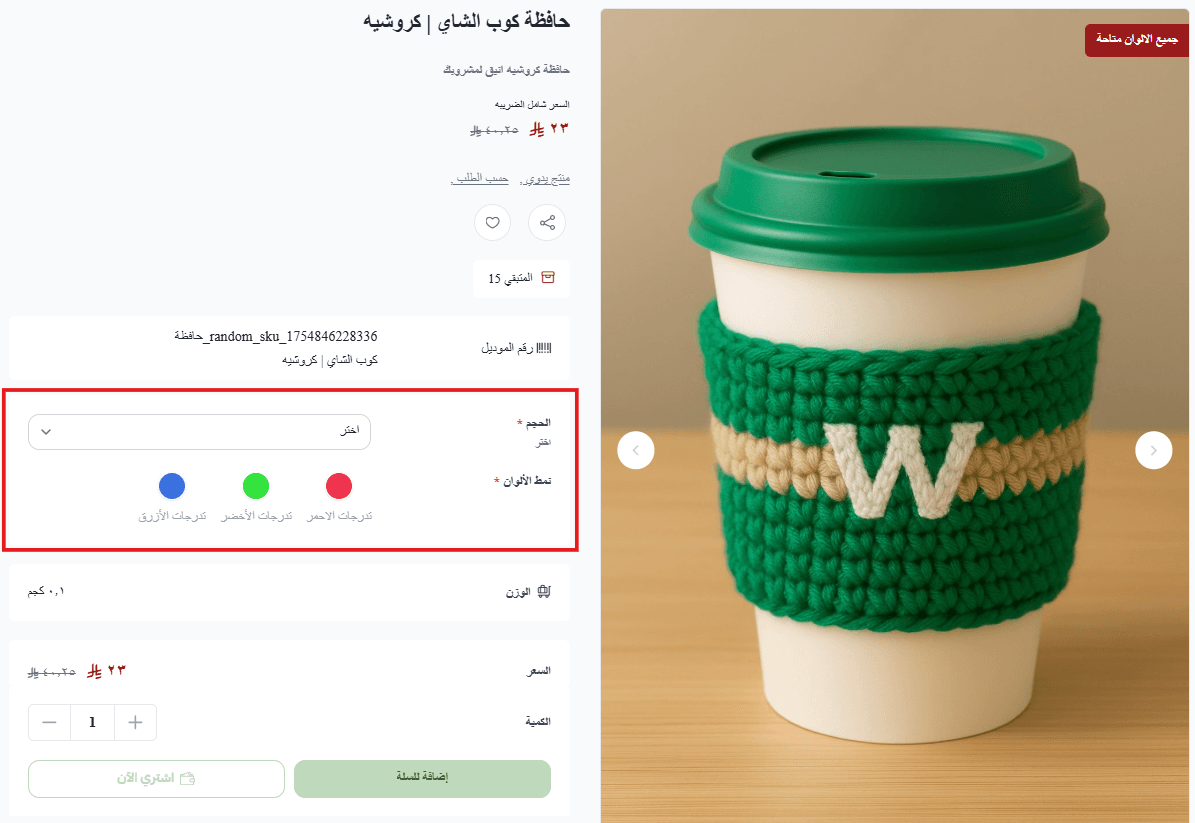
The custom order product will appear to customers with selectable options based on your configuration.
4. Order Form
The order form allows you to collect detailed information from customers when purchasing a custom service.
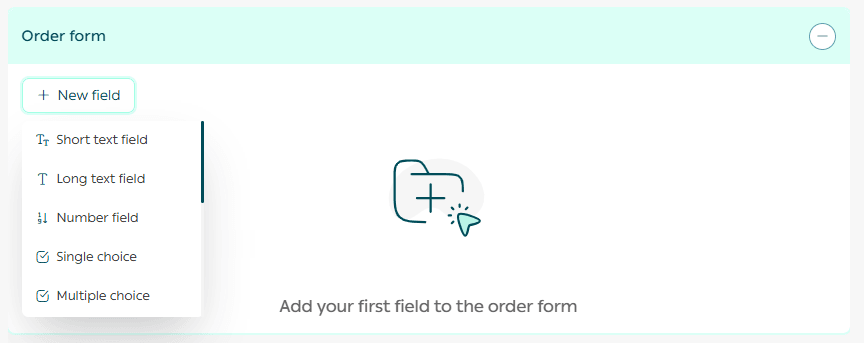
Available form fields
- Text fields
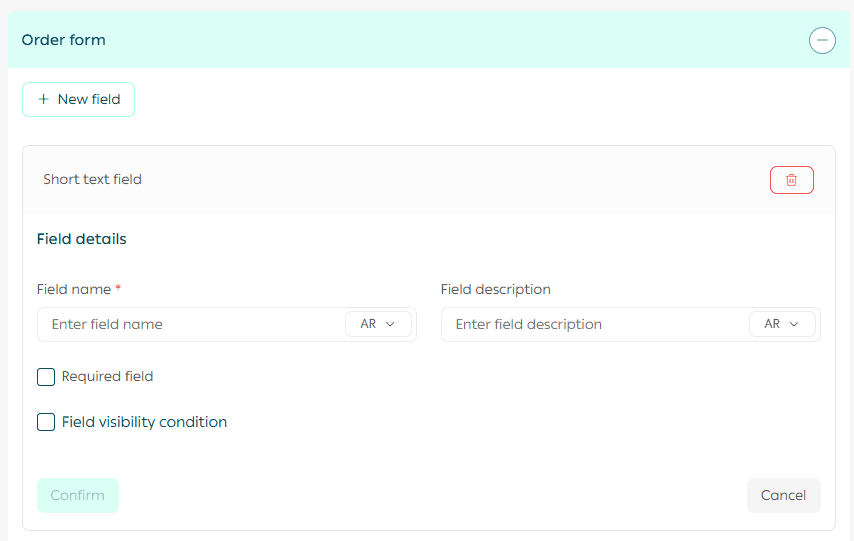
- Small text field for short inputs
- Large text field for detailed explanations
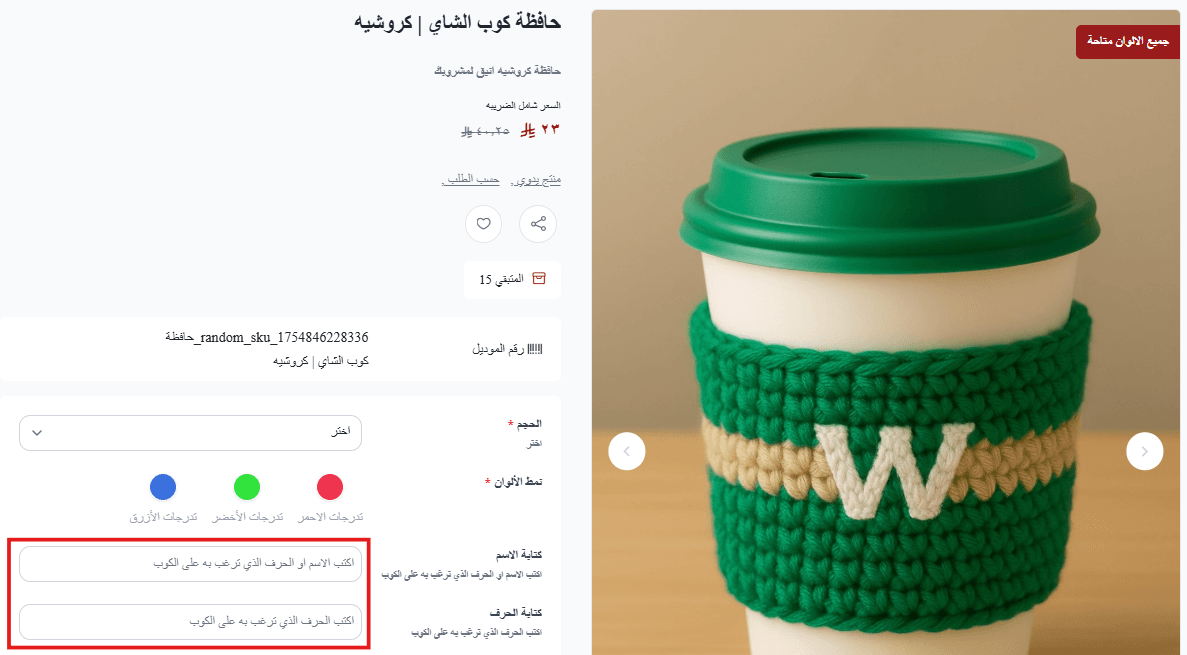
- Numeric field
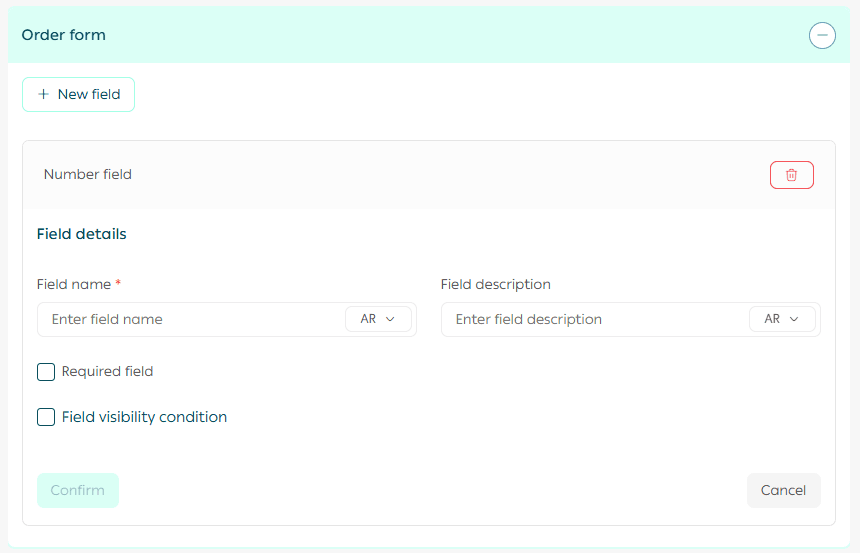
- Used when the customer must enter a number.
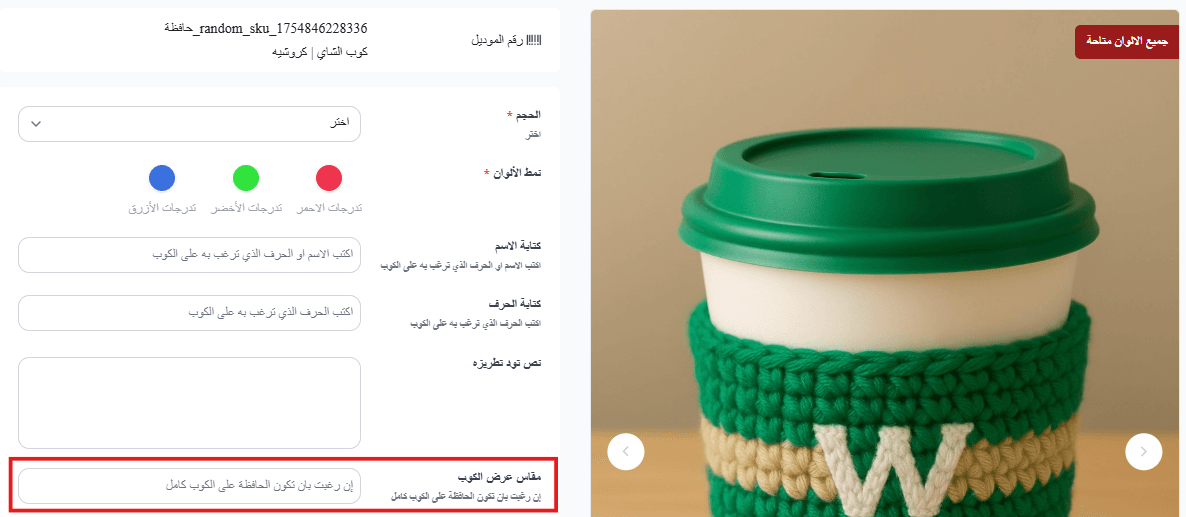
- Options
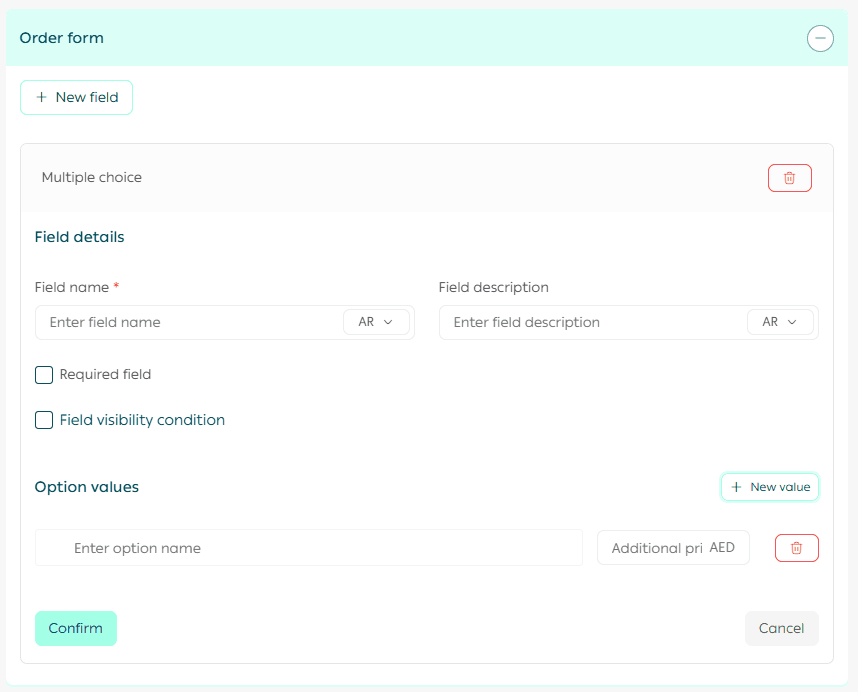
- Single choice options for selecting one item
- Multiple choice options for selecting several preferences
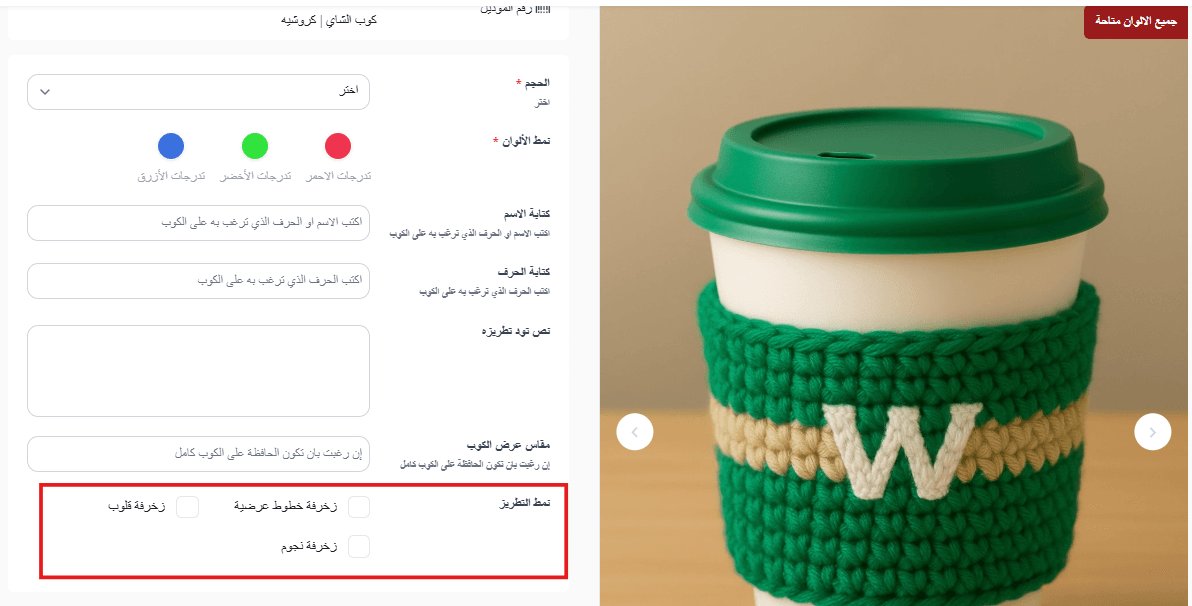
Important notes
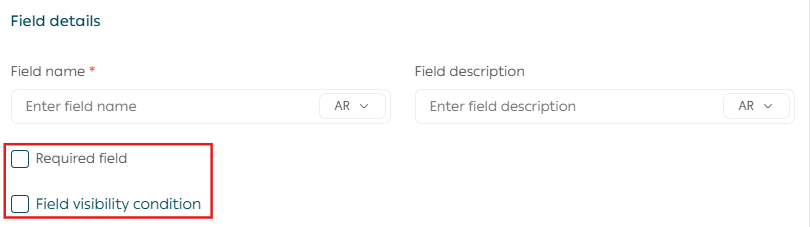
- Required field means the customer must complete it before adding the product to the cart
- Field display condition means the field appears only if the customer enters a specific value in another field
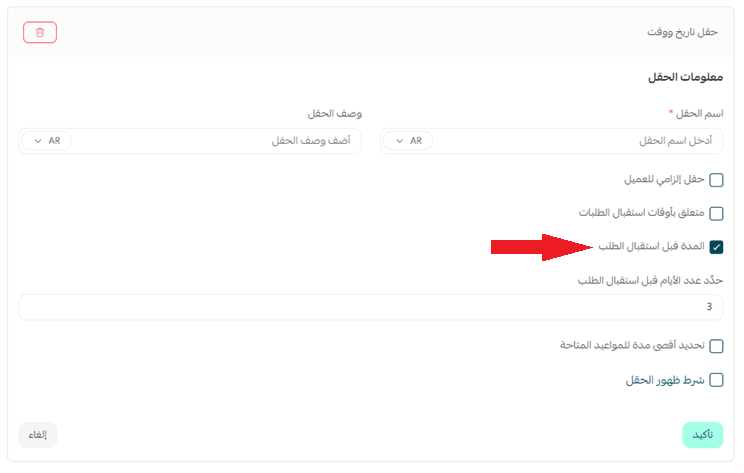
- Adding a date and time field: This includes both the date and time of an appointment, such as the delivery date of the service or product, with the ability to control the minimum number of days before receiving the order.
5. Custom Fields
Custom fields allow you to add additional product information and choose whether it appears on the product page.
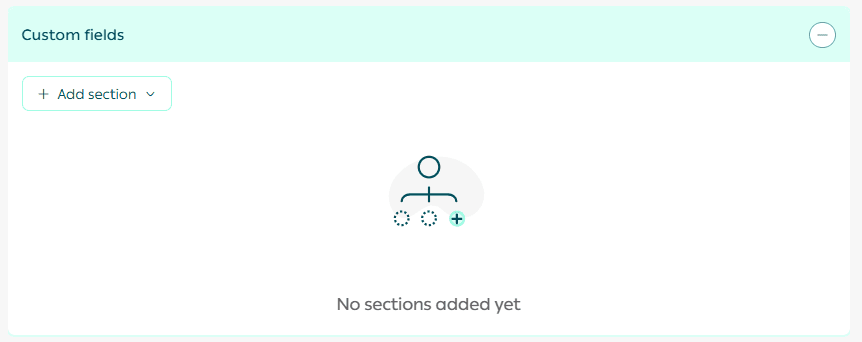
This is useful for explaining service details, delivery conditions, or additional requirements.
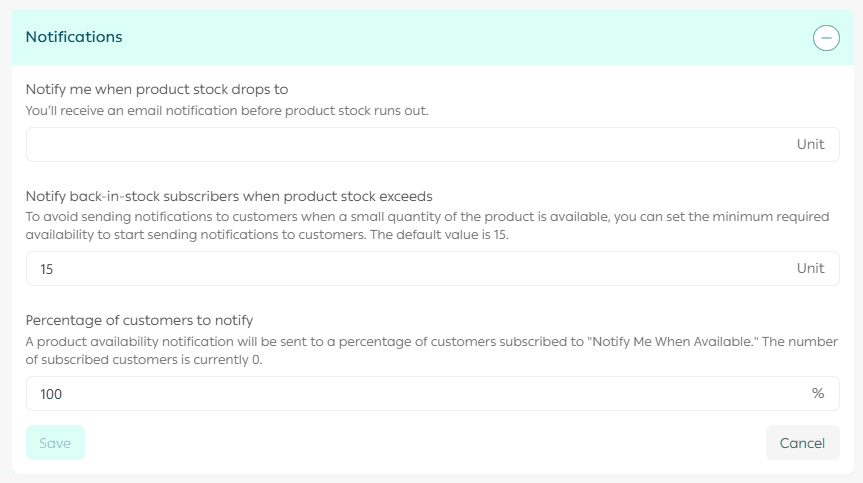
6. Notifications
Configure alerts to stay informed and manage demand effectively:
- Low inventory alert
Set the remaining quantity that triggers a notification when stock is nearly depleted.
- Notify me when available
Define the minimum quantity required before sending restock notifications.
- Customer notification percentage
Choose what percentage of subscribed customers will receive the notification.
Your turn to create
You now know how to create and manage a custom order service from start to finish. You have seen how your skills, creativity, and expertise can be transformed into personalized services that delight customers and generate sustainable income.
Open your dashboard, add your first custom service today, test your setup, refine it, and watch customer orders start coming in.
Start now. The best time to succeed is today.