Is your store still sending customer email from a free personal address?
Yahoo Mail is a web and cloud based email service that keeps your inbox one click away, supports more than one Yahoo account at a time, and pushes instant email alerts to any device. The Yahoo Mail integration adds the service to your Salla store from the Salla App Store. In this guide, you'll learn how to install the app, how to create a Yahoo Mail account if you do not have one, and what to do when activation takes longer than expected.
To connect Yahoo Mail, open (My installed apps) from your dashboard side menu, click (Browse Salla App Store), open the Yahoo Mail app page, then click (Install). The app is installed and activated straight away. If activation is delayed, update your store's DNS records from your domain settings.
📌 Article overview
- What Yahoo Mail is
- How to connect Yahoo Mail to your store
- How to create a new Yahoo Mail account
- What to do when activation is delayed
🎯 What Yahoo Mail is
Yahoo Mail is a web and cloud based messaging service. It gives you one-click access to your inbox, supports multiple Yahoo accounts, and sends instant email alerts from any device. It is the second largest online email provider, with more than 260 million users.
🚀 How to connect Yahoo Mail to your store
1. From the side menu of your dashboard, click (My installed apps).

2. From the Salla App Store banner, click (Browse Salla App Store).

3. From the Yahoo Mail app page, click (Install).
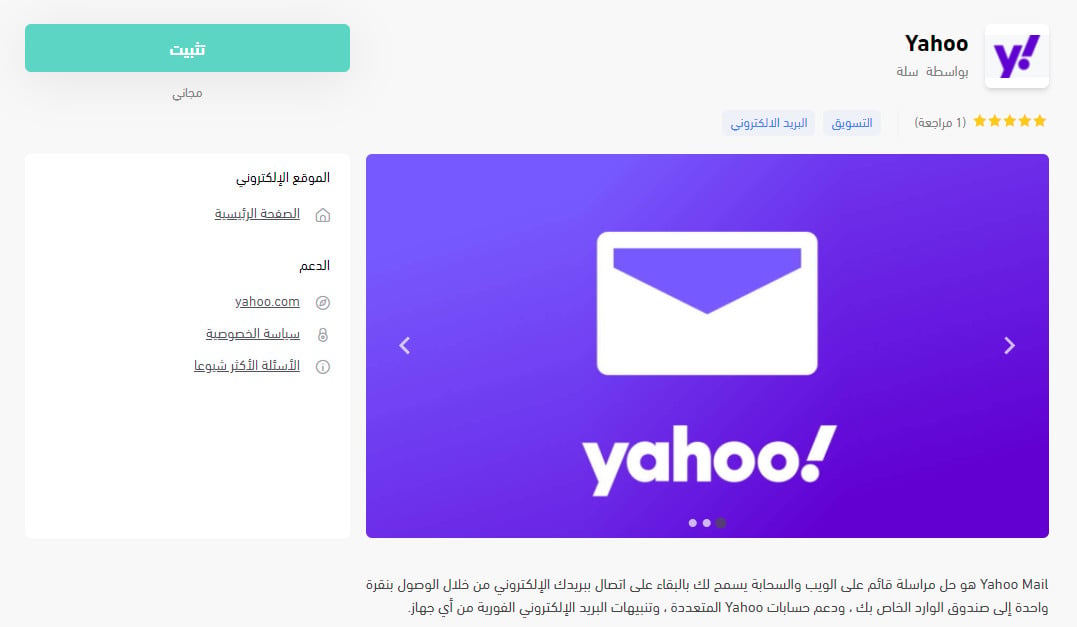
The app is now installed and activated on your store.
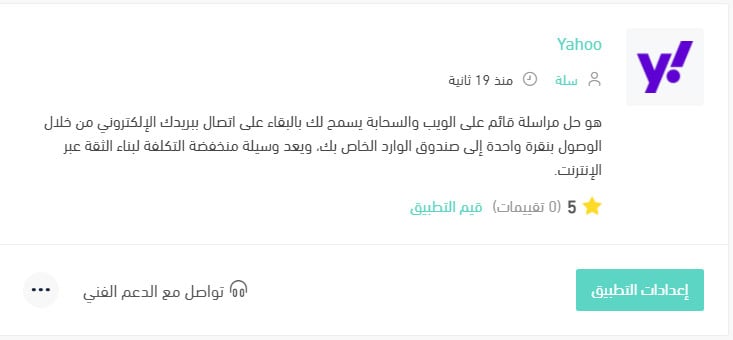
For more detail, read Managing my store's apps.
👣 How to create a new Yahoo Mail account
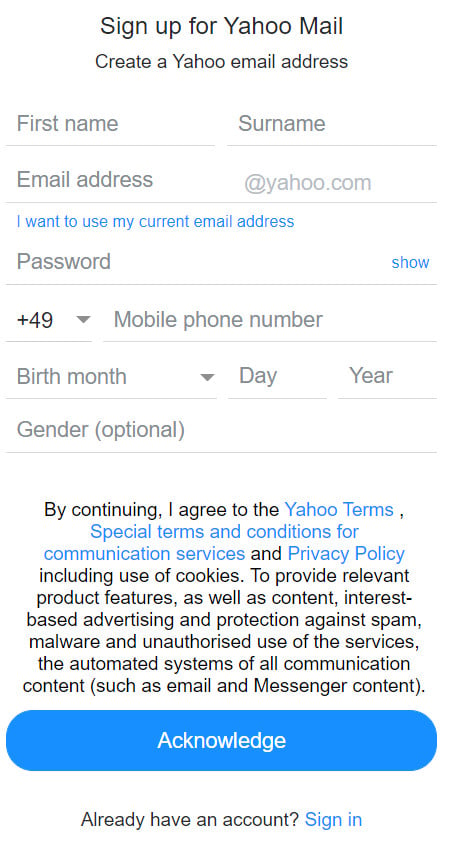
1. Go to the Yahoo sign-up page and enter the details it asks for.
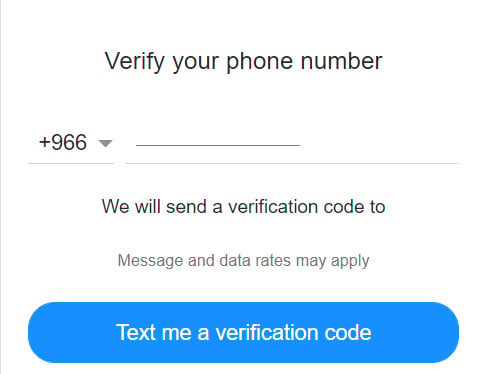
2. Enter a phone number to link to your new account, then click (Text me a verification code).
3. Enter the verification code sent to your phone by SMS, then click (Verify).
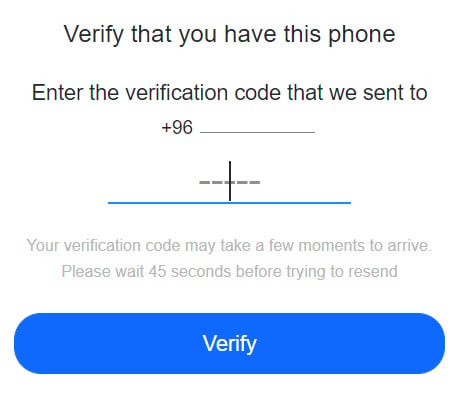
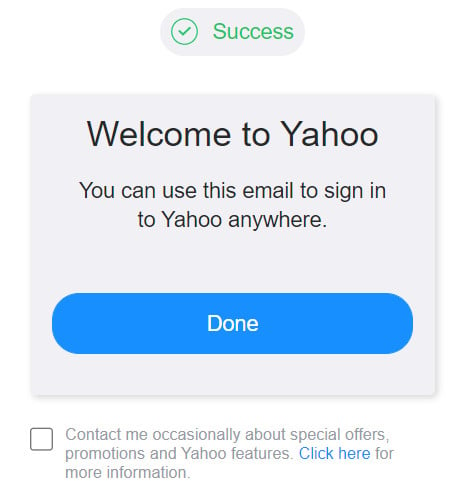
Once verification finishes, your Yahoo Mail account is ready to use.
Your mail home page looks like this.
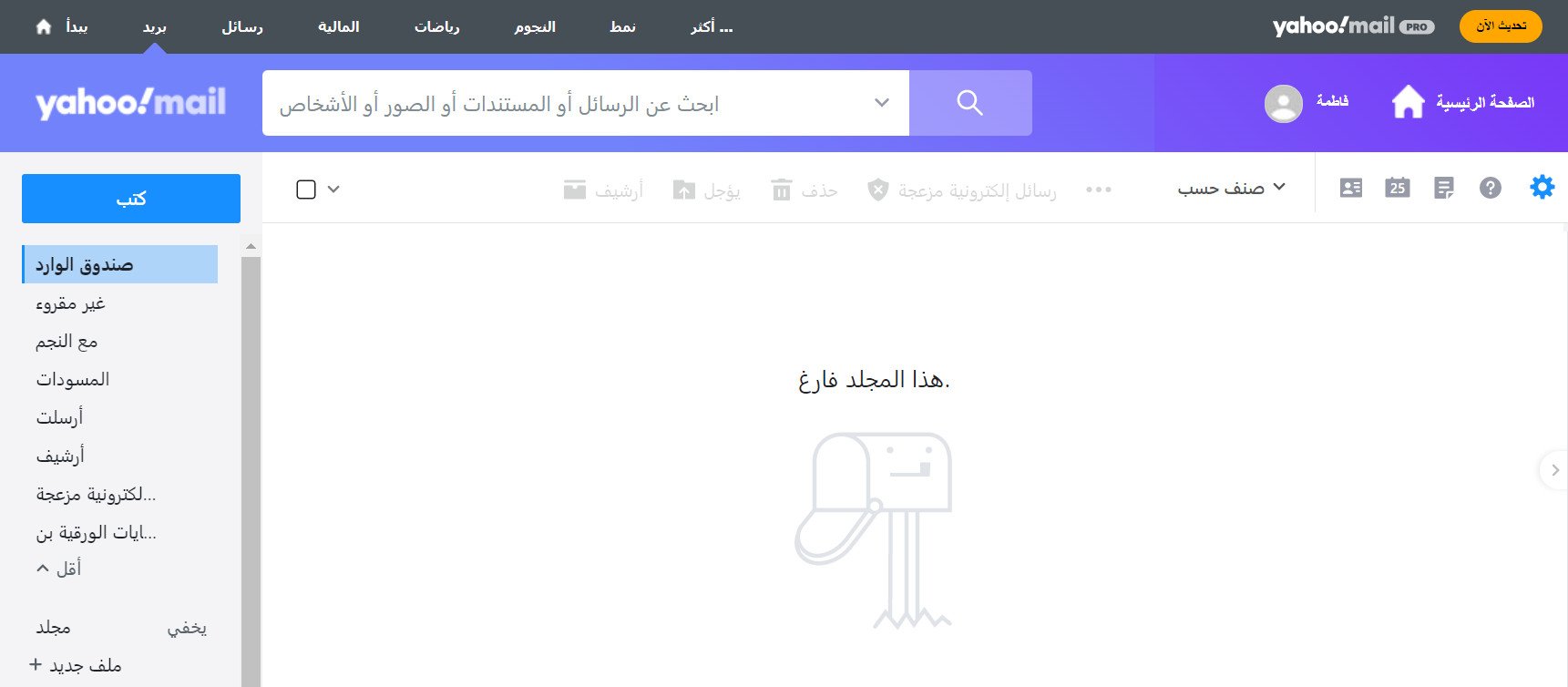
❓ Do I need to update my store's DNS?
Sometimes activation takes longer than expected and the app shows a pending state, like this.
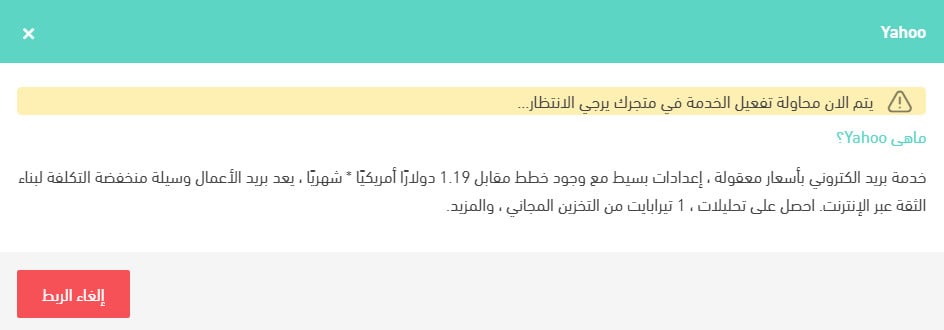
When that happens, refreshing your DNS record from your store settings usually clears it.
1. From your store settings, click (Domain settings).
2. In the DNS section, click (Update DNS records).

📝 Important notes
DNS changes take a while to propagate, so give the update time before you check the app state again.
Email is the one channel you own outright. Get the account and the DNS record right once, and every order confirmation and reply after that lands from an address your customers recognize.