Need a delivery partner that reaches every part of the country, not just the big cities?
Shipping is where a lot of orders go wrong, and the fix is usually a courier that actually covers where your customers live. When you connect Way Express to your Salla store, you add a delivery service that picks up from anywhere and delivers anywhere, and you manage its pricing from inside your dashboard. In this guide, you'll learn what Way Express is, whether you need an account first, how to install and authorize the app, how to set your shipping rates, and how to hide or remove the app later.
Way Express is a Saudi delivery app you connect from the Salla App Store. Open Installed apps in your dashboard, browse the Salla App Store, open the Way Express app page, click Install, and grant the permissions it requests. A Way Express account is created for you automatically.
📌 Article overview
- What Way Express is
- Whether you need a Way Express account first
- How to connect Way Express to your store
- Frequently asked questions
🎯 What Way Express is
Way Express is a Saudi delivery app that moves orders from anywhere to anywhere, at any time, and gets them to the address you choose as fast as it can. It delivers from every kind of store and restaurant, however far away, and covers all regions of the Kingdom.
❓ Do you need a Way Express account before connecting?
No. When you install the Way Express app from the Salla App Store, a new Way Express account is created for you automatically. If you already have a Way Express account, contact Way Express support to have that existing account activated on your Salla store.
👣 How to connect Way Express to your store
1. From the side menu in your dashboard, click (Installed apps).

2. On the Salla App Store banner, click (Browse the Salla App Store).

3. On the Way Express app page, click (Install).
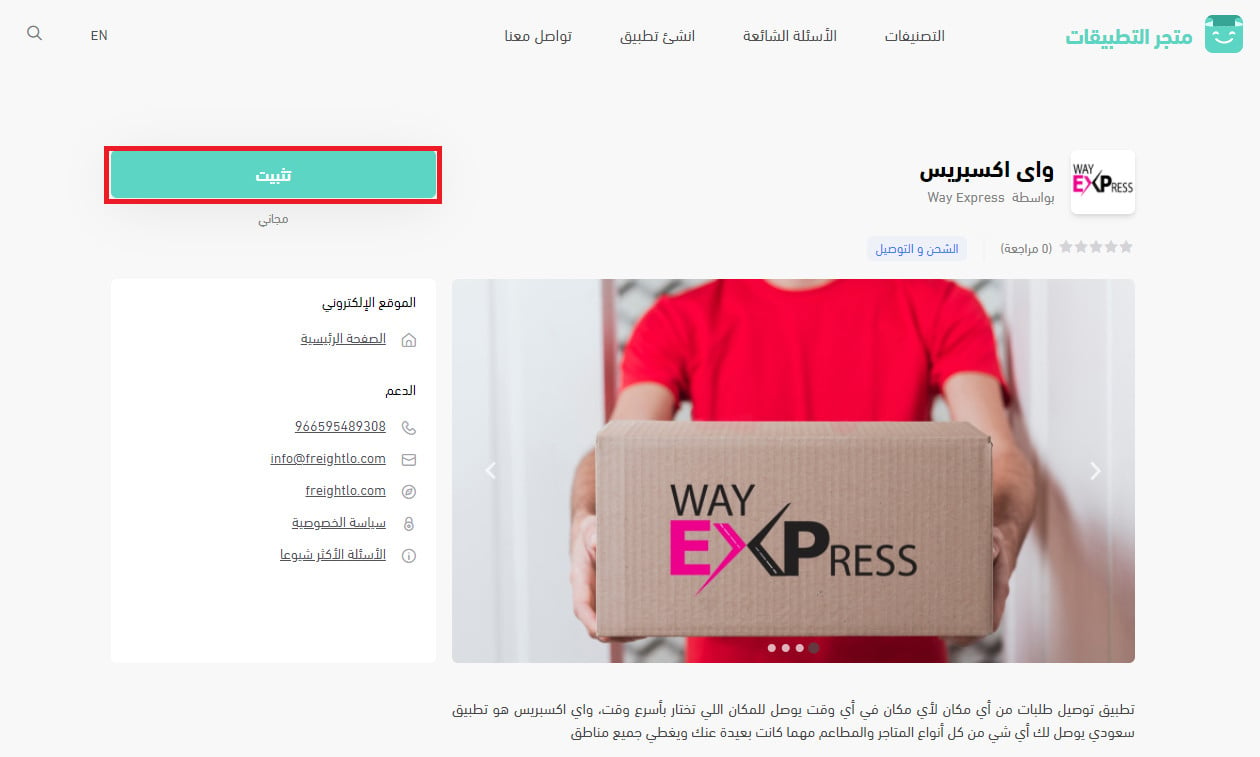
4. Review the permissions the app is asking for, then click (Grant authorization).
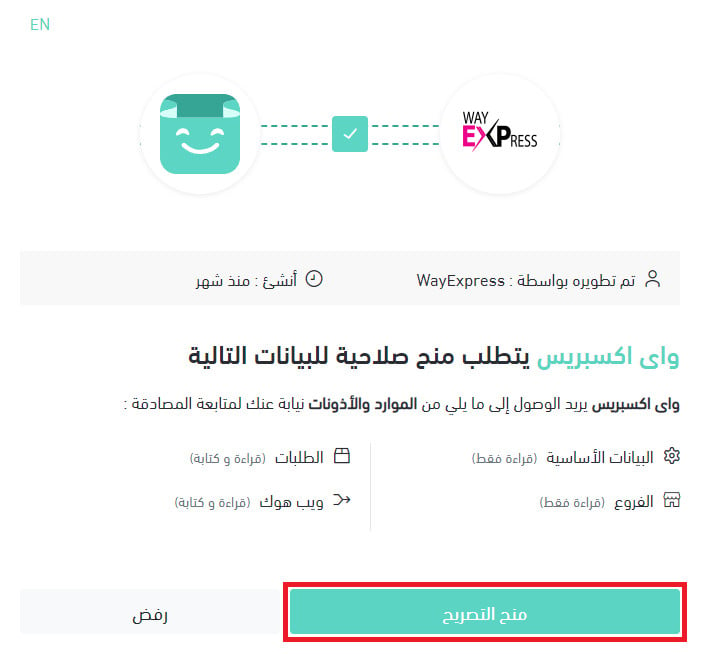
That's it — your Salla store is now connected to your Way Express account.
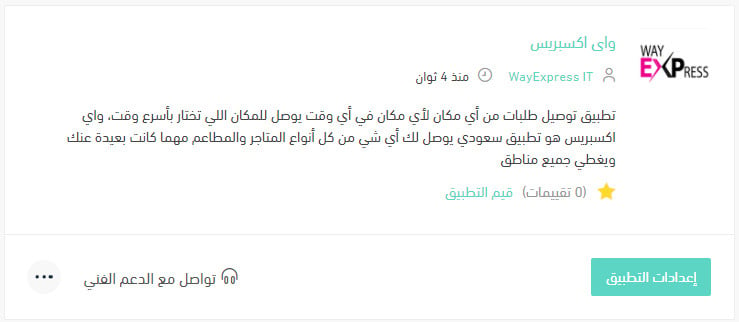
For more details on managing my store apps.
❓ Frequently asked questions
Here are the answers to the questions merchants ask most:
- How do I set up shipping rates on Way Express?
- How do I temporarily hide Way Express in my store?
- How do I remove the Way Express app from my store?
How do I set up shipping rates on Way Express?
1. From the side menu in your dashboard, click (Installed apps).

2. On the All apps page, find the Way Express app and click (App settings).
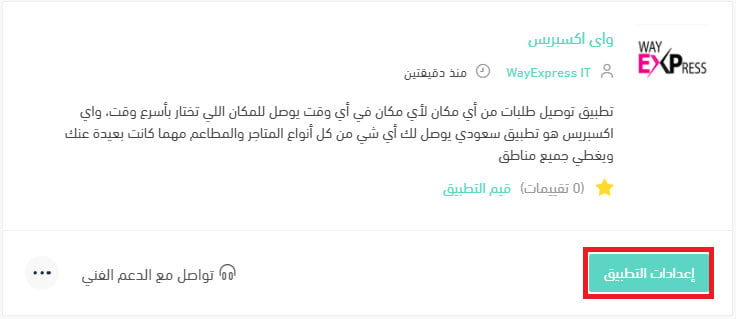
3. On the (Shipping rates) tab, enter your rates for the cities and regions you want to cover.
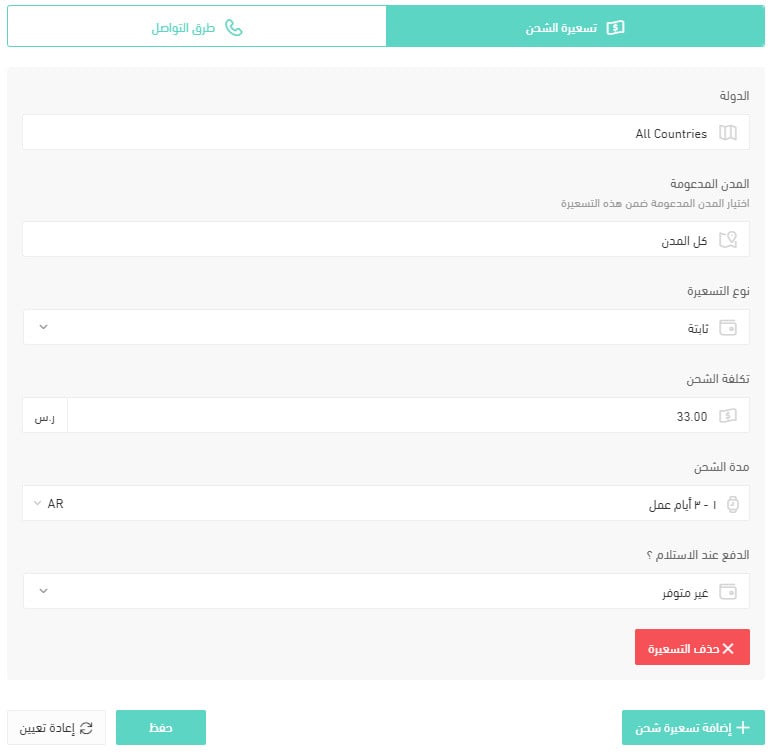
For more details on shipping and delivery option settings.
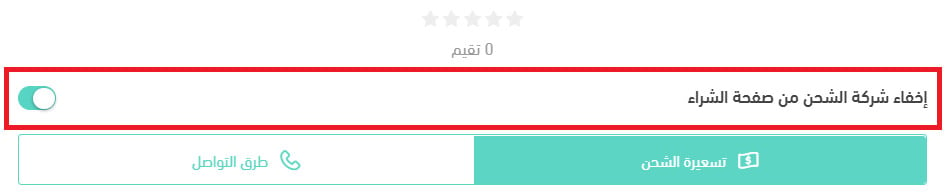
How do I temporarily hide Way Express in my store?
1. From the side menu in your dashboard, click (Installed apps).
2. On the All apps page, find the Way Express app and click (App settings).
3. Turn the (Hide the shipping company from the checkout page) option on or off. [Verify: the source calls this "temporarily disabling the app", but the only setting it shows hides the shipping company at checkout rather than disabling the app itself.]
How do I remove the Way Express app from my store?
1. From the side menu in your dashboard, click (Installed apps).
2. On the All apps page, find the Way Express app, click (...), then click (Delete app).
Connecting the courier is the quick part. Set your shipping rates city by city before you take your first order through Way Express, so customers see the right price at checkout from day one.