Do you know where visitors get stuck before they abandon their cart?
Sales reports tell you what happened; they rarely tell you why. Smartlook records each visitor's journey through your store or app as video, draws heatmaps of where they click, and flags the moments where a promising visit falls apart — so you can fix the step that costs you orders. In this guide, you'll learn what Smartlook does, how to create an account and a project, how to copy your project key, and how to connect and activate the Smartlook app on your Salla store.
To connect Smartlook, create a Smartlook account and project, then copy the project key from your project page. In your Salla dashboard, open (Installed apps), browse the Salla App Store, install the Smartlook app, and grant its permissions. Activate the app, paste the project key, and click (Save).
📌 Article overview
- What is Smartlook?
- How to connect Smartlook to your store
- Frequently asked questions
🎯 What is Smartlook?
Smartlook is an automated tool for analyzing how visitors behave on your store page and in your app. It helps you improve the customer experience by showing you exactly how people move around and what draws their attention, using advanced tracking technology.
🚀 How to connect Smartlook to your store
Connecting Smartlook takes three stages:
- Create a Smartlook account and a new project
- Copy the tracking code from Smartlook
- Install the Smartlook app and link it to your Smartlook account
Stage one: create a Smartlook account and a new project
📝 Important notes
Skip this stage if you already have a Smartlook account.
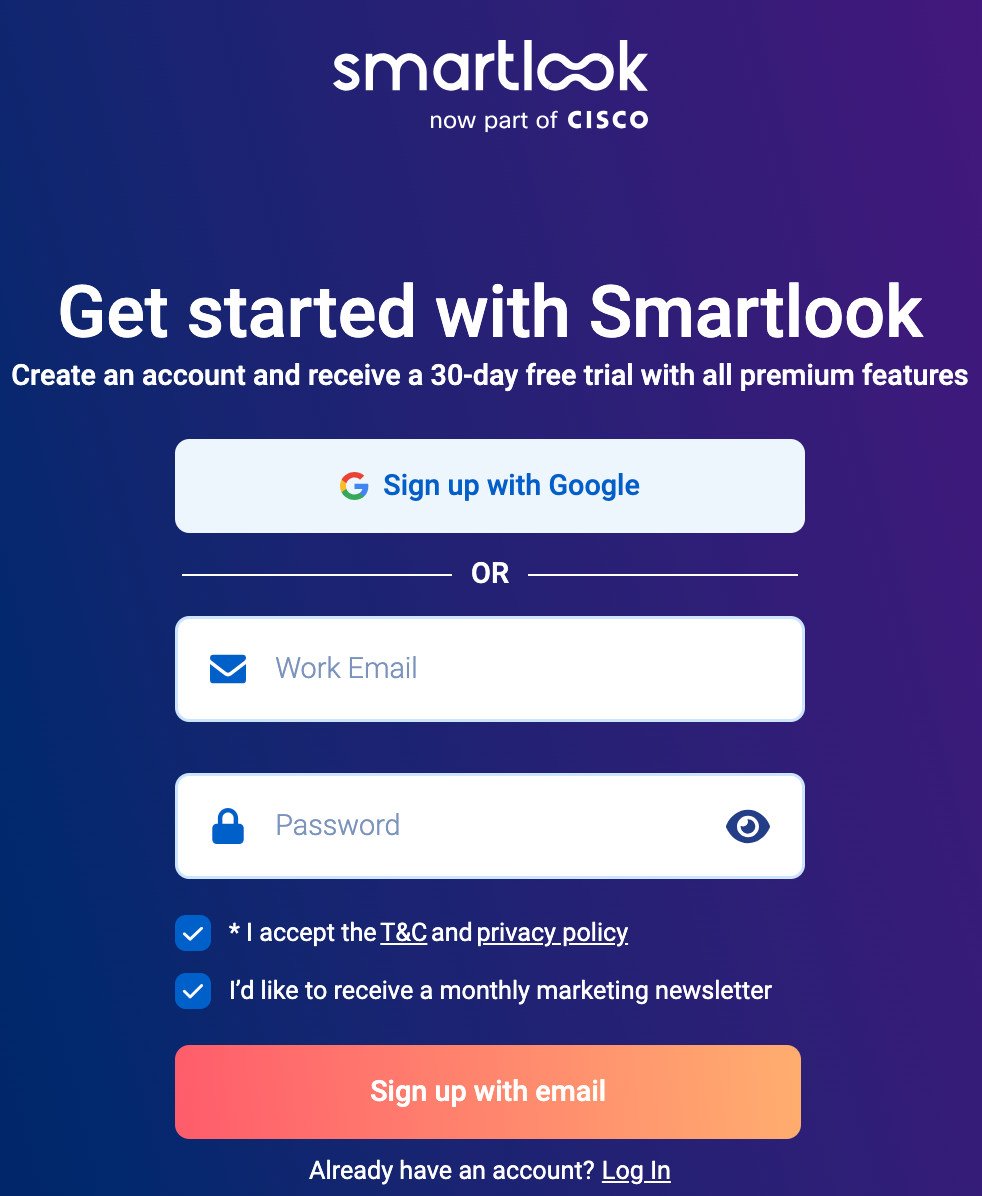
1. On the Smartlook sign-up page, enter the details it asks for (email and password), then click (sign up with email).
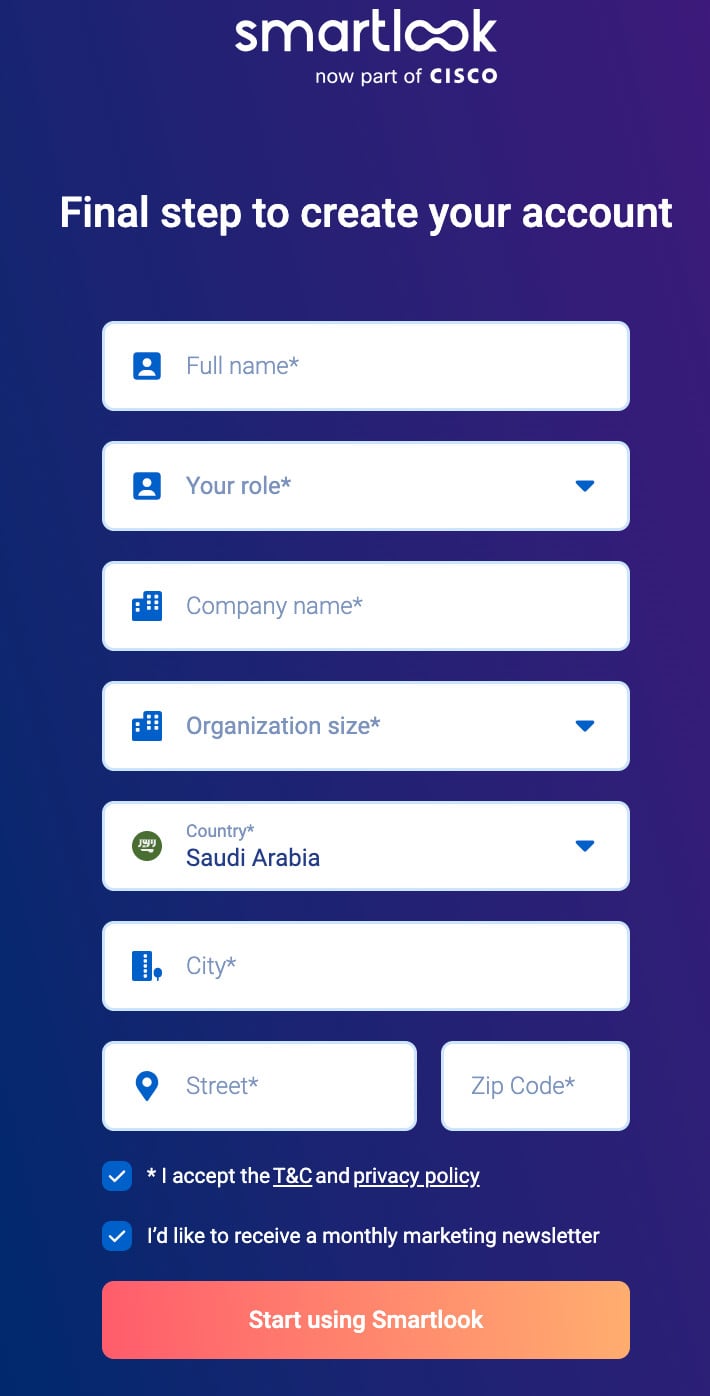
2. Enter the remaining details, accept the terms, then click (start using smartlook).
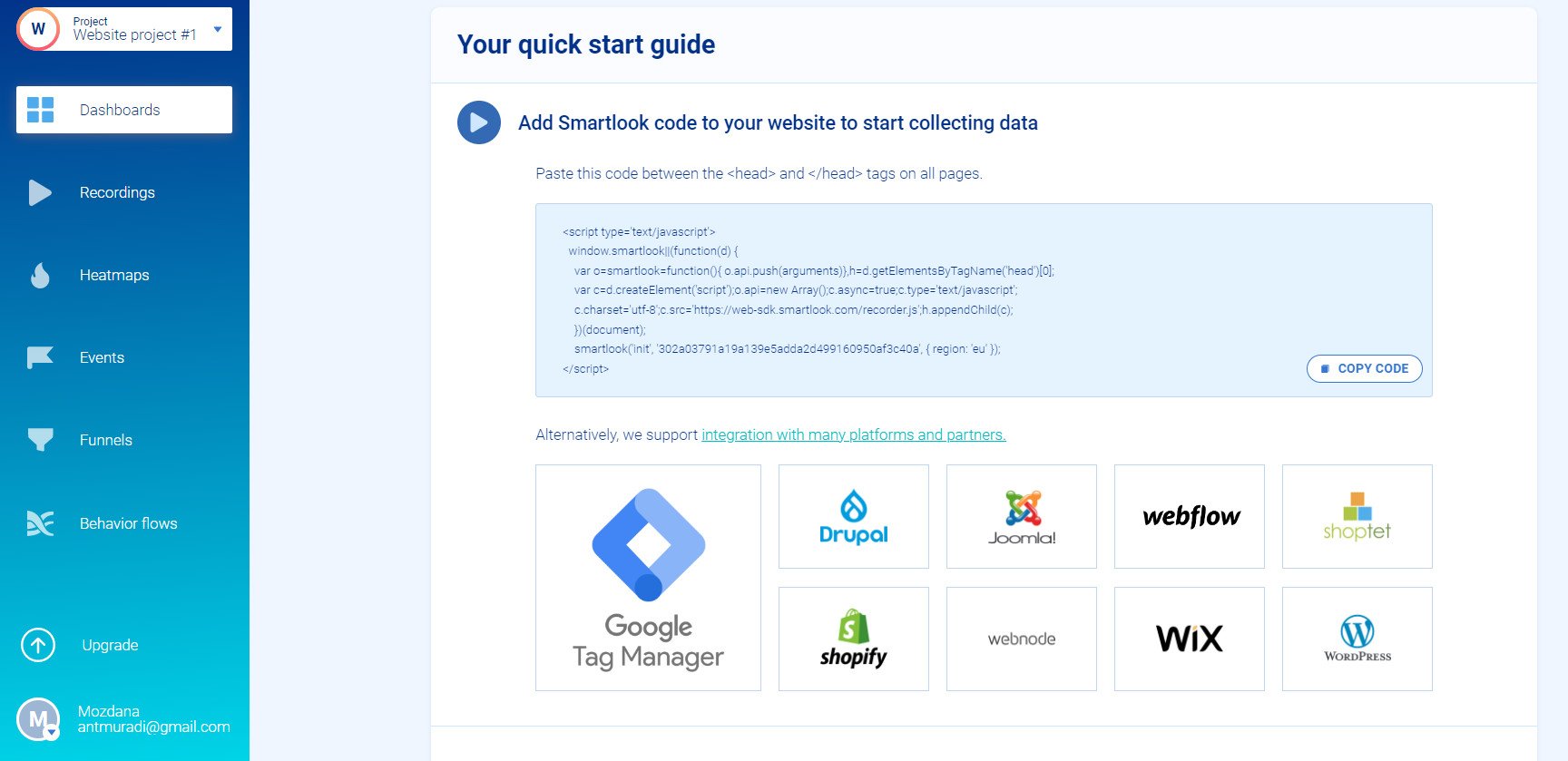
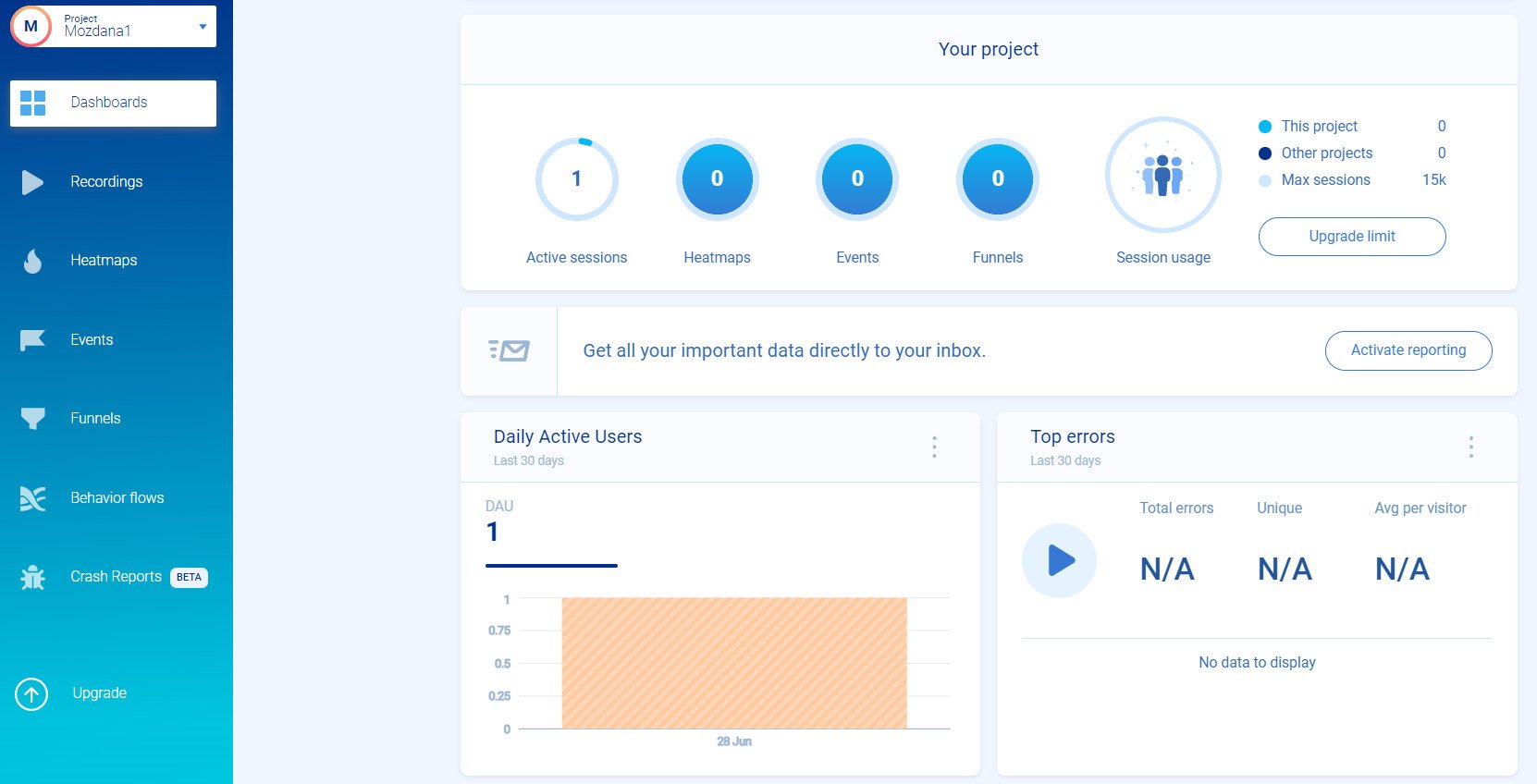
Once you confirm your email, your Smartlook home page looks like this:
Stage two: copy the tracking code from Smartlook
In your Smartlook account, open the project page and click (COPY THE PROJECT KEY) to copy the tracking code.
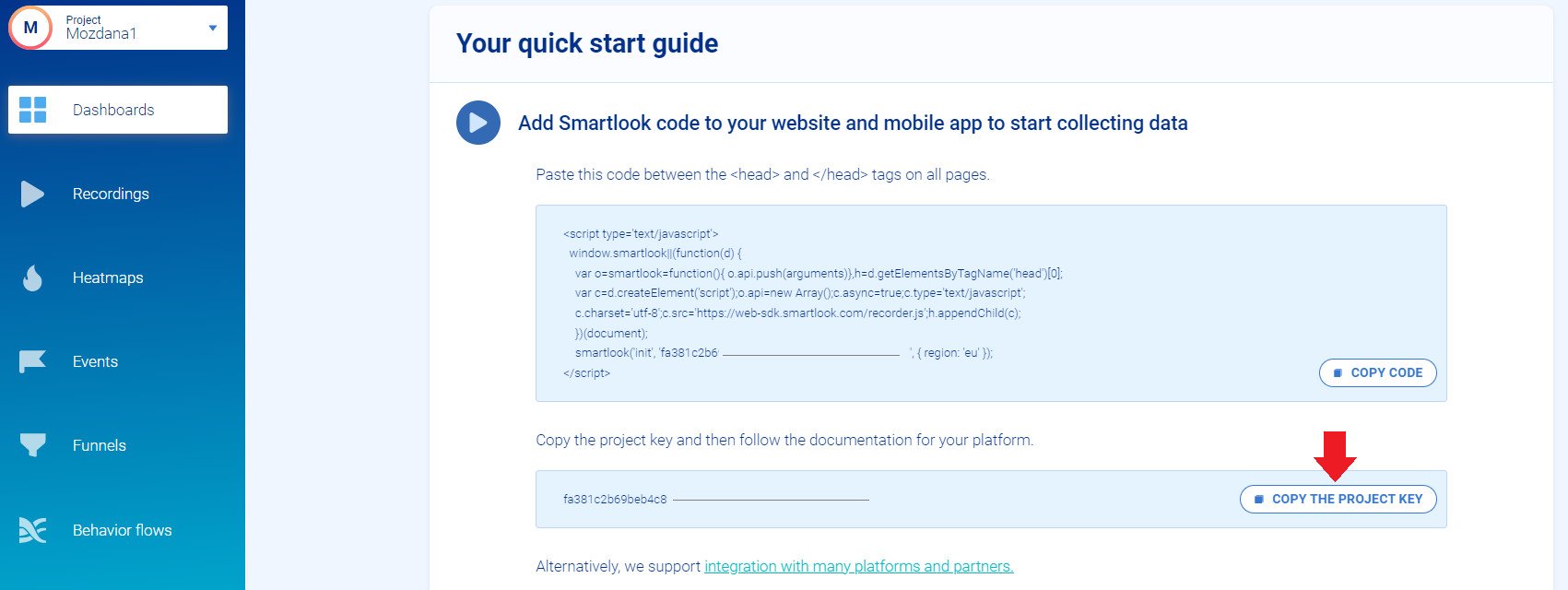
You can also copy it from the projects page: open the project you want and click (copy) in the Project Key field.
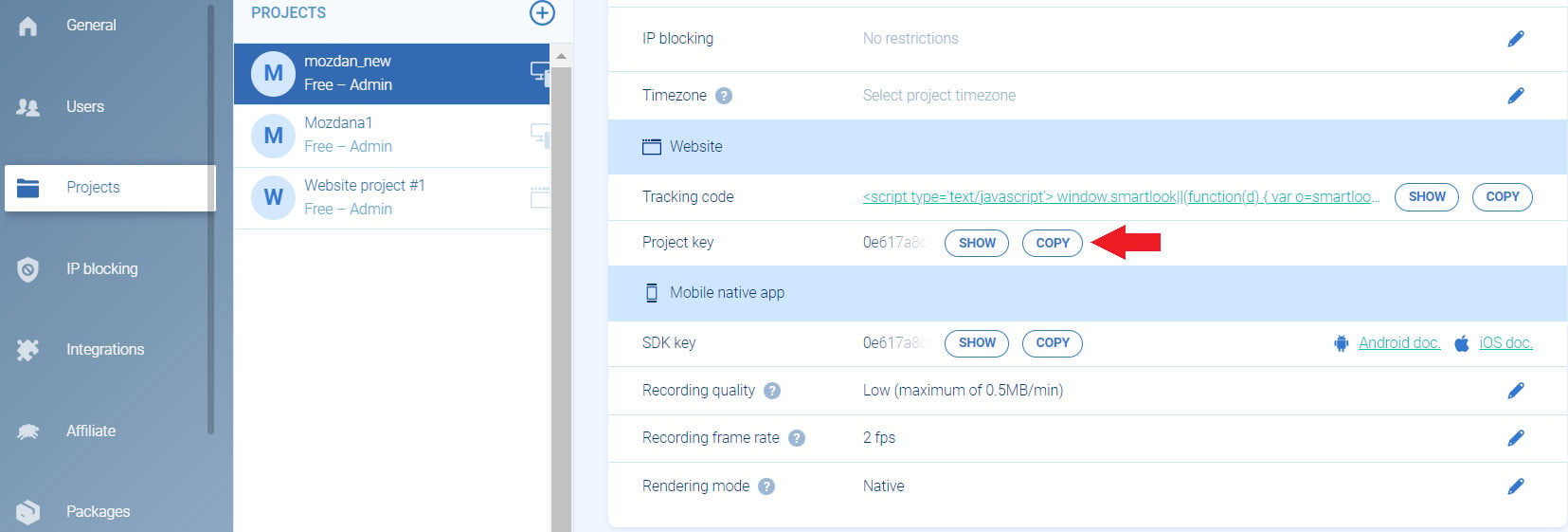
Stage three: install the app and link it to your account
1. From the side menu of your dashboard, click (Installed apps).

2. From the Salla App Store banner, click (Browse the Salla App Store).

3. From the Smartlook app, click (Install).

4. Review the permissions the app asks for, then click (Grant permission).
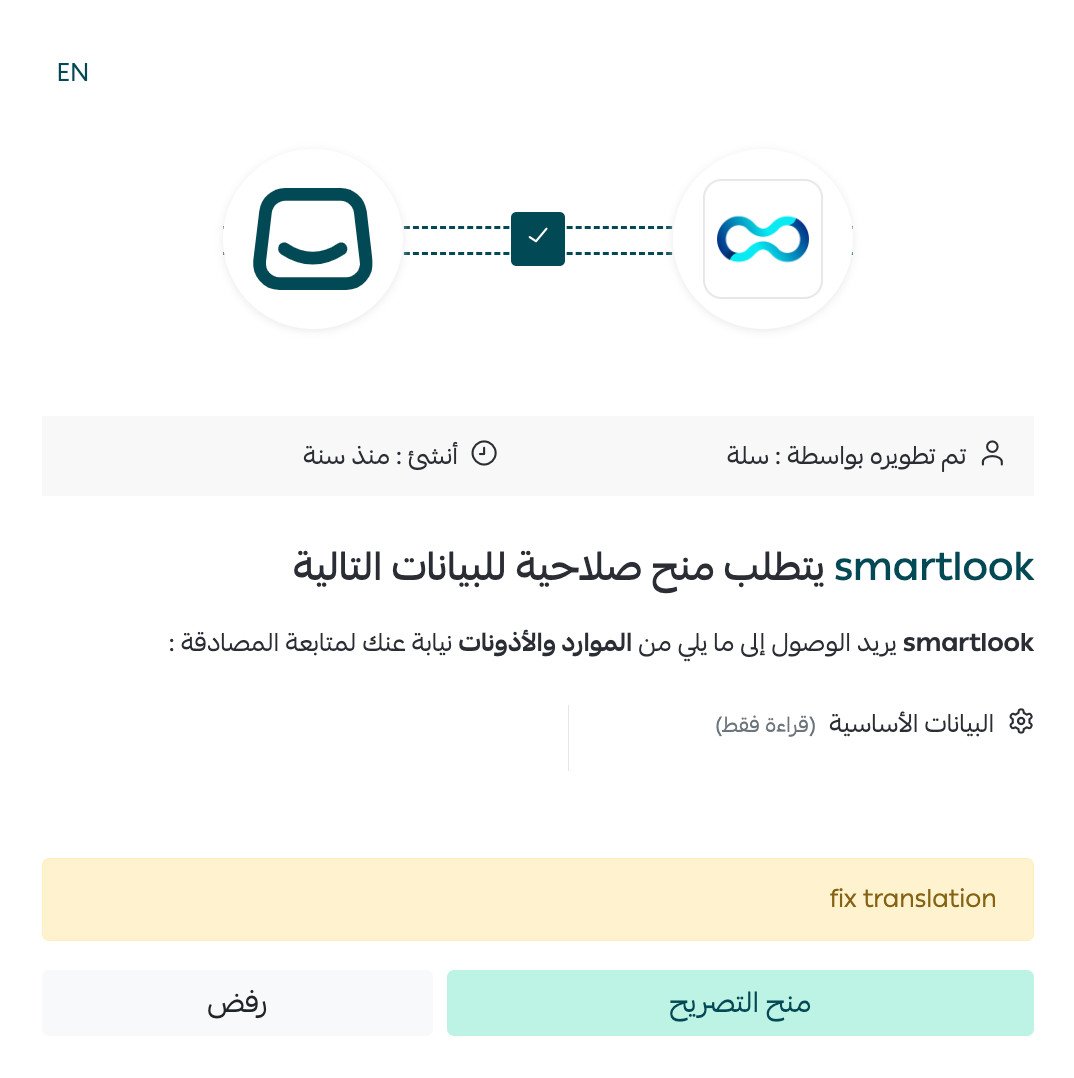
The app is installed. All that's left is to activate it.
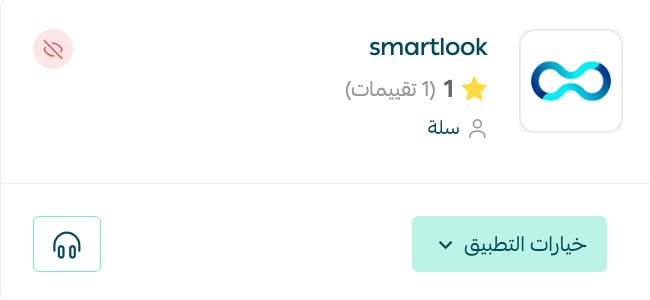
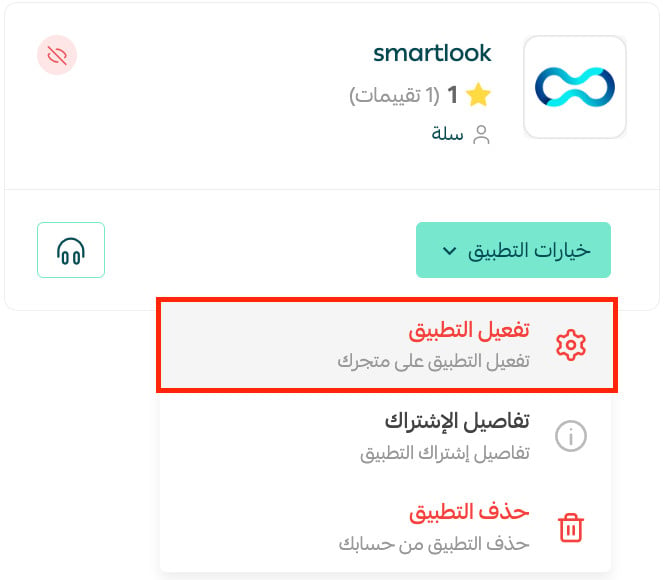
5. From the installed apps page, click (App options), then click (Activate app).
6. Paste the key you copied in stage two into the field provided, then click (Save).
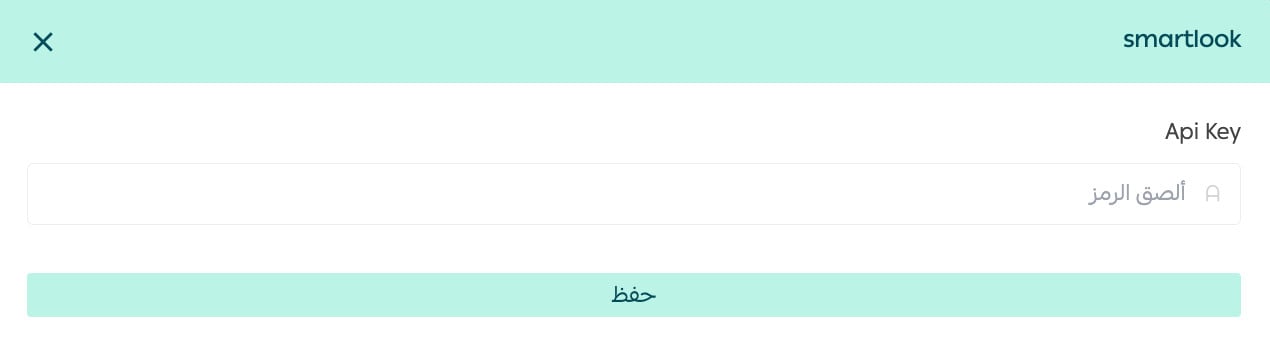
The app is now active on your store.
For more details, read managing my store's apps.
❓ Frequently asked questions
Here are the answers to the questions merchants ask most:
- What are the main features of Smartlook?
- How does Smartlook help me guide customers toward buying?
- Does Smartlook affect performance?
- How do I review user behavior on my store and app?
- How do I remove the Smartlook app from my store?
What are the main features of Smartlook?
- Records every visitor's journey through your store or app as a detailed video.
- Collects the key details of each visitor to your store or app, such as name, gender, and email address.
- Protects your data and your customers' data by surfacing only what's relevant to improving your user experience.
- Displays the data as heatmaps.
- Guides customers toward buying through behavior analysis.
- Shows which users need help and support, in visual tables.
- Brings all of the above together in automatic reports on one simple dashboard.
How does Smartlook help me guide customers toward buying?
- It analyzes the behavior your customers share most, and helps you move them from filling a cart to completing the purchase.
- It automatically analyzes where the ideal customer journey you designed breaks down, using filters you define. You might learn, for example, that registered visitors complete more purchases than unregistered ones because of a problem in the sign-up flow.
- It sends automatic alerts when that ideal journey breaks, or when it spots a problem stopping a visitor from becoming a buyer.
Does Smartlook affect performance?
No. Smartlook collects data entirely asynchronously, so it doesn't slow down page loading or change what the user experiences.
How do I review user behavior on my store and app?
Your Smartlook home page shows daily visitor activity, along with a range of reports and statistics.
How do I remove the Smartlook app from my store?
1. From the side menu of your dashboard, click (Installed apps).

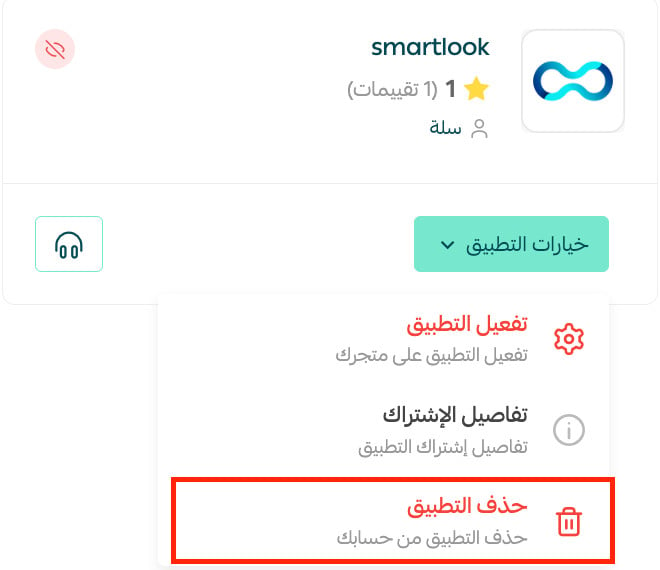
2. On the installed apps page, click (App options), then click (Remove app).
Recordings and heatmaps only pay off if you watch them with a question in mind. Pick the one step that loses you the most orders, watch ten sessions around it, and fix what you see.