Do you know what your visitors do in the seconds before they leave your store?
Justuno is a conversion tool used by more than 20,000 brands, and connecting Justuno to your Salla store gives you pop-ups, banners, timers, and visitor profiles that react to how people actually browse. Instead of guessing which visitors are about to bounce, you target them while they're still on the page. In this guide, you'll learn how to create a Justuno account, where to copy your tracking code, and how to install and activate the app on your store.
Connecting Justuno to Salla takes three stages: create a Justuno account, copy the tracking code (Justuno Account Number) from (Embed Code) in your account settings, then install the Justuno app from the Salla App Store, click (Activate app), paste the code, and click (Set up app).
📌 Article overview
- What Justuno is
- How to connect Justuno to your store
- Frequently asked questions
🎯 What Justuno is
Justuno is a modern conversion tool used by over 20,000 brands. It offers a wide range of services built around one goal: getting more out of the traffic already coming to your site.
🚀 How to connect Justuno to your store
The connection happens in three stages:
1. Create a Justuno account.
2. Copy the tracking code from your Justuno account.
3. Install the Justuno app on your store.
Stage one: create a Justuno account
On the Justuno sign-up page, enter the details for your new account, then click (Get Started).

The sign-up form asks for:
1. Your name.
2. Your store URL.
3. The store owner's phone number.
4. Your email address.
5. A password for your Justuno account.
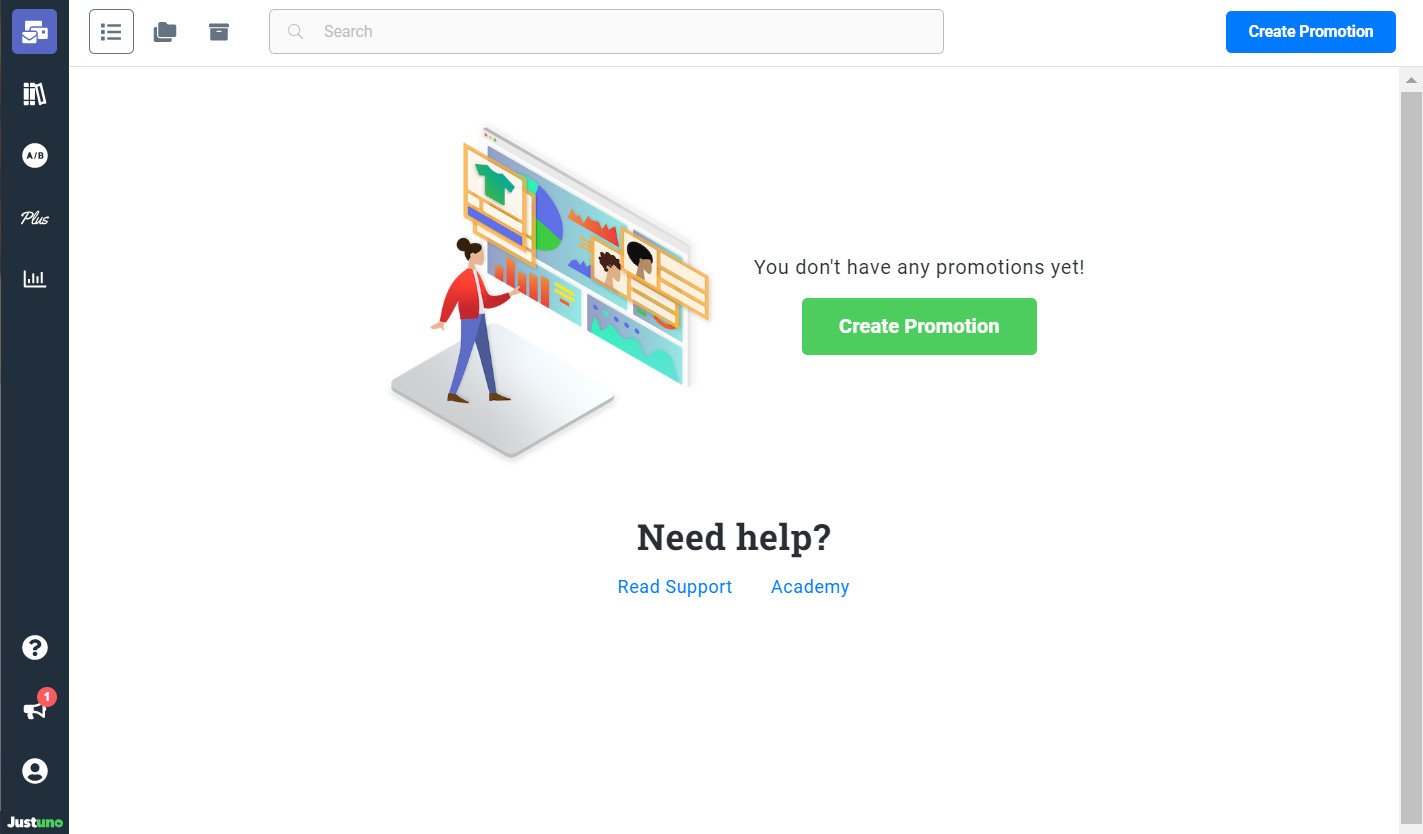
Once you've signed up, your Justuno home page looks like this:
Stage two: copy the tracking code from your Justuno account
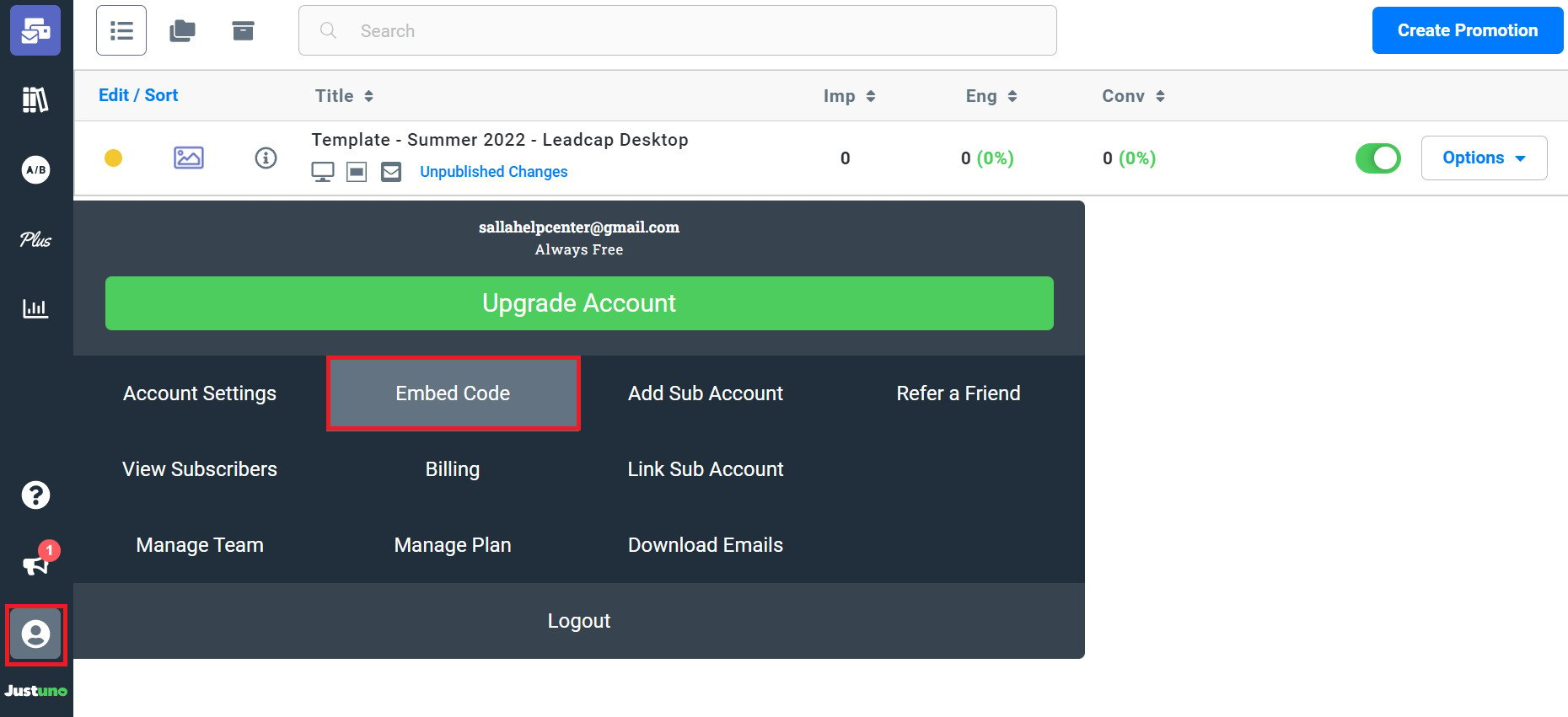
1. From your Justuno home page, click (Account settings) in the bottom-left corner, then click (Embed Code).
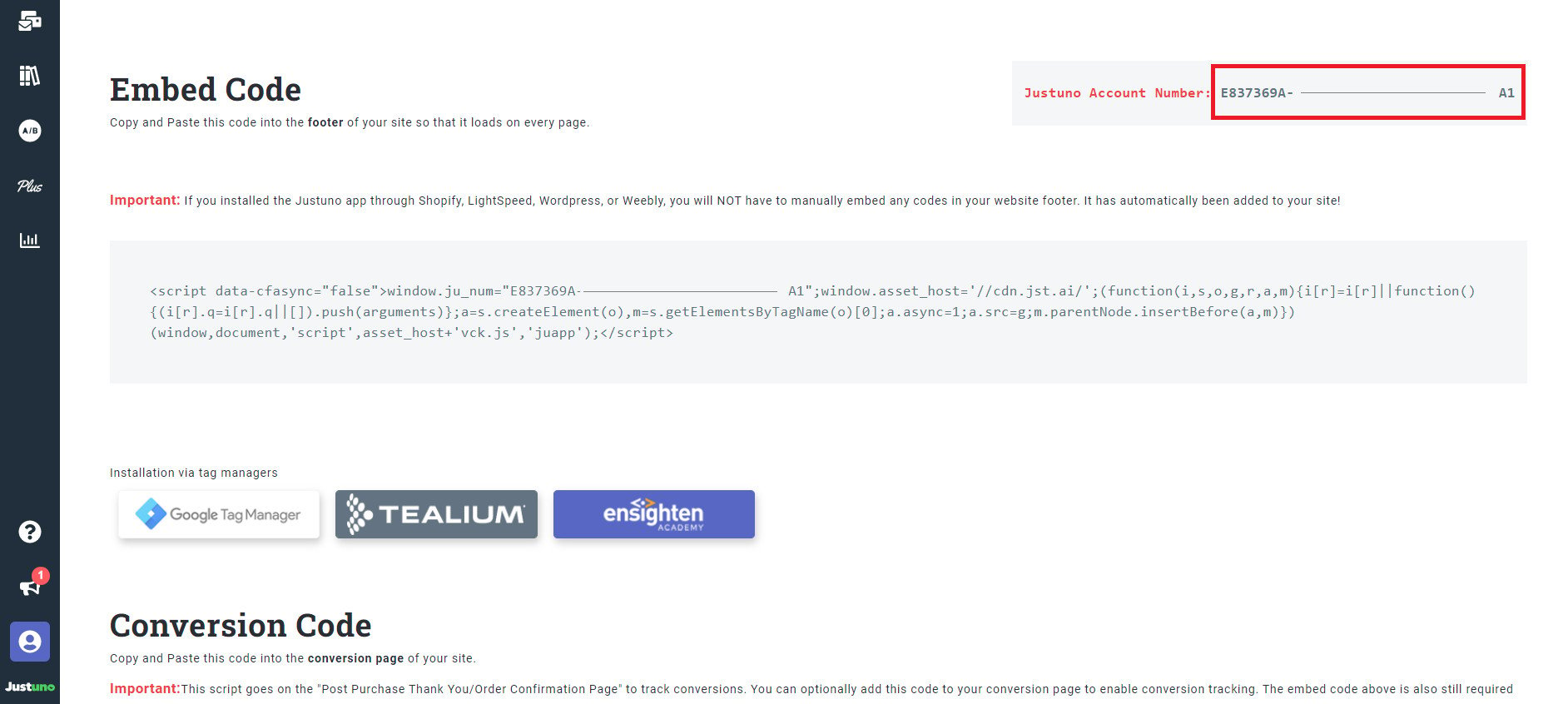
2. On the Embed Code page, copy the tracking code shown as (Justuno Account Number).
Stage three: install the Justuno app on your store
1. From the side menu of your dashboard, click (Installed apps).

2. On the Salla App Store banner, click (Browse the Salla App Store).

3. On the Justuno app page, click (Install).
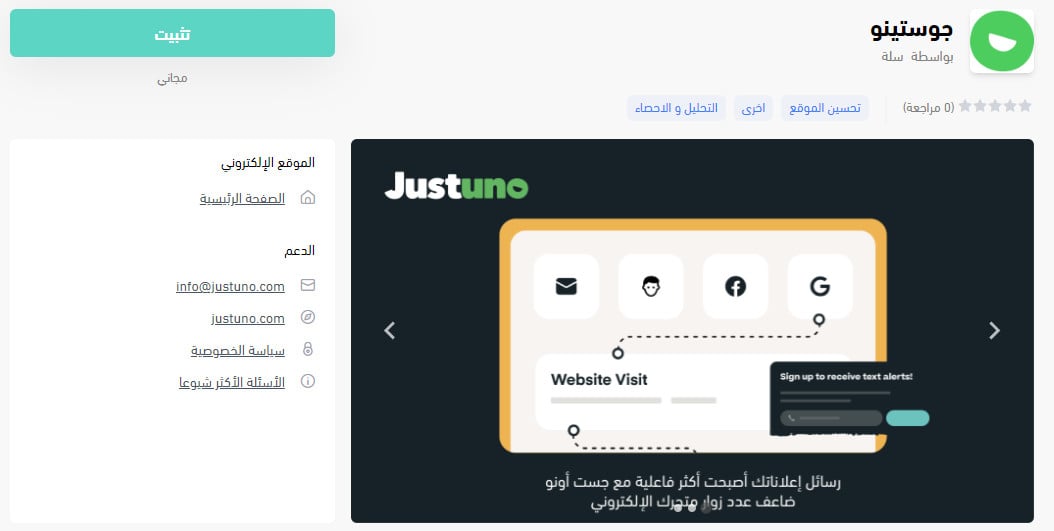
The app is now installed.
4. To activate it, go to the installed apps page, find the Justuno app, and click (Activate app).
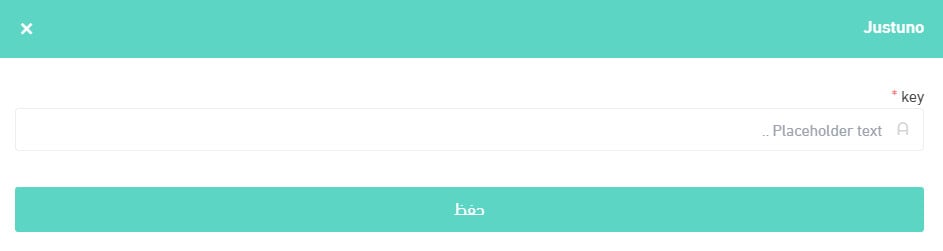
5. Paste the code you copied in stage two, then click (Set up app).

That's it — the app is active on your store.
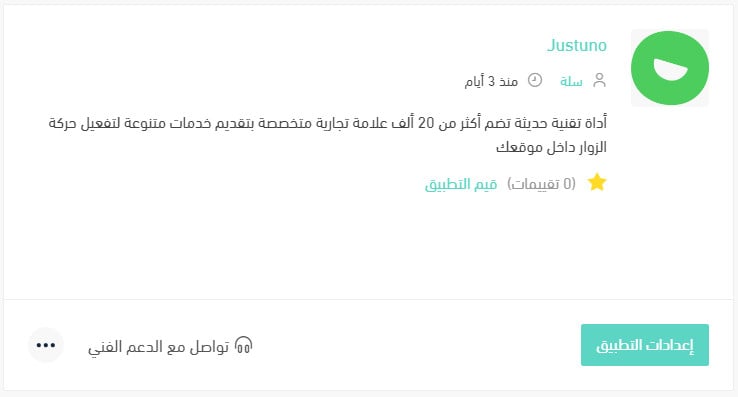
For more detail, see Managing my store's apps.
❓ Frequently asked questions
What do I get from connecting Justuno?
1. Pop-ups, SMS promotions, banners, product ratings, on-site countdown timers, and plenty more.
2. Smart technology that updates every second to build profiles of your visitors and track how they behave.
3. A 14-day free trial of the platform, with access to more than 80 ready-made advanced targeting templates.
4. The option to request a custom plan built around your business goals, which surfaces the opportunities hiding on your site — set up with the Justuno team.
How do I remove the Justuno app from my store?
1. From the side menu of your dashboard, click (Installed apps).

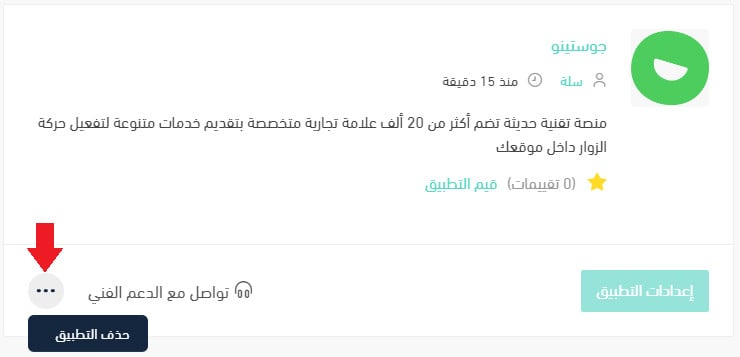
2. On the all apps page, find the Justuno app, click the (...) icon, then click (Delete app), as shown below.
Where do I find my Justuno tracking code again?
In your Justuno account, open (Account settings) from the bottom-left corner, then (Embed Code). The number listed as (Justuno Account Number) is the one you paste into the app on your Salla dashboard.
Does installing the app switch it on?
No. Installing and activating are two separate steps: after installing, open the app from your installed apps page, click (Activate app), and paste your tracking code.
Traffic you already paid for is the cheapest traffic you have. Connect Justuno, start with one pop-up on the pages people leave most, and let what you learn there decide what you build next.