Your customers need five things to solve one problem. Right now they have to find each one, open it, and add it to the cart separately.
That friction costs you the complementary sales you should be making, and it makes buying harder than it needs to be. A bundle product lets you build one product made up of several sections, so the customer picks what suits them from each section, with or without options, and buys the whole thing as a single unit at a single price. In this guide, you'll learn what a bundle product is, how to create a fixed or custom bundle, how required and optional sections work, and how to apply a bundle discount.
A bundle product on Salla groups several products into one purchase. A fixed bundle holds up to 10 products sold together as they are. A custom bundle holds up to 5 sections, each with its own products, and the customer chooses from each one. Stock is deducted per product, and the custom bundle's price is calculated dynamically.
📌 Article overview
- What is a bundle product?
- How to create a bundle product
- Frequently asked questions
🎯 What is a bundle product?
A bundle product lets you build a product that contains either of the following:
1. A fixed bundle: up to 10 products sold together as one unit.
2. A custom bundle: a product made up of several sections, where each section holds a set of products the customer chooses from. Everything sells as one complete unit, and you can mark products as required, set discounts, and manage the options inside each product.
The main benefits:
✅ A flexible buying experience: the customer picks the products that suit them from each section, easily.
✅ More complementary sales: customers are encouraged to buy the matching products together rather than one at a time.
✅ Full control for you: add multiple sections, decide which products are allowed, set discounts, and manage the options of every product inside the bundle.
✅ Inventory integration: quantities are deducted automatically from each product's own stock.
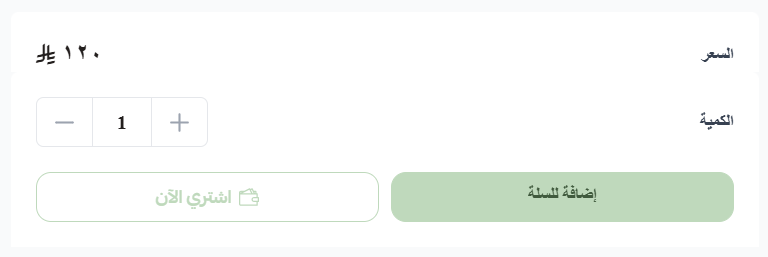
✅ Dynamic pricing: the price changes with the products and options the customer selects.
🚀 How to create a bundle product
1️⃣ Create the bundle
Choose the bundle product type and add your sections, up to 5 of them.
1. From the main menu, click (Products).

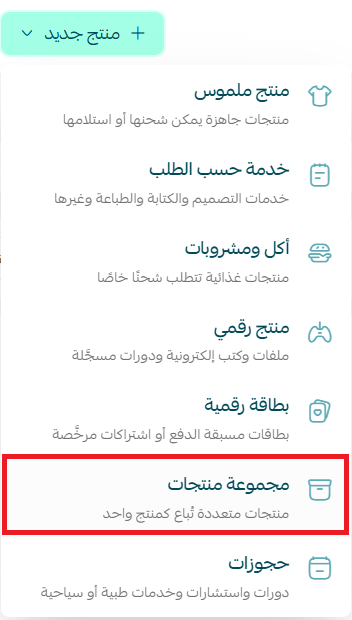
2. From the (+ Create new product) menu, click (Bundle product).
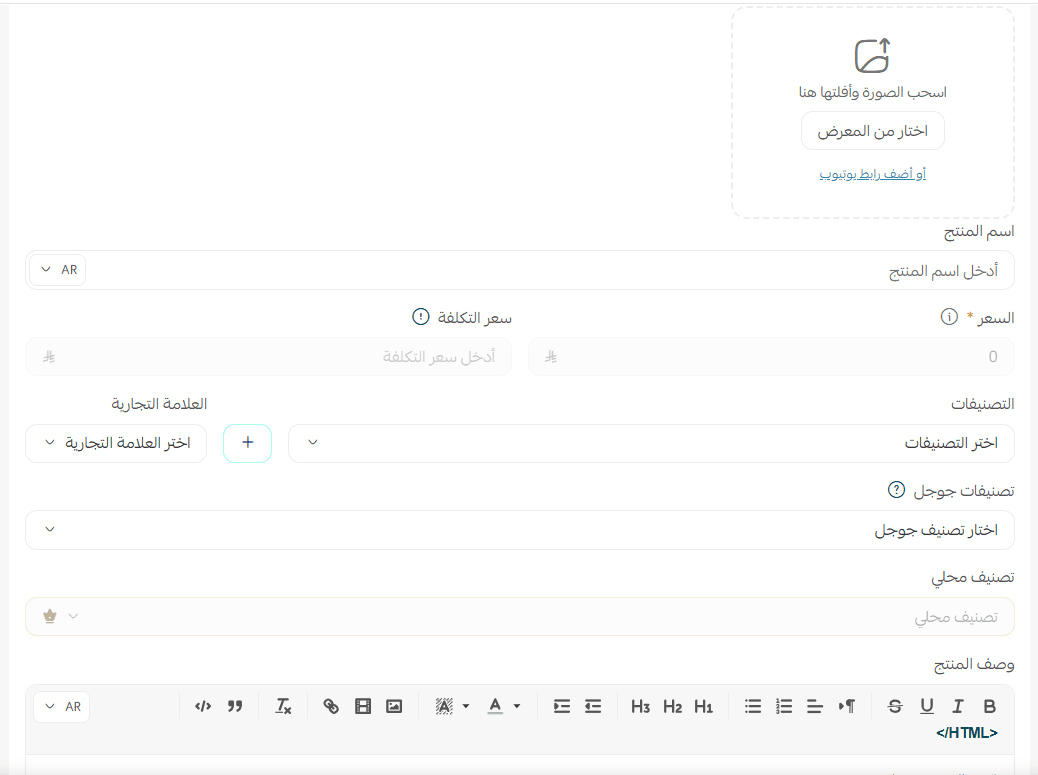
3. Fill in the basic information: image, name, price, cost, categories, brand, and product description, so the bundle shows up complete and appealing in your store.
💡 An important note about pricing:
For a fixed bundle, you enter a set price for the bundle yourself.
For a custom bundle, the system calculates the price dynamically for each customer based on the products they choose inside the bundle.
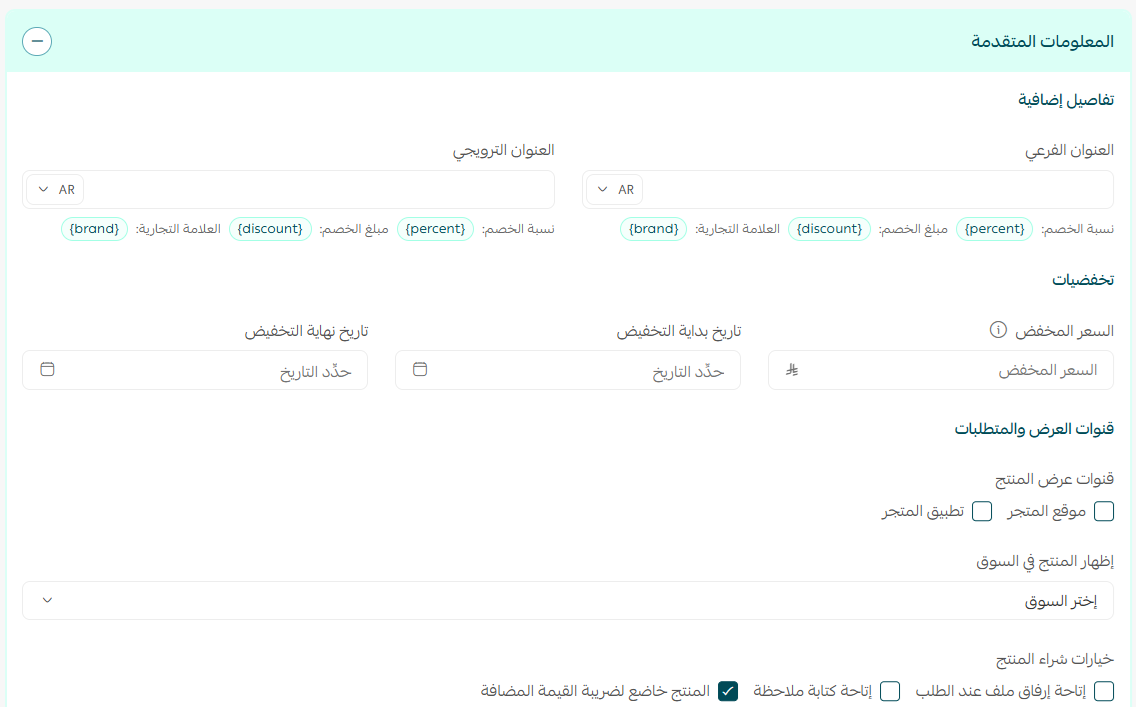
4. Fill in the advanced information to set discounts, brand, SEO data, and display channels, so the buying experience is precise and effective.
Make use of the extra options too, such as inventory, shipping, tags, and attached files, to deliver a complete product that fits your store.
2️⃣ Add the products
The products can be picked from your existing catalog or added specifically for the bundle.
A fixed bundle accepts products without options. A custom bundle accepts products with or without options.
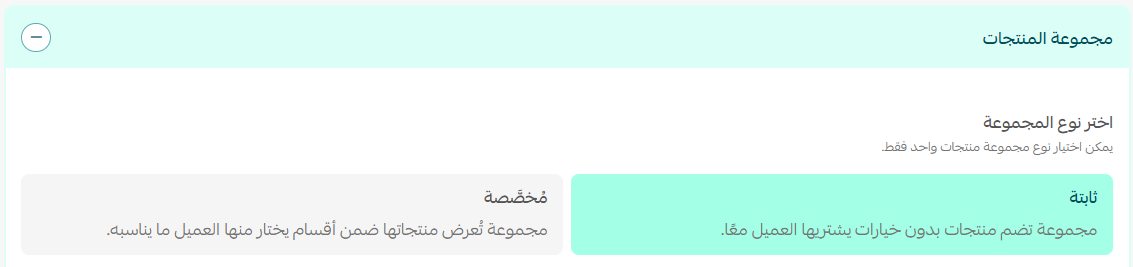
Choose the bundle type to decide how your products are presented: fixed to sell the products together exactly as they are, or custom to let the customer choose what suits them from the different sections.
Option one: a fixed bundle
When you set the type to fixed, you can add up to 10 products.
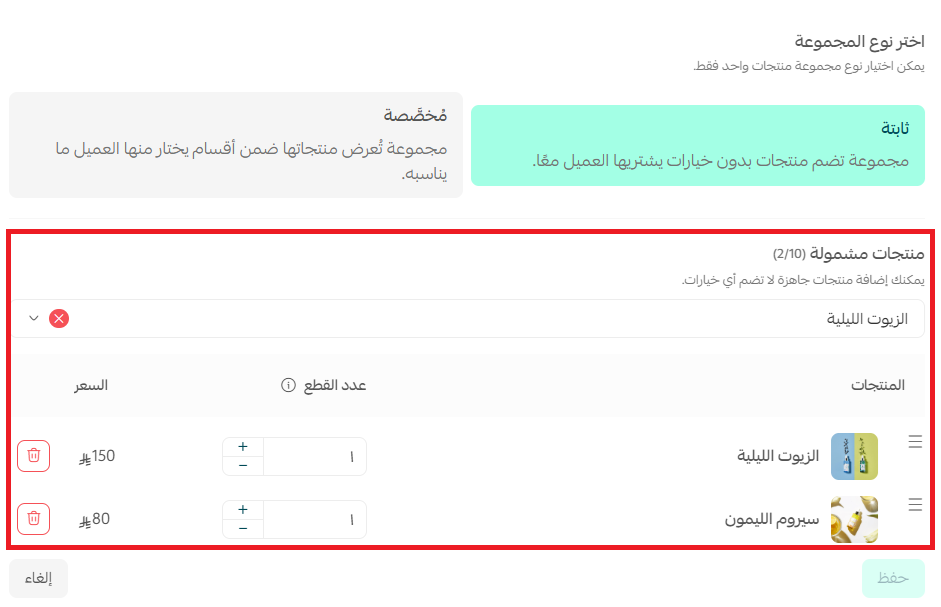
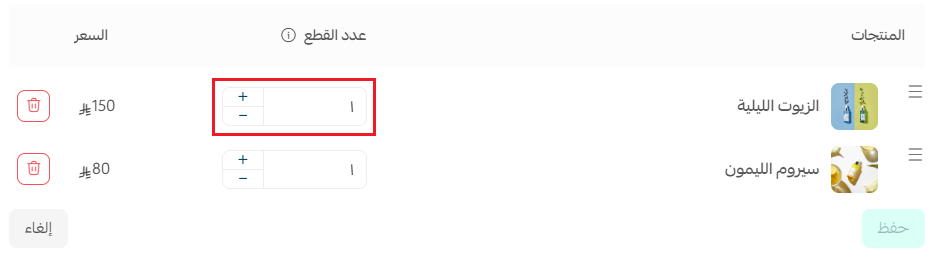
Once the products are in the bundle, set the number of pieces of each product it contains.
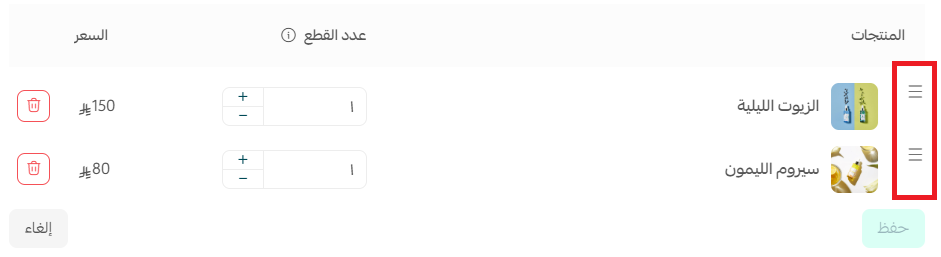
You can also reorder the products inside the bundle by importance.
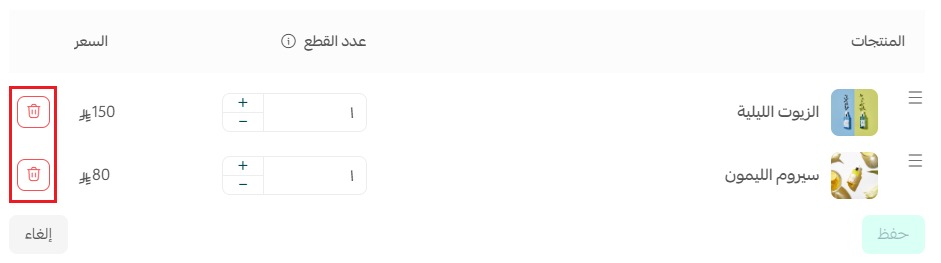
And remove any product from the bundle.
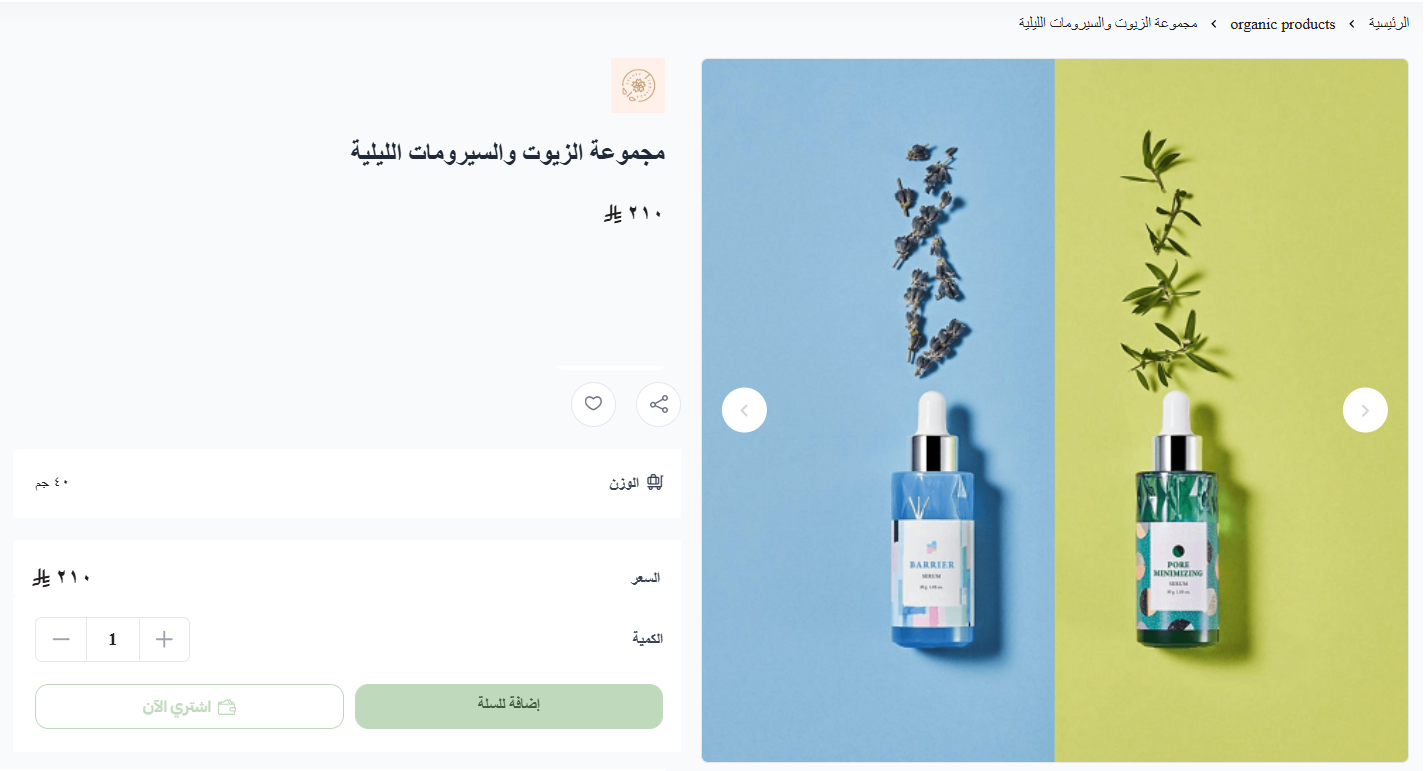
This is how a fixed bundle appears to the customer:
Option two: a custom bundle
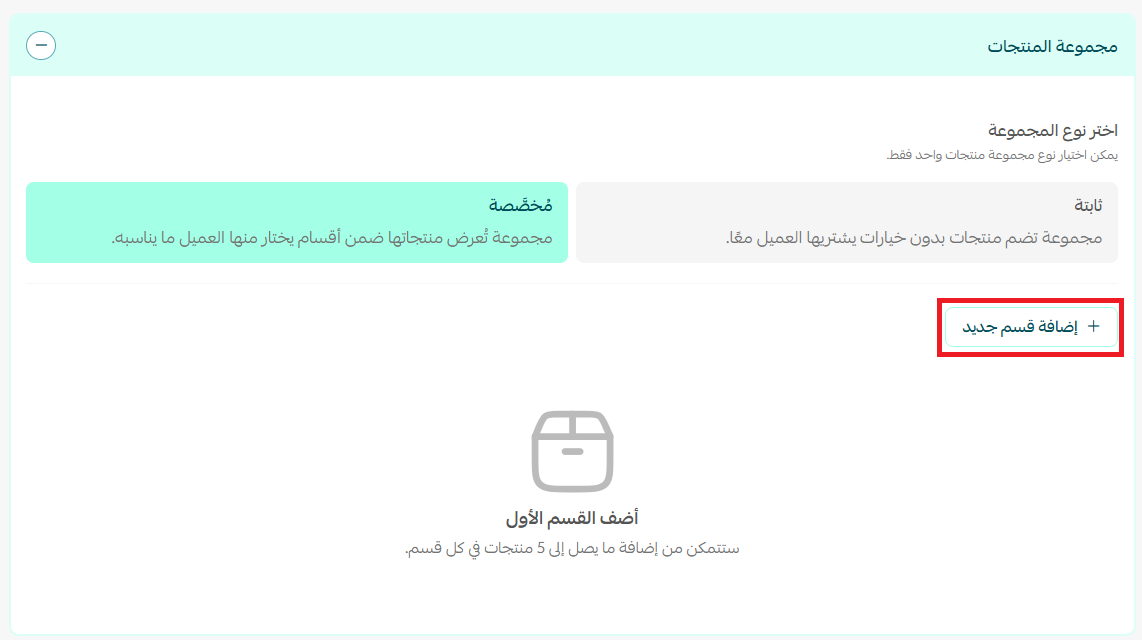
When you set the type to custom, you can add up to 5 sections to the bundle.
Write the section title, which customers will see, then choose the existing products to include in the bundle.
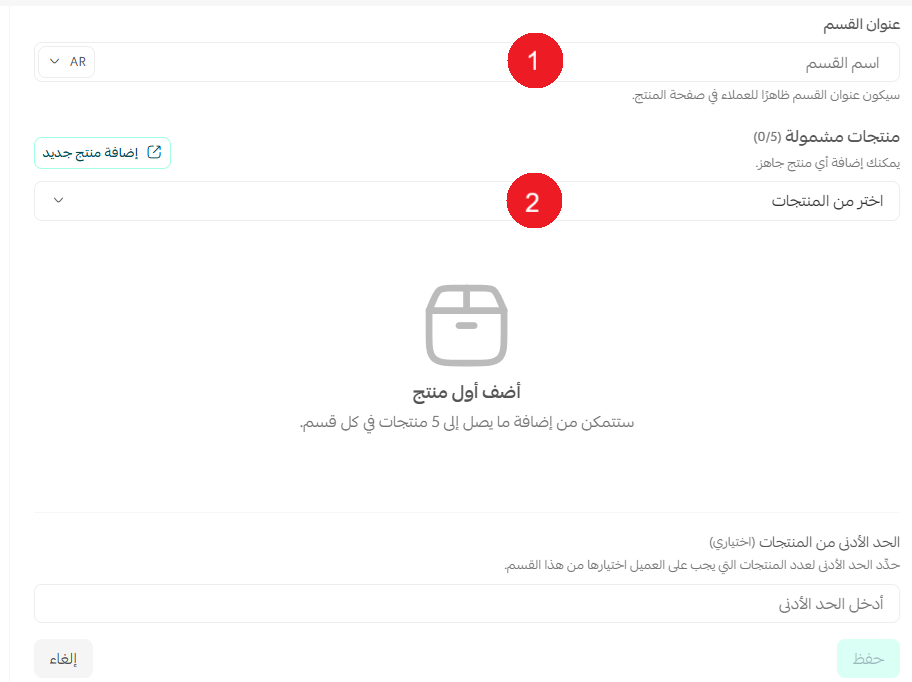
Set the quantity of each product in the bundle and order them by importance. You can also set a minimum number of products.
💡 A worked example:
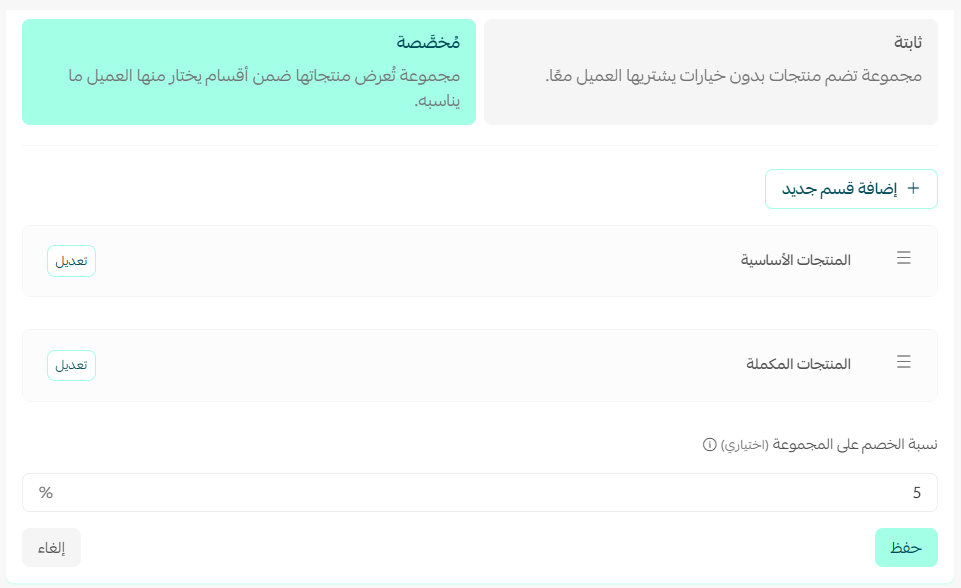
1. Create a section for the core products (required)
You can mark certain products as required inside any section of the bundle, so the customer cannot complete the purchase without them.
Worked example:
In one section, you could mark these products as required:
- Two pieces of the rose mask
- One piece of the pear mask
📝 Important notes
You don't need a separate section for required products. They can sit inside any section, depending on how you design the bundle, and you can set a minimum selection for each product or leave it fixed.
If you don't set a minimum selection, the customer is asked to choose the required products before the bundle can be added to the cart, and nothing is pre-selected inside the section. The customer sets the quantities or the permitted options according to your rules before clicking (Add to cart).
If you set the minimum to one product, the customer is free to choose between:
Two pieces of the rose mask
Or one piece of the pear mask
within that section, as long as they meet the minimum you set before adding to the cart.
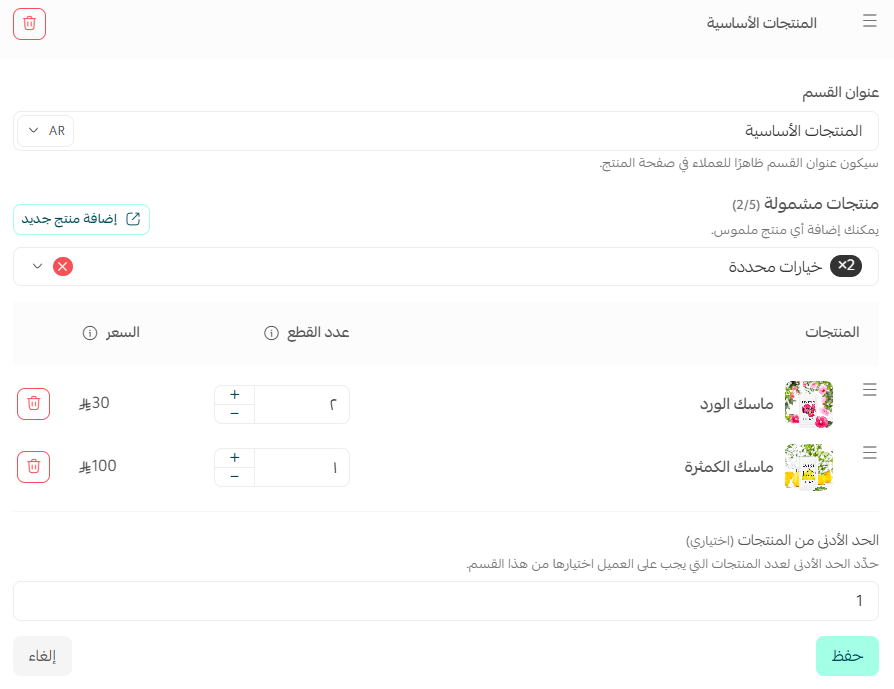
The customer sees:
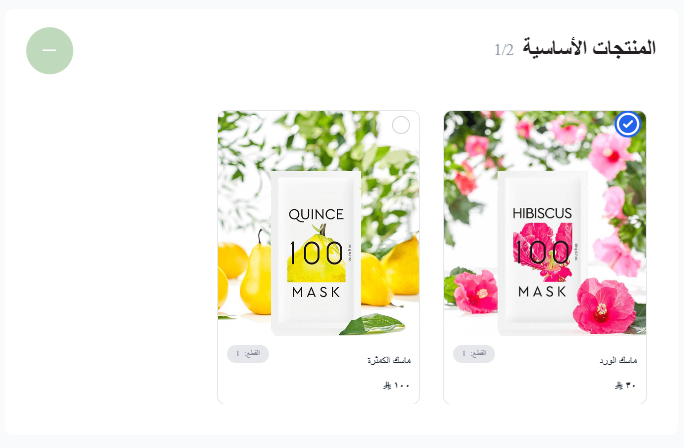
📝 Important notes
If you mark a product as required inside any section, the customer has to choose it to complete the purchase. They cannot skip it before clicking (Add to cart).
2. Create a section for the add-on products (optional)
In this kind of section, the customer is free to choose some of the products, all of them, or none at all.
To allow that flexibility, leave the minimum number of products at 0. Then:
The customer is not forced to choose anything from this section.
They can add whatever they like before confirming the addition to the cart.
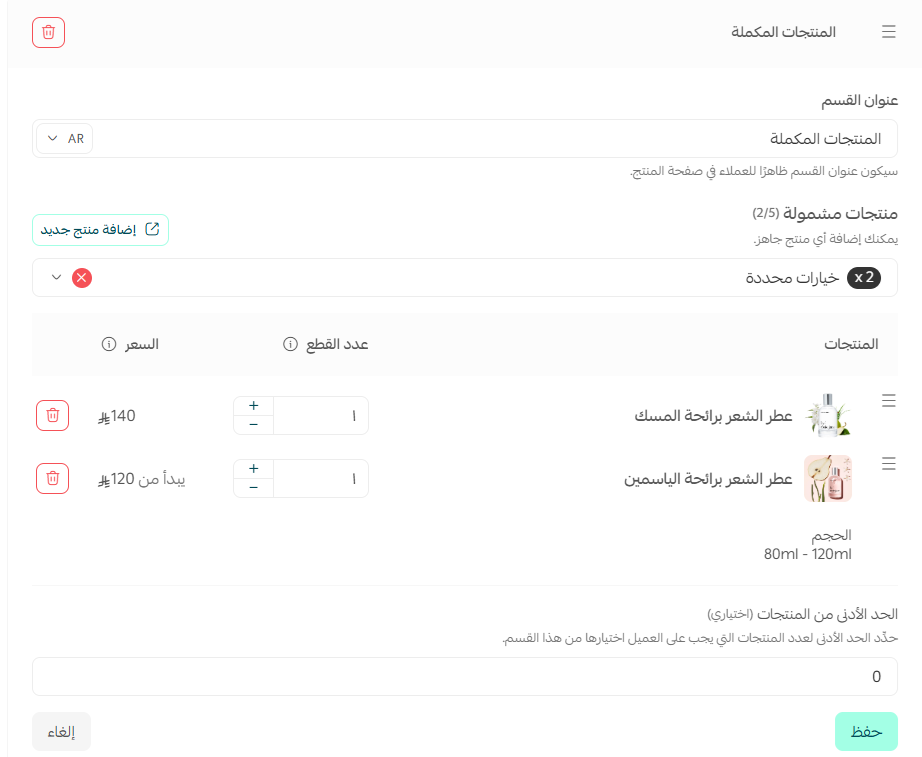
The customer sees:
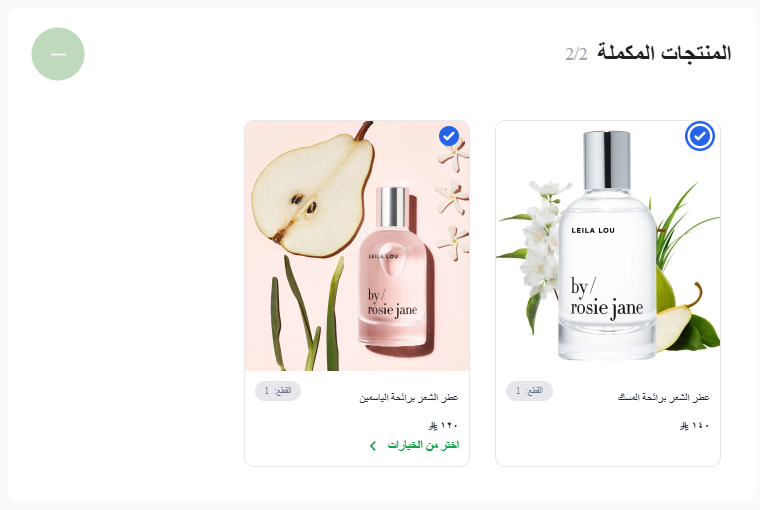
📝 Important notes
When the customer picks a product from the section, a pop-up shows every option available for it, so they can set the quantity or choose the right option before adding it to the cart.
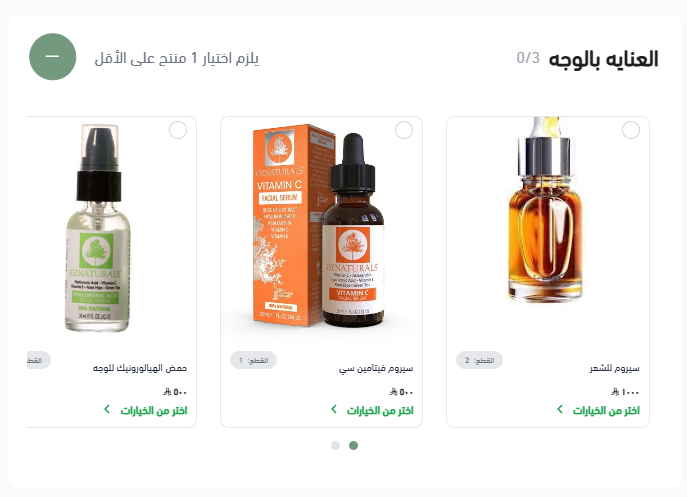
Clicking (Choose from options) opens them like this:
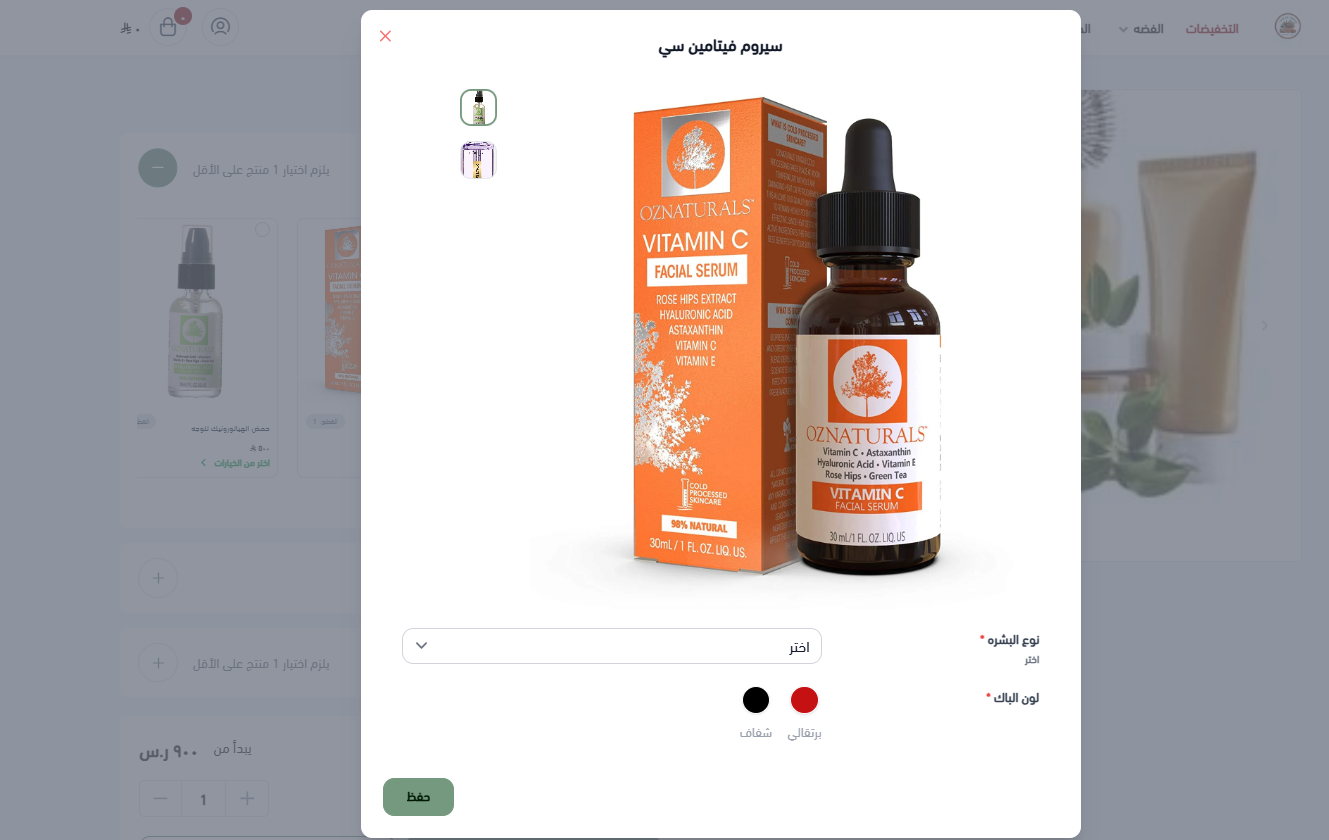
✅ The customer picks products from the bundle easily, the price updates automatically with every change, and they can adjust the options before adding the product to the cart.
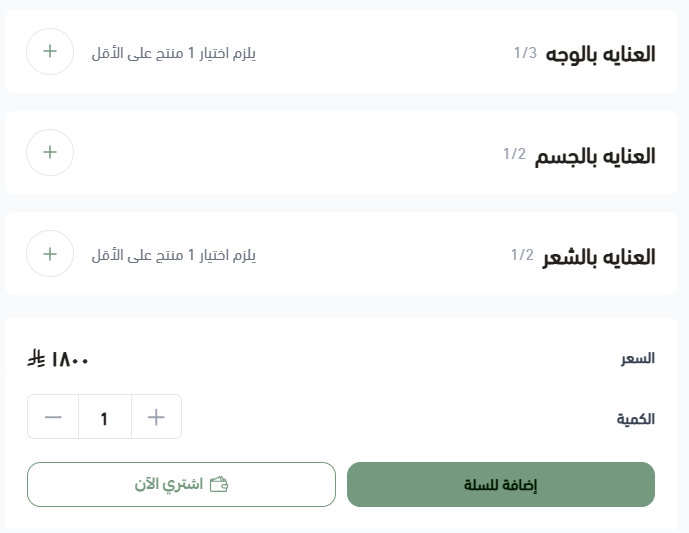
🔔 Worth knowing: you can add up to 5 sections, and each section can hold up to 5 products.
3️⃣ Apply a discount to the bundle
Once you have chosen the products for each section, you can apply a discount percentage to the whole bundle.
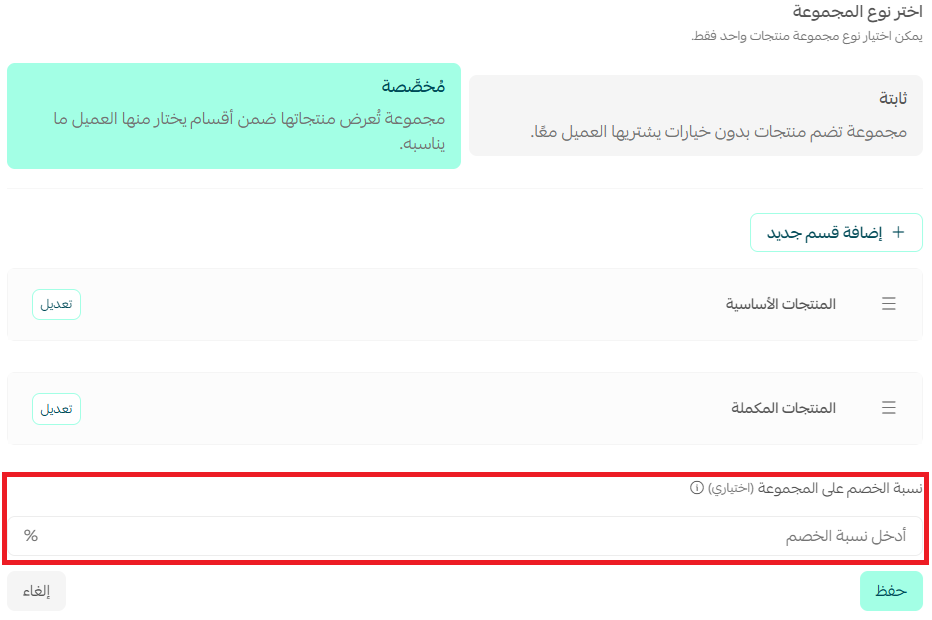
⚠️ Watch out: the discount percentage is applied to the product, and any sale price set in the advanced information is not used.
📖 See how a bundle turns from an organizing tool into a marketing one that lifts your sales and gives customers a distinctive experience. Read the examples and strategies now.
Frequently asked questions
❓ What is the difference between a fixed bundle and a custom bundle?
A fixed bundle: holds one section only, and every product in it is required. You can add existing products from your store and apply discounts through the price and sale price fields. You cannot add new sections or options inside the bundle.
A custom bundle: can hold several sections, with products marked required or optional, and you can add new products along with their options. A discount can also be applied to the bundle as a whole.
❓ Can a customer choose some products and skip others in a custom bundle?
Yes. You can set the minimum number of products required in each section, which lets the customer choose freely within that limit. Instead of being tied to specific products, they get the flexibility to pick what they prefer from each section under the rules you set.
❓ How is the price calculated in a custom bundle?
The price is set dynamically from the products and options the customer chooses inside the bundle. When the bundle is purchased, the quantity of each product is deducted from stock automatically.
❓ How is inventory counted?
The system automatically deducts the selected quantity from the stock of every product inside the bundle, which keeps stock and availability easy to manage.
❓ Can new products be added to the bundle after it's created?
Yes. In both bundle types you can add new products inside a section and manage their options easily. Keep in mind that a fixed bundle only accepts products without options.
❓ Can a discount be applied to the whole bundle?
Yes. You can set a discount percentage at bundle level to encourage customers to buy the complete set.
❓ Can the customer see the details of each product while buying?
Yes. The image and details of every product in the bundle are shown as the customer makes their selection.
Write your product descriptions properly and let them sell for you. ✨
This article answers the main questions about writing a description that attracts customers and lifts your sales, step by step.
Start now by creating a bundle product. Give your customers the freedom to pick their favorites in a smooth, flexible buying experience, and take your complementary sales up in a single step.