Connecting a courier directly to your store removes the manual step where most shipping mistakes start. In this guide, you'll learn how to connect the Bolisa Logistics app to your Salla store, set your shipping rates, and manage the app afterward.
To connect Bolisa Logistics on Salla, open Installed apps from your dashboard, browse the Salla App Store, and install the Bolisa Logistics app. You can then enter your account details and shipping rates from the app settings.
📌 Article overview
- How to connect the Bolisa Logistics app
- How to set up shipping rates
- Frequently asked questions
Bolisa Logistics
Bolisa Logistics offers a range of domestic and international shipping and delivery options, with tracking tools that let users see the status of their shipments, plus cash on delivery and settlement of amounts due.
How to connect Bolisa Logistics
1. From the dashboard side menu, click (Installed apps).

2. From the Salla App Store banner, click (Browse the Salla App Store).

3. From the Bolisa Logistics page, click (Install).

4. Review the requested permissions, then click (I agree to the permissions).
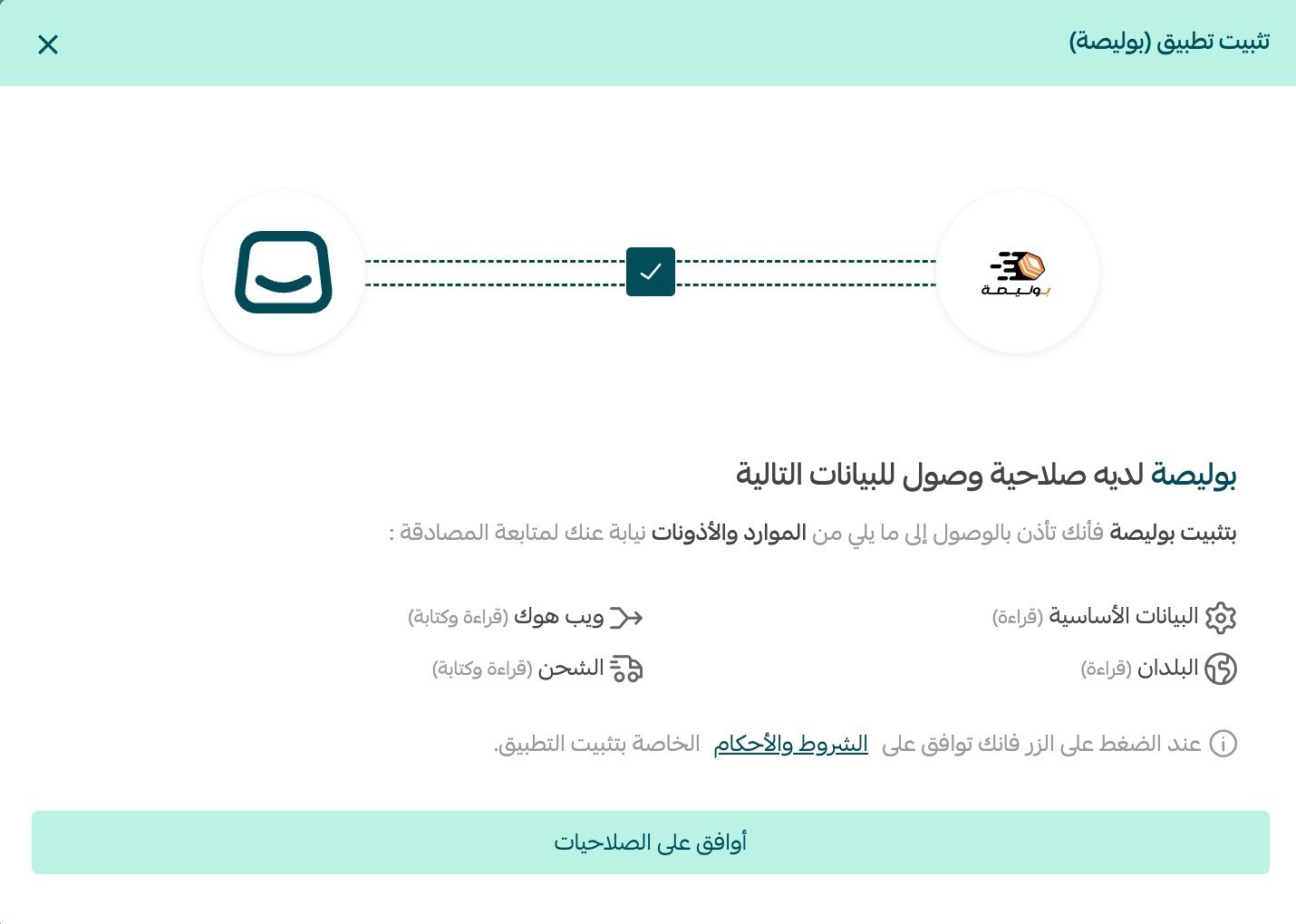
The Bolisa Logistics app is now installed on your store.
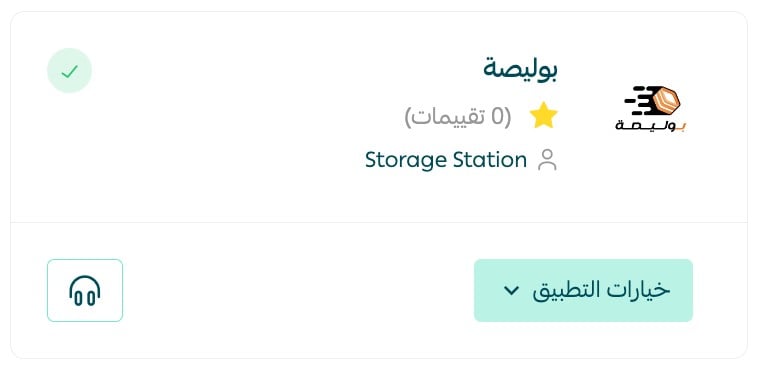
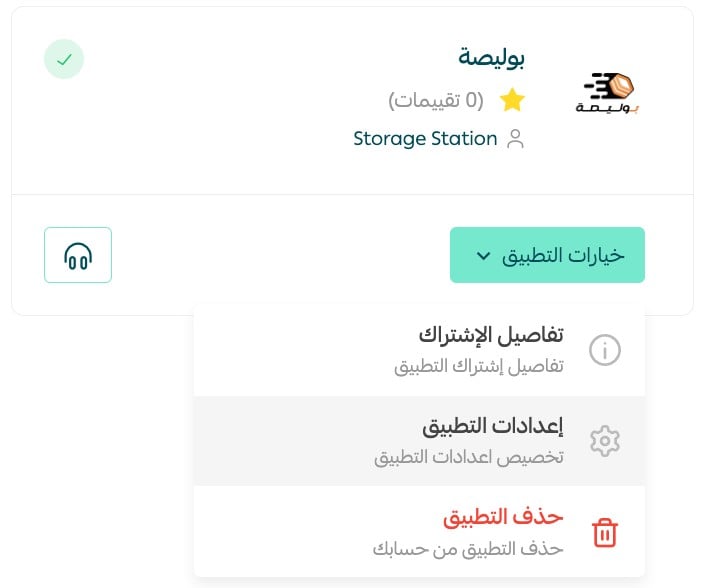
5. To customize the Bolisa Logistics app, go to the installed apps page, and from the app click (App options), then (App settings).
On the (Shipping company settings) tab, enter the display name and the default waybill settings, then click (Save).
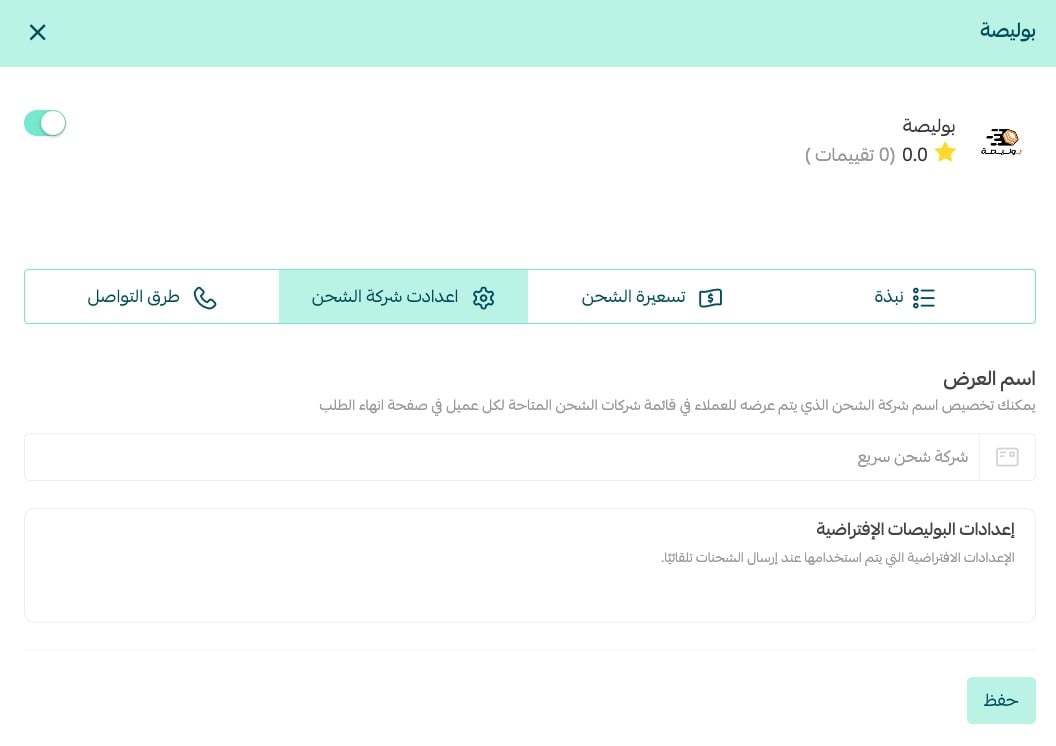
Then turn on the option to show the company to customers in your store.

For more detail, see our guide to managing your store's apps.
Frequently asked questions
❓ How do I set up shipping rates on the Bolisa Logistics app?
1. From the dashboard side menu, click (Installed apps).

2. On the installed apps page, from the Bolisa Logistics app, click (App options), then (App settings).
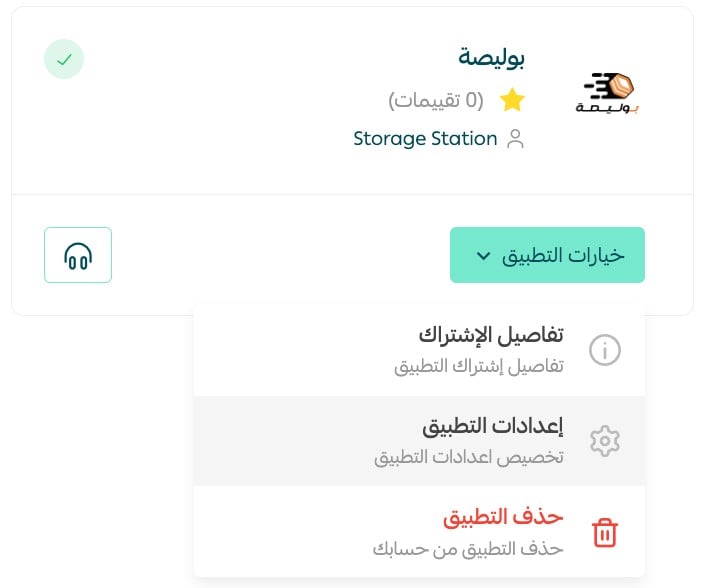
3. On the (Shipping rate) tab, enter the shipping rates for the cities and regions you need.
Then enter your own shipping cost as the merchant, which helps you calculate and see your store's profit on the shipping side.

For more detail, see:
- Setting shipping costs with a direct connection
- Shipping and delivery options settings
❓ Do I need to sign contracts with the shipping companies?
No. You just sign in, activate your account, top up your wallet, and start printing waybills.
❓ Do I have to use my waybills within a set period?
Waybills are not bought individually. You top up a balance in your wallet and use it as it suits you.
❓ How do I track customer orders?
You can track your orders through the shipment tracking system once you sign in.
❓ How do I temporarily disable the Bolisa Logistics app in my store?
1. From the dashboard side menu, click (Installed apps).

2. On the all apps page, from the Bolisa Logistics app, click (App settings).
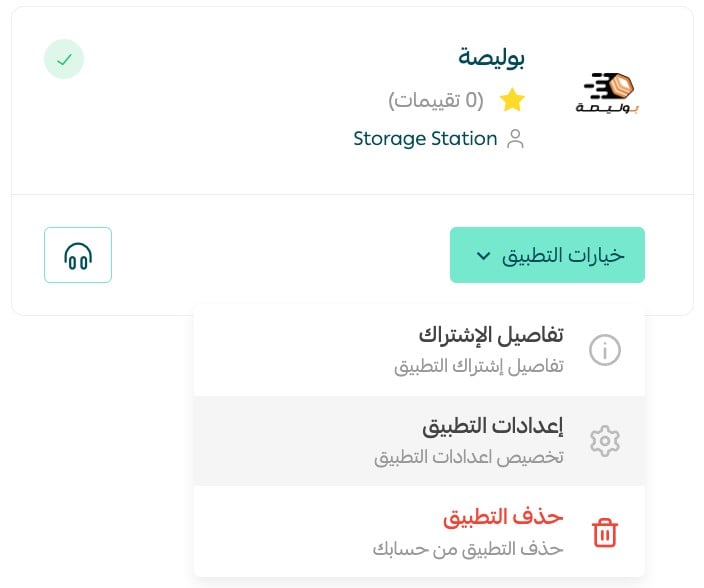
3. Turn the (Hide shipping company from the checkout page) option on or off.

❓ How do I remove the Bolisa Logistics app?
1. From the dashboard side menu, click (Installed apps).

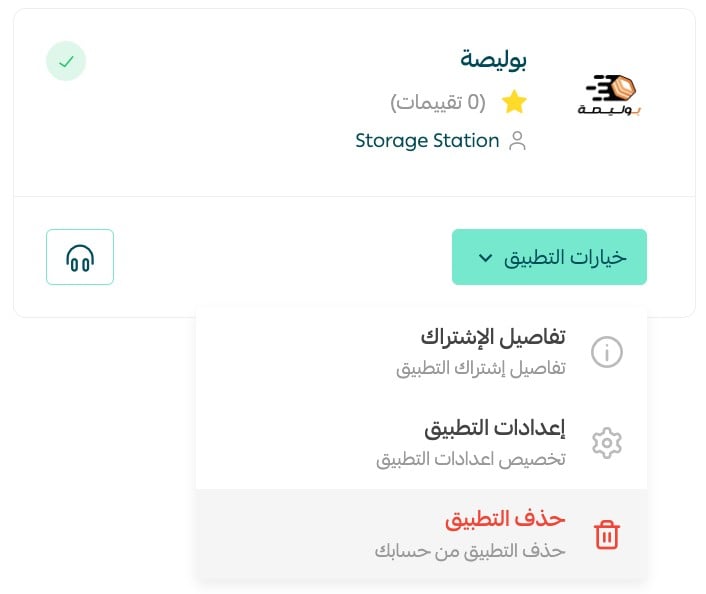
2. On the all apps page, from the Bolisa Logistics app, click (App options), then click (Delete app).
Connect the courier whose coverage and speed match what you have promised your customers, and set your rates carefully so the economics stay visible on every shipment.