Are your marketing messages reaching the app your customers actually check every day?
Most of the people who buy from your store already spend their day inside WhatsApp, but running campaigns from a personal phone gets messy fast. The WhatsApp Line app connects your Salla store to a dedicated WhatsApp marketing workspace, so you can reach your customer list, send campaign messages, and follow up on the replies from one place. In this guide, you'll learn how to install WhatsApp Line on your store, grant the permissions it needs, activate it, and customize your message text.
WhatsApp Line is a marketing app in the Salla App Store that helps stores reach and engage their audience over WhatsApp. You install it from the app store, choose a plan, grant permission, and activate it. Your login details arrive by WhatsApp, and you then adjust the settings and message text to match your store.
📌 Article overview
- What WhatsApp Line does
- How to install and connect WhatsApp Line
- Frequently asked questions
🎯 What is WhatsApp Line?
WhatsApp Line is a marketing app built for businesses and marketing teams that want to talk to their audience on WhatsApp instead of hoping an email gets opened. It gives you a simple interface for reaching customers, running campaigns, and keeping the conversation going, so your marketing effort turns into real replies rather than one-way announcements.
🚀 How to install and connect WhatsApp Line
1. From the main menu of your store dashboard, click (Installed apps).

2. From the Salla App Store banner, click (Browse the Salla App Store).

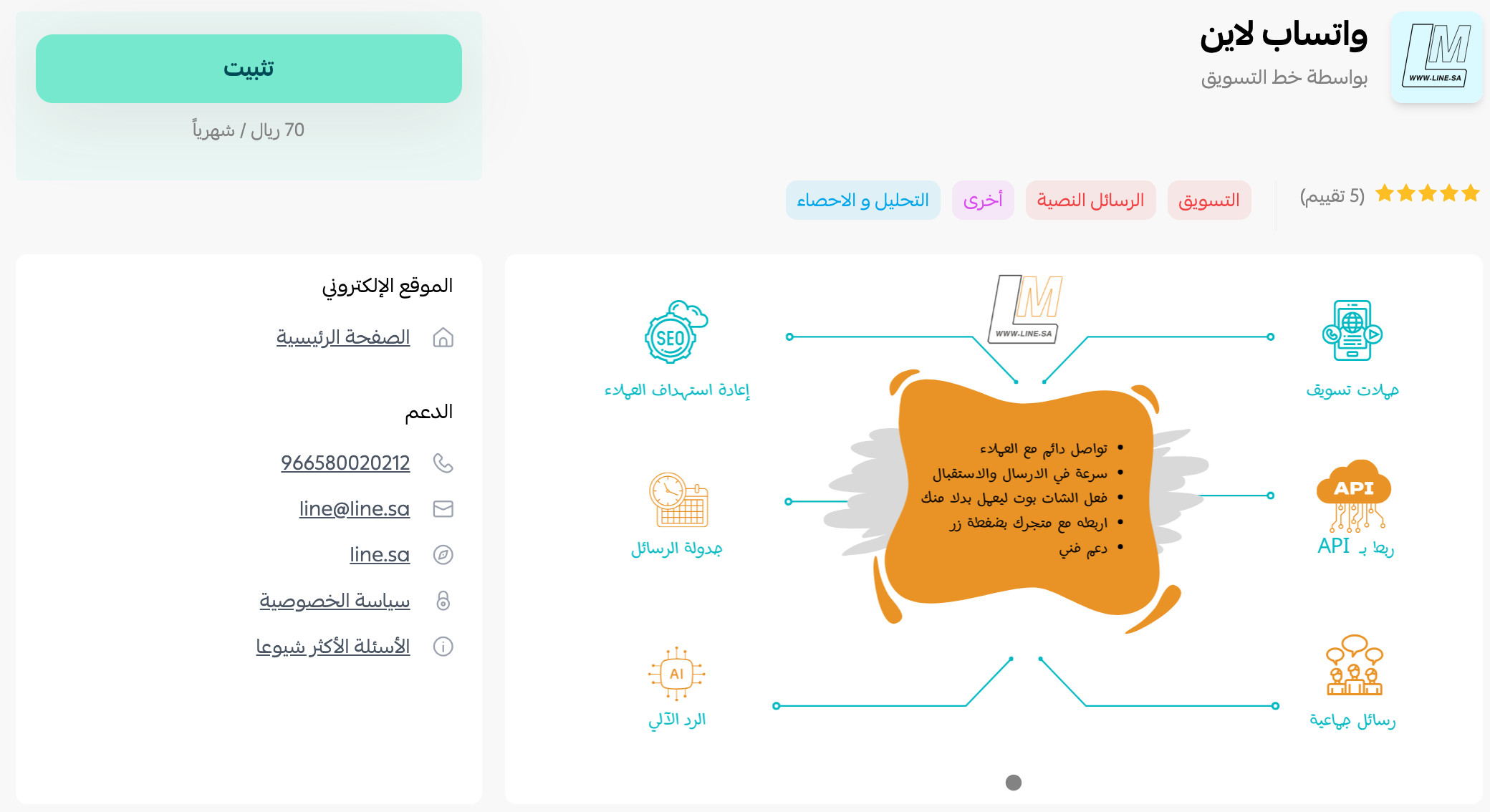
3. On the WhatsApp Line app page, click (Install).
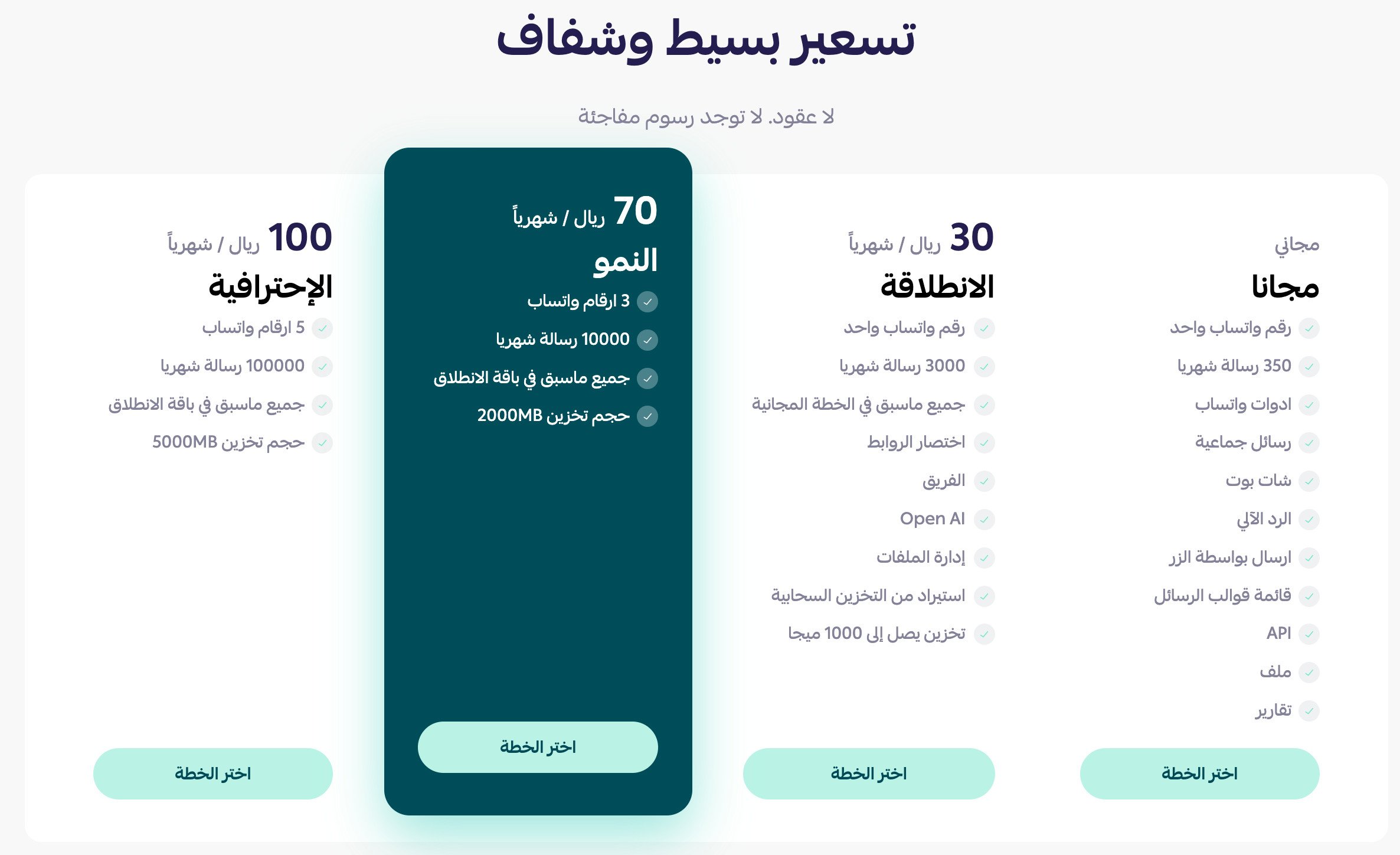
Then pick the plan that fits the size of your business.
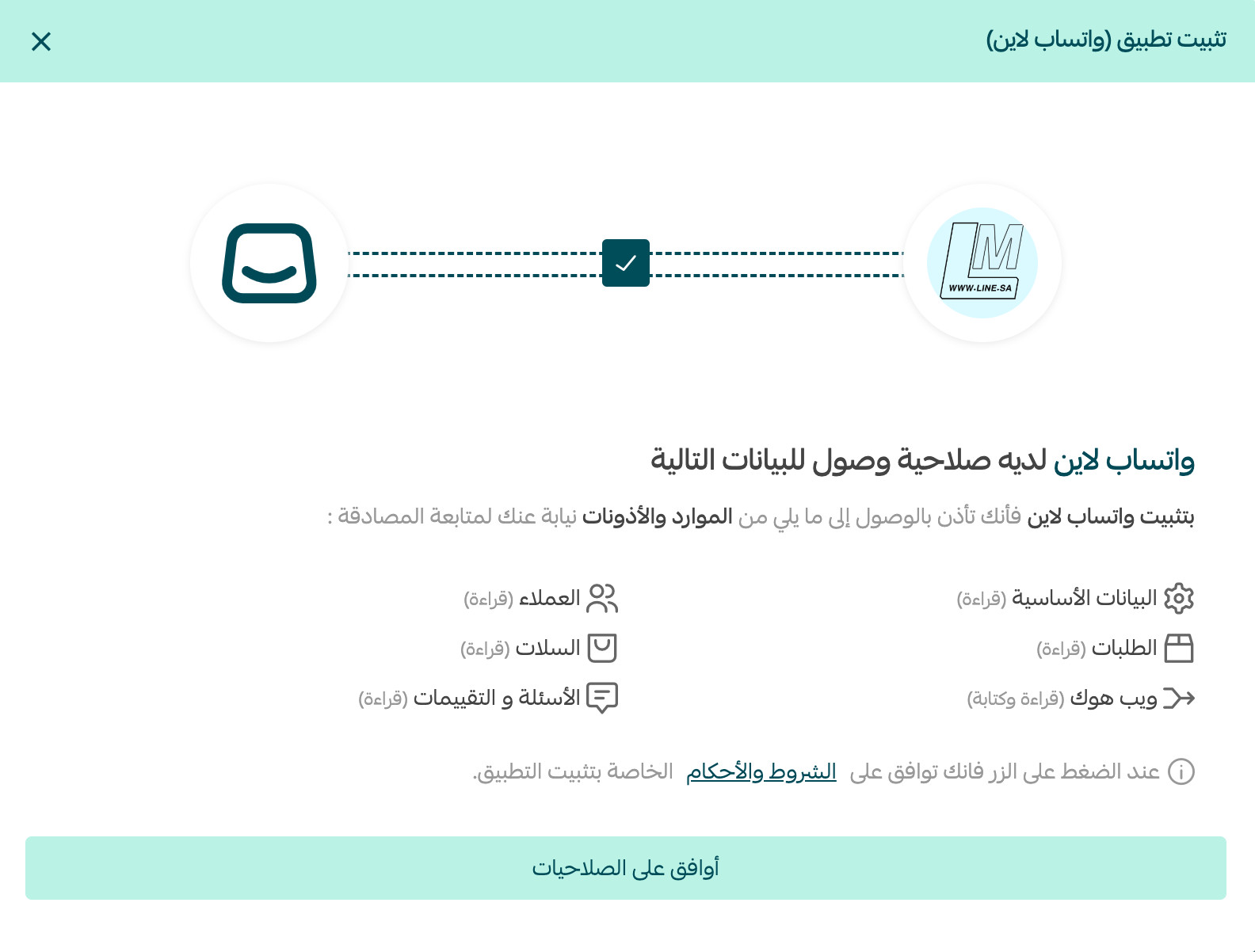
4. Review the permissions the app asks for, then click (Grant permission).
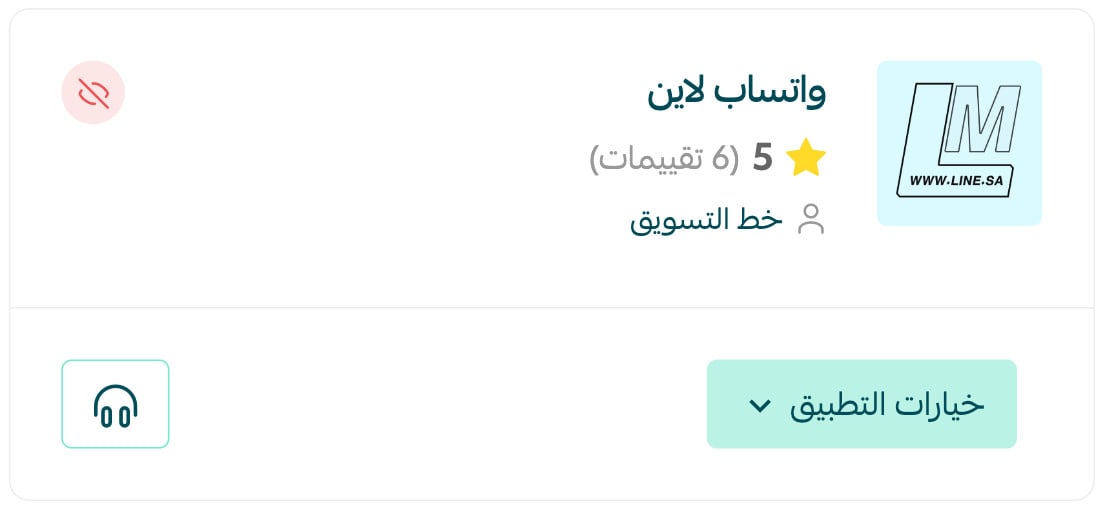
WhatsApp Line is now installed on your store.
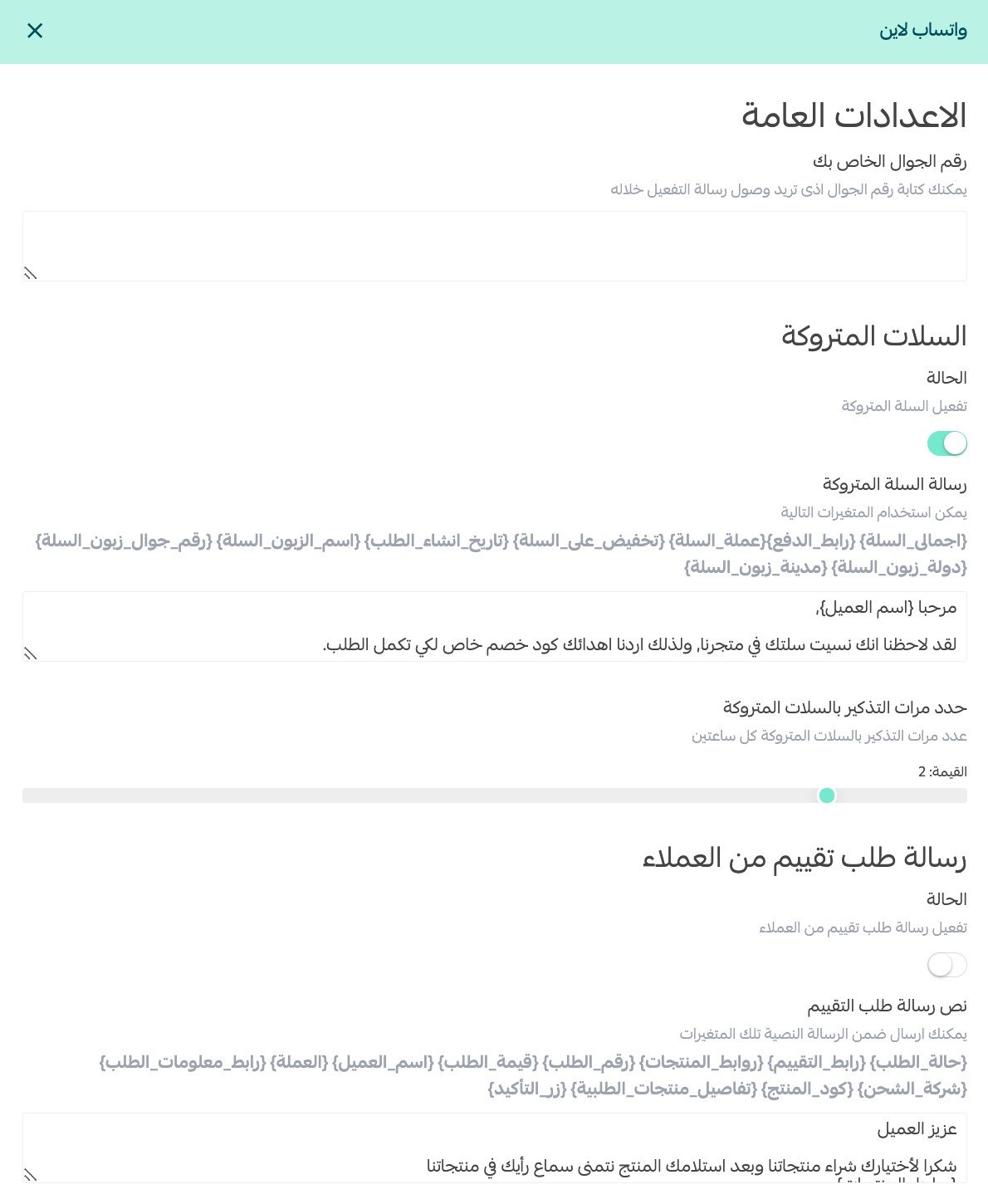
As soon as the installation finishes, a WhatsApp message arrives on your registered number with the login details for your WhatsApp Line account.
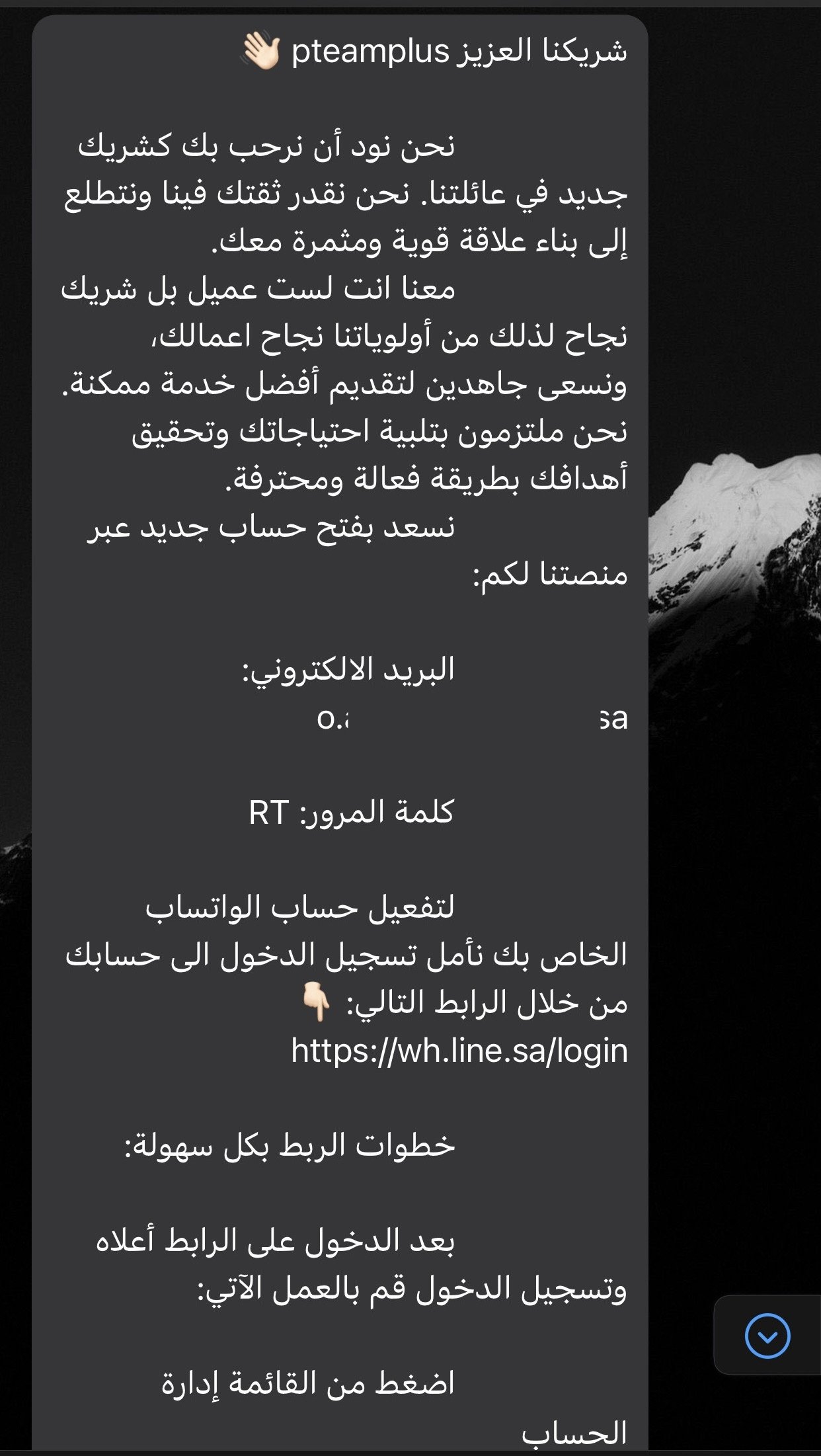
5. From the app options, click (Activate app).
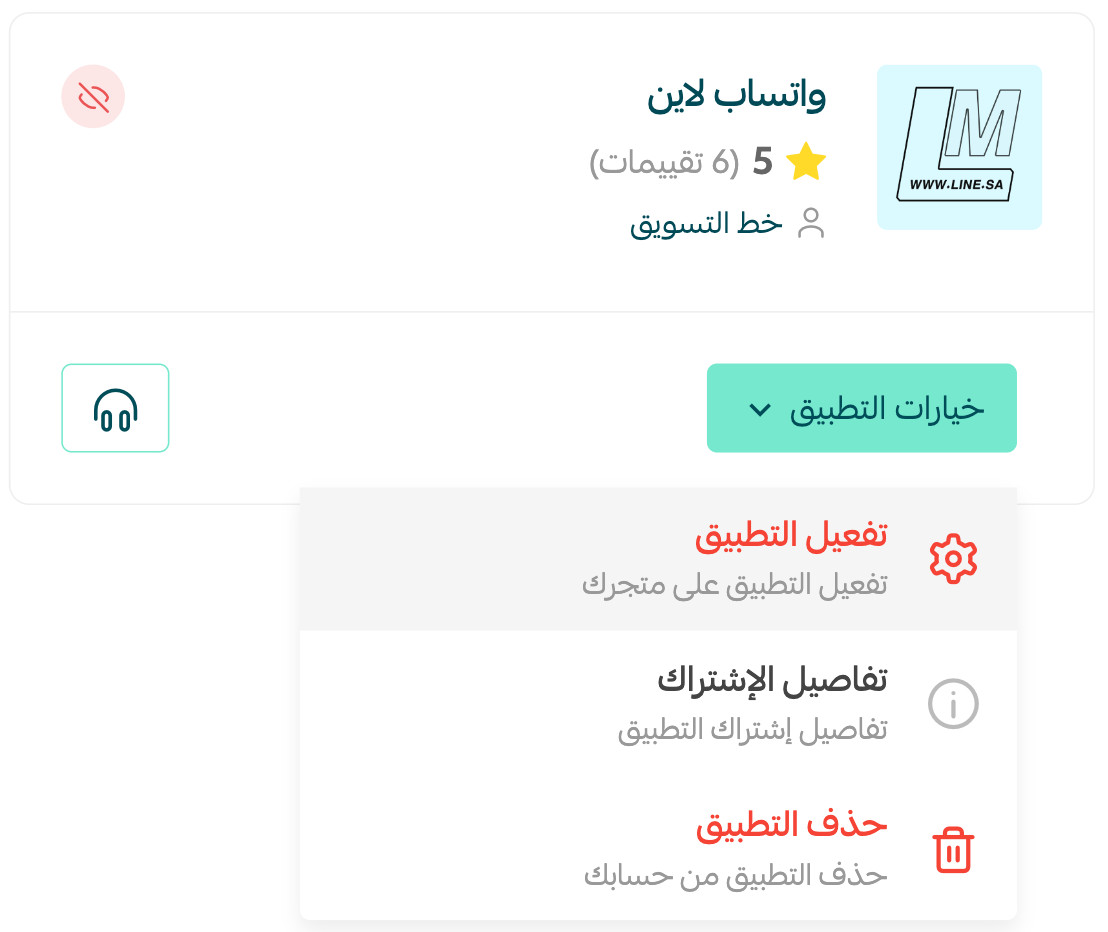
6. Adjust the settings, write the message text you want to send, then click (Save).
📝 Important notes
- Your WhatsApp Line login details are sent to the WhatsApp number registered on your store, not to your dashboard inbox.
- You can come back to the settings at any time to rewrite the message text.
- For more on installing, activating, and removing apps, read Managing your store apps.
❓ Frequently asked questions
How do I remove the WhatsApp Line app from my store?
1. From the main menu of your store dashboard, click (Installed apps).

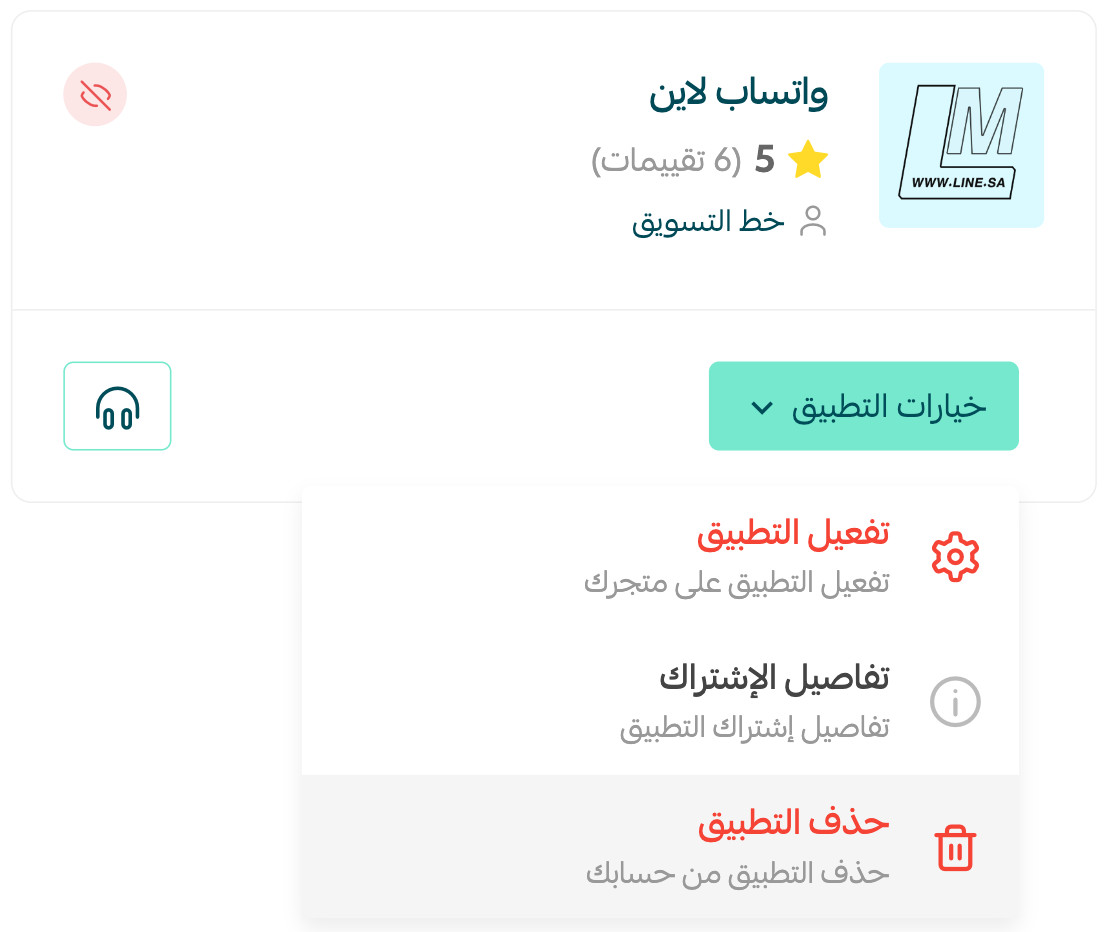
2. From the WhatsApp Line app options, click (Delete app).
Where do I find my WhatsApp Line login details?
They are sent to you in a WhatsApp message right after the app is installed. Keep that message; it is how you sign in to WhatsApp Line.
Do I have to pick a plan while installing?
Yes. The plans appear on the WhatsApp Line page in the Salla App Store during installation, and you choose the one that suits your business activity.
Can I change the message text after the app is active?
Yes. Open the app settings, edit the message text, and click (Save). The new wording applies to messages sent from that point on.
Your customers are already on WhatsApp. Connecting WhatsApp Line simply puts your store's marketing in the same place, where a message gets read instead of ignored.