StorageX Branch Pickup
Connecting a courier directly to your store removes the manual step where most shipping mistakes start. StorageX Branch Pickup provides secure storage, fast and accurate order preparation around the clock, and the option to collect from available branches according to coverage, which gives your customers more flexibility. In this guide, you'll learn how to connect the StorageX Branch Pickup app to your Salla store, set your shipping rates, and manage the app afterward.
To connect StorageX Branch Pickup on Salla, click Installed apps in the dashboard side menu, then click Browse the Salla App Store. Open the StorageX Branch Pickup app, click Install, and grant the requested permissions. Then open App options > Activate app, and enter your account settings on the shipping company tab.
📌 Article overview
- How to connect the StorageX Branch Pickup app
- How to set up shipping rates
- How to temporarily disable the app
- How to remove the app
How to connect the StorageX Branch Pickup app on Salla
1. From the dashboard side menu, click (Installed apps).

2. From the Salla App Store banner, click (Browse the Salla App Store).

3. From the StorageX Branch Pickup app page, click (Install).

4. Review the requested permissions, then click (Grant permission).
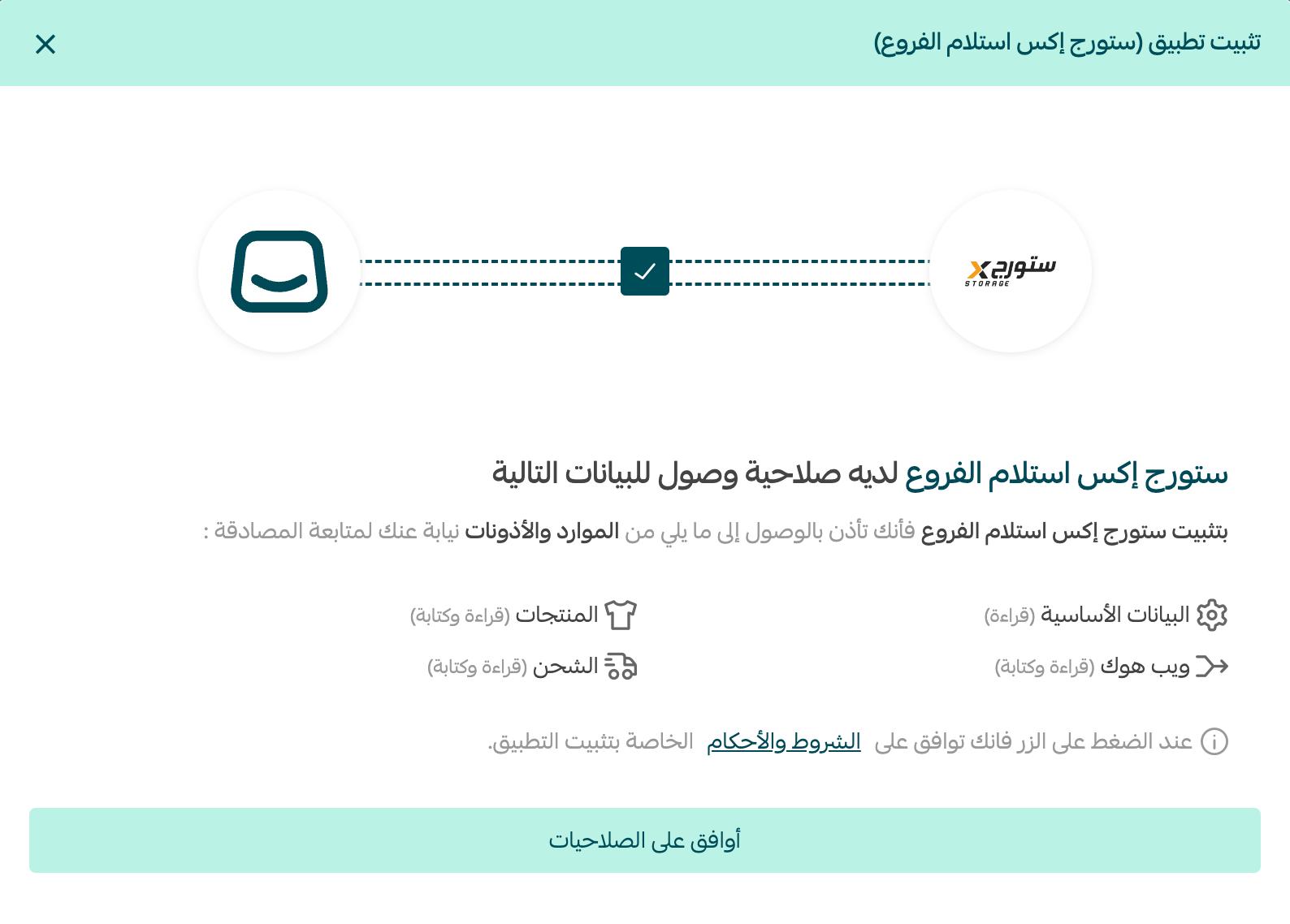
The StorageX Branch Pickup app is now installed on your store.
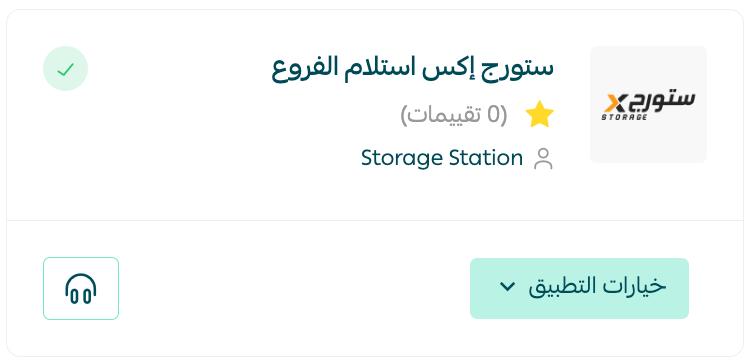
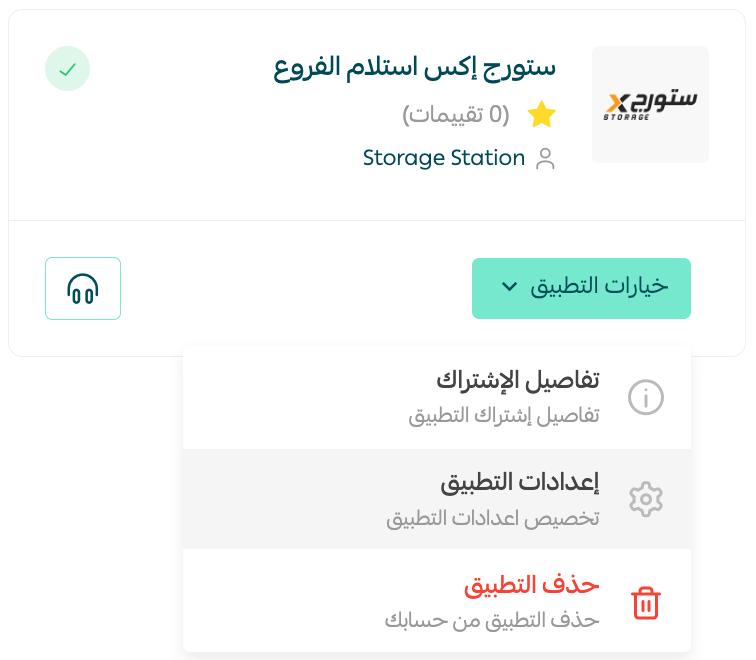
5. From the StorageX Branch Pickup app, click (App options), then click (Activate app).
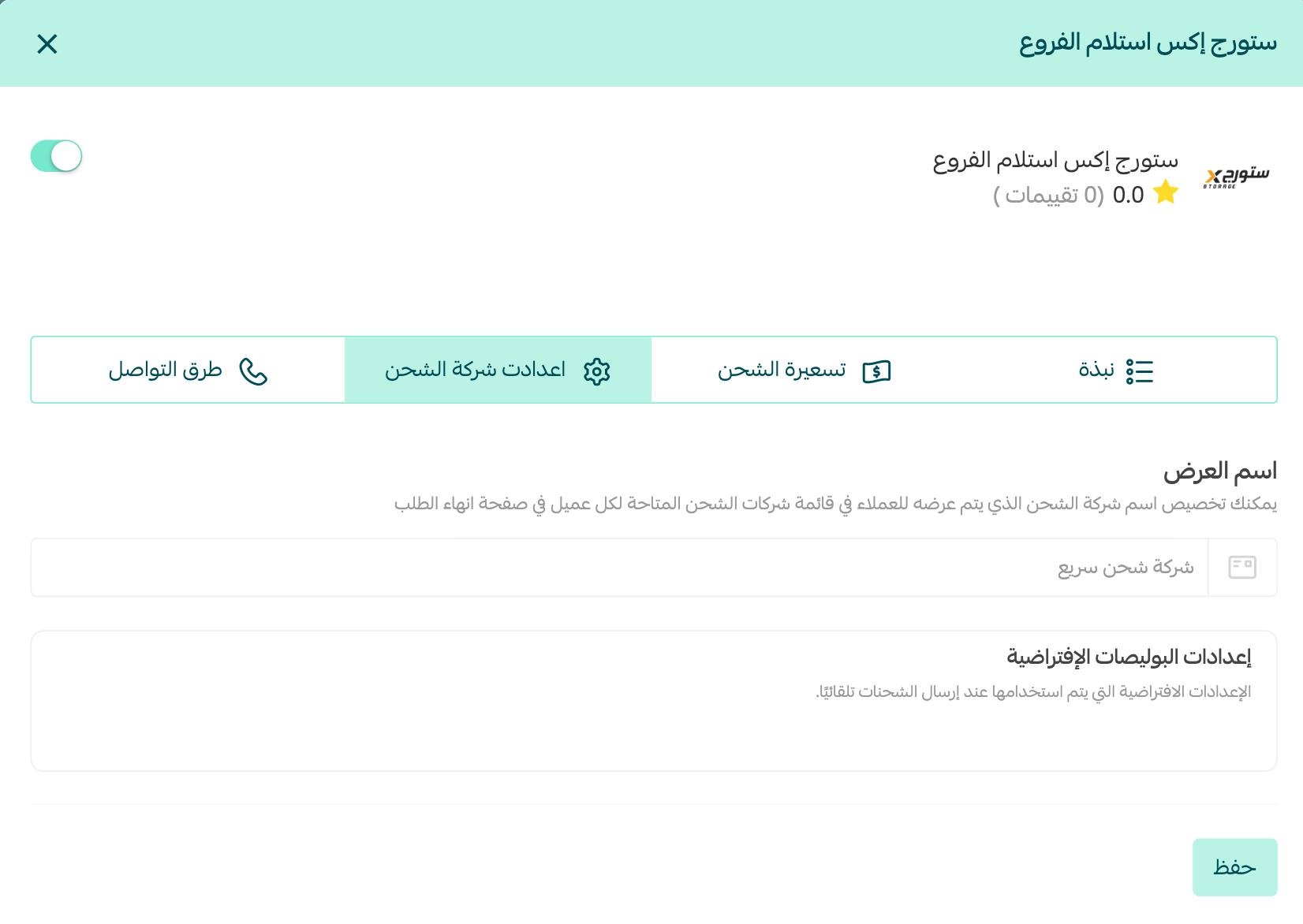
On the (Shipping company settings) tab, enter your account settings and details, then click (Save).
Frequently asked questions
❓ How do I set up shipping rates on StorageX Branch Pickup?
1. From the dashboard side menu, click (Installed apps).

2. On the all apps page, from the StorageX Branch Pickup app, click (App options), then (Activate app).
3. On the (Shipping rate) tab, enter the shipping rates for the cities and regions you need.
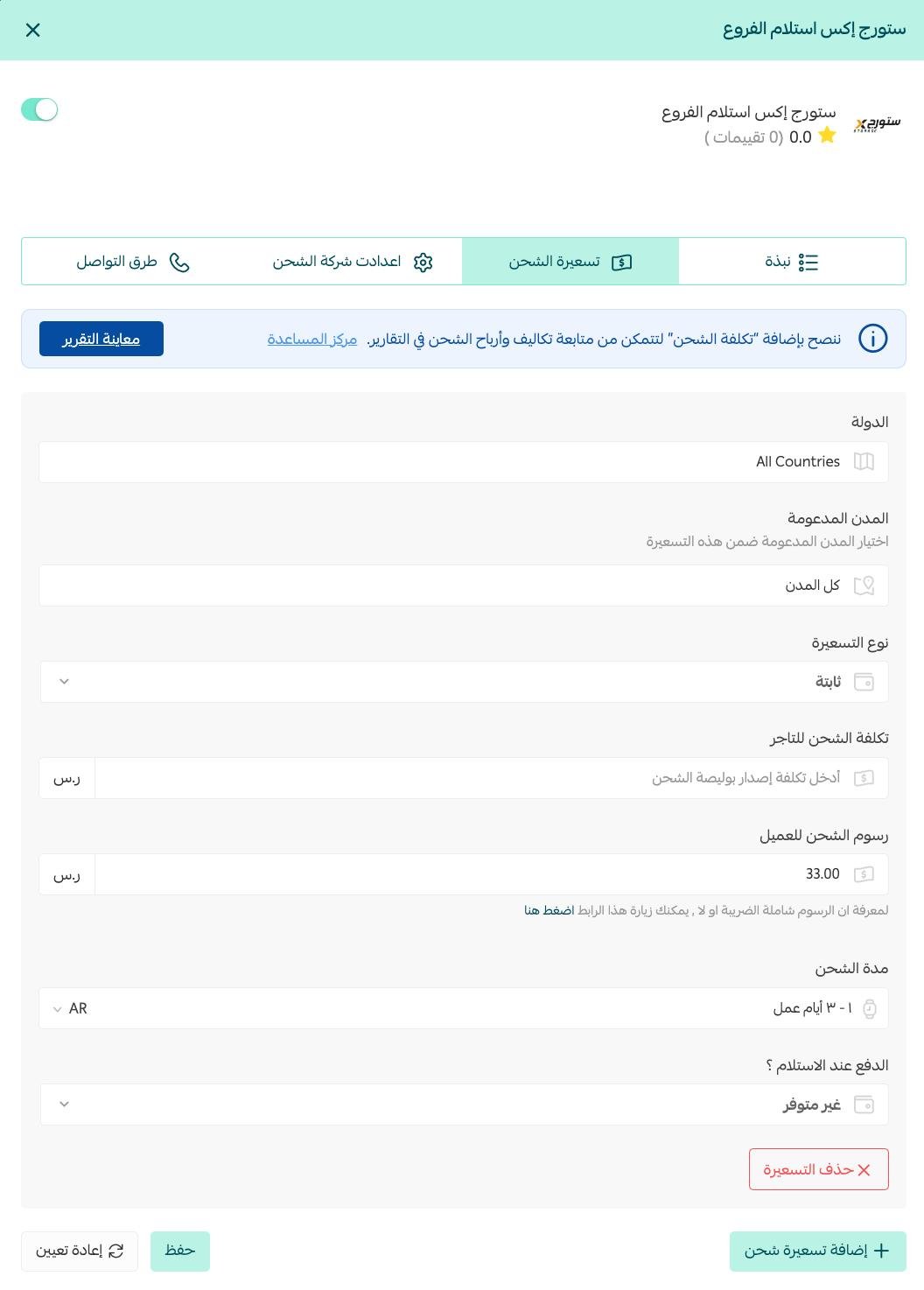
For more detail, see our guide to shipping and delivery options settings.
❓ How do I temporarily disable the StorageX Branch Pickup app in my store?
1. From the dashboard side menu, click (Installed apps).

2. On the all apps page, from the StorageX Branch Pickup app, click (App options), then (Activate app).
3. Turn the (Hide shipping company from the checkout page) option on or off.

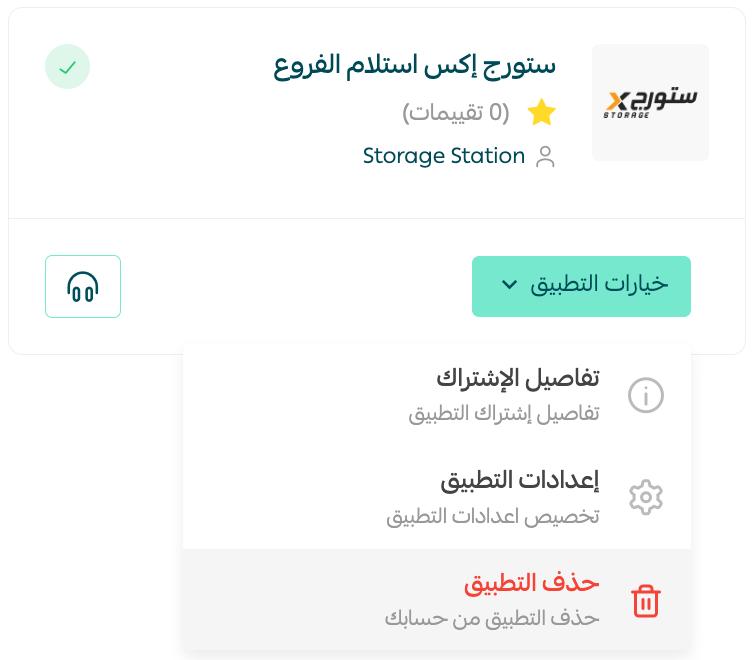
❓ How do I remove the StorageX Branch Pickup app from my store?
1. From the dashboard side menu, click (Installed apps).

2. On the all apps page, from the StorageX Branch Pickup app, click (App options), then (Delete app).
Connect the courier whose coverage and speed match what you have promised your customers, and set your rates carefully so the economics stay visible on every shipment.