Planning to advertise your store on Facebook but don't have Business Manager set up yet?
Setting up Meta Business Manager is the foundation for running Facebook ads and connecting tools like Meta Pixel to your Salla store. It gathers your Facebook Page, ad accounts, and team in one place, separate from your personal profile. In this guide, you'll learn how to create a Facebook account, add a business Page, and set up Business Manager, step by step.
To set up Meta Business Manager, create a Facebook account if you don't have one, add a business Page to it with your store's name, link, and details, then go to business.facebook.com, click (Create account), and enter your business name and work email to finish.
📌 Article overview
- Create a new Facebook account
- Add the business section to your Facebook account
- Create a Business Manager on Facebook
- Frequently asked questions
📝 Important notes
You can skip any step you have already completed before.
First: create a new Facebook account
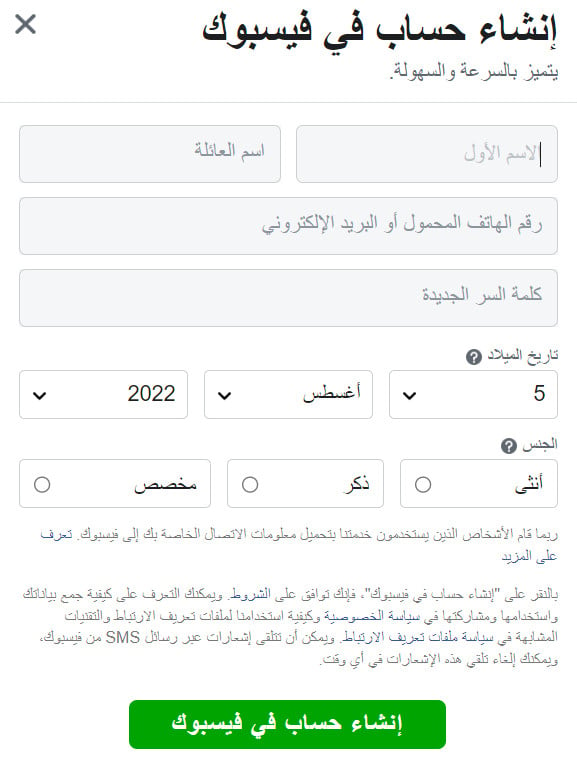
1. From the Facebook home page, click (Create new account).

2. Enter the details needed to create an account, then click (Sign Up).
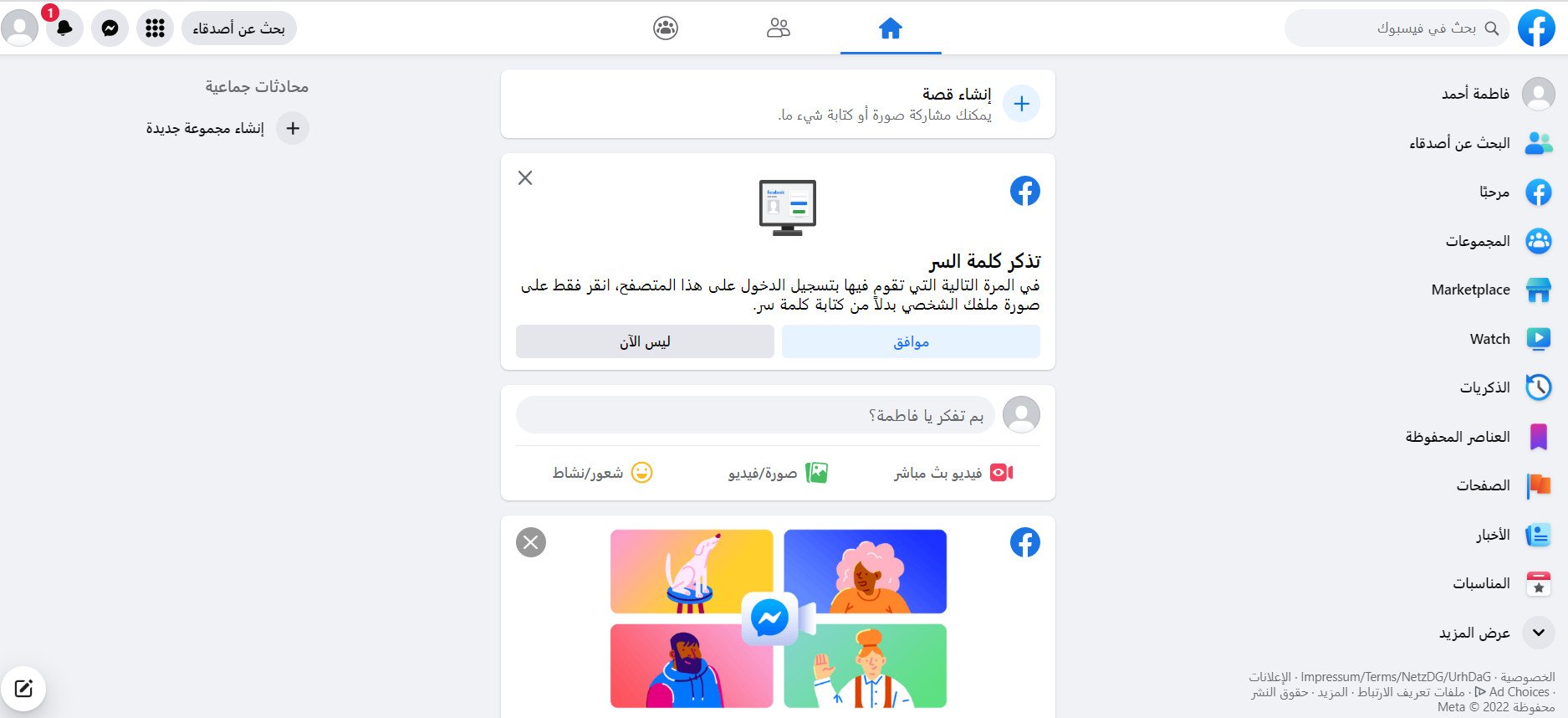
After confirming the account with the code sent to your registered email, your home page appears like this:
Second: add the business section to your Facebook account
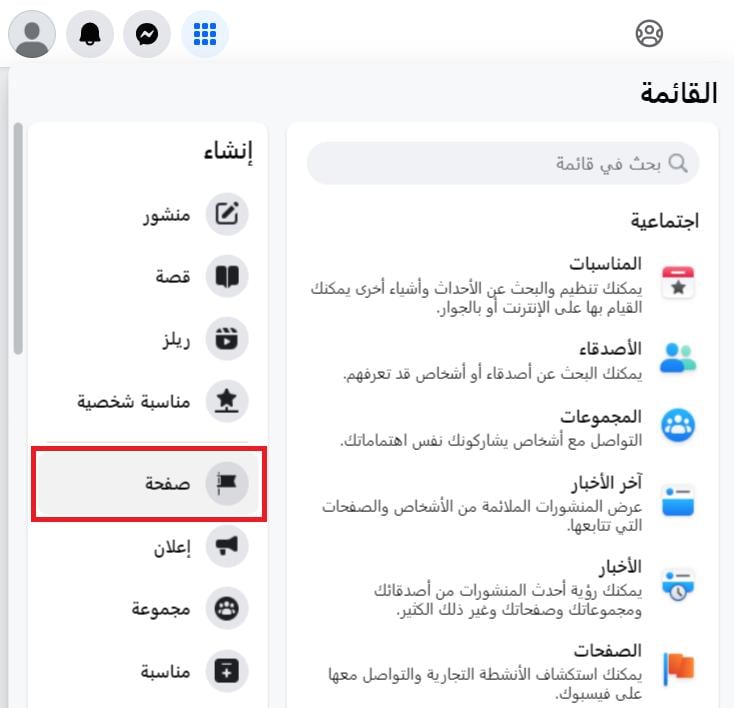
1. From the Facebook home page, open the menu, and under (Create), click (Page).
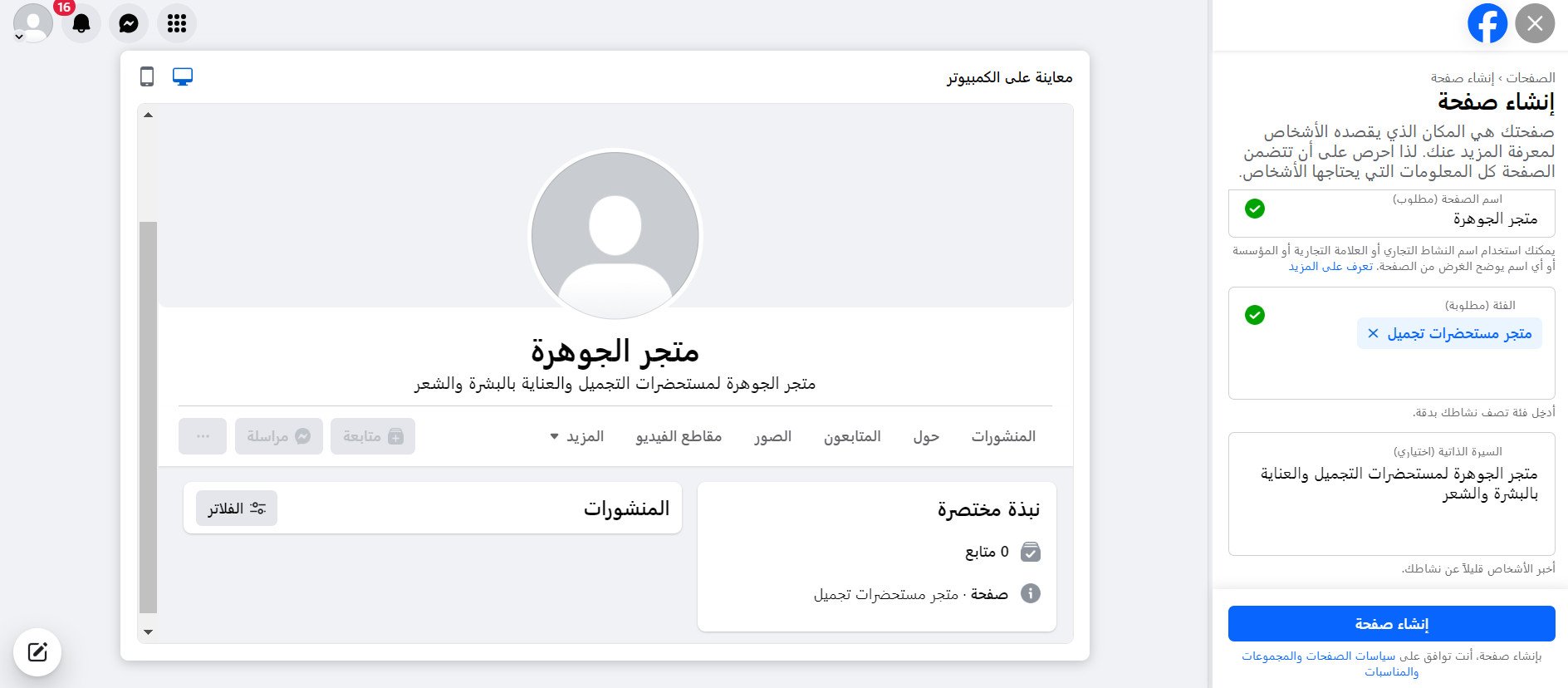
2. Enter the Page name and business category, plus a description of your business, then click (Create Page).
3. Enter your store link, location, email, and the rest of your store details, then click (Next).
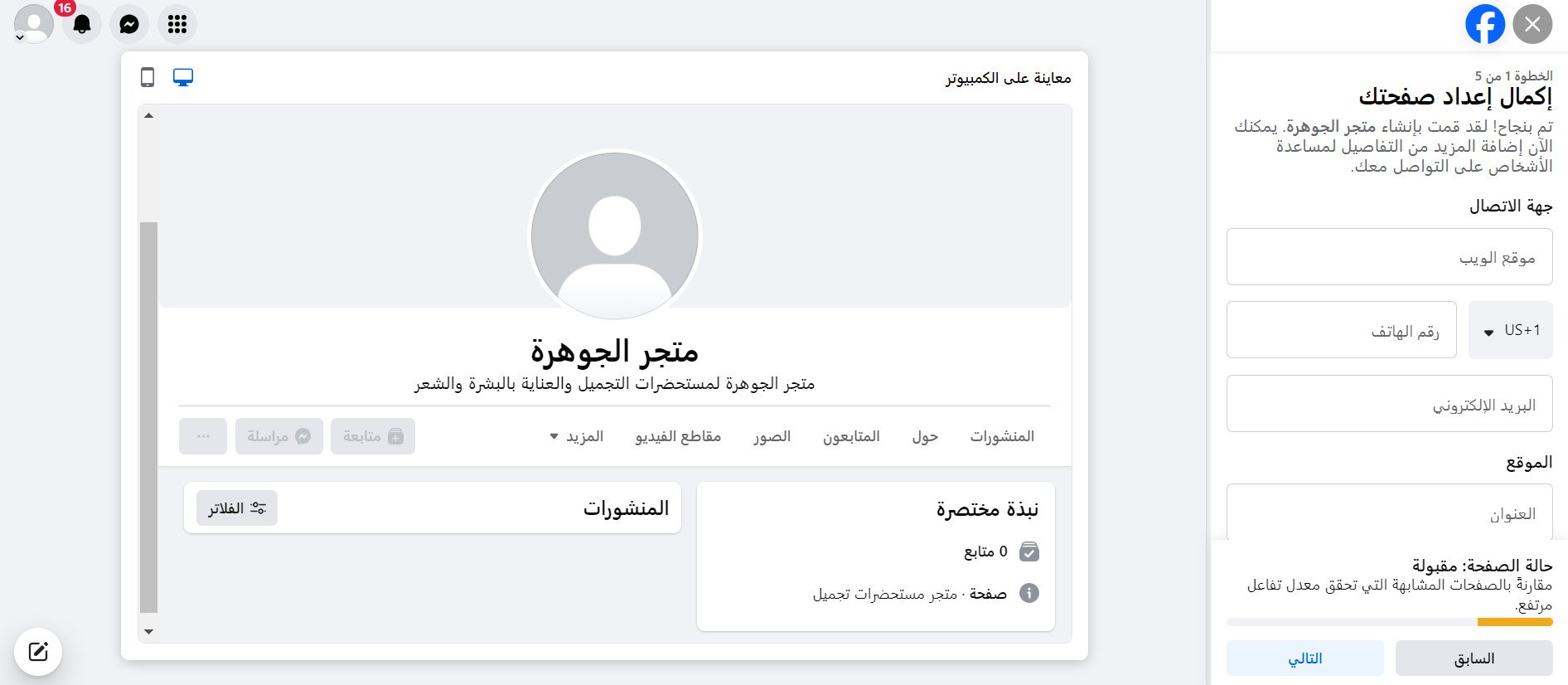
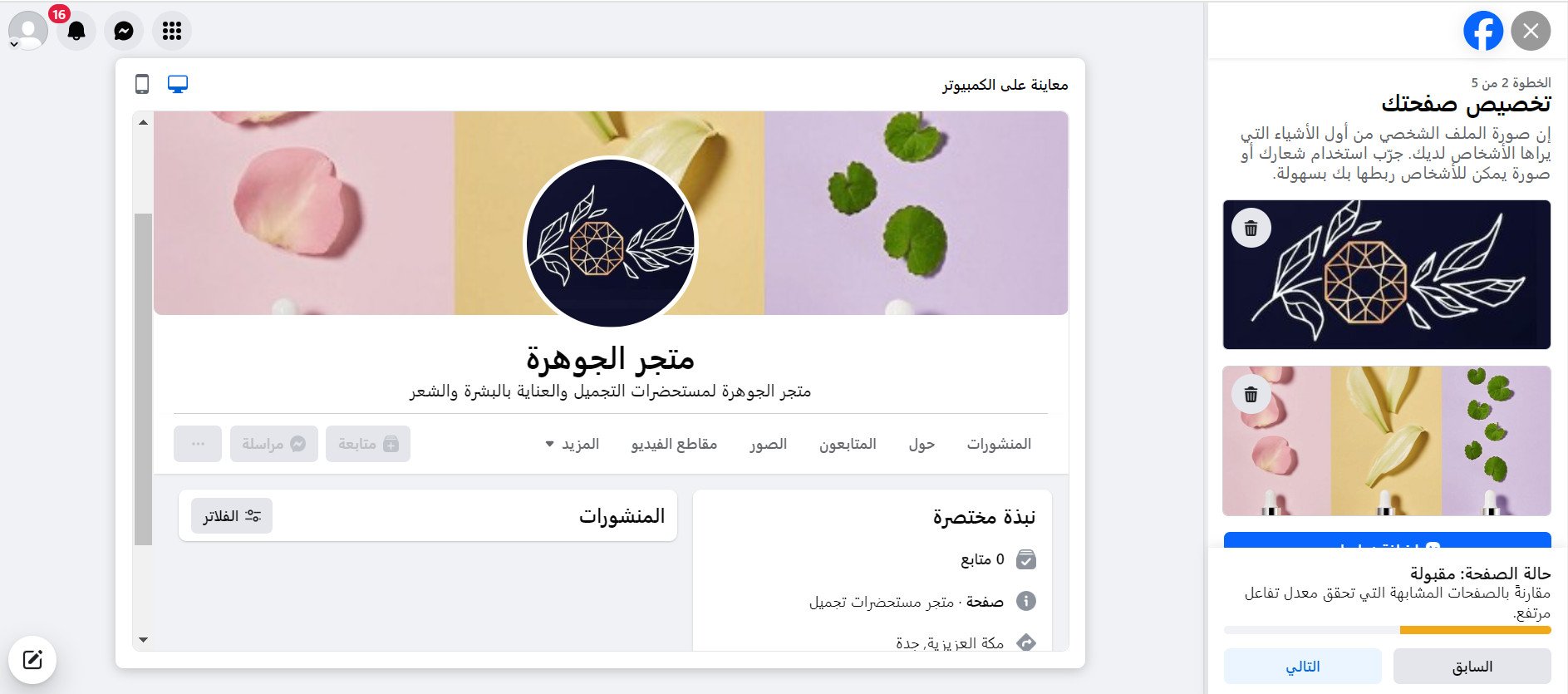
4. Add a profile picture and a cover photo for your store's Facebook Page:
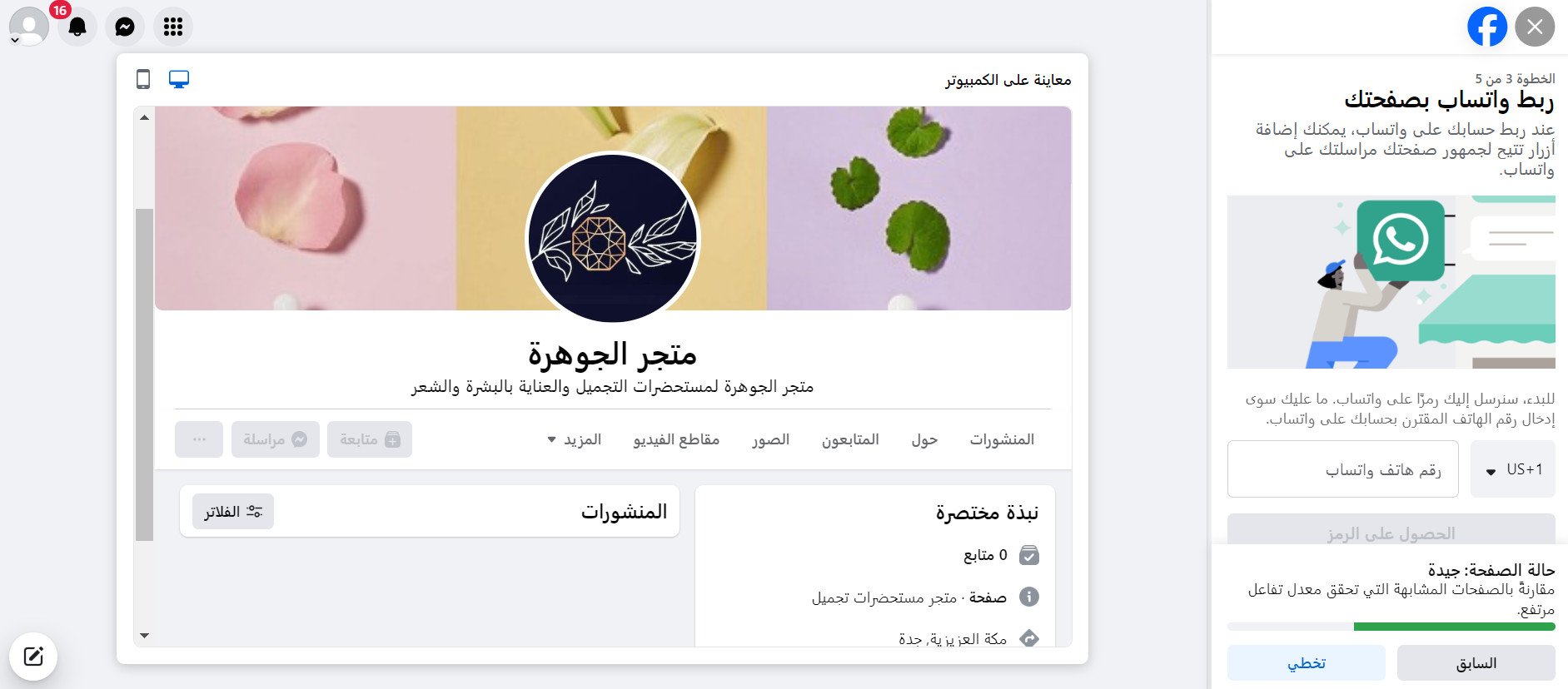
5. You have the option to link your Page to your WhatsApp account. This lets you add buttons your Page audience can use to message you on WhatsApp.
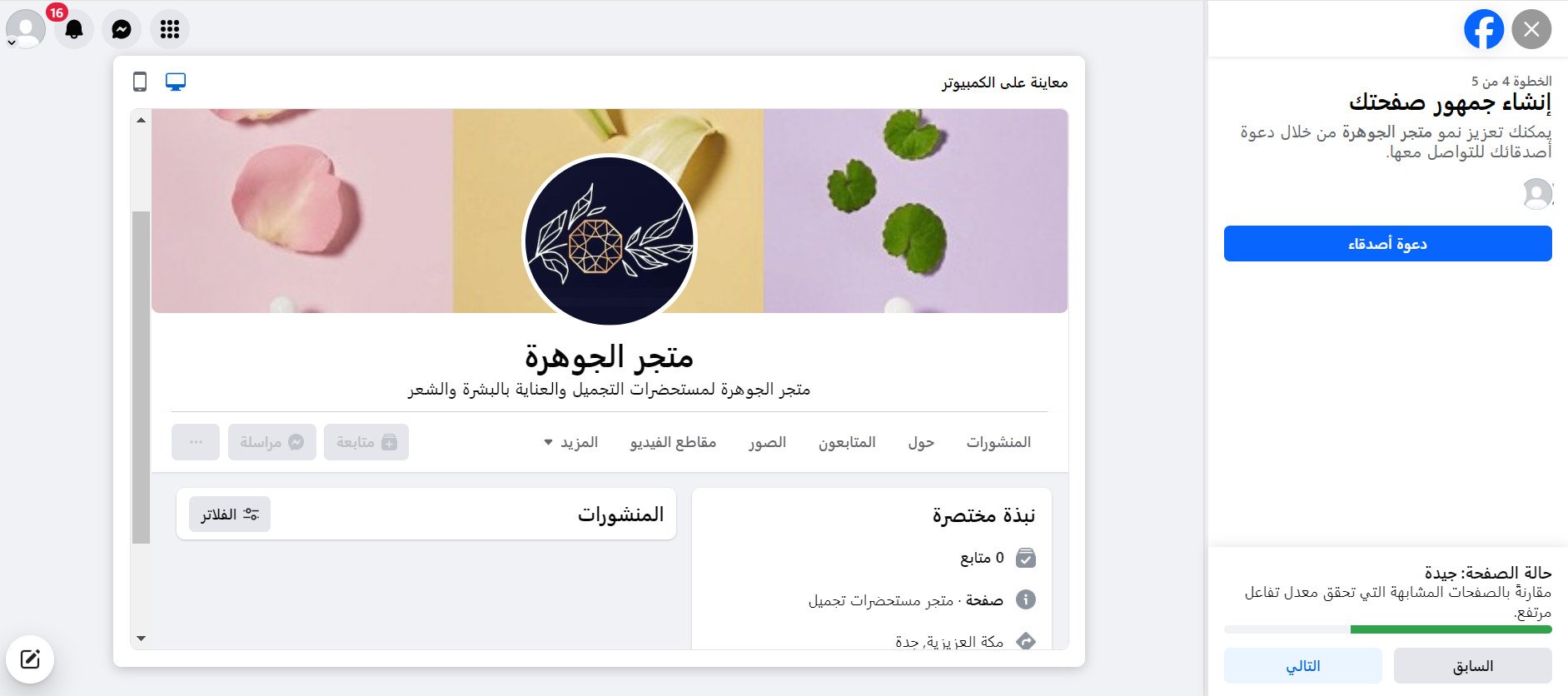
6. You can grow your store's reach by inviting your friends to connect with the Page.
7. Turn notification options on or off as you need.
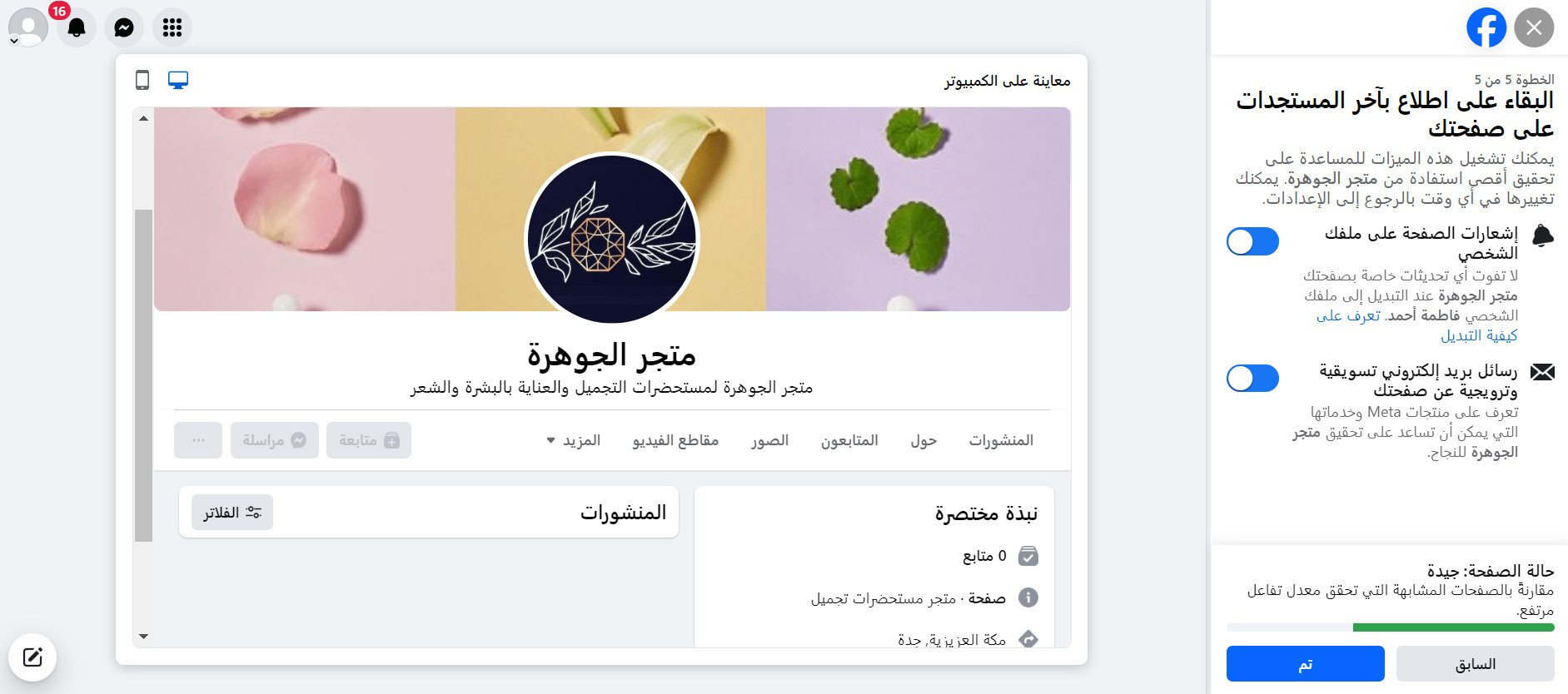
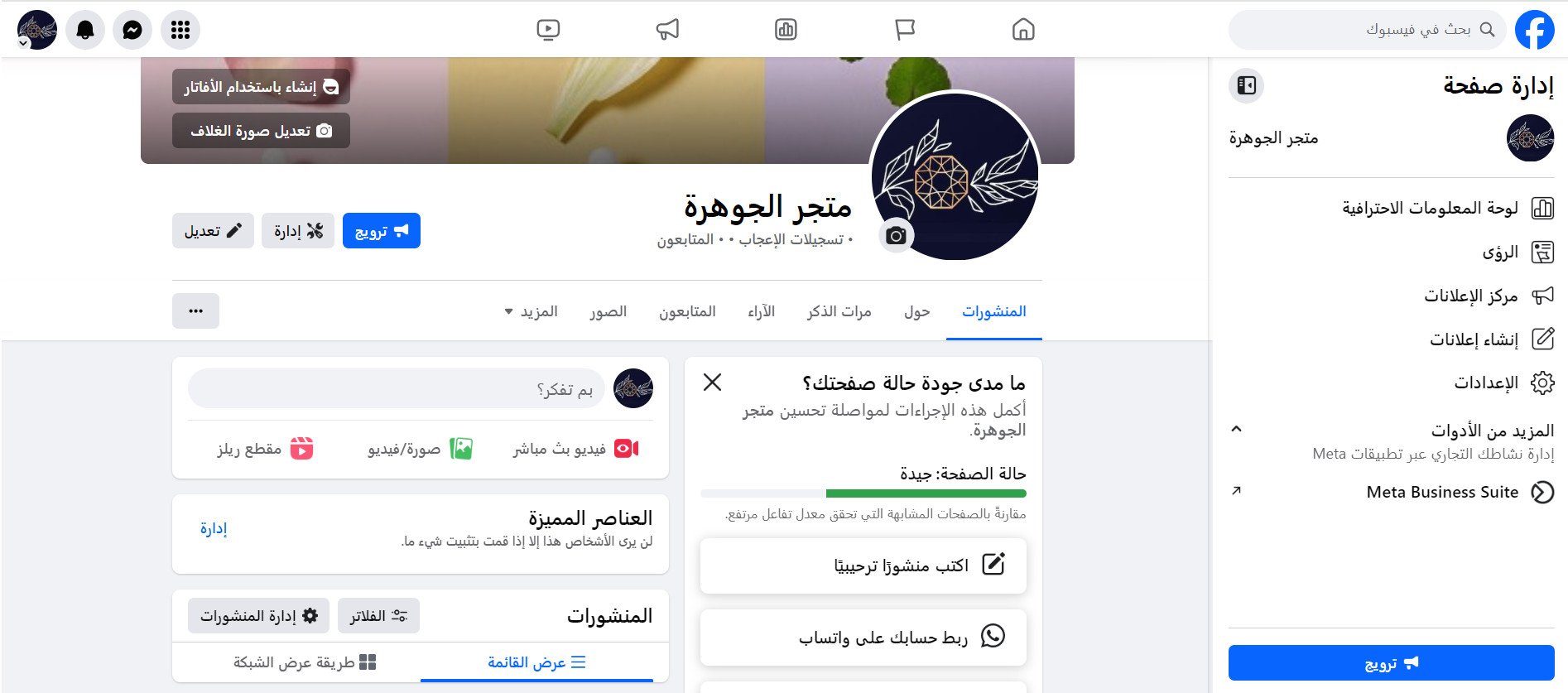
Your store's Page then appears like this:
Third: create a Business Manager on Facebook
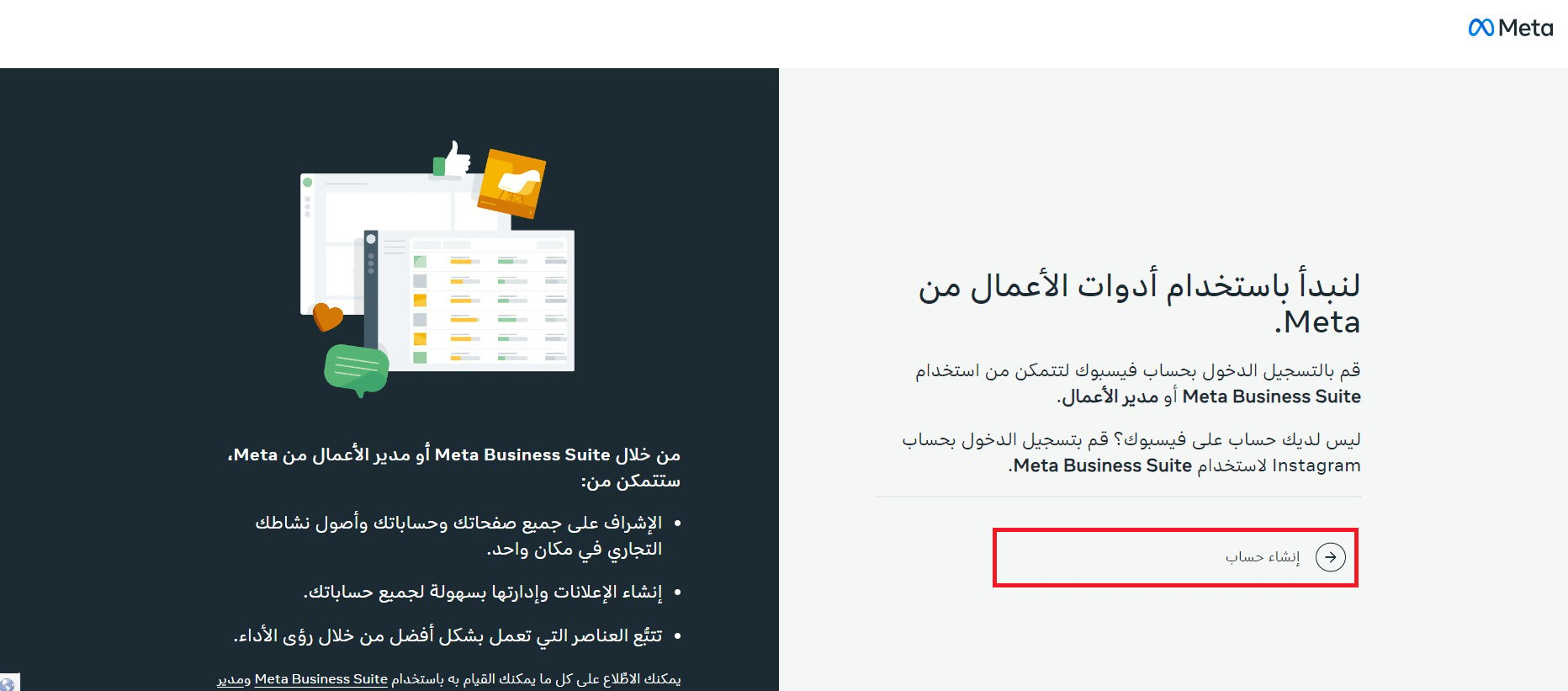
1. From the Meta Business Manager page, click (Create account).
2. Enter a name for your business, your name, and your work email address, then click (Submit).

3. Click (Done) to confirm your email address.

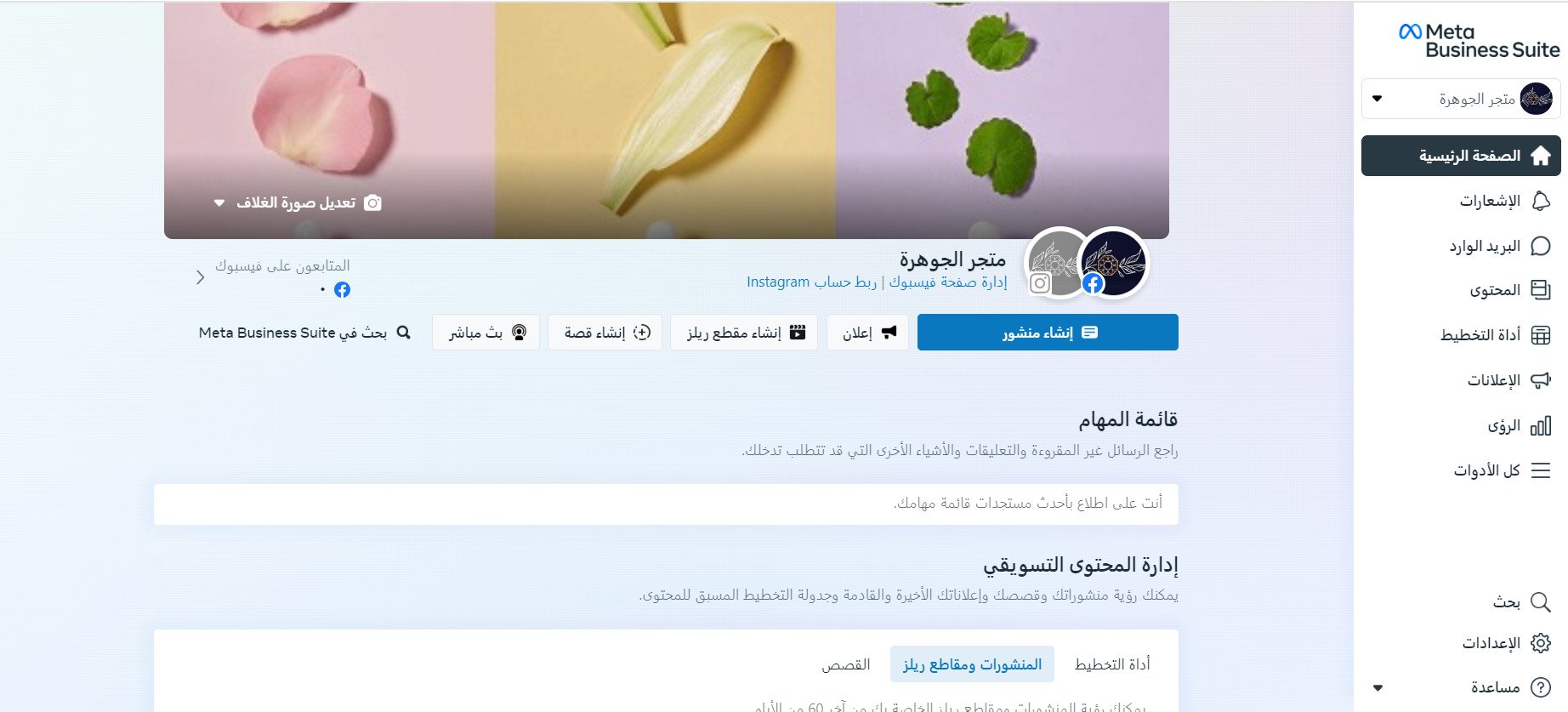
Congratulations! Your Business Manager is ready.
❓ Frequently asked questions
Do I need to complete every step in this guide?
No. If you already have a Facebook account or a business Page, skip that stage and continue from the next one — only the parts you have not set up yet are required.
Why do I need Meta Business Manager for my store?
Business Manager keeps your business assets — your Page and ad tools — organized in one place, separate from your personal profile, and it is required for tools such as Meta Pixel that connect your Salla store to Facebook advertising.
Do I have to link my Facebook Page to WhatsApp?
No, it is optional. Linking adds buttons that let your Page audience message you directly on WhatsApp, which can be useful for customer questions.