When managing an online store, finding the right tools to grow your business and improve performance can be challenging. The Salla App Store solves this by offering an all-in-one platform where you can easily discover, install, and manage apps from one place, giving you full control, flexibility, and saving you time and effort.
This article walks you through the App Store features, its sections, how to subscribe to apps, manage subscriptions, and handle installed apps effectively.
📌 Article overview
- Benefits of the Salla App Store for merchants
- App Store page sections
- Steps to subscribe to an app
- Steps to cancel an app subscription
- Rating, updating, and requesting support for installed apps
- Frequently asked questions
Benefits of the Salla App Store for merchants
The Salla App Store is designed to make app management simple and efficient. Key benefits include:
- A clean, organized interface to browse and install apps from one place
- Clear categories and classifications to help you find apps that match your store’s needs
- The ability to rate apps and communicate directly with app providers for support or inquiries
- Full control from a single dashboard: search, filter, activate, configure, and unsubscribe
- Detailed app status tracking (Active, Inactive, Pending Payment) with subscription details and features
App Store page sections
To access the App Store:
- From the main menu, click All, then under Tools, select My Apps.
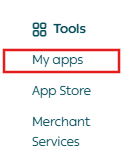
2. The Apps page will open, which is divided into three main sections:

1. App Store
The App Store tab displays all available apps.
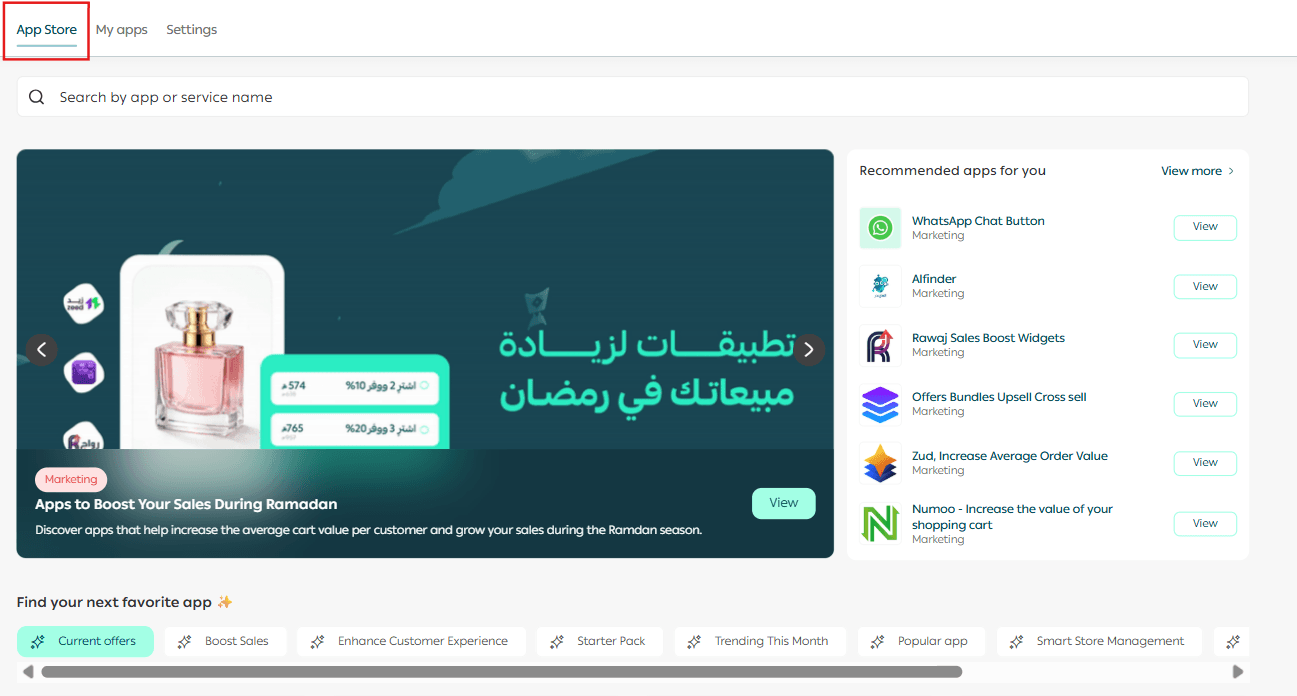
From this section, you can:
- Browse all apps
- Search for a specific app
- Install apps directly
2. My Apps
The My Apps tab shows all apps currently installed in your store.
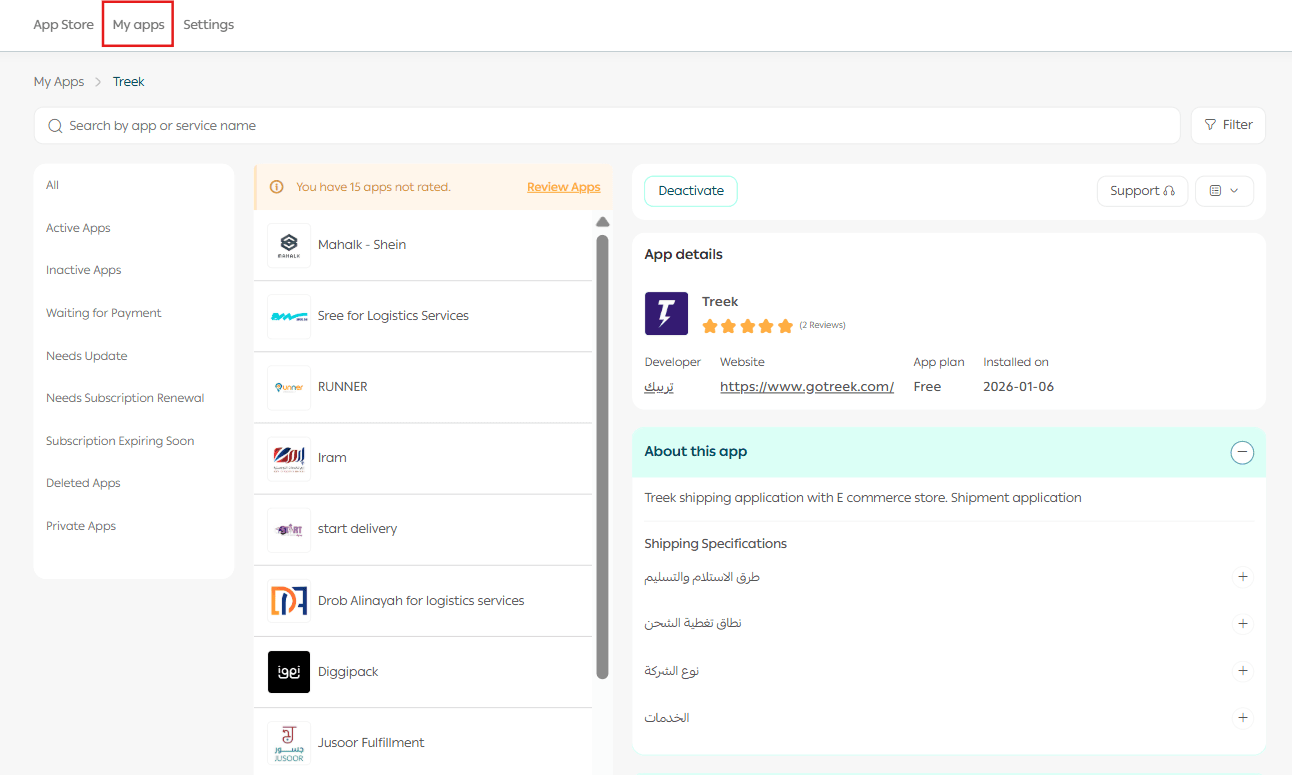
From this page, you can manage each app individually and view detailed information. Key elements include:
- Search and filter bar
Search for a specific app or filter multiple apps easily.
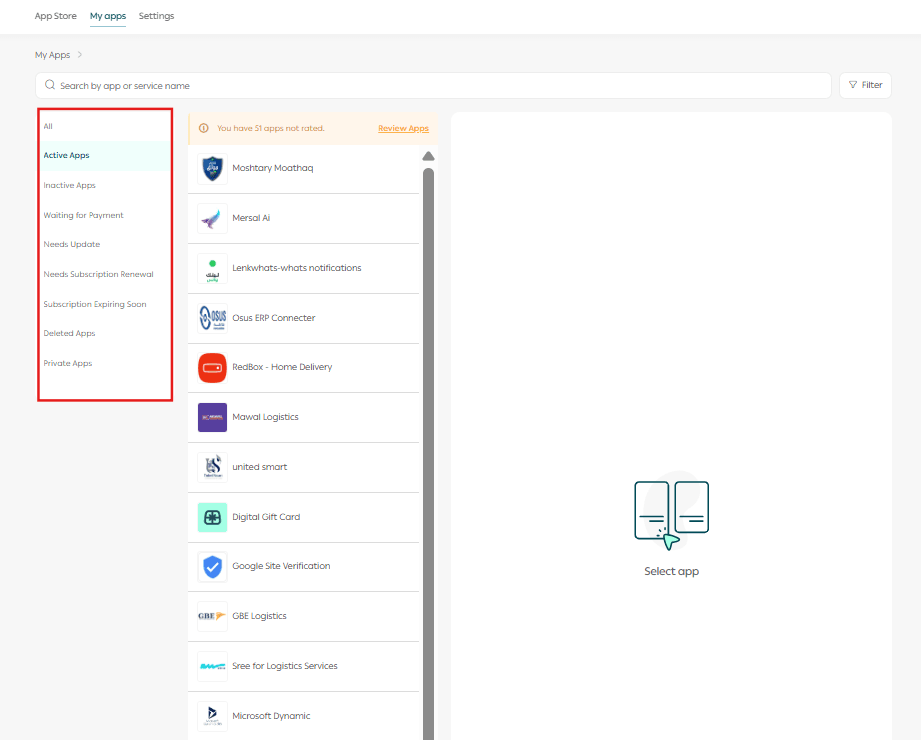
- App status list
View apps by status, such as:
- Active
- Inactive
- Pending payment
- Updates
- Subscription renewal
- Subscription expiring soon
- Deleted apps
- Custom app requests
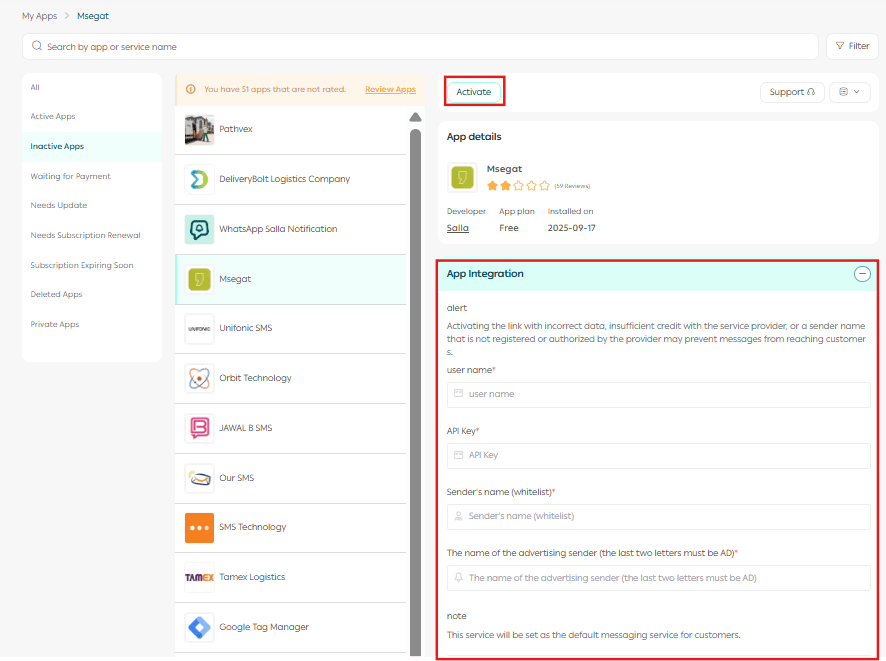
- App actions
Perform actions on an app, such as:
- Activate
- Rate
- Delete
- Cancel subscription
- Upgrade plan
- App details
View the app plan, subscription period, and expiration date.
- App activation settings
Enter the required information to complete app activation.
- App information
Access additional detailed information about the app.
- About
Learn more about the company that developed or provides the app.
3. App Settings
The App Settings section allows you to control:

- Notification preferences
- How apps are displayed in your store
All settings can be managed easily from one place.
Steps to subscribe to an app
- From the App Store tab, choose the app you want and click Install App.
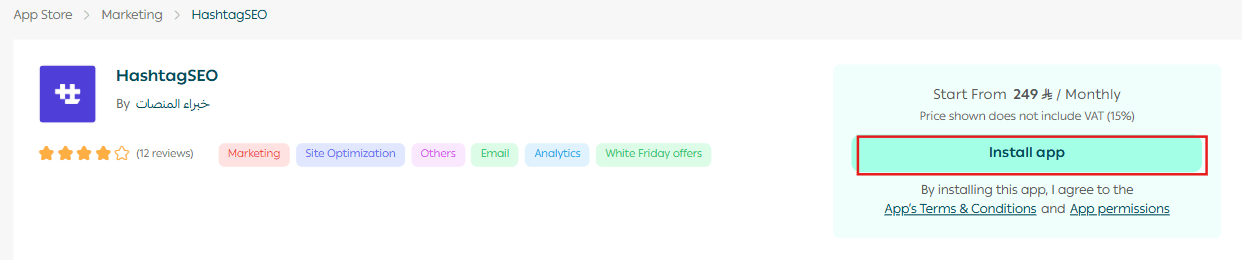
2. Select the subscription plan that suits you based on the monthly or yearly features.
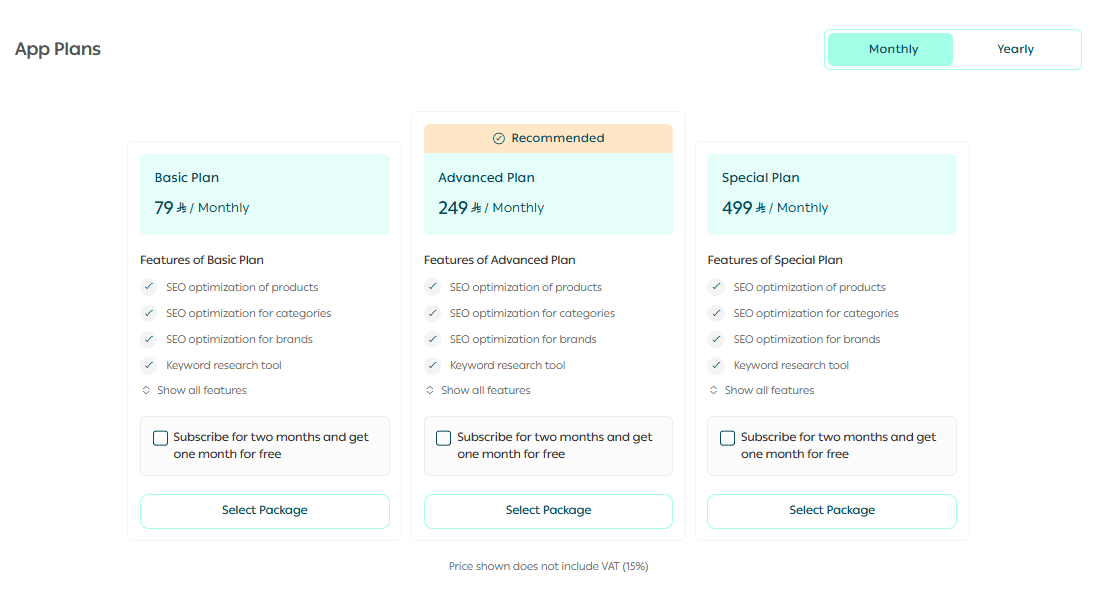
3. Then click Proceed to Payment.

Note: You can cancel the subscription and request a refund within 7 days only from the subscription date.
4. Choose your preferred payment method and click Confirm to complete the payment and install the app.
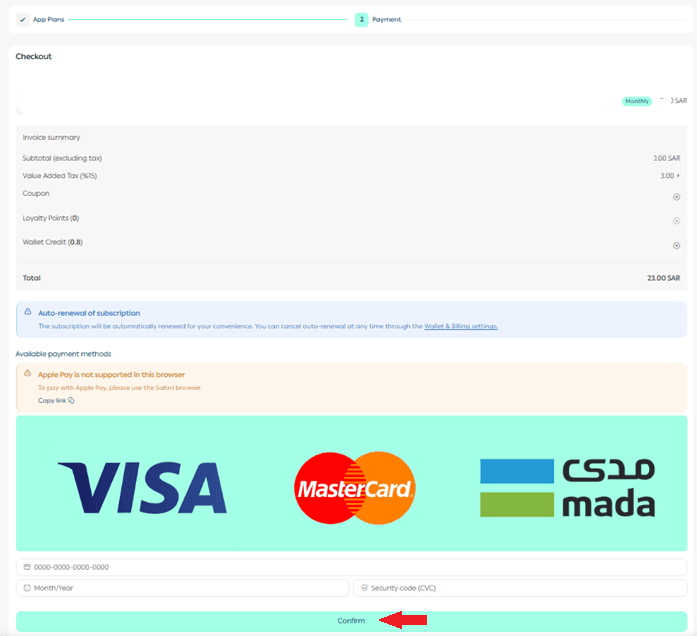
Steps to cancel an app subscription
- From the Active Apps list, select the app you want to cancel.
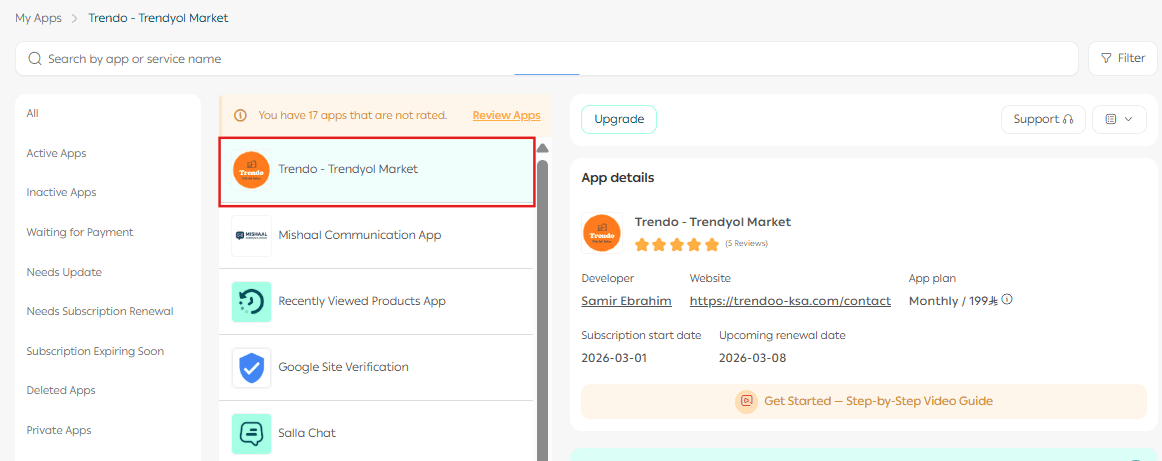
2. Under App Actions, click Cancel Subscription.
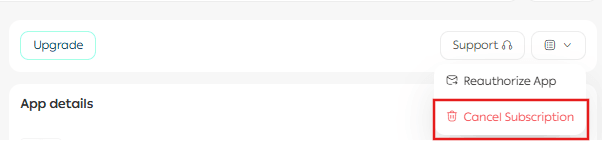
3. A confirmation message will appear:
- Click Back to stop the process, or
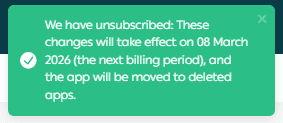
- Click Cancel Subscription to confirm the cancellation.
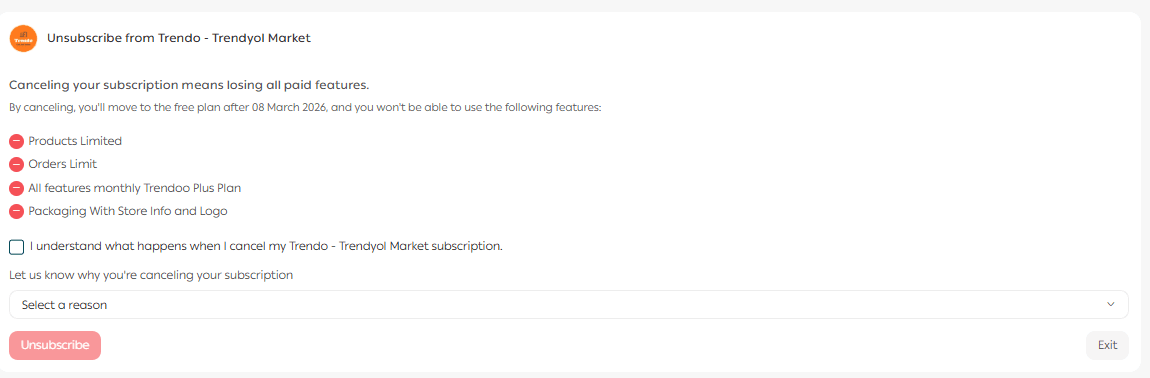
The subscription will be canceled, and the app will move to the Inactive Apps list.
Updating apps
From the app actions menu, click Update App to apply the latest update immediately.

Requesting support
You can contact Salla Support via email to:

- Ask questions
- Report issues
- Request assistance related to installed apps
Frequently asked questions
Will I be notified when an app subscription is about to expire?
Yes. You’ll receive a notification reminding you to renew the subscription before it expires to prevent the app from stopping.
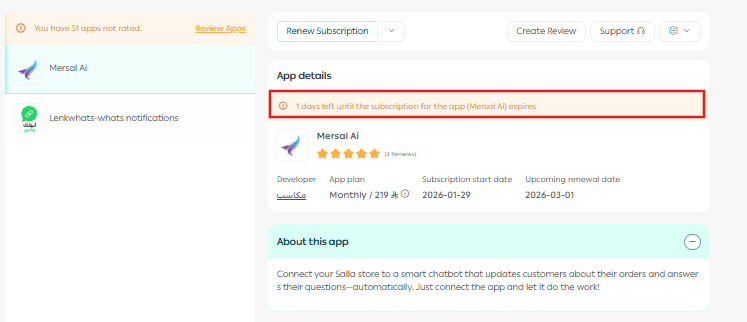
Can I cancel a subscription and get a refund?
Yes. You can cancel and request a refund within 7 days of the first subscription date. After 7 days, refunds are no longer available.
Where can I find apps I’ve already installed?
Go to the My Apps tab and select All to view all installed apps.
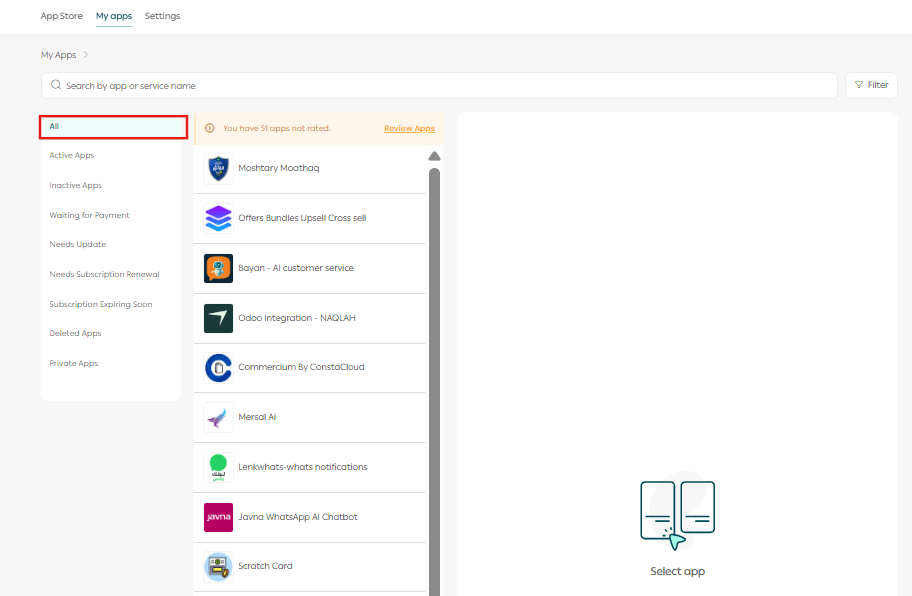
How can I check an app’s status (Active / Inactive / Pending Payment)?
You can view the app status from the App Status List in the My Apps tab.
Can I contact the app provider directly?
Yes. From the app page, you can access the provider’s details and contact them directly for inquiries or support.
Can I change my subscription plan later?
Yes. If alternative plans are available, you can upgrade or change your plan easily from App Actions.
How do I activate an app after installation?
After installing the app:
- Go to App Actions and click Activate.
- Open App Activation Settings.
- Enter the required information to complete activation.
With the Salla App Store, you can easily discover powerful tools, manage subscriptions confidently, and scale your store efficiently; all from one centralized platform.