Google Play Console gives you powerful tools to professionally manage your app’s ratings and reviews. It allows you to monitor user sentiment, respond to feedback, and analyze key trends, helping you continuously improve your app experience and increase customer satisfaction.
This guide walks you through how to access ratings and reviews, understand rating reports, respond to user feedback, and analyze review insights.
📌 Article overview
- How to access Google Play Console
- Viewing the Ratings report
- Managing User reviews
- Reviewing Review analysis insights
How to access Google Play Console
1️⃣ Open Google Play Console
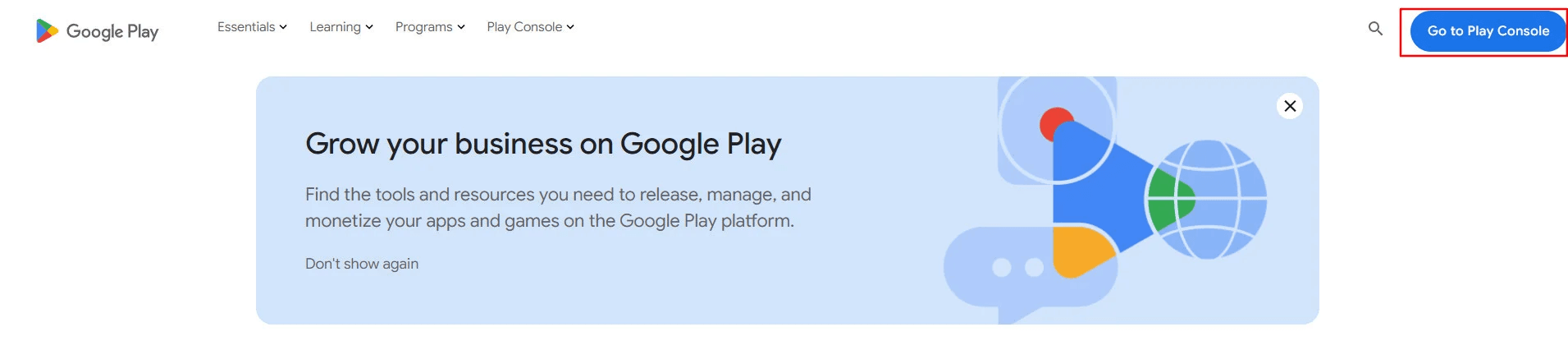
Go to Google Play Console, then click Go to Play Console.
2️⃣ Select your developer account
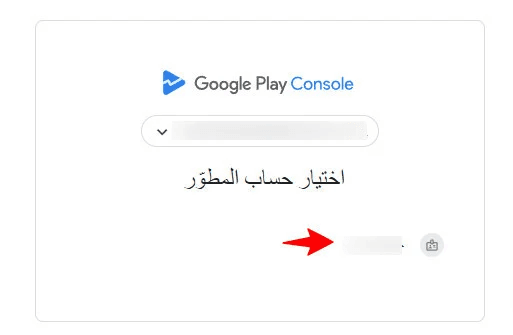
Choose the developer account associated with your email address.
🔹 For more details, see:How to purchase a Google Play Developer account
3️⃣ Open the app and ratings section
Select the app you want to manage.
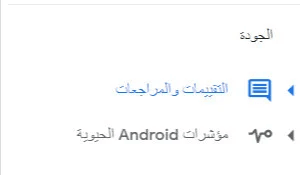
From the left-hand navigation menu in Google Play Console, go to Quality, then choose Ratings & reviews.
Viewing the Ratings Report
Understanding how users rate your app
Users can rate your app from 1 to 5 stars, helping other users decide whether to install it. Google Play Console allows you to analyze ratings across multiple dimensions and benchmark your app against competitors.
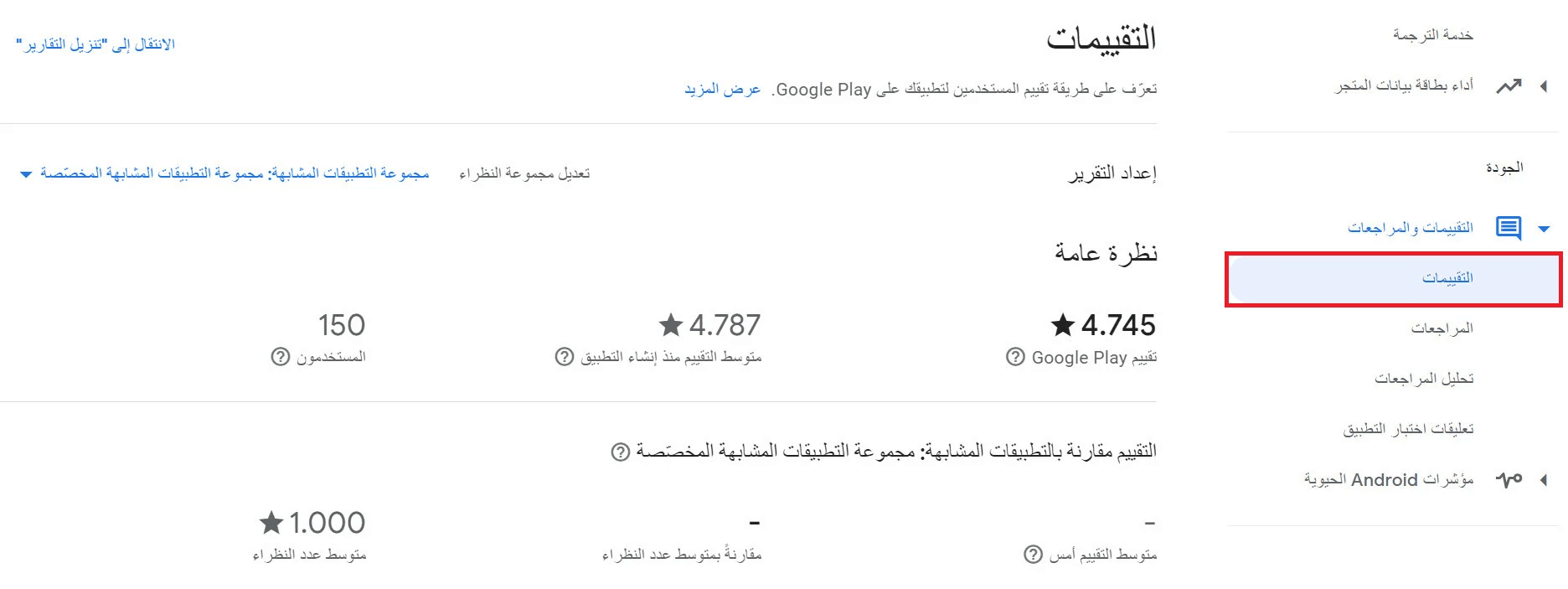
From the ratings report, you can see:
- The average rating since the app was launched
- The total number of users who have rated the app
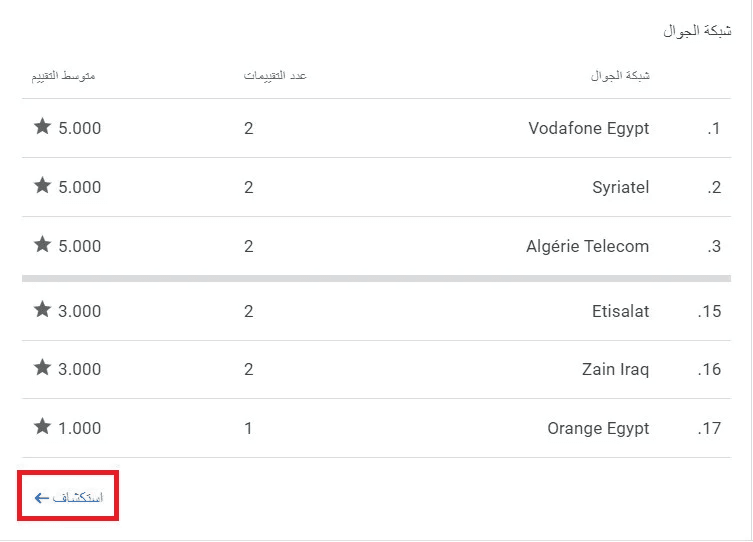
- Rating breakdowns by:
- Country
- App version
- Device type
- Language
- A comparison of your app’s rating against similar apps in the same category
The report also includes visual indicators such as rating distribution, showing how many users gave 1-star through 5-star ratings.
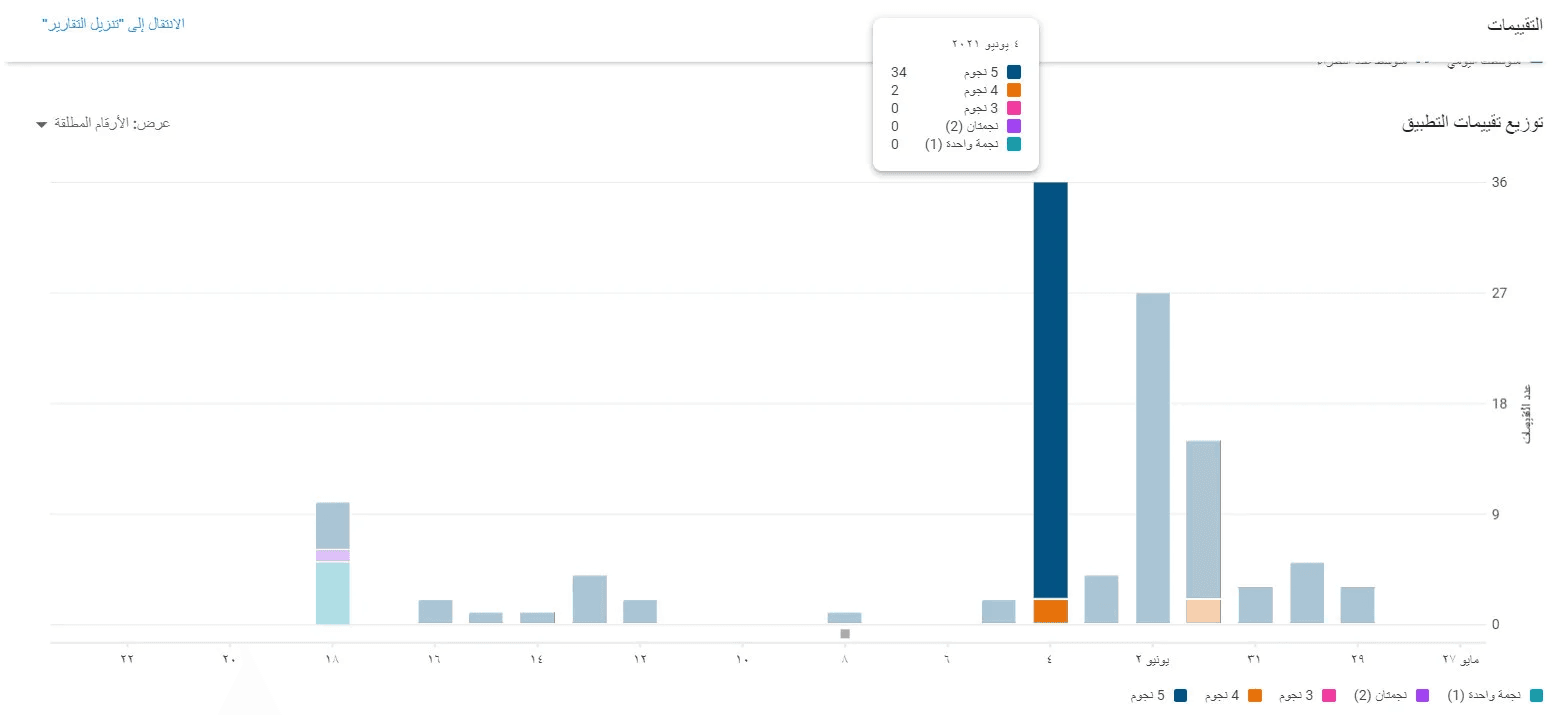
You can explore deeper insights by clicking Explore within the available analytics.
Reviews
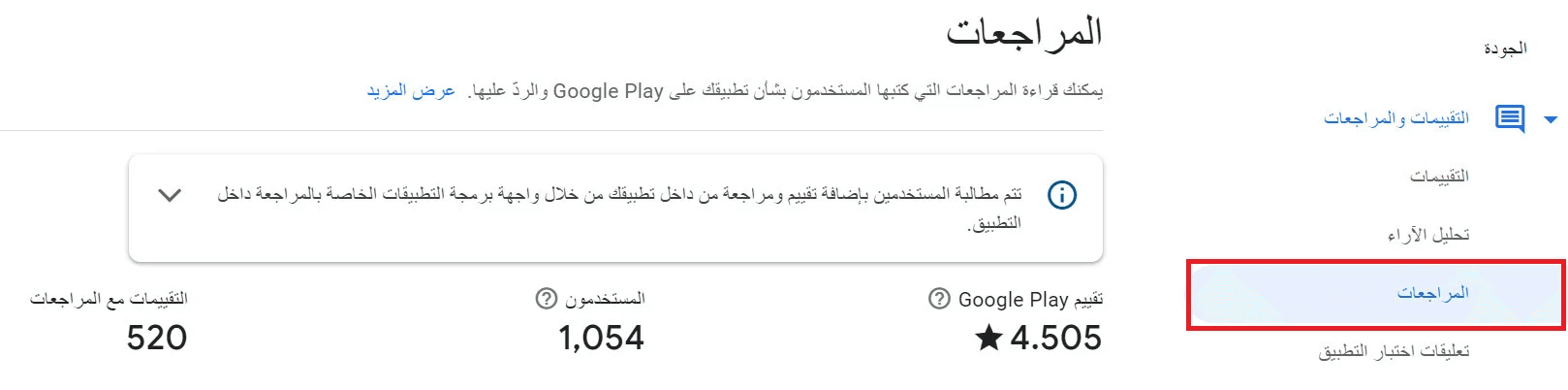
Reading and responding to user reviews
When users rate your app, they can also leave written reviews on your store listing. Responding to these reviews allows you to:
- Communicate directly with users
- Resolve issues
- Build trust and credibility
- Encourage users to update their ratings after receiving support
Responding to reviews
- You can reply to reviews using up to 350 characters
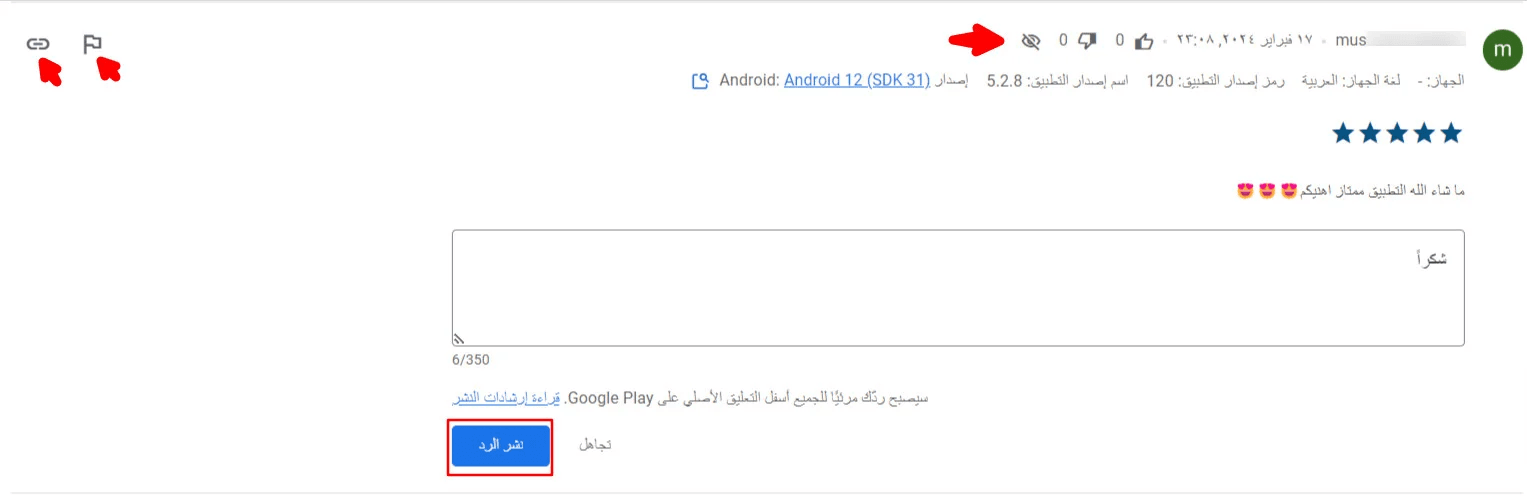
- Each review shows:
- Username
- Review date
- Number of likes and dislikes
- Review visibility status (published or hidden)

- You can see:
- Device language
- App version
- Device type

This information helps you respond accurately, especially when issues were fixed in later app versions.
Additional review details
- View the original rating and review text
- See translated reviews if they were written in another language
- Write and publish your response (make sure to follow Google’s content guidelines)
Reporting inappropriate reviews
If you believe a review violates Google Play policies, you can report it using the flag icon. Examples include:
- Spam or promotional content
- Offensive or inappropriate language
- Reviews unrelated to the app
Google will review the report and take appropriate action if necessary.
Best practices for replying to reviews
Follow these guidelines when responding to user feedback:
- Be relevant and clear
Address the user’s comment directly and provide helpful, honest information.
2. Be respectful and empathetic
These are your users—focus on helping, not arguing. Avoid offensive, hostile, or exclusionary language. Report inappropriate reviews instead of responding to them.
3. Avoid promotion or solicitation
Responses should not include ads, marketing messages, or unrelated promotions.
4. Keep content clean and professional
Do not use inappropriate or offensive language.
Review Analysis Report
Understanding what users care about
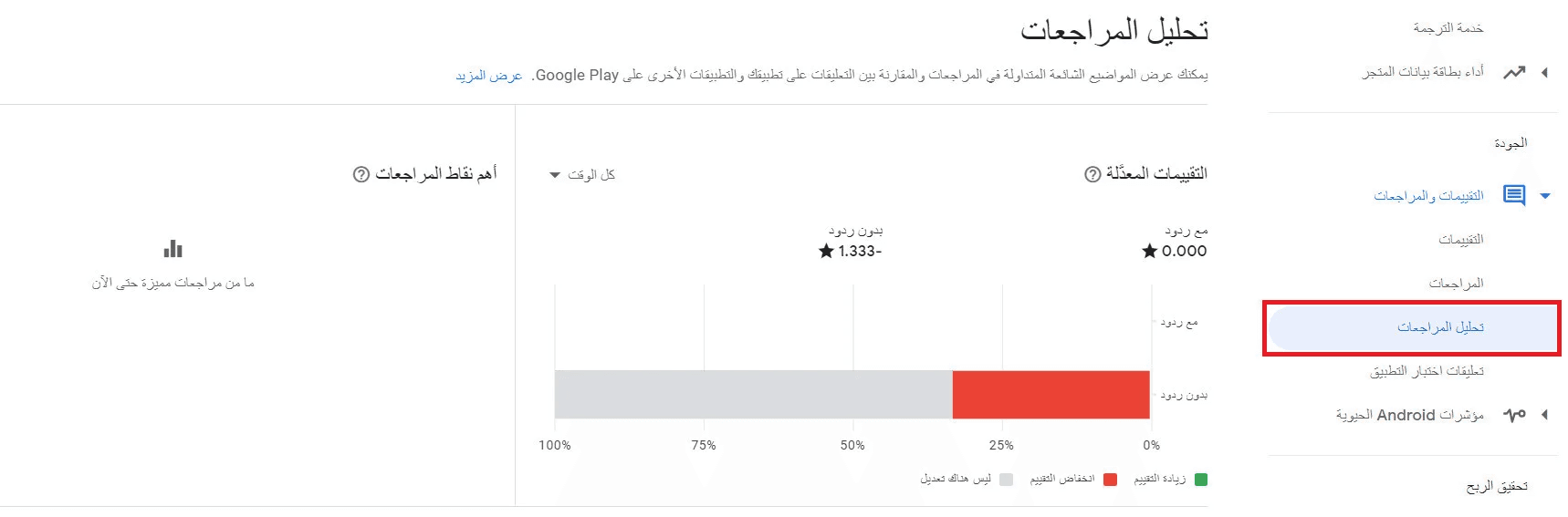
User reviews are a valuable source of insight. The Review Analysis report helps you identify trends, strengths, and areas for improvement by analyzing review content at scale.
Key insights include:
- Edited ratings
The percentage of reviews where users updated their rating after receiving a response.
- Performance metrics and themes
Identifies recurring signals and themes within reviews. This analysis is internal and not visible to users.
- Topics
Highlights keywords and topics users frequently mention in reviews and shows how each topic impacts your overall rating.
This feature is available for supported languages and devices.
Using this report helps you prioritize fixes, improve features, and align product decisions with real user feedback.
Frequently asked questions
How can I receive alerts for new ratings or updated reviews?
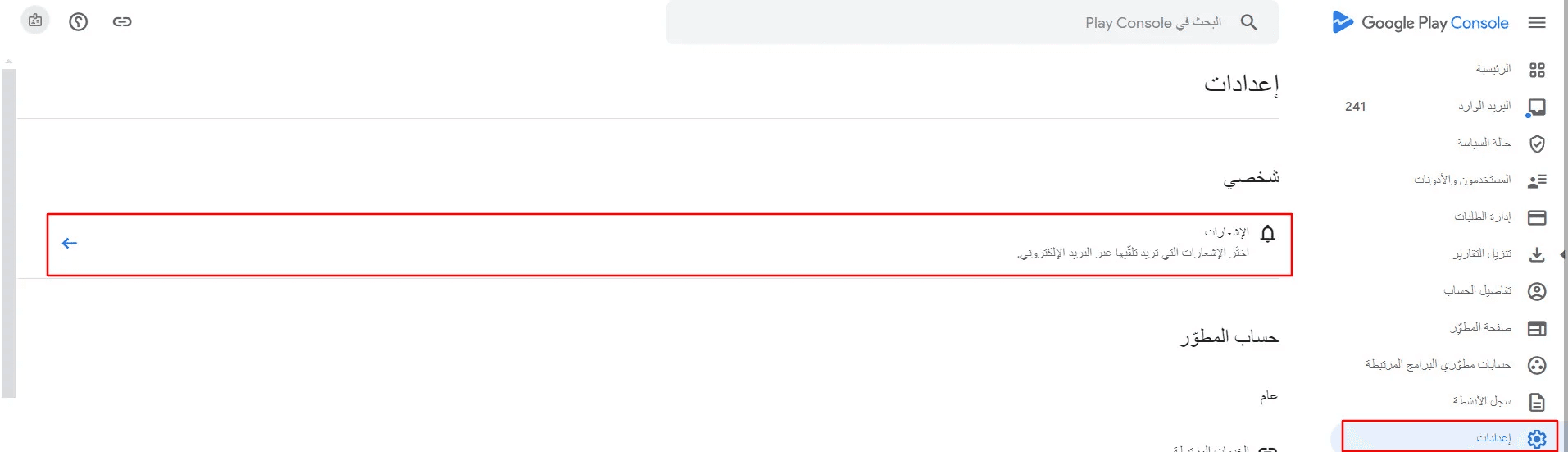
- From the main Google Play Console dashboard
- Go to Settings
- Select Notifications
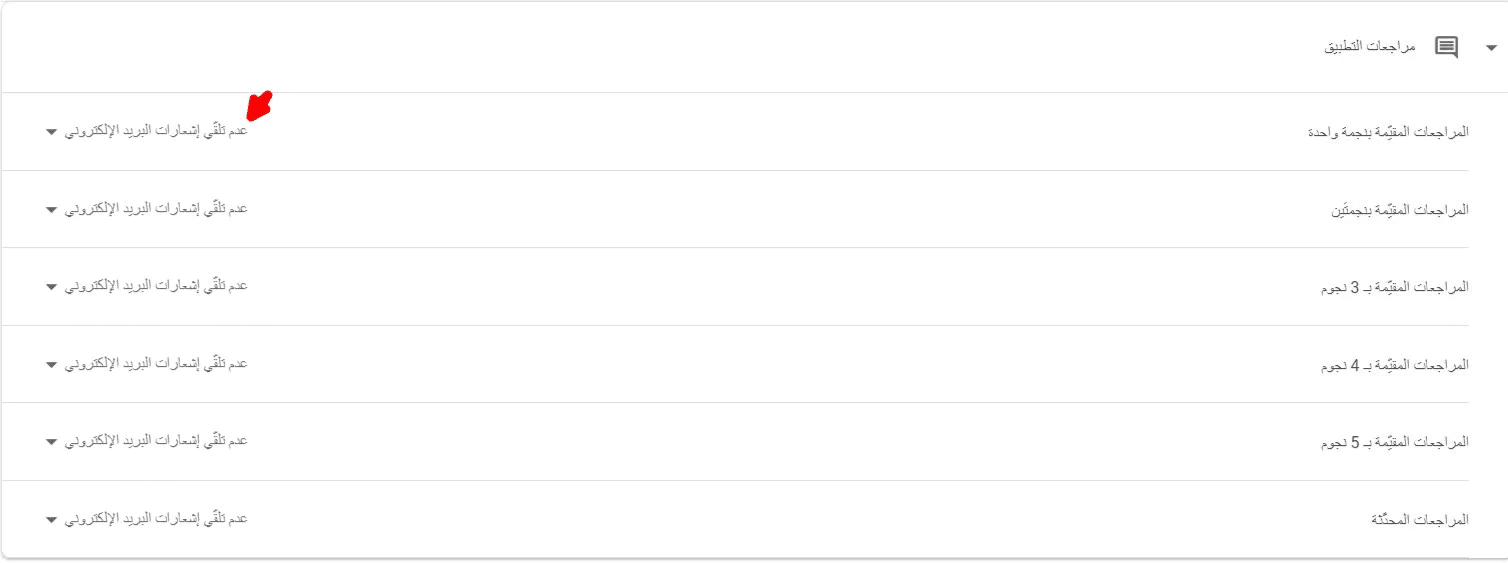
4. Enable App reviews notifications and choose email alerts
It is recommended to enable notifications for all review types.