How many of the apps installed on your store are you actually using?
Every app you add brings its own settings, subscription, and updates, and after a few months it is easy to lose track. Learning to manage installed apps from one page keeps that under control: you can see what is active, what needs updating, what is due for renewal, and what you can safely remove. In this guide, you'll learn every operation available on the Installed apps page, from browsing and filtering to rating, settings, uninstalling, and updates.
Open Installed apps from your dashboard side menu to see every app on your store. From there you can browse the app cards, sort and filter them, search by name, rate an app, open its settings, control which apps appear, uninstall one, or update it when the developer ships changes.
📌 Article overview
- Open the Installed apps page
- Browse your store's apps
- Sort and filter your apps
- Search for an installed app
- Rate an app
- Uninstall an app from your store
- Control which apps appear in your app store
- Set up an app
- Install an app on your store
- Update one of your store's apps
- Frequently asked questions
🚀 First: open the Installed apps page
1. From the dashboard side menu, click (Installed apps).

2. The Salla App Store page opens and shows every app you have installed.
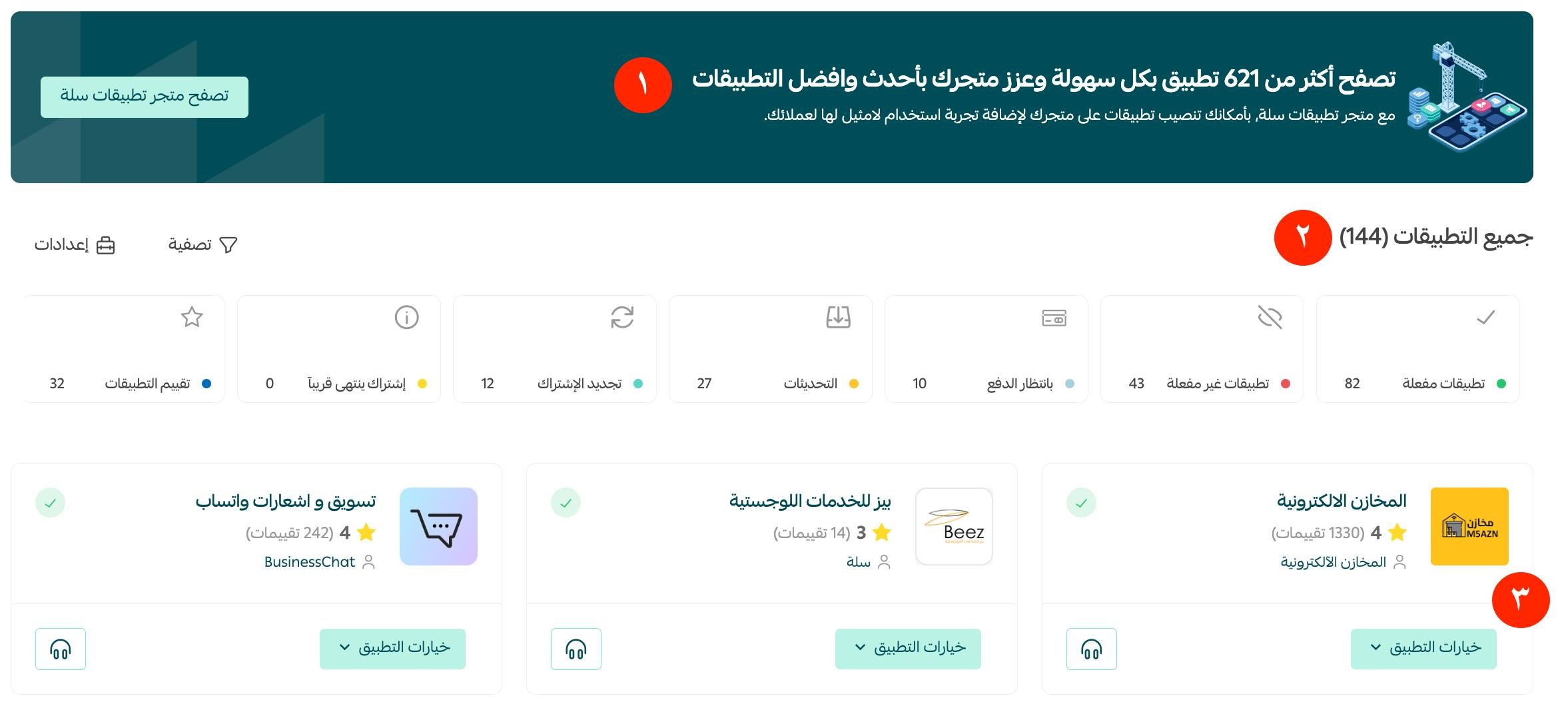
The page includes:
1- A way into the App Store to install a new app.
2- Summary statistics about your installed apps. Click any of them to show the apps that match — for example, showing the installed apps you have already rated.
3- The installed app cards, where you can enable an app, delete it, contact its support team, and more.

🔍 Second: browse your store's apps
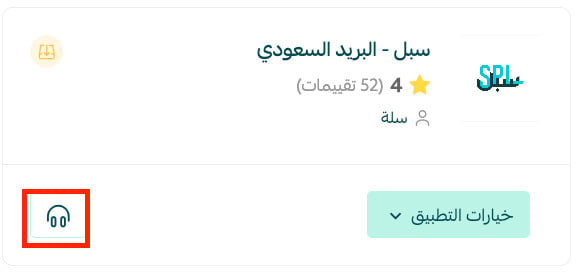
On the Installed apps page, each app card carries the details you need most: the app name and icon, its developer, the option to rate it, its settings, its contact channels, and more.
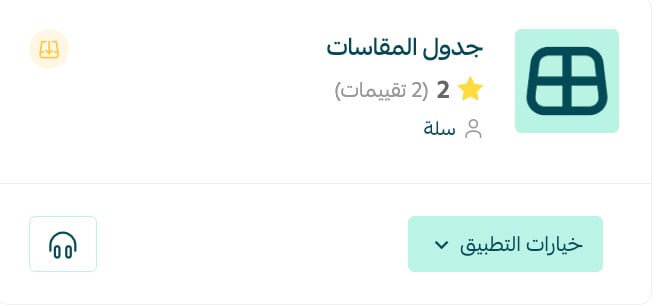
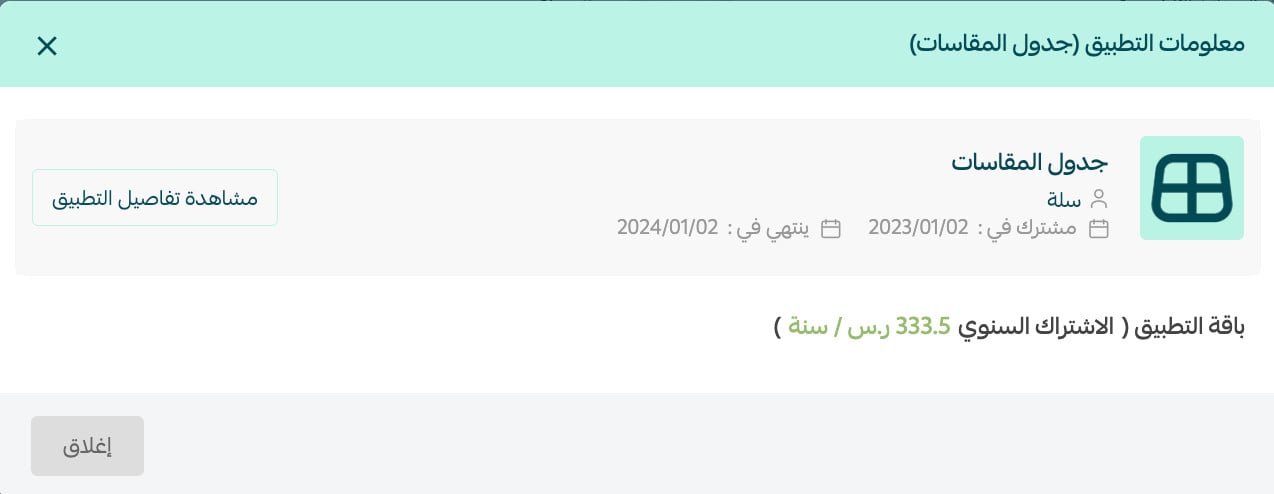
Click (App options) to view subscription details or delete the app.
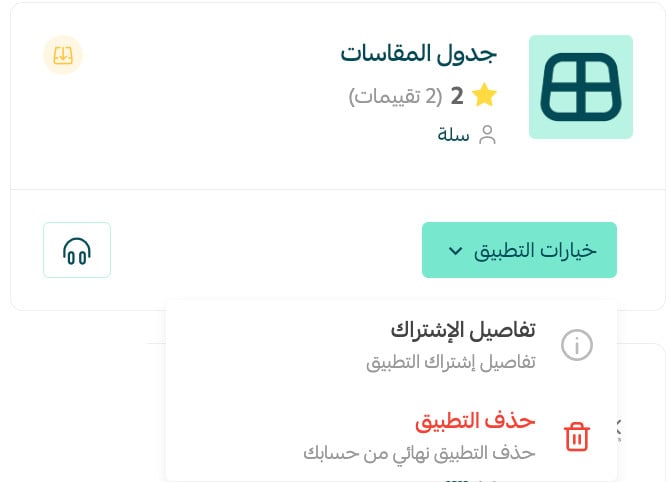
(Subscription details) shows you more about the app and the details of its subscription plan.
✅ Third: sort and filter your apps
1- Sort apps by category
On the Installed apps page, the All apps bar groups your apps by their status.

Click the category whose apps you want to see.
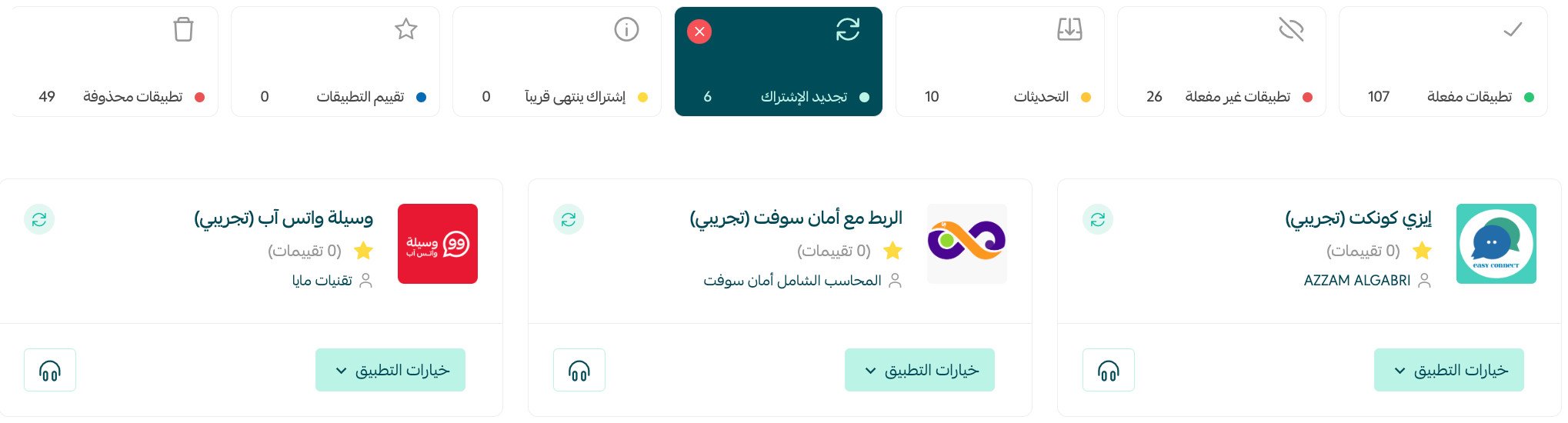
App statuses by icon:
Active app.
Inactive app.

App that needs an update.

App that needs a subscription renewal.

Deleted app.

2- Filter apps
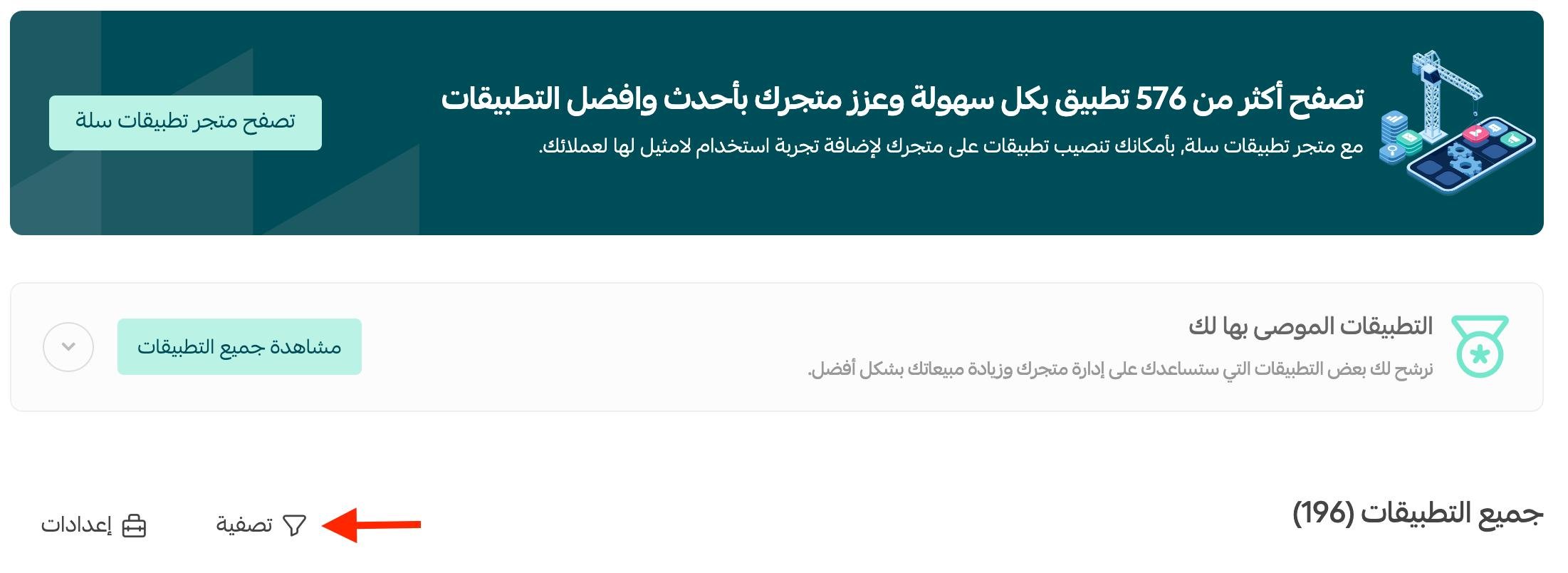
1. From the Installed apps page, click (Filter).
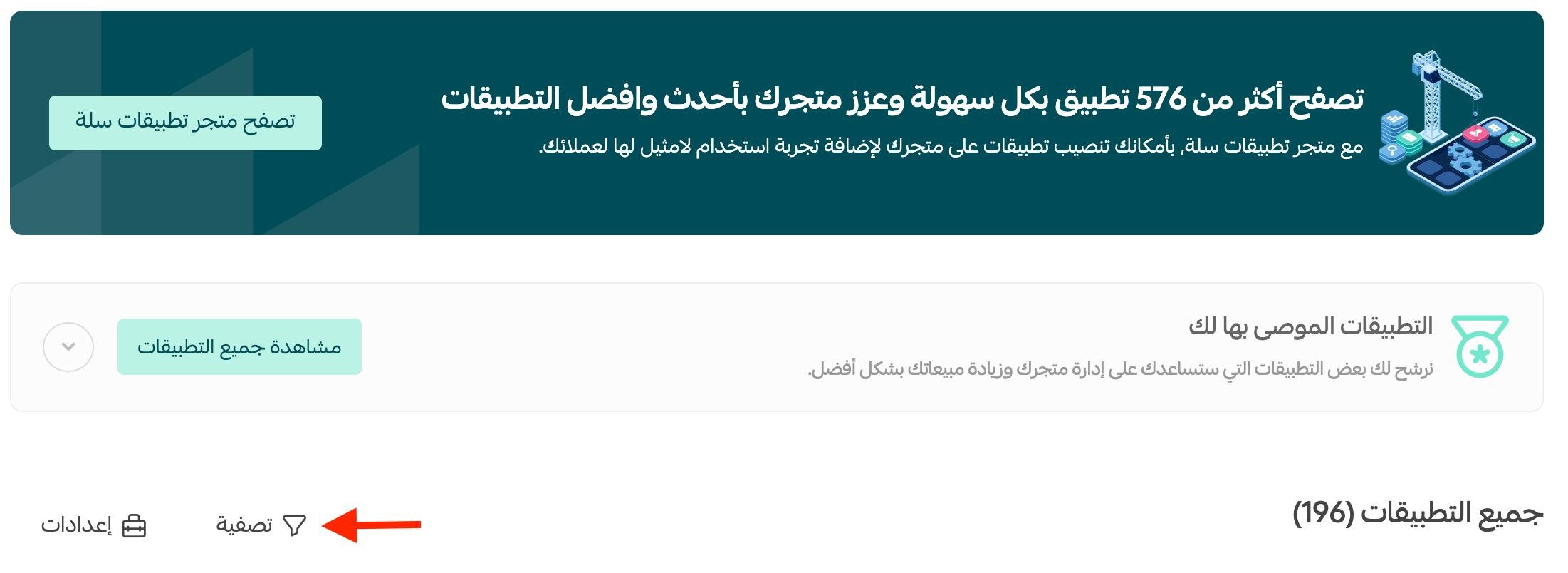
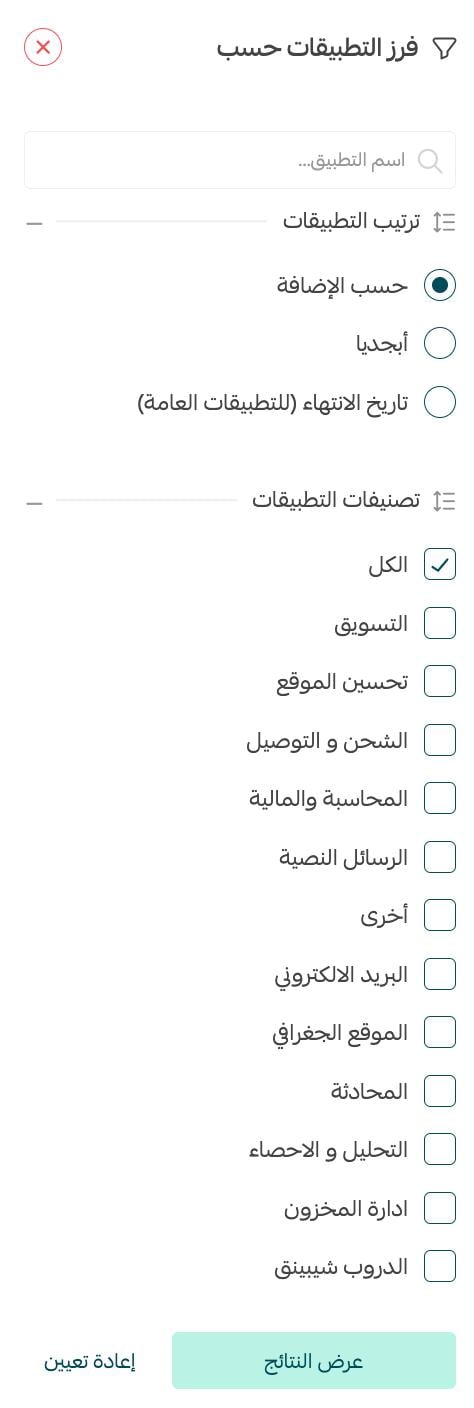
2. Choose how you want your apps sorted and filtered.
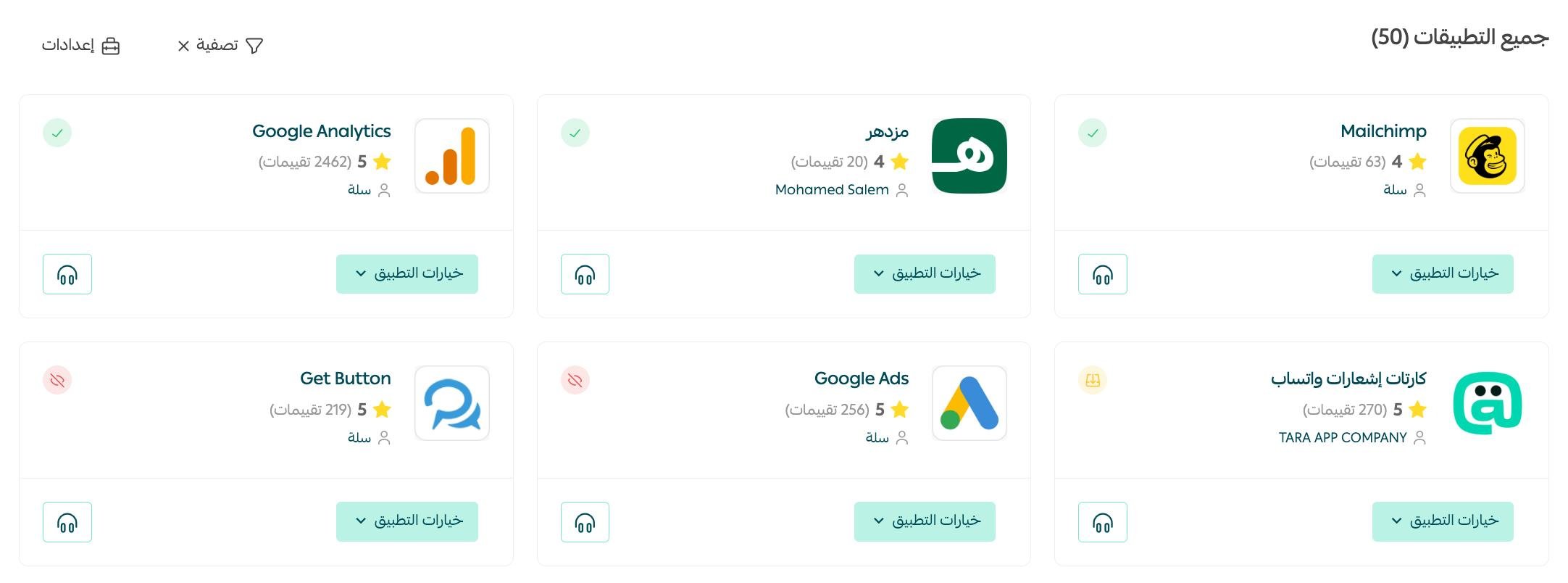
For example: sort apps by the date they were added to your store, and show only the apps for accounting, messaging, and chat.
The result looks like this:
🔍 Fourth: search for an installed app
1. From the Installed apps page, click (Filter).
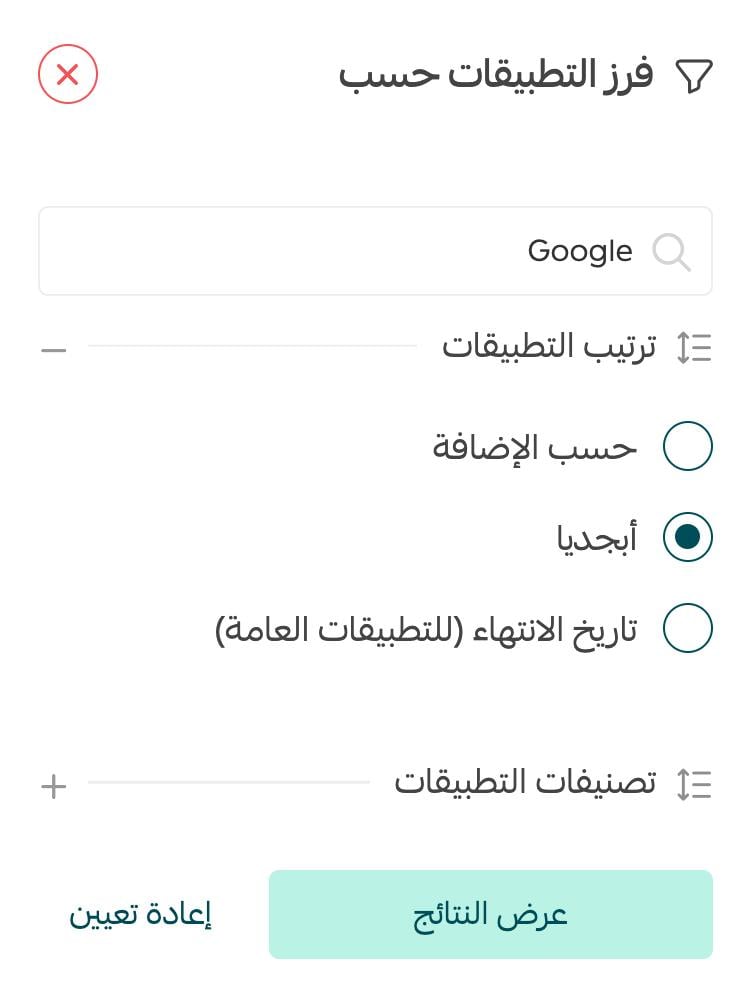
2. Enter the app name or part of it, and choose how you want the results sorted.
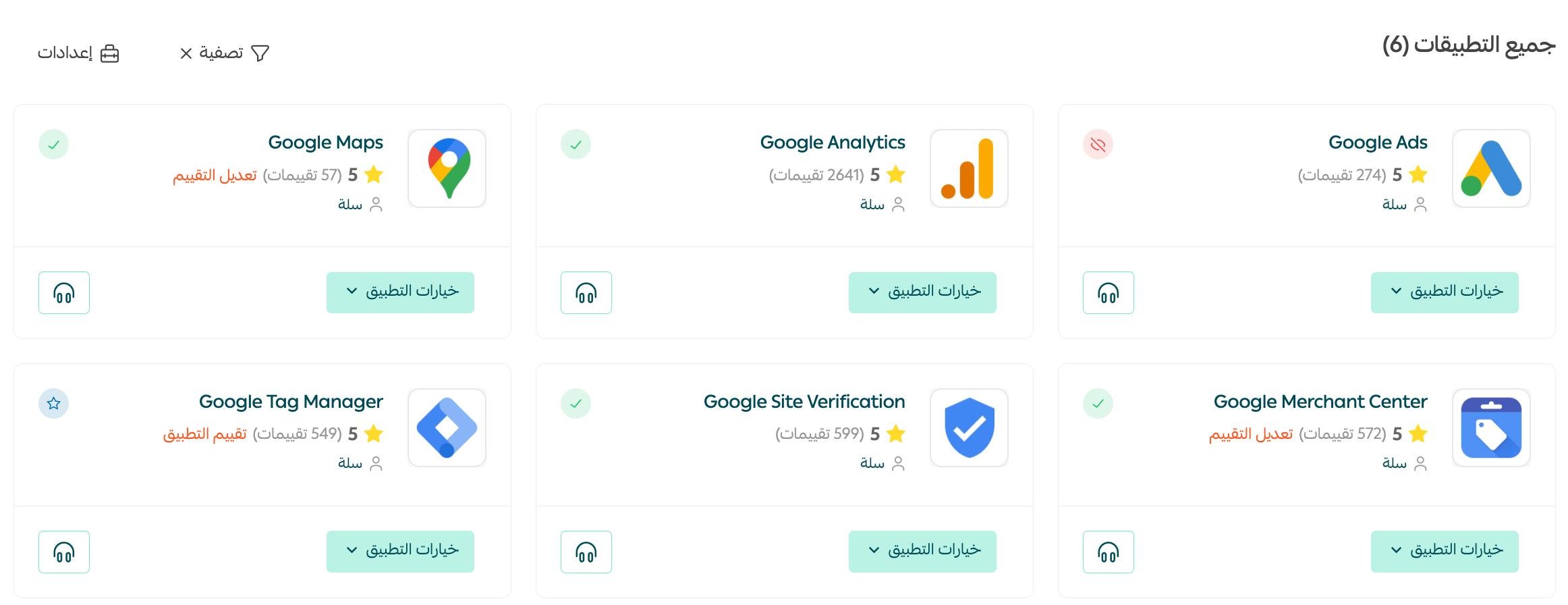
For example: search for Google apps and show the results in alphabetical order, then click (Show results).
The Google app results appear in alphabetical order, like this:
⭐ Fifth: rate an app
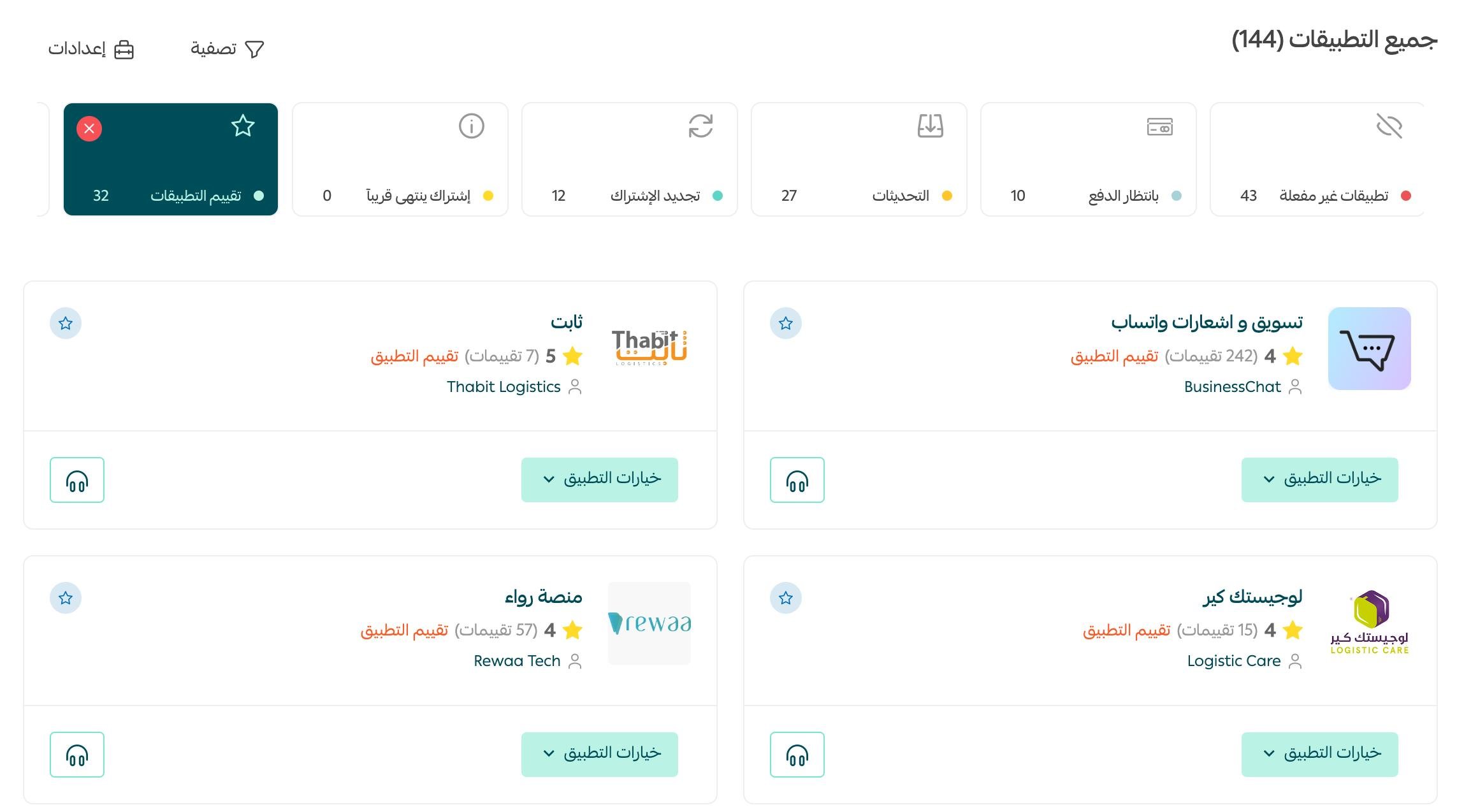
You can reach the apps that are waiting for a rating straight from the app category bar by clicking (Rate apps).
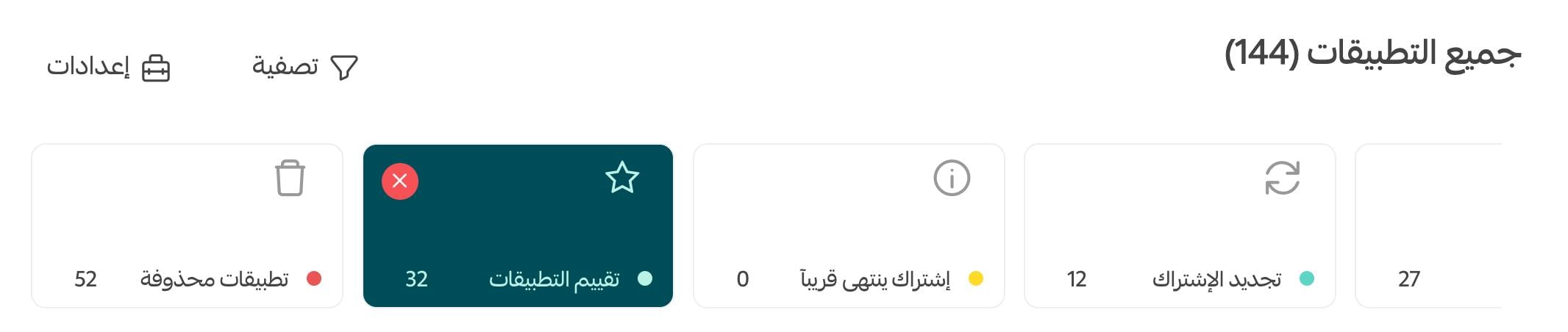
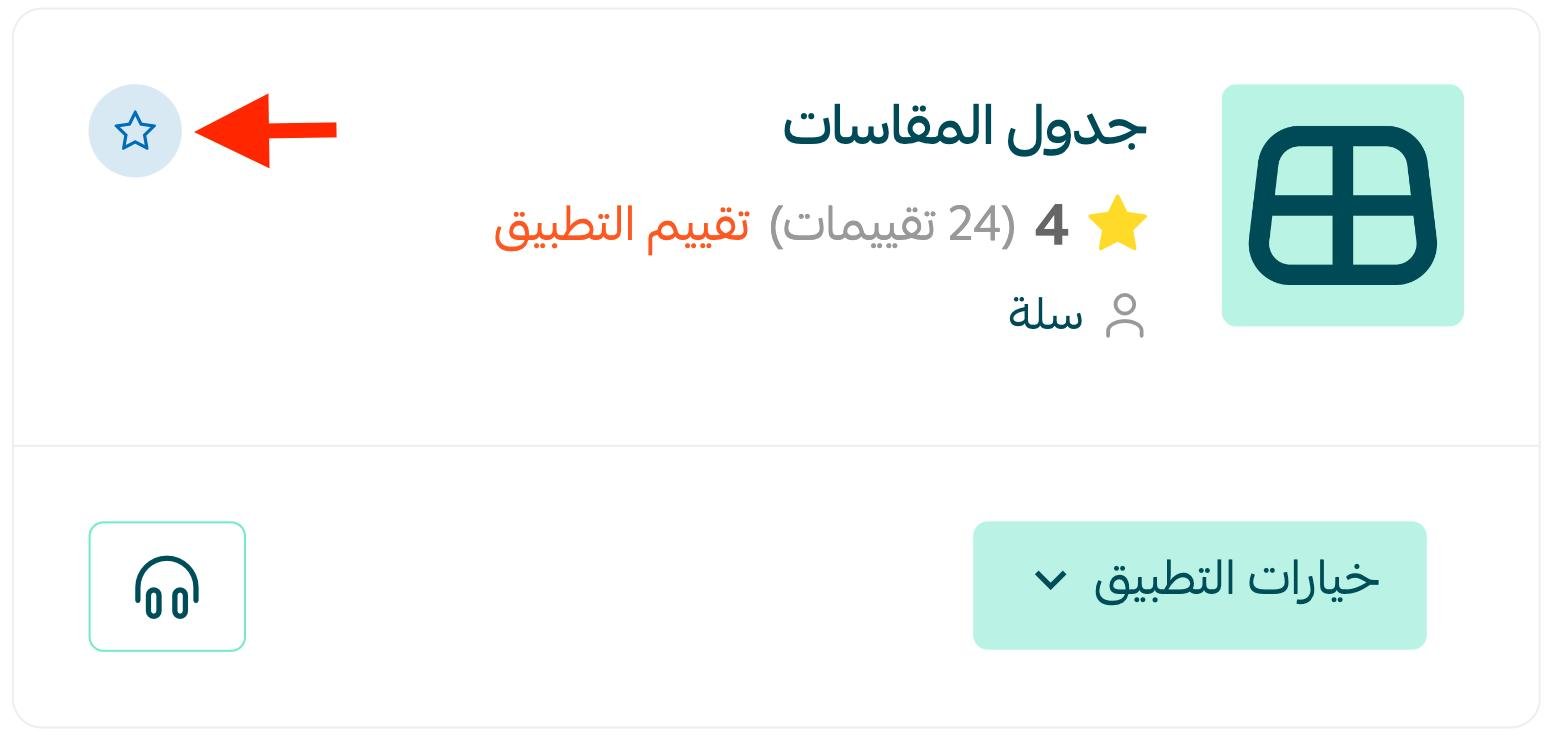
Every app waiting for your rating appears. Go to the card of the app you want to rate and click Rate app or the rating symbol (☆).
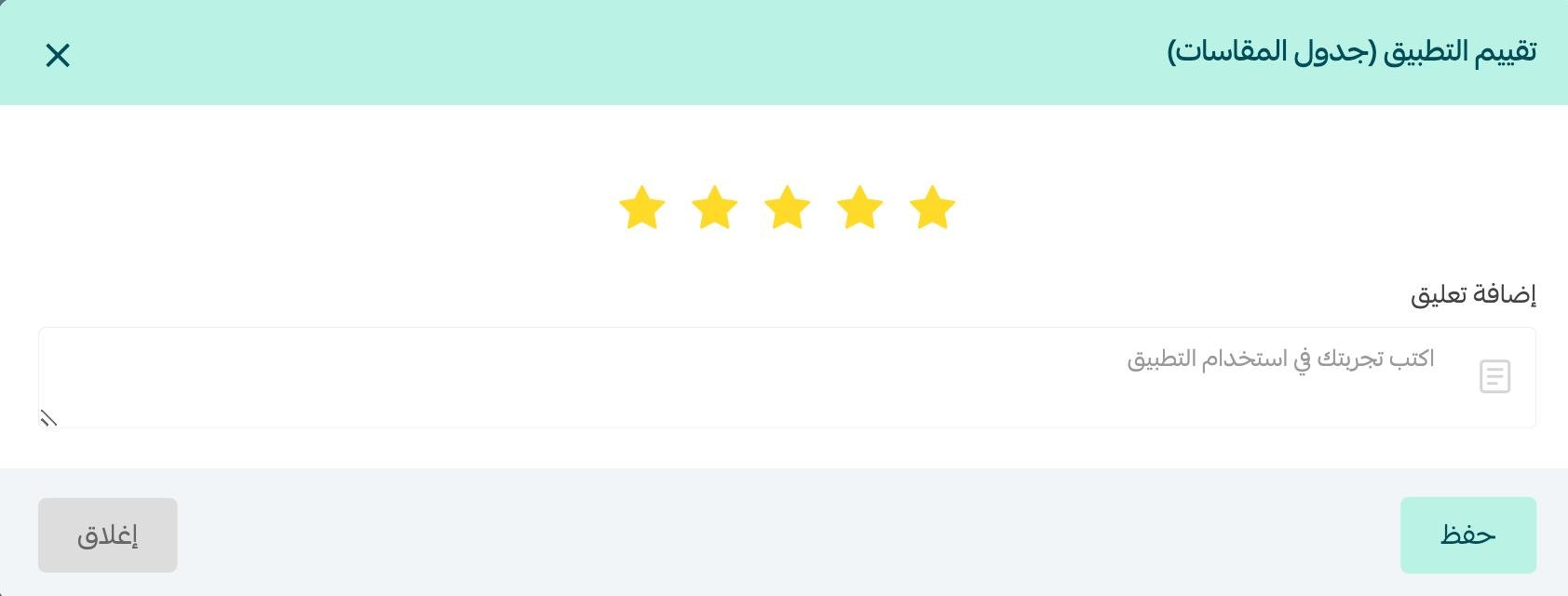
Rate the app, write a comment about your experience using it, and click (Save).
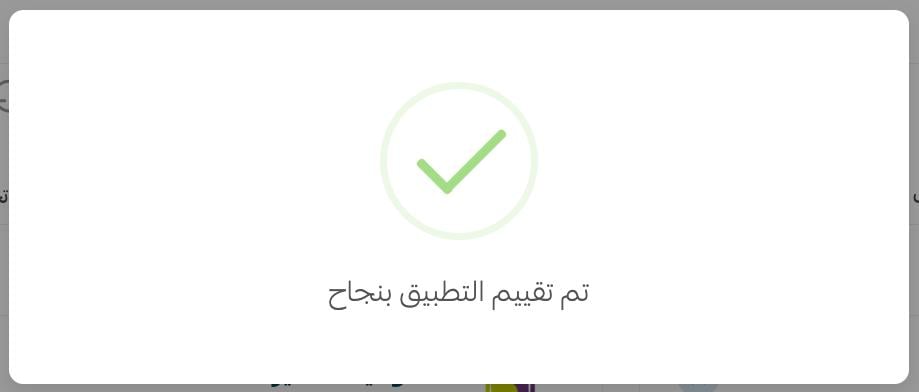
Your rating has been submitted.
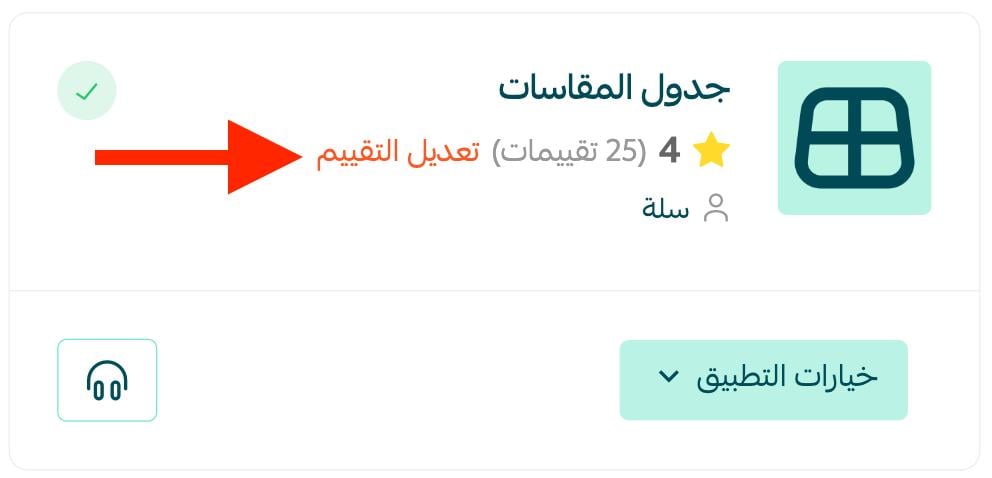
Note: you can change your rating at any time. Go to the app whose rating you want to change and click (Edit rating).
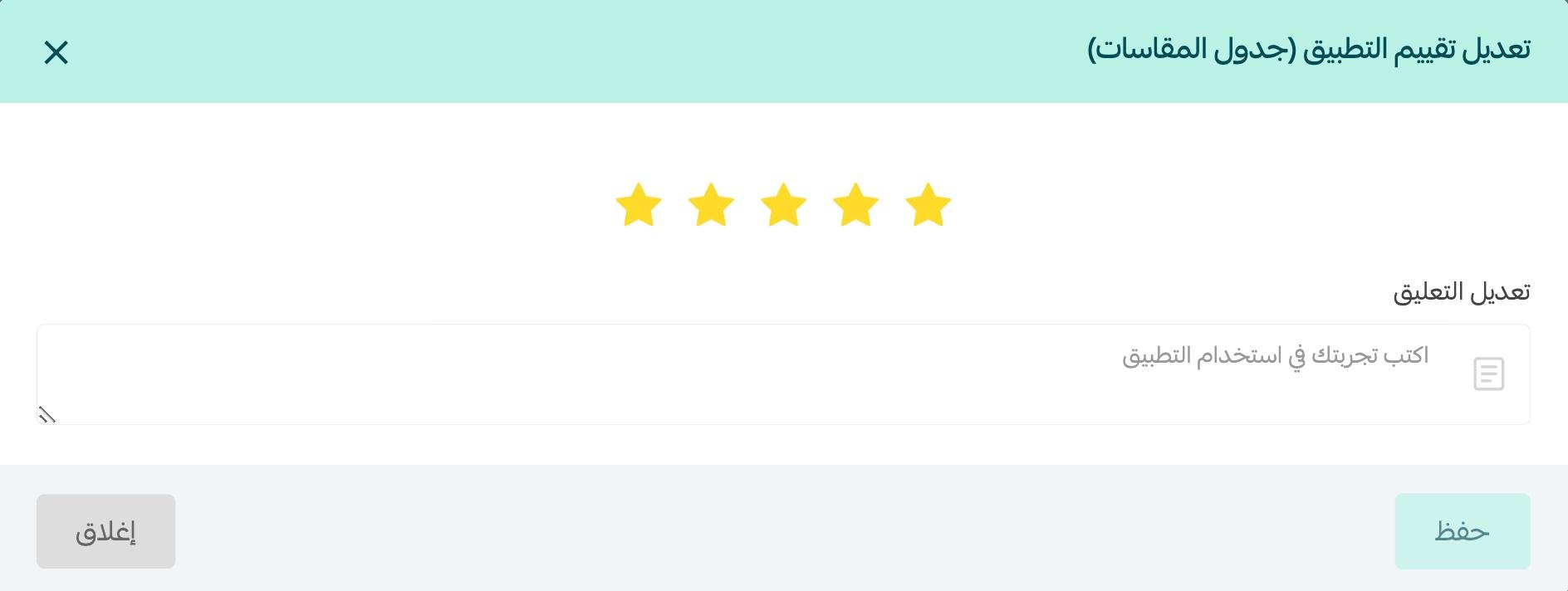
Adjust the rating as you see fit and click (Save).
Your rating has been updated.
🗑 Sixth: uninstall an app from your store
From the app card, click App options, then click (Delete app).
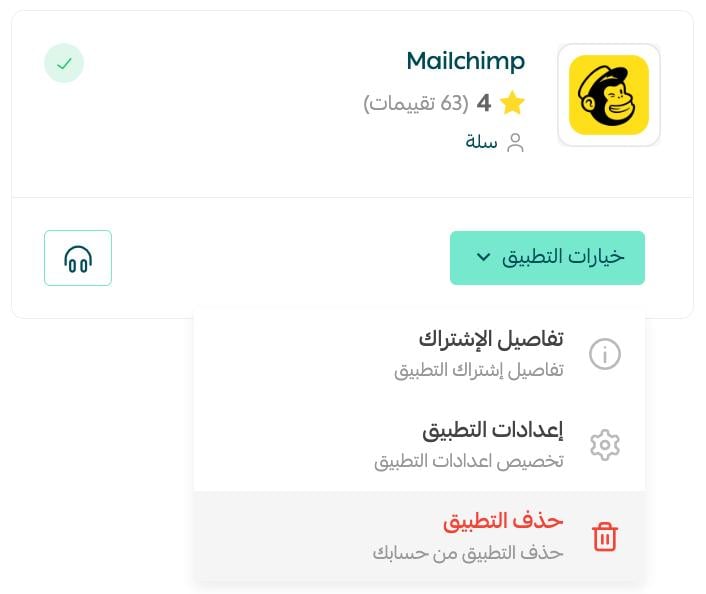
Check what kind of app you are removing before you confirm a permanent deletion. If you delete a paid app, you will not get back what you paid when you installed it.
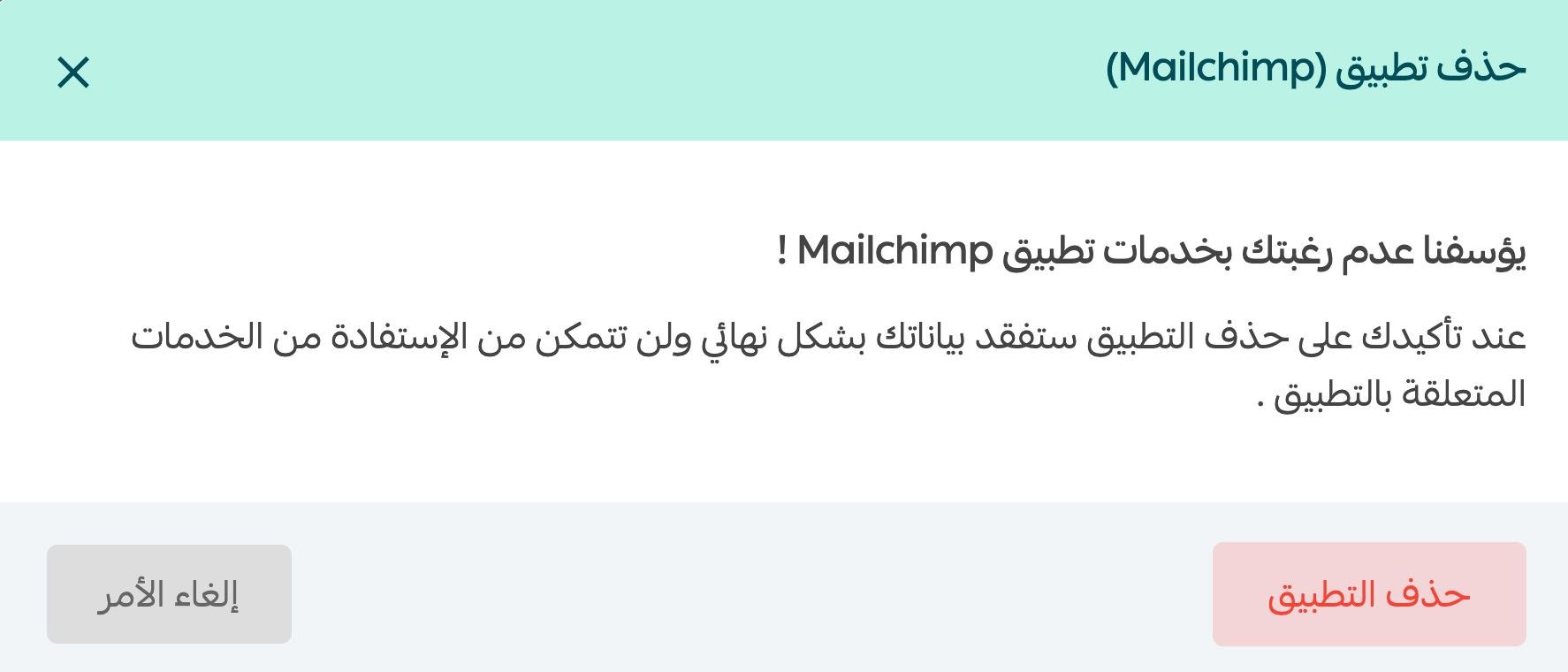
📝 Important note: many paid apps come with a 7-day trial period, and if you delete the app within those 7 days you get back what you paid to install it.
⚙ Seventh: control which apps appear in your app store
From the Installed apps page, click (Settings).
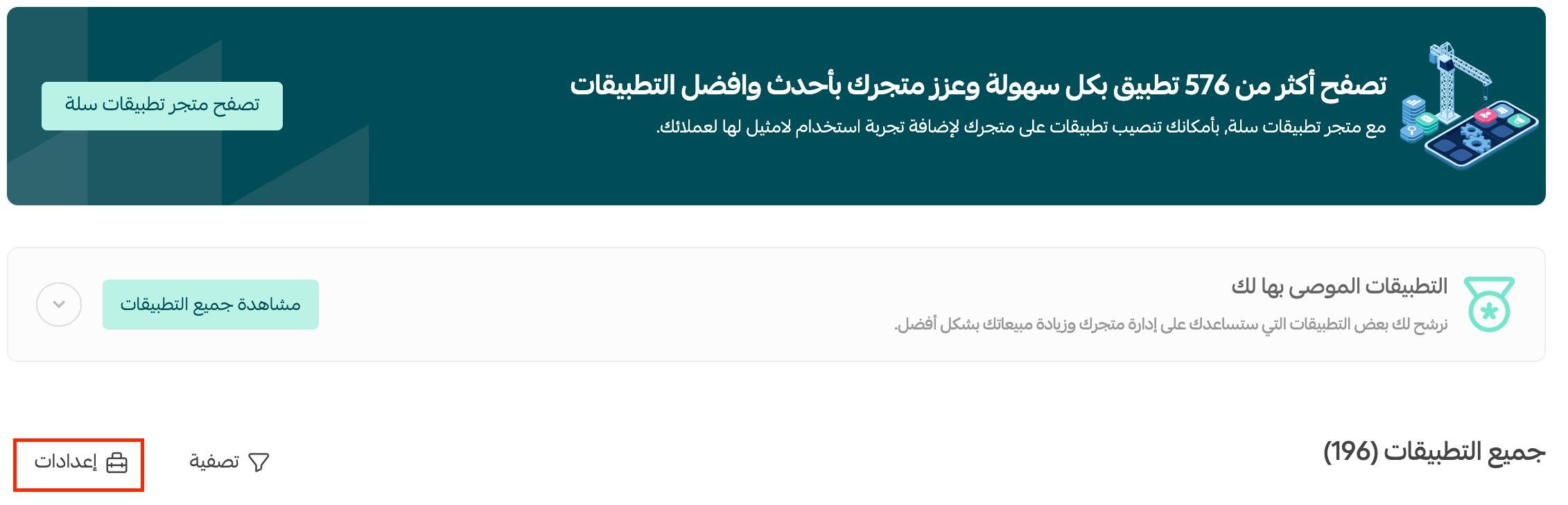
Then, on the Salla app display settings page, choose which types of apps you want shown in your Salla App Store.
You have two options:
- Show apps installed from the store: display and manage the apps you installed from the Salla App Store.
- Show apps installed from outside the Salla store: display the apps you installed from outside the Salla App Store.
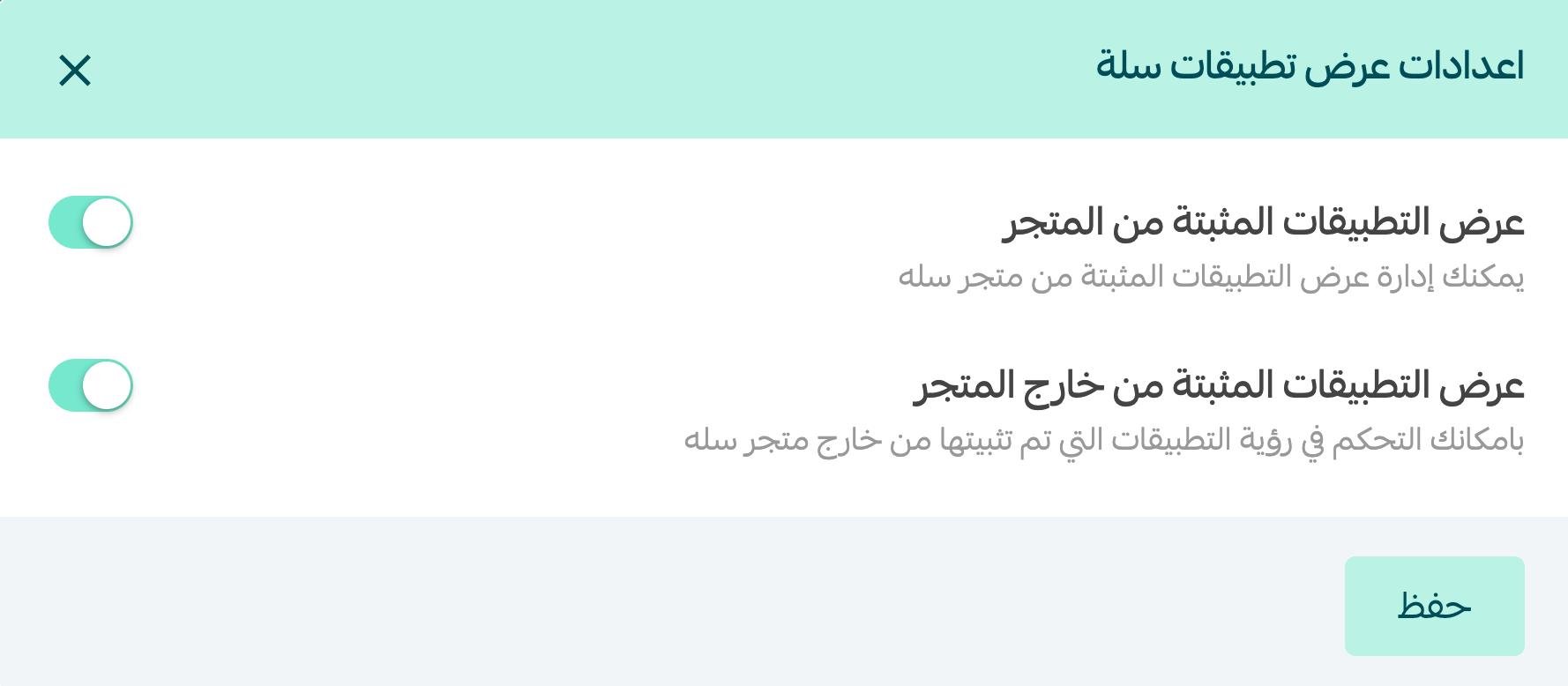
Note: setting an app type to hidden does not mean those apps were deleted — it only means they will not be displayed.
⚙ Eighth: set up an app
From the app card, click App options, then (App settings).
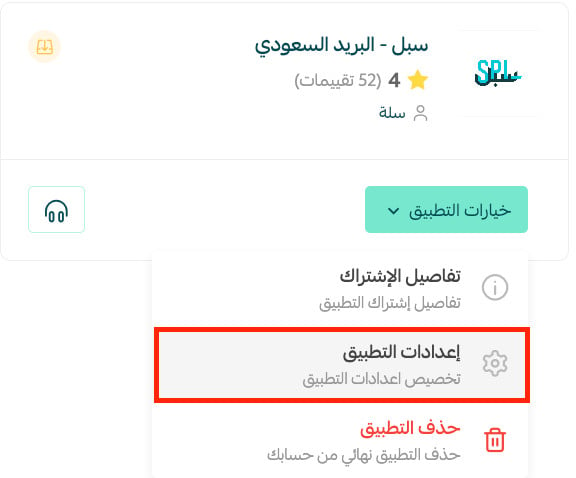
Then configure the app. Every app has its own settings and its own way of being activated.
Reach out to the app's support team if you run into any problems.
📥 Ninth: install an app on your store
Go to the Salla App Store, pick the app you want, and click (Install app).
For more details on installing an app from the Salla App Store.
For more details on installing an app from an external source.
🔄 Tenth: update one of your store's apps
You will need to update an app whenever its developer ships updates or changes.
To find the apps waiting for an update quickly, choose the (Updates) category from the All apps bar.

Then, from your installed apps, go to the app you want, click (App options), and click (Update app).
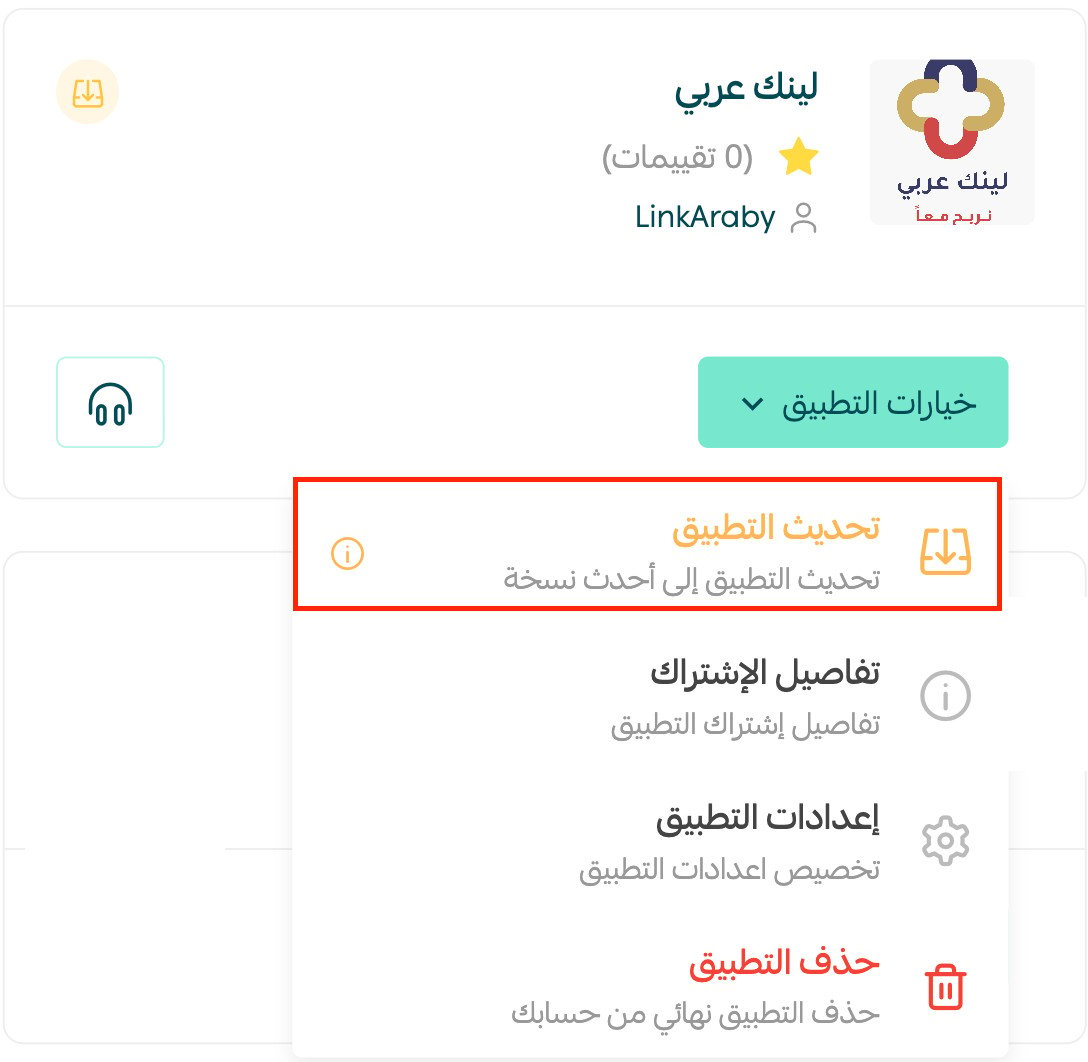
The app updates through the same steps as the first installation.
❓ Frequently asked questions
How do I tell which apps need attention?
Use the status icons on the app cards. They mark an app as active, inactive, needing an update, needing a subscription renewal, or deleted.
Can I change a rating after I submit it?
Yes. Go to the app whose rating you want to change, click Edit rating, adjust it, and click Save.
Do I get my money back if I delete a paid app?
Only within the trial window. Many paid apps include a 7-day trial, and deleting the app inside those 7 days returns what you paid to install it. After that, the payment is not recoverable.
If I hide an app type in the display settings, is the app deleted?
No. Hiding only stops those apps from being displayed. They stay installed.
How does updating an app work?
Open App options on the app card and click Update app. The update runs through the same steps as the original installation.
The Installed apps page is worth a monthly look. Clear the update and renewal badges, rate what you actually use, and remove what you don't — a tidy app list is easier to trust when something in your store starts behaving oddly.