Is packing and storing your own stock the part of the business you actually want to be doing?
The Logistics Solutions app connects your Salla store to a warehousing and delivery partner that takes stock off your hands — receiving it, storing it, and shipping orders out to your customers under your own branding. Once it's linked, the only thing left for you to set is your shipping rates. In this guide, you'll learn how to install the Logistics Solutions app and configure it.
Install the Logistics Solutions app from the Salla App Store and grant it the permissions it asks for. Your Salla store is then linked to your Logistics Solutions account. Set your shipping rates from the app's settings, under the (Shipping rates) tab, before you start taking orders through it.
📌 Article overview
- What the Logistics Solutions app does
- How to connect your store to Logistics Solutions
- Frequently asked questions
🎯 What the Logistics Solutions app does
Logistics Solutions offers online stores a full set of logistics services built around managing stock with current warehouse systems and technology. Products are sorted, received, and stored in conditions that keep them safe and in good condition, then delivered to your customers carrying your store's own identity. You also get regular reports and analysis tools for keeping on top of your orders, so running the store stays manageable as volume grows.
🚀 How to connect your store to Logistics Solutions
1. From the side menu of your dashboard, click (Installed apps).

2. On the Salla App Store banner, click (Browse the Salla App Store).

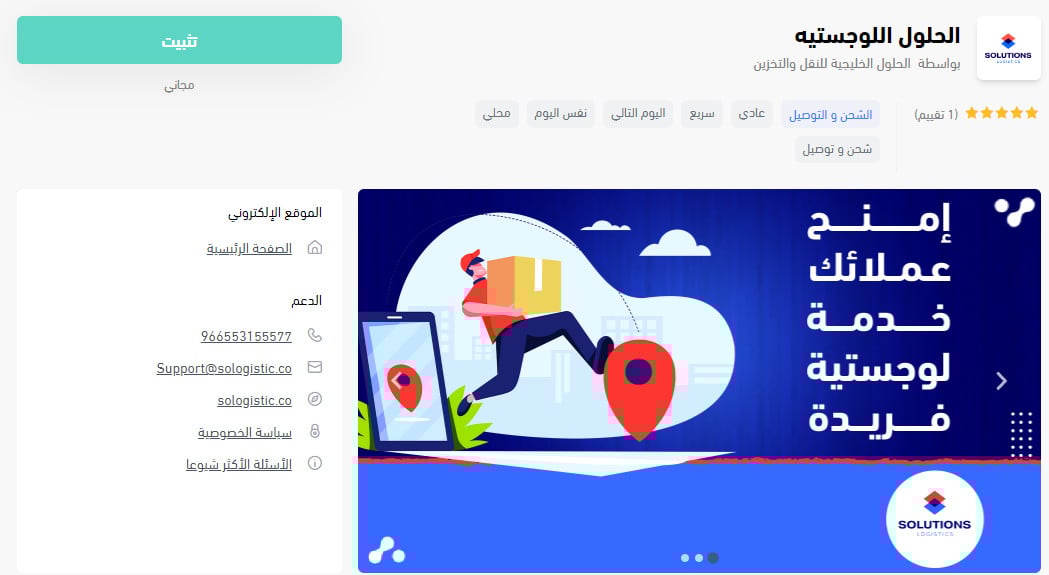
3. On the Logistics Solutions app page, click (Install).
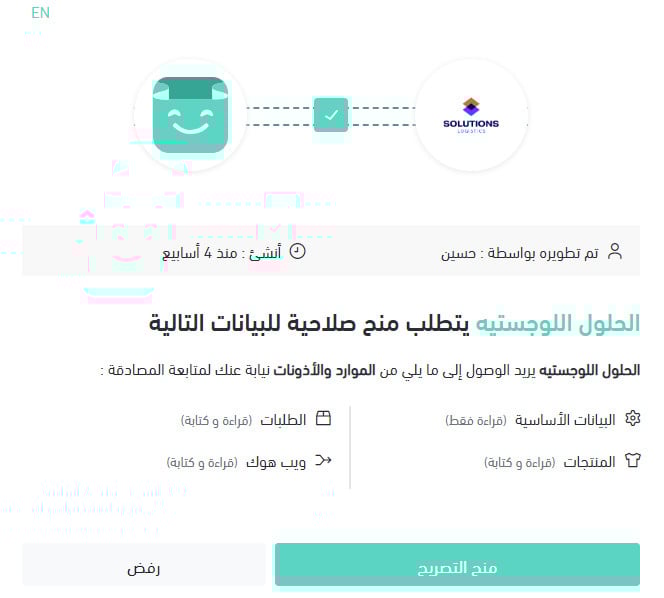
4. Review the permissions the app requests, then click (Grant permission).
Your Salla store is now linked to your Logistics Solutions account.
For more details, see managing your store's apps.
❓ Frequently asked questions
How do I set my shipping rates with Logistics Solutions?
1. From the side menu of your dashboard, click (Installed apps).

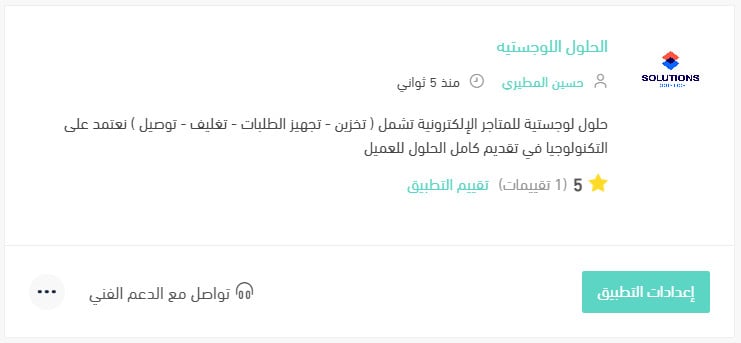
2. On the all apps page, find the Logistics Solutions app and click (App settings).
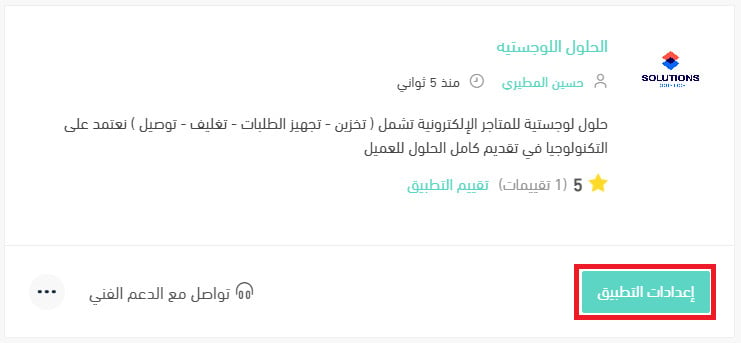
3. Open the (Shipping rates) tab and enter a rate for each city and region you deliver to.
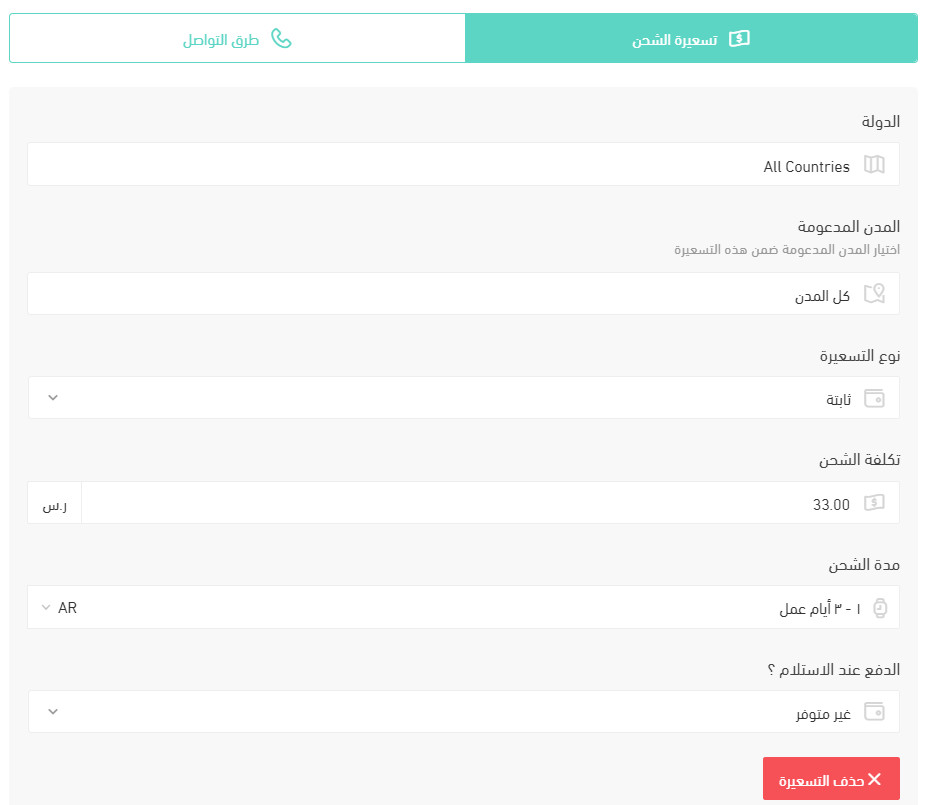
For more details, see setting up shipping and delivery options.
How do I temporarily turn the app off in my store?
1. From the side menu of your dashboard, click (Installed apps).
2. On the all apps page, find the Logistics Solutions app and click (App settings).
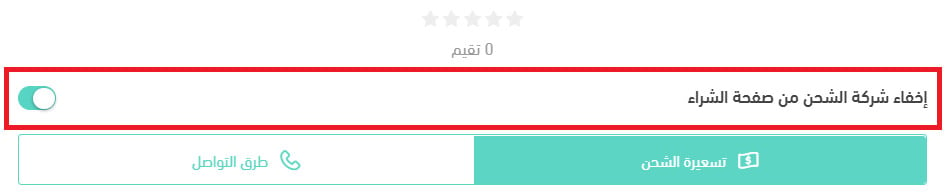
3. Switch the (Hide the shipping company from the checkout page) option on or off.
📝 Important notes
Turning that option on hides Logistics Solutions as a shipping choice at checkout. The app stays installed and connected, so you can bring it back at any time by switching the option off again.
How do I delete the Logistics Solutions app from my store?
1. From the side menu of your dashboard, click (Installed apps).
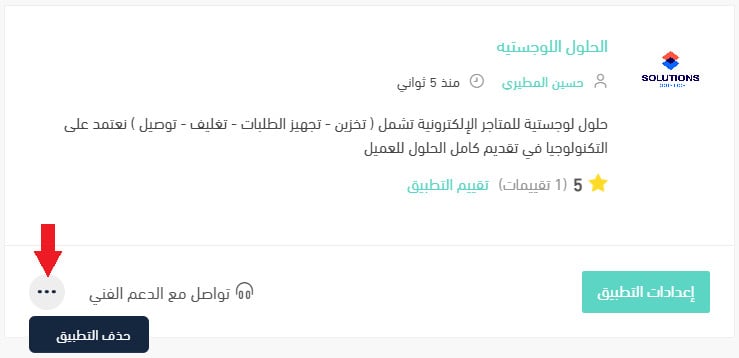
2. On the all apps page, find the Logistics Solutions app, click the (...) icon, then click (Delete app), as shown below.
Handing storage and delivery to a logistics partner only pays off if your rates are right, so set those before you switch the carrier on at checkout.