Do you really know how much stock is sitting in your warehouse right now?
When orders arrive faster than your team can pick and pack them, the gap between the numbers in your dashboard and the boxes on the shelf is where profit quietly leaks away. Khazenly is an order and inventory management app that plugs into your Salla store, pulls new orders in as they land, and keeps stock levels, warehouse operations, and sales channels in one place. In this guide, you'll learn what Khazenly handles, what you need before installing it, and how to add or remove it.
Khazenly is an order and inventory management app for Salla stores. It captures new orders automatically, tracks each order's status, manages storage and warehouse operations, monitors stock levels across sales channels, and syncs the result back to Salla. You need a commercial agreement with Khazenly before you can install it.
📌 Article overview
- What Khazenly does for your store
- What you need before you start
- How to install Khazenly from the Salla App Store
- Frequently asked questions
🎯 What Khazenly does for your store
Khazenly sits between your store and your stock. Once it is connected, it:
- Captures orders directly from Salla, so nothing has to be re-entered by hand.
- Tracks the status of each order against your standard fulfillment criteria. [Verify: the Arabic mentions "standard criteria" without defining which benchmarks are measured.]
- Manages your sales channels from a single view.
- Runs storage and warehouse operations, including stock tracking.
- Keeps all of it integrated with your Salla store.
Before you start
Khazenly is not a self-serve signup. You need a commercial agreement with Khazenly first, then you can install the app on your store.
👣 How to install Khazenly on your Salla store
1. From the side menu of your dashboard, click (Installed apps).

2. From the Salla App Store banner, click (Browse the Salla App Store).

3. On the Khazenly app page, click (Install).
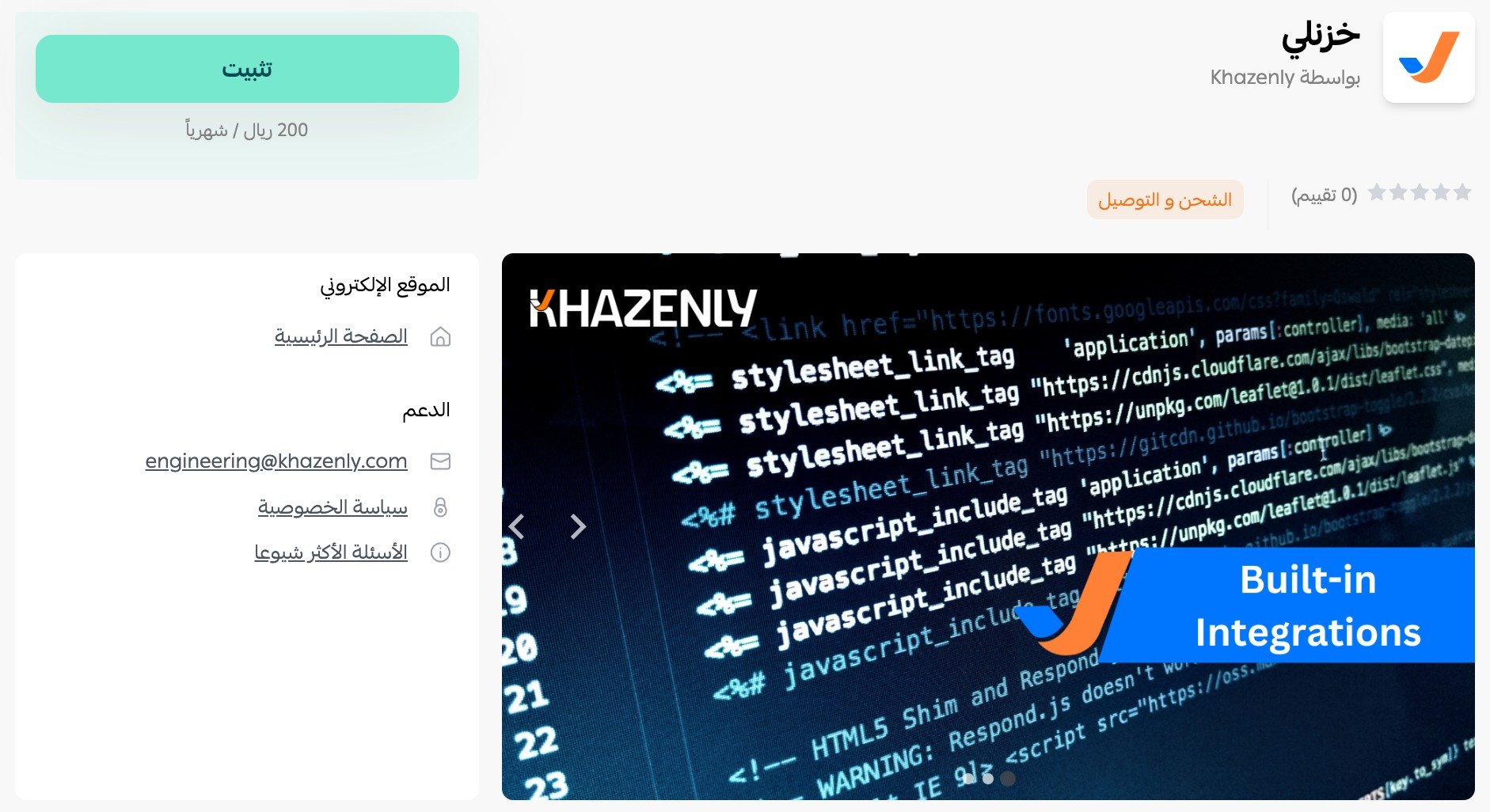
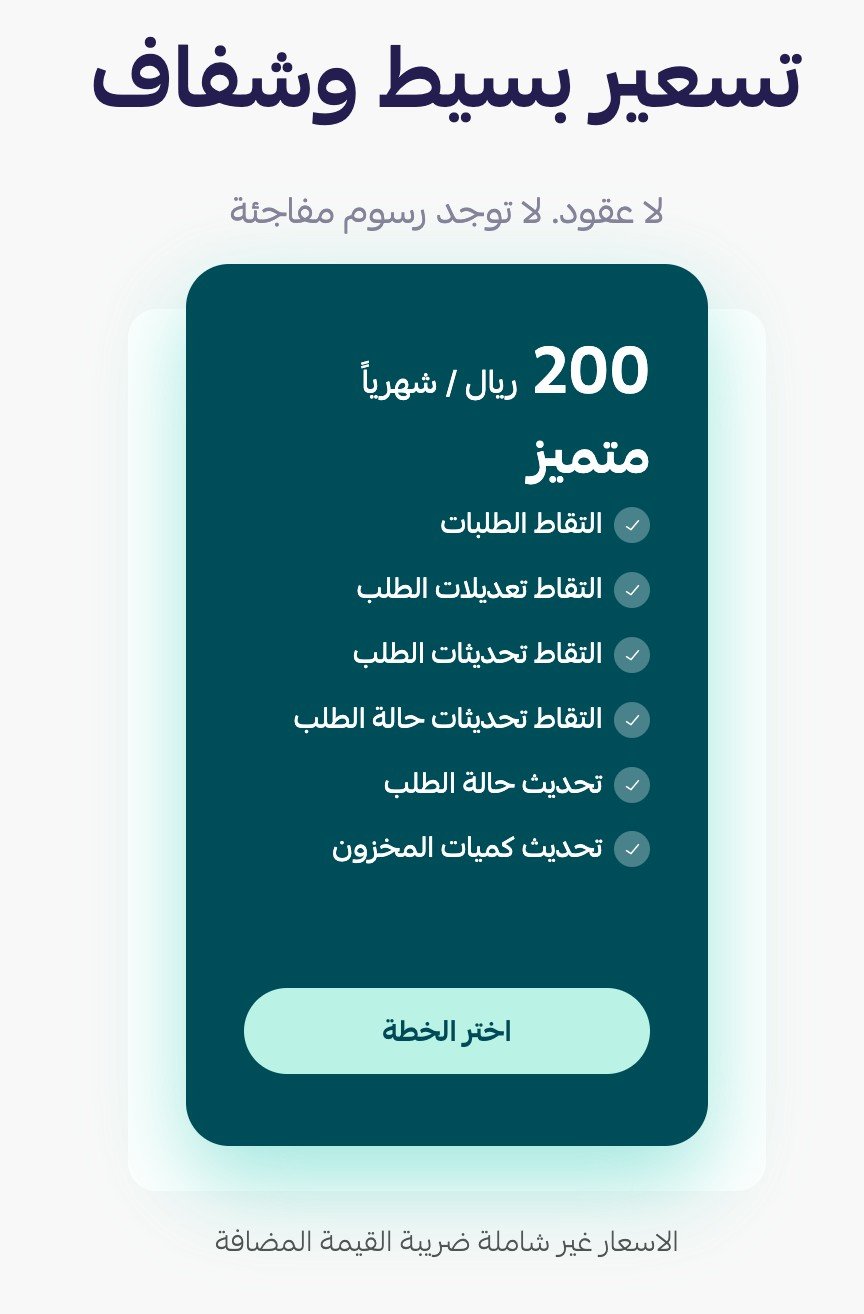
4. Choose the Khazenly plan you want.
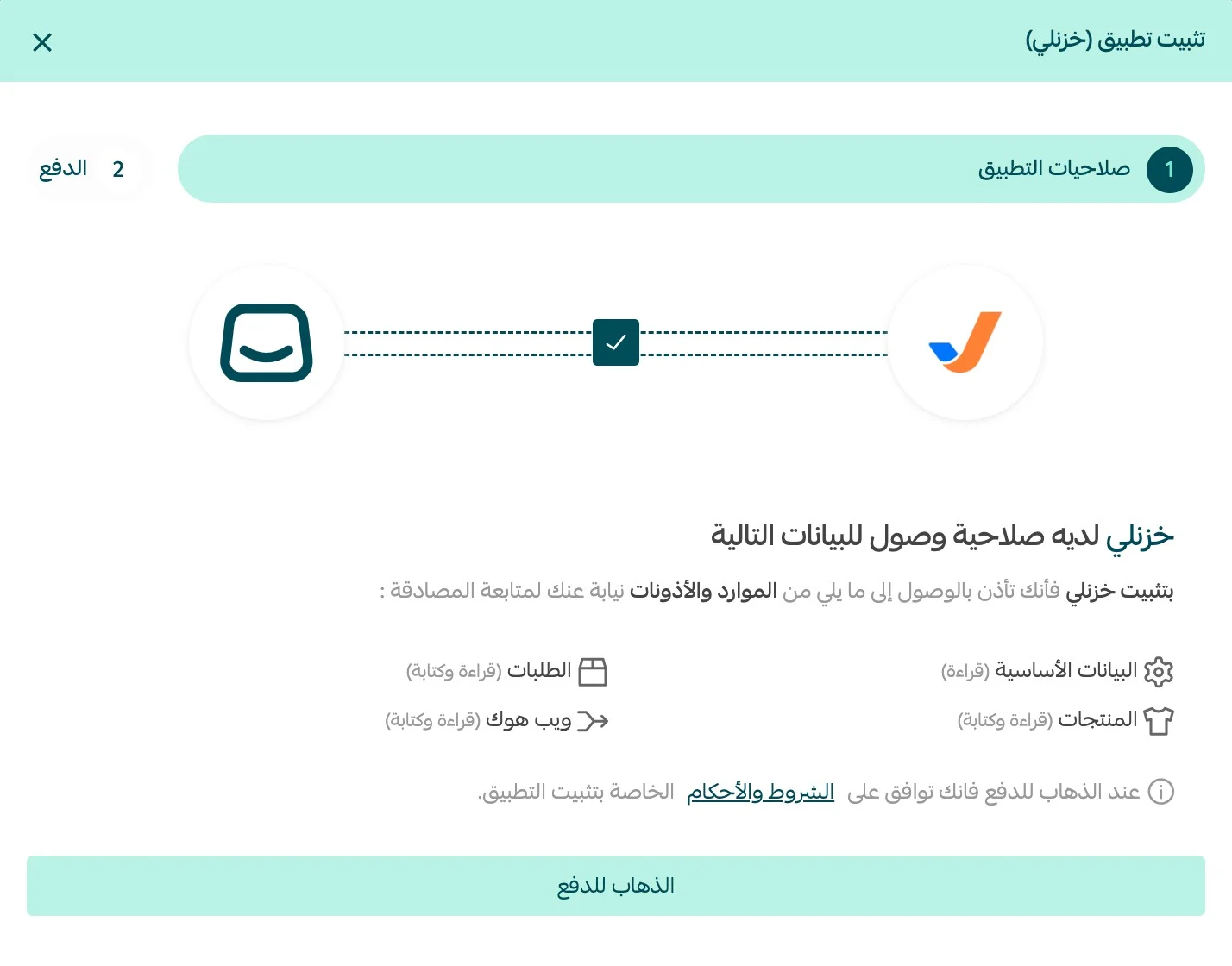
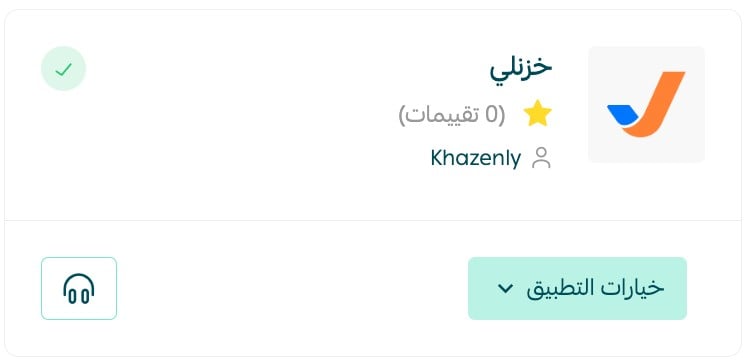
5. Review the permissions the app is asking for, then click (I agree to the permissions).
6. Complete the payment steps to finish the installation.
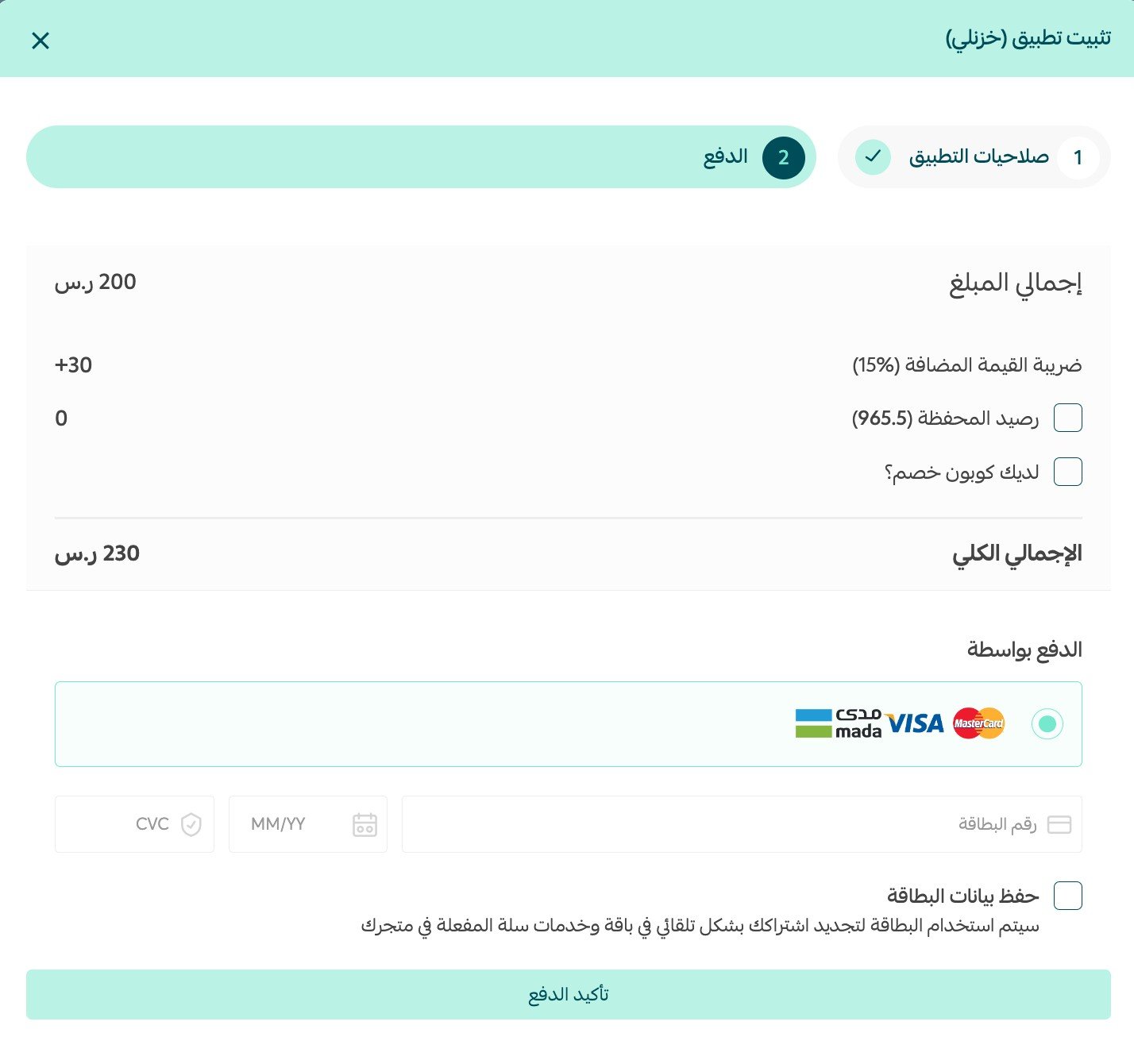
Khazenly is now installed on your store and ready to use.
📝 Important notes
- Without an active commercial agreement, installing the app on its own will not give you a working Khazenly account.
- Khazenly is a paid app, so the installation only completes once payment goes through.
For more on installing, updating, and removing apps, read Managing my store's apps.
❓ Frequently asked questions
Do I need a Khazenly account before I install the app?
Yes. Khazenly requires a commercial agreement before you start, so arrange that with them first and then install the app on your store.
Is Khazenly free?
No. You choose a plan during installation and complete the payment steps before the app becomes active on your store.
Where do I find Khazenly after installing it?
Open the (Installed apps) page from the side menu of your dashboard. Every app connected to your store is listed there.
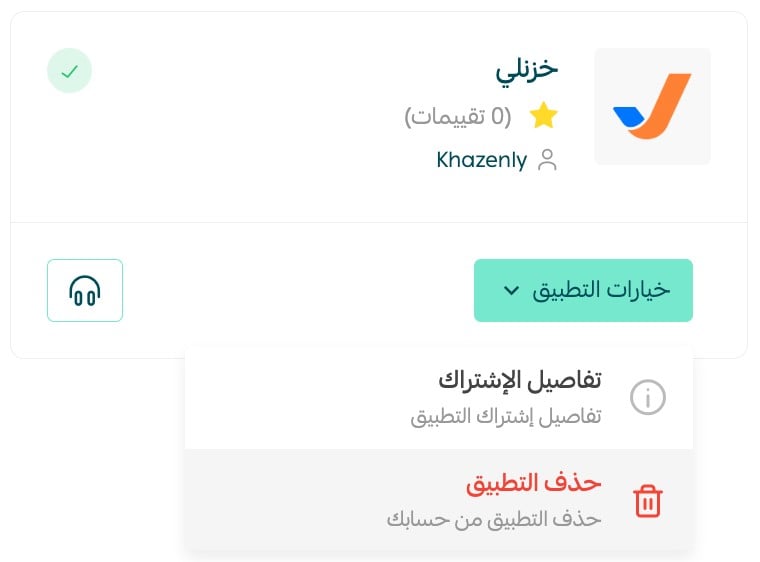
How do I remove the Khazenly app?
1. From the side menu of your dashboard, click (Installed apps).

2. On the all apps page, find Khazenly, click (App options), then click (Delete app).
Stock accuracy is not an admin chore, it is what stops you from selling stock you do not actually have. Getting orders and warehouse data into one system is the fastest way to keep that number honest.