Is your customer service team drowning in WhatsApp messages with no way to track them?
WhatsApp is where most customers reach out first, but a shared inbox with no structure turns into missed questions and slow replies. Invobot runs customer service tasks directly inside WhatsApp for your Salla store, using artificial intelligence and deep learning to handle the conversation, and it also lets you launch WhatsApp campaigns and measure how well they performed. In this guide, you'll learn what Invobot does and how to install it on your store step by step.
Invobot is a Salla App Store app that manages customer service tasks on WhatsApp using artificial intelligence and deep learning. It also launches WhatsApp advertising campaigns and reports advanced analytics on how each campaign performs. You install it from the app store, choose a plan, complete payment, and confirm your Invobot account by email.
📌 Article overview
- What Invobot does
- How to install and connect Invobot
- Frequently asked questions
🎯 What is Invobot?
Invobot is a system that handles customer service work where your customers already are: on WhatsApp. It leans on artificial intelligence and deep learning to make the exchange between a customer and your store feel quick and useful rather than automated and stiff.
Beyond support, Invobot doubles as a campaign tool. You can run advertising campaigns over WhatsApp and read advanced analytics afterwards, so you can tell which campaign actually earned its keep instead of guessing.
🚀 How to install and connect Invobot
1. From the main menu of your store dashboard, click (Installed apps).

2. From the Salla App Store banner, click (Browse the Salla App Store).

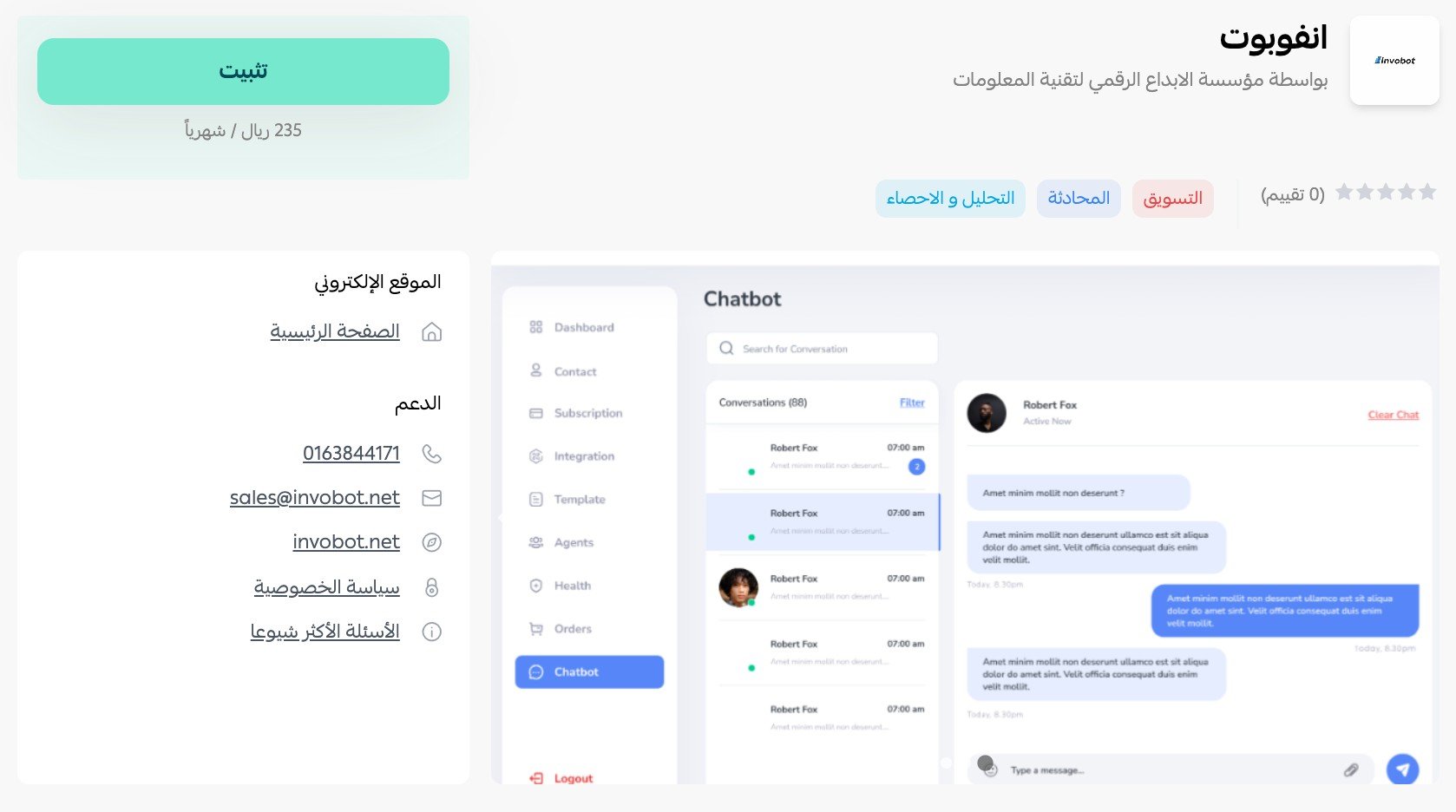
3. On the Invobot app page, click (Install).
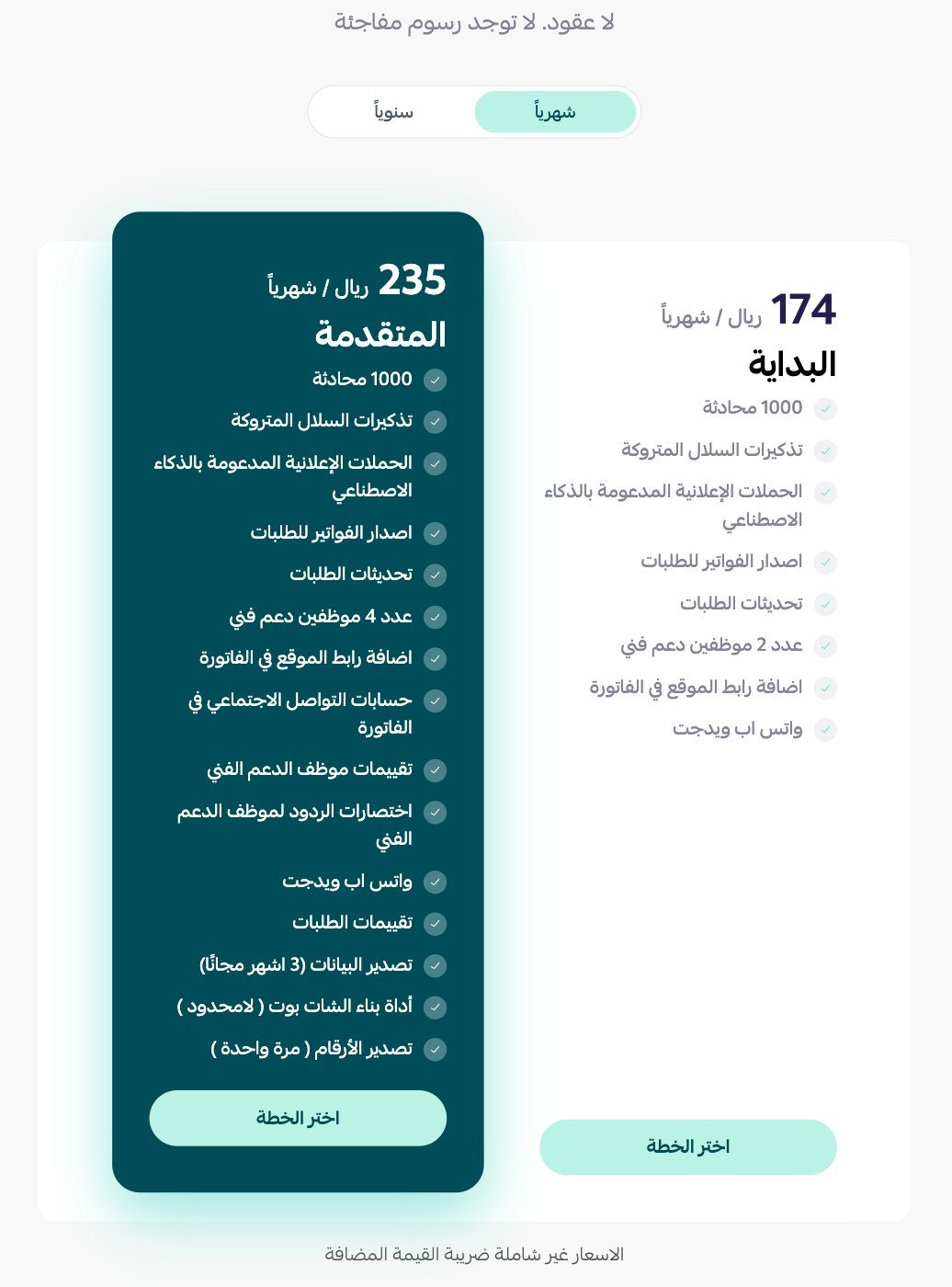
At the bottom of the page, pick the plan that fits the size of your business.
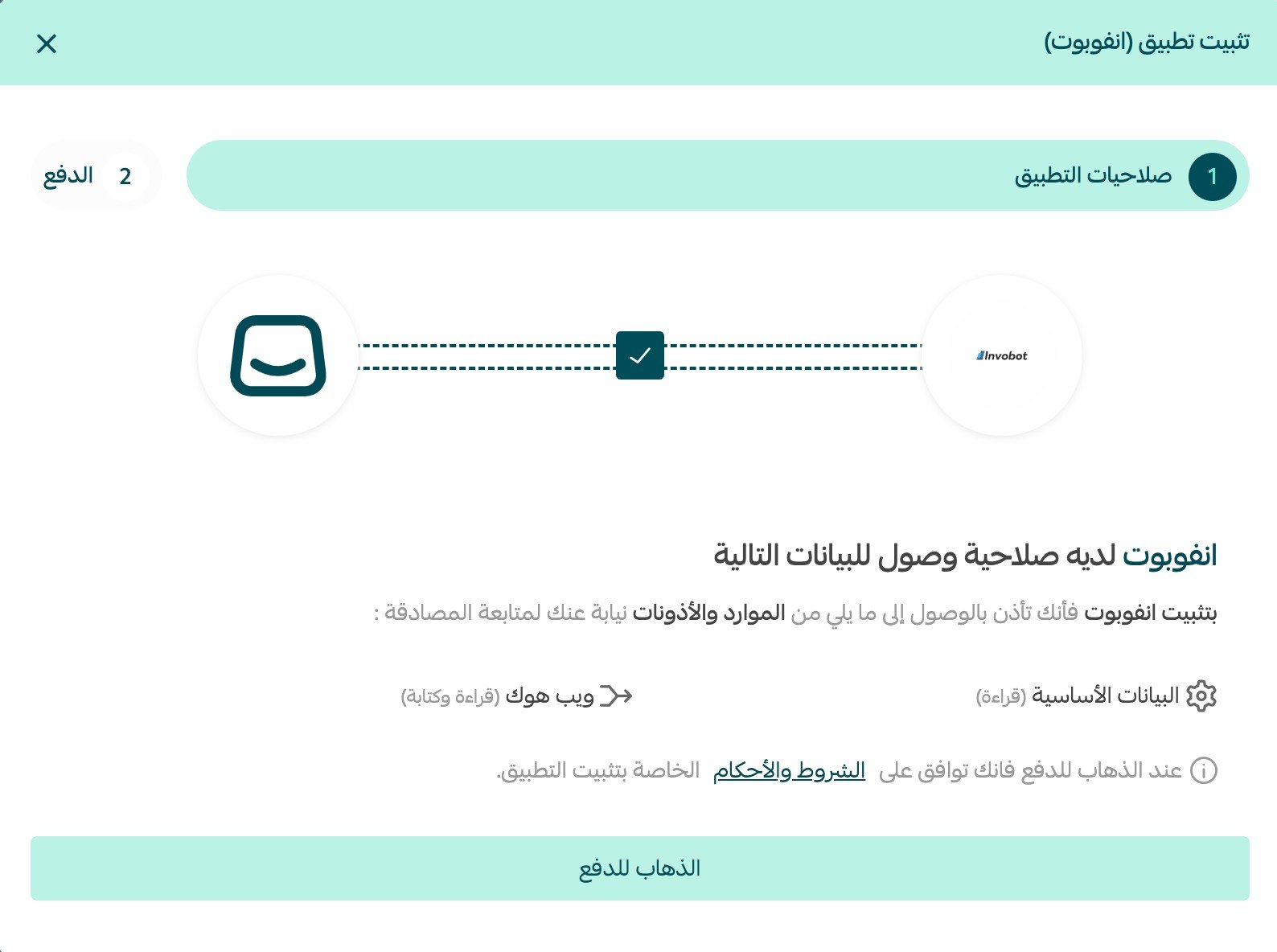
4. Review the permissions the app asks for, then click (Go to payment).
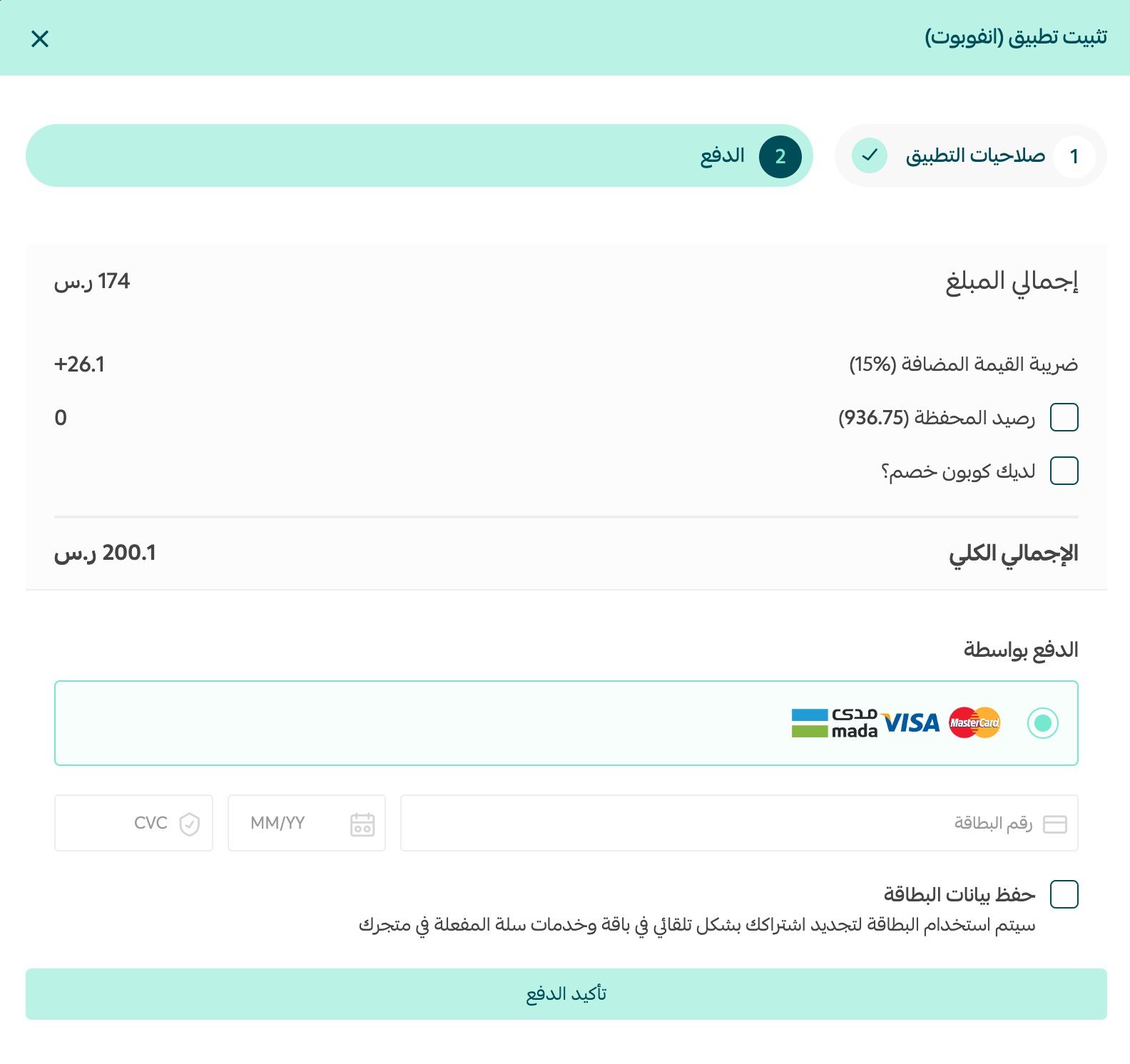
5. Complete the payment to finish installing the app.
Invobot is now installed on your store.
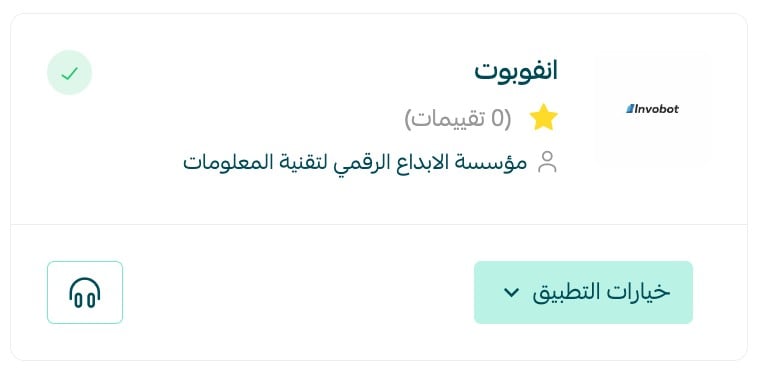
6. Check your email and confirm your Invobot account.
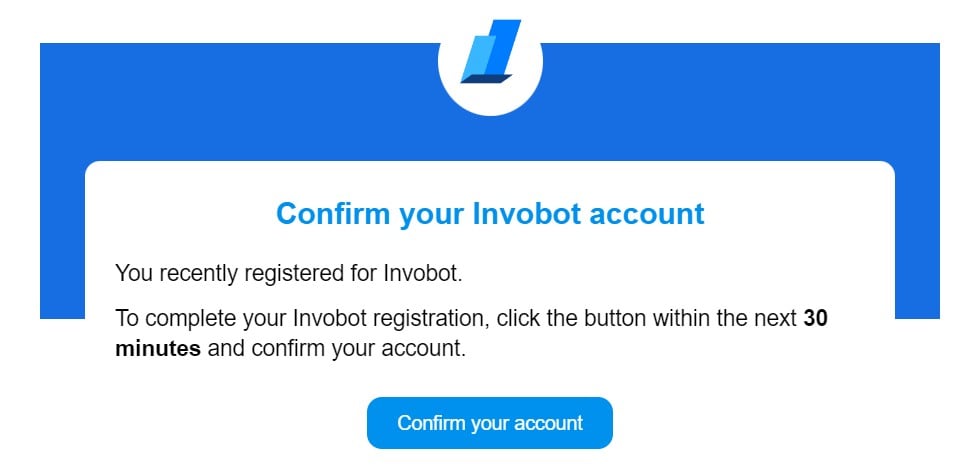
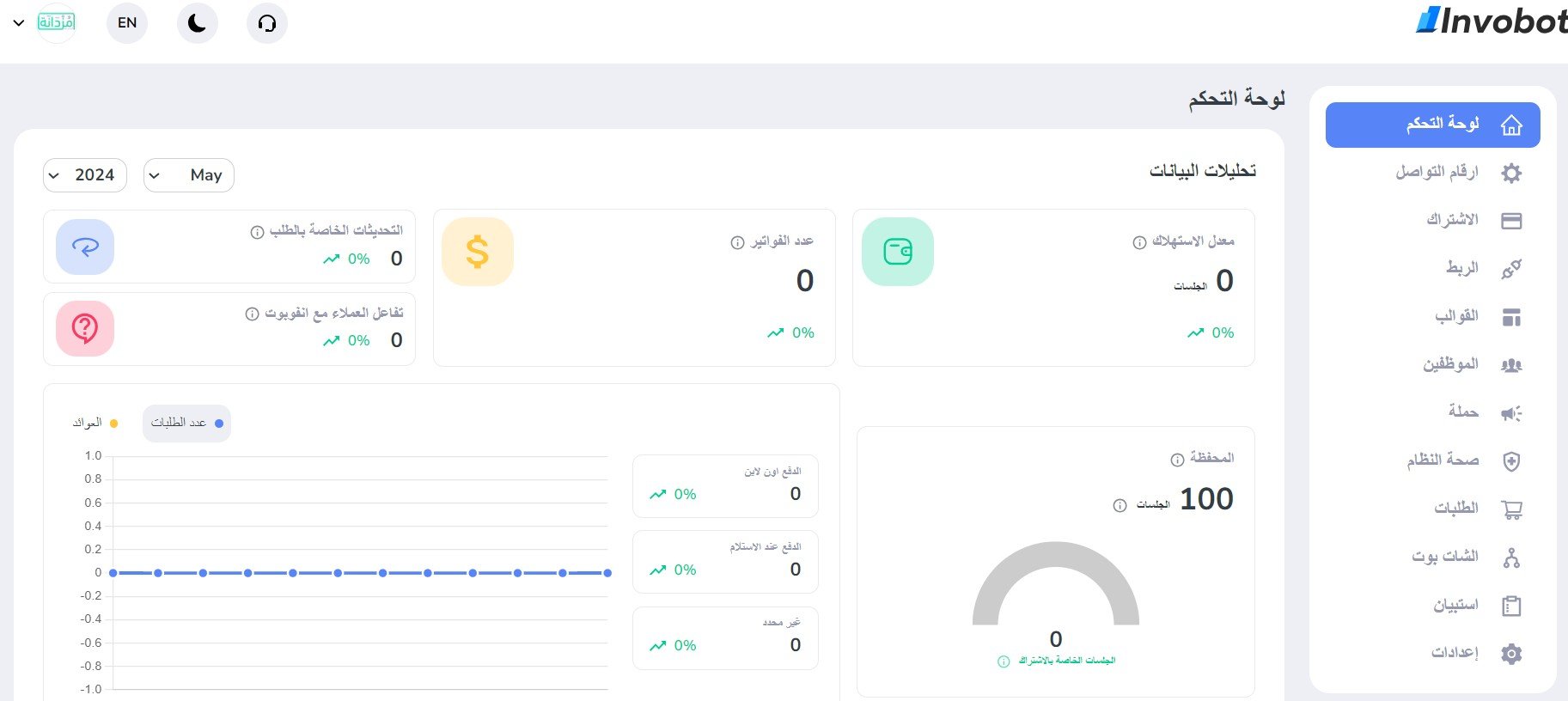
Set a password for your new Invobot account and fill in your account settings. The Invobot home page then looks like this:
📝 Important notes
- Invobot is a paid app: you choose a plan and complete payment as part of the installation.
- The account confirmation is sent by email, so use an address you check.
- For more on installing, activating, and removing apps, read Managing your store apps.
❓ Frequently asked questions
How do I remove the Invobot app from my store?
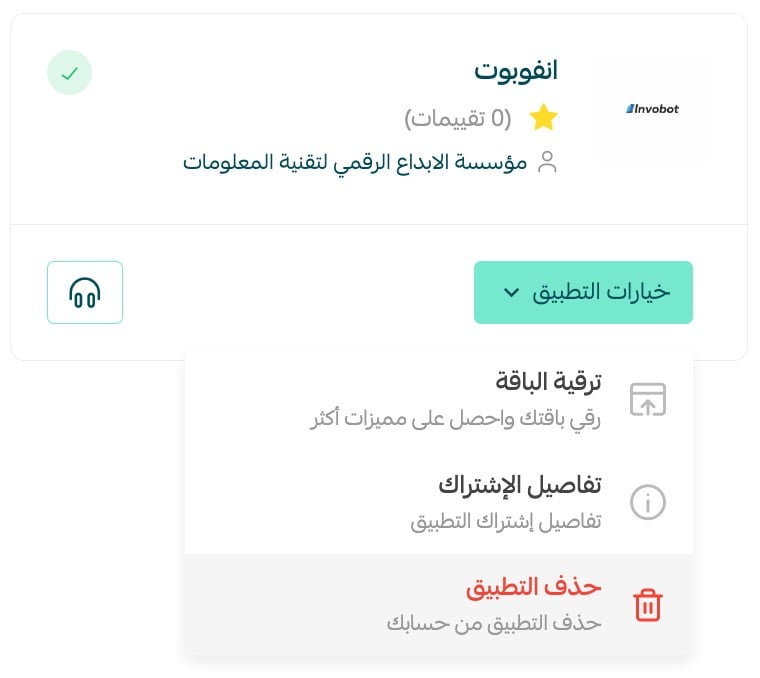
1. From the main menu of your store dashboard, click (Installed apps).
2. On the all apps page, find Invobot, click (App options), then click (Delete app).
Where does Invobot handle customer conversations?
Directly on WhatsApp. Customer service tasks are managed inside the WhatsApp conversation rather than in a separate support portal.
Can I run advertising campaigns with Invobot?
Yes. Invobot can launch advertising campaigns over WhatsApp and give you advanced analytics to measure how efficient each campaign was.
What do I do after payment goes through?
Open the confirmation email, confirm your Invobot account, set a password, and complete your account settings. You then land on the Invobot home page.
Support and marketing usually live in two different tools. Invobot puts both in the one place your customers already answer.