How many visitors leave your store without ever giving you a way to reach them again?
You spend real time and money bringing people to your store, and most of them leave without buying anything. Popup Forms by Smartarget gives you a way to keep the conversation going: a popup window that invites visitors to leave their email address, so you can follow up later with a newsletter or an offer. In this guide, you'll learn how to install the app, create your Smartarget account, copy your user ID, customize the popup, and remove the app if you no longer need it.
Popup Forms by Smartarget is a Salla app that collects visitor email addresses through a popup window on your storefront. Install it from the Salla App Store, choose a plan, grant the permissions it requests, then connect it to your Smartarget account and customize the popup to match your store.
📌 Article overview
- What Popup Forms by Smartarget does
- How to install Popup Forms in your store
- Frequently asked questions
🚀 How to install Popup Forms by Smartarget
1. From the side menu of your dashboard, click (Installed apps).

2. From the Salla App Store banner, click (Browse the Salla App Store).

3. On the Popup Forms app page, click (Install).
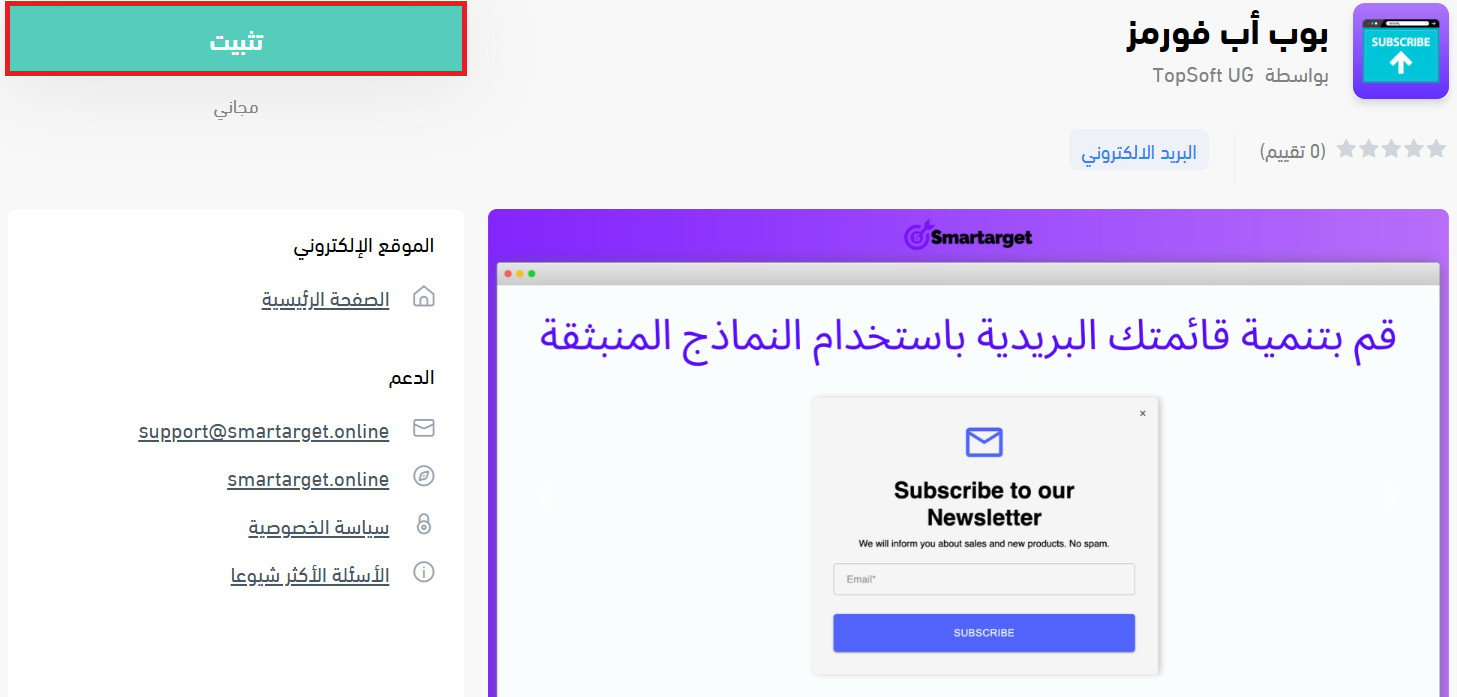
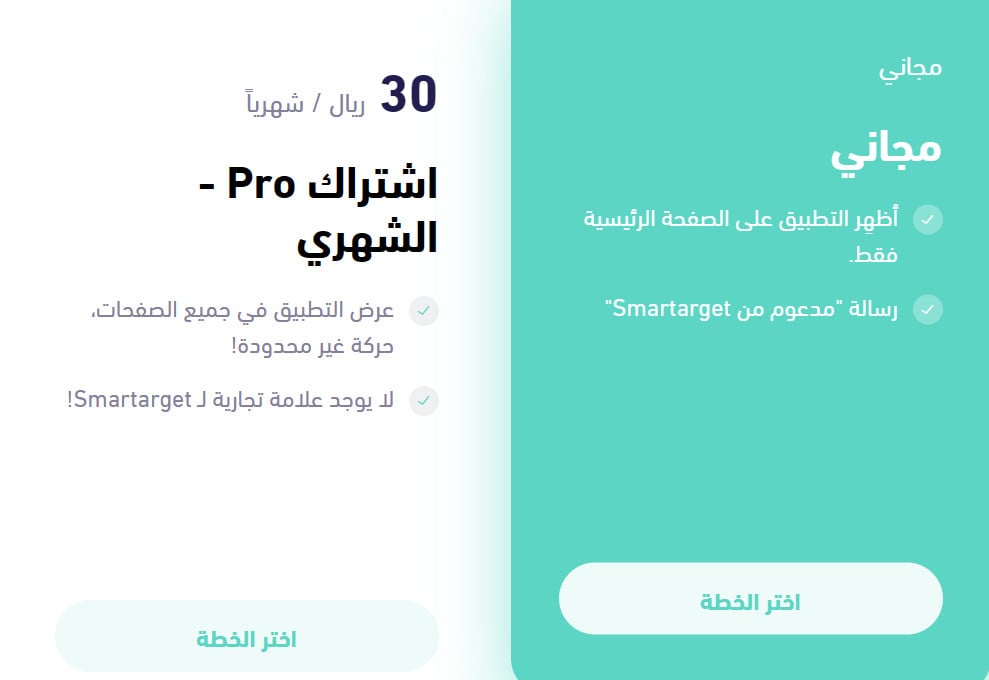
4. Choose the plan that fits your business.
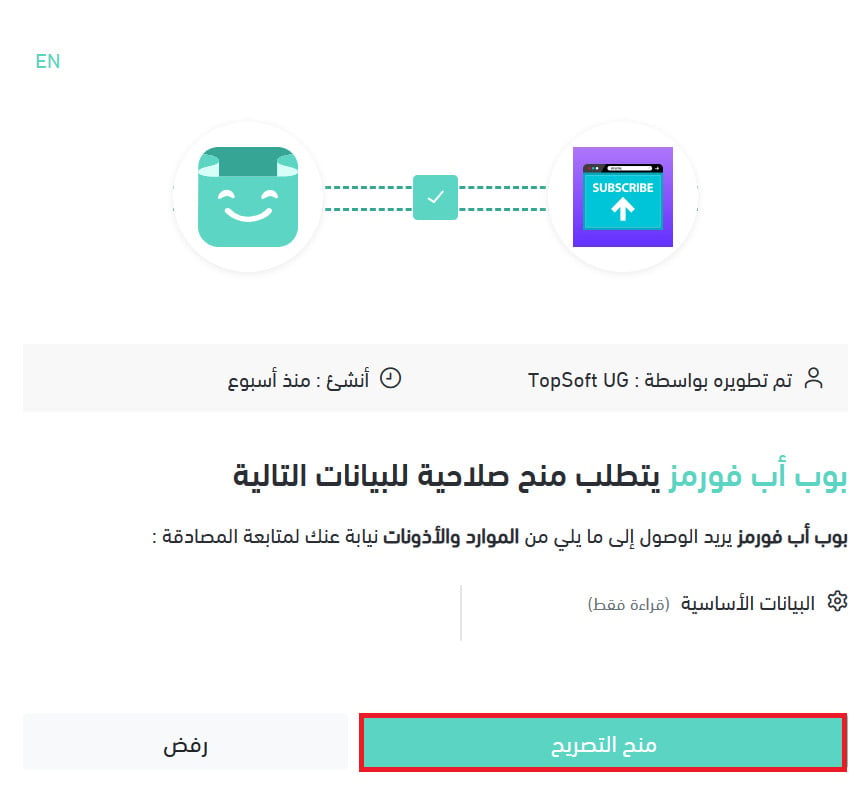
5. Review the permissions the app asks for, then click (Grant permission).
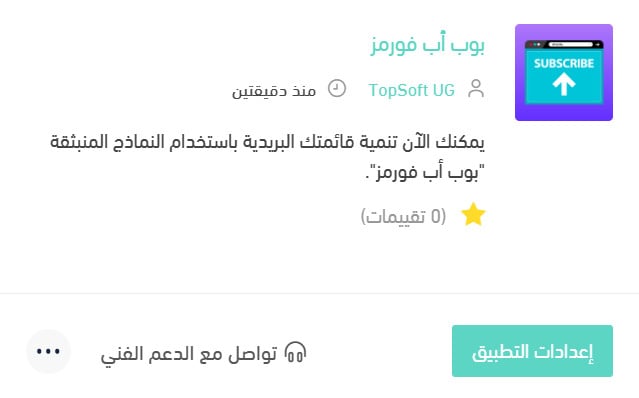
6. Popup Forms is now active in your store. Adjust its settings to match what your business needs.
📝 Important notes
Popup Forms is a third-party app built by Smartarget. You need a Smartarget account to design the popup and manage the email addresses it collects.
For more details, see managing your store apps.
❓ Frequently asked questions
How do I create a new Smartarget account?
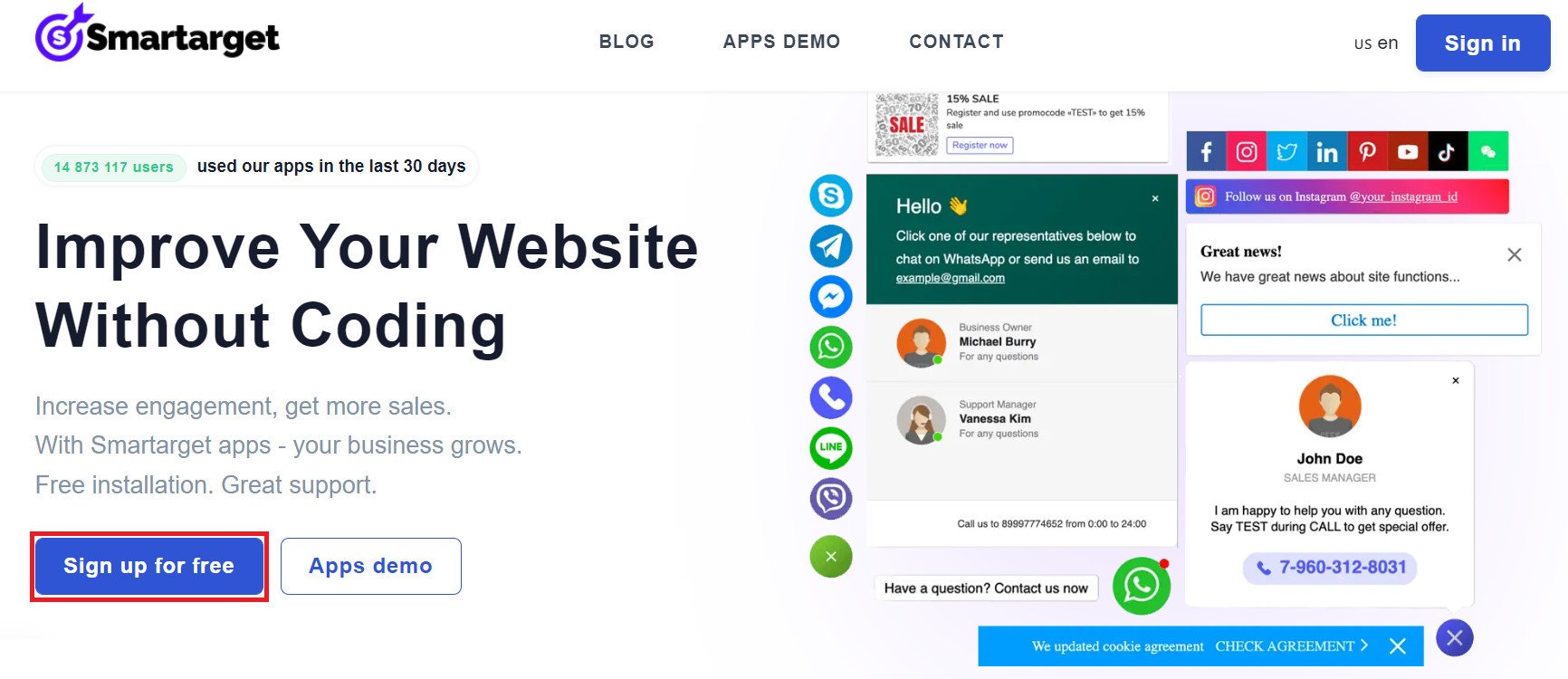
1. From the Smartarget home page, click (Register for free).
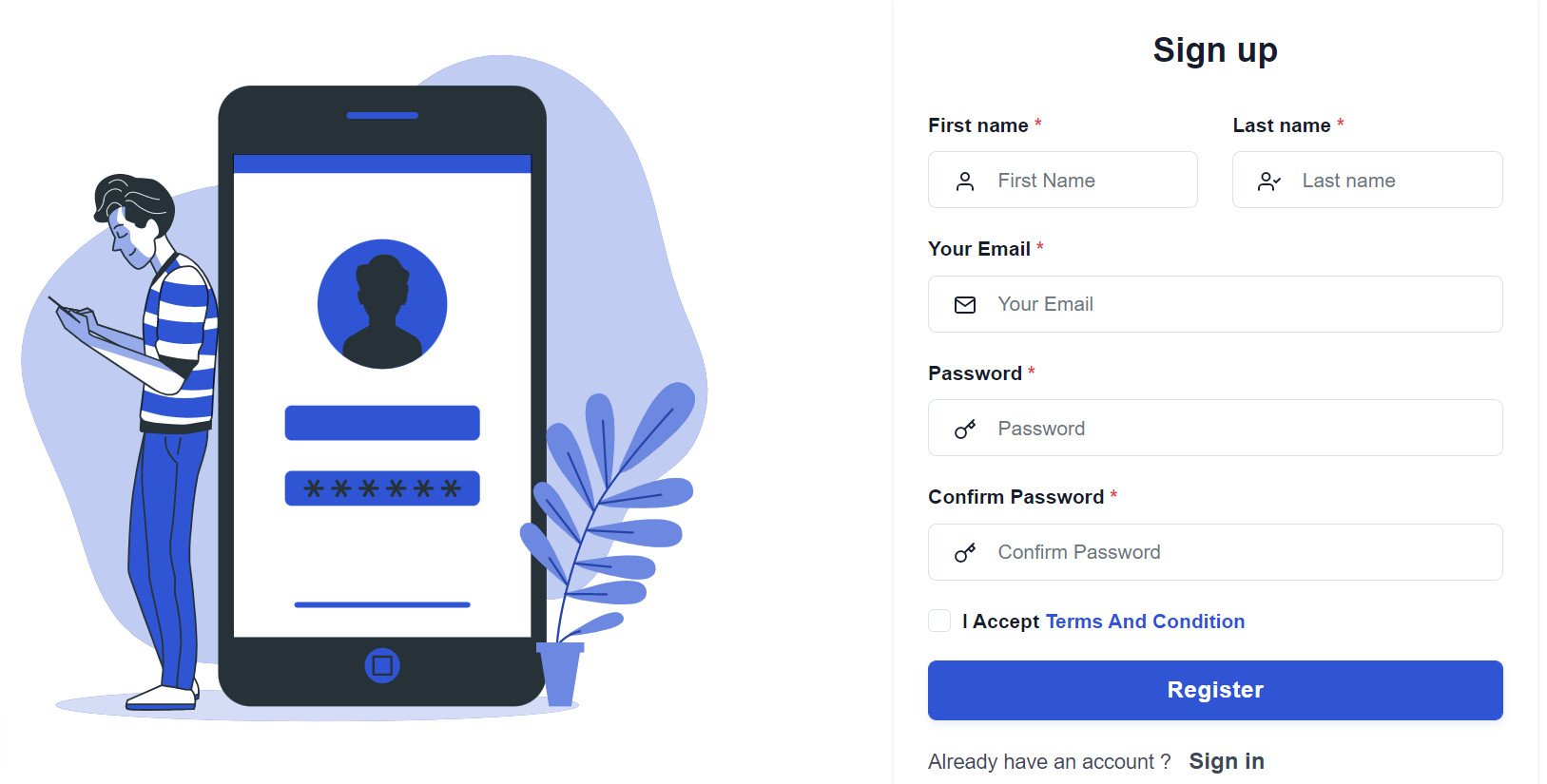
2. Enter the required details, then click (Register).
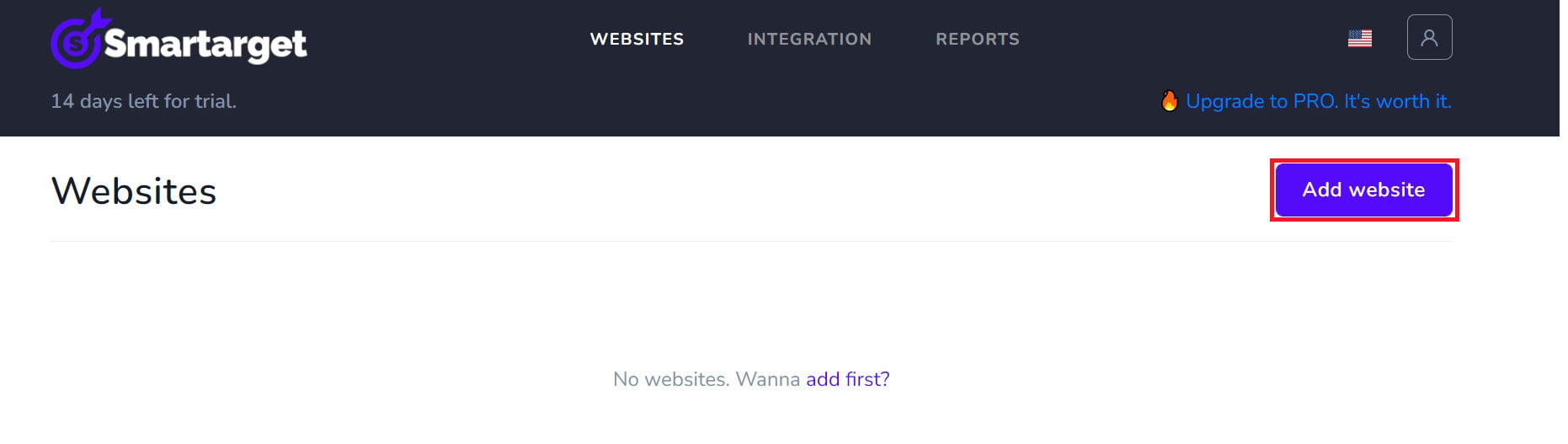
3. Confirm your account through the email you receive, sign in, then click (Add website).
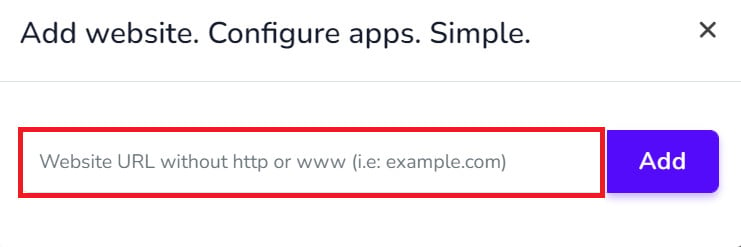
Then add your Salla store domain.
4. To add the Popup Forms button to your store, click (Popup Forms - Contact Us).
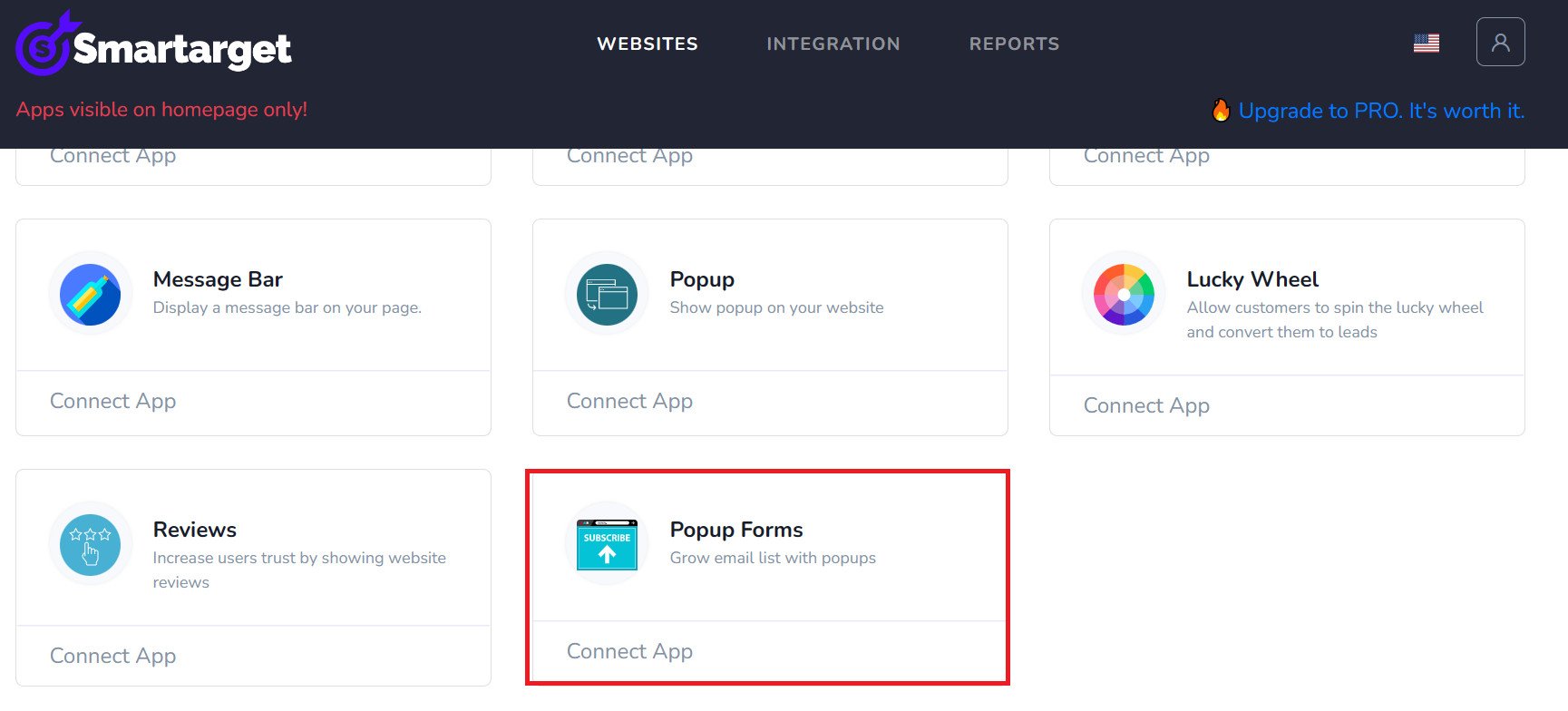
5. Set the Popup Forms options for your store, then click (Save setting).
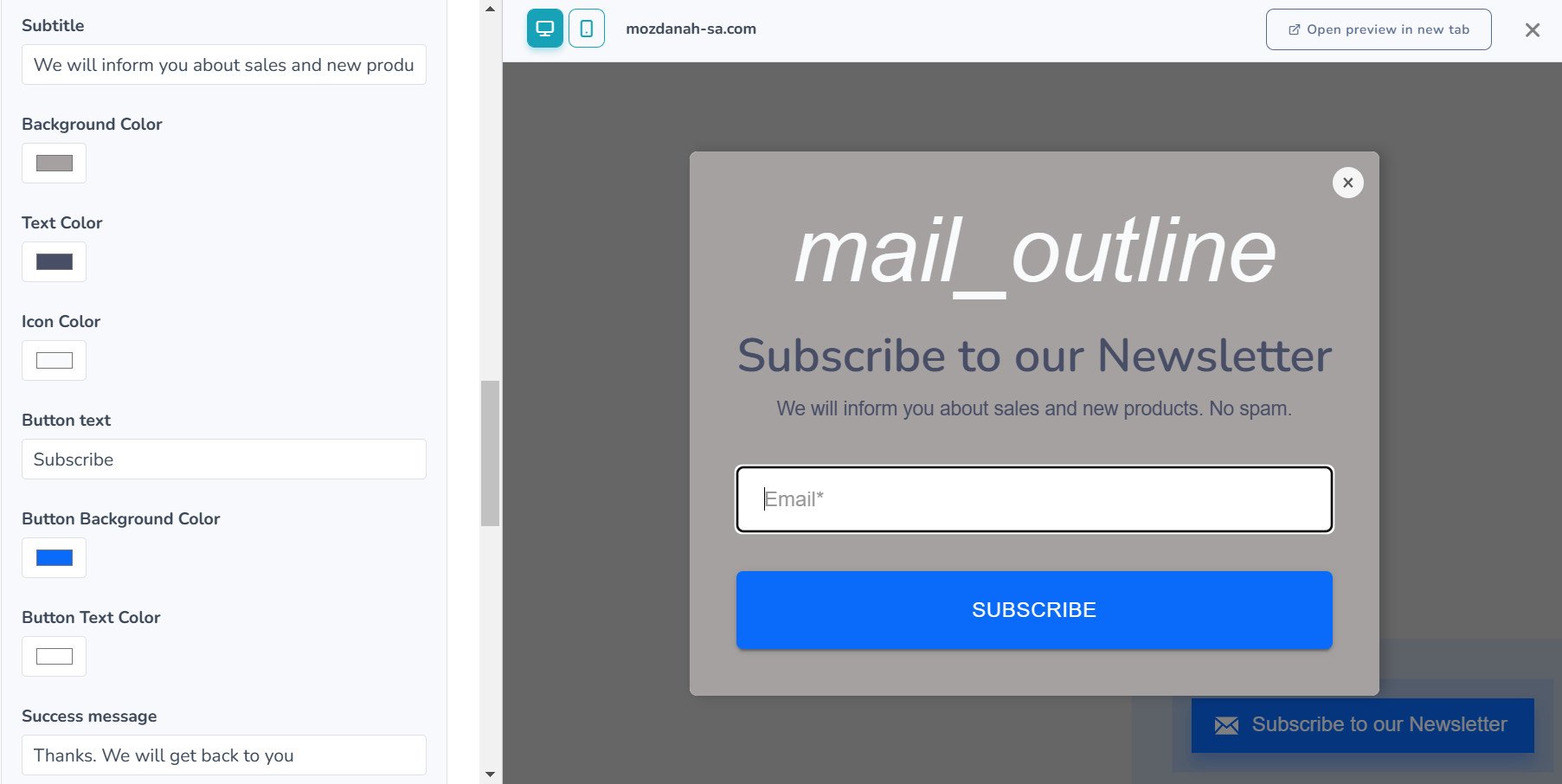
Where do I copy my Smartarget user ID from?
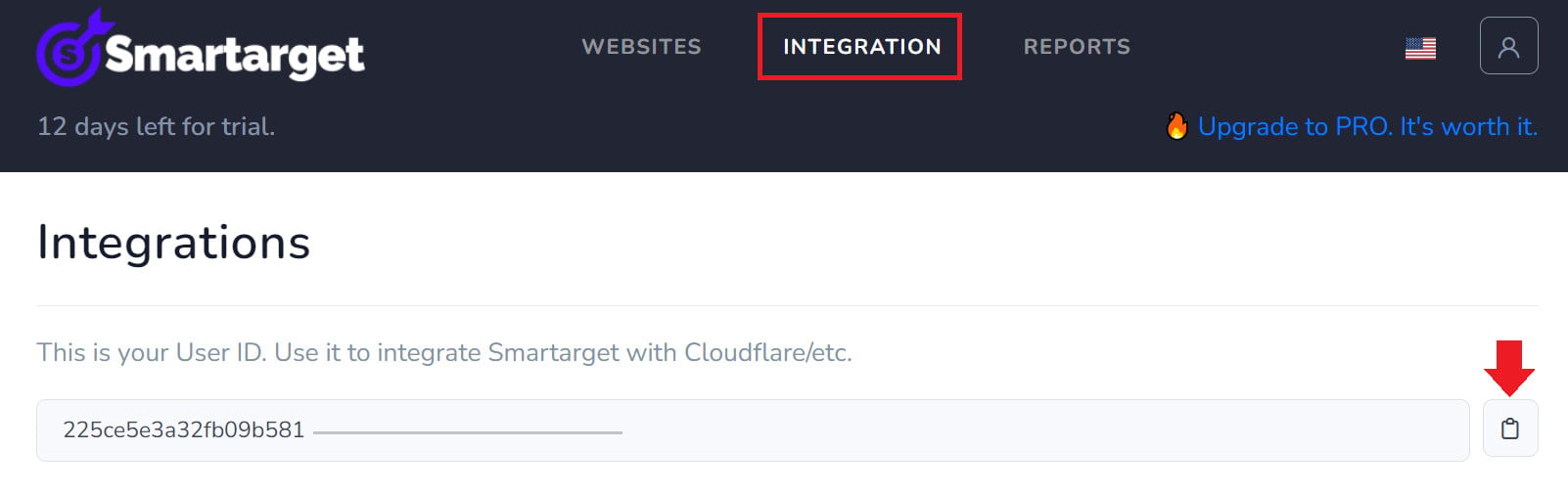
In your Smartarget account, go to the (INTEGRATION) page, then click (Copy) to copy your user ID.
Can I use Popup Forms in any language?
Yes, including languages written from right to left.
Can I use Popup Forms on both desktop and mobile?
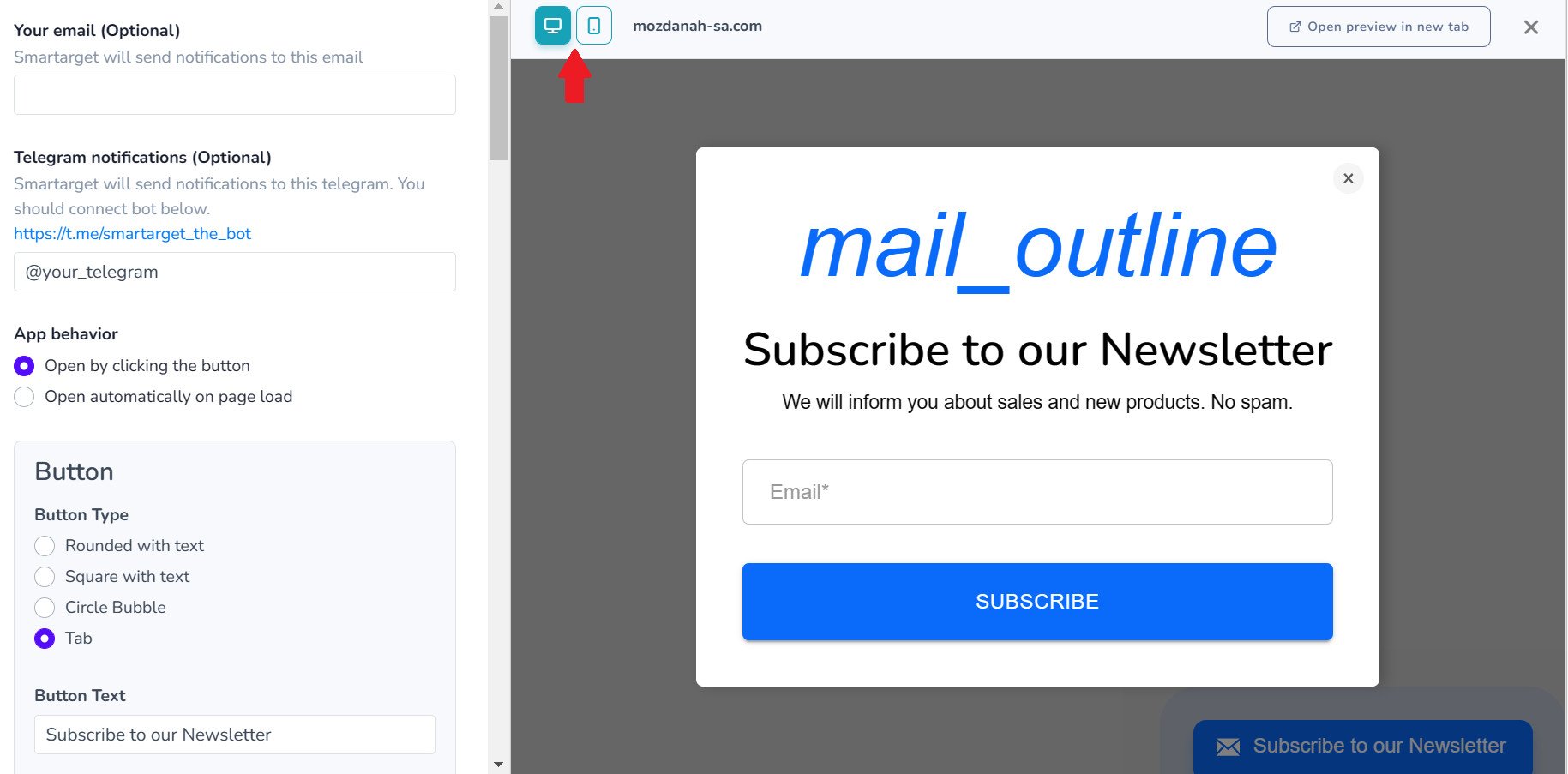
Yes. Your customers will see the popup on whichever type of device they browse your store with.
Can I customize Popup Forms to match my store design?
Yes. Pick popup colors that work with your store theme, and choose a relevant image to show alongside the popup so it draws more attention from your customers.
How do I remove Popup Forms from my store?
1. From the side menu of your dashboard, click (Installed apps).

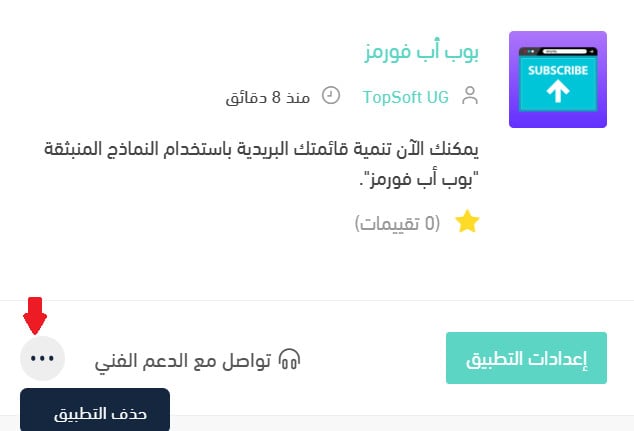
2. On the all apps page, find Popup Forms, click the (...) icon, then click (Delete app), as shown below.
Collecting email addresses is one of the cheapest ways to turn one-time visitors into repeat customers. Set the popup up once, keep the offer simple, and let it work while you focus on the rest of your store.