Would your customers buy with more confidence if they could turn a product around and look at it from every angle?
The 3D images app adds an interactive touch to your store by showing products the way they look in real life. Shoppers get a much clearer sense of a product's dimensions and angles than a flat photo can give them, which is exactly what removes hesitation before checkout. In this guide, you'll learn how to install the 3D images app and add a 3D file to a product.
Install the 3D images app from the Salla App Store, then open the product you want it on, upload the main product image, click the (3D) button that appears on it, and upload your model as a glb file. The product page then shows a button shoppers click to view the item in 3D.
📌 Article overview
- What the 3D images app does
- How to install the 3D images app
- Frequently asked questions
🎯 What the 3D images app does
It's a tool that helps you display products that mirror the real thing and adds an interactive touch to your store, giving your products greater clarity in their dimensions and angles.
🚀 How to install the 3D images app
1. From the side menu of your dashboard, click (Installed apps).

2. On the Salla App Store banner, click (Browse the Salla App Store).

3. On the 3D images app page, click (Install).
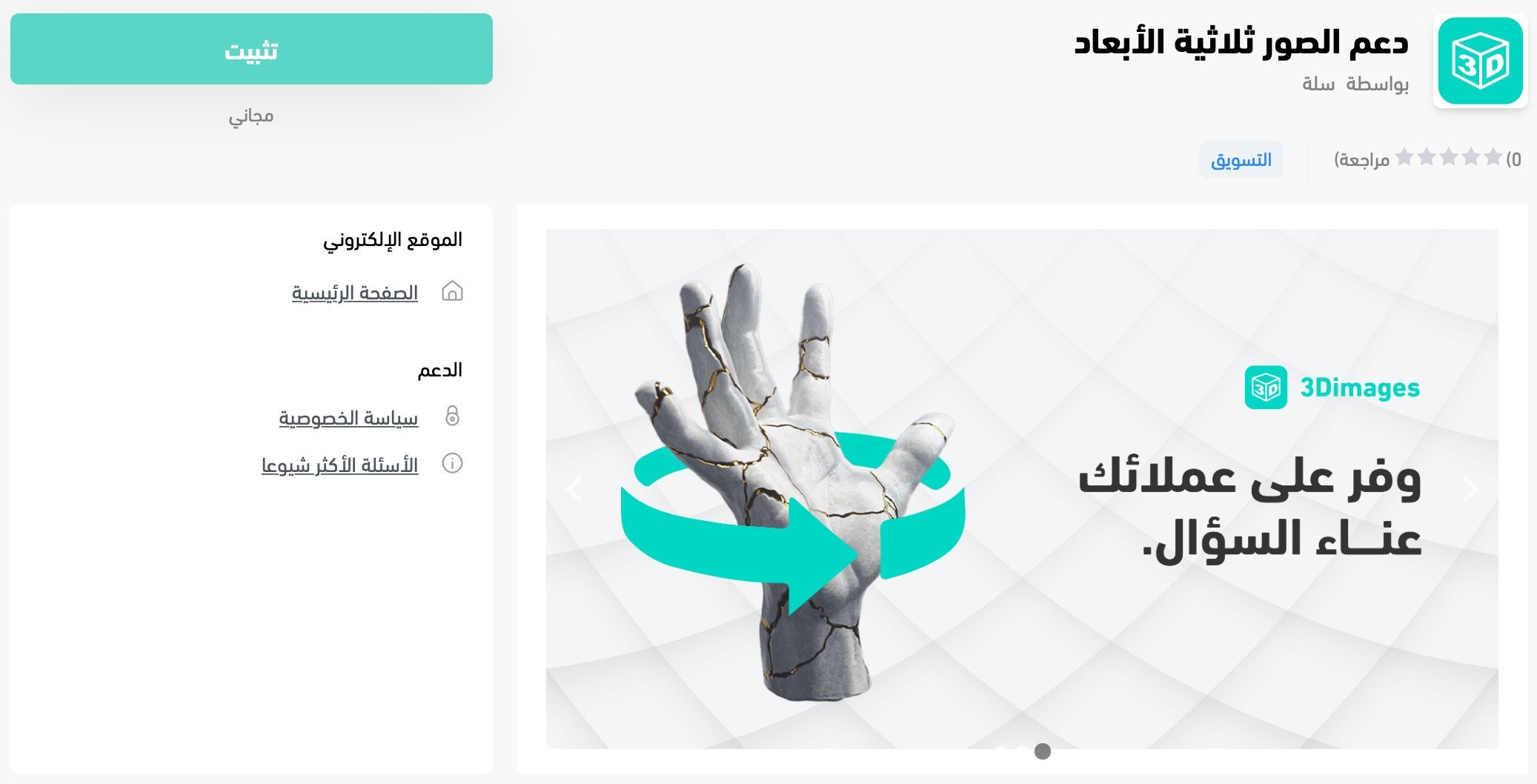
The app is now installed on your store.

❓ Frequently asked questions
How do I upload 3D images for my products?
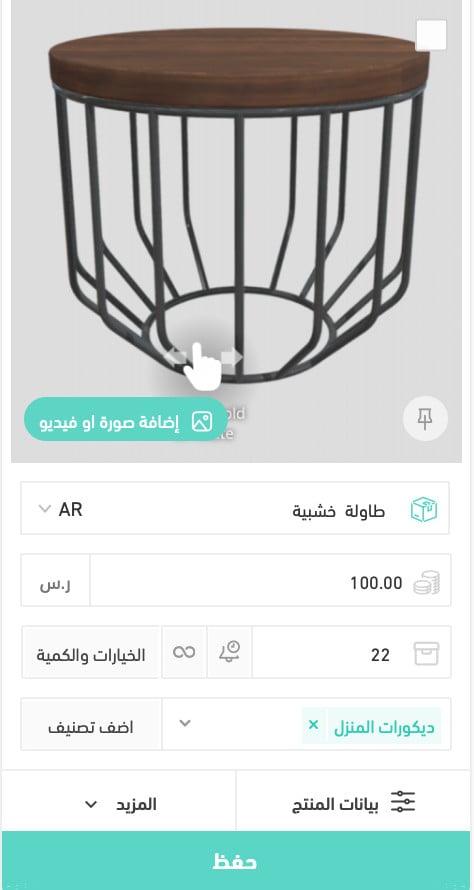
1. Go to the products page, add the details of the product you want the 3D images feature on from its product card, then click (Save).
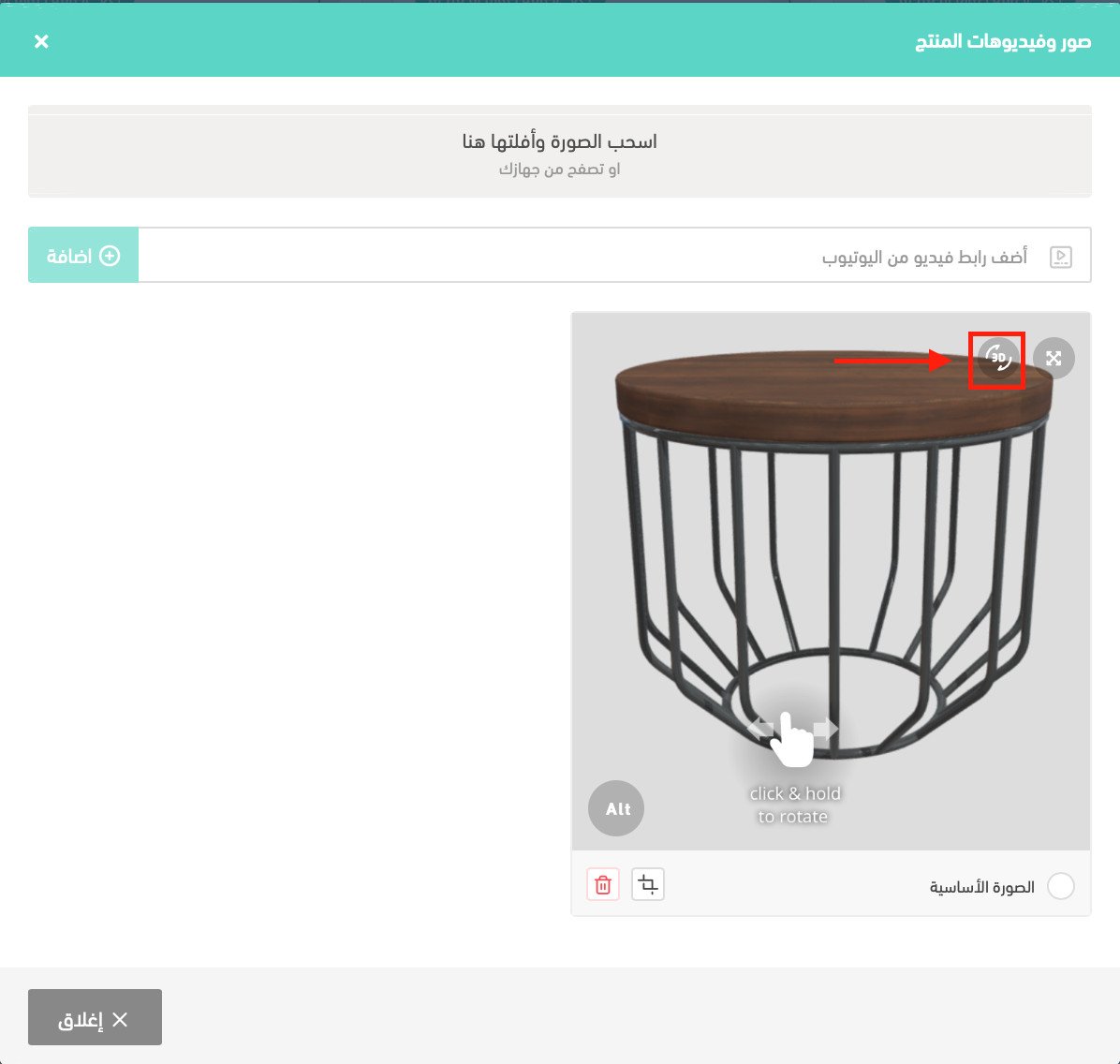
2. Upload the main product image. Then click the (3D) button that appears on that main image and upload your 3D file in glb format.
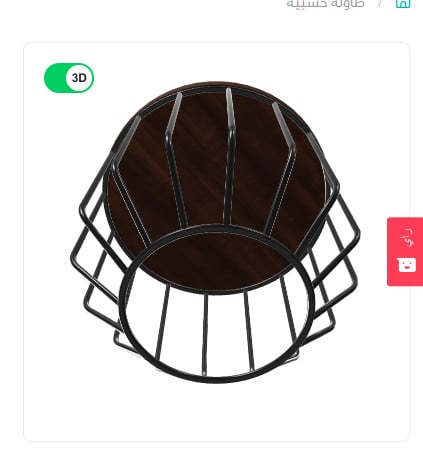
It appears in your store like this, and shoppers click the activation button to view the image in 3D.
What file format do 3D models need to be in?
The 3D file has to be a glb file. You upload it from the (3D) button on the product's main image.
Do I have to add 3D images to every product?
No. You upload a 3D file per product, so you can add it only to the products where seeing the item from every angle helps the customer decide.
How do I remove the 3D images app from my store?
1. From the side menu of your dashboard, click (Installed apps).

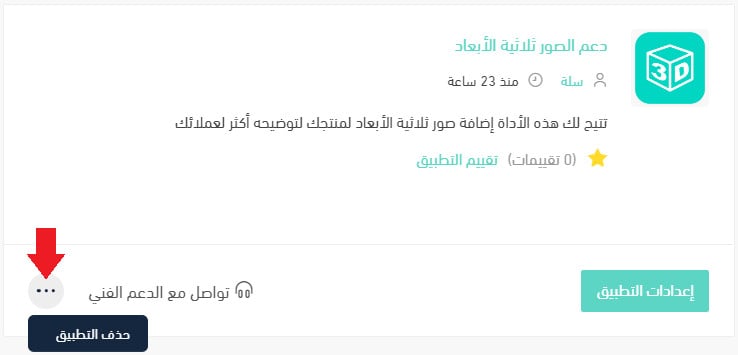
2. On the all apps page, find the 3D images app, click the (...) icon, then click (Delete app), as shown in the image.