Do you sell gold and rewrite your prices every time the market moves?
Gold trades on a live rate, and a store still quoting yesterday's number is either giving away margin or scaring off a buyer who checked the price somewhere else first. The Gold Price Updater app is a Salla app store integration that gives your store accurate gold price information and keeps it refreshed for you, so nobody on your team has to watch the market by hand. In this guide, you'll learn how to install the app, what Salla sets up for you once installation finishes, how to move from the free version to the full plan, and how to remove the app if you no longer need it.
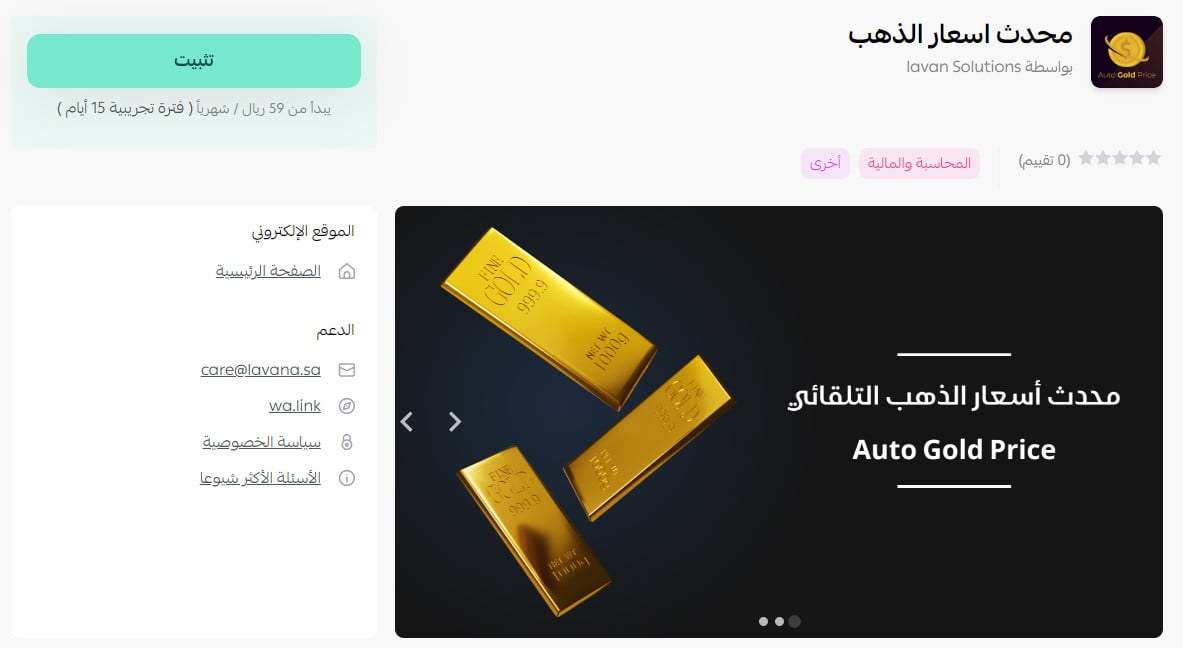
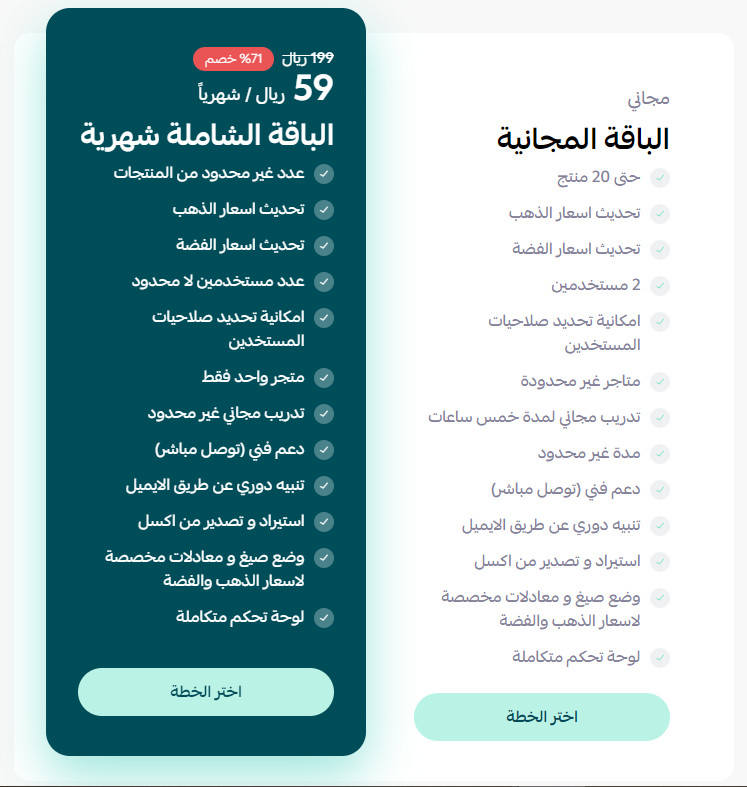
To add the Gold Price Updater app, open Installed apps in your Salla dashboard, click Browse Salla app store, open the Gold Price Updater page, and click Install. Choose the full plan if you want it, approve the permissions, and Salla emails you your new account details.
📌 Article overview
- What the Gold Price Updater app does
- How to install the Gold Price Updater app
- What happens right after installation
- Frequently asked questions
🎯 What the Gold Price Updater app does
The app is a practical utility for stores whose pricing depends on the gold market. It supplies accurate gold price information and keeps that information continuously updated, so the figures you work from reflect current rates rather than a number someone typed in last week.
[Verify: the Arabic source describes the app only as a source of continuously updated gold price data. Confirm with the app publisher whether it also rewrites the prices of gold products in your catalog automatically, or whether it only publishes reference prices for you to act on.]
🚀 How to install the Gold Price Updater app
1. From the side menu of your dashboard, click (Installed apps).

2. On the Salla app store banner, click (Browse Salla app store).

3. On the Gold Price Updater app page, click (Install).
- Or scroll to the bottom of the same page, click (Choose plan) under the full plan, and complete the payment.
4. Review the permissions the app is asking for, then click (Grant permission).
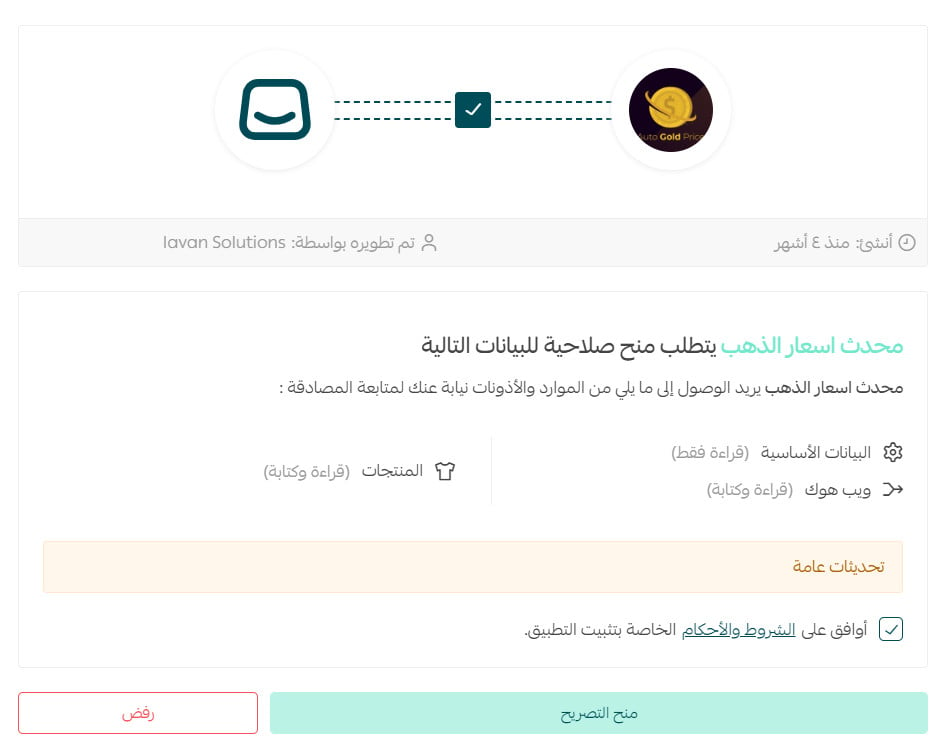
That completes the installation on your store.
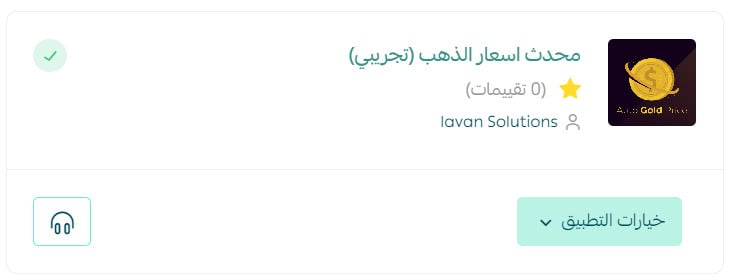
✅ What happens right after installation
Installing the app creates a Gold Price Updater account for your store automatically. Salla then sends an email to the address registered on your store containing the sign-in details for that new account, so there is no separate sign-up form to fill in beforehand.
📝 Important notes
Check the inbox of your store's registered email address, including the spam folder, if the sign-in details do not arrive.
The app is billed by plan. Installing the free version first and upgrading later is supported, as shown below.
For more on installing, updating and removing apps, see Managing your store's apps.
❓ Frequently asked questions
I installed the free version. How do I buy the full plan?
1. From the side menu of your dashboard, click (Installed apps).

2. On the all apps page, find the Gold Price Updater app, click (App options), then click (Buy a version).
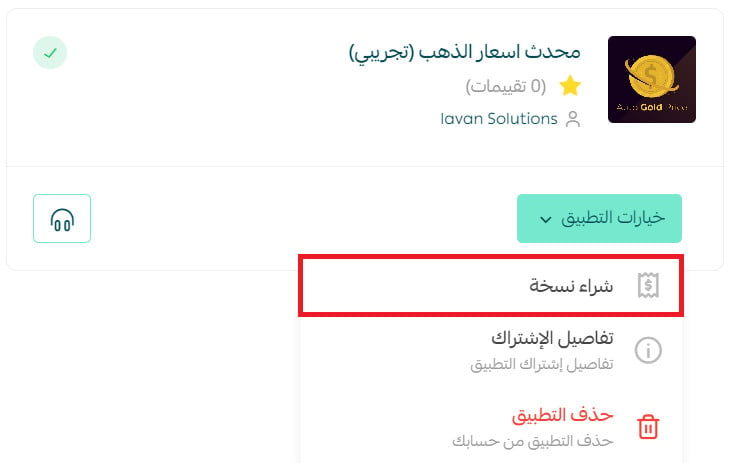
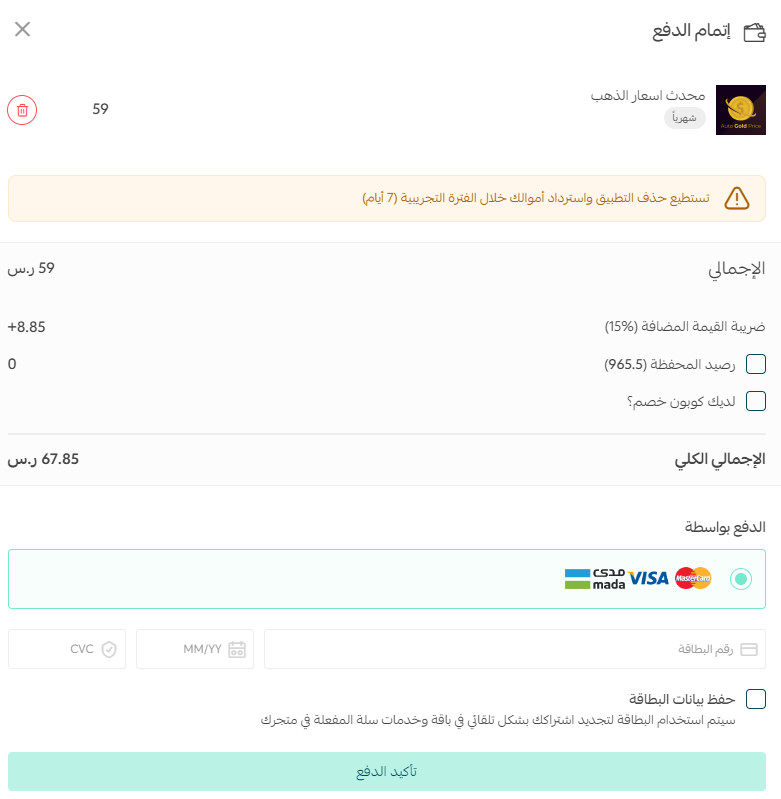
3. Complete the payment to move onto the full plan.
How do I remove the Gold Price Updater app from my store?
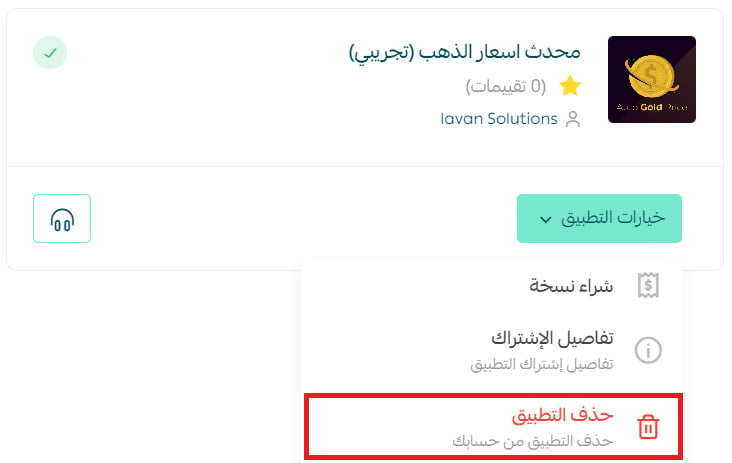
1. From the side menu of your dashboard, click (Installed apps).
2. On the all apps page, find the Gold Price Updater app, click (App options), then click (Delete app).
Do I need to create a Gold Price Updater account before I install?
No. The account is created for your store as part of the installation, and the sign-in details are emailed to you afterwards.
Where do I find my sign-in details if I lose the email?
The details are only sent to your store's registered email address. If you cannot find that message, contact the app publisher through the app's page in the Salla app store.
Gold pricing is one of the few things in a jewelry store that changes faster than your catalog does. Letting an app carry that number for you removes a daily manual task and one of the easier ways to lose margin without noticing.