Selling game credit only works if the customer gets their top-up the moment they pay for it.
Digital game top-ups are an impulse buy. A gamer who wants credit for a battle pass wants it now, not after someone on your team logs into a supplier panel and pastes a code into an email. The Game Station app connects your Salla store to Game Station, a platform built specifically for direct digital game top-ups, so you can list those products in your store and sell them the same way you sell anything else. In this guide, you'll learn how to install the app, how to activate it with your Access Token, and how to remove it if you stop selling top-ups.
The Game Station app connects your Salla store to Game Station, a platform for direct digital game top-ups. Install it from the Salla app store, pick a plan, complete payment, then activate it and paste your Game Station Access Token to start selling top-up products.
📌 Article overview
- What the Game Station app does
- How to install the Game Station app
- How to activate the app with your Access Token
- Frequently asked questions
🎯 What the Game Station app does
Game Station is a platform that specializes in direct digital game top-ups. The app is the bridge between that platform and your Salla store: once it is installed and activated, you can connect Game Station products to your store and sell them to your own customers without running a second storefront.
📝 Important notes
Installing the app is not enough on its own. It stays inactive until you activate it with your Access Token.
The app is billed by plan. You choose a plan and complete payment as part of the installation.
🚀 How to install the Game Station app
1. From the side menu of your dashboard, click (Installed apps).

2. On the Salla app store banner, click (Browse Salla app store).

3. On the Game Station app page, click (Install).
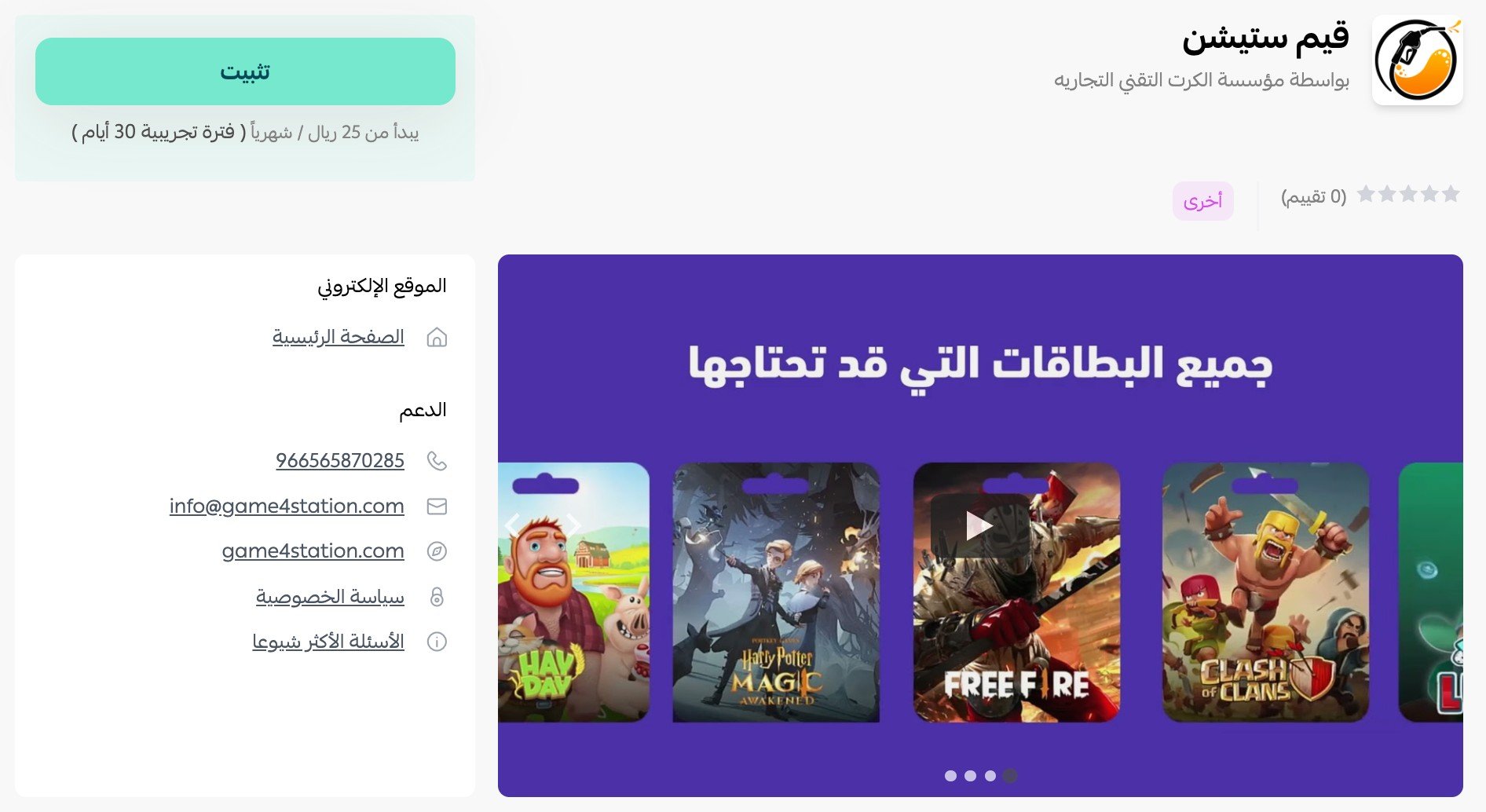
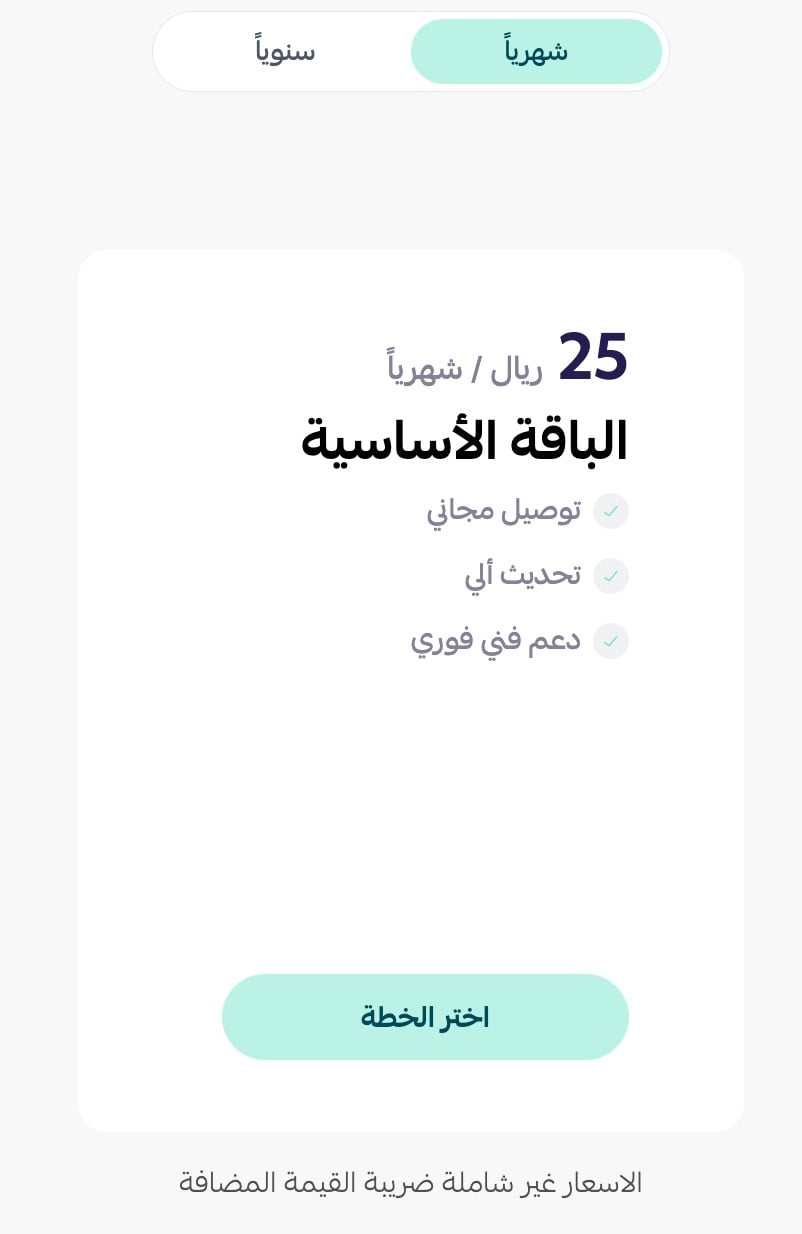
- Then scroll to the bottom of the page and choose the plan that fits your business.
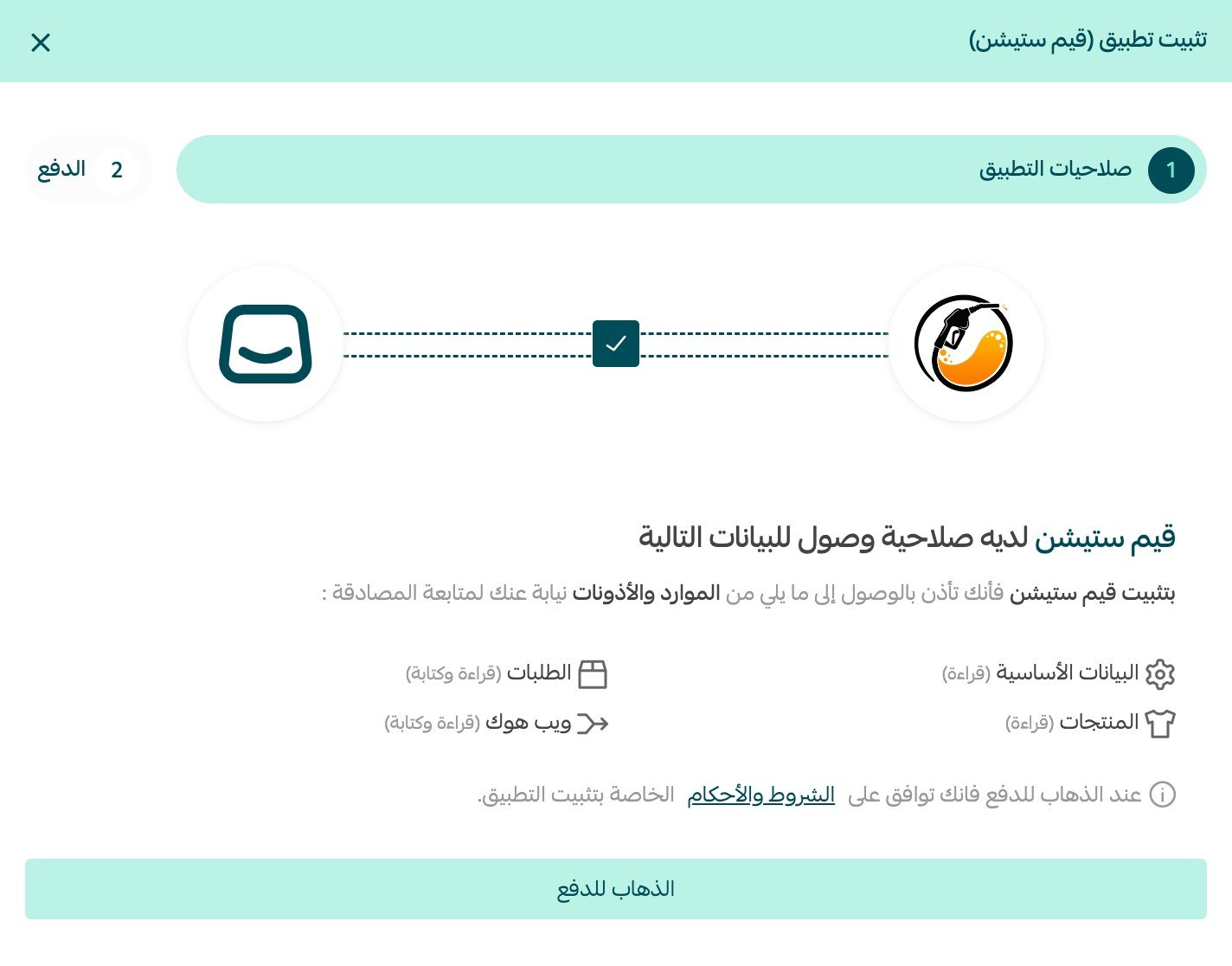
4. Review the permissions the app is asking for, then click (Go to payment).
5. Complete the payment.
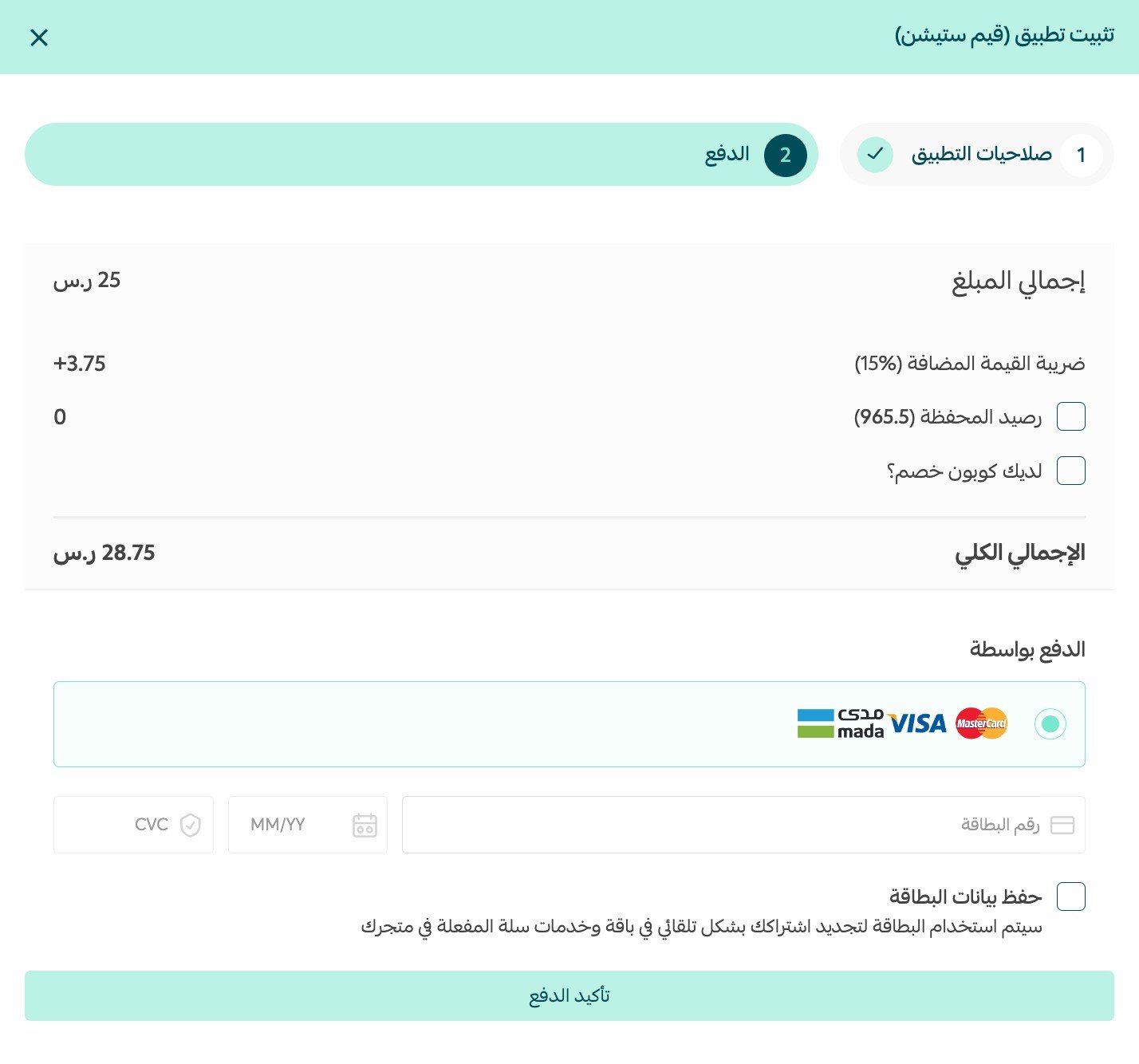
That completes the installation on your store.
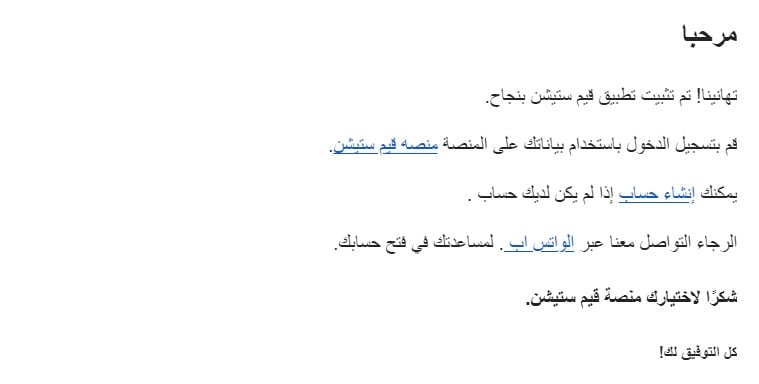
6. The Game Station team sends a welcome message to your email address.
👣 How to activate the app with your Access Token
Installing the app is not the last step. The app stays inactive until you connect it to your Game Station account.
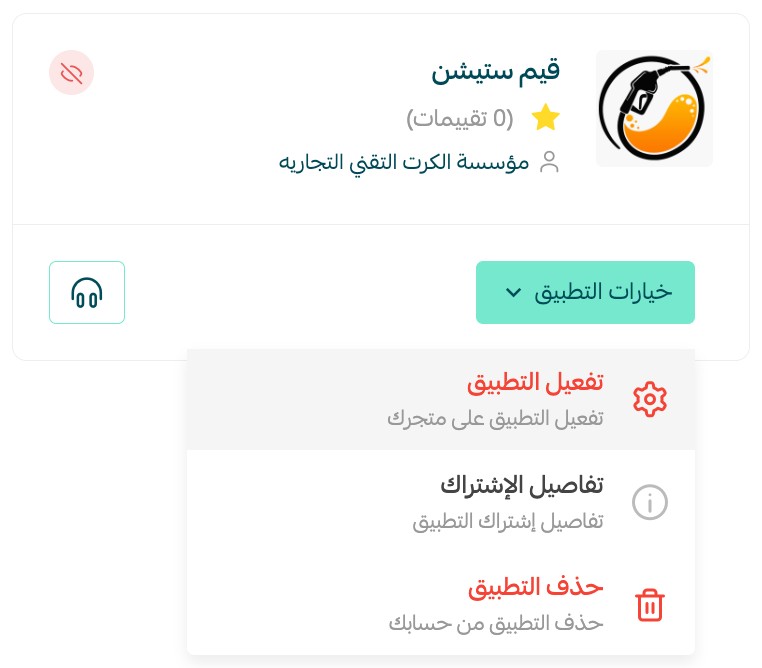
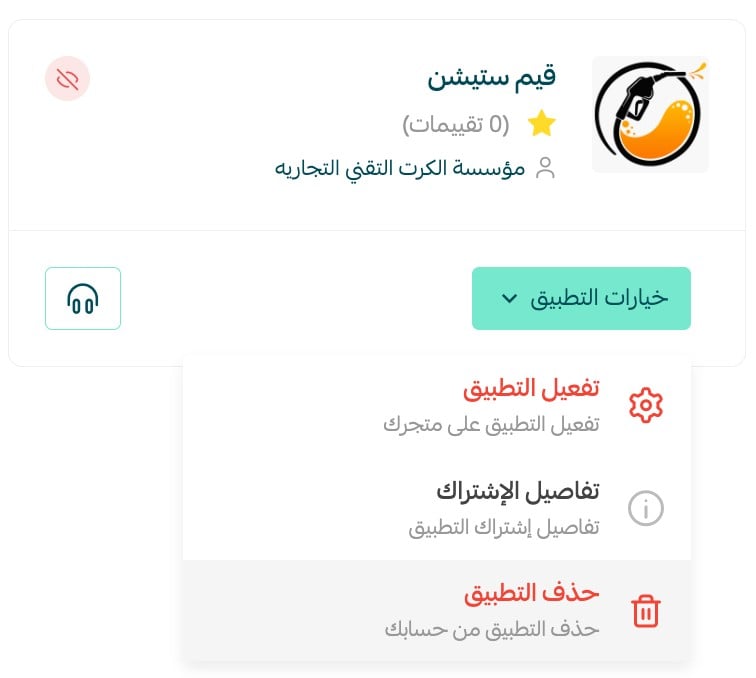
1. On the installed apps page, find the Game Station app, click (App options), then click (Activate app).
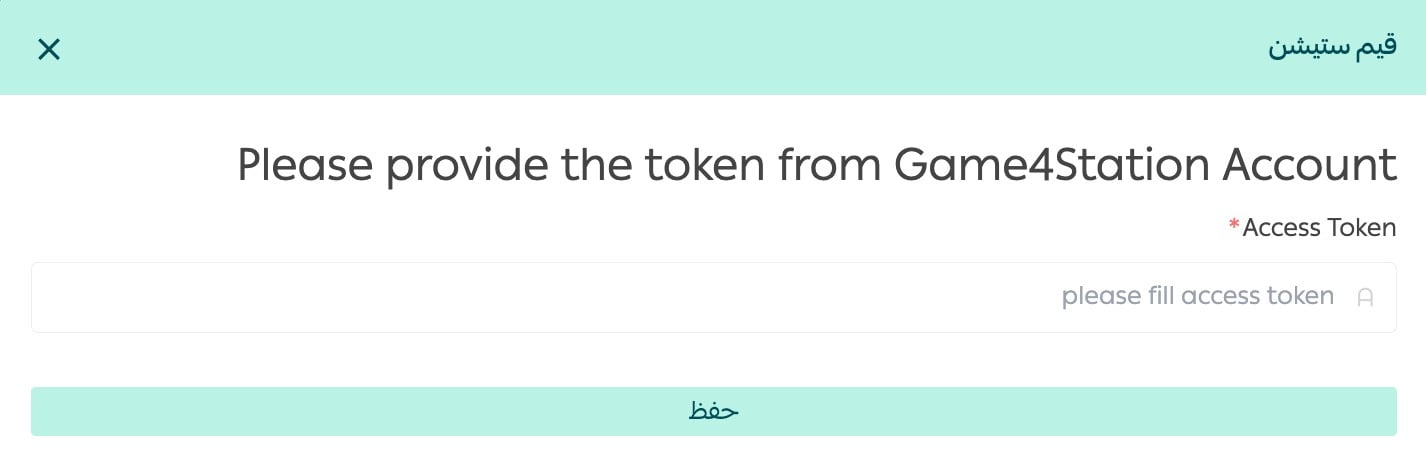
2. Enter the Access Token for your Game Station account, then click (Save).
For more on installing, updating and removing apps, see Managing your store's apps.
❓ Frequently asked questions
Where do I get my Game Station Access Token?
The token belongs to your Game Station account, not to Salla, so it is issued on the Game Station side. [Verify: the Arabic source does not say which screen in Game Station shows the Access Token, or whether the welcome email contains it. Confirm with the app publisher before publishing.]
Do I need a Game Station account before I install the app?
The welcome message from the Game Station team arrives after installation, so the account side is handled once the app is on your store. You will still need the Access Token from that account before the app can be activated.
Is the Game Station app free?
No. You pick a plan on the app page and complete the payment during installation.
How do I remove the Game Station app from my store?
1. From the side menu of your dashboard, click (Installed apps).

2. On the all apps page, find the Game Station app, click (App options), then click (Delete app).
Digital top-ups reward stores that make the purchase instant. Getting the Game Station app installed and activated is the part that turns a supplier relationship into a product your customers can simply buy.