How many of your shoppers would follow your store on Facebook if you simply asked them to?
The Facebook Follow Us app adds a small, clearly visible prompt to your Salla store inviting visitors to follow your Facebook page. Every shopper who follows you becomes someone you can reach again for free — with new arrivals, seasonal offers, or a nudge to come back. In this guide, you'll learn how to install and set up the Facebook Follow Us app.
Install the app from the Salla App Store, choose a plan, grant the permissions it asks for, then click (Activate app). Paste your Smartarget user ID into the field provided and click (Save). You then shape how the follow prompt looks and behaves from your Smartarget account.
📌 Article overview
- What the Facebook Follow Us app is
- How to install and activate the app
- Frequently asked questions
🎯 What the Facebook Follow Us app is
It shows your visitors a short message pointing them to your Facebook page and recommending they follow it. The prompt stays visible without interrupting anyone's shopping. Once people follow you, you can retarget them on Facebook and bring them back to your store to see new items, special offers, and anything else you're promoting.
🚀 How to install the Facebook Follow Us app
1. From the side menu of your dashboard, click (Installed apps).

2. On the Salla App Store banner, click (Browse the Salla App Store).

3. On the Facebook Follow Us app page, click (Install).
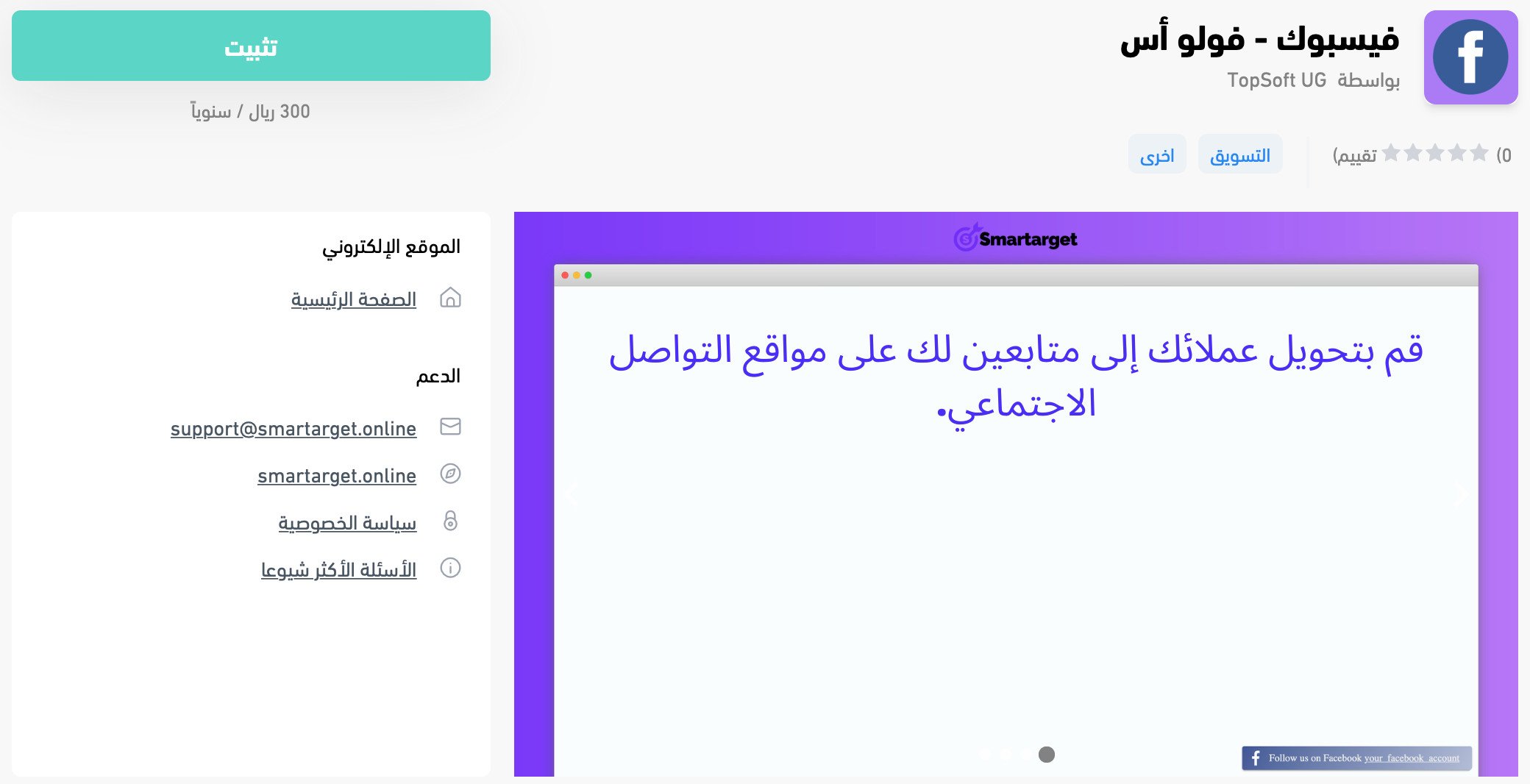
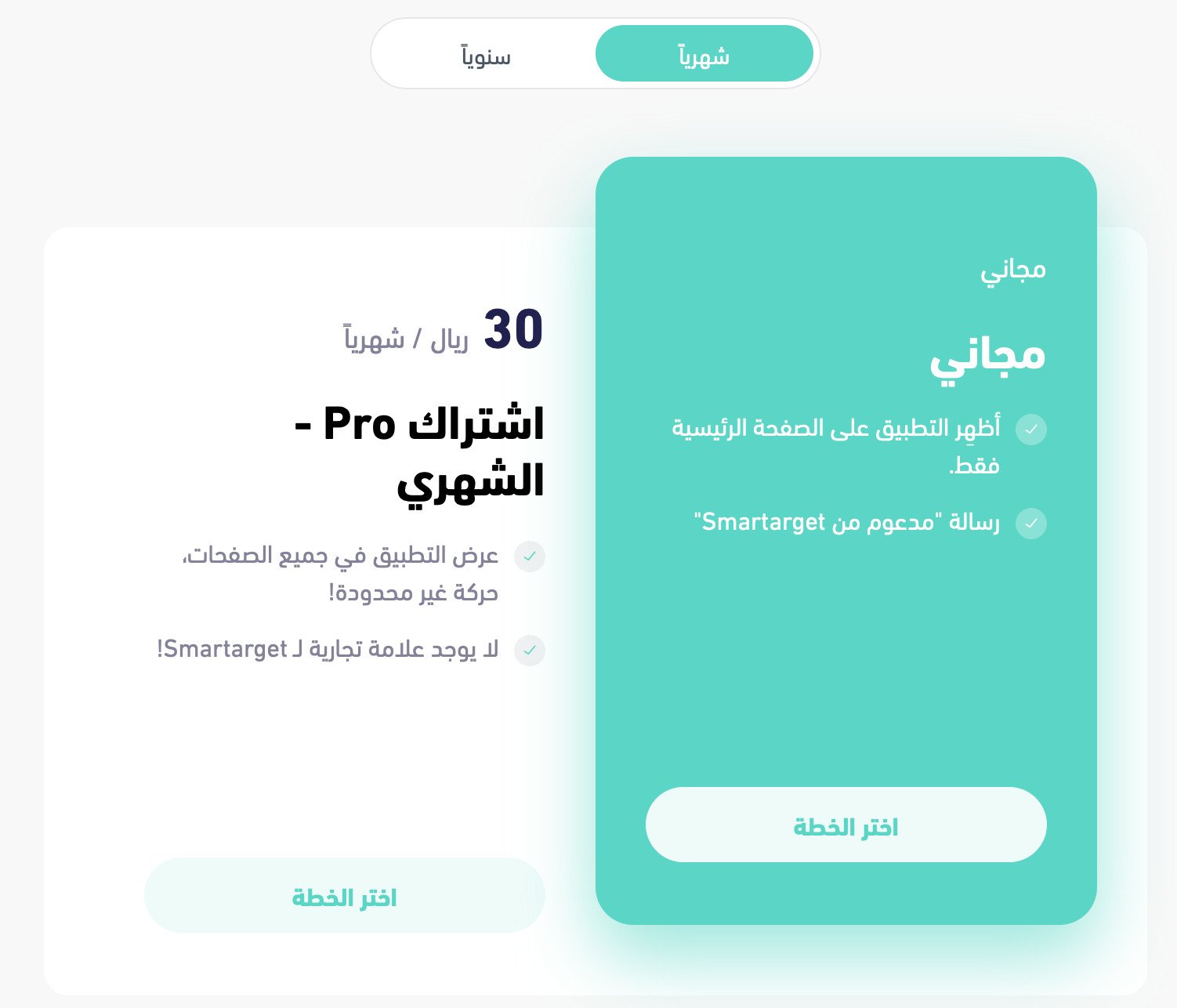
Then choose the plan that fits your business.
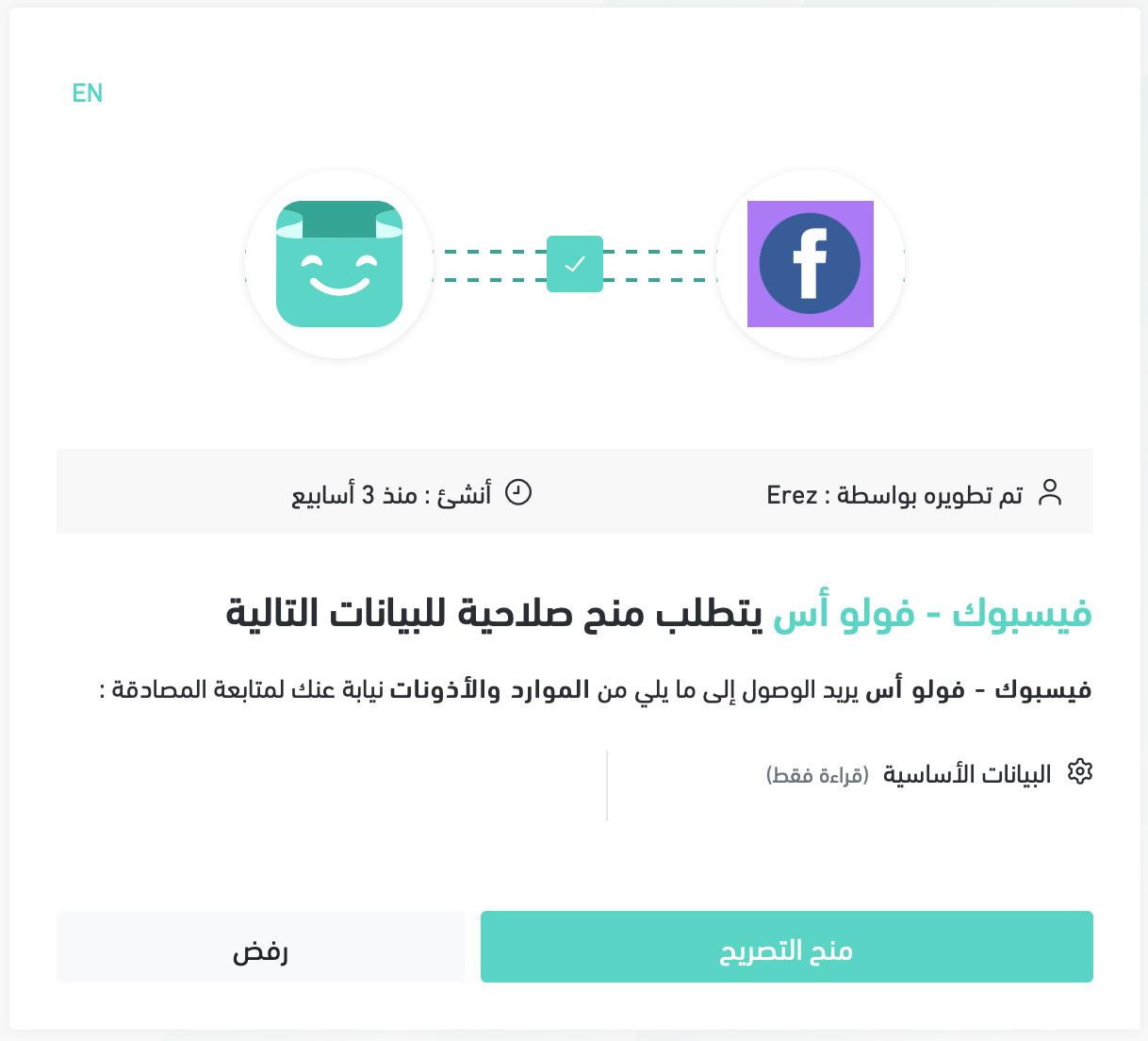
4. Review the permissions the app requests, then click (Grant permission).
The app is now installed on your store.
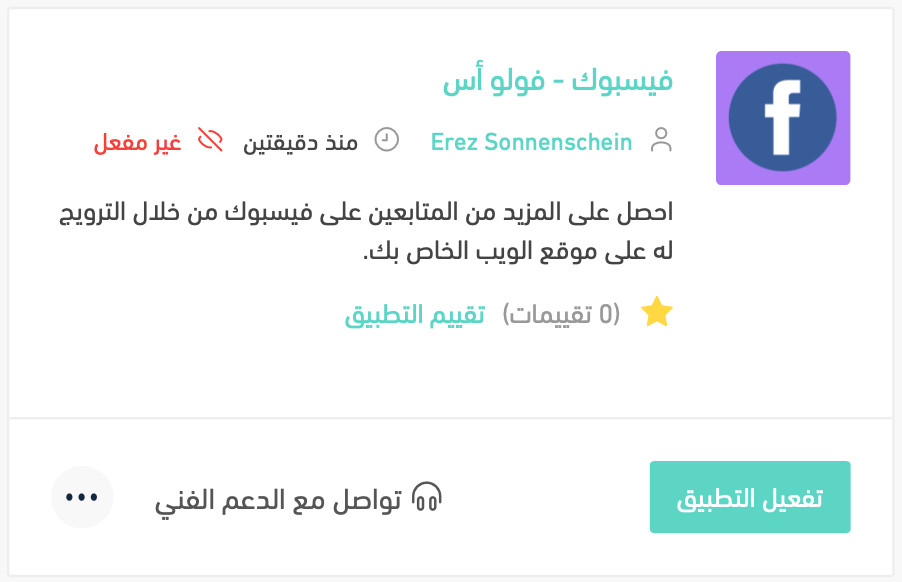
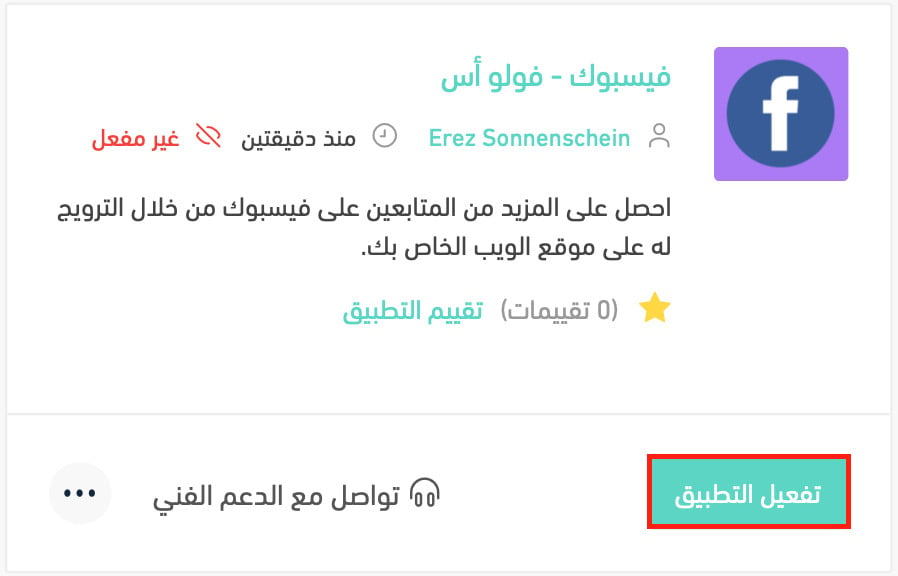
5. Click (Activate app).
📝 Important notes
The next step needs a Smartarget user ID. If you don't have a Smartarget account yet, create one first and copy your user ID — both are covered in the frequently asked questions below.
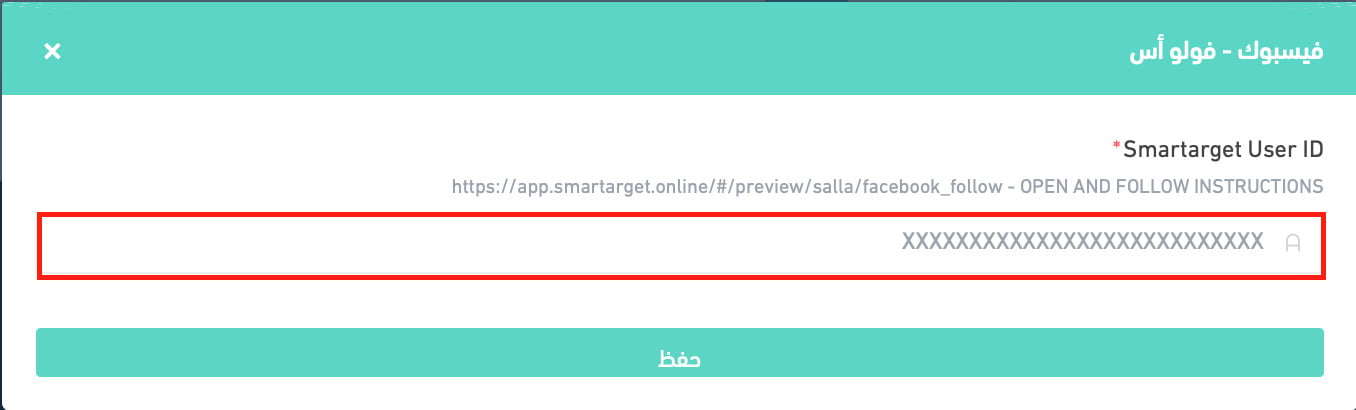
6. Paste your Smartarget user ID into the field provided, then click (Save).
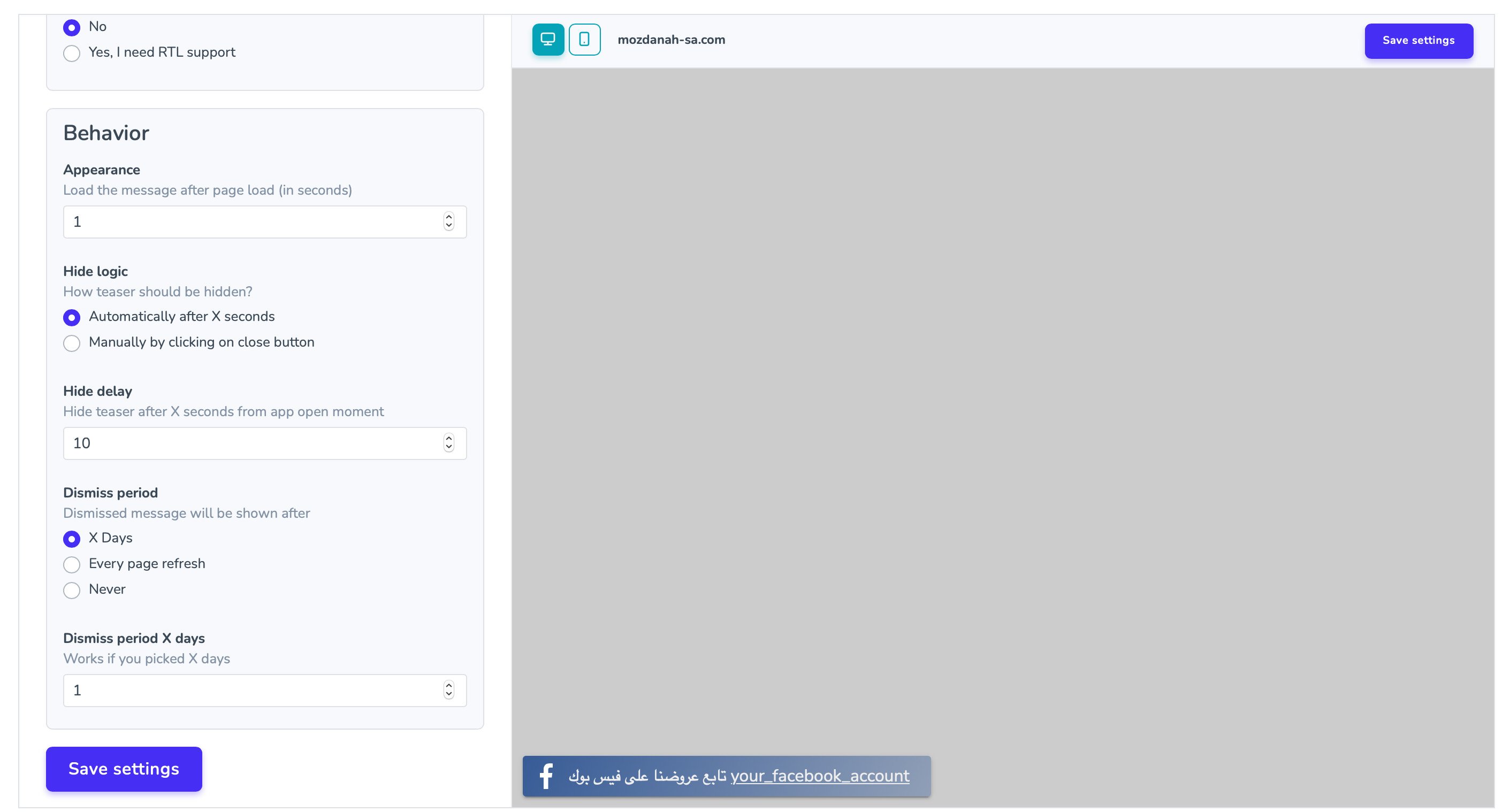
The Facebook Follow Us app is now active on your store. Adjust its settings to match what your business needs.
For more details, see managing your store's apps.
❓ Frequently asked questions
Here are the questions merchants ask most often:
1. How do I create a Smartarget account?
2. Where do I copy my Smartarget user ID from?
3. How do I delete the Facebook Follow Us app from my store?
How do I create a Smartarget account?
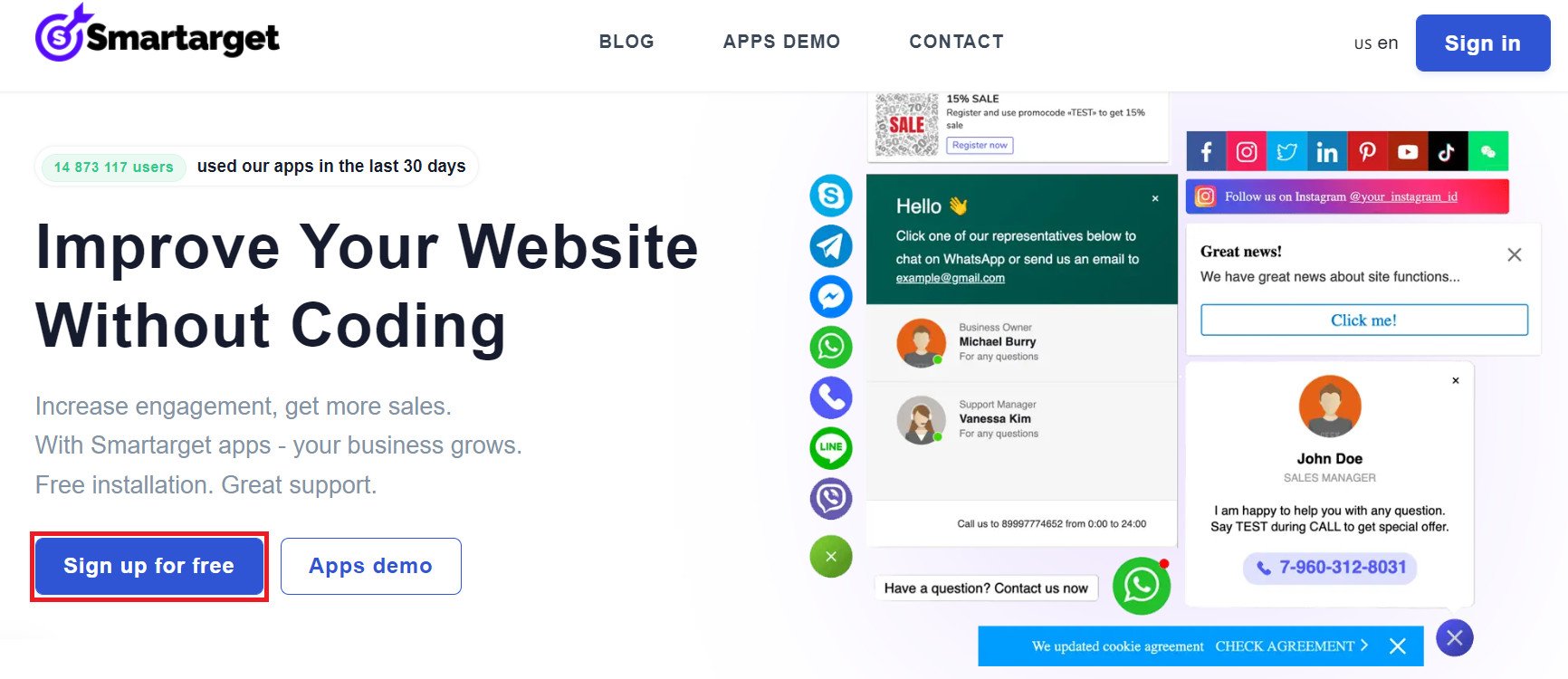
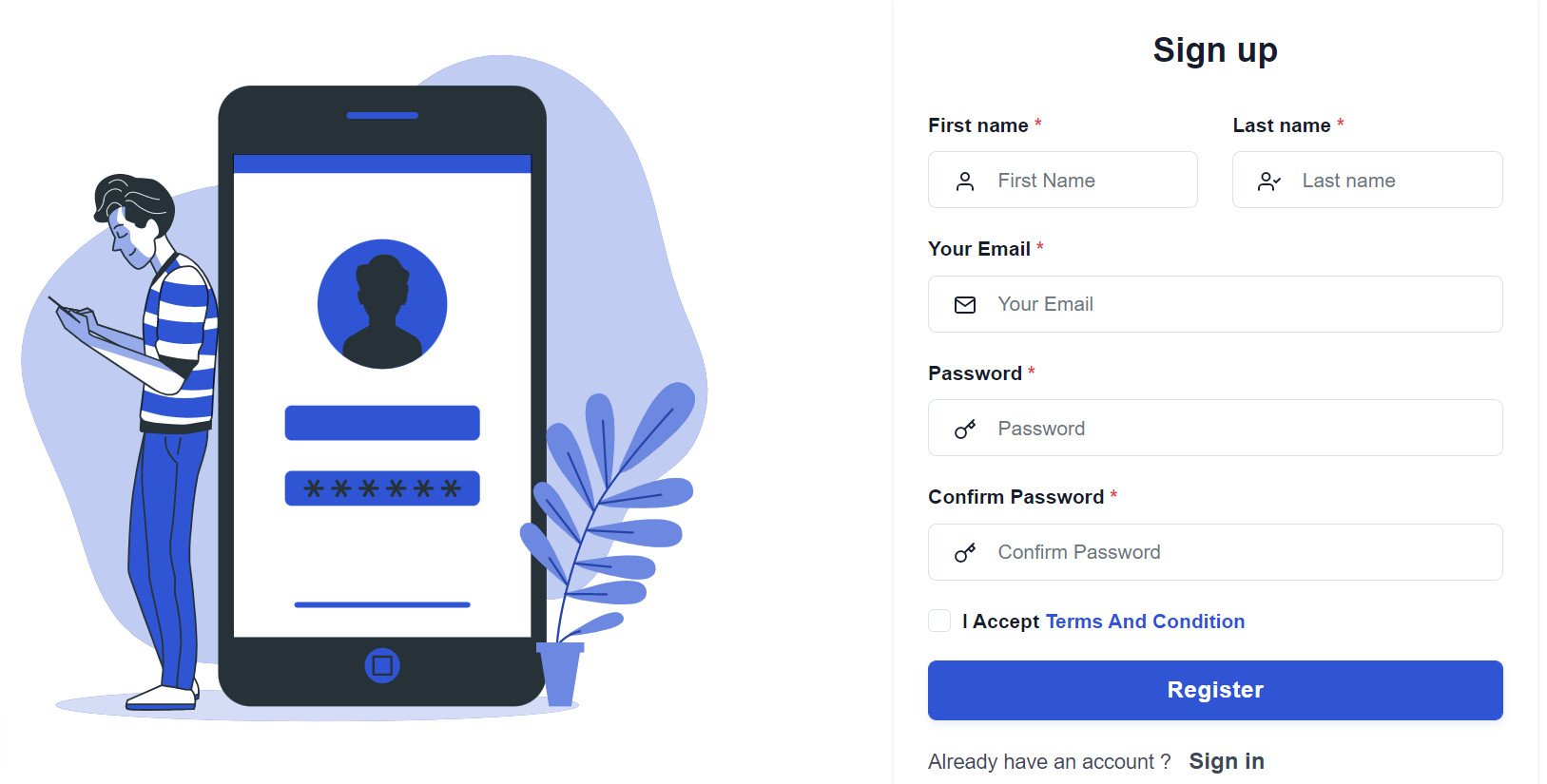
1. On the Smartarget home page, click (Sign up free).
2. Enter the details it asks for, then click (Register).
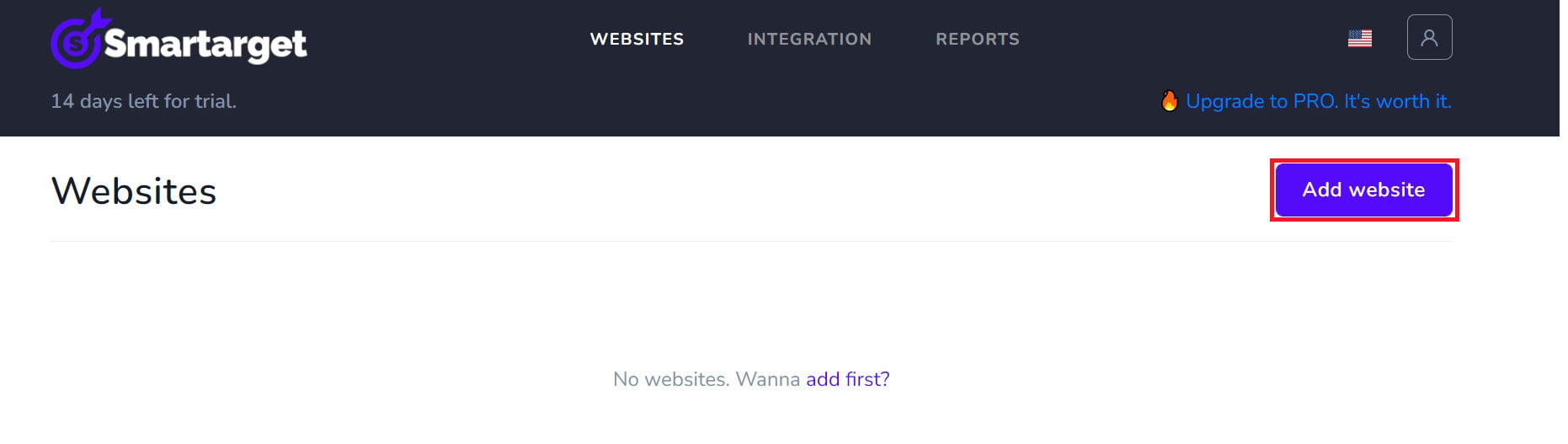
3. Confirm your account from the email Smartarget sends you, sign in, then click (Add website).
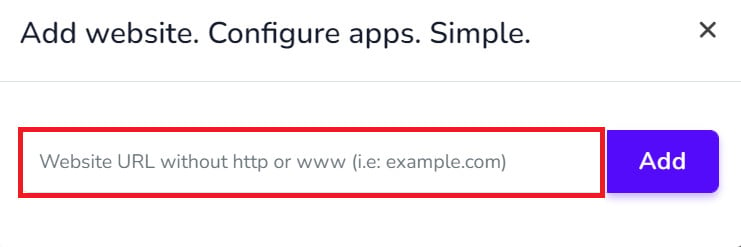
Then add your Salla store domain.
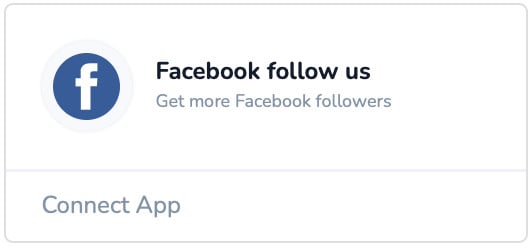
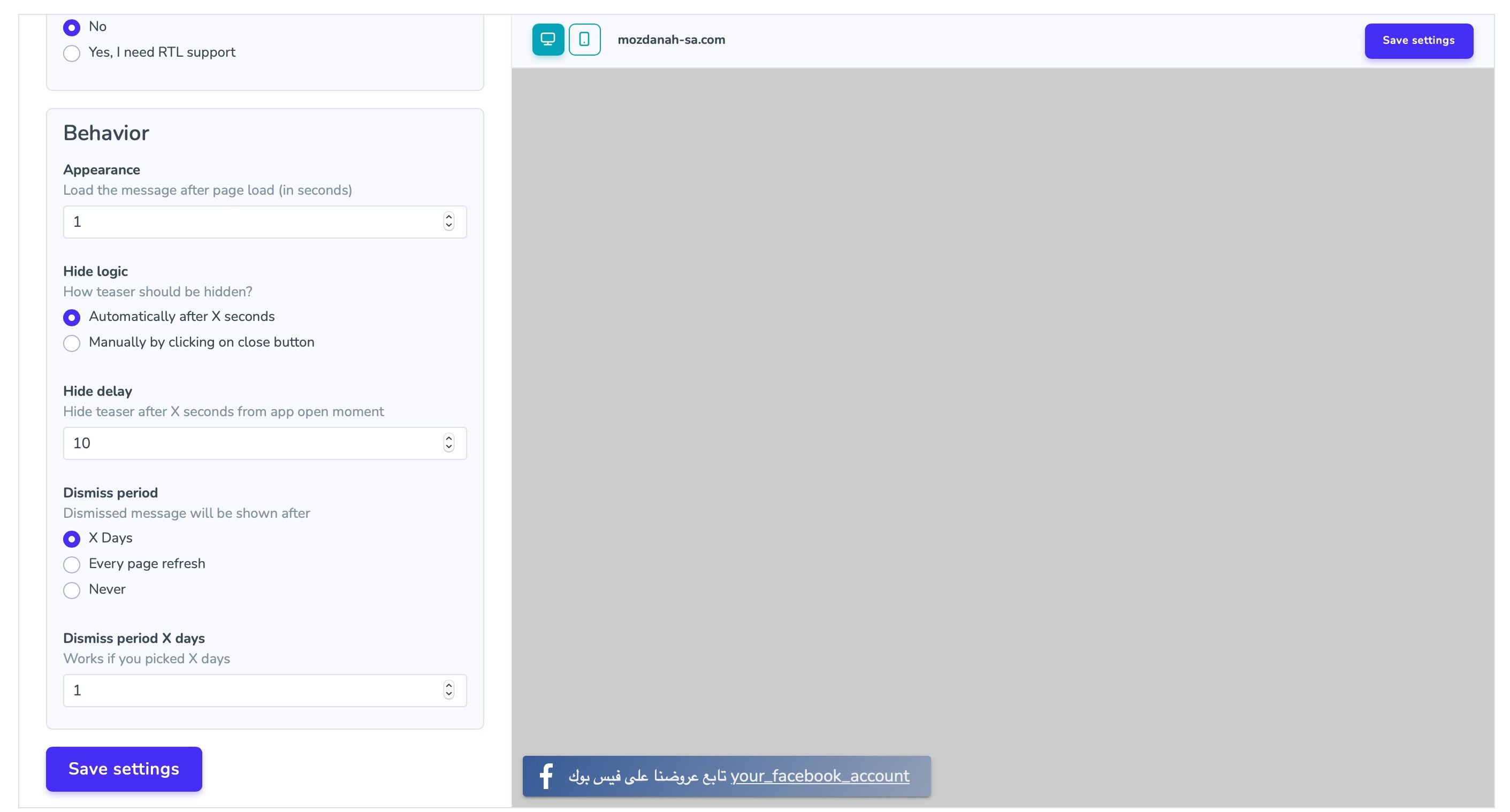
4. To put the follow button on your store, click (Facebook follow us).
Now set up how the follow button behaves on your store.
Where do I copy my Smartarget user ID from?
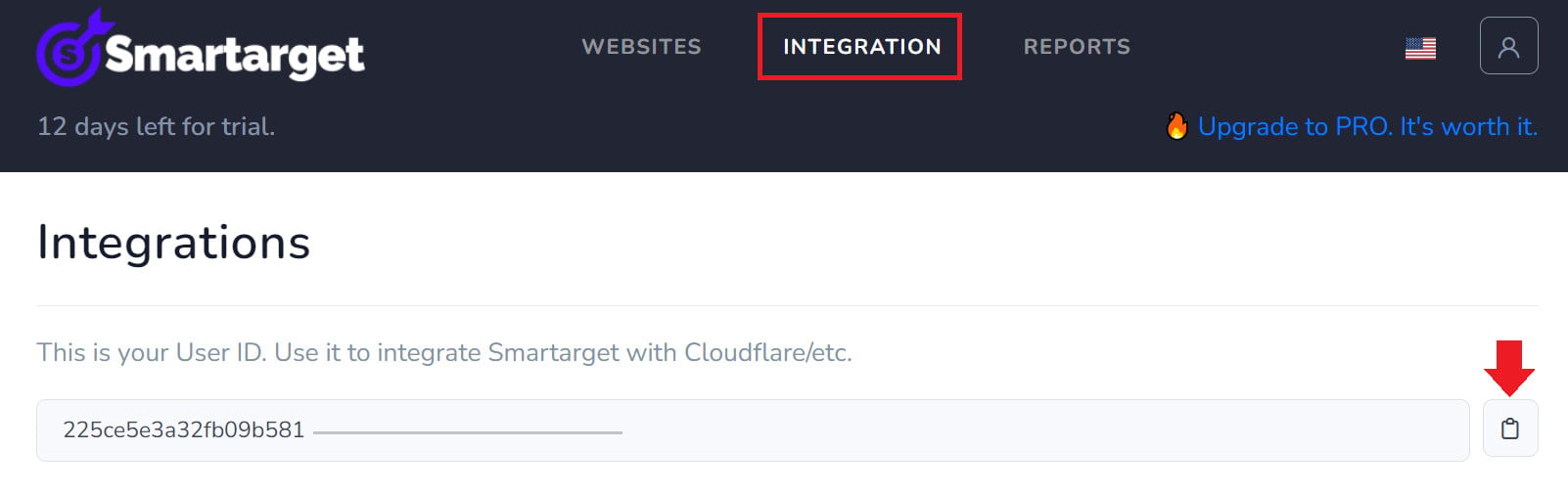
In your Smartarget account, open the (INTEGRATION) page, then click (Copy) next to the user ID.
How do I delete the Facebook Follow Us app from my store?
1. From the side menu of your dashboard, click (Installed apps).

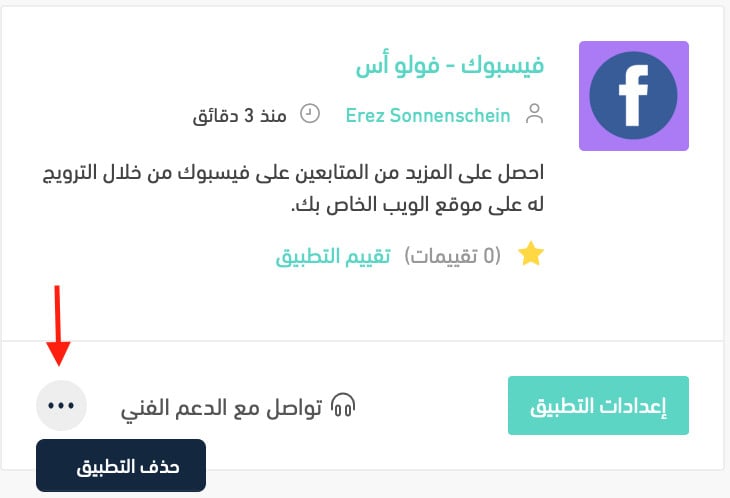
2. On the all apps page, find the Facebook Follow Us app, click the (...) icon, then click (Delete app), as shown below.
A follow costs a shopper nothing and gives you a channel you can reach them through again and again. Turn the app on early, keep the prompt light, and let it collect followers while you get on with running the store.