Where do your customers already feel comfortable asking a question?
The Facebook Contact Us app puts a Messenger button on your Salla store, making it easy for customers to reach you in the app most of them already use. Giving shoppers a familiar way to get in touch lowers the barrier to asking and builds more trust in your store. In this guide, you'll learn how to install and set up the Facebook Contact Us app.
Install the app from the Salla App Store, choose a plan, grant the permissions it asks for, then click (Activate app). Paste your Smartarget user ID into the field provided and click (Save). From there you adjust the button's settings in your Smartarget account to suit your business.
📌 Article overview
- What the Facebook Contact Us app is
- How to install and activate the app
- Frequently asked questions
🎯 What the Facebook Contact Us app is
It's a chat app that makes it easier for you and your customers to talk to each other through Facebook Messenger. Most customers already use Messenger, so giving them an easier way to reach you is worth doing — and it gives them more confidence in your store.
🚀 How to install the Facebook Contact Us app
1. From the side menu of your dashboard, click (Installed apps).

2. On the Salla App Store banner, click (Browse the Salla App Store).

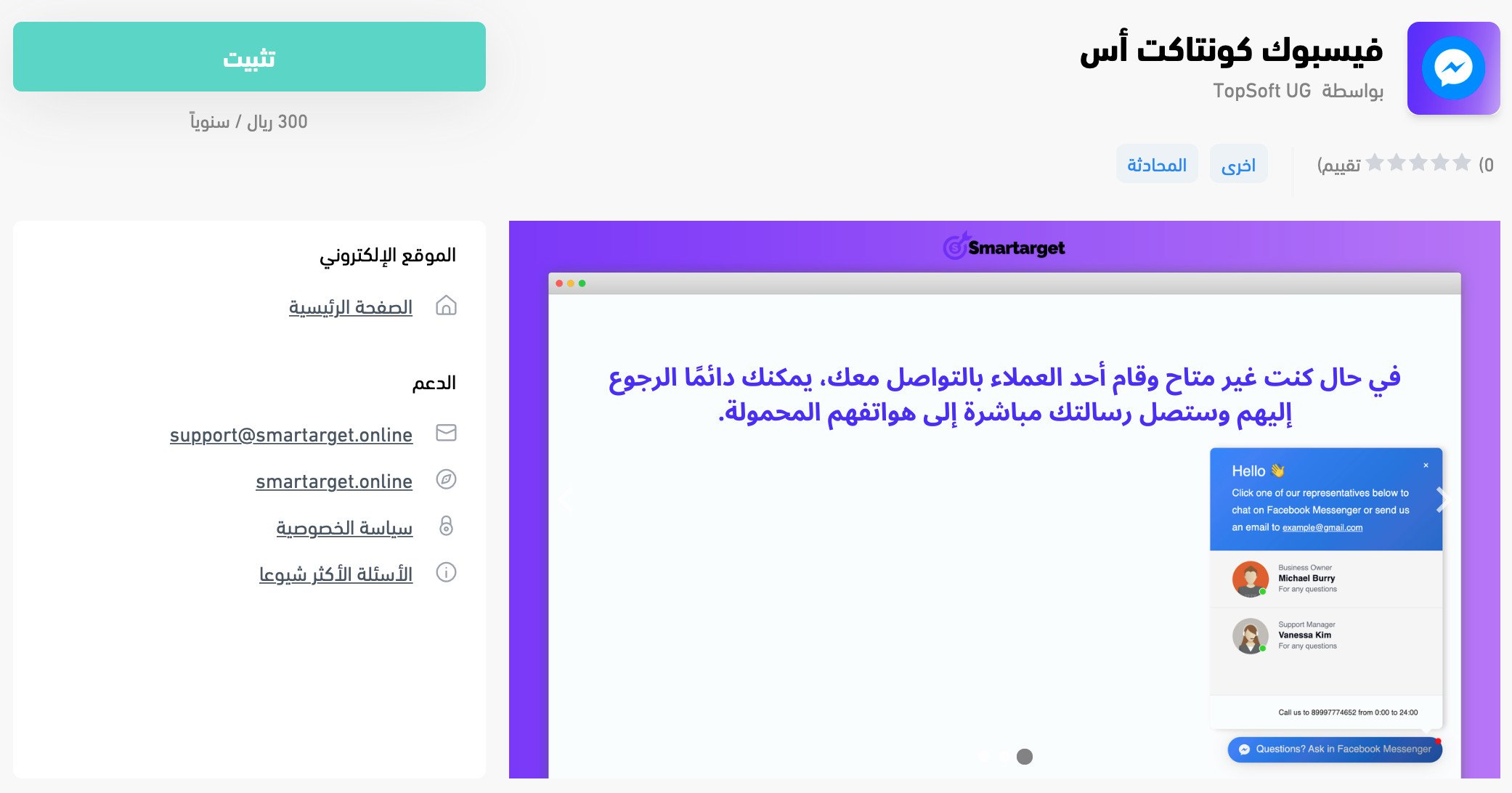
3. On the Facebook Contact Us app page, click (Install).
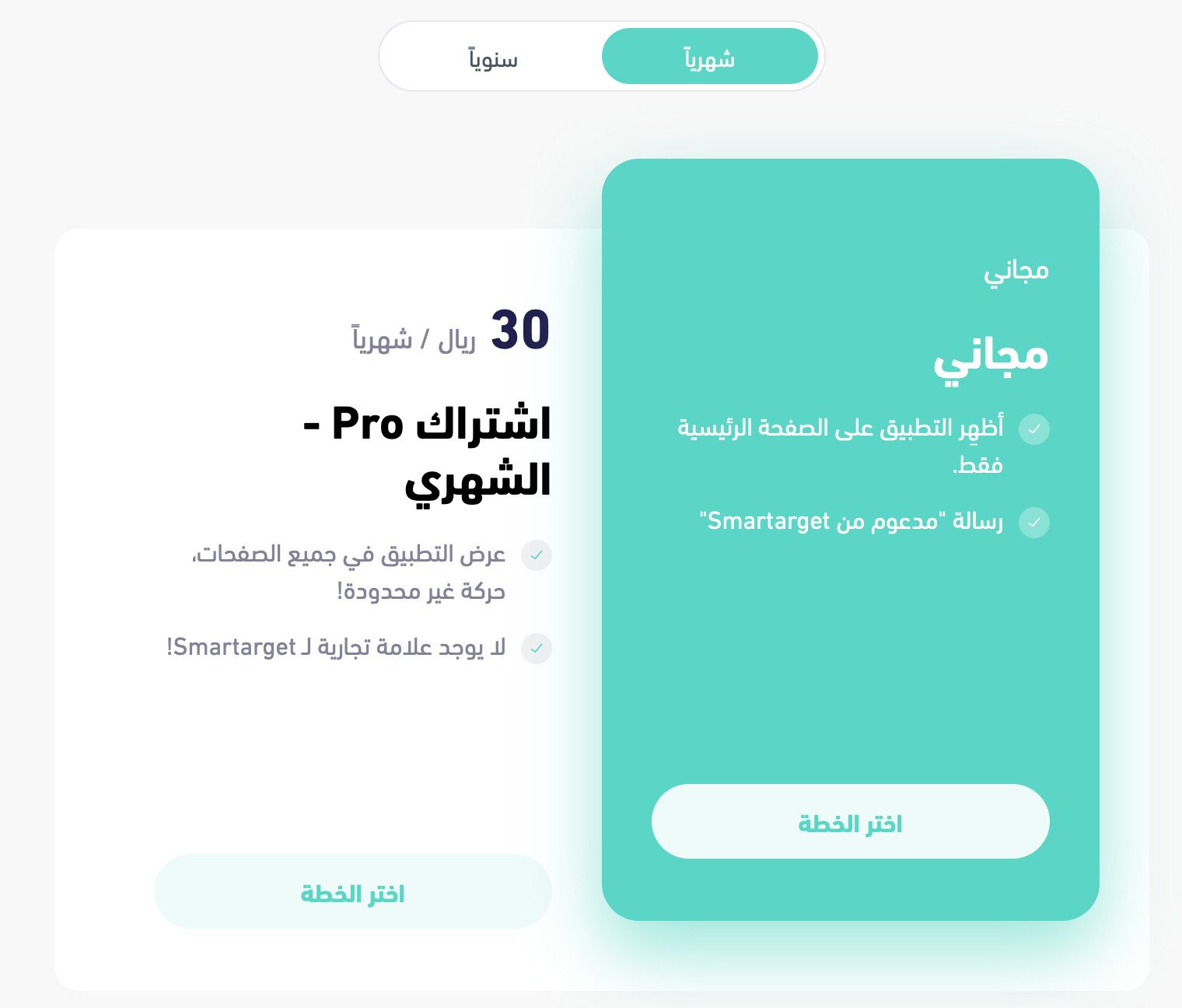
Then choose the plan that fits your business.
4. Review the permissions the app requests, then click (Grant permission).
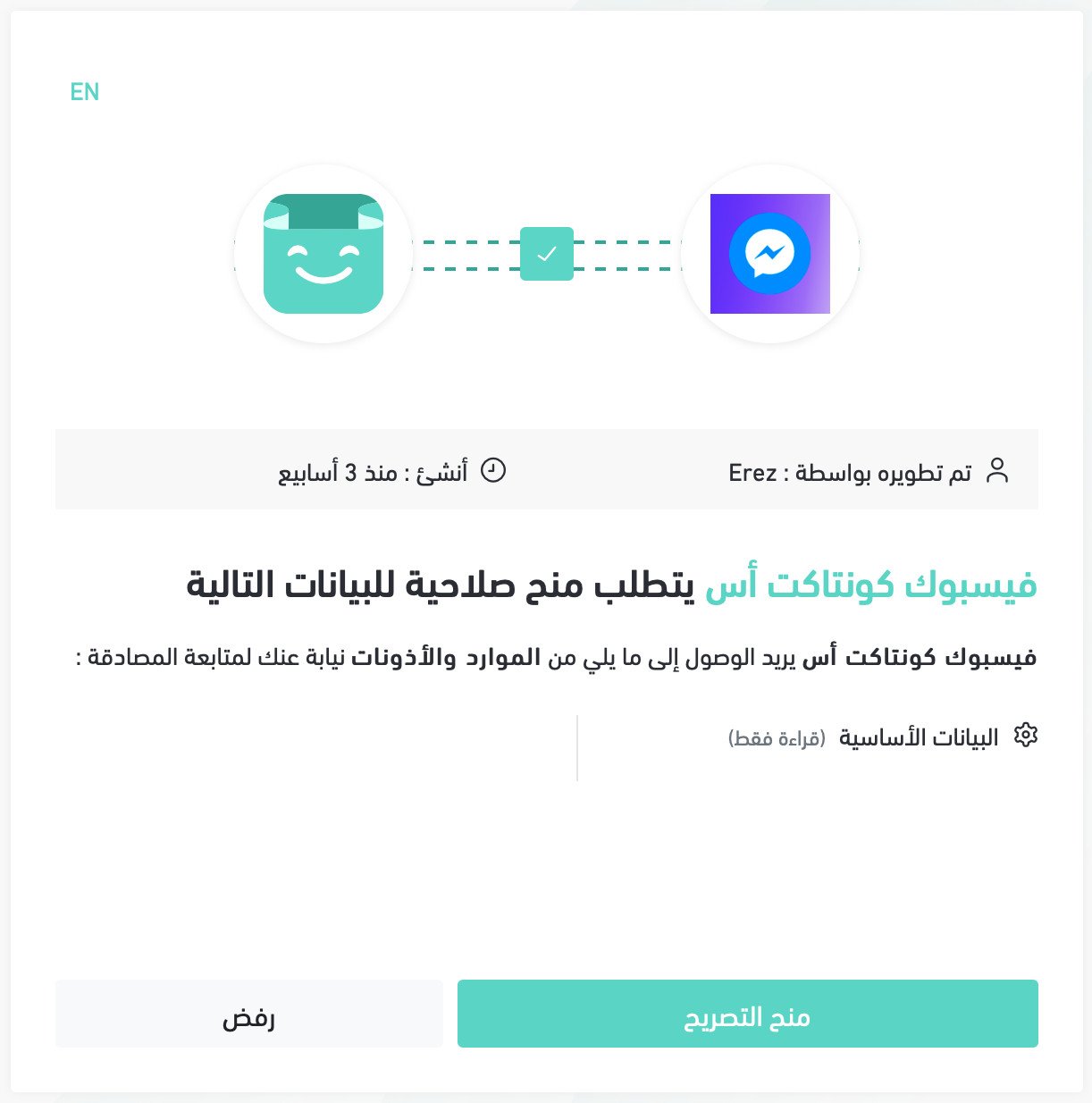
The app is now installed on your store.
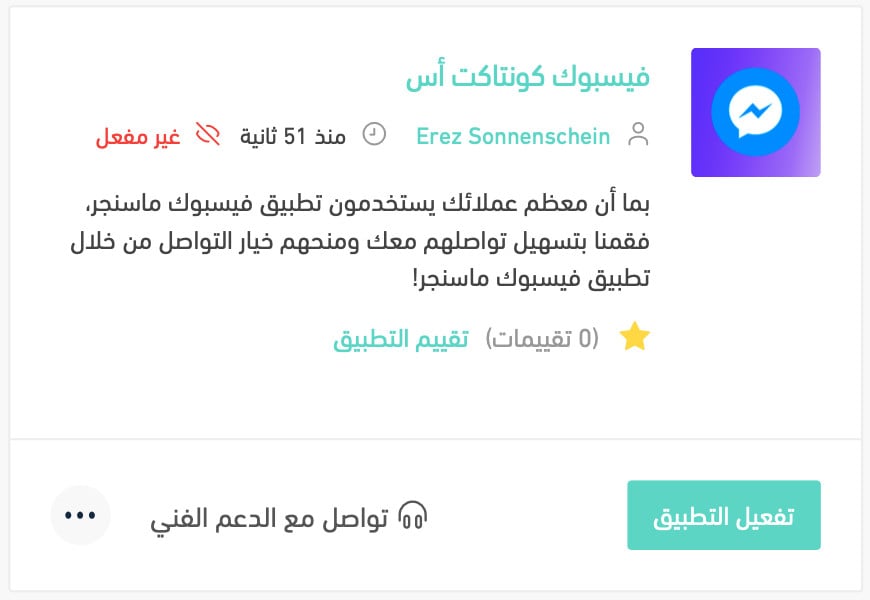
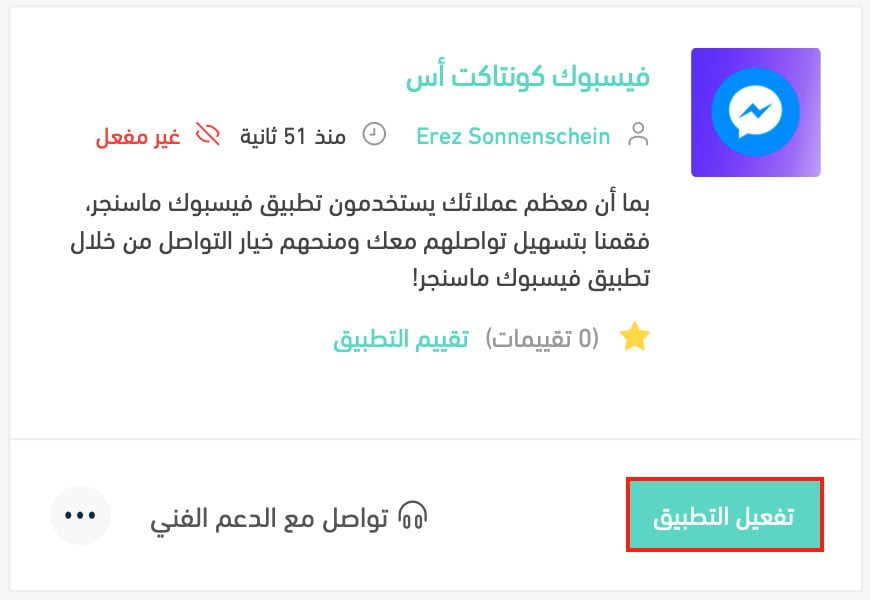
5. Click (Activate app).
📝 Important notes
The next step needs a Smartarget user ID. If you don't have a Smartarget account yet, create one first and copy your user ID — both are covered in the frequently asked questions below.
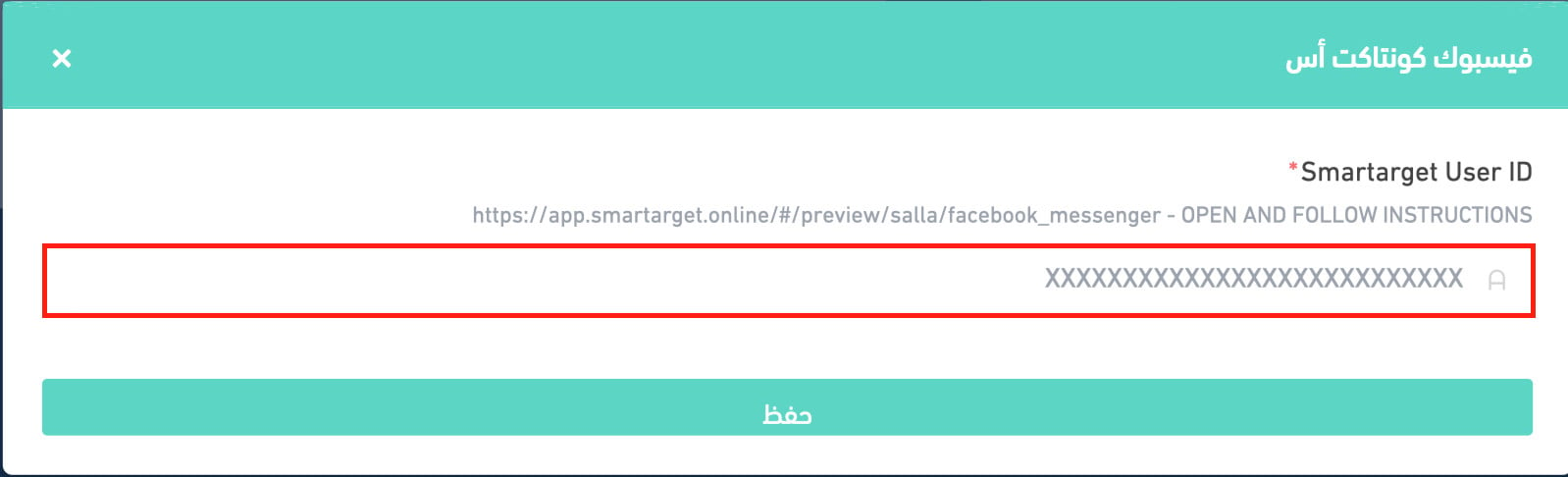
6. Paste your Smartarget user ID into the field provided, then click (Save).
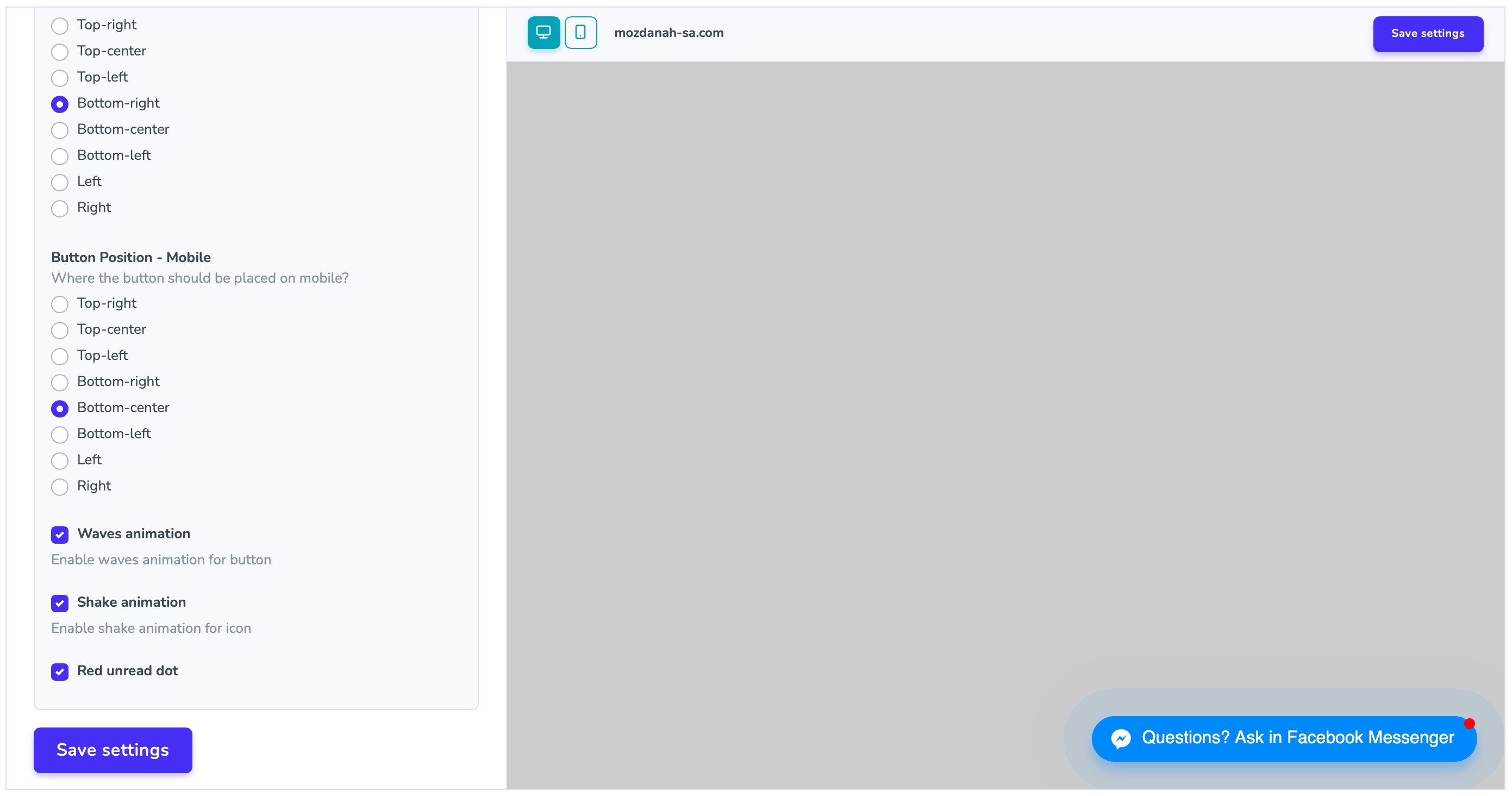
The Facebook Contact Us app is now active on your store. Adjust its settings to match what your business needs.
For more details, see managing your store's apps.
❓ Frequently asked questions
These are the questions covered below:
1. How do I create a new Smartarget account?
2. Where do I copy my Smartarget user ID from?
3. How do I remove the Facebook Contact Us app from my store?
How do I create a new Smartarget account?
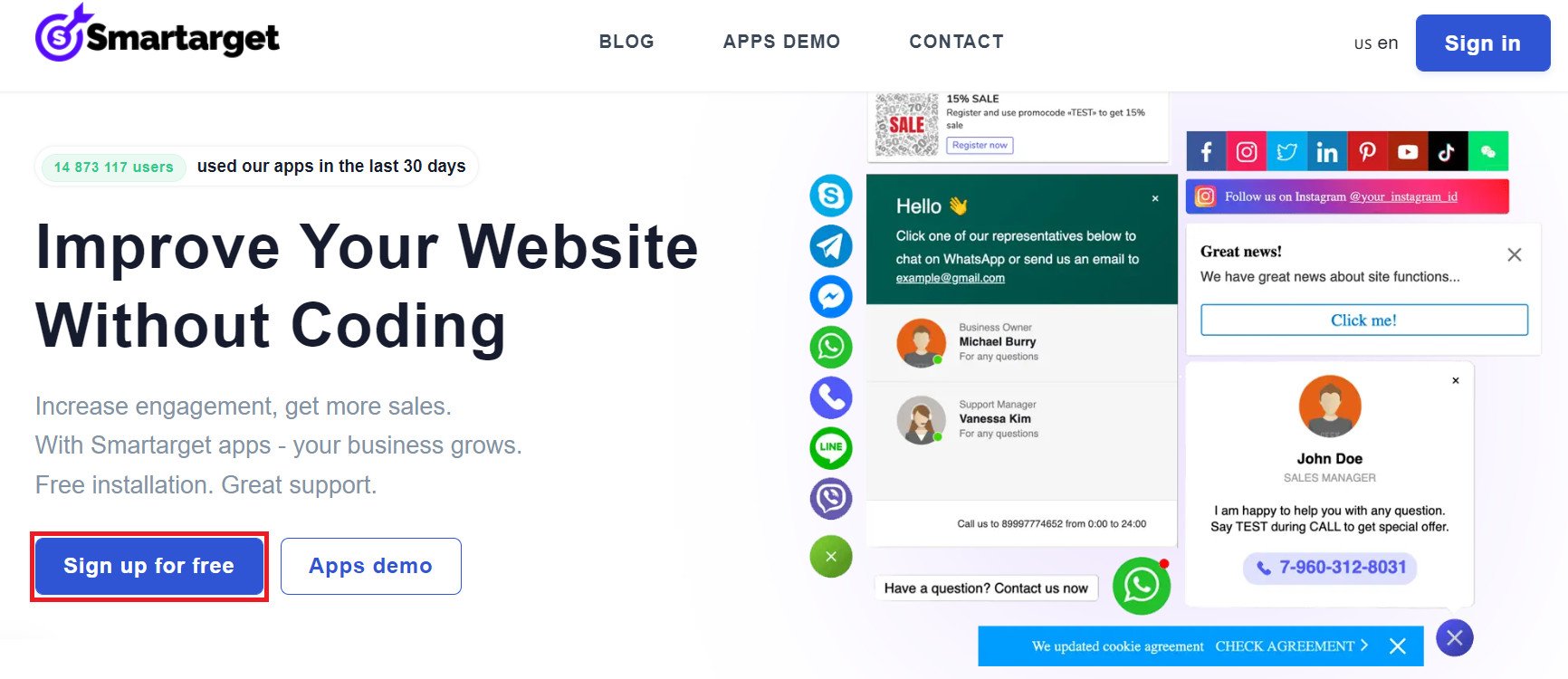
1. On the Smartarget home page, click (Register for free).
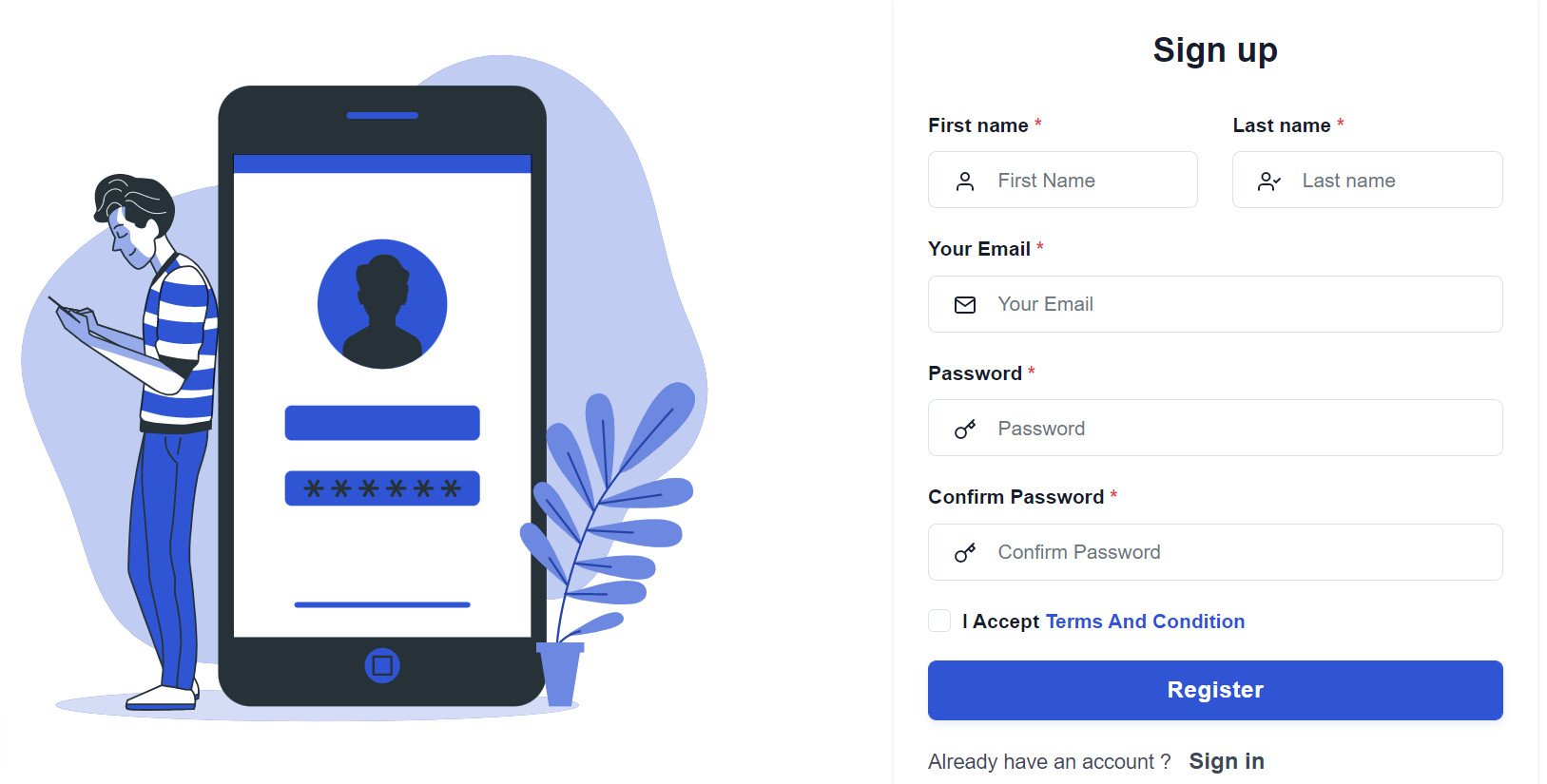
2. Enter the details requested, then click (Register).
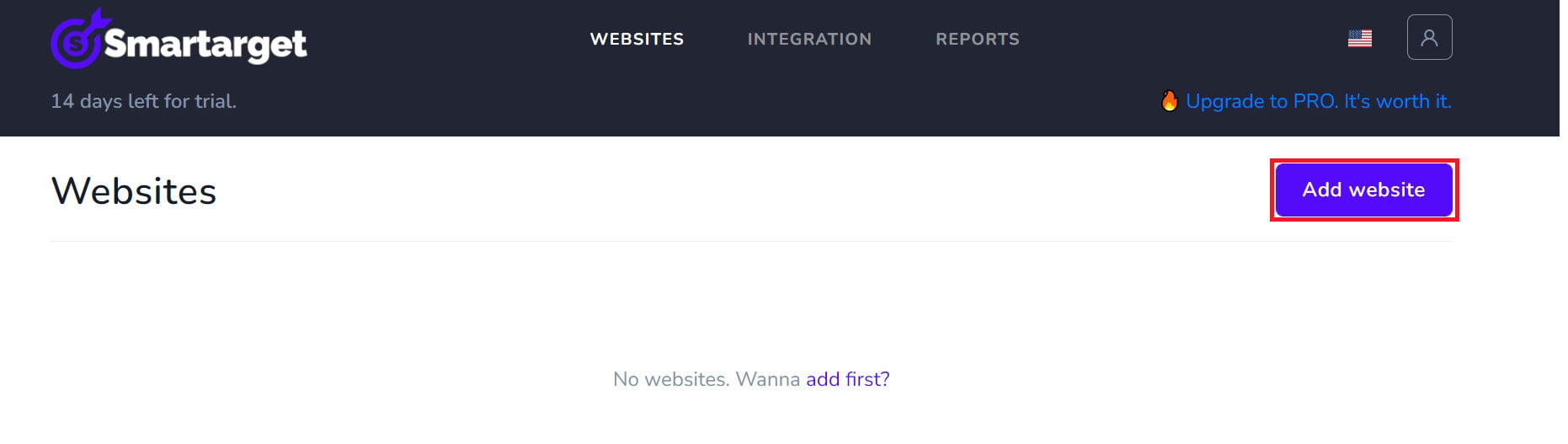
3. Confirm your account from the email you receive, sign in, then click (Add website).
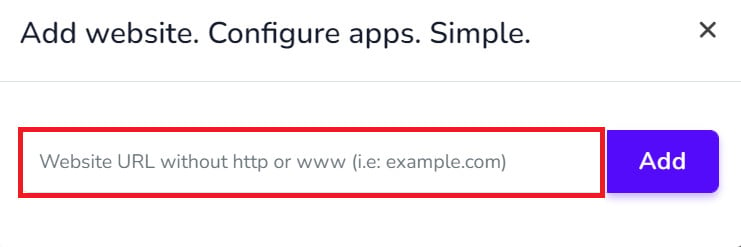
Then add your Salla store domain.
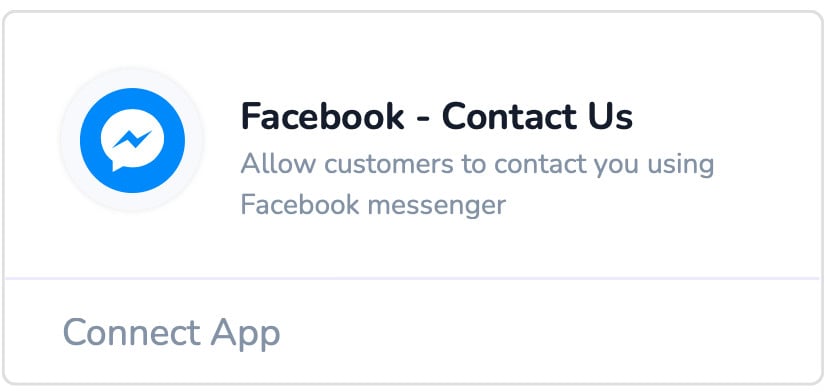
4. To install the Facebook Contact Us button on your store, click (Facebook - Contact Us).
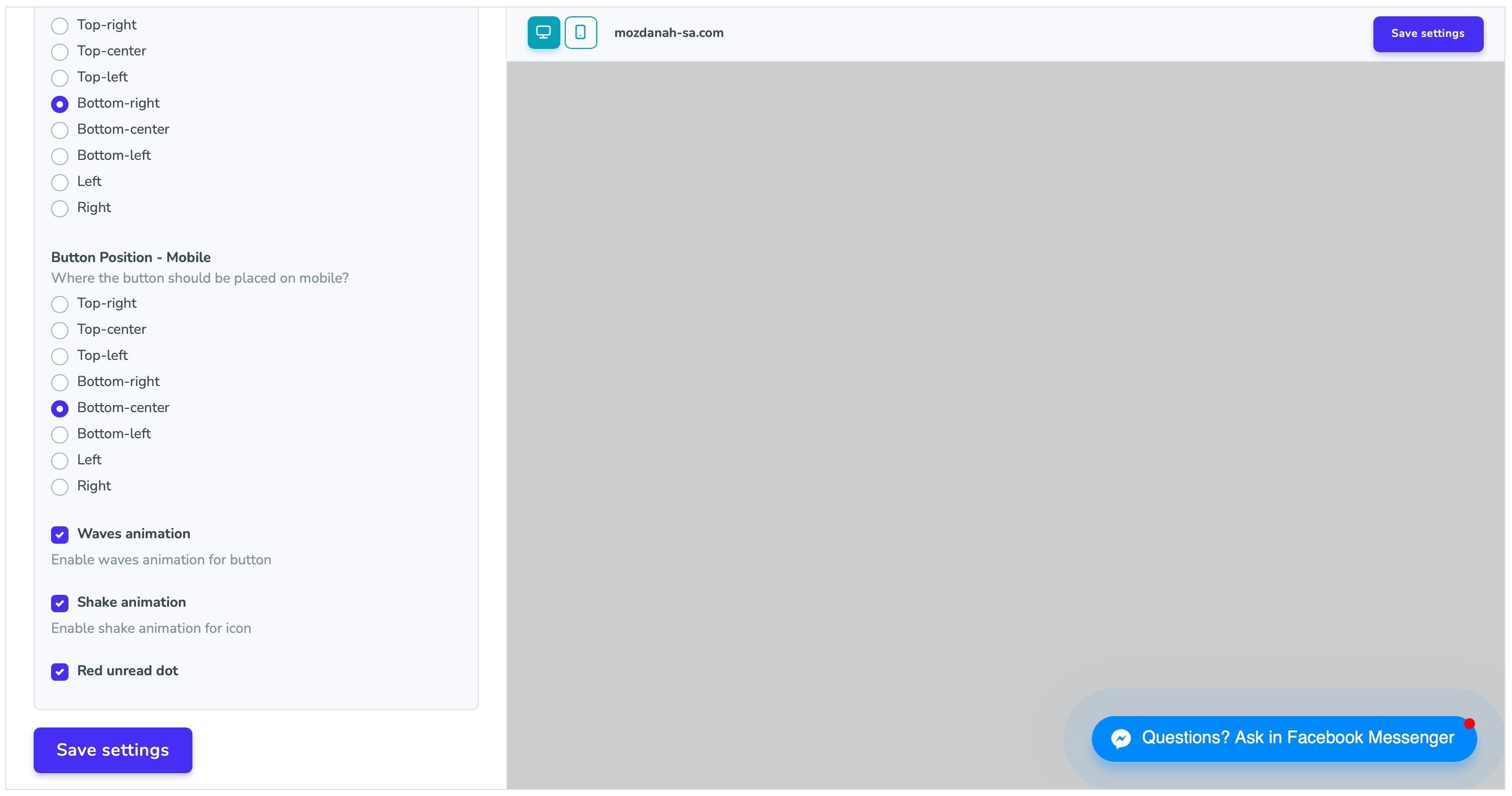
Set up how the Facebook Contact Us button behaves in your store.
Where do I copy my Smartarget user ID from?
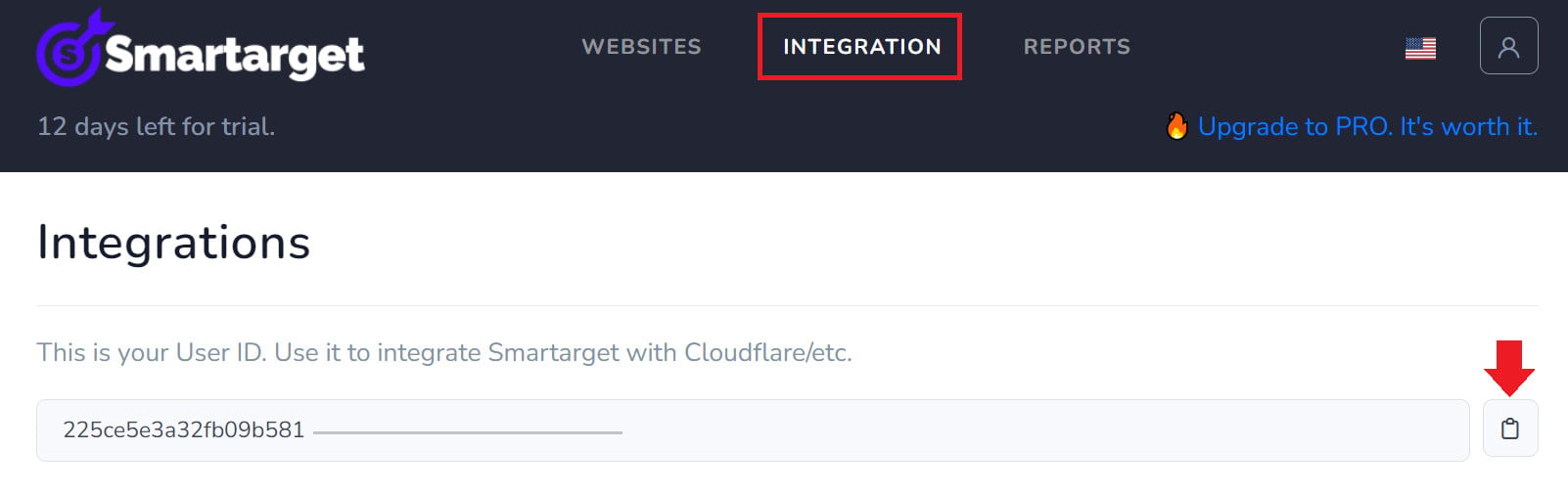
In your Smartarget account, go to the (INTEGRATION) page, then click the (Copy) button to copy your user ID.
How do I remove the Facebook Contact Us app from my store?
1. From the side menu of your dashboard, click (Installed apps).

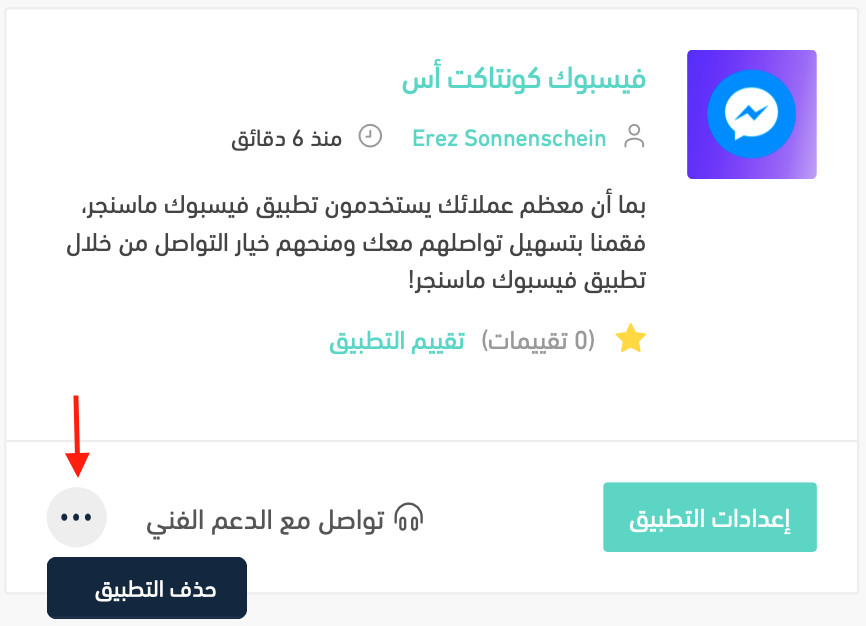
2. On the all apps page, find the Facebook Contact Us app, click the (...) icon, then click (Delete app), as shown in the image.