What if you had one more chance to talk to a shopper right before they close the tab?
The Exit Popup app from Smartarget shows a message the moment a customer is about to leave your store. It spots the movement when the cursor heads for the top of the browser window, and puts your offer in front of them before they go. In this guide, you'll learn how to install Exit Popup on your Salla store, connect it to Smartarget, customize it, and remove it if you need to.
To add Exit Popup, open (My installed apps) from your dashboard, install Exit Popup from the Salla App Store, and choose a plan. Grant the permissions, activate the app, paste your Smartarget user ID, and save. Then set the popup's content and colors to match your store.
📌 Article overview
- What is Exit Popup?
- How to connect Exit Popup to your store
- Frequently asked questions
🎯 What is Exit Popup?
Exit Popup cuts the chance of a customer leaving your store by showing a popup message at the moment they are about to close the tab on their computer. It recognizes the movement when the shopper drags the mouse pointer toward the top of the browser, about to close your site.
Use it to offer a special deal or a discount, point customers to a particular product, or say anything else that keeps them from leaving.
Exit Popup works on desktop only. If you would rather have a standard popup, use the Pop up app, which works on both desktop and mobile.
🚀 How to connect Exit Popup to your store
1. From the side menu of your dashboard, click (My installed apps).

2. From the Salla App Store banner, click (Browse Salla App Store).

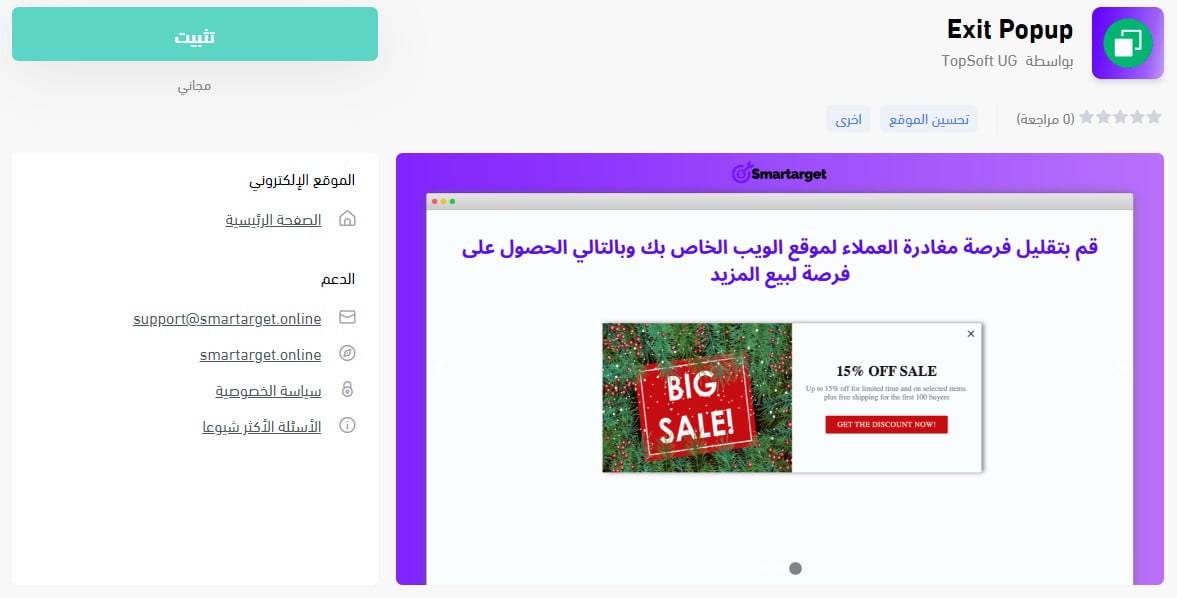
3. On the Exit Popup app page, click (Install).
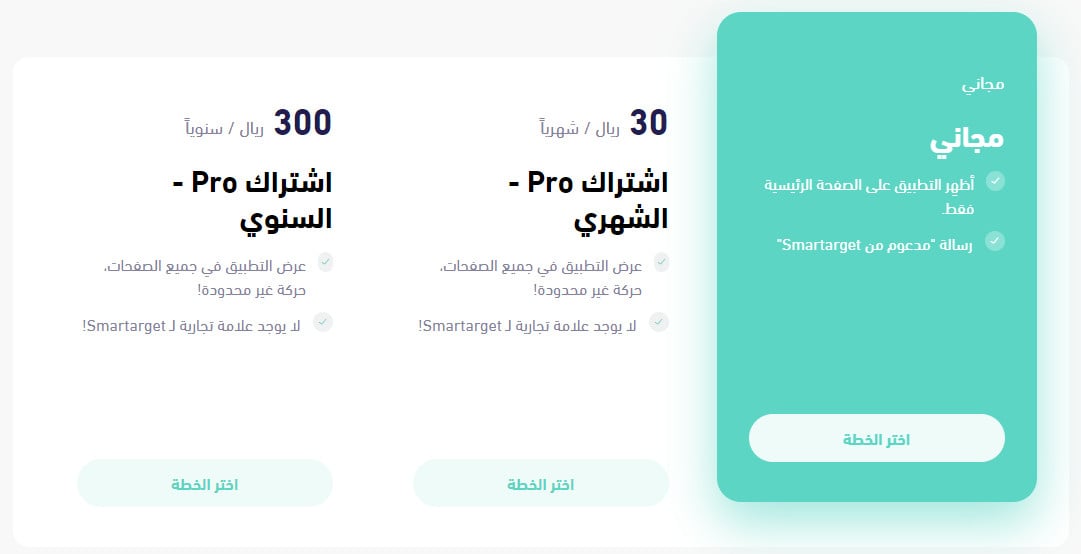
Then choose the plan that fits your business.
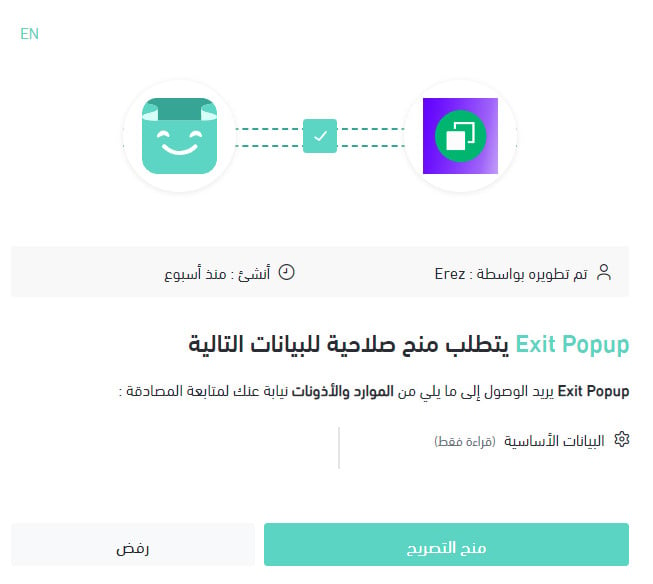
4. Check the permissions the app requests, then click (Grant permission).
The Exit Popup app is now installed on your store.
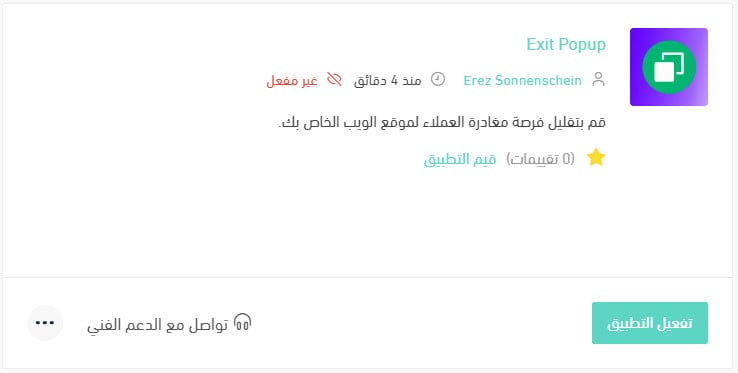
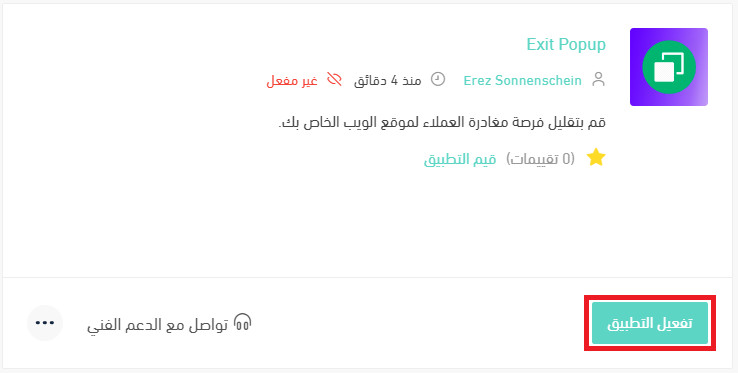
5. On the installed apps page, click (Activate app) for Exit Popup.
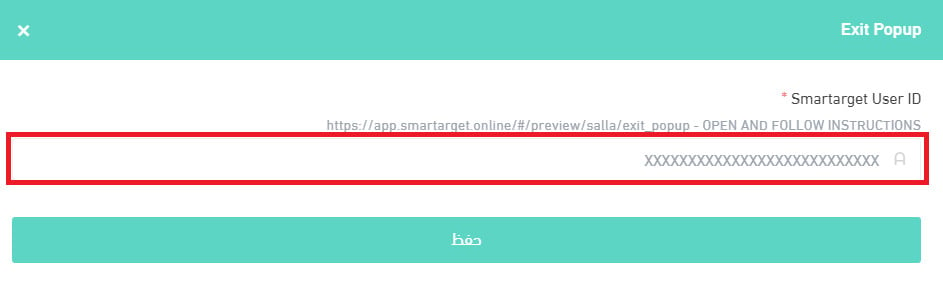
6. Paste your Smartarget user ID into the field provided, then click (Save).
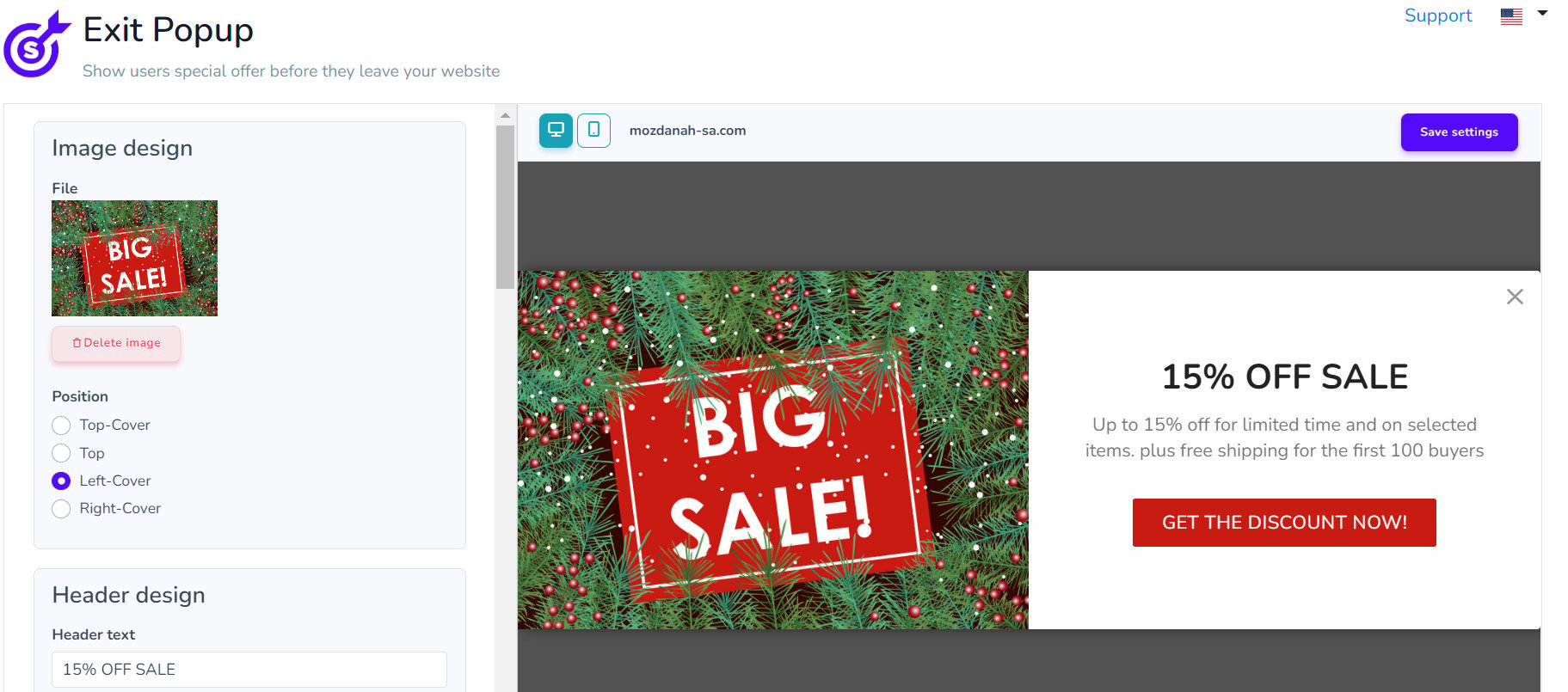
Exit Popup is now live on your store. Adjust its settings to suit your business.
For more details, see managing my store apps.
❓ Frequently asked questions
These are the questions merchants ask most:
- Can I customize Exit Popup to match my store's design?
- Can Exit Popup be used on both computers and mobile devices?
- Can Exit Popup be used in any language?
- How do I create a new Smartarget account?
- Where do I copy my Smartarget user ID from?
- How do I remove the Exit Popup app from my store?
Can I customize Exit Popup to match my store's design?
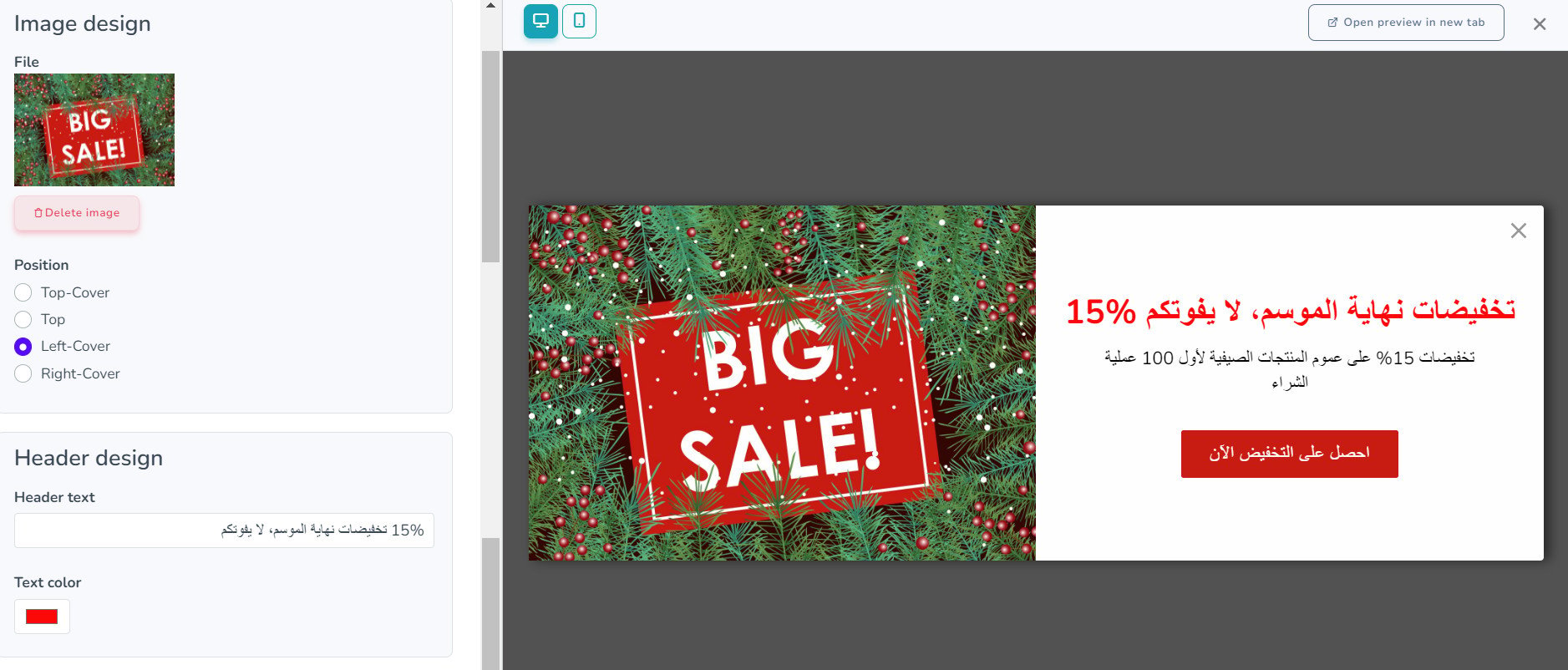
Yes. Pick popup colors that match your store's theme, and choose a relevant image to show alongside the message — it helps draw more attention from customers.
Can Exit Popup be used on both computers and mobile devices?
Exit Popup runs on desktop only, as stated at the top of this article. For a popup that reaches customers on any device, use the Pop up app instead. [Verify: the Arabic answers this question with "yes, on any type of device", which contradicts the article's own statement that Exit Popup is desktop-only.]
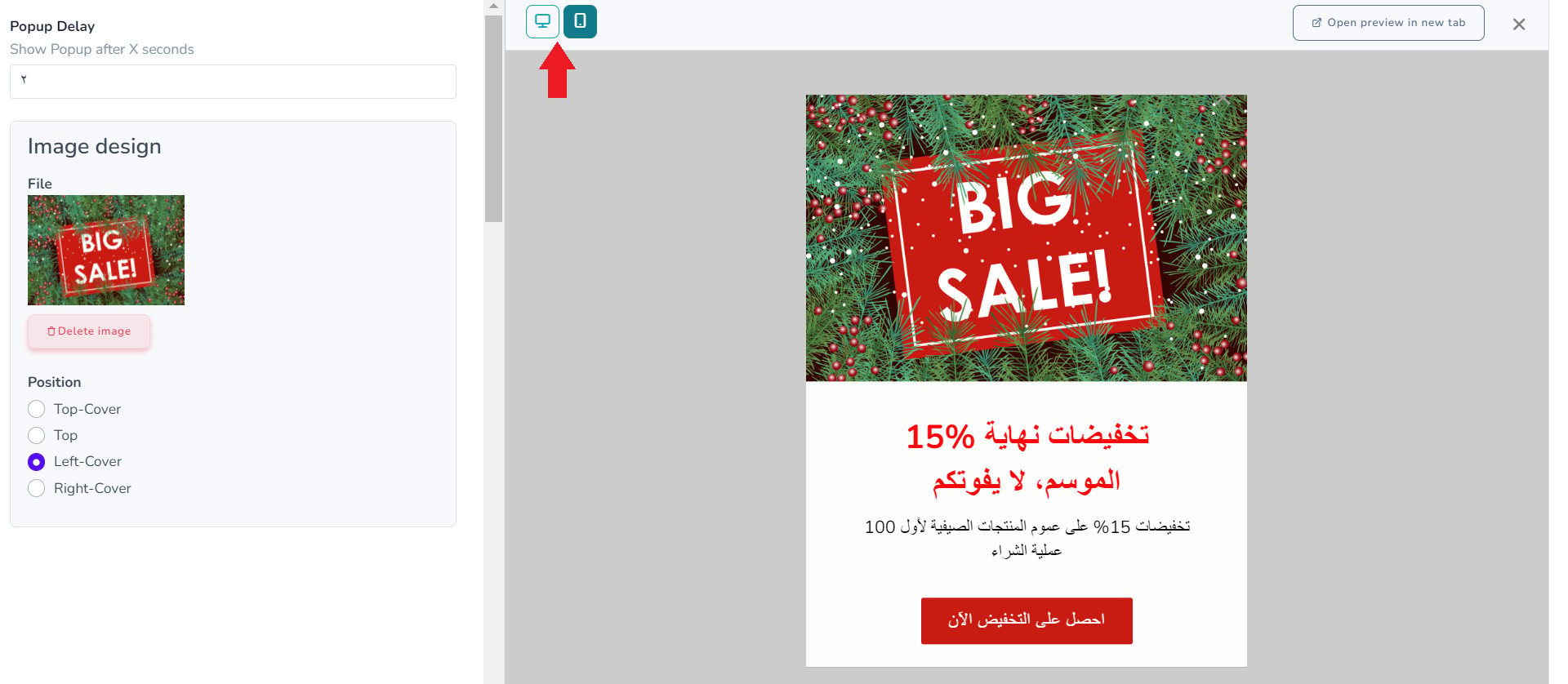
Can Exit Popup be used in any language?
Yes, including right-to-left languages.
How do I create a new Smartarget account?
1. On the Smartarget home page, click (Sign up free).
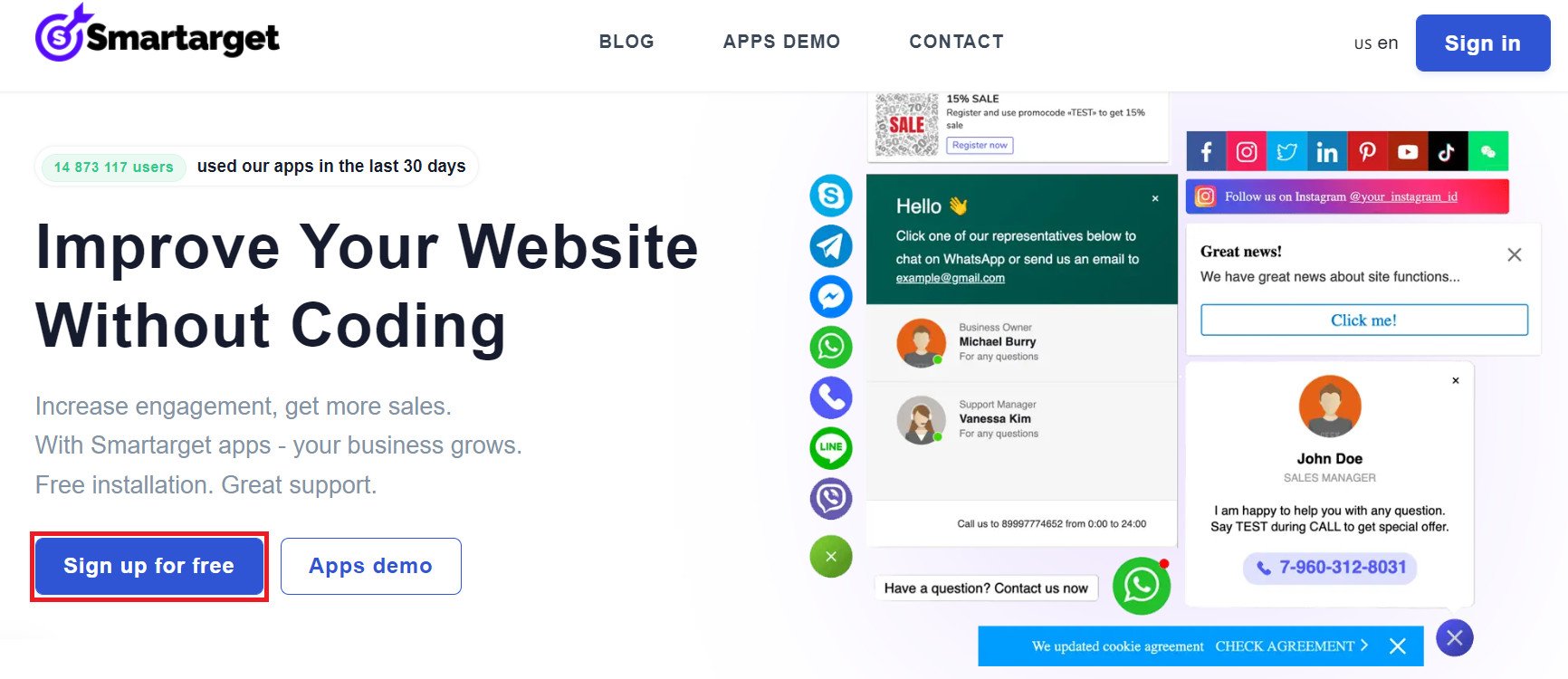
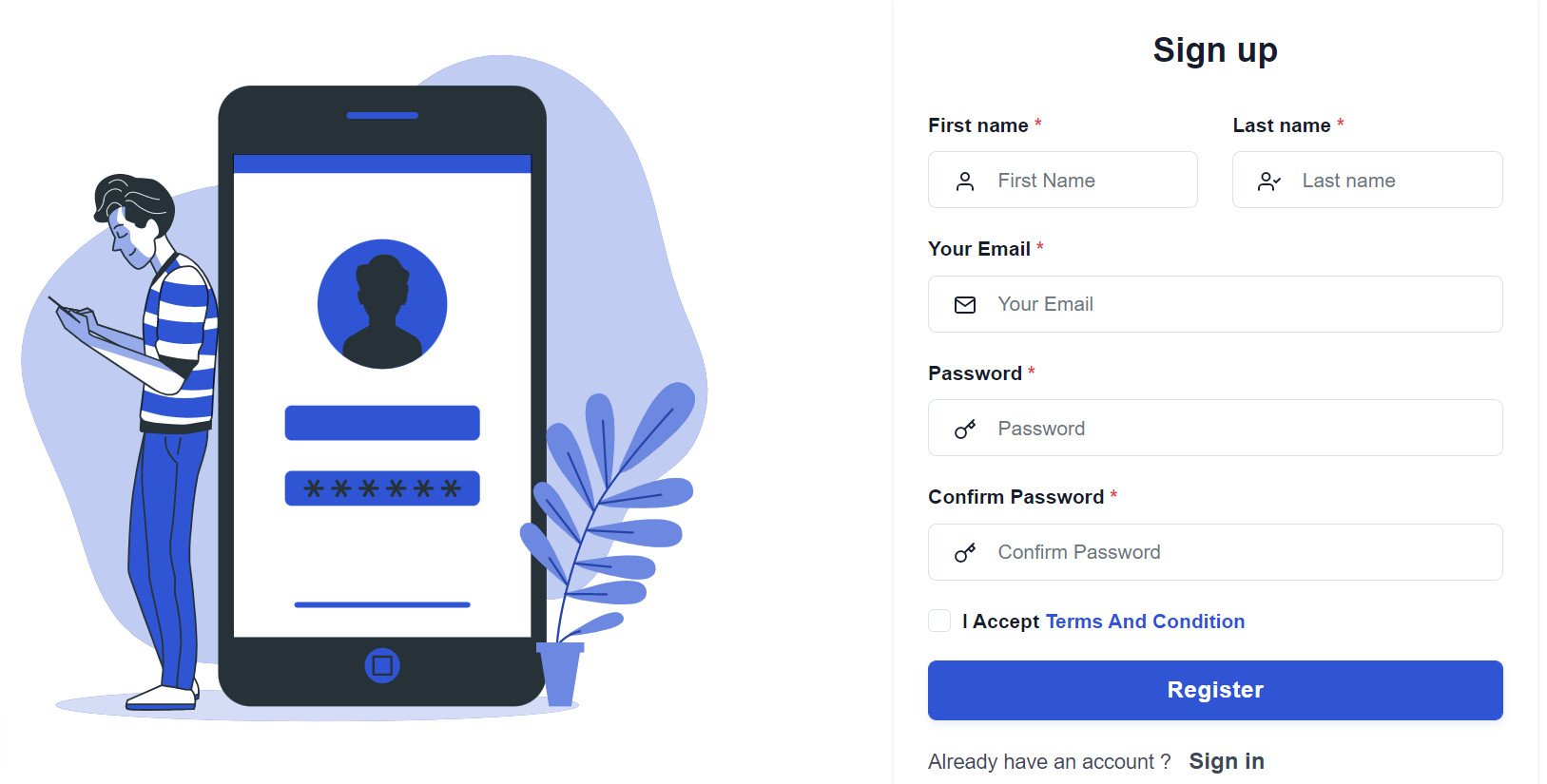
2. Enter the details it asks for, then click (Register).
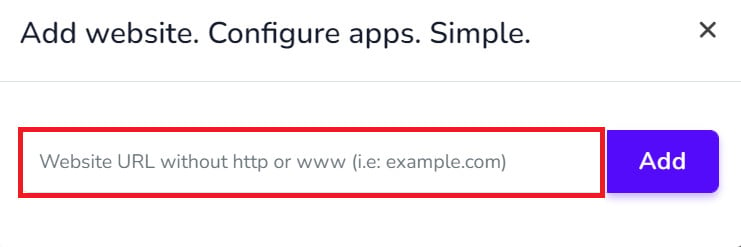
3. Confirm your account through the email you receive, sign in, then click (Add website).
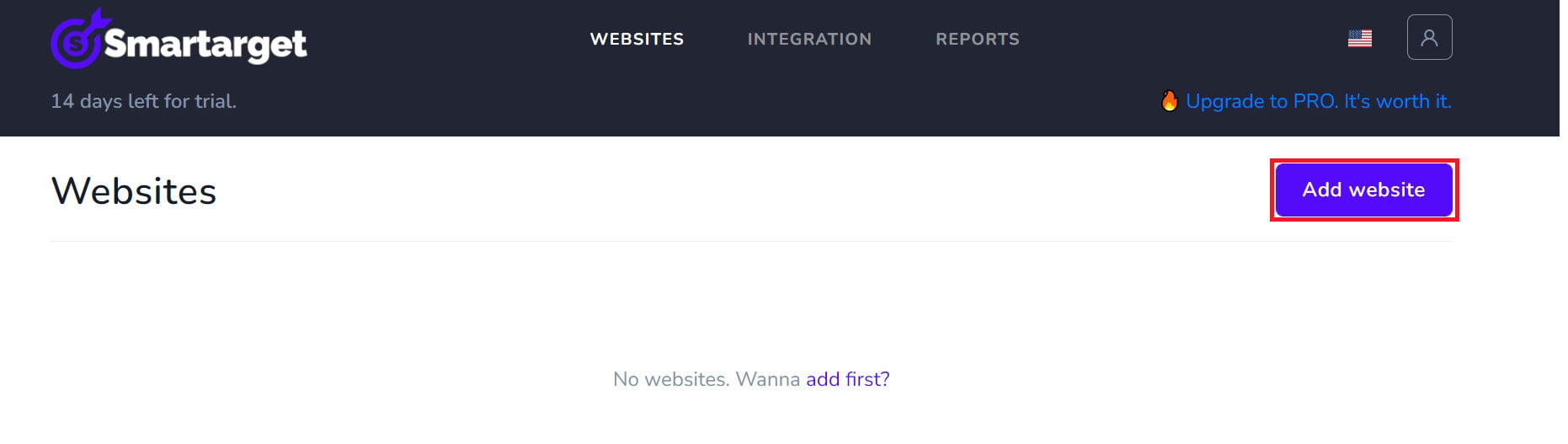
Then add your Salla store domain.
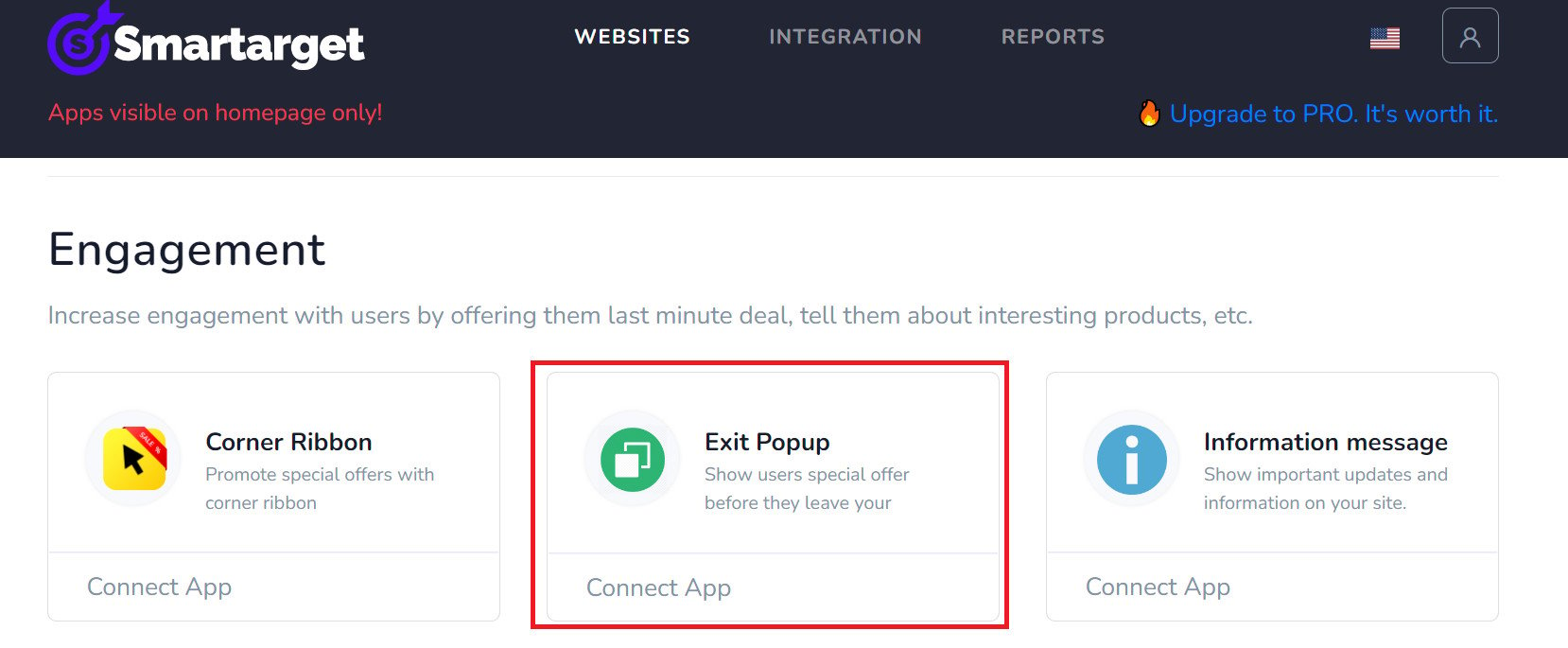
4. To add Exit Popup to your store, click (Exit Popup). [Verify: the Arabic step names the button "Contact App", which appears to be carried over from the Contact Us article.]
Set the popup settings for your store, then click (Save settings).
Where do I copy my Smartarget user ID from?
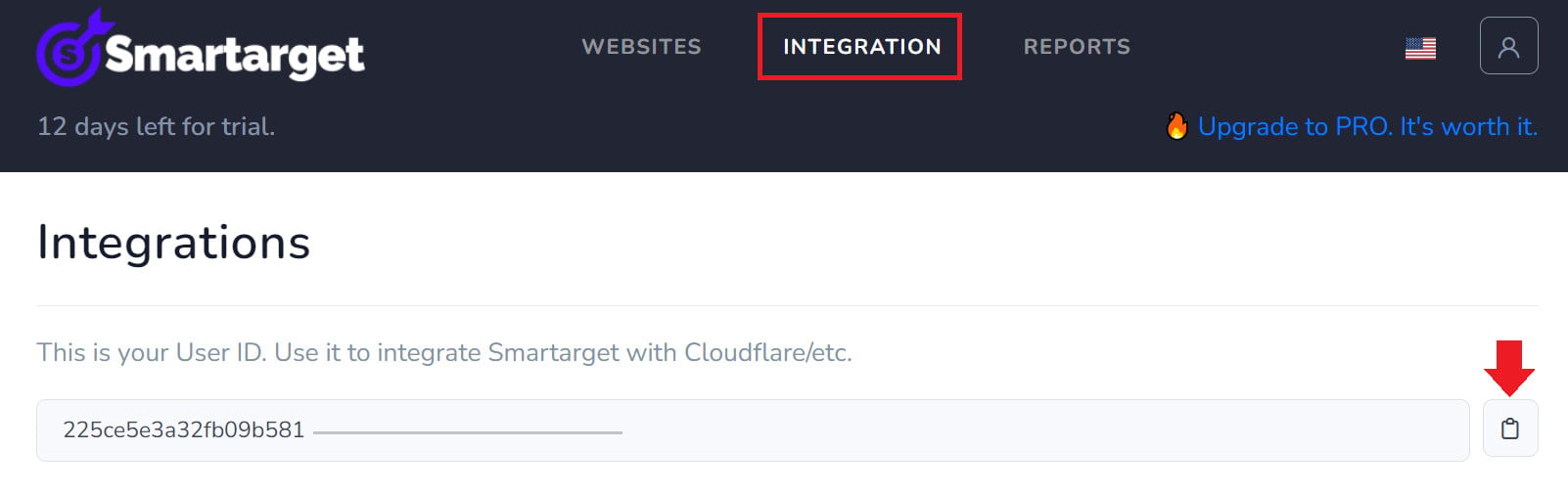
In your Smartarget account, go to the (INTEGRATION) page, then click the (Copy) button to copy your user ID.
How do I remove the Exit Popup app from my store?
1. From the side menu of your dashboard, click (My installed apps).

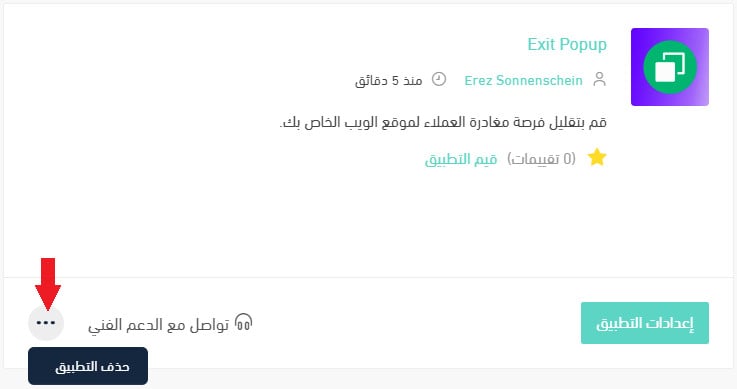
2. On the all apps page, find the Exit Popup app, click (...), then click (Delete app), as shown in the image.