Would your customers buy three of something if the third one came cheaper?
A discount table is a special offer type that lets you set several quantity tiers at once, so the discount grows as the basket grows. Instead of building a separate offer for every scenario, you define one offer — two pieces at 10%, three at 30%, five at 40% — and Salla applies the right tier automatically at checkout. In this guide, you'll learn what a discount table offer is, how to build one step by step, and how it looks to your customer.
To build a discount table on Salla, open (Discount coupons) from the dashboard side menu, click (+ Create new special offer), and choose (Discount table) as the offer type. Add each quantity tier with its discount percentage, set the products the offer applies to, save, then switch the offer on.
📌 Article overview
- What a discount table offer is
- How to create a discount table offer
- What the customer sees in the cart
- Frequently asked questions
🎯 What a discount table offer is
A discount table is a type of special offer that bundles a whole set of quantity discounts into a single offer. You pick the quantities that matter to your store and the percentage that goes with each one.
💡 Example:
- Order 2 pieces of a product and get 10% off.
- Order 3 pieces and get 30% off.
- Order 5 pieces and get 40% off.
👣 How to create a discount table offer
1. From the side menu of your dashboard, click (Discount coupons).

2. On the special offers page, click (+ Create new special offer).

For more detail on the offer form itself, see Add a new special offer.
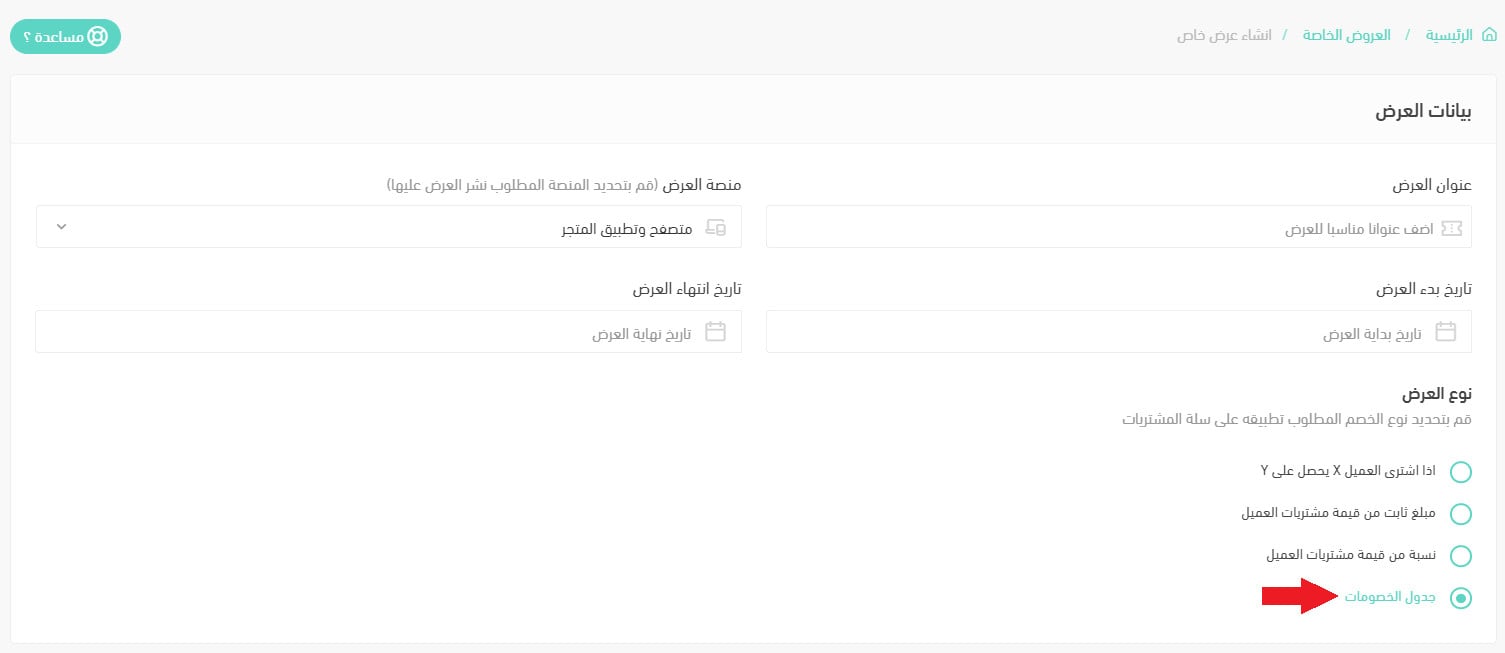
3. Enter the offer details, then set the offer type to (Discount table).
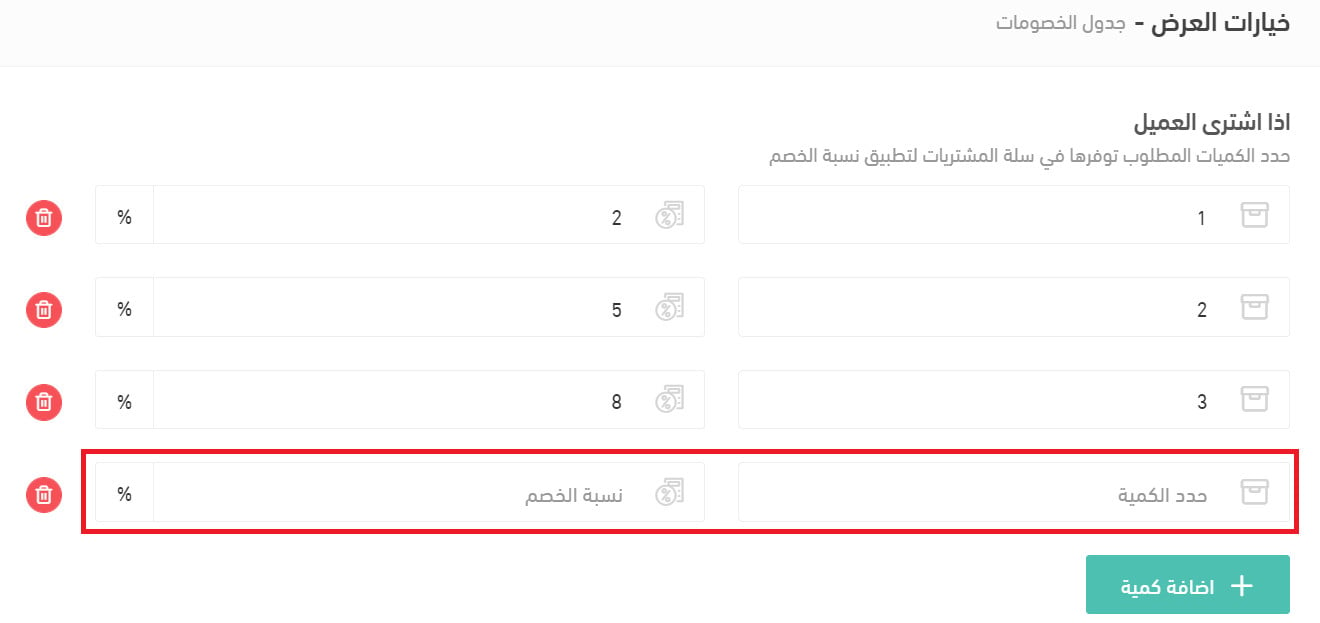
4. Set the quantities a customer needs in the cart for each discount to apply: enter the quantity, then the discount percentage. Click (+ Add quantity) to add as many tiers as you need.
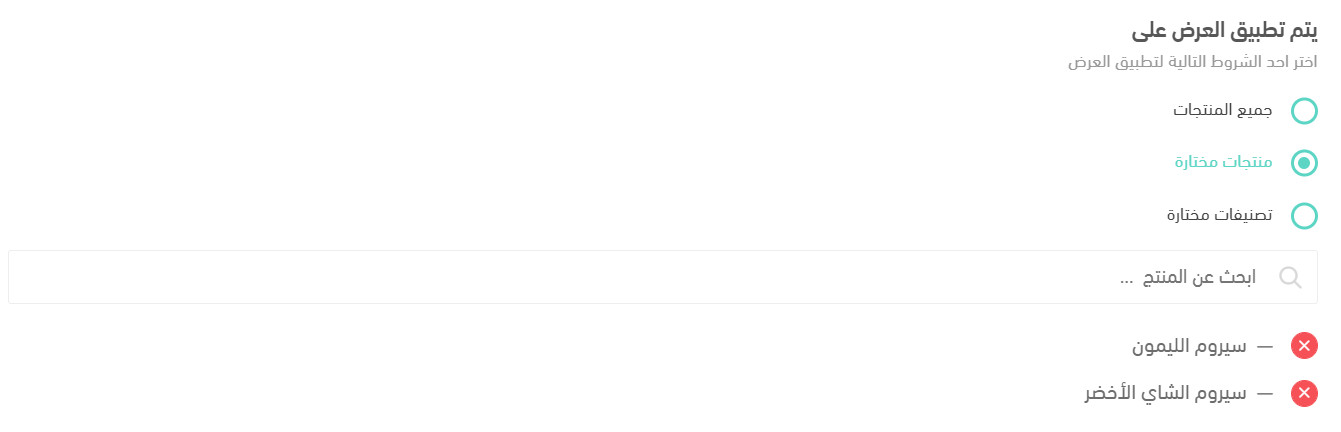
5. Choose the condition that decides where the offer applies — (All products), (Selected products), or (Selected categories). If you pick products or categories, select them here.
6. Turn the two extra options on or off to suit how you sell: showing the discounted price for the quantity, and letting the offer stack with a discount coupon.

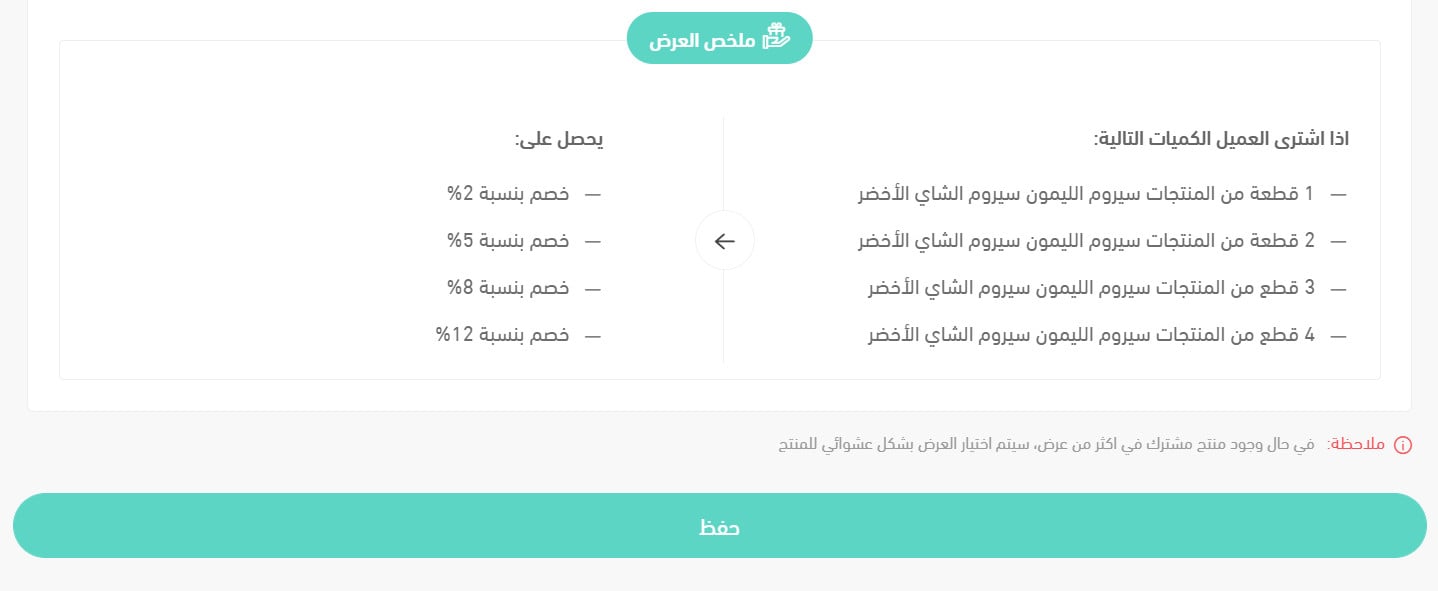
7. Review the offer summary to confirm the conditions and quantities, then click (Save).
8. Switch the offer on using the activation button.

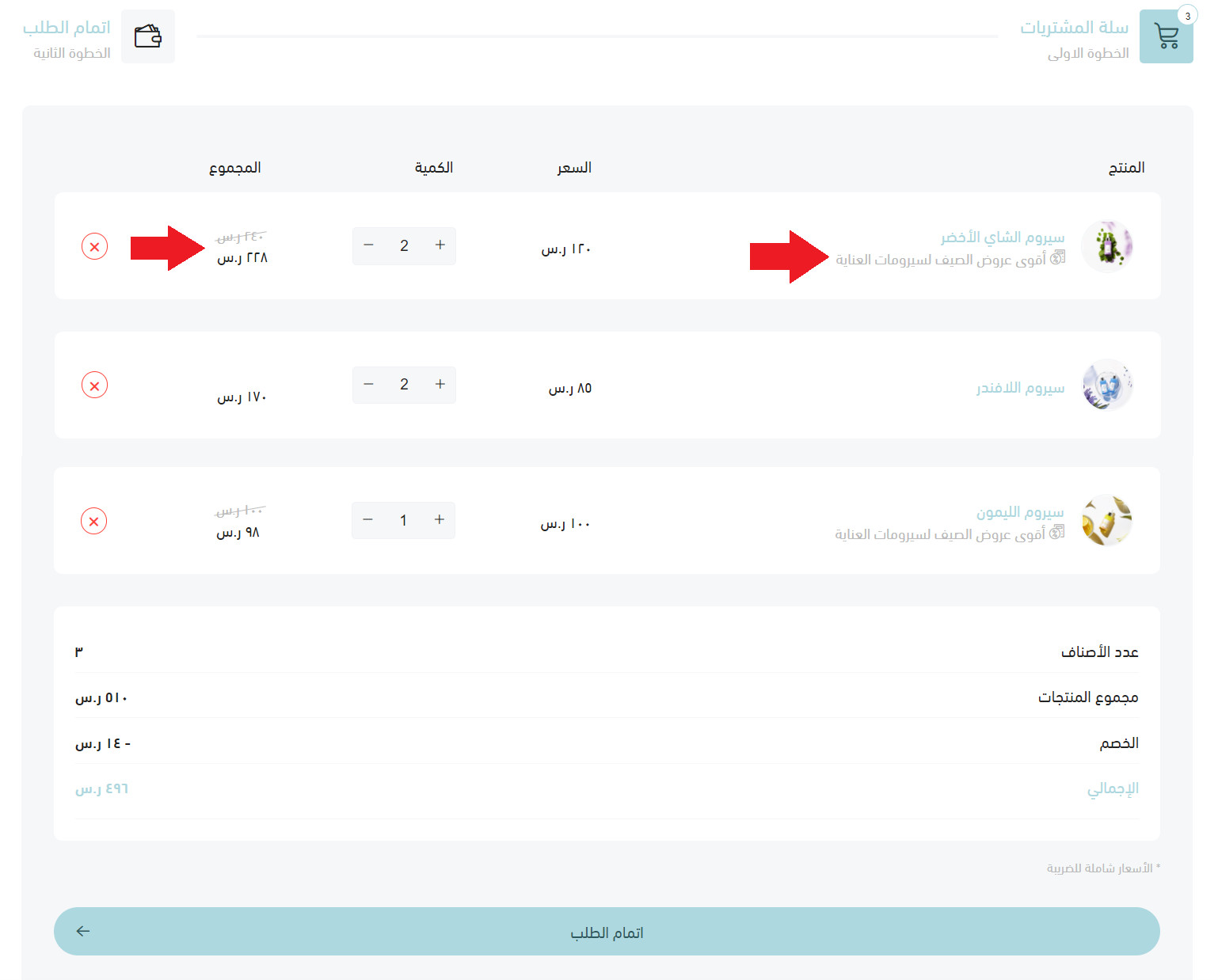
🛒 What the customer sees in the cart
Once the offer is live, the customer sees it in their shopping cart like this:
📝 Important notes
The discount table offer type is for merchants on the Special plan. [Verify: the Arabic article states this in its title only; the body never repeats it.]
An offer only starts working after you switch it on — saving it is not enough.
❓ Frequently asked questions
How many quantity tiers can I add to one discount table?
Add as many as your pricing needs. Each click on (+ Add quantity) adds another row where you enter a quantity and the percentage that goes with it.
Can I limit a discount table to specific products?
Yes. In the offer conditions, choose (Selected products) or (Selected categories) instead of (All products), then pick exactly what the offer covers.
Can a customer use a discount coupon on top of a discount table offer?
Only if you allow it. The offer form has an option for applying the offer alongside a discount coupon — turn it on or leave it off depending on how much margin you want to protect.
Where do I check what I set up before it goes live?
The offer summary at the end of the form lists the conditions and every quantity tier. Read it before clicking (Save), and edit anything that looks wrong.
Quantity discounts are one of the simplest ways to lift your average order value: the customer feels rewarded for buying more, and you move more stock per order. Start with two or three tiers, watch what your customers actually add to their carts, and adjust from there.