Does your special offer message actually tell customers what they're getting?
A generic promotion line is easy to scroll past. By choosing to customize the special offer text, you shape the offer message to fit your store — and insert dynamic details, like product names and discount values, right inside the sentence. In this guide, you'll learn what customizing the special offer text means, how to do it for each offer type, and how the insertable codes work.
To customize the special offer text on Salla, open (Marketing tools) from the side menu of your dashboard, click (Special offers), then create a new offer or edit an existing one. In the (Offer message text) box, write your message and click any available code to insert dynamic details.
📌 Article overview
- What does customizing the special offer text mean?
- Steps to customize the special offer text
- The three offer types, with examples
- Frequently asked questions
🎯 What does customizing the special offer text mean?
It means refining the offer's content so it serves your needs as a merchant, and adding specific details to the offer message. You can apply this customization to new special offers, or by editing offers you created earlier.
For more details, see managing special offers and adding a strong special offer.
👣 Steps to customize the special offer text
1. From the side menu of your dashboard, click (Marketing tools).

2. From the marketing tools page, click (Special offers).
3. Click (Create new offer).
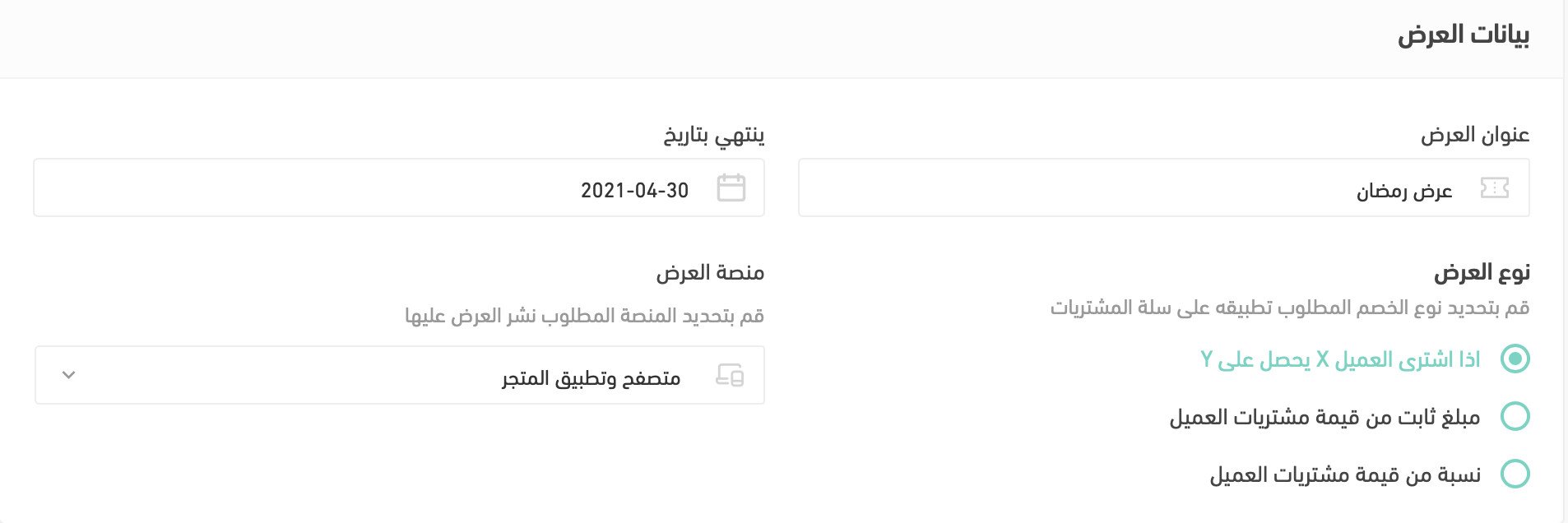
Create a new offer, or edit an existing one, and in the (Offer message text) box enter the required details based on the offer type, as follows:
First type: if the customer buys product X, they get Y
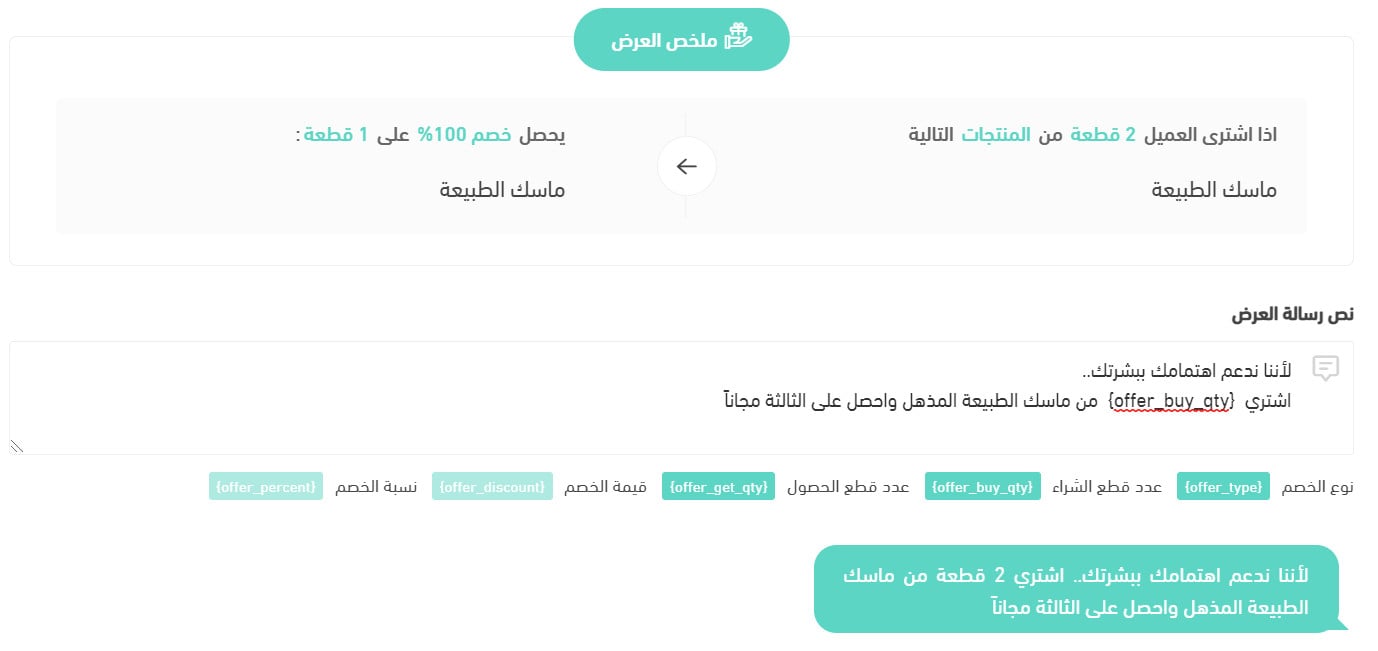
💡 Example: a special offer for a skincare store.
Second type: a fixed amount off the customer's purchase value
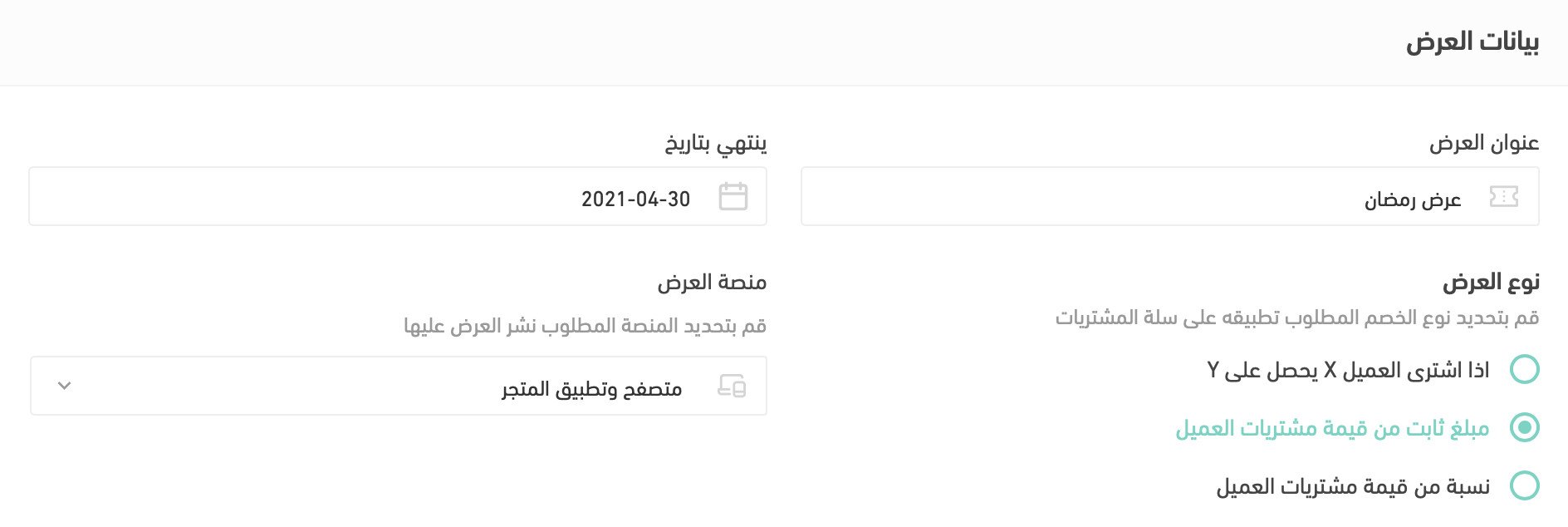
💡 Example: a special offer for a PlayStation games store — a fixed-amount discount, with a minimum of two products.
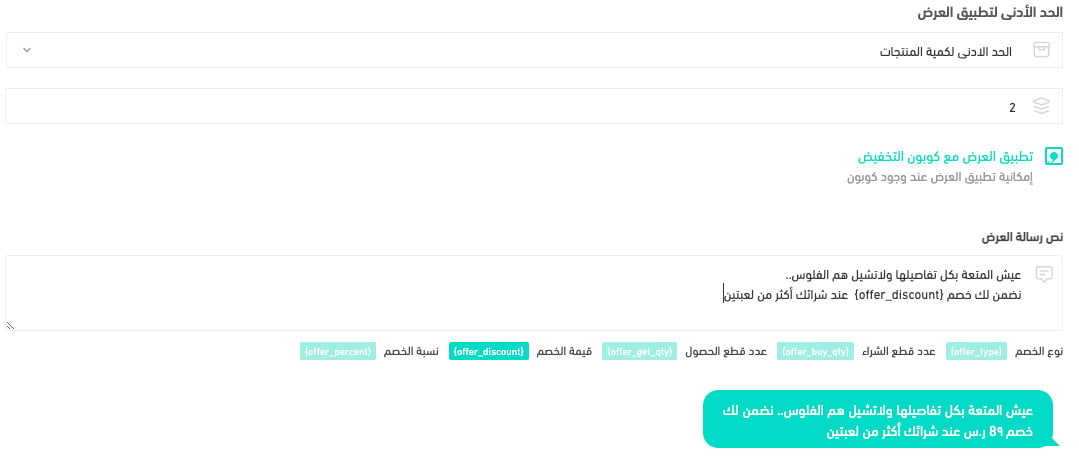
Third type: a percentage of the customer's purchase value
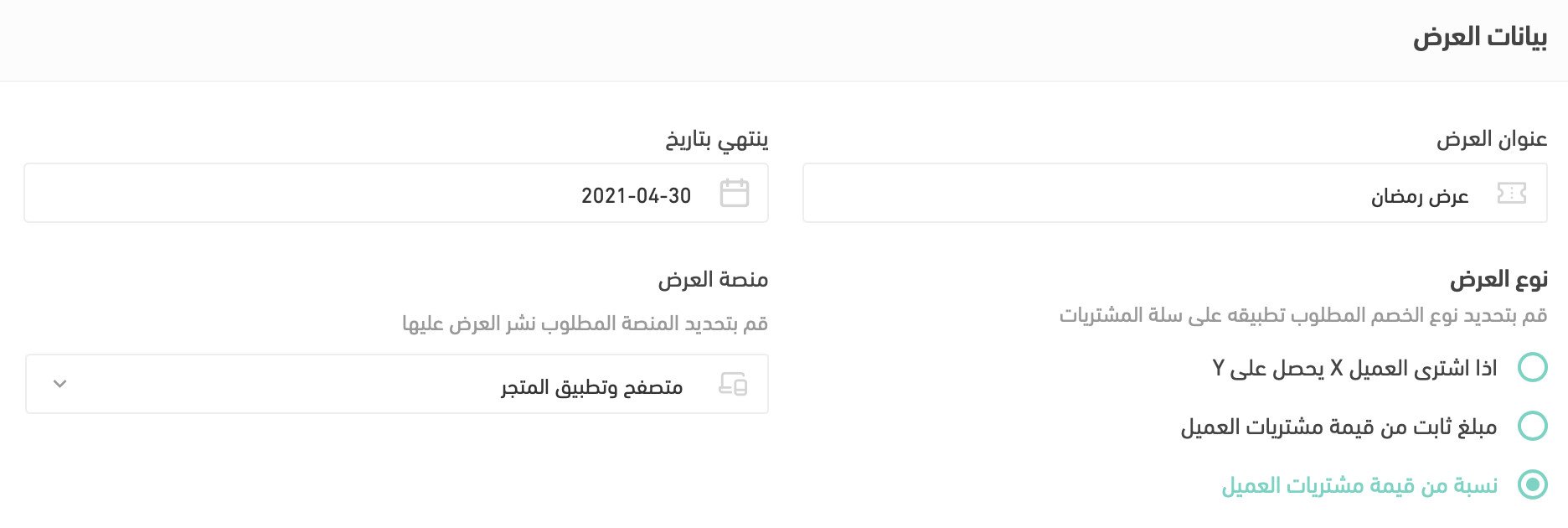
💡 Example: a special offer for a sweets and chocolate store, conditional on using specific payment methods.
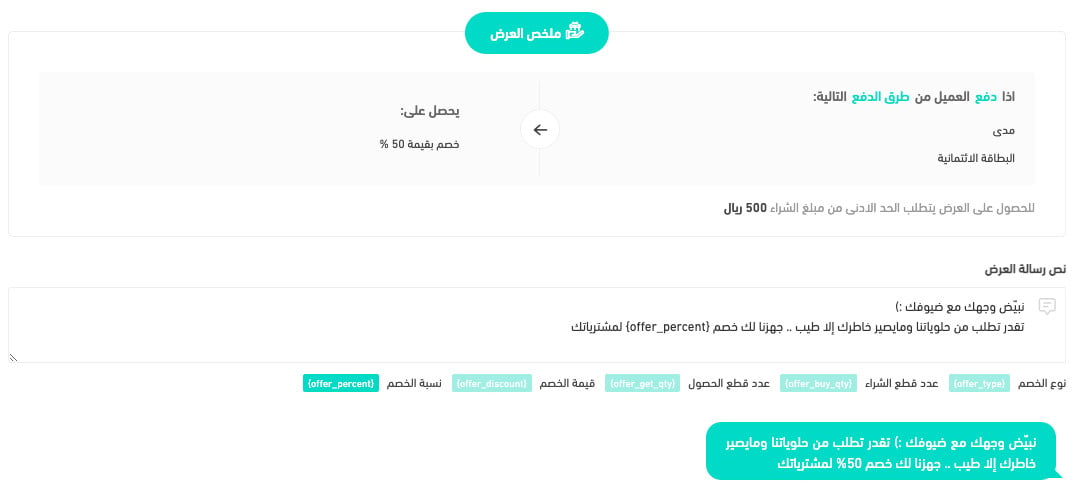
❓ Frequently asked questions
We'll answer the following questions:
- How do I add the codes to the message text?
- Why do some codes appear unavailable?
- Do I have to use any of the suggested codes?
How do I add the codes to the message text?
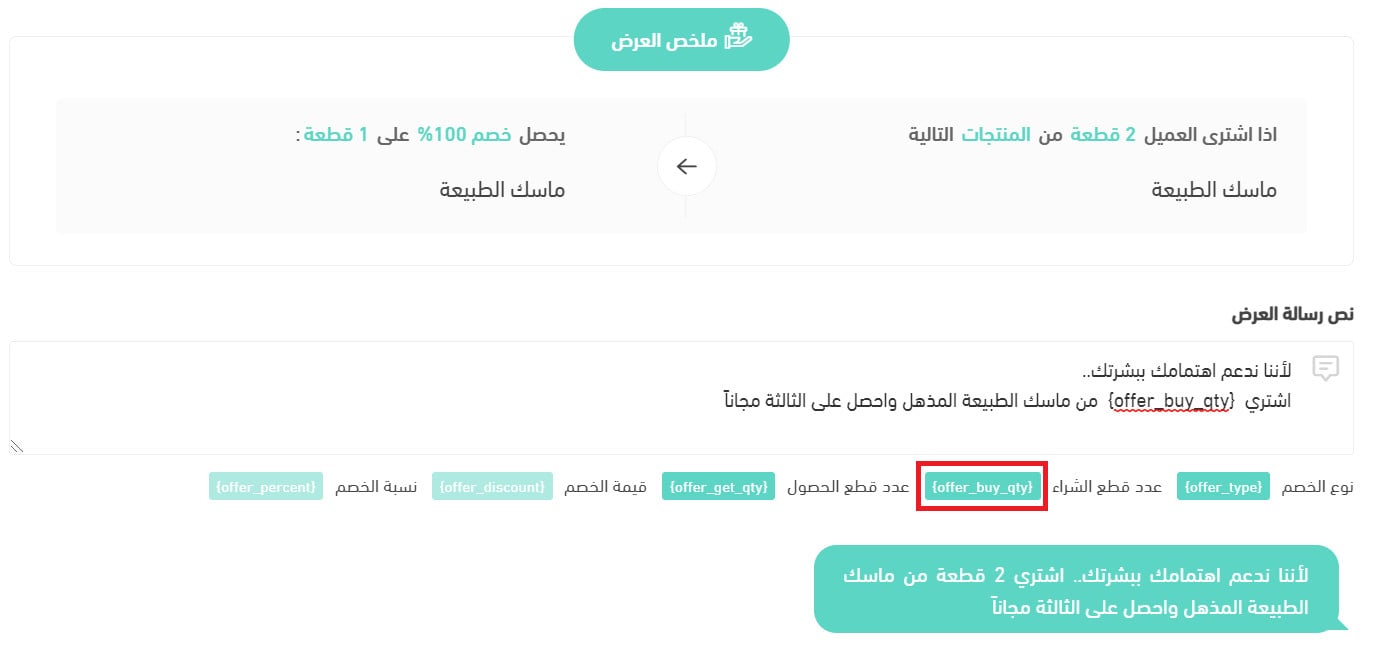
Click any of the available codes, and it is inserted where your typing cursor is, as shown here:
📝 Important notes
Pay attention to where you place each code inside the offer message text, so the final message reads cleanly.
Why do some codes appear unavailable?
Each code becomes available based on the offer type and the information you've entered in the offer.
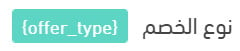
The codes you can insert are:




Do I have to use any of the suggested codes?
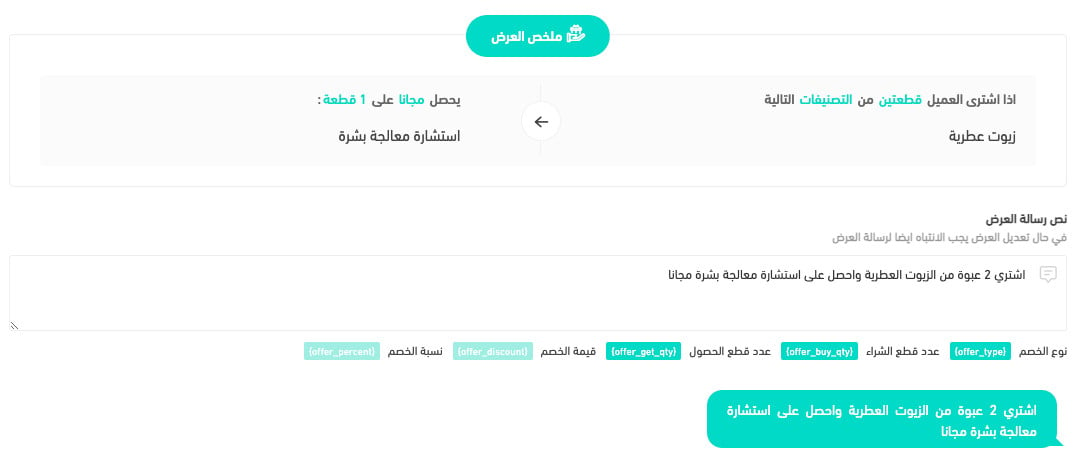
No — you don't have to use any of the suggested codes. As shown here:
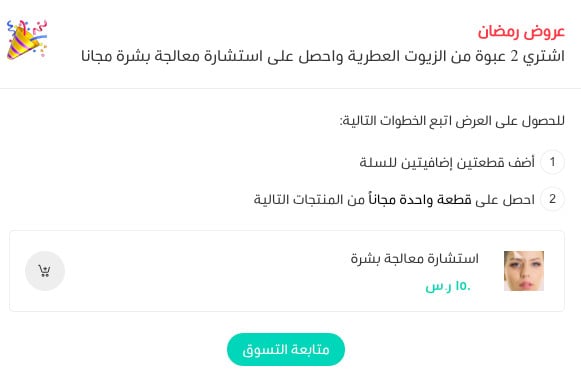
And the message appears to the customer like this:
Keep in mind, though: a message written without codes must be updated manually whenever you change the offer.