Setting up your store's iOS app — or any Apple service — starts with one thing: an Apple ID.
An Apple ID is a core part of the Apple experience: a personal account that connects you to every Apple service and app, and — for Salla merchants — the account the Mobile App Builder team needs to publish your store's iOS app. In this guide, you'll learn how to create an Apple ID step by step, how to manage and secure it, and what the most common account messages mean.
To create an Apple ID, go to appleid.apple.com and choose Create Your Apple ID. Fill in your name, country, and date of birth, enter the email address that will become your Apple ID, set a strong password, add your phone number, then verify your identity with the codes sent to your email and phone.
📌 Article overview
- What is an Apple ID?
- How to create an Apple ID
- Frequently asked questions
🎯 What is an Apple ID?
An Apple ID is a unique account made up of an email address and a password. It gives its owner access to all of Apple's services and apps — a single bridge to everything Apple offers, with ease and security.
👣 How to create an Apple ID
Follow these steps to create your Apple ID:
Step 1: Visit AppleID.com
Start by visiting AppleID.com.
Step 2: Sign in or create a new account
If you already have an account, sign in.
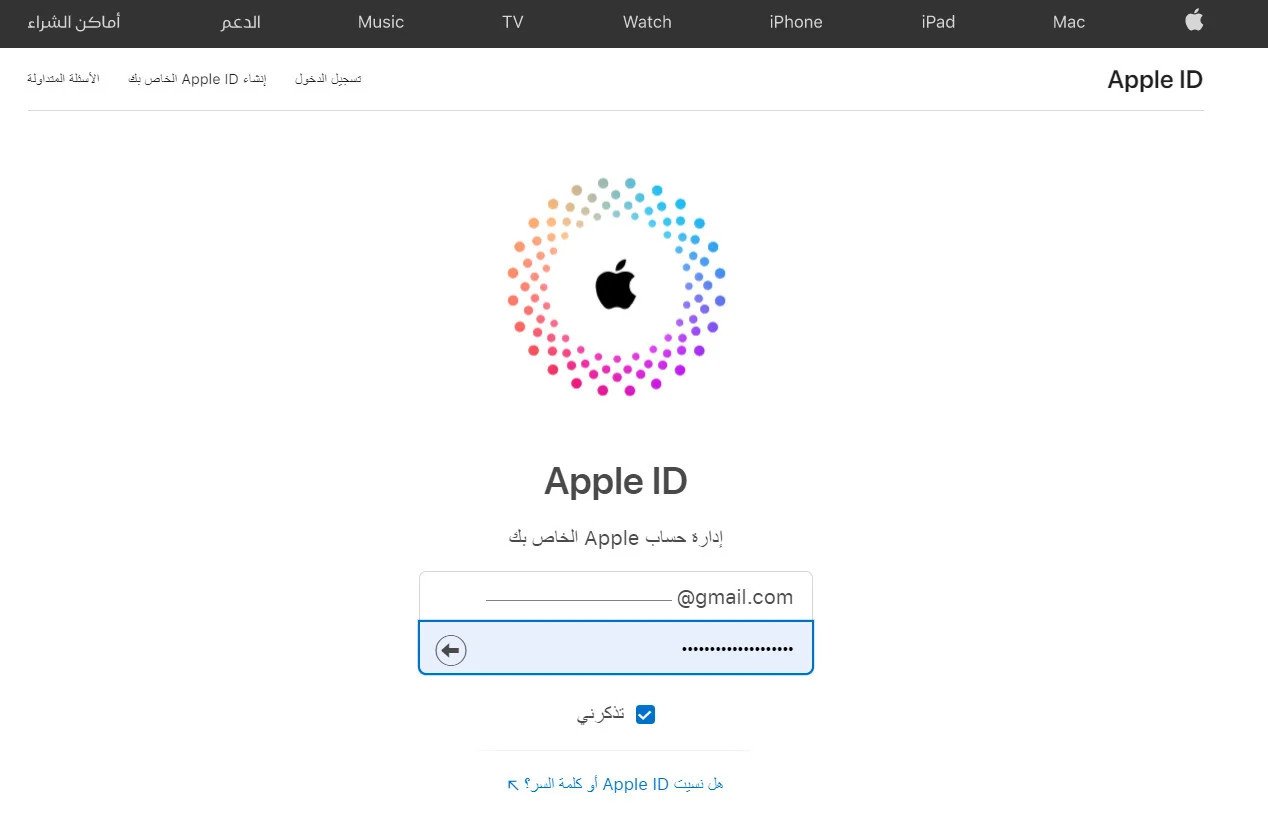
If you don't have an account, choose "Create Your Apple ID" to start creating a new one — the label appears in the language your page is displayed in.
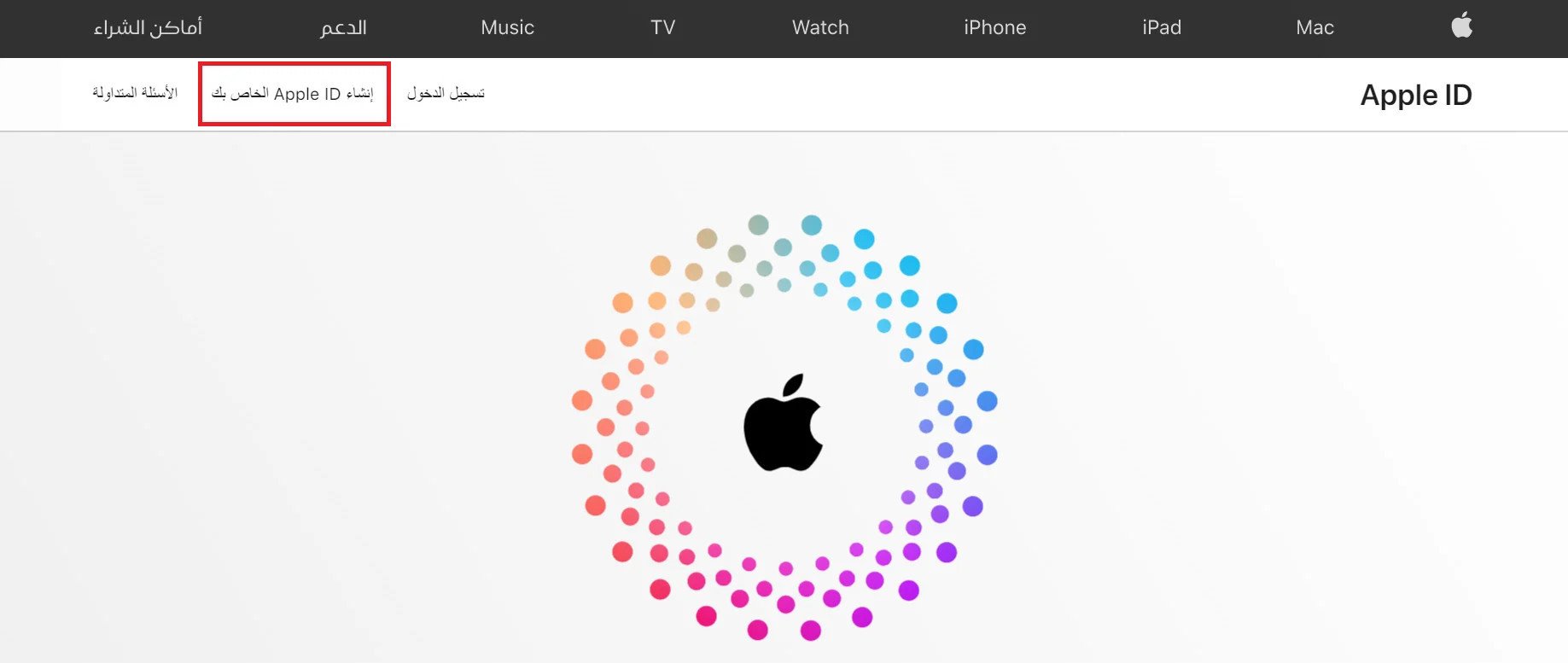
Step 3: Fill in the form
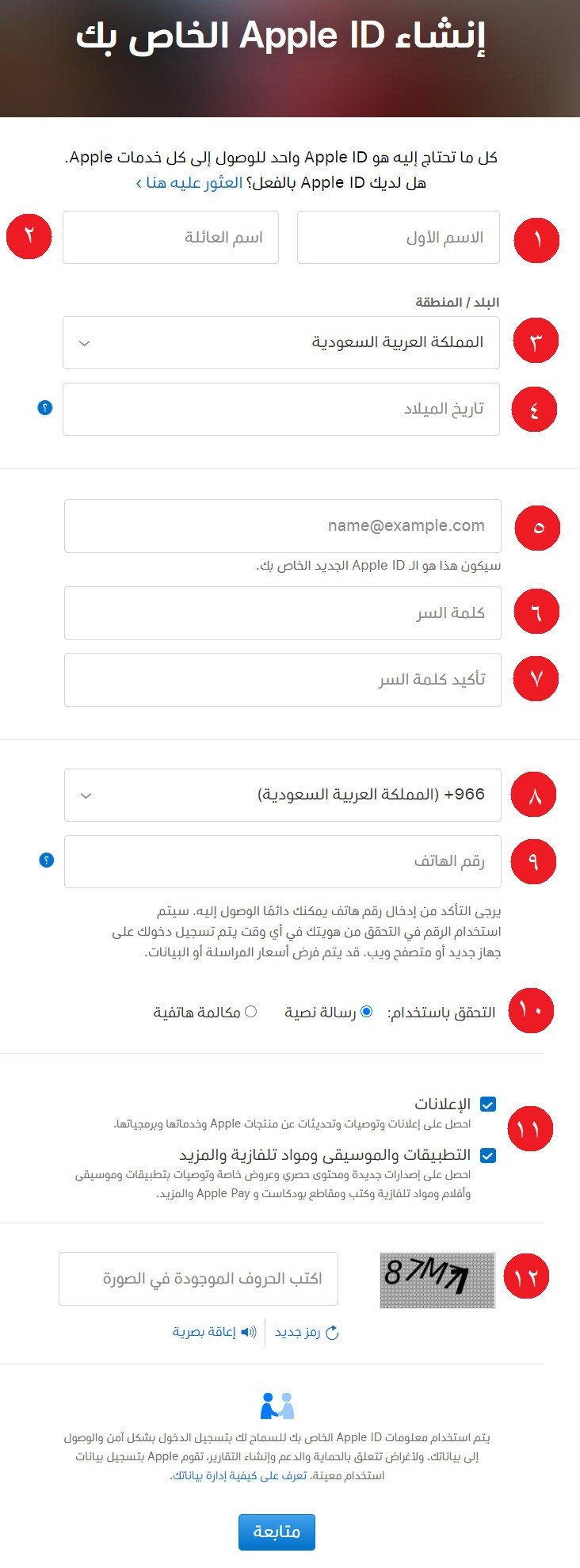
1 to 4 - Enter your personal information: first name, last name, country of residence, and date of birth.
5 - Enter a new email address — this becomes your Apple ID.
6 to 7 - Choose a strong password.
8 to 9 - Select the country code, then enter your phone number.
10 - Choose how to receive verification messages on your phone.
11 - Optional: choose whether to receive offers and news from Apple.
12 - Enter the characters and numbers shown to you.
Step 4: Verify and complete
Follow the identity verification prompts using the verification codes sent to your email and phone.
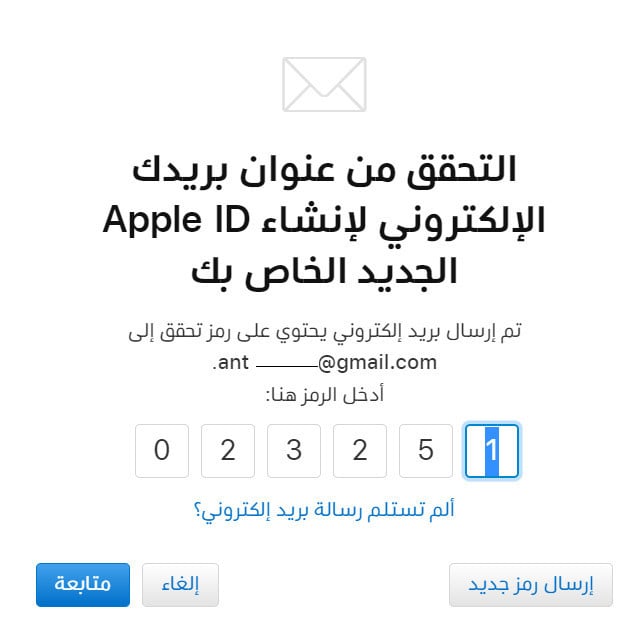
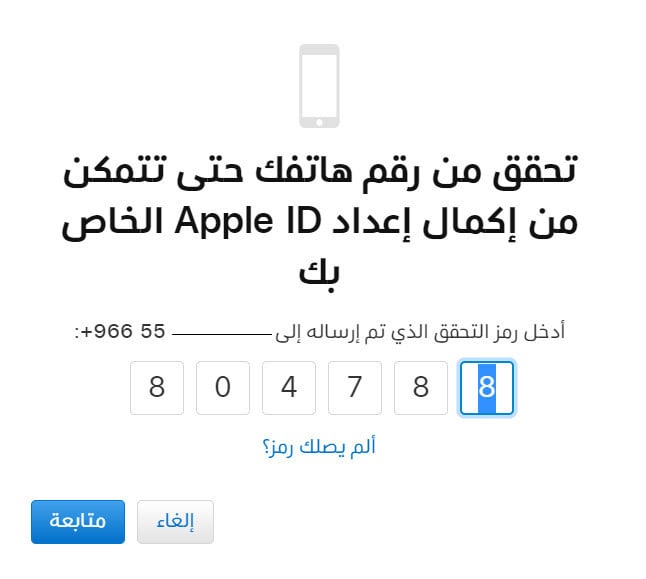
Once verified, your Apple ID is ready to use.
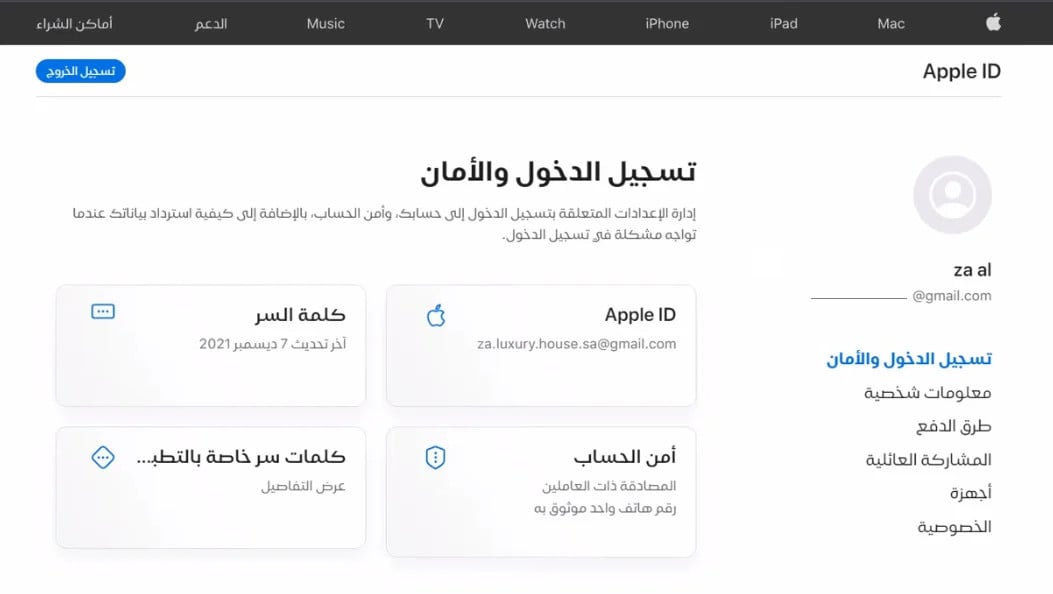
Step 5: Manage the account
You can manage your account information at any time, or add an extra phone number to guarantee you never lose access.
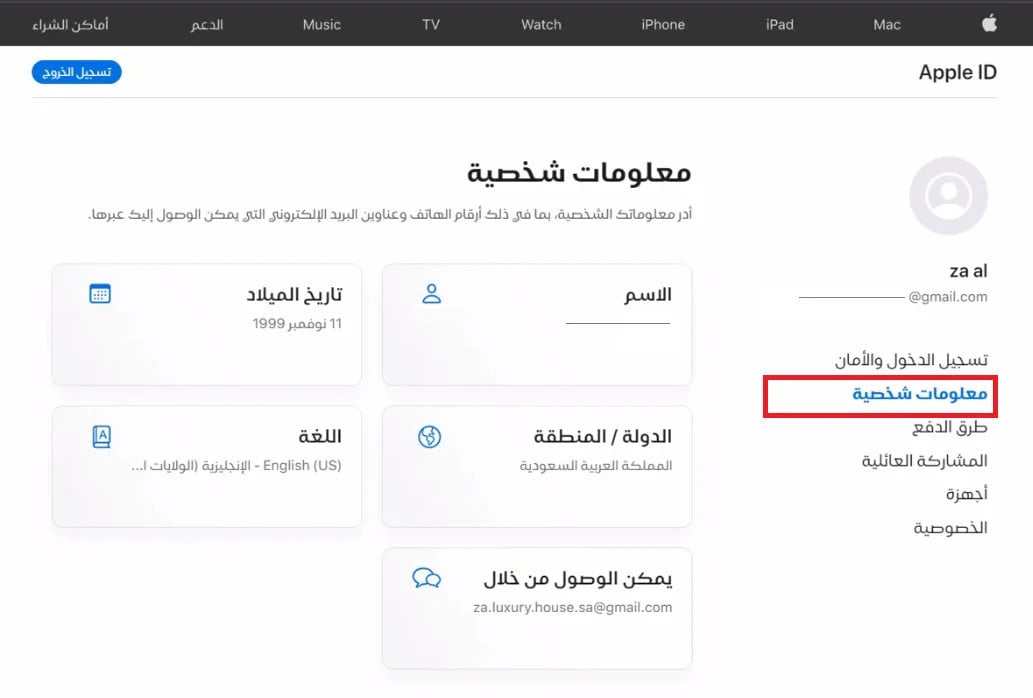
❓ Frequently asked questions
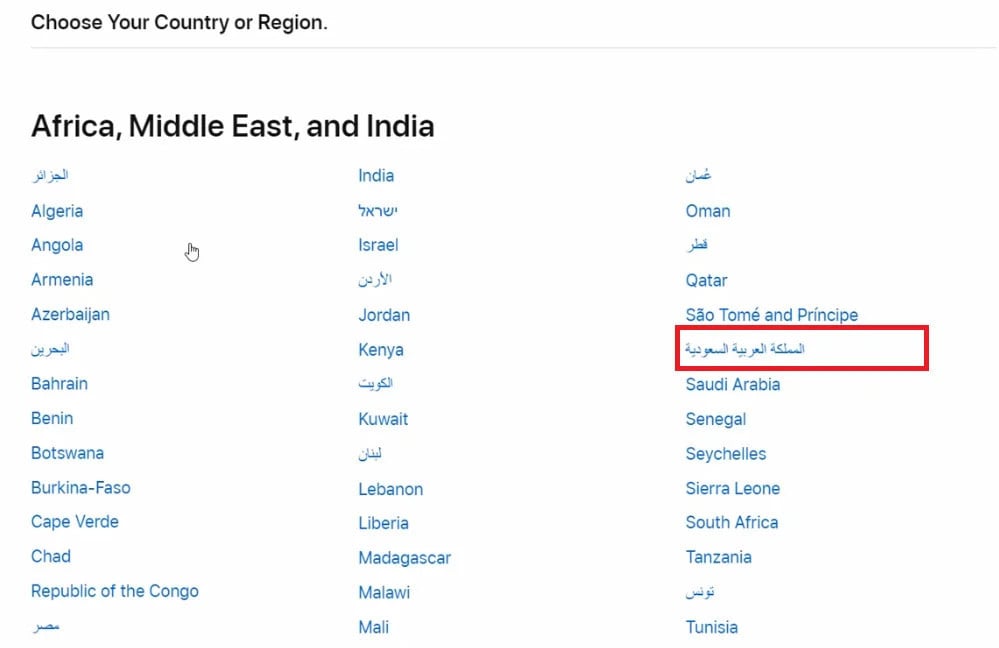
Can I change the display language and country while creating an Apple ID?
Yes, you can change the language and country during account creation.
Click the country code shown in the bar at the bottom of the sign-up window, then choose the country that fits you.

Why do two-factor authentication and account security matter?
Two-factor authentication is an extra measure that strengthens the protection of your Apple account. This additional layer of security keeps your account safe even if your password leaks.
To make sure you can always reach your account, it's best to link it to two different phone numbers — that keeps you prepared for any technical issue or emergency.
How do I add an extra phone number?
From the "Sign-In and Security" section, choose "Account Security", then follow the steps to add an extra phone number.
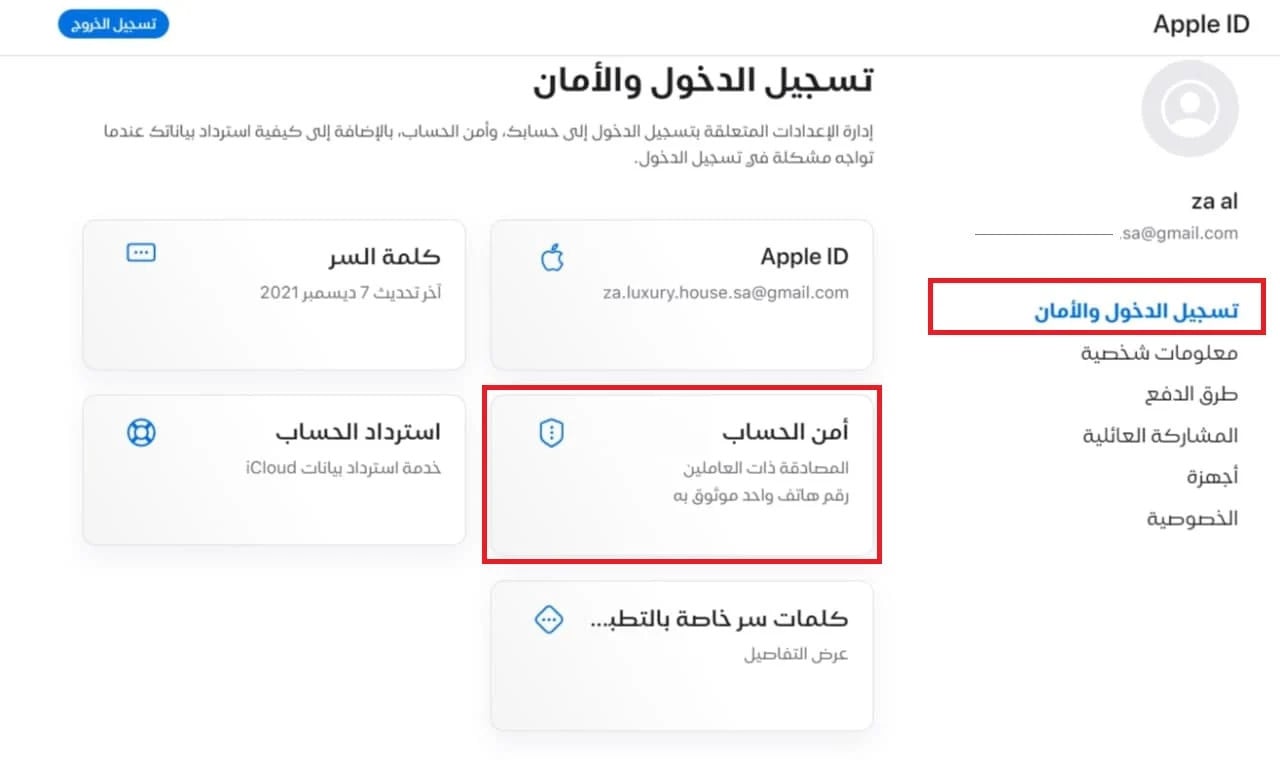
From the account security page, click ( + ).
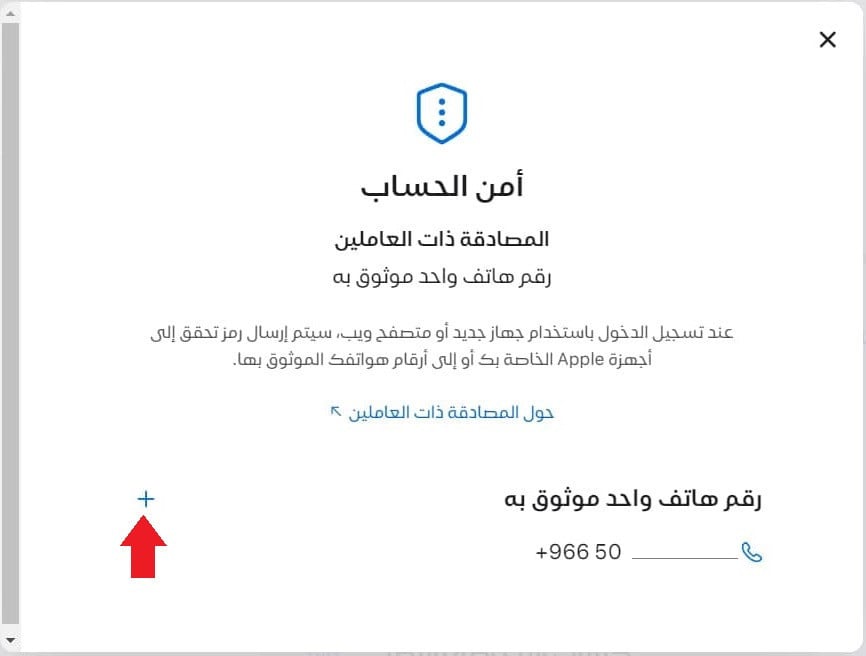
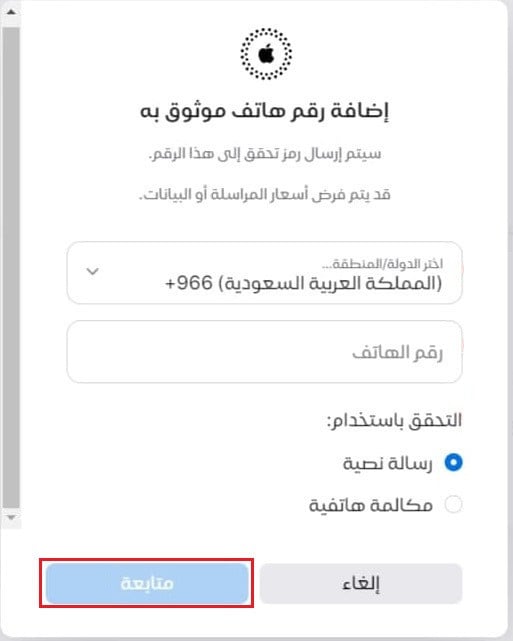
Choose the country code, add the number, pick the verification method, then continue.
Then enter the code sent to your number.
What if I'm asked for credit card information?
You can enter your credit card details during creation or choose "None", and you can change or remove your payment details later.
You are only charged when you make a purchase.
Which services need an Apple ID?
- App Store, iCloud, iMessage, FaceTime, and many other Apple services.
- Apple apps and subscriptions such as Apple Music and the Apple TV app.
- Shopping online at apple.com.

Which devices can I set up an Apple ID on?
- iPhone, iPad, or iPod touch.
- A computer.
- Apple TV, an Android device, a smart TV, or a streaming device.
What does an inactive Apple ID mean?
The account may be closed, suspended, or deleted due to inactivity.
You can check whether it's active simply by trying to sign in from here.
What does "Apple ID has been disabled" mean?
It was disabled by Apple due to inactivity, or at the merchant's request.
What does "could not create your account at this time" mean?
This is usually a temporary server error — try again later.
Your Apple ID is the key to every Apple service your store app depends on — create it carefully, secure it with two-factor authentication and a second phone number, and keep its details up to date.