When a shopper has a question about your product, do they have an easy way to ask it?
Most of your potential customers already live on chat: WhatsApp, Facebook Messenger, Telegram. The Contact Us - All in one app from Smartarget puts all of those channels behind a single button on your store, so a shopper can reach you on the platform they already trust. In this guide, you'll learn how to install and activate the app, connect it to your Smartarget account, customize the button, and remove it if you need to.
To add the contact button, open (My installed apps) from your dashboard, install Contact Us - All in one from the Salla App Store, choose a plan, and grant the permissions. Then activate the app, paste your Smartarget user ID, customize the button, and save.
📌 Article overview
- What is Contact Us - All in one?
- How to connect Contact Us - All in one to your store
- Frequently asked questions
🎯 What is Contact Us - All in one?
When someone has a question about your products, they are more likely to leave your site than to hunt for a support email address. People have too many options to spend time looking for answers. Give them a way to message you from the platform they already use, right on your store page, and they will take it. You can reply a few hours later, and the answer lands straight on their phone.
🚀 How to connect Contact Us - All in one to your store
1. From the side menu of your dashboard, click (My installed apps).

2. From the Salla App Store banner, click (Browse Salla App Store).

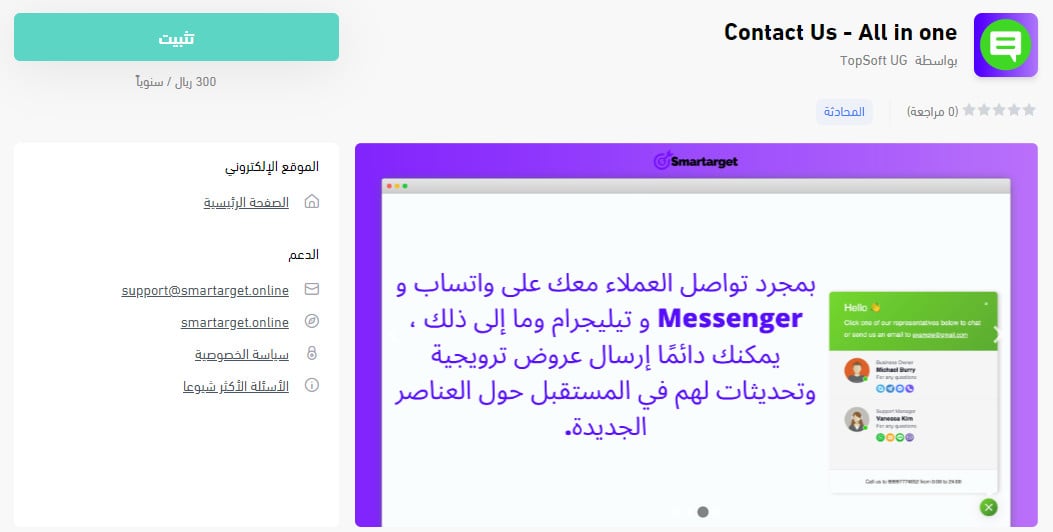
3. On the Contact Us app page, click (Install).
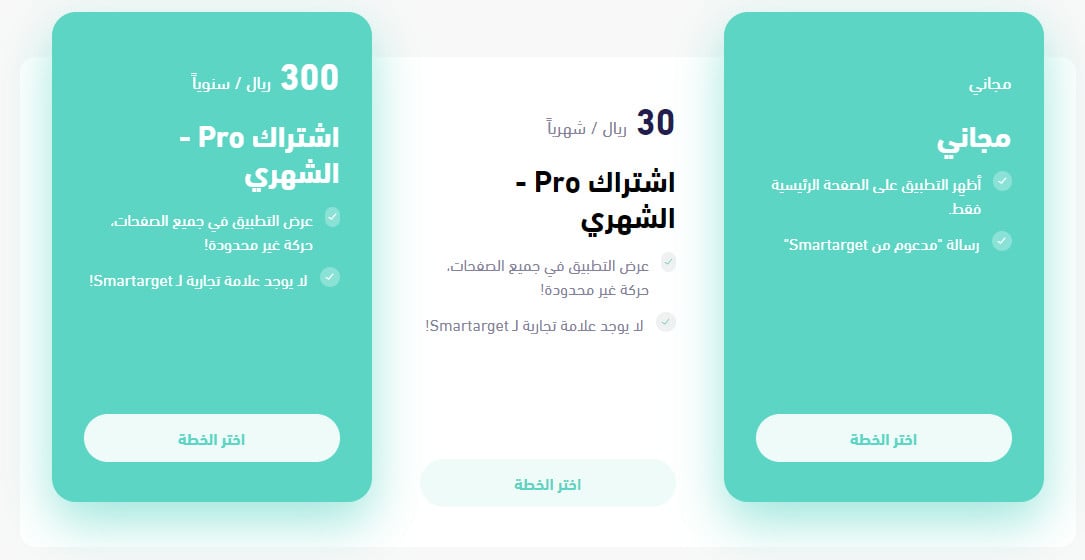
Then click (Choose plan) for the plan that fits your business.
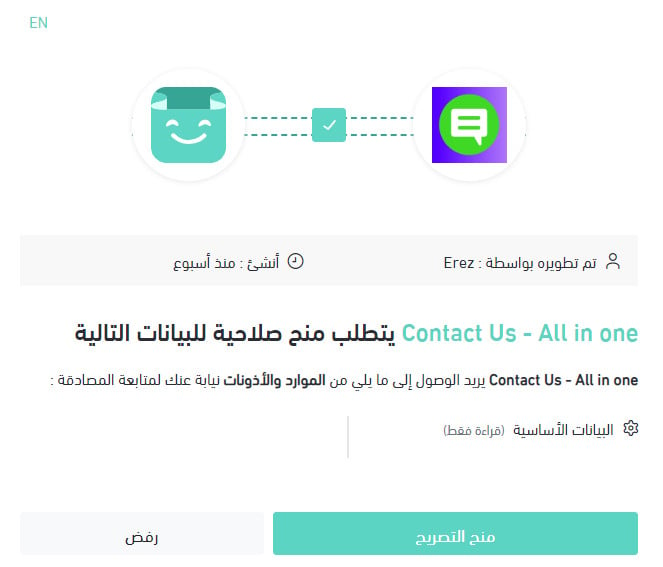
4. Check the permissions the app requests, then click (Grant permission).
The Contact Us app is now installed on your store.
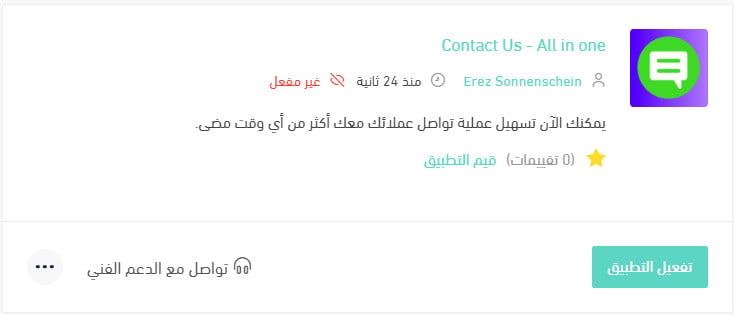
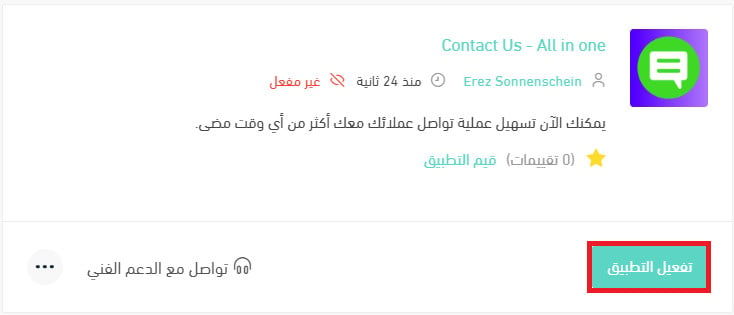
5. Click (Activate app).
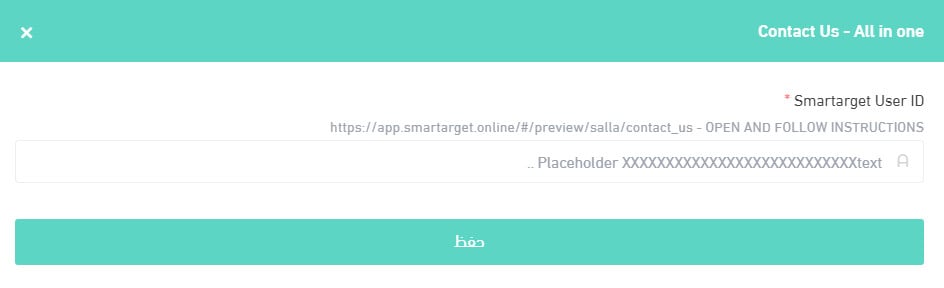
6. Paste your Smartarget user ID into the field provided, then click (Save).
7. Customize the Contact Us button to suit your store, then click (Save Settings).
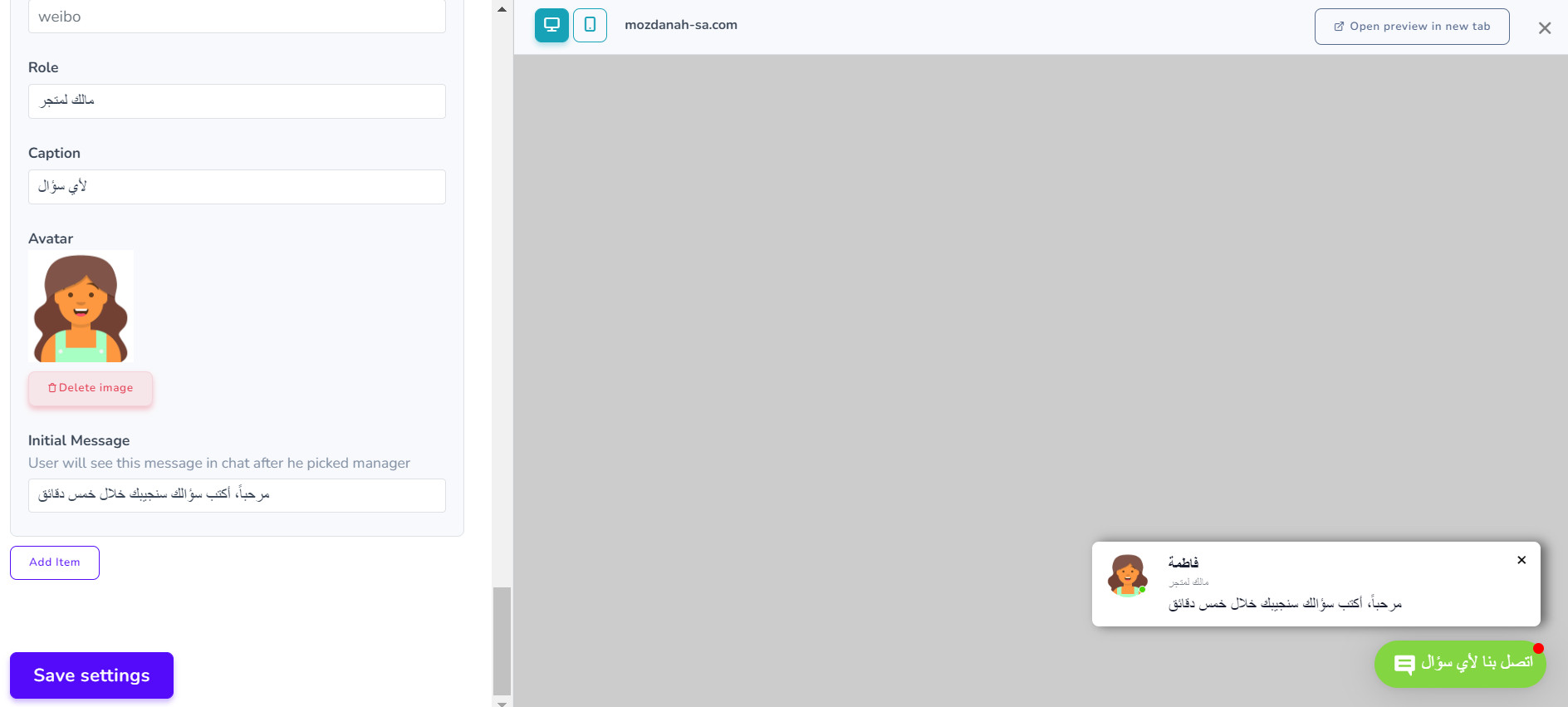
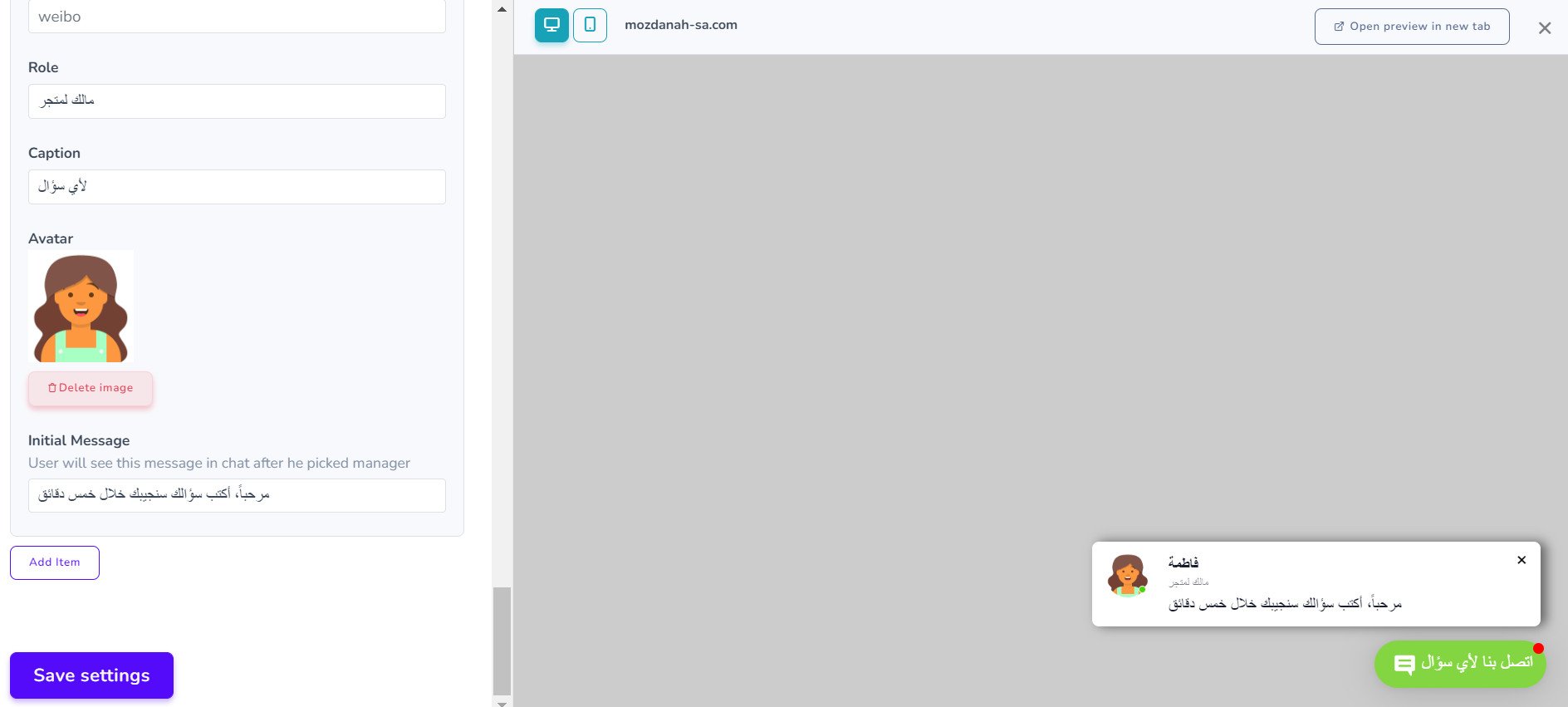
Based on those settings, this is how the Contact Us button appears to your customers:
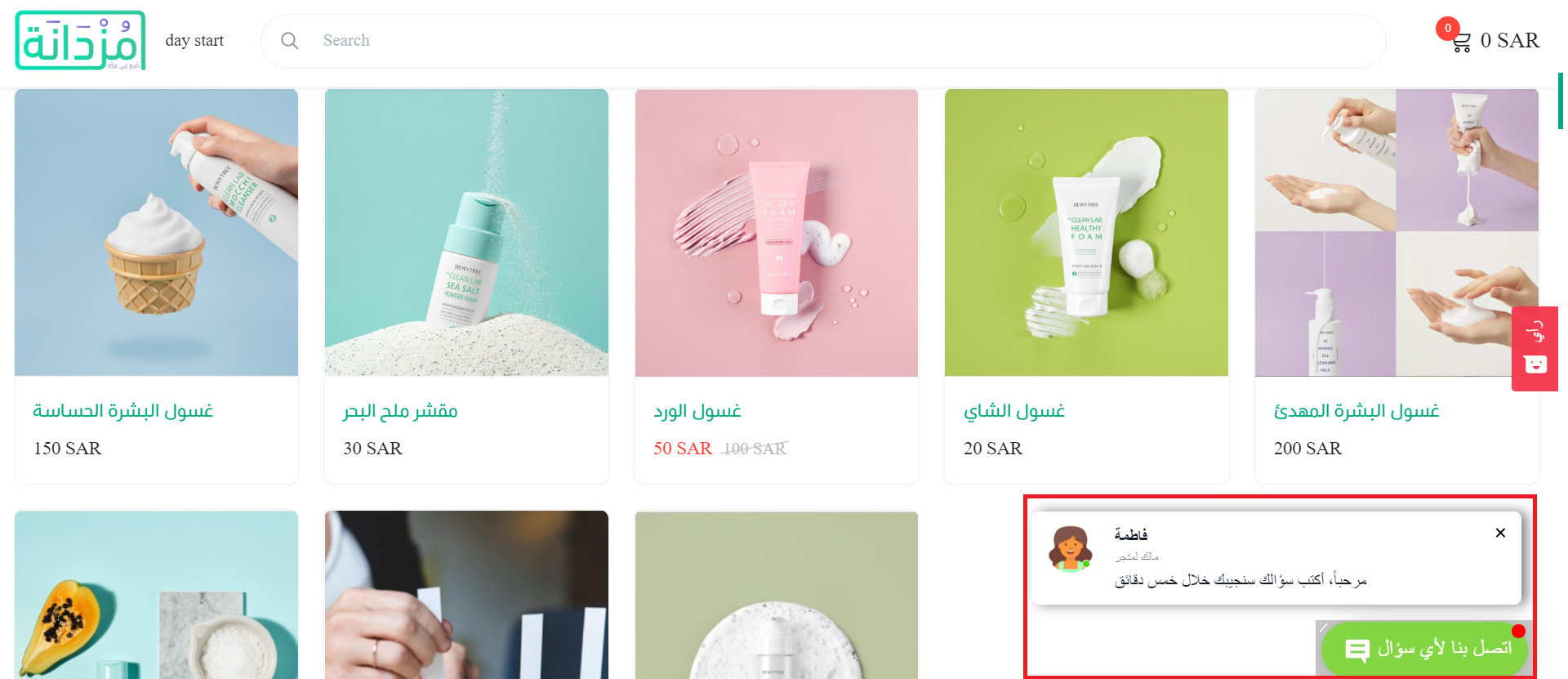
For more details, see managing my store apps.
❓ Frequently asked questions
These are the questions merchants ask most:
1. How do I create a new Smartarget account?
2. Where do I copy my Smartarget user ID from?
3. How do I remove the Contact Us app from my store?
How do I create a new Smartarget account?
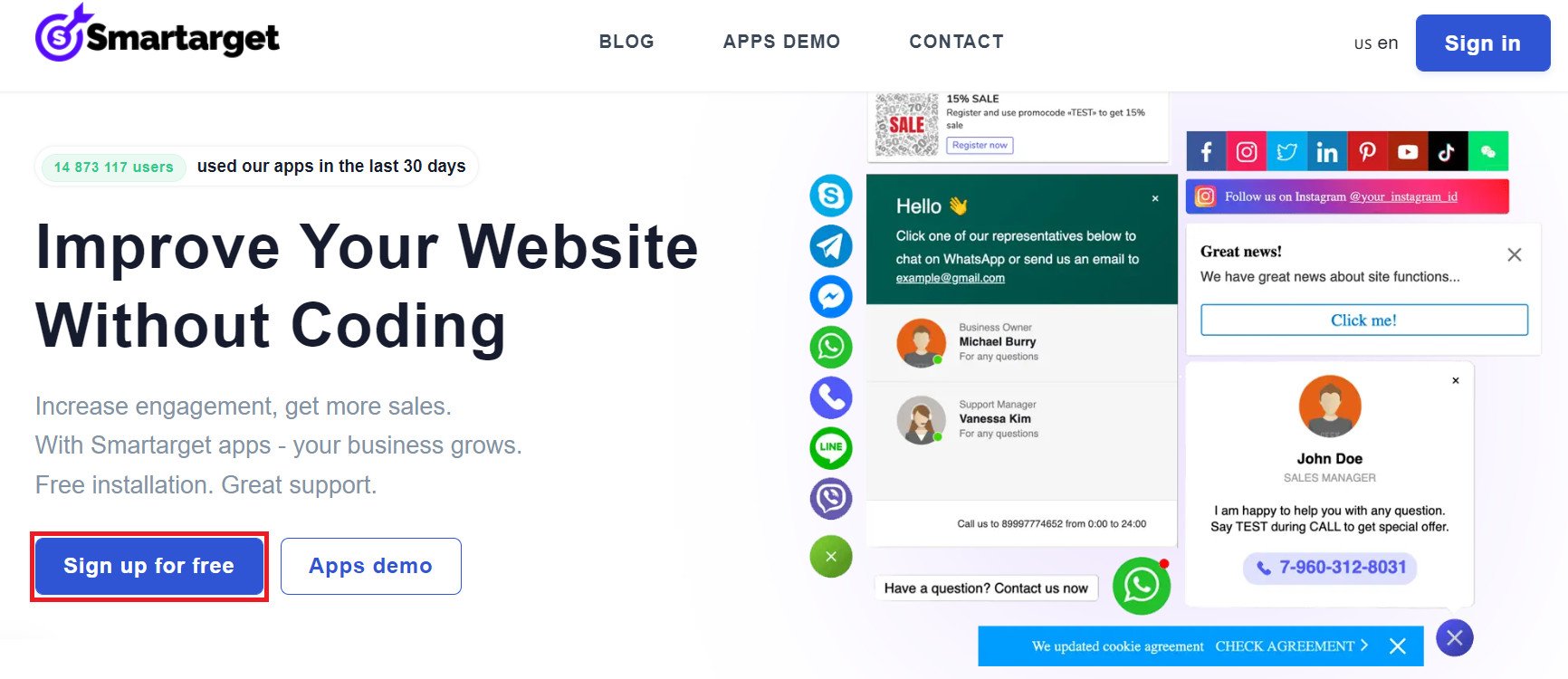
1. On the Smartarget home page, click (Sign up free).
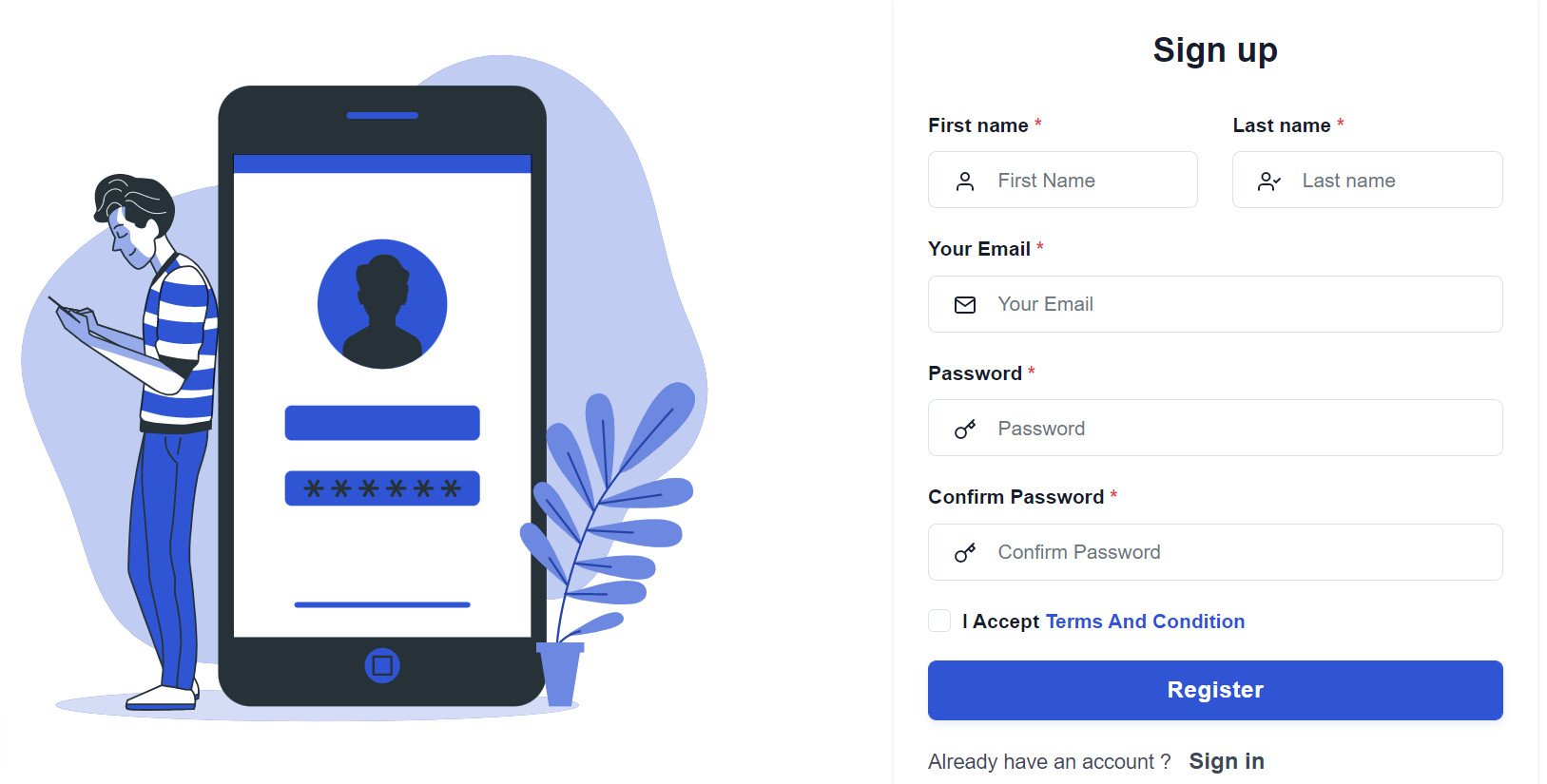
2. Enter the details it asks for, then click (Register).
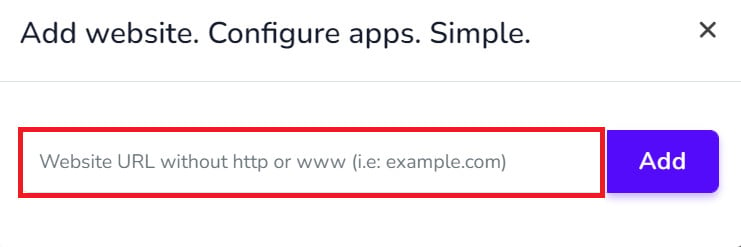
3. Confirm your account through the email you receive, sign in, then click (Add website).
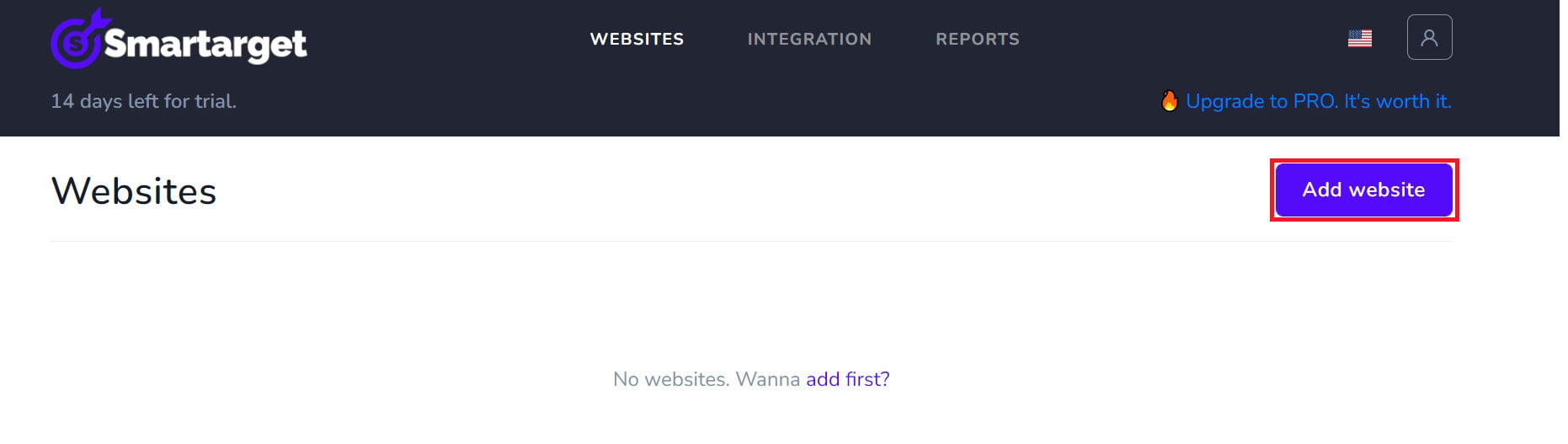
Then add your Salla store domain.
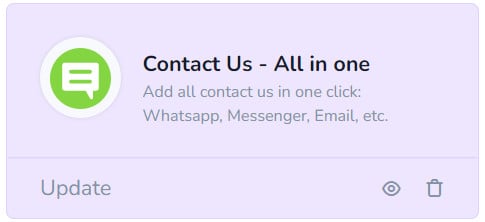
4. To add the Contact Us button to your store, click (Contact Us - All in one).
Then set up the Contact Us - All in one button settings for your store.
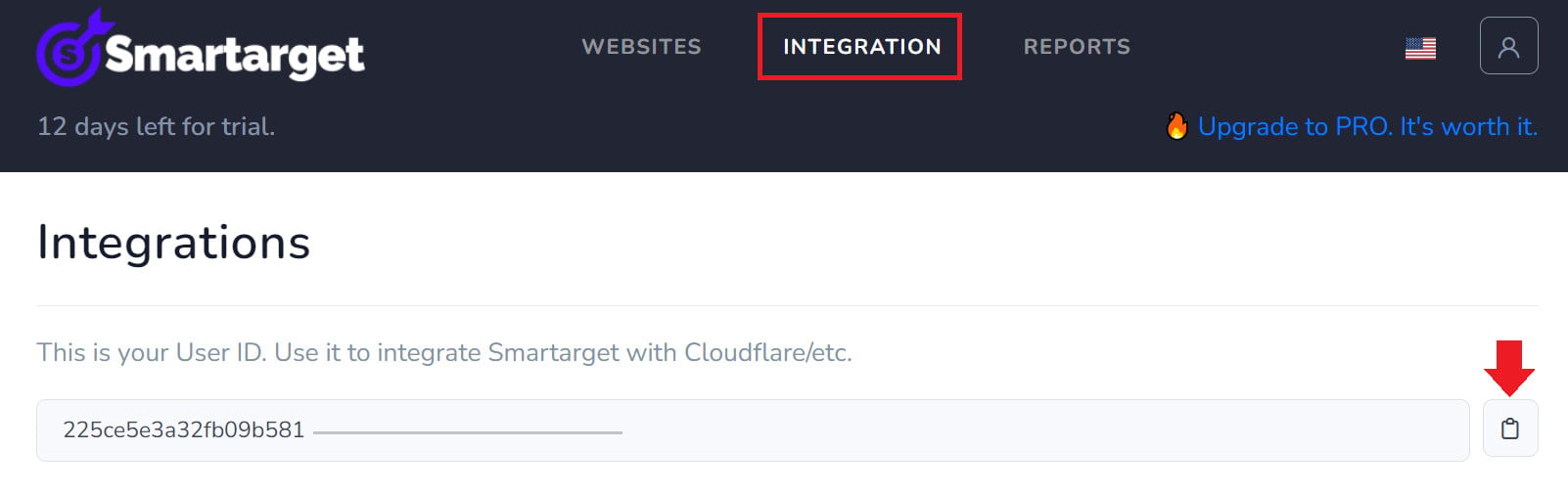
Where do I copy my Smartarget user ID from?
In your Smartarget account, go to the (INTEGRATION) page, then click the (Copy) button to copy your user ID.
How do I remove the Contact Us - All in one app from my store?
1. From the side menu of your dashboard, click (My installed apps).

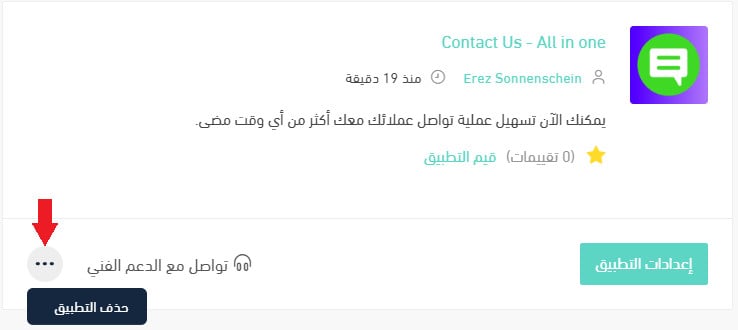
2. On the all apps page, find the Contact Us - All in one app, click (...), then click (Delete app), as shown in the image.