Are visitors leaving your store before you get a chance to make them an offer?
WisePops creates smart popups that appear inside your store while customers are browsing, so your message reaches them at the right moment. It offers a range of popup types and sizes, which makes your messaging more precise and better organized. In this guide, you'll learn how to sign up for WisePops and how to install and connect the app to your Salla store.
To connect WisePops to your store, create a WisePops account, open (Settings) in the WisePops dashboard, click (Install), and copy the code. Then, in your Salla dashboard, install the WisePops app from the Salla App Store, open (App options) and click (Activate app), paste the code, and click (Activate connection).
📌 Article overview
- Signing up on the WisePops site
- Installing the app on your Salla store
- Frequently asked questions
🚀 Signing up on the WisePops site
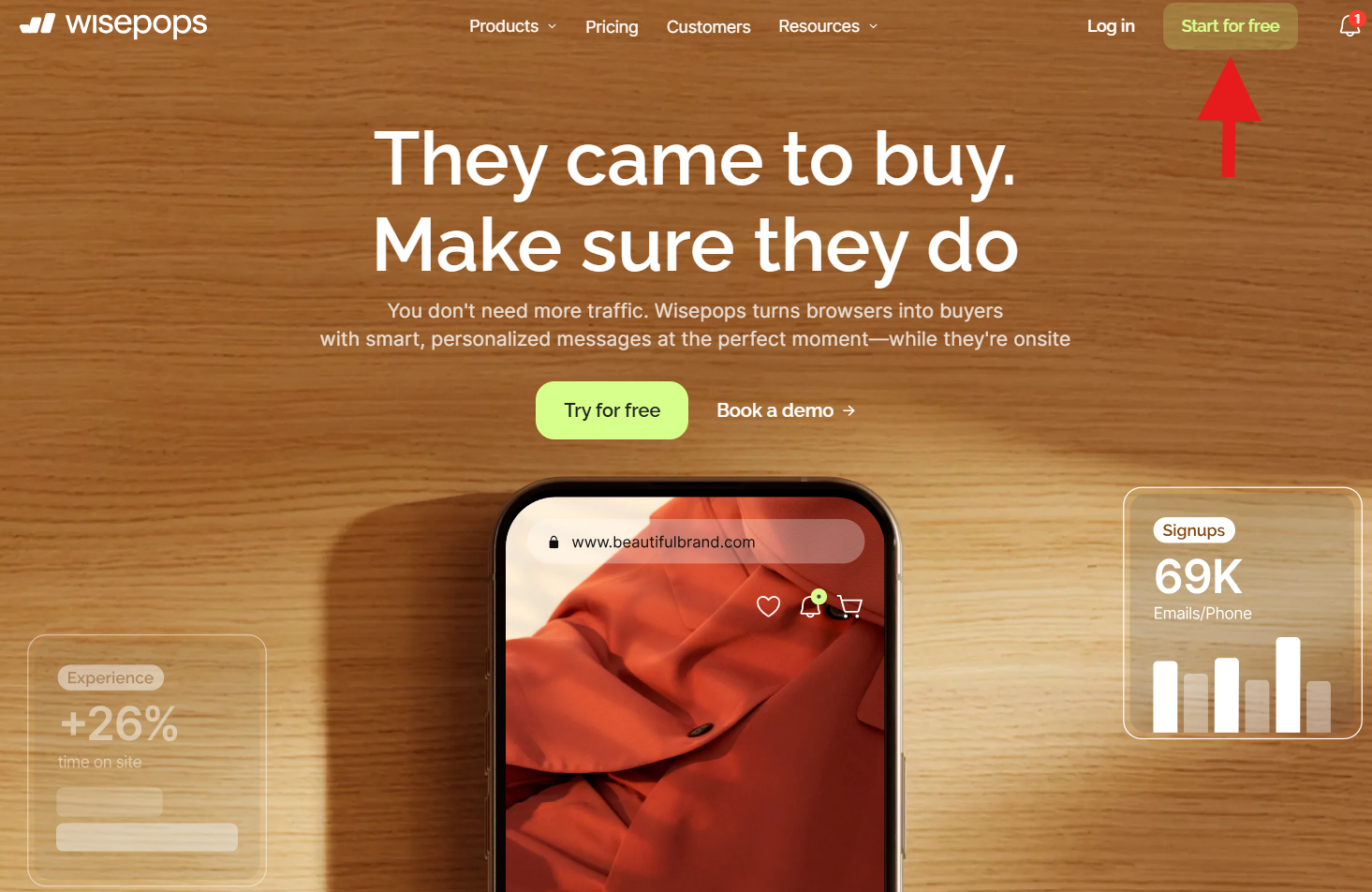
1. Go to the WisePops site, then click (Start for free).
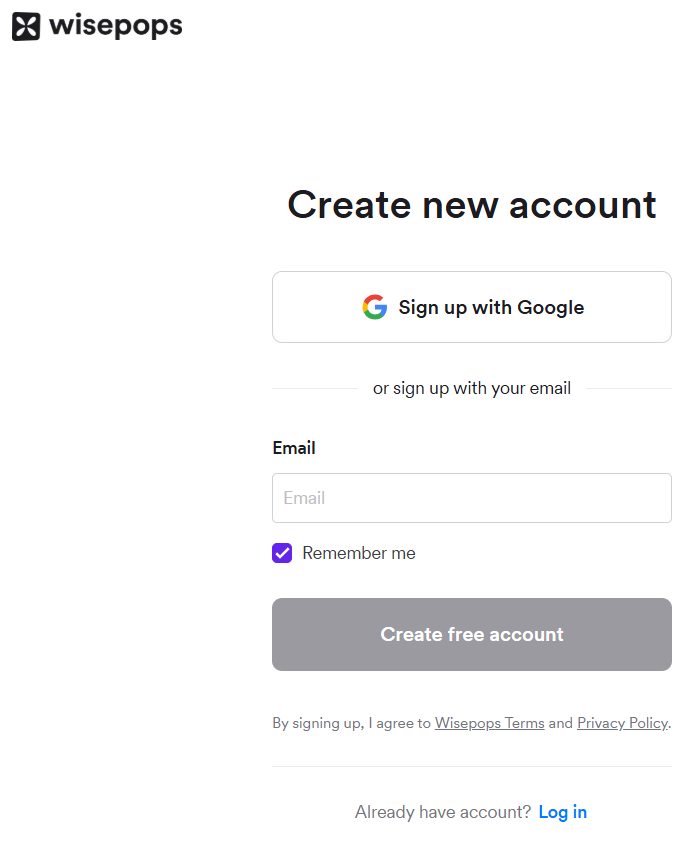
2. Enter the email address you want to register with on WisePops.
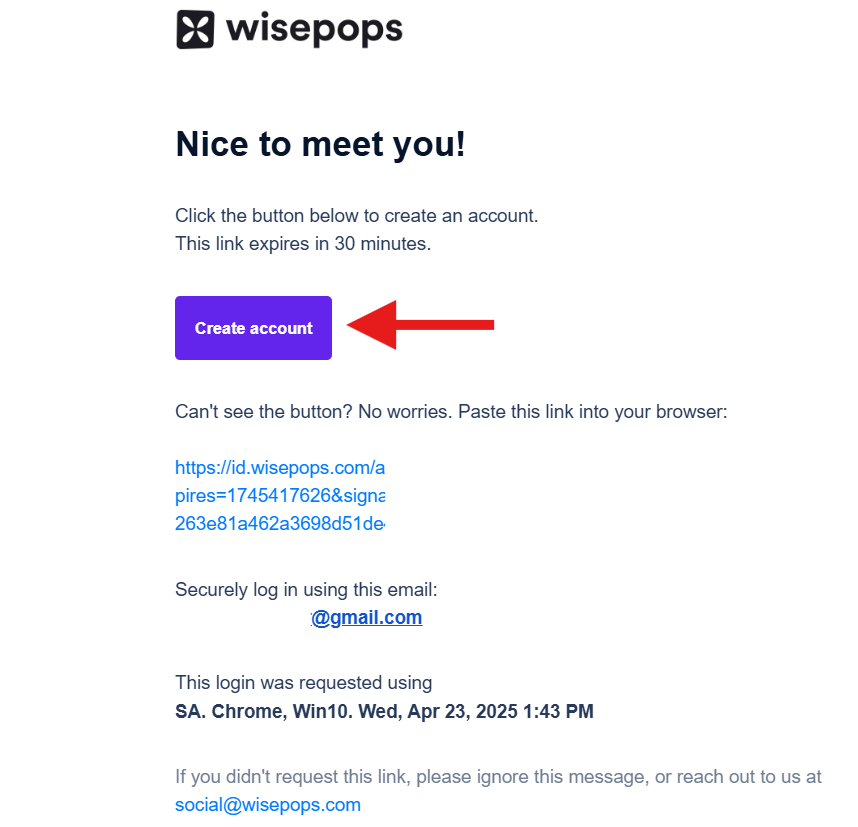
3. You'll get an email — to finish signing in, click (Create account).
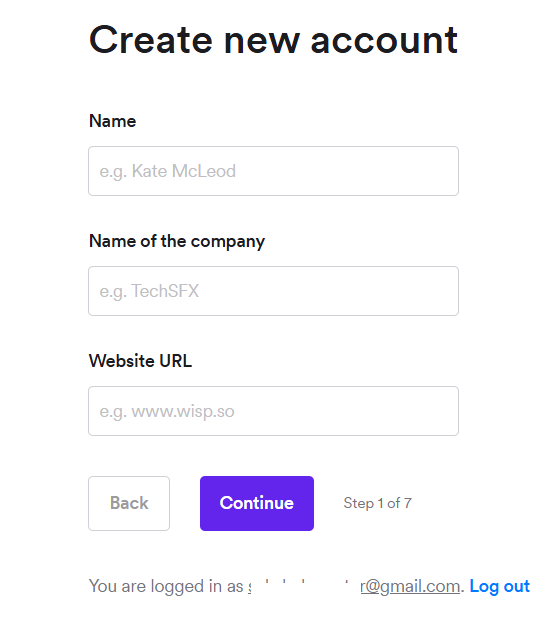
4. Enter your details and your store URL to create the new account, then click (Continue).
5. Complete the 6-question survey, and click (Submit) on the last step.
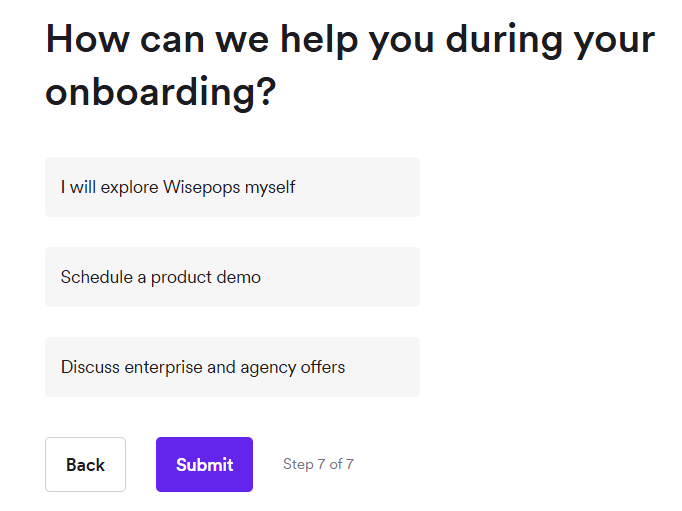
🎉 Congratulations! You're signed in.
6. You'll land on the main WisePops dashboard. From the side menu, click (Settings).
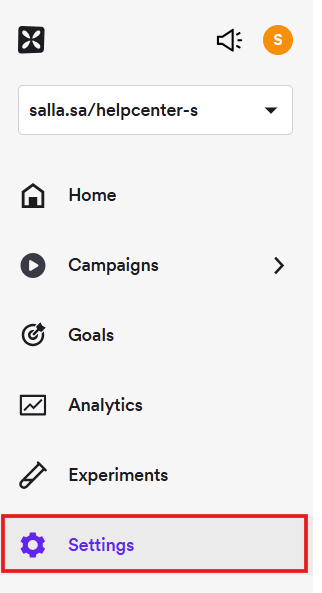
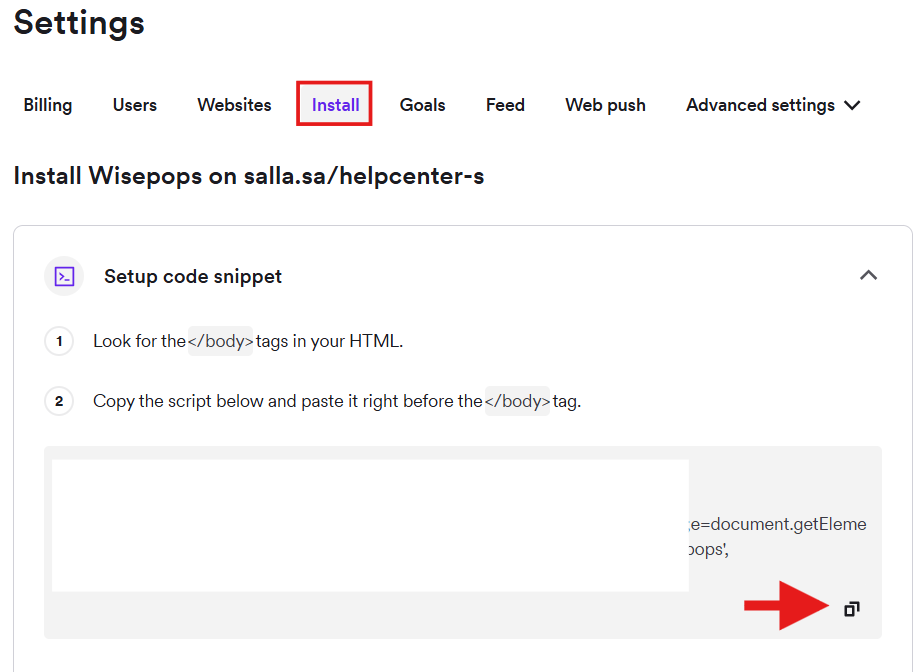
7. From the top bar, click (Install), then copy the code — you'll need it in the next section.
🚀 Installing the app on your Salla store
1. From the side menu of your dashboard, click (Installed apps).

2. From the Salla App Store banner, click (Browse Salla App Store).

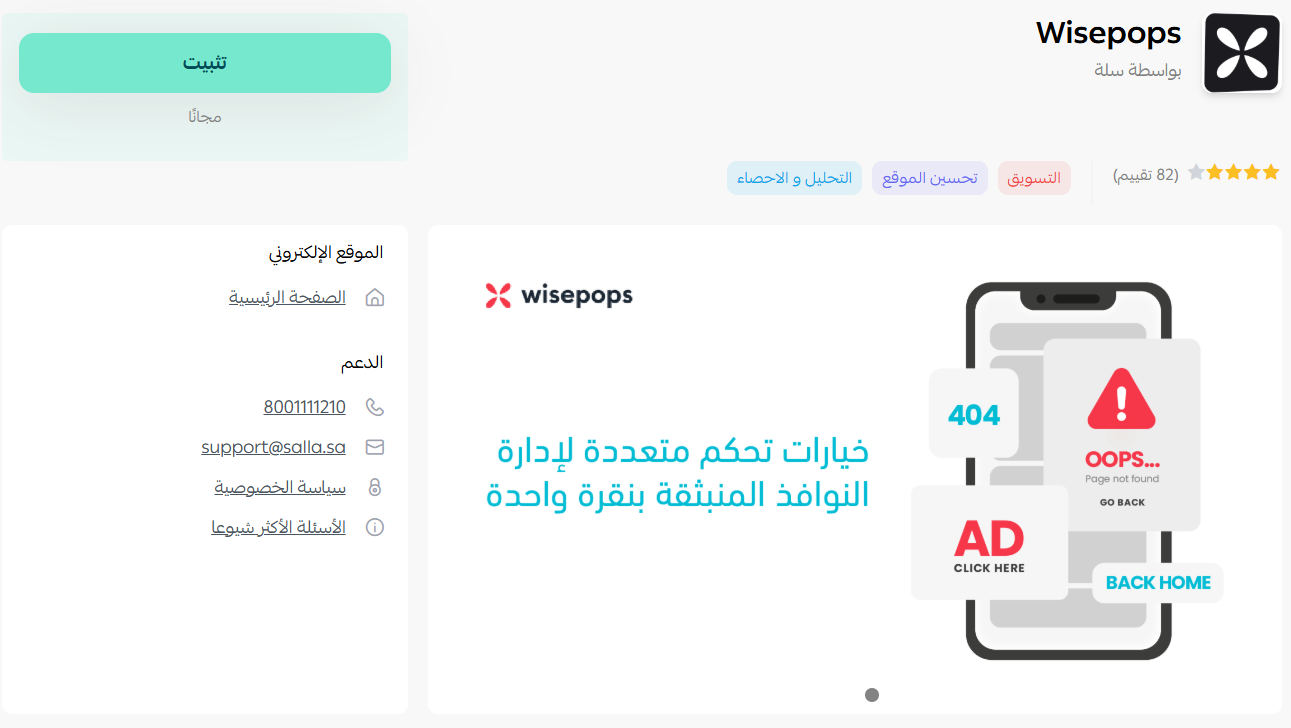
3. From the WisePops app, click (Install).
4. On the installed apps page, from the WisePops app card, click (App options), then (Activate app).
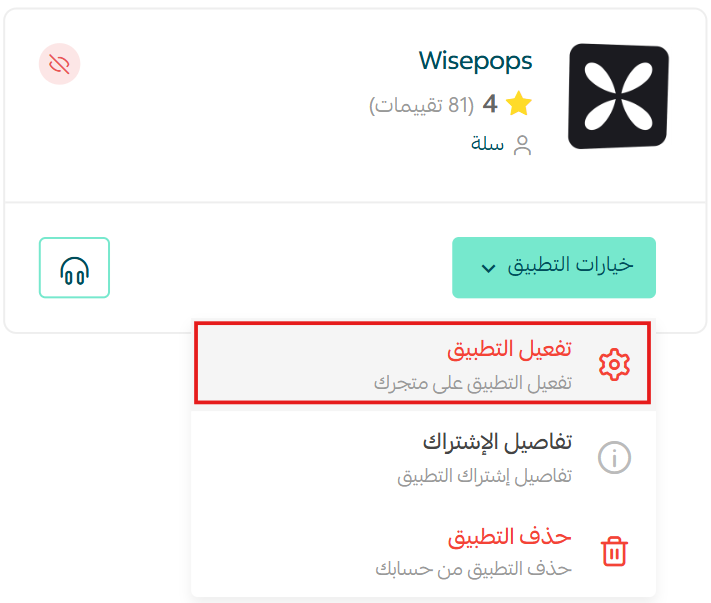
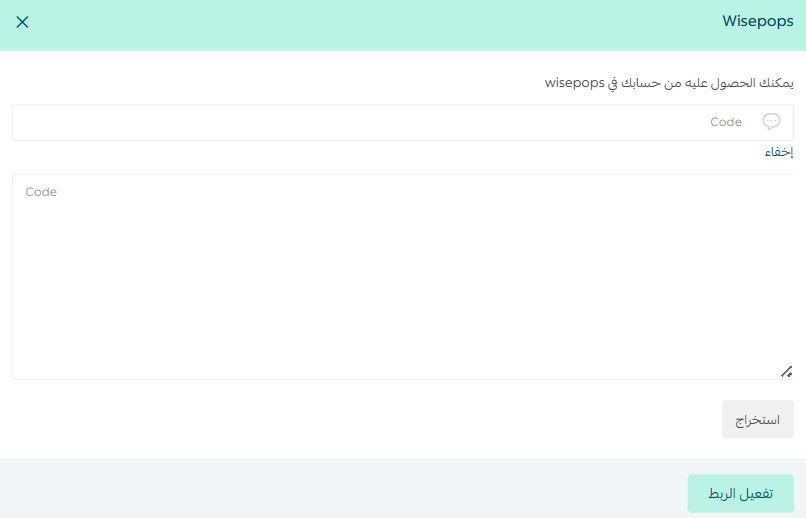
5. Paste the code you copied in step 7 on the WisePops platform, then click (Activate connection).
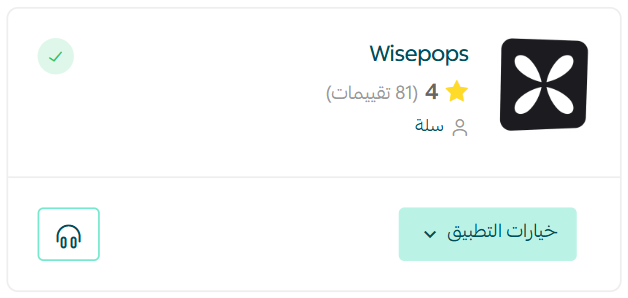
🎉 Congratulations! The app is now active in your store.
❓ Frequently asked questions
What can I do with WisePops?
- Design popups from a range of templates, or build your own.
- Target a specific geographic area or audience segment.
- Improve how popups appear on mobile.
- Win back hesitant shoppers by targeting them with promotional offers in a popup.
- Control when a popup appears and what triggers it — such as mouse movement or clicking back.
Is WisePops free?
The service is paid, sold in plans, and you can try it free for 14 days.
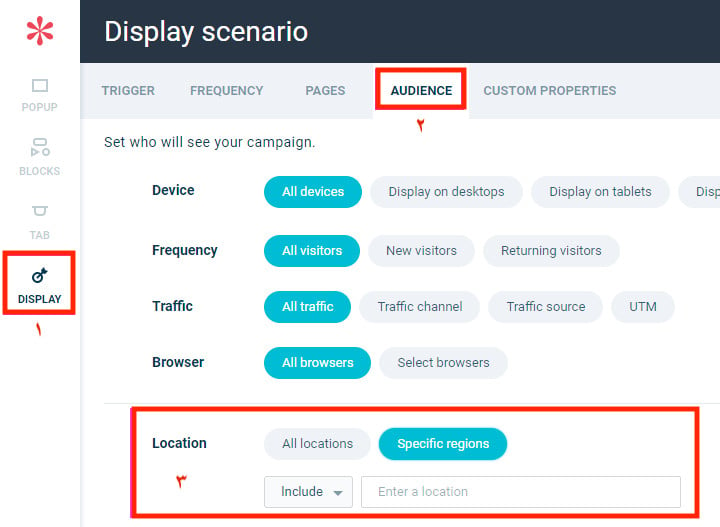
Can I target or exclude a specific country or city?
Yes — this option is available only on the WisePops Pro plan and above.
Can I add more than one store to the service?
Yes, you can add 5 stores free of charge.
Can I run multiple popups in my store?
You can activate more than one popup in your store. The only limit is that you can't run more than one popup on the same page.
Can I schedule a popup campaign?
Yes — this option is available on the Grow and Pro plans and above.
1. From the Dashboard page, choose the campaign you want to schedule.
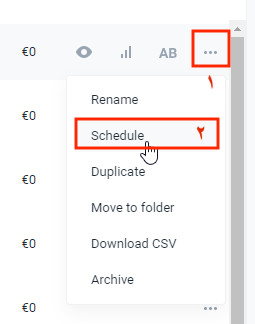
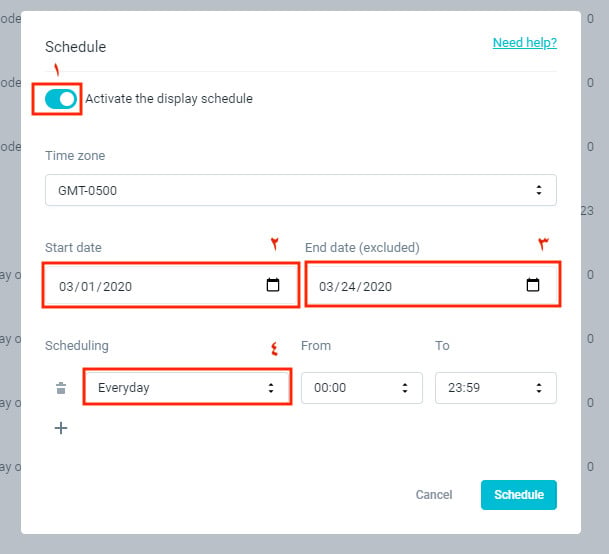
2. Turn on the scheduling option, set the campaign's start and end dates, choose the schedule duration, then click (Schedule).
Do popups show in my store's app, or only in the browser?
In the browser only.
Can I cancel my subscription at any time?
Yes. Cancel your plan from Settings > Billing > Cancel subscription, then click Request Cancel.