Still rebuilding your sales figures by hand every time you close the month?
Connecting Wazen ERP to your Salla store sends your customers and sales invoices straight into your accounting system, so your books follow your orders instead of trailing behind them. The app is installed from the Salla App Store and connected with an API key from your Wazen account. In this guide, you'll learn how to install and activate the app, choose what gets synced, open a Wazen account, and remove the app if you no longer need it.
Wazen ERP is a business management system you can connect to Salla through the Salla App Store. Install the Wazen app, grant the permissions it requests, activate it from your installed apps page, then enter your Wazen API key and choose whether to sync customers, sales invoices, or both.
📌 Article overview
- What Wazen ERP is
- How to connect Wazen to your Salla store
- Creating a Wazen account
- Frequently asked questions
🎯 What is Wazen ERP?
Wazen is an app for running several lines of business at once. It lets you follow and control projects of different kinds from anywhere, at any time, and keeps the details of all your branches and companies in one place.
🚀 How to connect Wazen to your Salla store
1. From the dashboard side menu, click (Installed apps).

2. On the Salla App Store banner, click (Browse the Salla App Store).

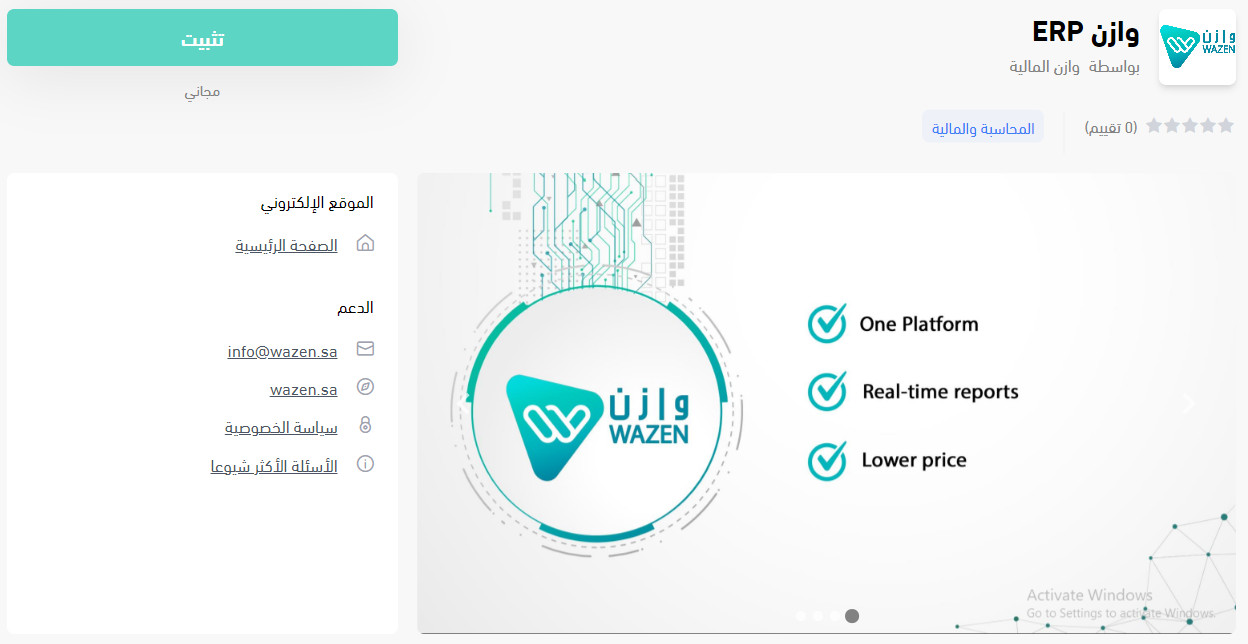
3. On the Wazen app page, click (Install).
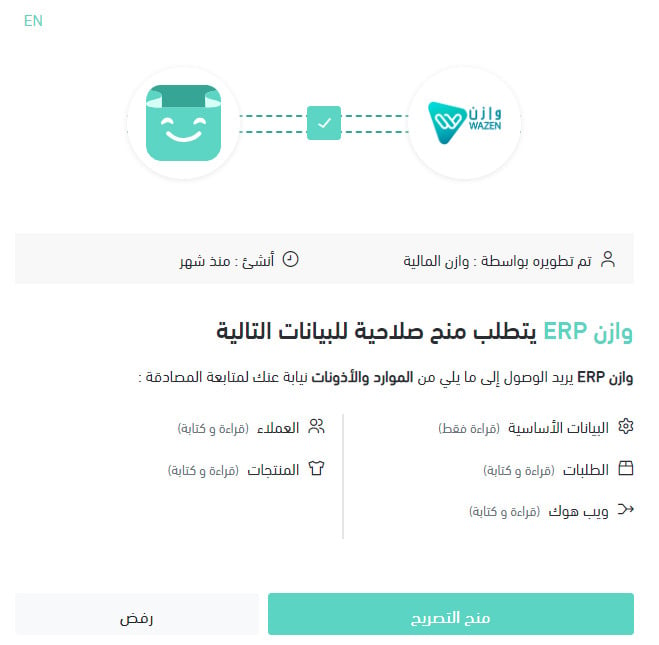
4. Review the permissions the app requests, then click (Grant permission).
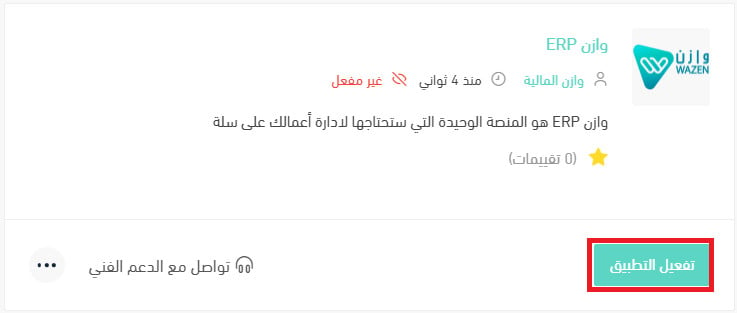
5. On the installed apps page, find the Wazen app and click (Activate app).
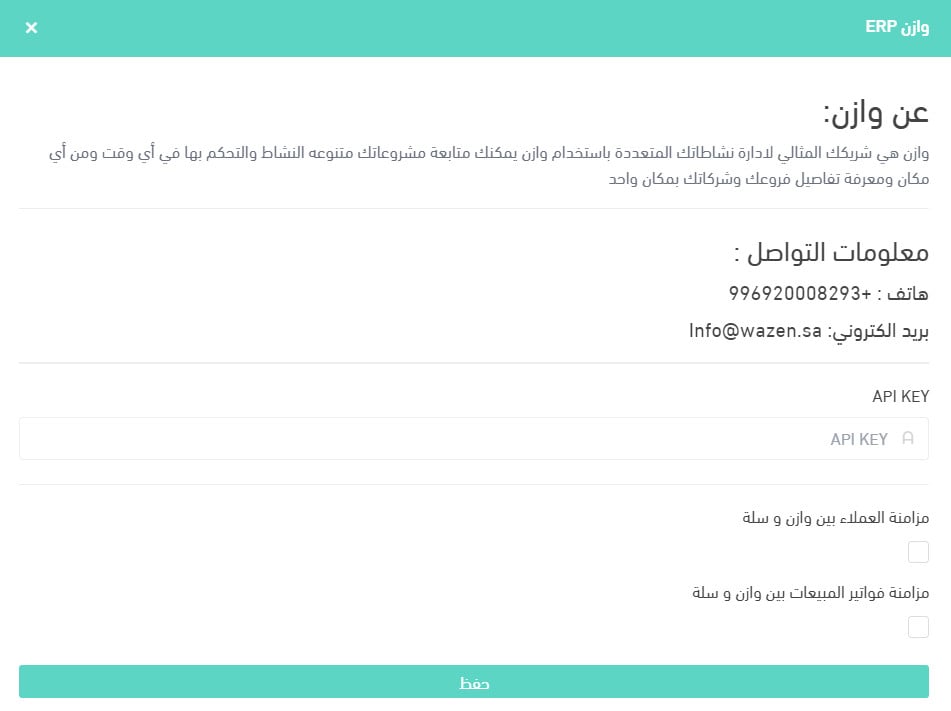
6. Enter the API key for your Wazen account, choose what you want synced with Wazen (customers or sales invoices), then click (Save).
Your Salla account is now connected to your Wazen account, and you can import orders and follow your financial activity from there.
For more on managing your store's apps.
❓ Frequently asked questions
For more, see the Wazen help center.
What data is synced between Salla and Wazen?
Customers and sales invoices. You choose which of the two to sync when you enter your API key in the app settings.
Where do I find my API key?
The key comes from your Wazen account, and you paste it into the Wazen app settings in your Salla dashboard.
Do I need a paid Wazen plan to try the connection?
No. Wazen offers a 14-day trial account, and you pick the plan that suits your business when you sign up.
How do I create a Wazen account?
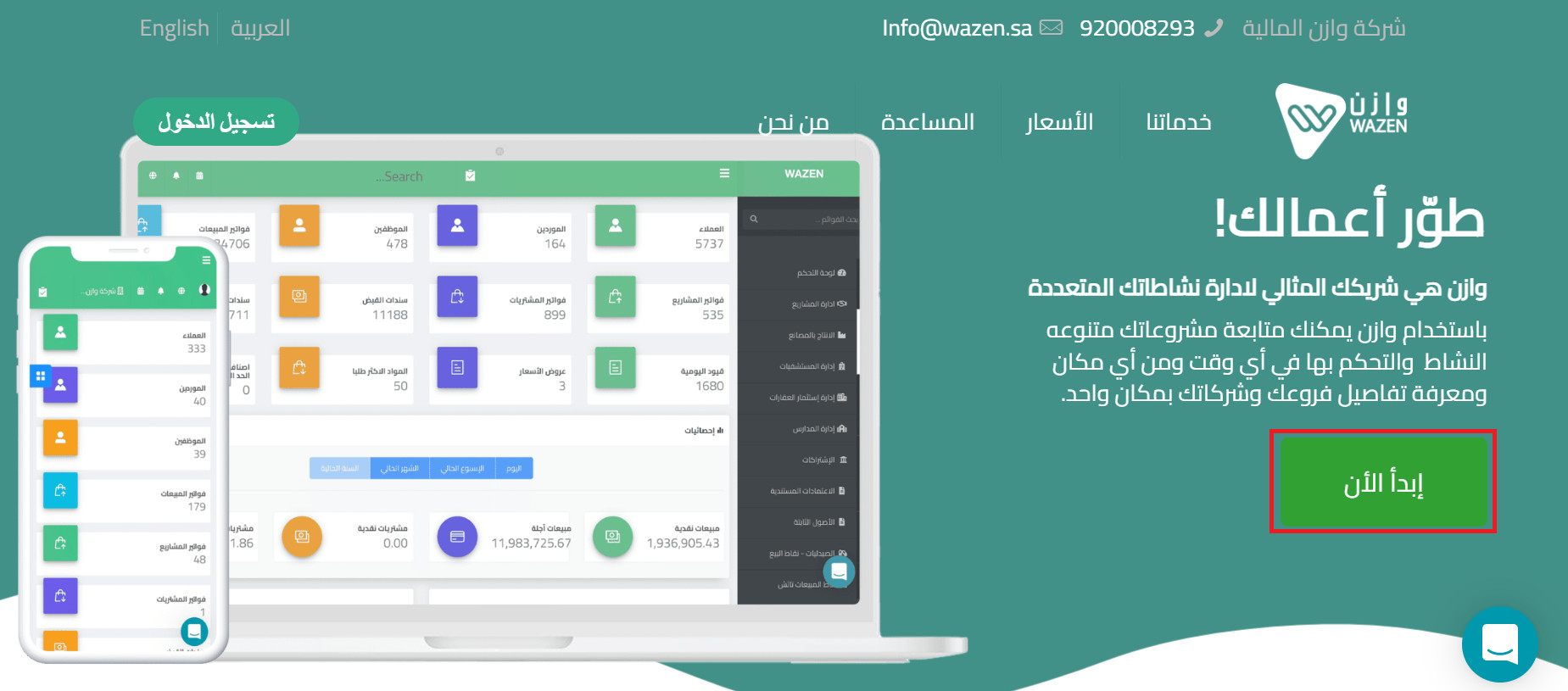
1. Open the Wazen home page and choose the plan that fits the type and size of your business. A trial account runs for 14 days.
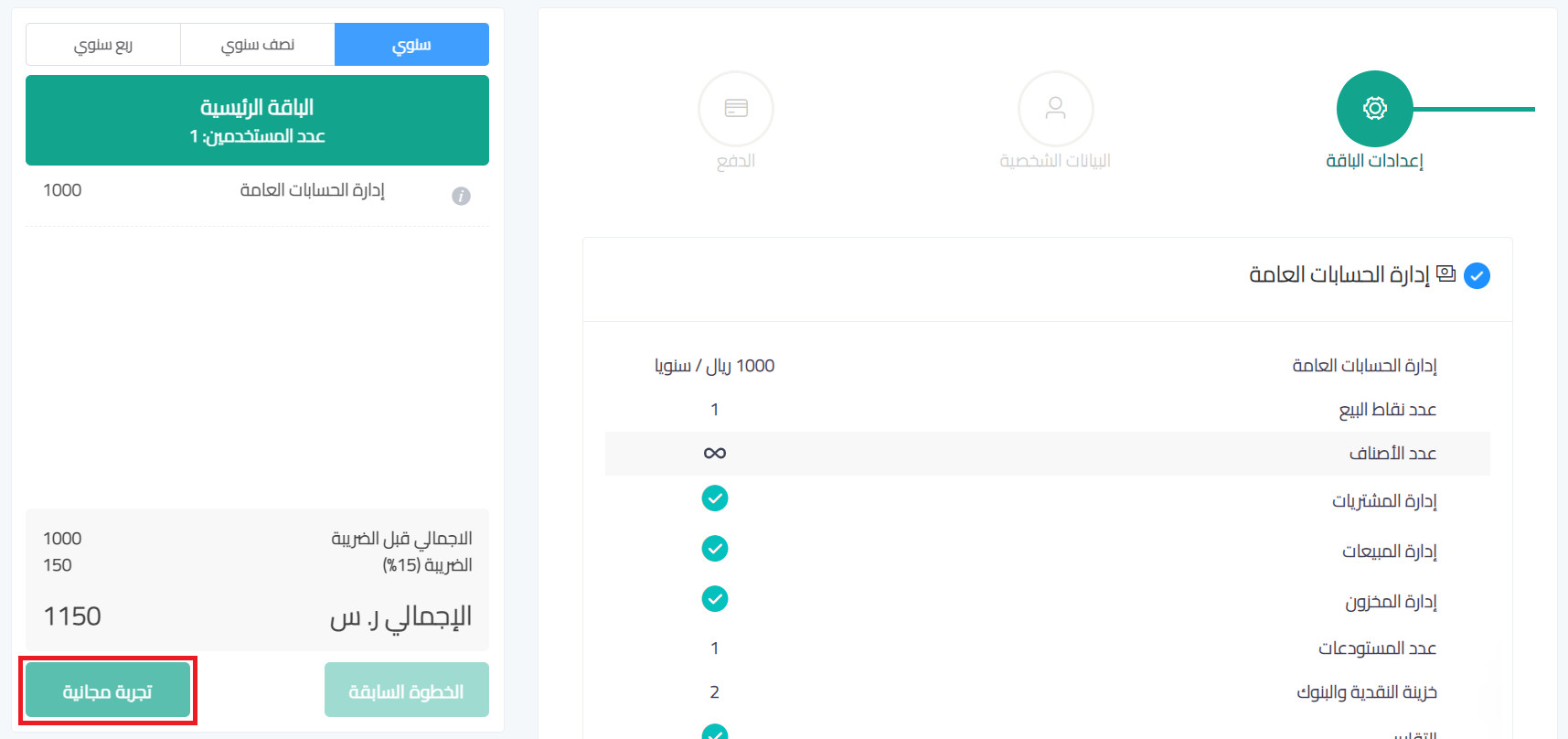
2. Fill in your details, enter the commercial registration number for your company or organization, then click (Free trial).
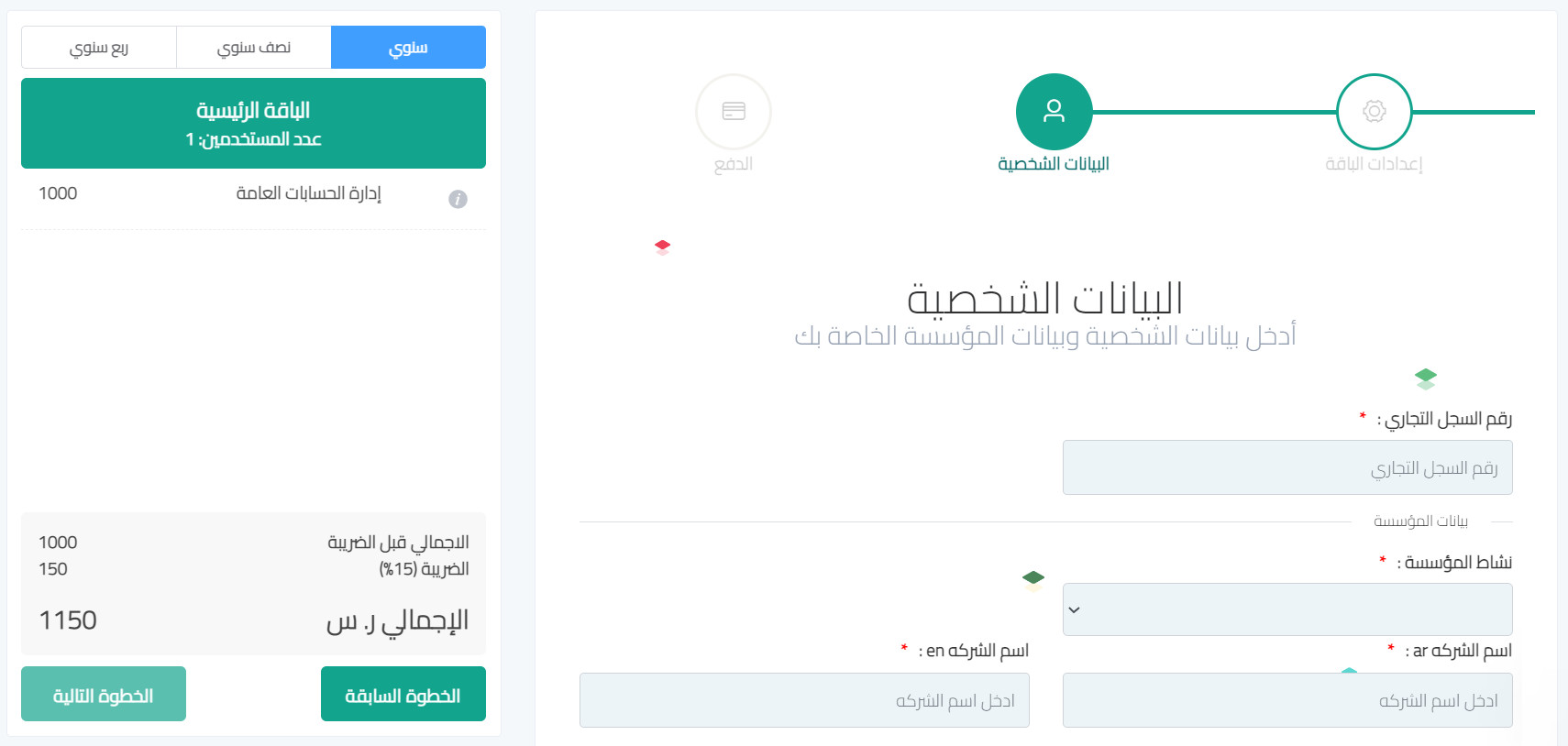
3. Enter your personal details, then choose the apps you need.
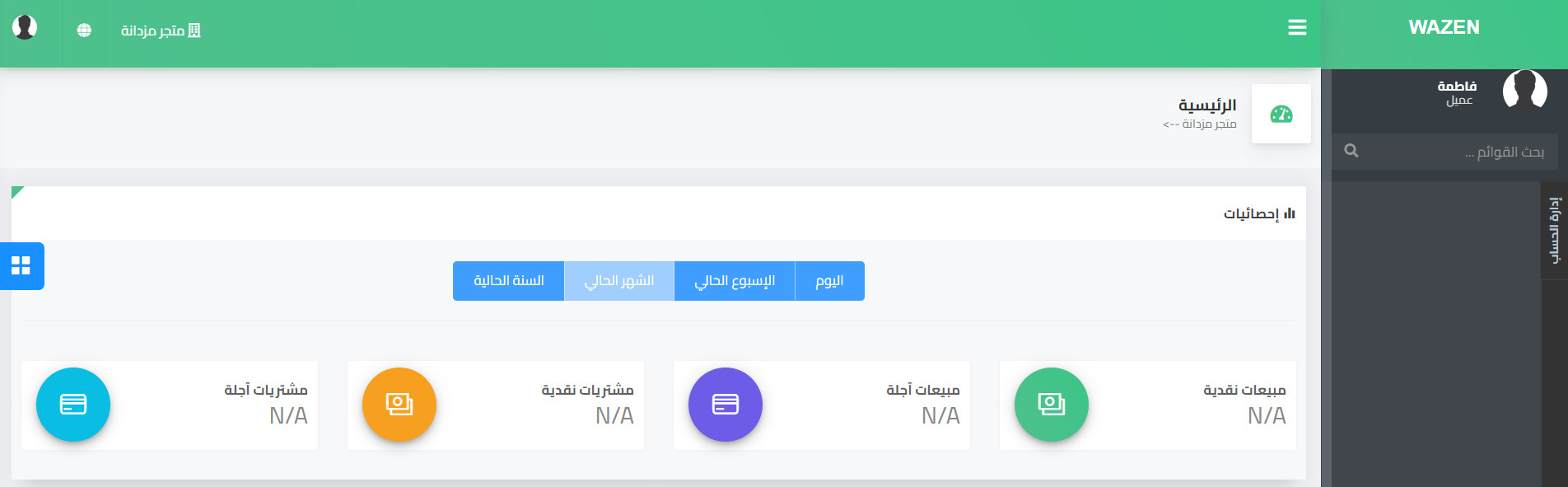
Once you have finished signing up, the home page opens like this:
How do I delete the Wazen app from my store?
1. From the dashboard side menu, click (Installed apps).

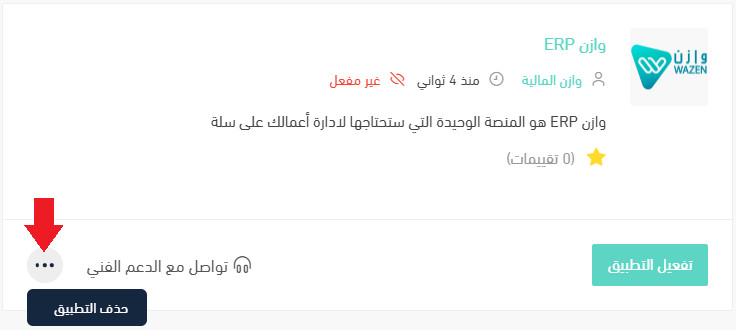
2. On the all apps page, find the Wazen app, click the (...) icon, then click (Delete app), as shown in the image.
📝 Important notes
Installing the app is not enough on its own — the connection only starts working once you activate the app and save your API key.
Deleting the app stops the sync, so export anything you still need from Wazen before you remove it.
Once orders and invoices flow into one system, closing the month stops being a data-entry job and starts being a review.