What would it take to get the customer who bought once to keep coming back?
A loyalty program is usually the answer, and Upp Rewards gives you one without any development work. It is a rewards web app with features built in and ready to be tailored to your brand, and it can be live in under ten minutes. In this guide, you'll learn how to install Upp Rewards on your Salla store, activate it, and set up the points, stamps, and offers behind your program.
Upp Rewards is a customizable loyalty web app you connect to your Salla store in two stages: install it from the Salla App Store, then activate it and set up your program. You choose points, digital stamps, or both, brand the customer app, and define how rewards are earned and redeemed.
📌 Article overview
- What Upp Rewards is
- Stage one: installing the app
- Stage two: activating the app
- Setting up your rewards program
- Frequently asked questions
🎯 What is Upp Rewards?
Upp Rewards is a rewards web app with features built in ahead of time. You can tailor all of them to what your brand needs, and launch the program in no more than ten minutes.
🚀 How to connect Upp Rewards to your store
Connecting Upp Rewards takes two stages:
- Installing the Upp Rewards app on your store
- Activating the Upp Rewards app on your store
Stage one: installing the Upp Rewards app
1. From the dashboard side menu, click (Installed apps).

2. On the Salla App Store banner, click (Browse the Salla App Store).

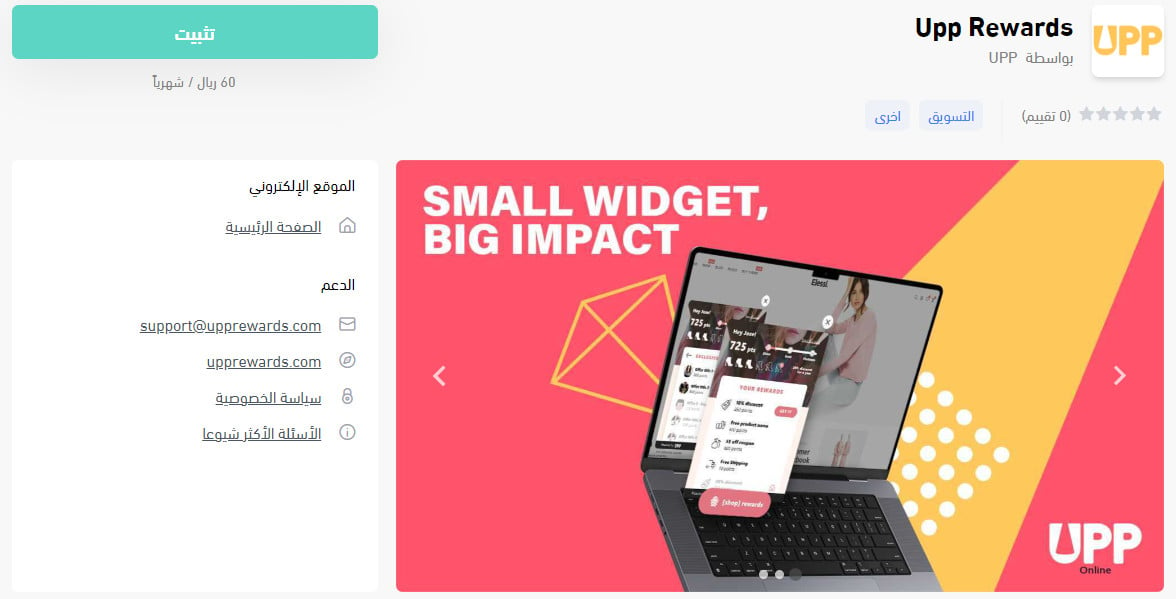
3. On the Upp Rewards app page, click (Install).
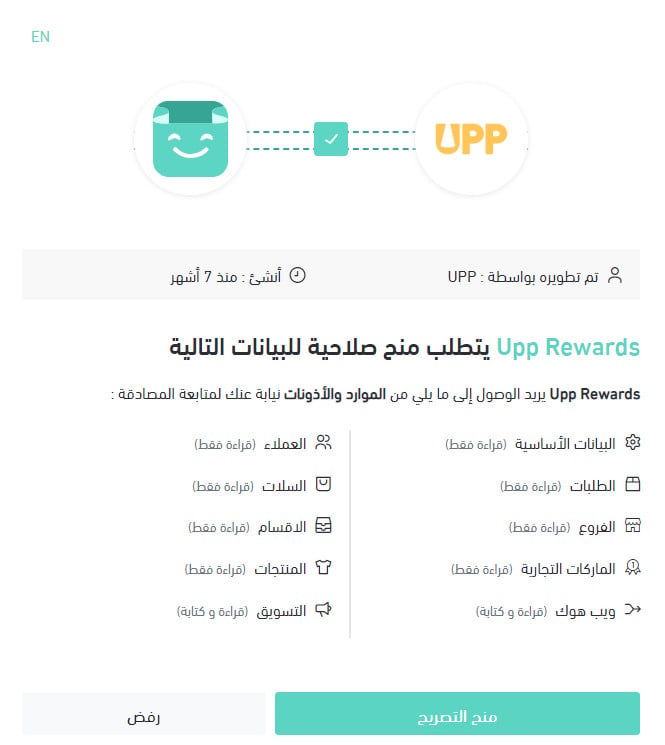
4. Review the permissions the app requests, then click (Grant permission).
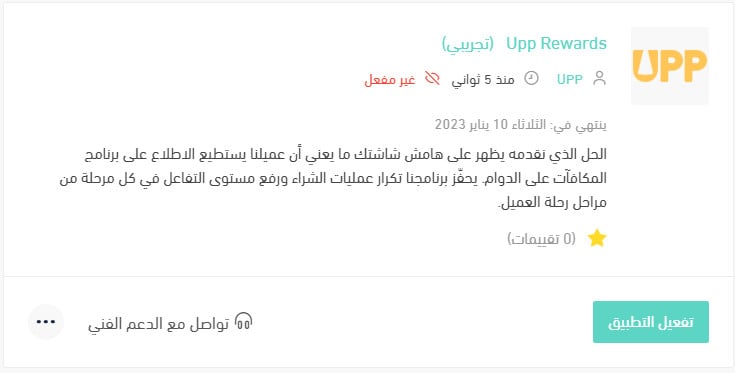
Upp Rewards is now installed and appears in your installed apps like this:
For more on managing your store's apps.
Stage two: activating the Upp Rewards app
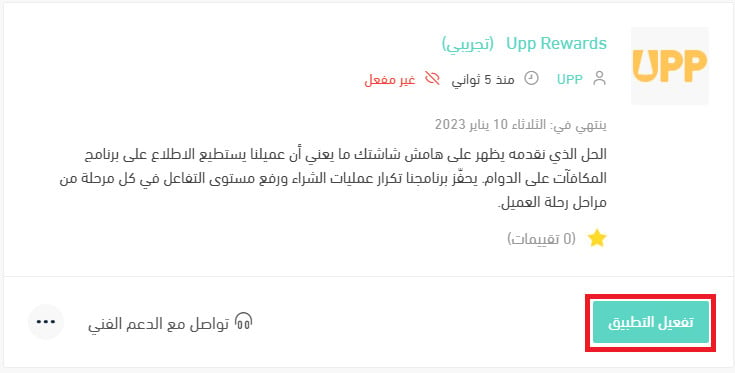
1. From the installed apps page, open the Upp Rewards app page and click (Activate app).
2. Tailor the rewards program to your brand. Enter your store name, email address, country, currency, and time zone.
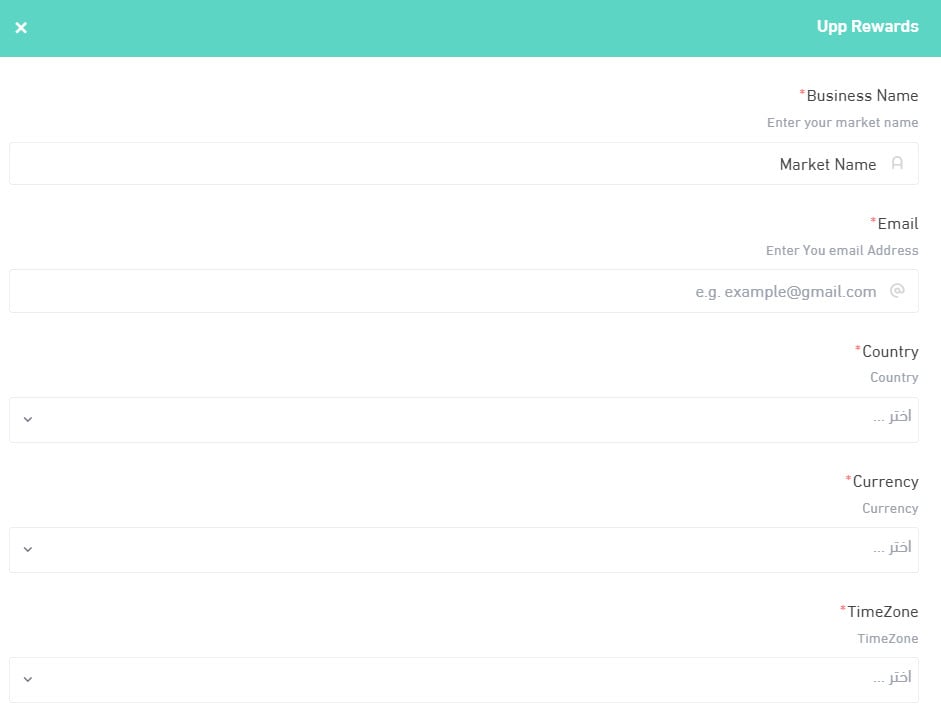
Then set the button color, your country's dialing code, and your phone number, and click (Save).
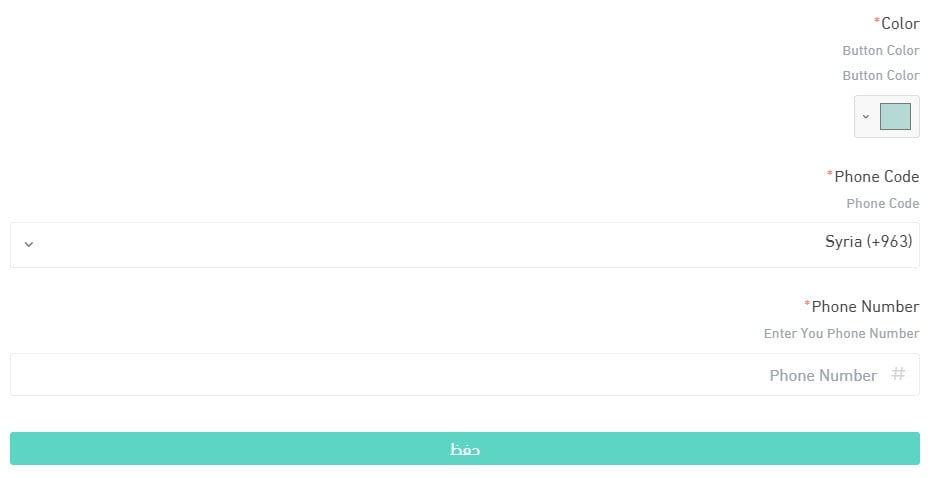
Once activated, the app appears in the app store like this:
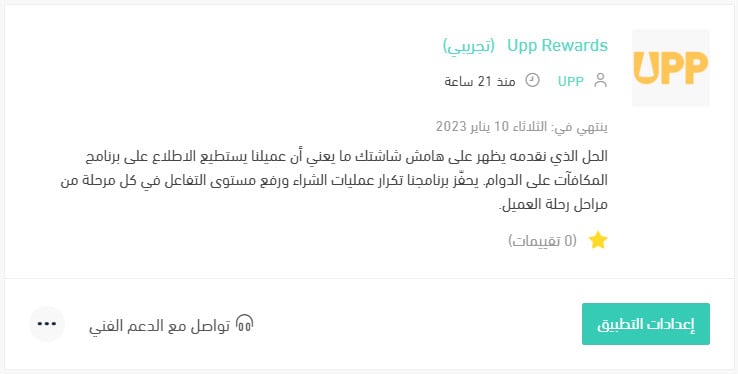
3. An email arrives at the address you registered, carrying your Upp Rewards account details and a sign-in link.
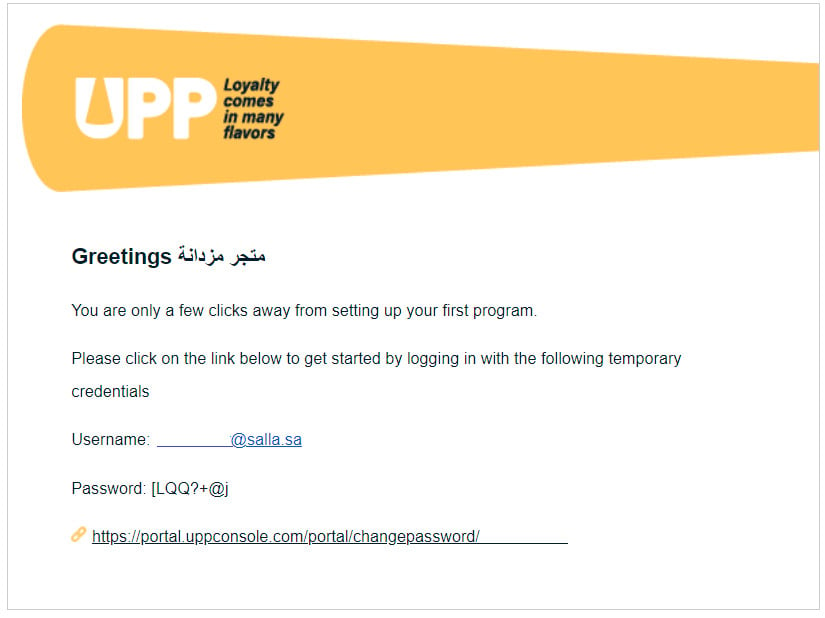
4. Set a new password for your account, then finish setting up your Upp Rewards account.
❓ Frequently asked questions
What are the main features of Upp Rewards?
- Points: set the rules for how customers earn points inside the program.
- Digital stamps: set up stamp collection to keep customers engaged with the program.
- Customer segmentation: sort customers into tiers based on the points they have earned, so you can give each tier its own experiences and offers.
How do I get started with Upp Rewards?
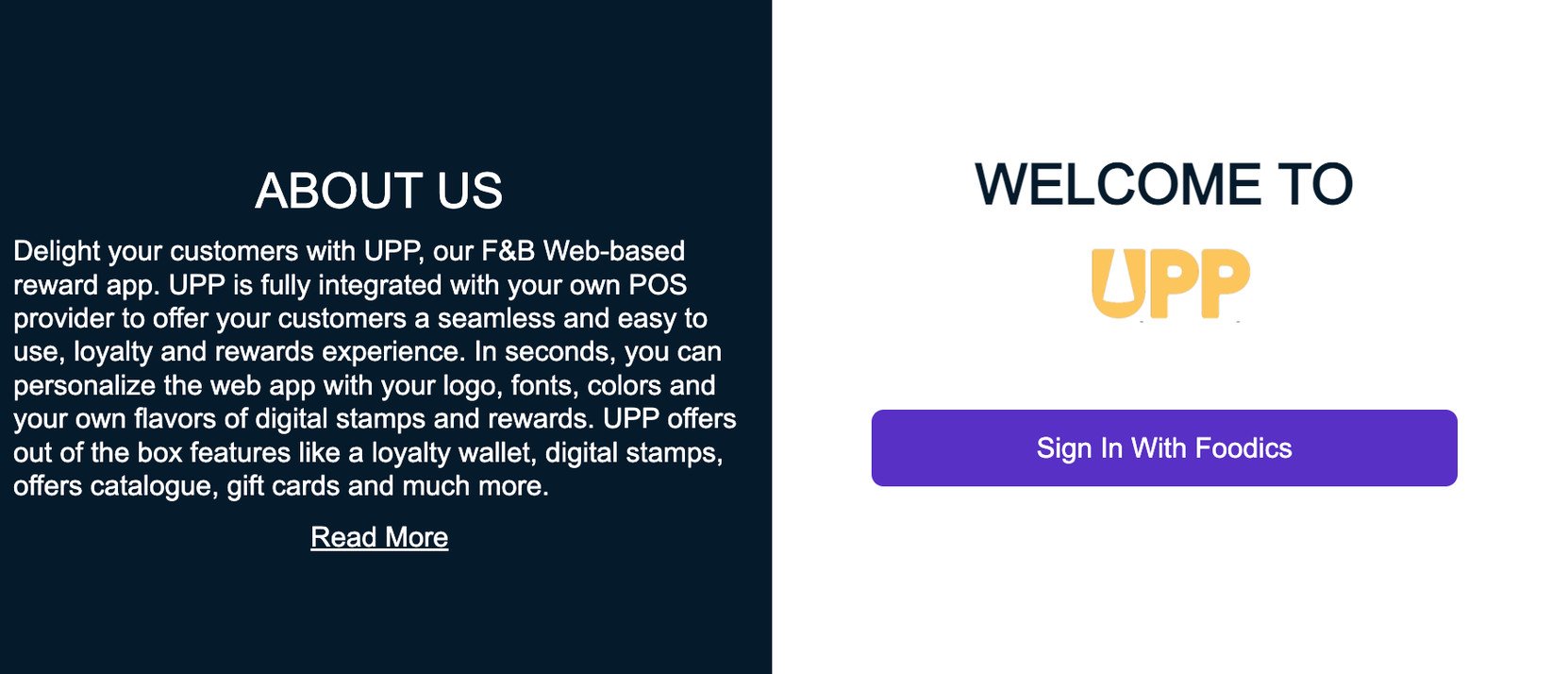
1. Sign in. Clicking (Sign in) takes you to the first business details page, after the authentication and authorization step with your point-of-sale provider.
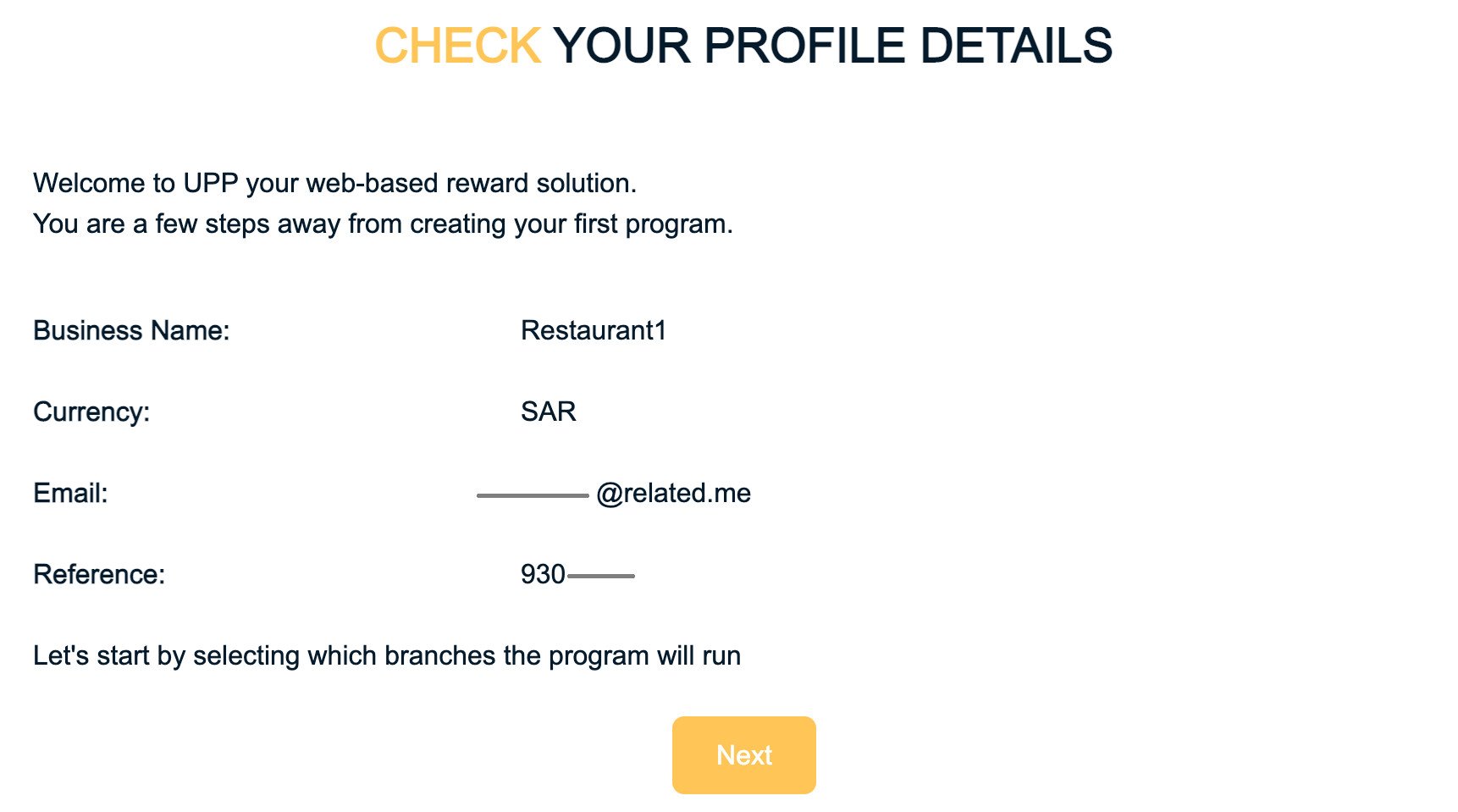
2. Check your profile details. The profile page shows the details pulled from your point-of-sale provider. They are used to identify the merchant and to drive the loyalty program.
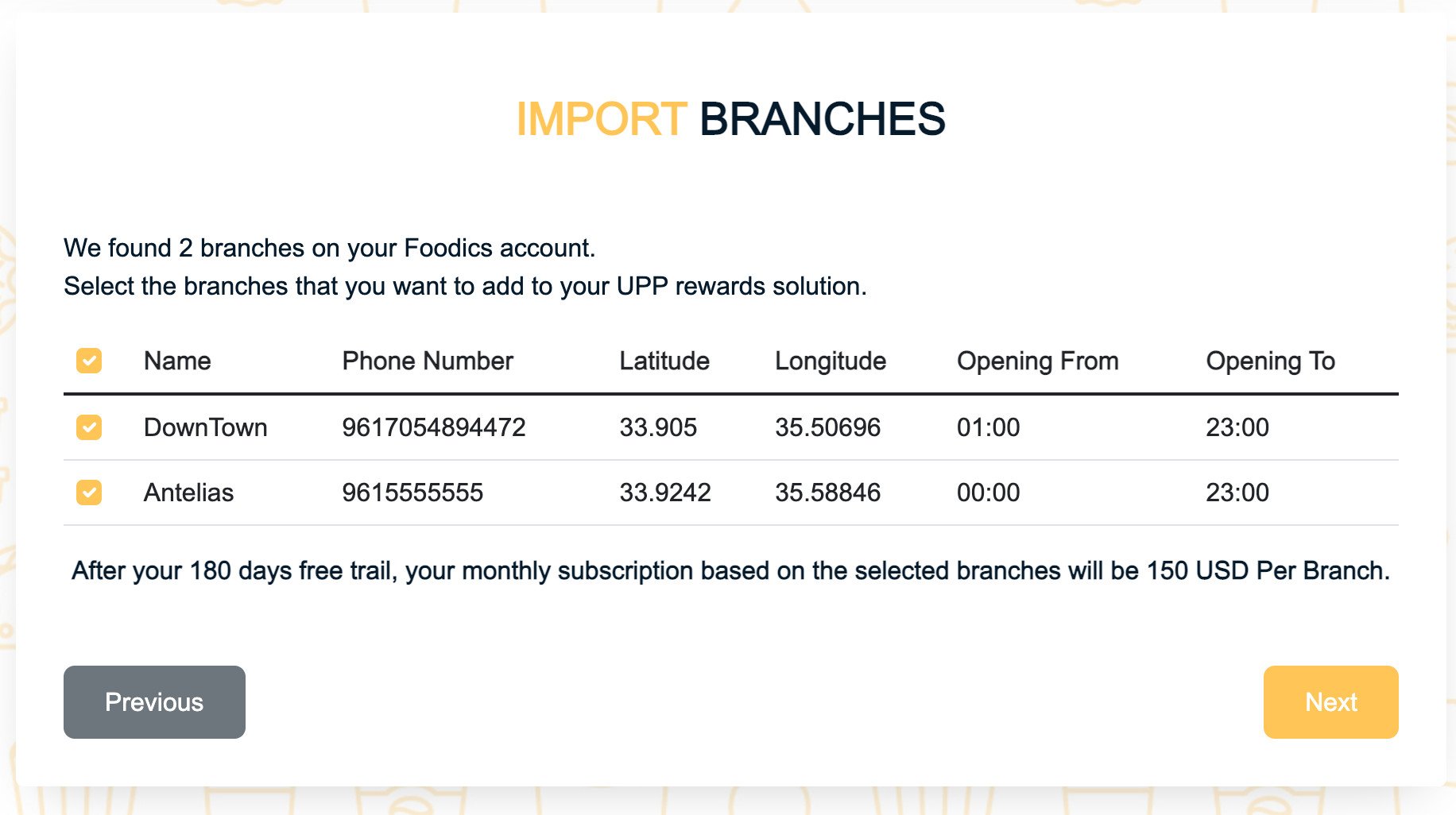
3. Import your branches. On the import branches screen, choose which branches the program should run in. Selecting several branches lets you:
- Run different programs tailored to specific branches
- Accept the orders coming from those branches
- For example, award double points on orders bought from one particular branch
Branches are imported from your point-of-sale provider exactly as they are defined there. Every order the POS sends carries the ID of the branch the action is applied to. The number of branches you select affects the plan you subscribe to.
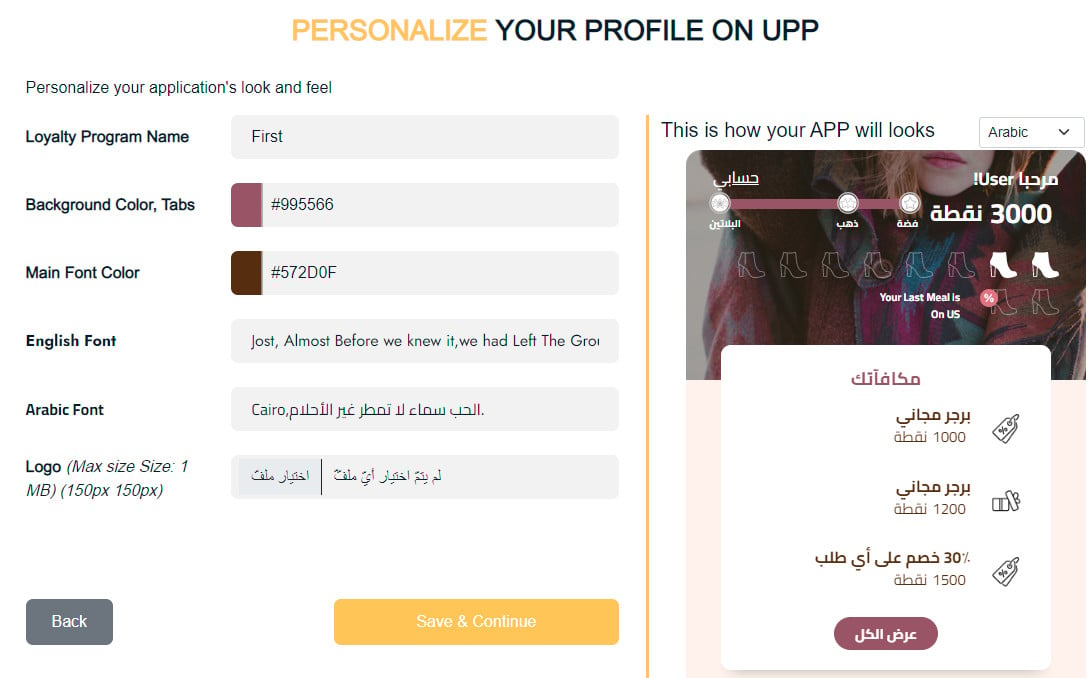
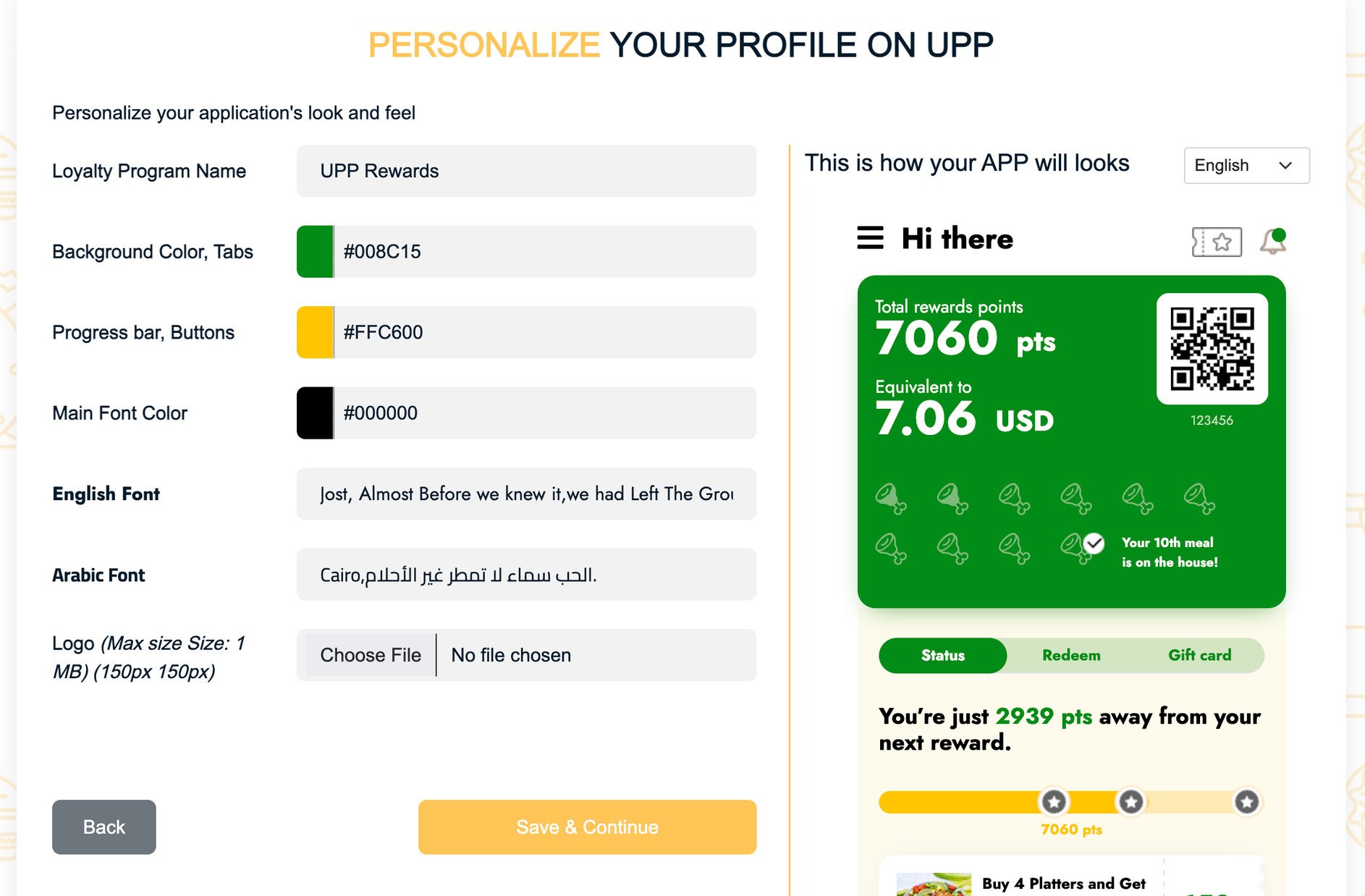
4. Brand the customer app. The customization page lets you match the customer app to your brand guidelines. You can change:
- The background and tab color
- The progress bar and button color
- The font color
- The font family for English and for Arabic
- The company logo, which appears on the first page a customer sees when they open the app
A preview section on the same page shows your changes as you make them.
5. Choose the program type. This is the last step before the program is complete, and it is where you set the loyalty mechanic. Tick the box next to points, stamps, or both. If you choose points, you then decide how points are calculated when they are earned and when they are redeemed.
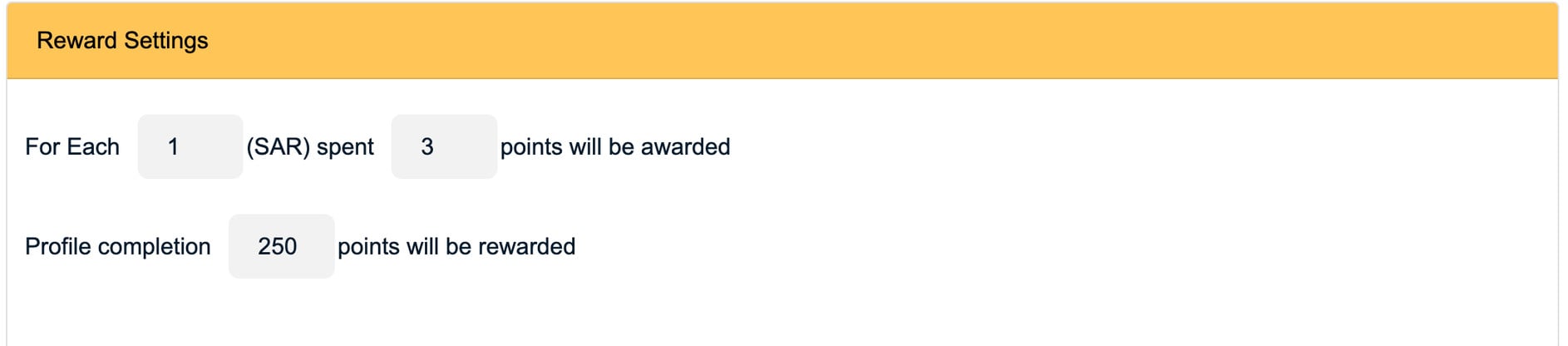
Reward settings
The reward settings decide how many points a customer earns for each unit of currency they spend. You can also set how many points a customer earns for completing their profile. Profile completion is a one-time reward, given once the customer has added their email address and gender.
Redemption settings
Redemption settings put a cash value on those points. As a rule of thumb, this value is set as a decimal, expressed as a percentage of the cash value.

Offer settings
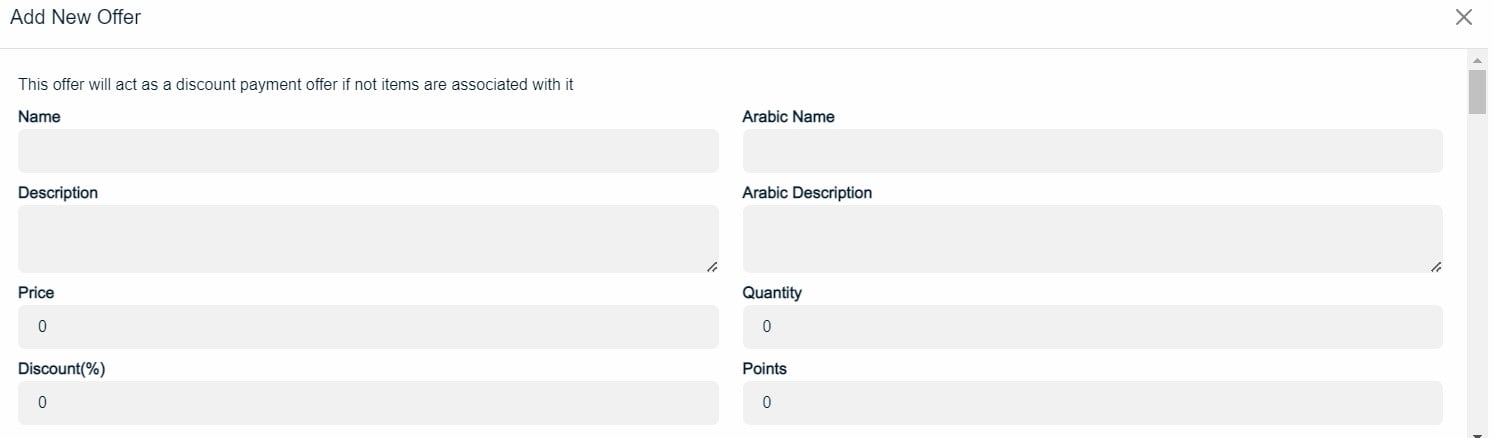
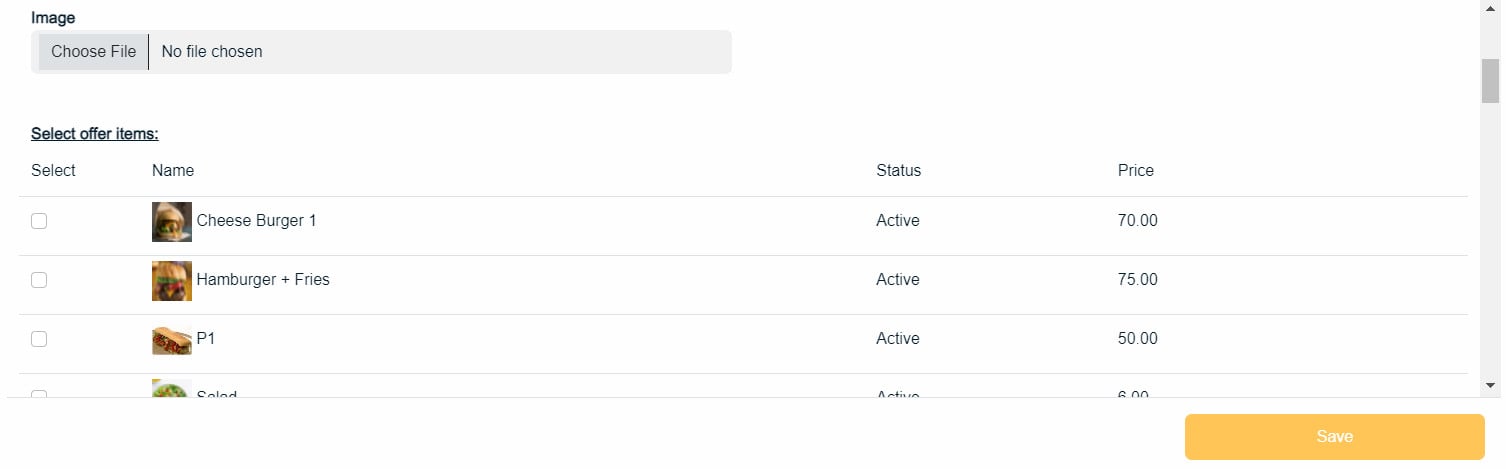
Offer settings let you build your own offers. They show up in the customer app, where customers can trade their points for coupons.

Clicking the (Manage offers) button opens a window listing every offer you have created.
- Click (Edit) to change an existing offer.
- Click (Activate) to make an offer live.
- Click (Deactivate) to switch an offer off and remove it from the customer app.
- Click (Add New Offer) to create a new one.
Stamps
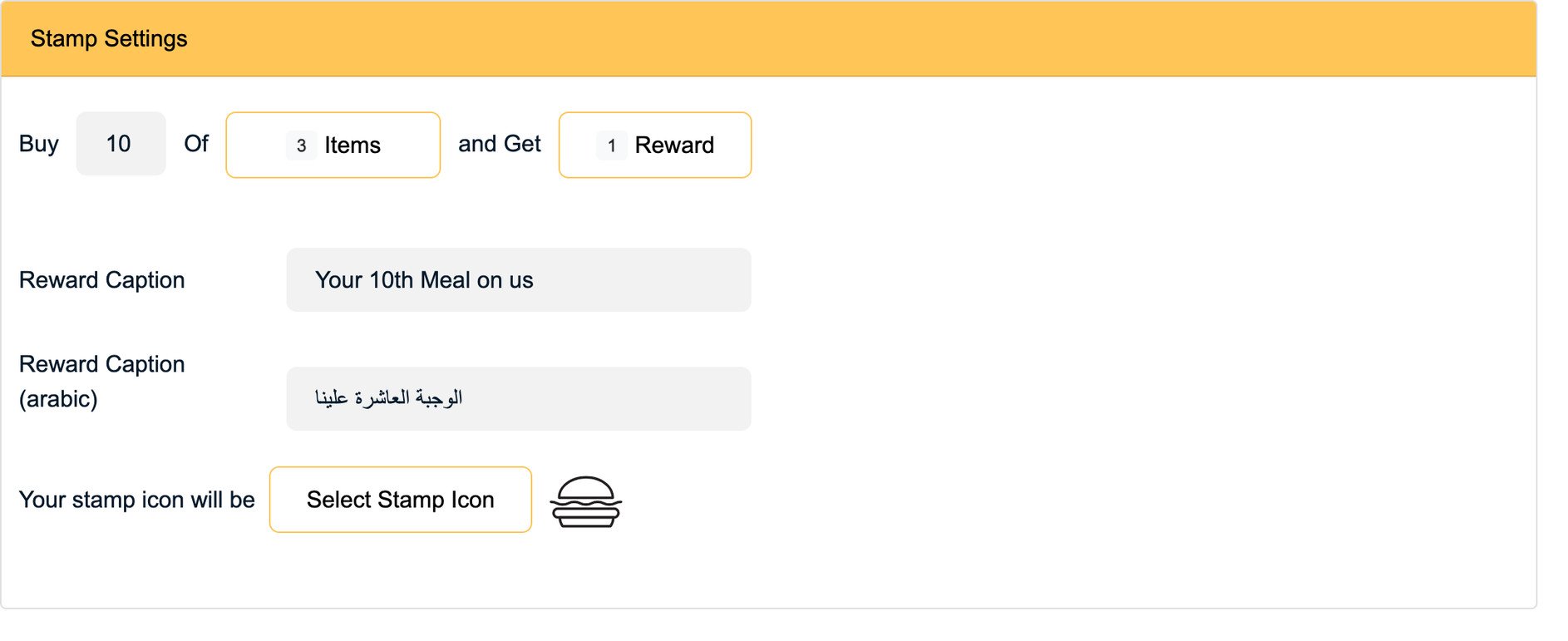
If you include stamps in your program, set the following:
- How many stamps have to be collected
- Which purchased item or items earn the customer a stamp
- The reward the customer gets once they reach the target number of stamps
- The reward label, the line of text shown next to the stamp count
- The stamp icon that represents the reward
When the customer reaches the target, they receive the reward as a coupon. Their stamps then reset and they can start collecting again.
Coupon validity
This setting sets how long a coupon stays valid. After that period it counts as expired.

How can I learn more about Upp Rewards?
Book a meeting at this link: https://calendly.com/upprewards/demo
How do I delete the Upp Rewards app from my store?
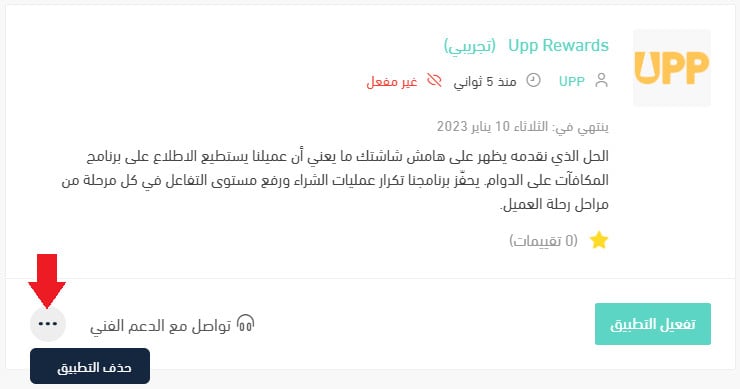
1. From the dashboard side menu, click (Installed apps).

2. On the all apps page, find the Upp Rewards app, click the (...) icon, then click (Delete app), as shown in the image.
📝 Important notes
The number of branches you import affects which Upp Rewards plan you need, so pick your branches before you settle on a subscription.
Setup pulls your business details and branches from a point-of-sale provider, so have that connection ready before you start.
Getting a customer to place their first order is the hard part. A points or stamps program is what turns that one order into the second and third.