Looking for one platform to run all your local deliveries — from pickup at your store to your customer's door?
Tookan provides shipping and delivery services including in-city delivery, express delivery, refrigerated shipping, and food and restaurant delivery. The Tookan integration with Salla connects these services straight to your store, moving orders from merchant to customer smoothly with end-to-end route planning, automated dispatch, real-time tracking, and one platform to manage every delivery. In this guide, you'll learn how to connect your Salla store with Tookan and answer the most common questions about the service.
To connect your Salla store with Tookan, install the Tookan app from the Salla App Store, open its app settings, enter your Tookan account details in the linking details tab, choose the task type — pickup and delivery, or delivery only — and click save. Your store can then ship orders through Tookan.
📌 Article overview
- What is Tookan?
- How to connect your store with Tookan
- Frequently asked questions
👣 How to connect your store with Tookan
1. From the side menu of your dashboard, click (Installed apps).

2. From the Salla App Store banner, click (Browse Salla App Store).

3. From the Tookan app, click (App settings).
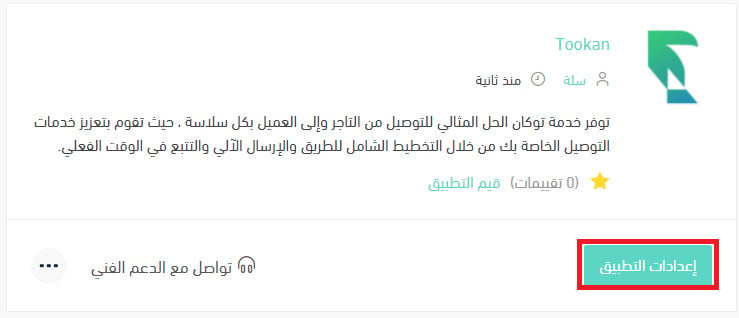
📝 Important note: if the app is not yet installed in your store, install it first. For details, see installing an app from the Salla App Store.
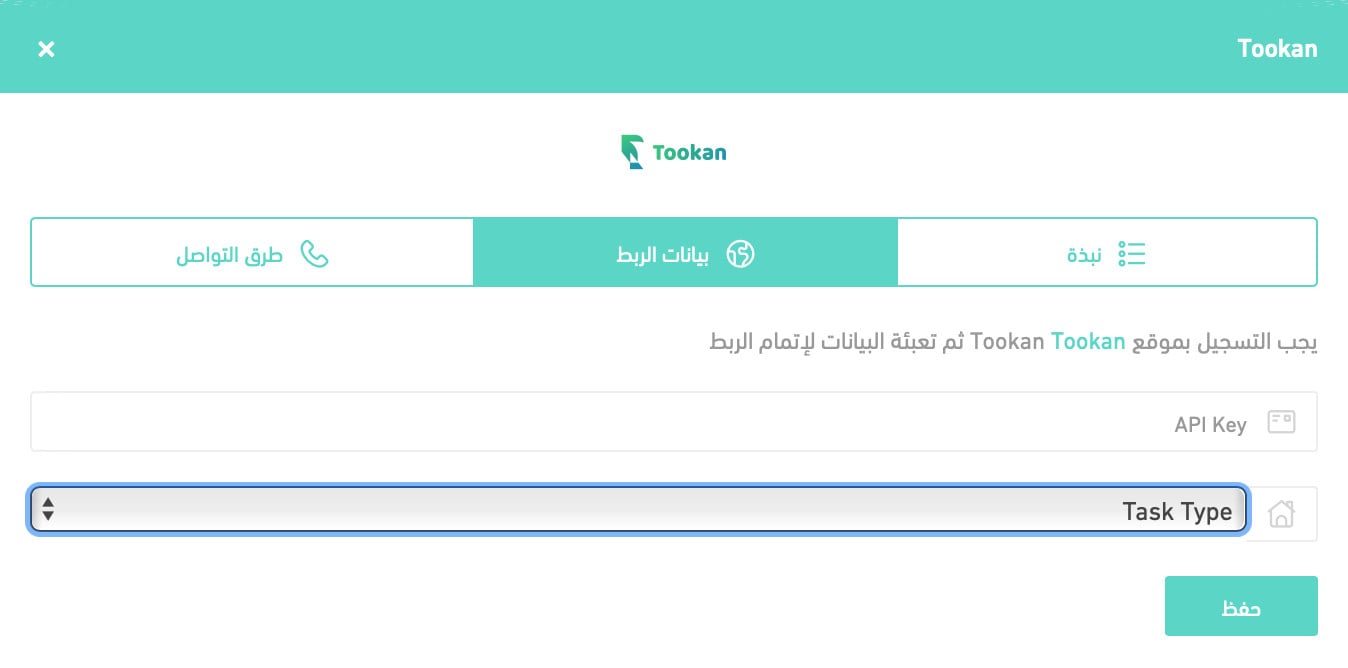
4. From the (Linking details) tab, enter your Tookan account information, then go to the task type option.
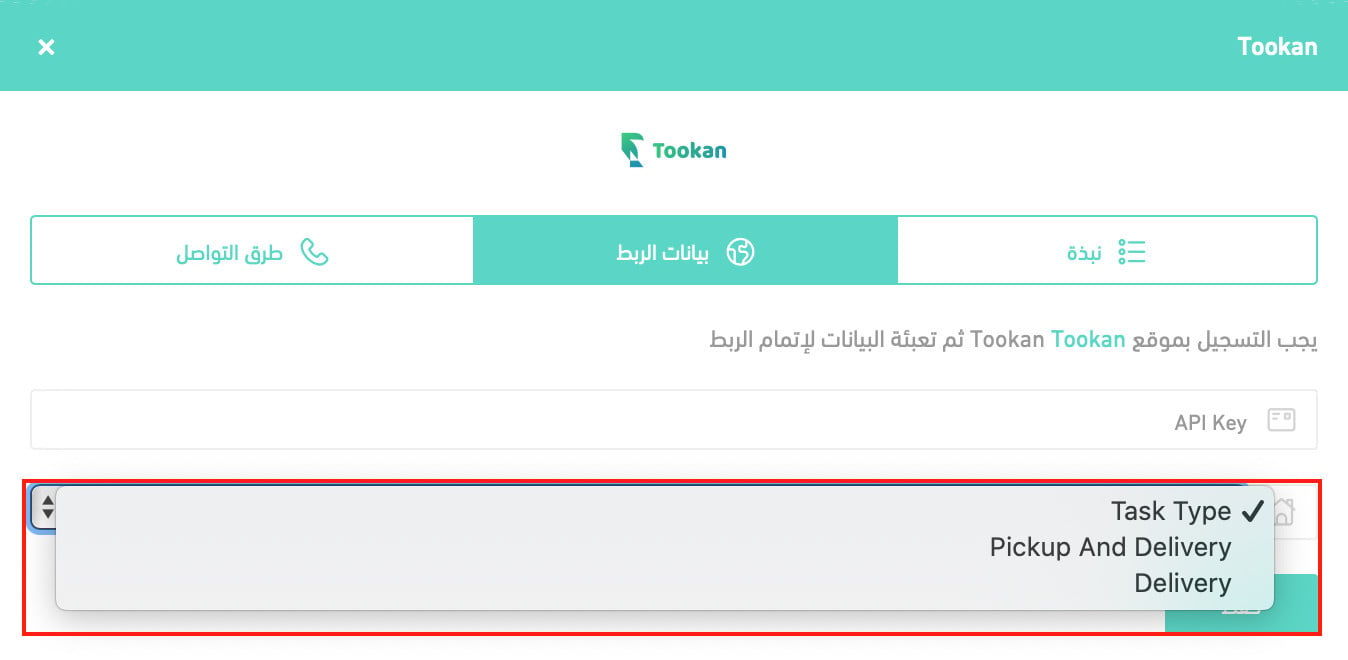
5. Choose the service type you need from the list, then click (Save).
- Pickup and delivery: Tookan collects the order from you and delivers it to the customer.
- Delivery: delivery only.
❓ Frequently asked questions
How do I set up shipping rates on Tookan?
1. From the side menu of your dashboard, click (Installed apps).

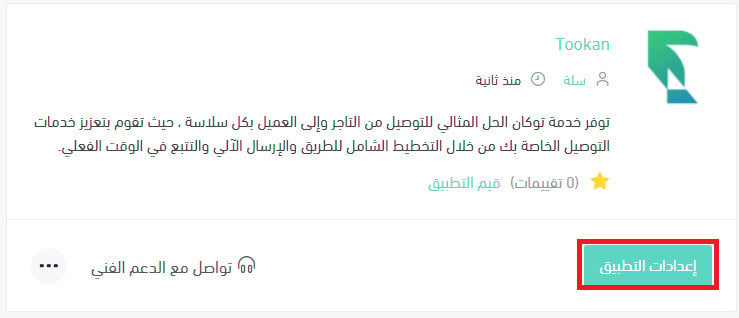
2. From the all apps page, on the Tookan app, click (App settings).
3. From the (Shipping rates) tab, enter the shipping rates for the cities and regions you serve.
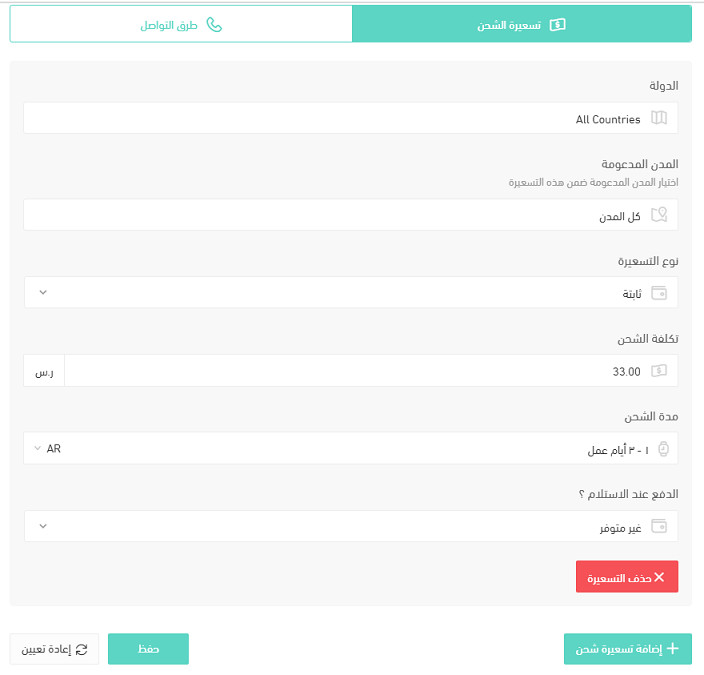
How do I temporarily disable the app in my store?
1. From the side menu of your dashboard, click (Installed apps).
2. From the all apps page, on the Tookan app, click (App settings).
3. Turn the (Hide shipping company from the checkout page) option on or off.
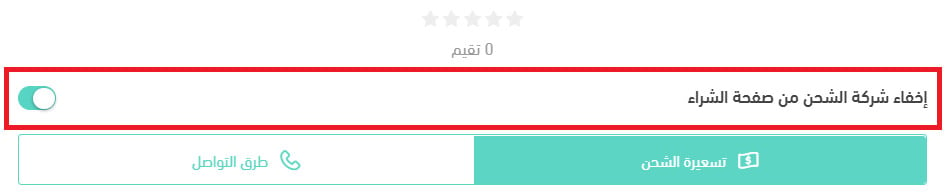
What services does Tookan provide?
- Shipping
- In-city delivery
- Express delivery
- Refrigerated shipping
- Food and restaurant delivery, and more
How much do Tookan's services cost?
For full details and pricing, visit the company's page.
How do I activate shipping and delivery companies through Tookan's unified gateway?
Choose the service providers you want, as shown on the platform.
Can I activate as many shipping and delivery companies as I want?
Yes — by creating custom groups of service providers.
What if I want to use my own driver fleet alongside shipping companies, but I have no system to manage it?
You can manage your own fleet by enabling this feature through Tookan.
Are there fees for using the Tookan solution?
Yes — a monthly or yearly subscription applies, as shown on their platform.
What do I gain as a retail merchant using Tookan to manage my orders?
You can manage orders across different product types and track them with ease.
Do I need to be tech-savvy to complete the integration and use their solution?
No — a basic familiarity with e-commerce is enough to complete the technical integration.
Do I need to download any apps or buy special hardware to use Tookan across branches or warehouses?
Just a computer or a smartphone.
How long does the integration take before I can start?
It can take up to 7 days for the integration to finish and work to begin.