Would your customers message you more often if they could do it from the app they already have open?
Telegram - Contact Us is a Salla app that puts a Telegram button on your storefront, so a shopper with a question can start a chat with you in one tap instead of filling in a form and waiting for a reply. The app is powered by Smartarget, so you create a free Smartarget account, connect it to your store, and control how the button looks and where it appears. In this guide, you'll learn how to install the app, link your Smartarget account, customize the button, and remove the app if you no longer need it.
To add a Telegram contact button to your store, open (My installed apps), browse the Salla App Store, and install Telegram - Contact Us. Choose a plan, grant the permissions it asks for, activate the app, paste your Smartarget user ID, and customize the button before saving your settings.
📌 Article overview
- What Telegram - Contact Us does
- How to connect Telegram - Contact Us to your store
- Frequently asked questions
🎯 What Telegram - Contact Us does
Telegram - Contact Us lets you talk to your store's customers over Telegram. Once the app is active, a Telegram button sits on your storefront and opens a direct chat with you, so questions about a product, an order, or a delivery date get answered in the place your customer is already comfortable using.
🚀 How to connect Telegram - Contact Us to your store
1. From the side menu of your dashboard, click (My installed apps).

2. From the Salla App Store banner, click (Browse Salla App Store).

3. On the Telegram - Contact Us app page, click (Install).
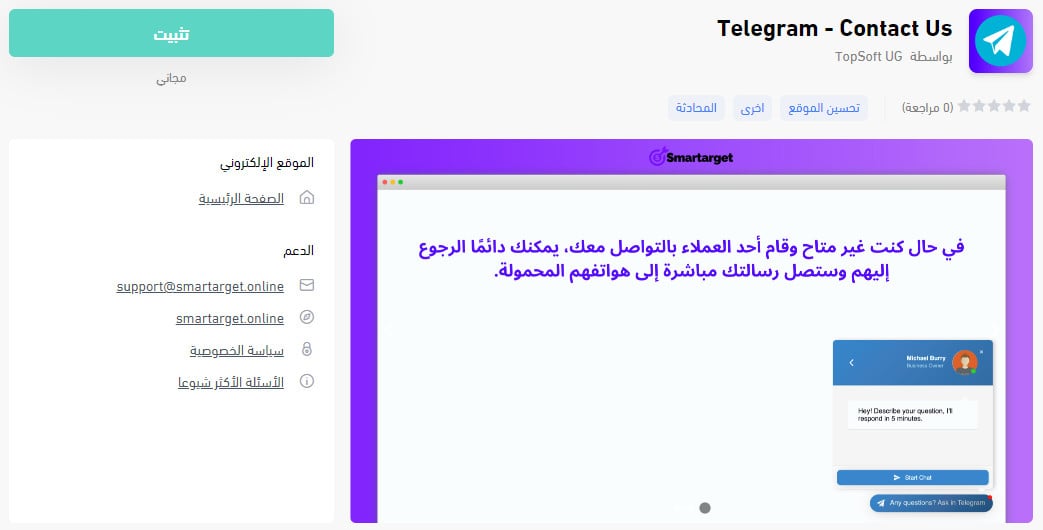
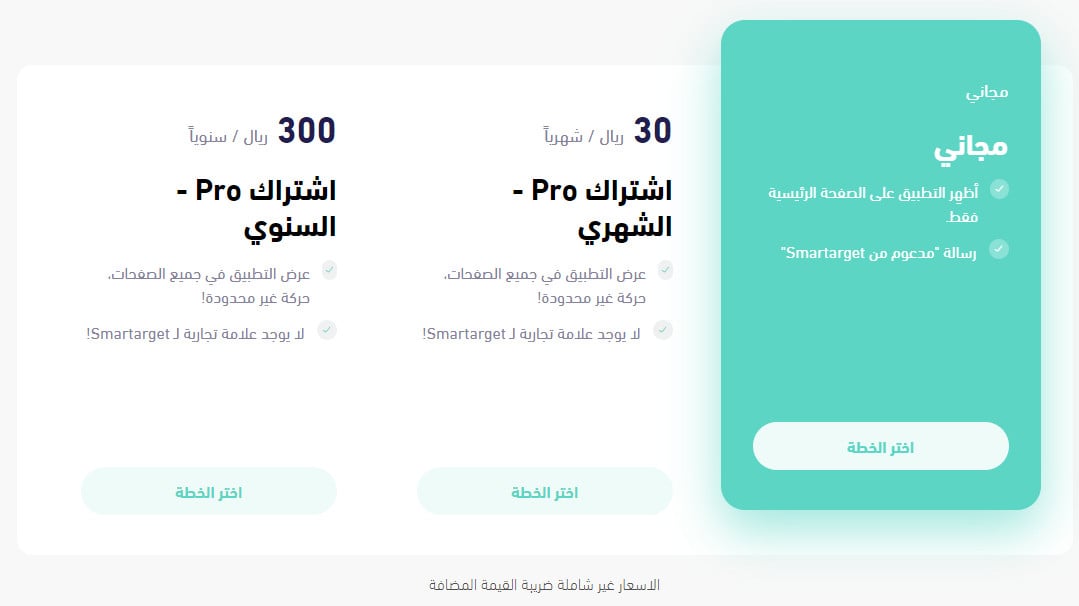
Then click (Choose plan) next to the plan that fits your business.
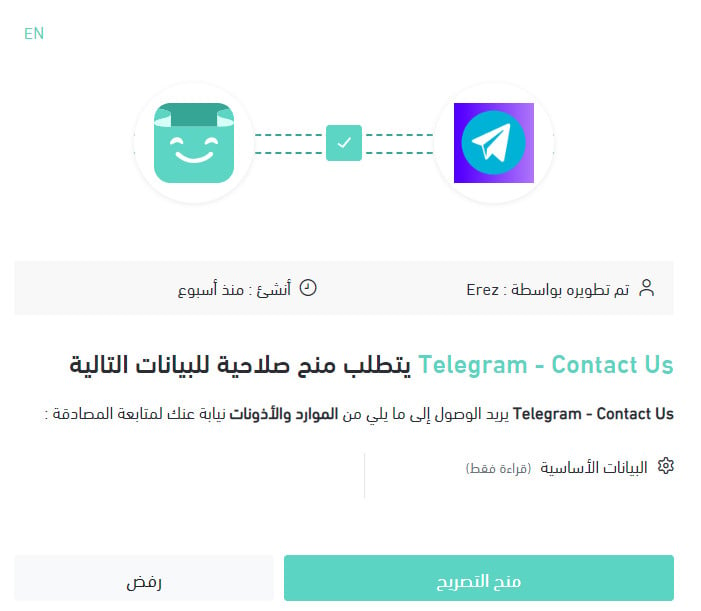
4. Review the permissions the app needs, then click (Grant permission).
Telegram - Contact Us is now installed on your store.
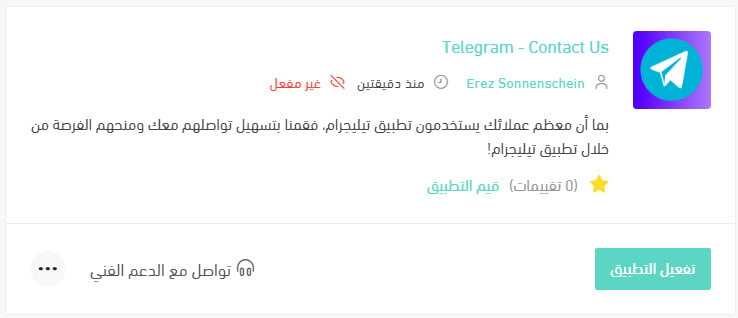
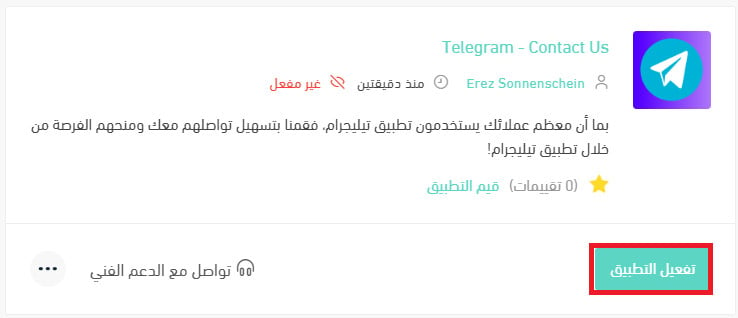
5. Click (Activate app).
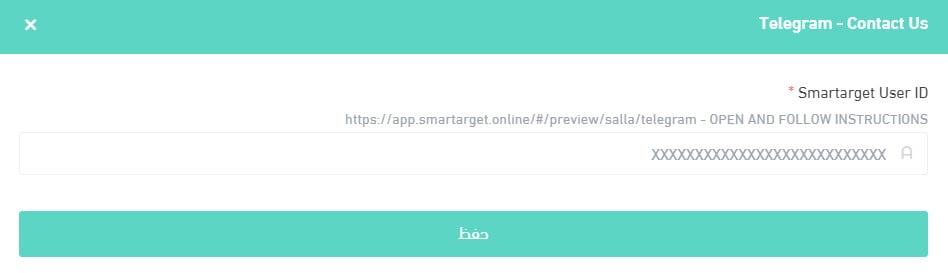
6. Paste your Smartarget user ID into the field provided, then click (Save).
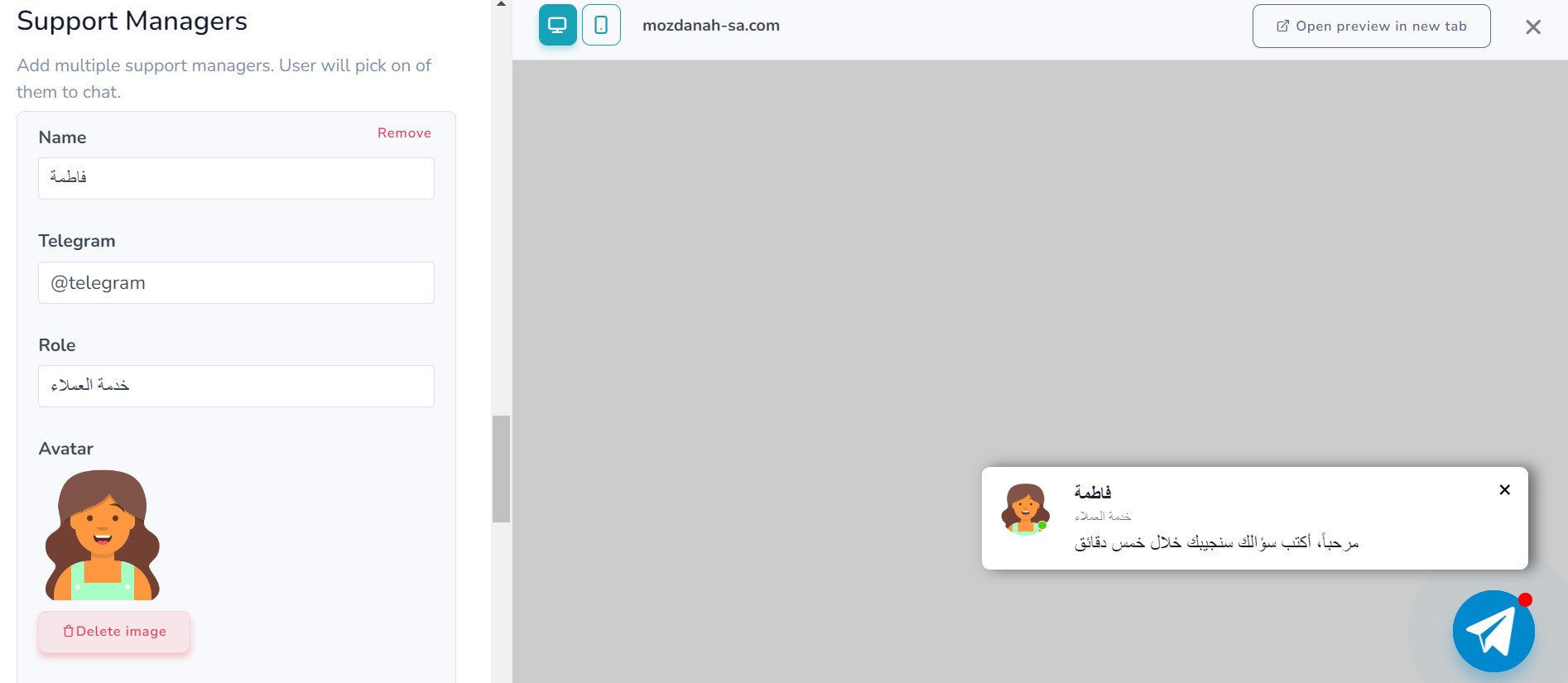
7. Customize the Telegram - Contact Us button to suit your store, then click (Save Settings).
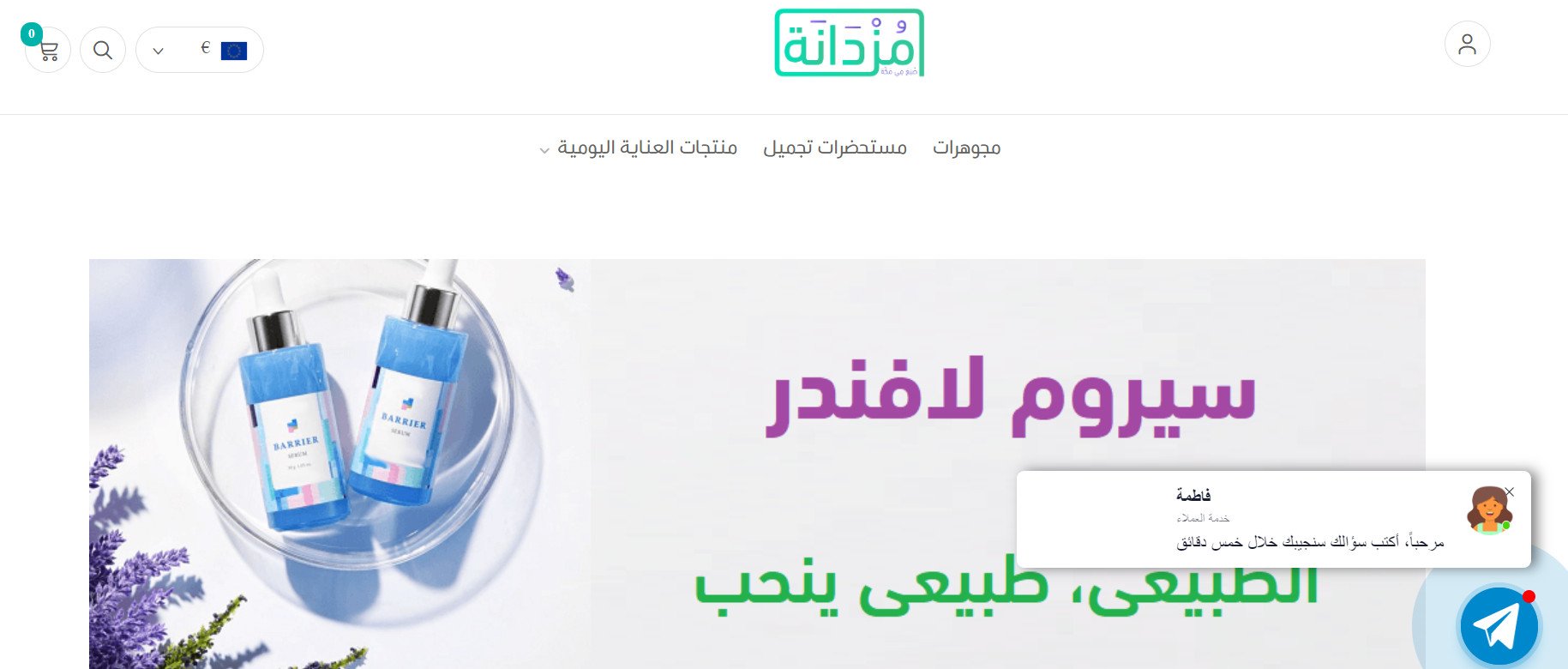
The button then appears to your customers in the store exactly as you configured it.
📝 Important notes
- The app needs a Smartarget account. Create one first, or step 6 will have nothing to paste.
- For more details, see managing your store's apps.
❓ Frequently asked questions
How do I create a Smartarget account?
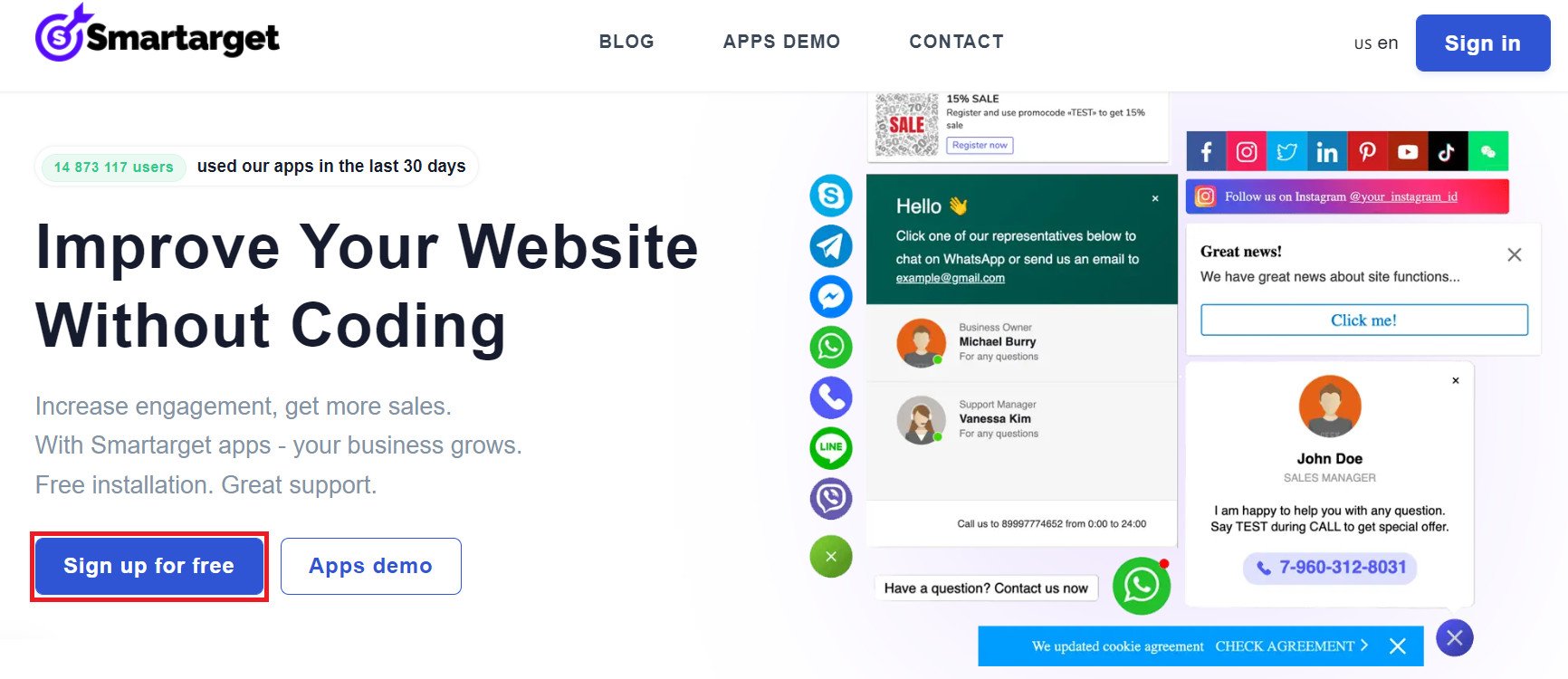
1. On the Smartarget home page, click (Register for free).
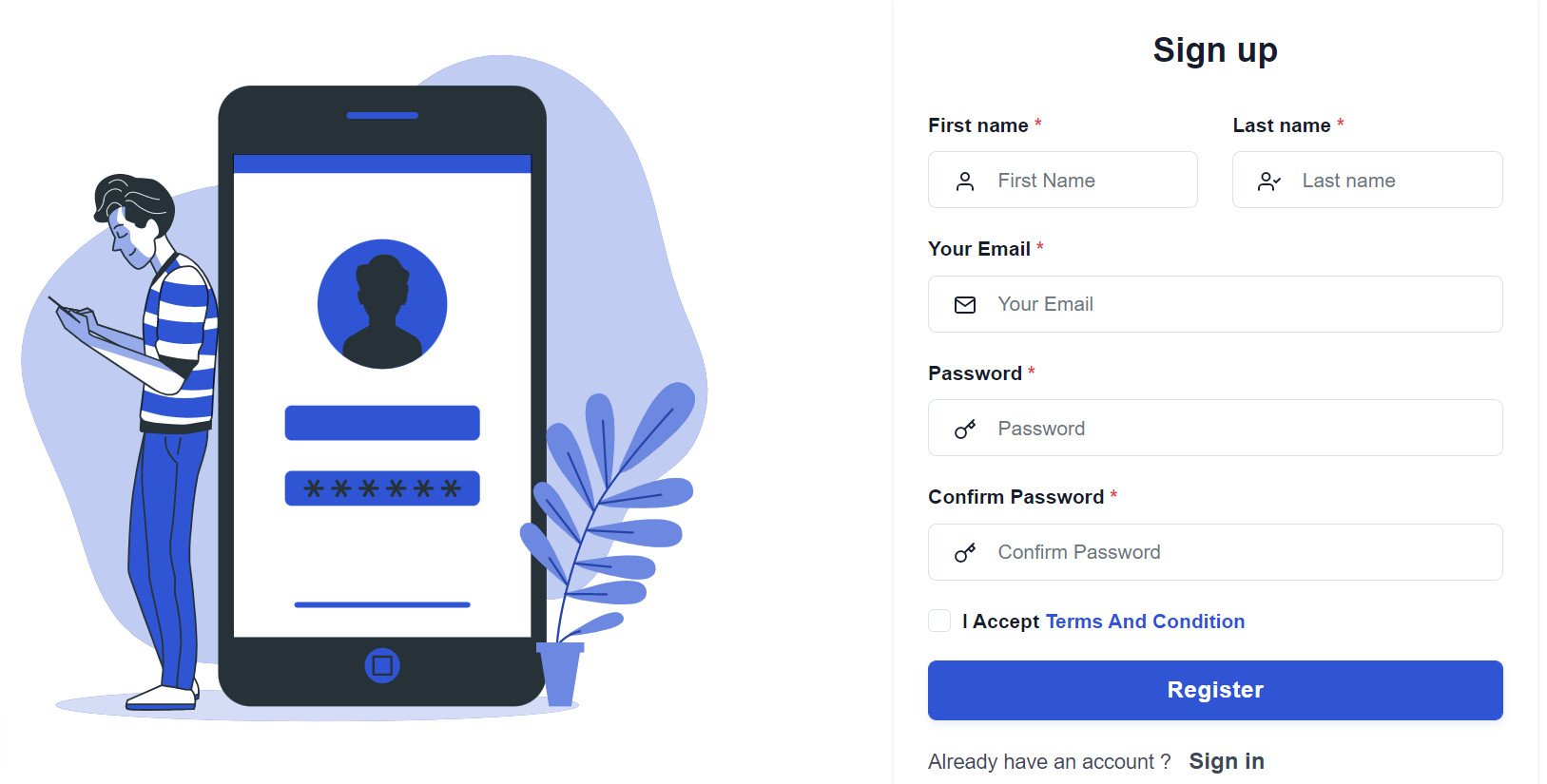
2. Enter the details it asks for, then click (Register).
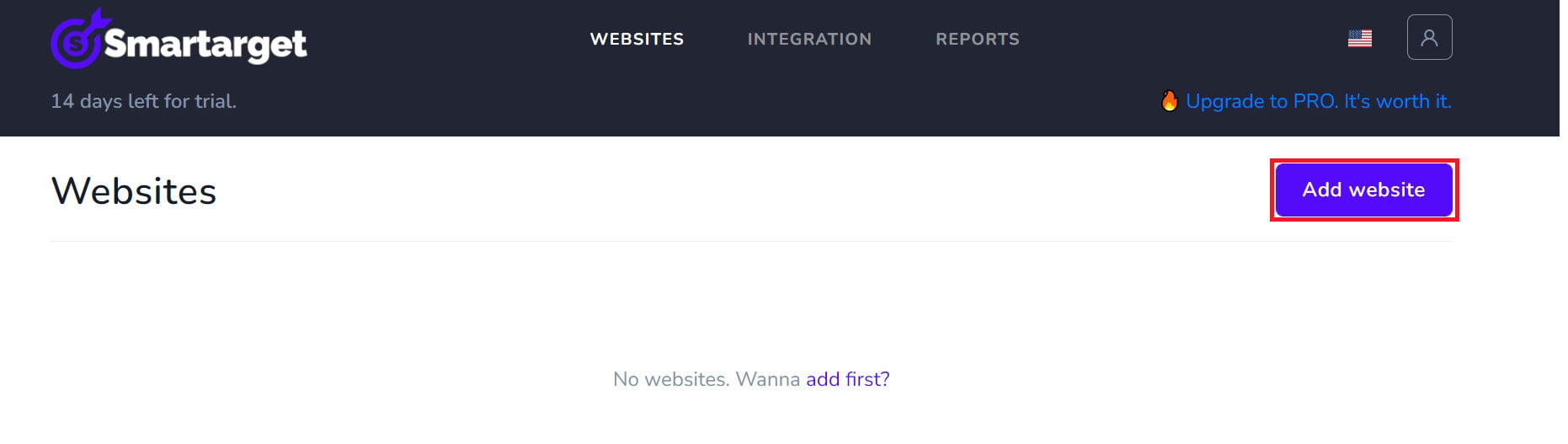
3. Confirm your account from the email you receive, sign in, then click (Add website).
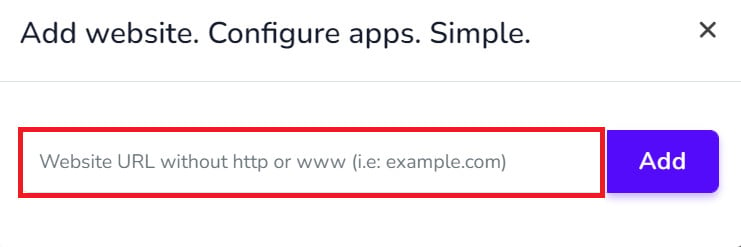
Then add your Salla store domain.
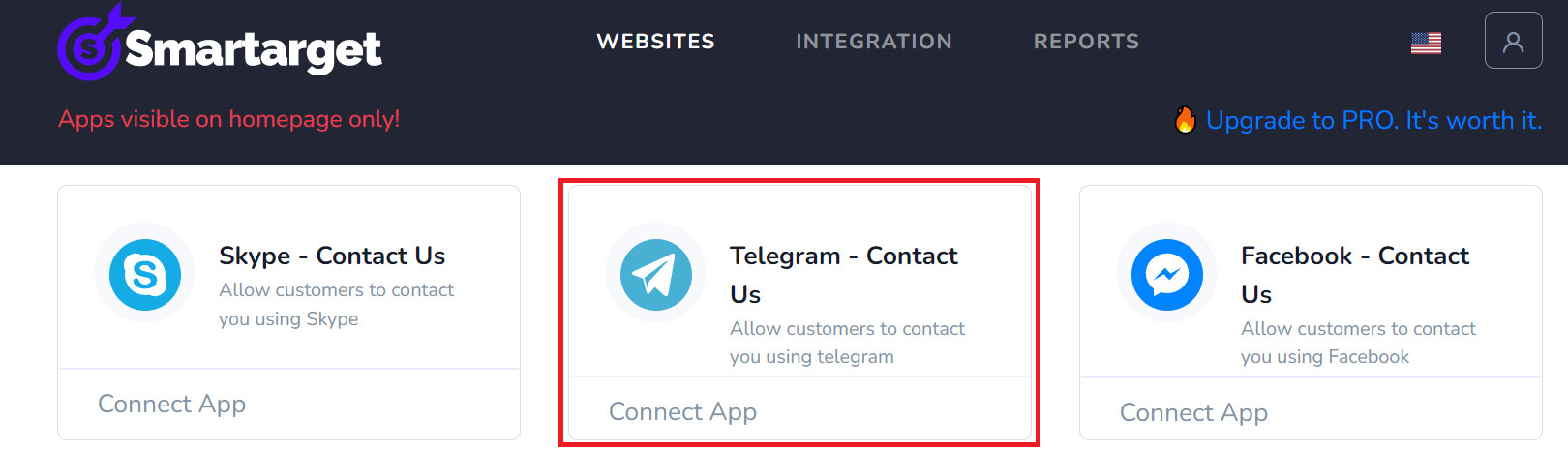
4. To add the Telegram button to your store, click (Telegram - Contact Us), then set up how you want the button to behave.
Where do I copy my Smartarget user ID from?
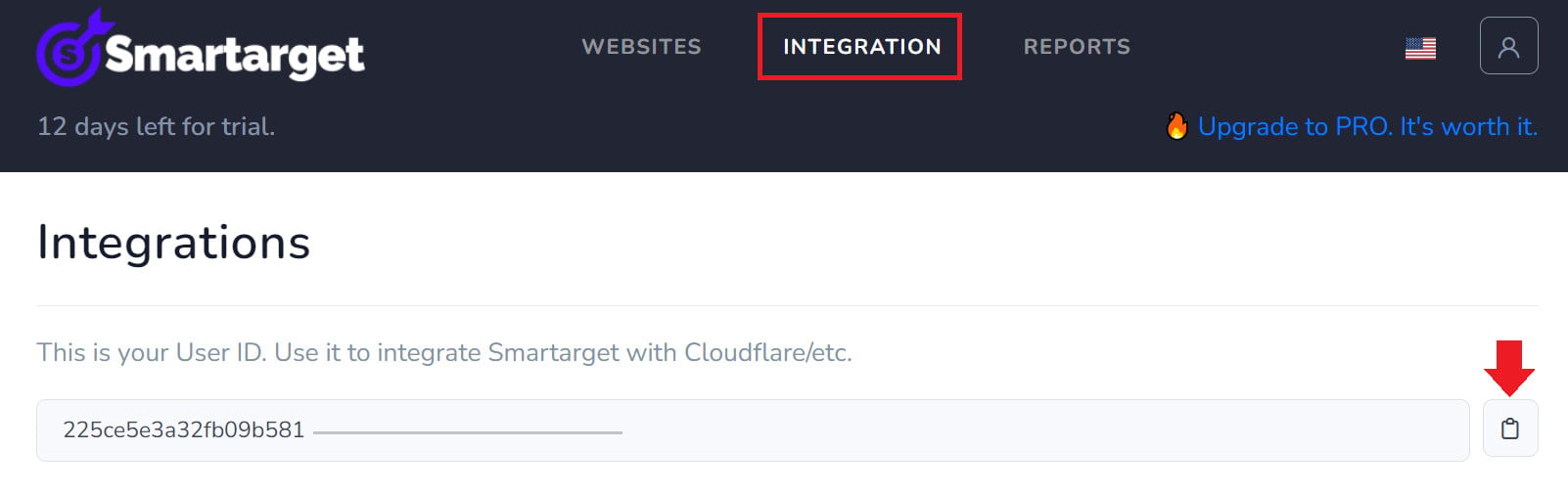
From your Smartarget account, go to the (INTEGRATION) page and click (Copy) next to the user ID.
How do I remove Telegram - Contact Us from my store?
1. From the side menu of your dashboard, click (My installed apps).

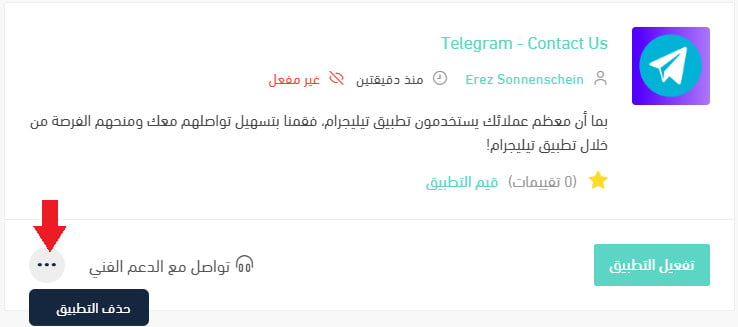
2. On the all apps page, find Telegram - Contact Us, click the (...) icon, then click (Delete app), as shown below.
A Telegram button is a small addition that removes a real point of friction: the customer who wants an answer before they buy no longer has to leave your store to get one.