Do your customers know where to find you on social media once they leave your store?
Social Follow Us is a Smartarget app that adds a set of customizable links to your social media profiles, so shoppers can follow you on the networks they already use. It turns one-time visitors into followers, keeps the conversation going after checkout, and gives customers a direct way to reach you when they have a question or want to share feedback. In this guide, you'll learn how to install Social Follow Us, connect it to your Smartarget account, and manage it from your store.
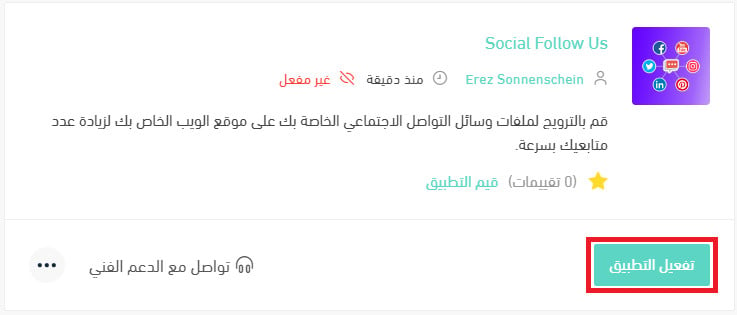
To connect Social Follow Us, open (My installed apps) from your dashboard's side menu, browse the Salla App Store, and install the app. Grant the permissions it asks for, click (Activate app), then paste your Smartarget user ID into the field provided and click (Save).
📌 Article overview
- What Social Follow Us does
- How to connect Social Follow Us to your store
- Frequently asked questions
🎯 What Social Follow Us does
The app shows a small, clearly visible panel of social links in your store. Customers pick the network they prefer, follow you in one tap, and can message you from the same place. The result is a growing audience you can reach again later without paying for the click twice.
🚀 How to connect Social Follow Us to your store
1. From the side menu of your dashboard, click (My installed apps).

2. From the Salla App Store banner, click (Browse Salla App Store).

3. On the Social Follow Us app page, click (Install).
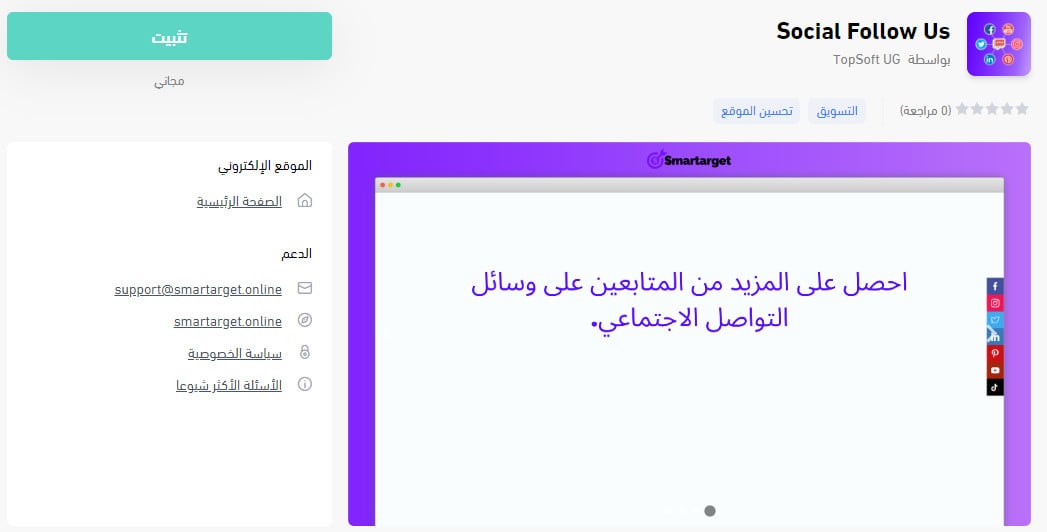
4. Review the permissions the app needs, then click (Grant permission).
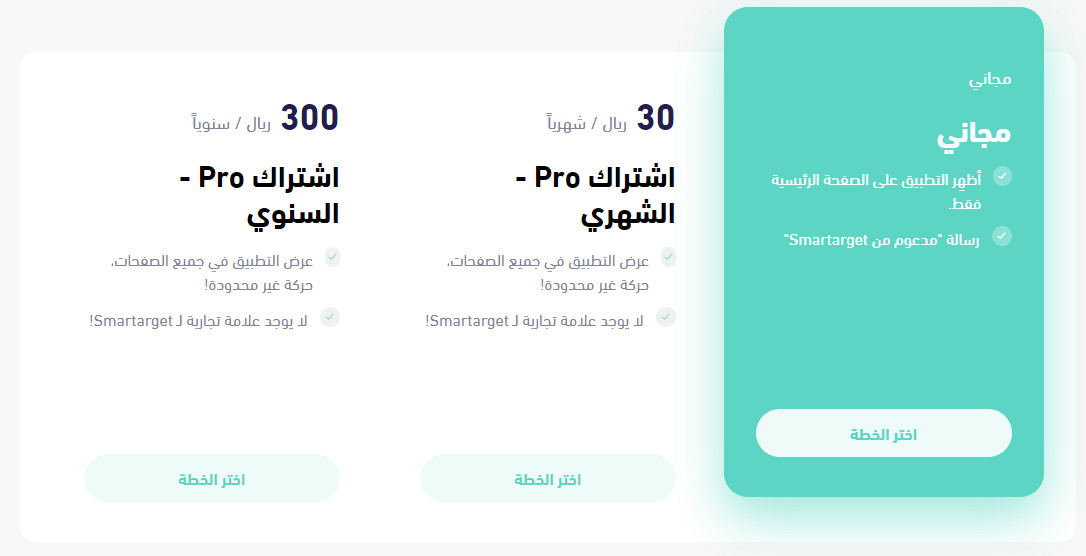
Social Follow Us is now installed in your store.
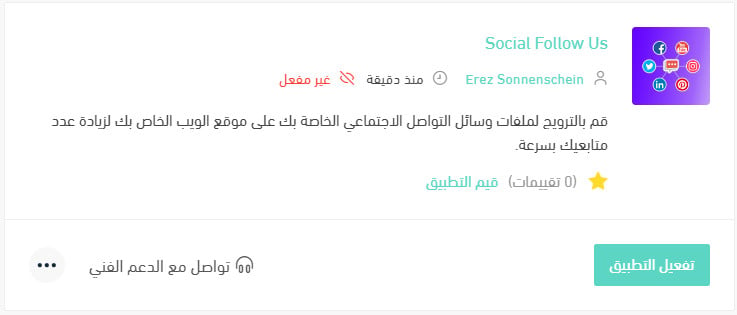
5. From the installed apps page, click (Activate app) on Social Follow Us.
6. Paste your Smartarget user ID into the field provided, then click (Save).
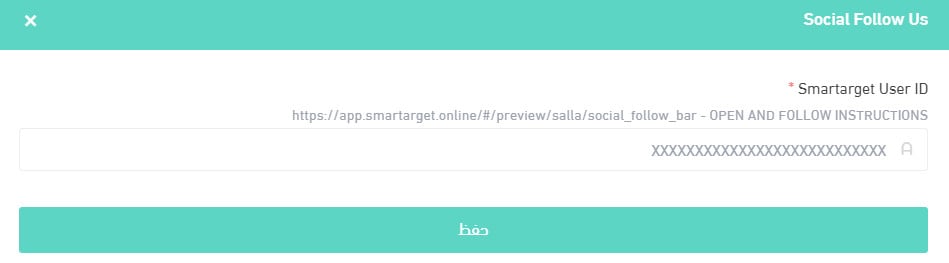
Social Follow Us is now live in your store. Adjust its settings to match the way your business works.
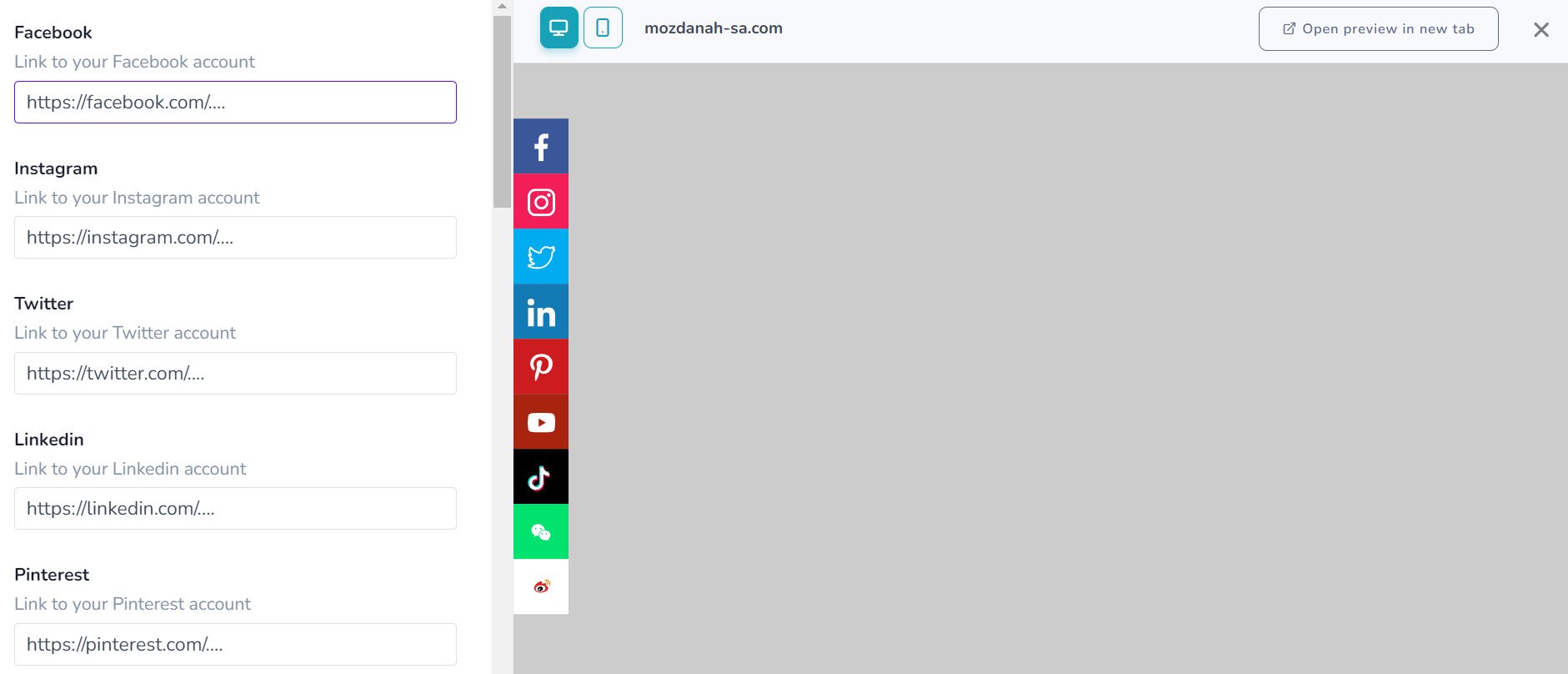
For more details, see managing your store's apps.
❓ Frequently asked questions
Can I use Social Follow Us in any language?
Yes, including languages that read right to left.
How do I create a Smartarget account?
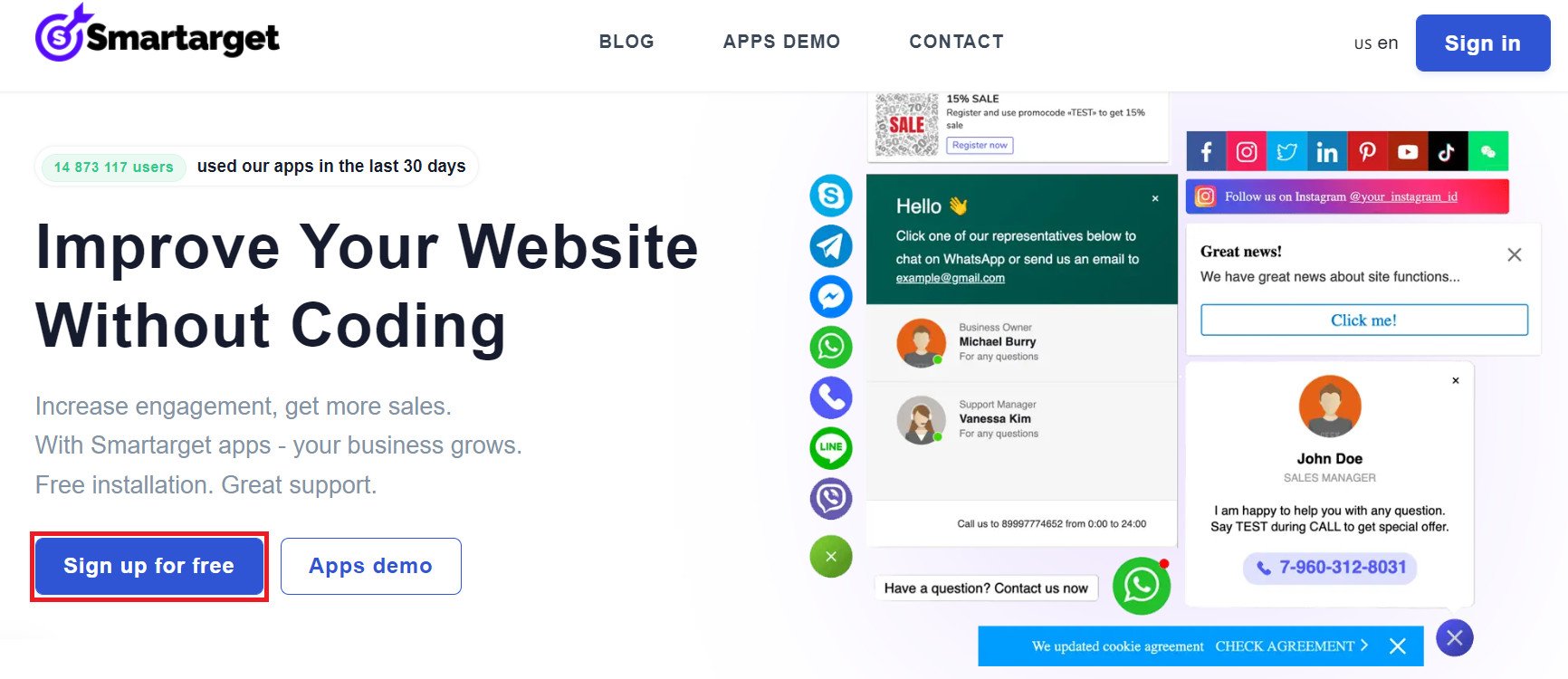
1. From the Smartarget home page, click (Sign up free).
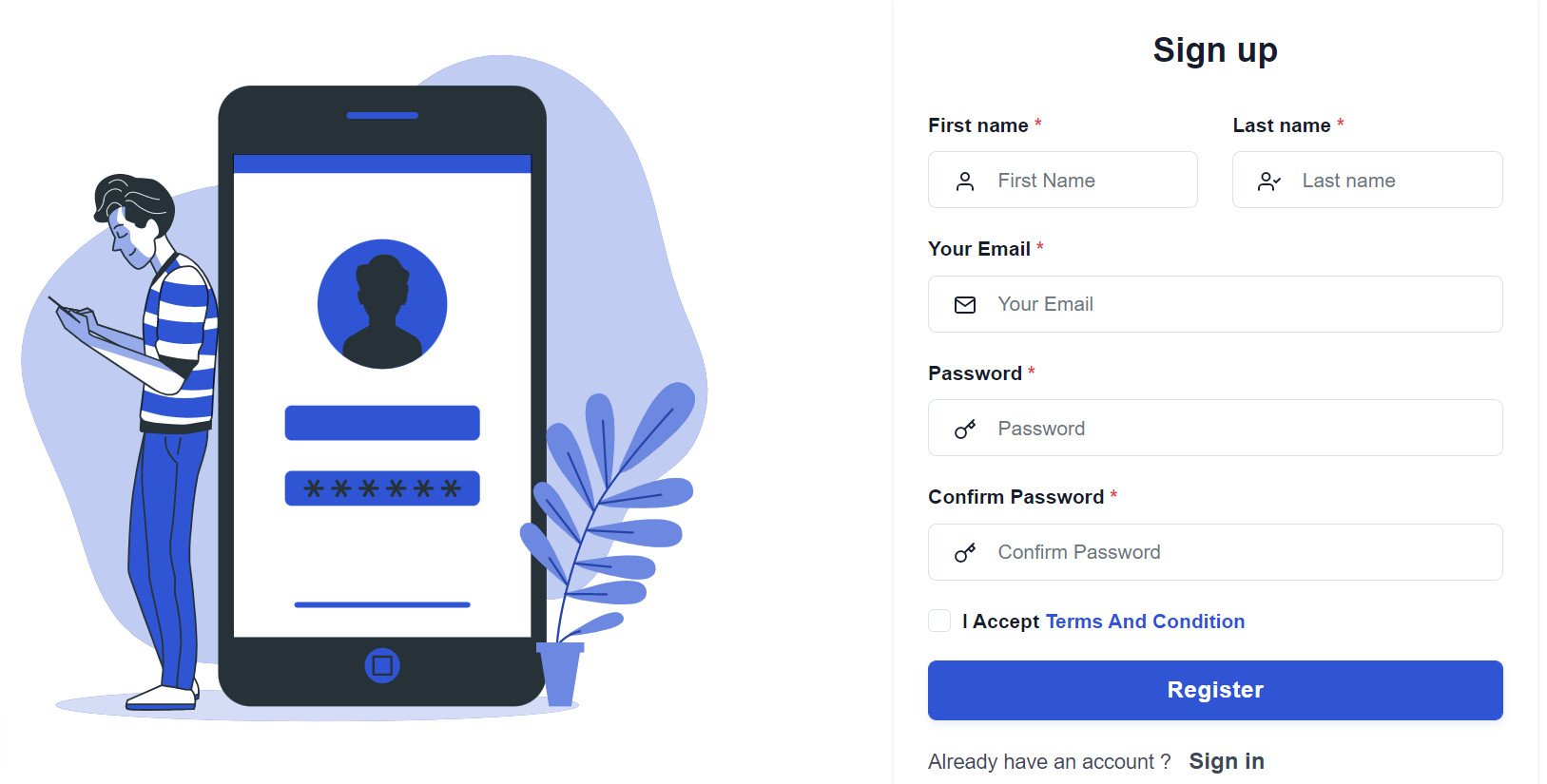
2. Enter the required details, then click (Register).
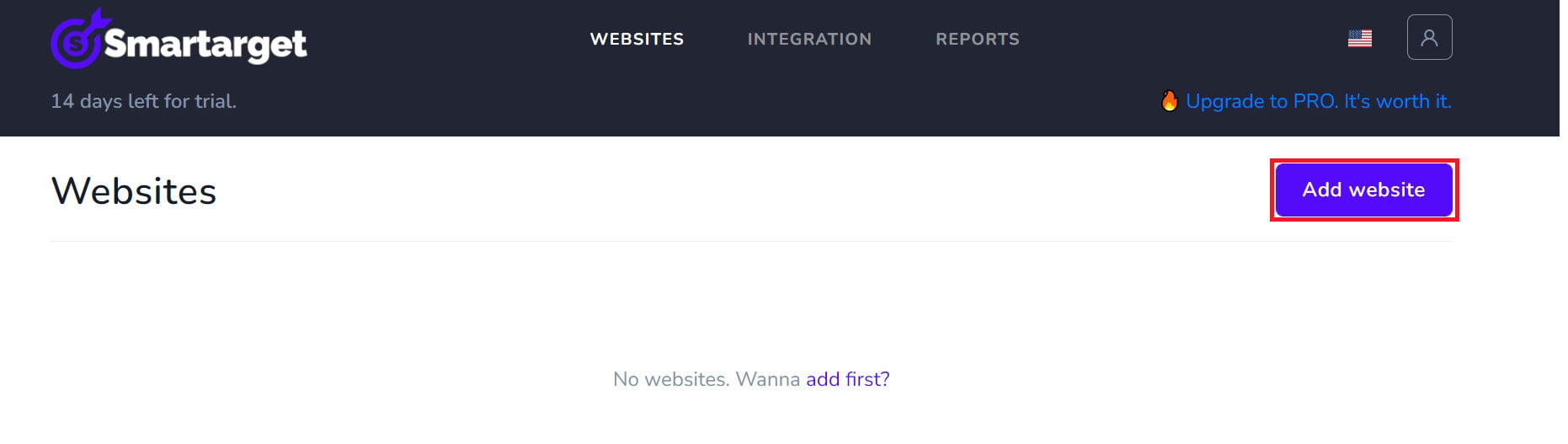
3. Confirm your account from the email you receive, sign in, then click (Add website).
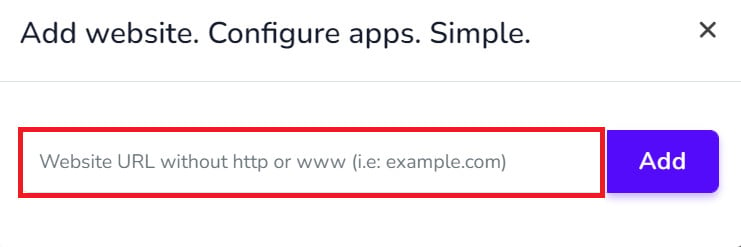
Then add your Salla store domain.
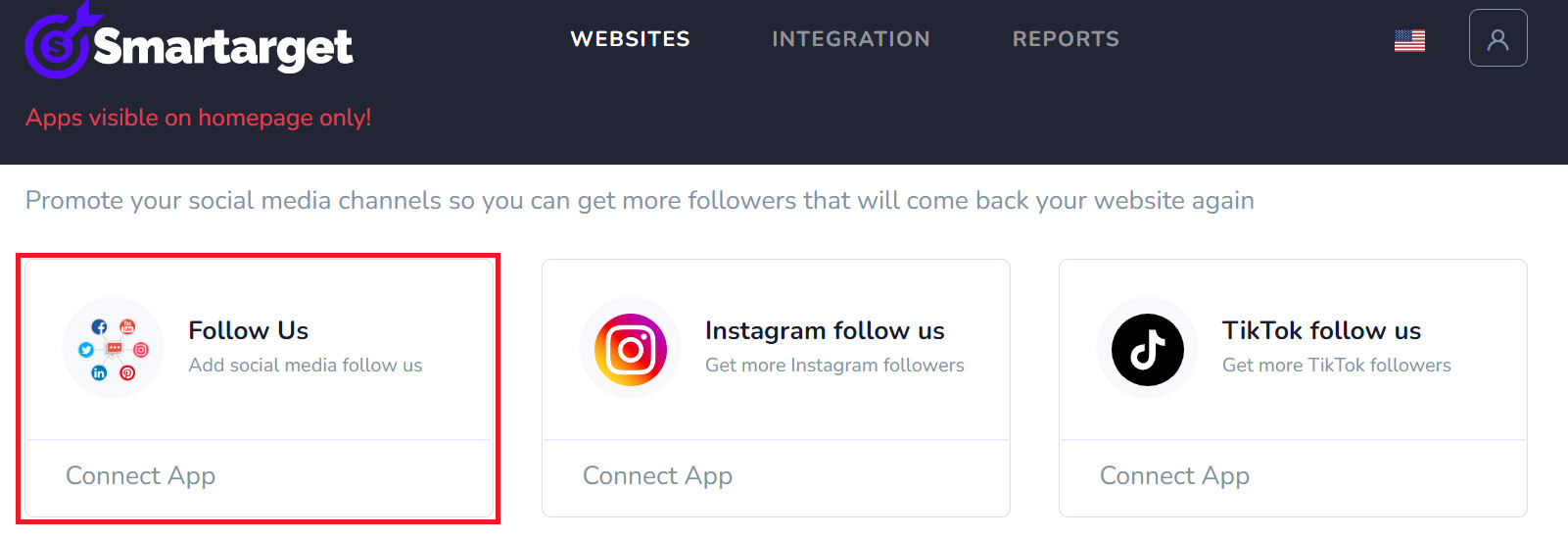
4. To add Social Follow Us to your store, click (Contact App).
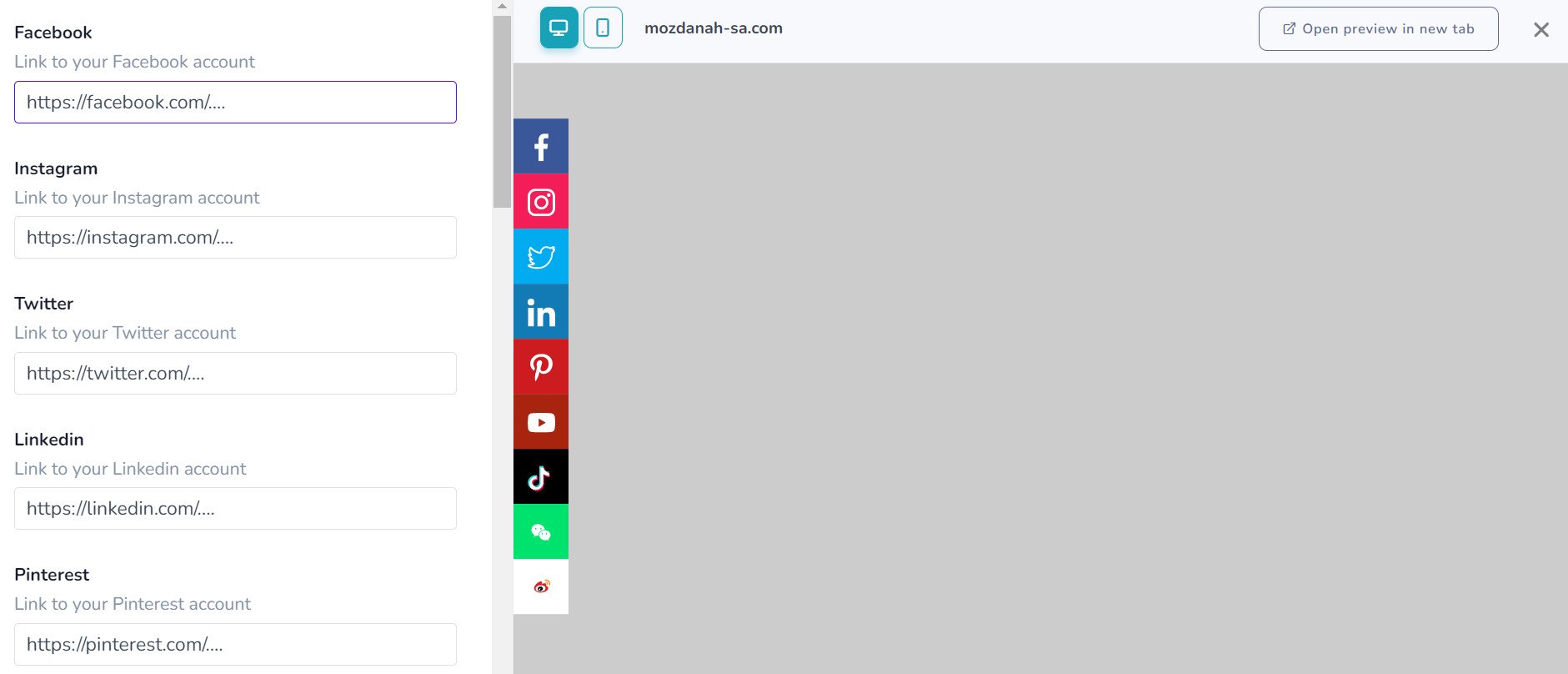
Choose the Social Follow Us settings that suit your store, then click (Save setting).
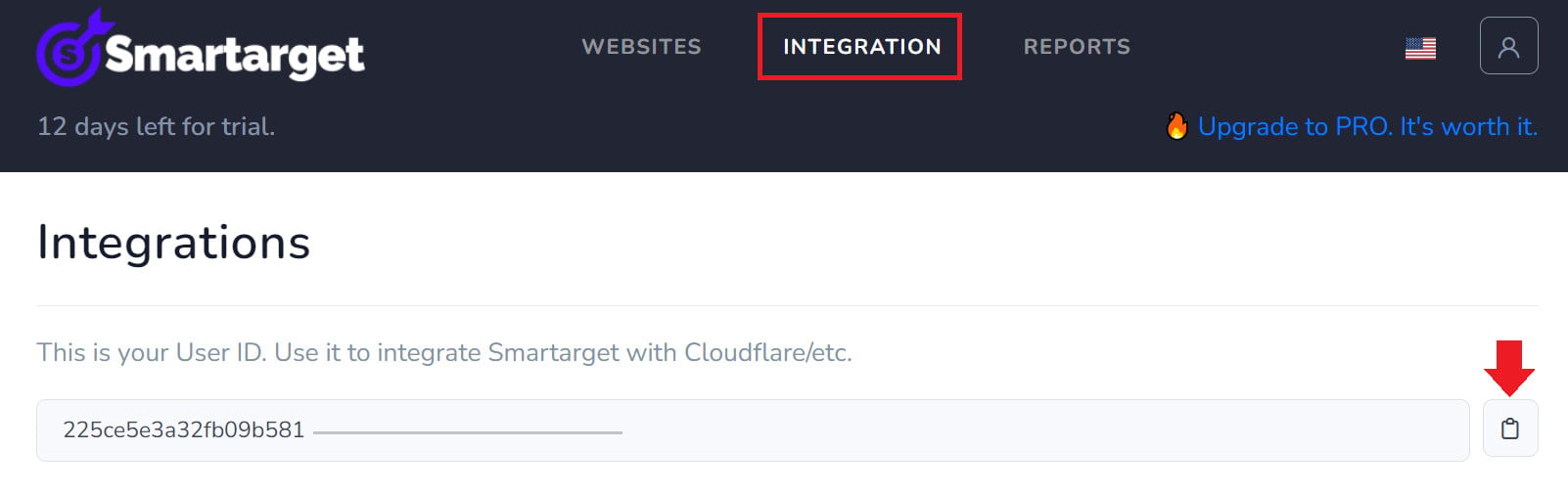
Where do I copy my Smartarget user ID from?
In your Smartarget account, open the (INTEGRATION) page, then click the copy button next to your user ID.
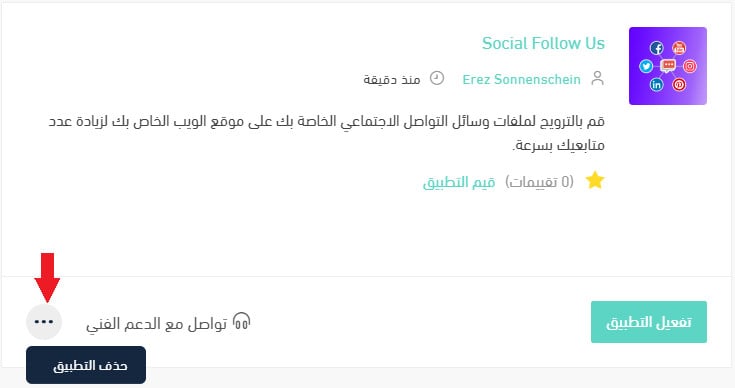
How do I remove Social Follow Us from my store?
1. From the side menu of your dashboard, click (My installed apps).

2. On the all apps page, find Social Follow Us, click the (...) icon, then click (Delete app), as shown below.
Followers are the one audience you can reach again without paying for the click a second time. Give shoppers an easy way to follow you while they are already in your store, and every visit has a chance to turn into a long-term customer.