Can your customers reach you the moment they have a question about a product?
Almost every shopper already has WhatsApp open on their phone, so the fastest way to answer a pre-purchase question is to put a WhatsApp button right on your storefront. The Smartarget WhatsApp app adds that button in a few clicks, and the whole Smartarget WhatsApp integration is handled from the Salla App Store. In this guide, you'll learn how to install and activate the app, create a Smartarget account, find your user ID, and remove the app when you no longer need it.
To add a WhatsApp button with Smartarget, open (My installed apps) in your Salla dashboard, browse the Salla App Store, and install Smartarget. Grant the requested permissions, activate the app, then paste your Smartarget user ID along with your store's WhatsApp number and save.
📌 Article overview
- What is Smartarget WhatsApp?
- How to set up the Smartarget WhatsApp integration
- Frequently asked questions
🎯 What is Smartarget WhatsApp?
Let's make it easier for your customers to talk to you. Most of them already use WhatsApp every day, so it's time to give them the option of contacting you there.
🚀 How to set up the Smartarget WhatsApp integration
1. From the side menu of your dashboard, click (My installed apps).

2. From the Salla App Store banner, click (Browse Salla App Store).

3. From the Smartarget app page, click (Install).
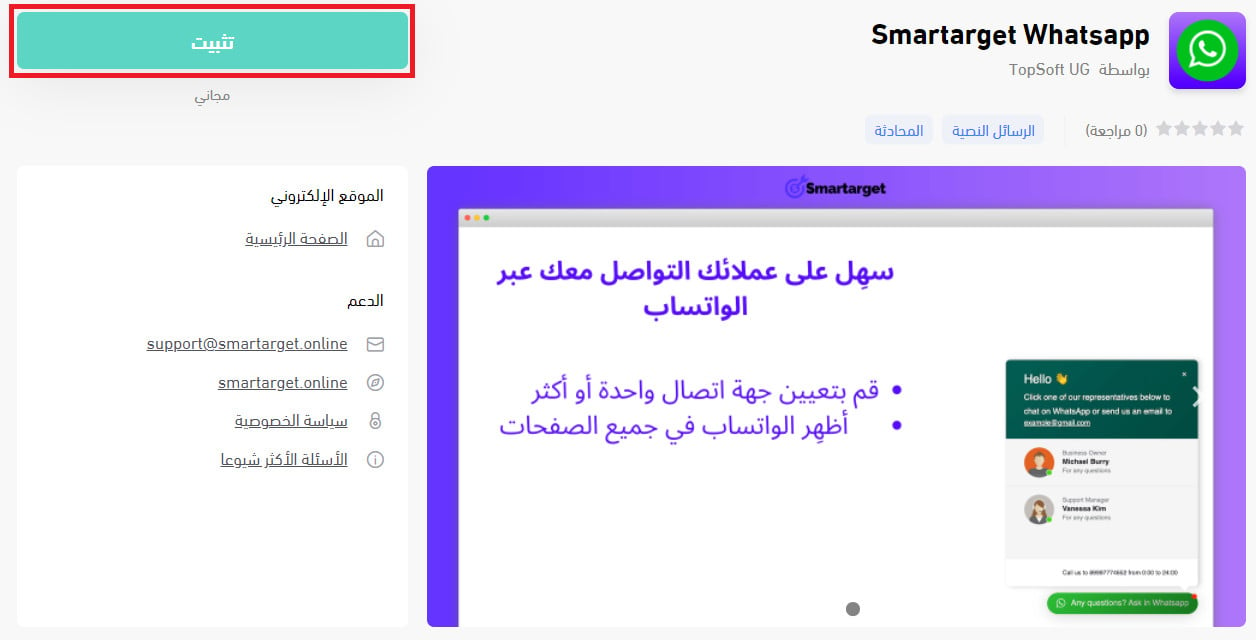
4. Review the permissions the app asks for, then click (Grant permission).
Smartarget is now installed on your store.
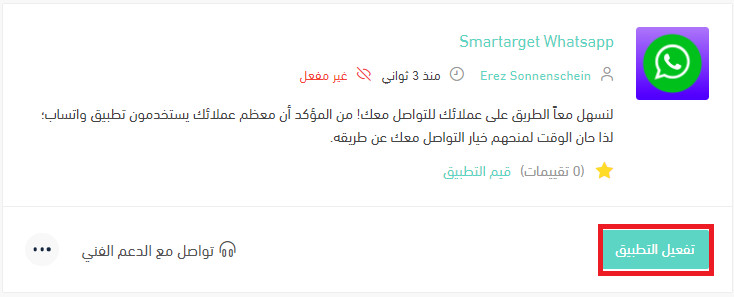
5. Click (Activate app).
6. Paste your Smartarget account number into the field provided, enter your store's WhatsApp number, then click (Save).
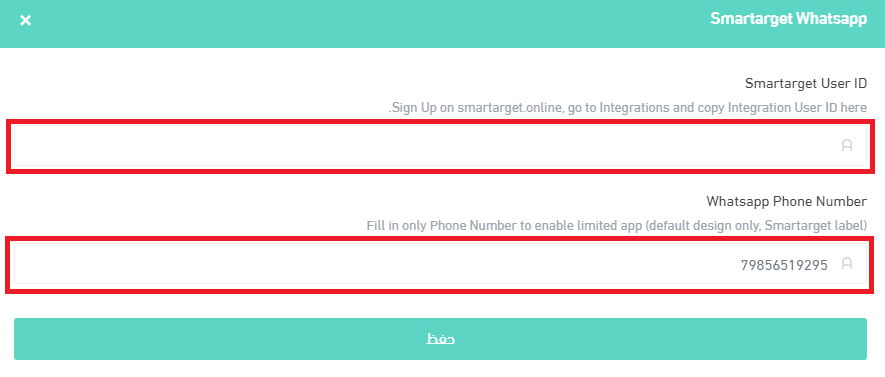
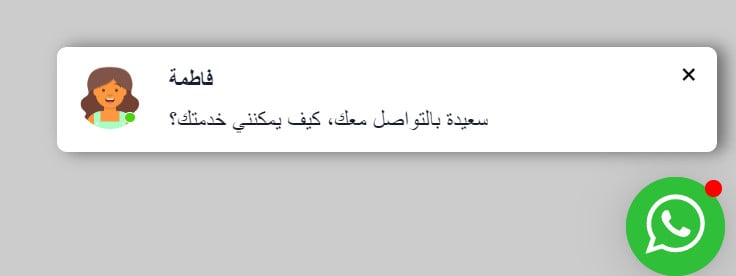
The WhatsApp button then appears to customers in your store, styled according to the settings you chose.
For more details, see managing my store apps.
❓ Frequently asked questions
How do I create a new Smartarget account?
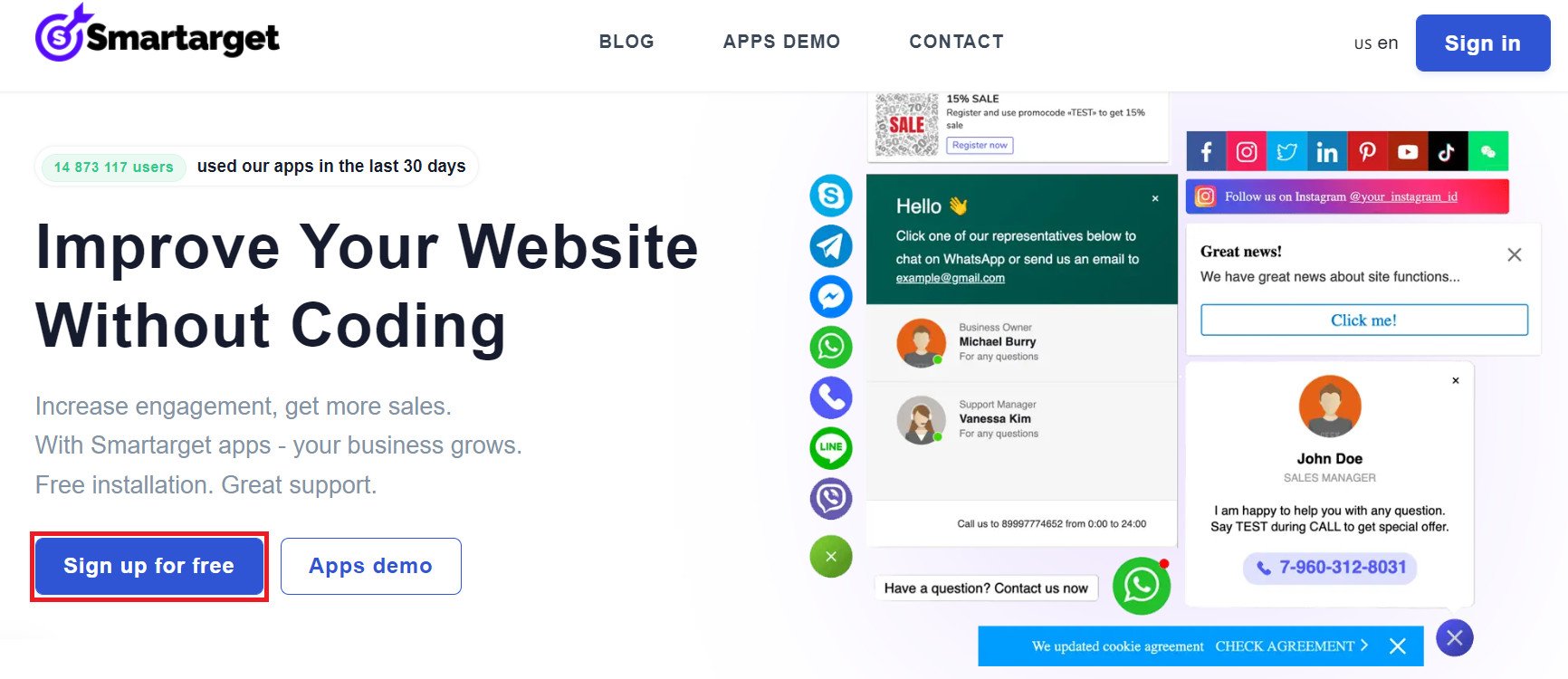
1. From the Smartarget home page, click (Sign up free).
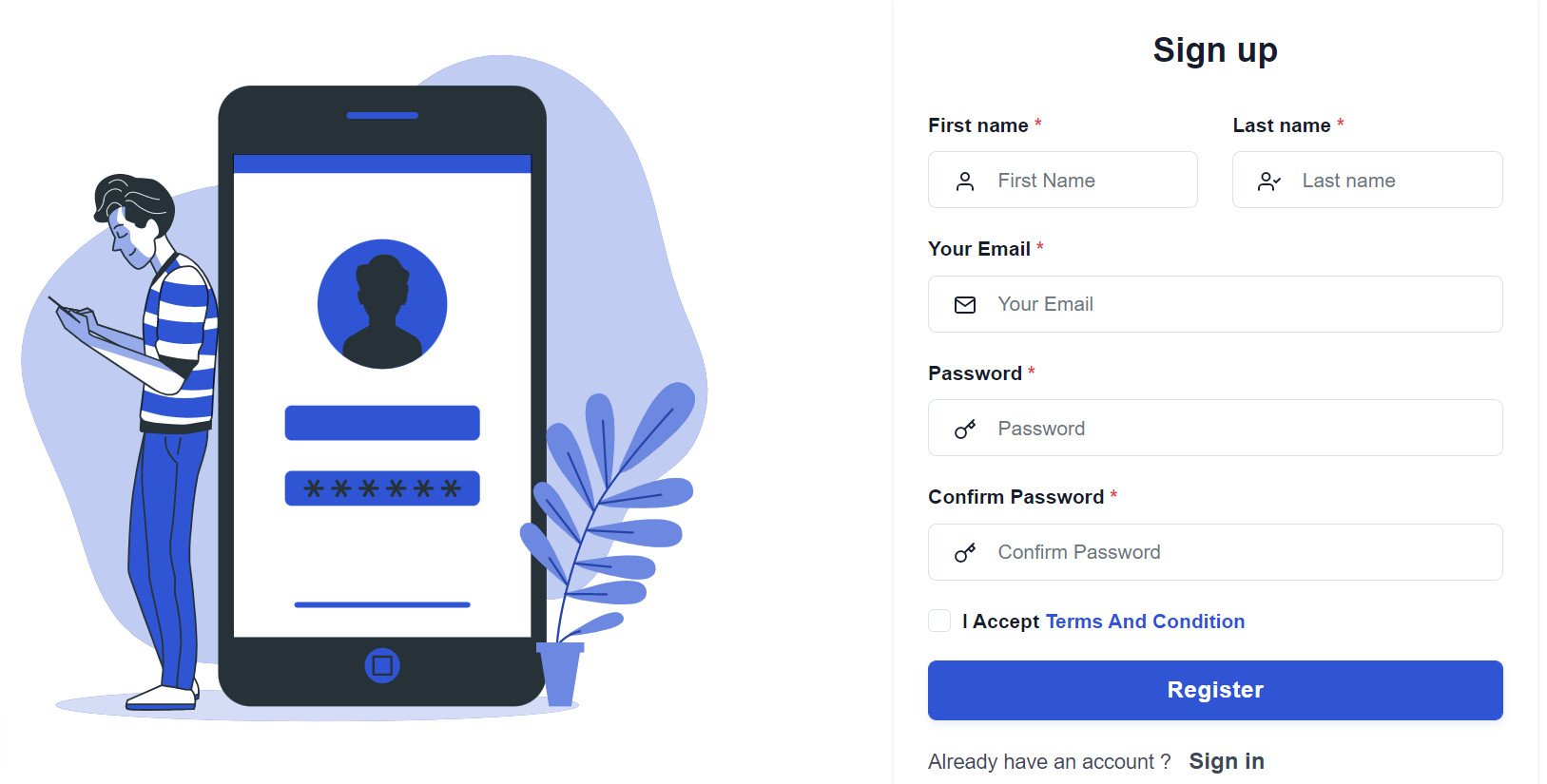
2. Enter the details it asks for, then click (Register).
3. Confirm your account from the email you receive, sign in, then click (Add website).
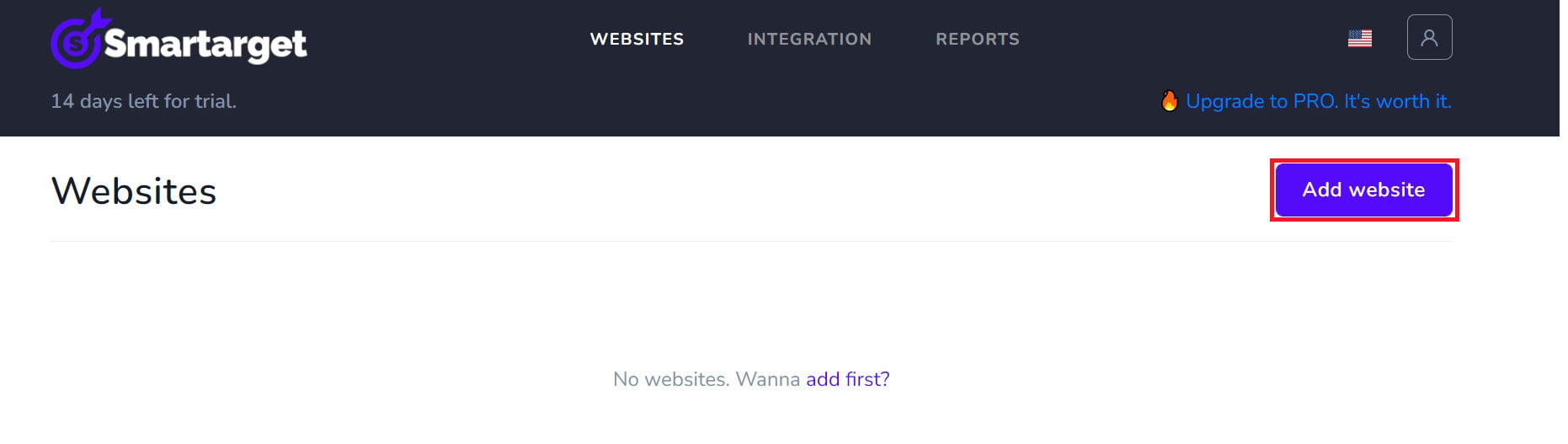
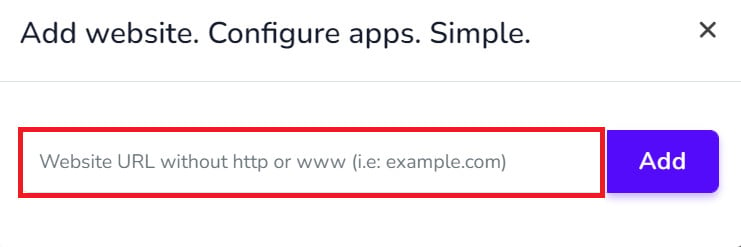
Then add your Salla store domain.
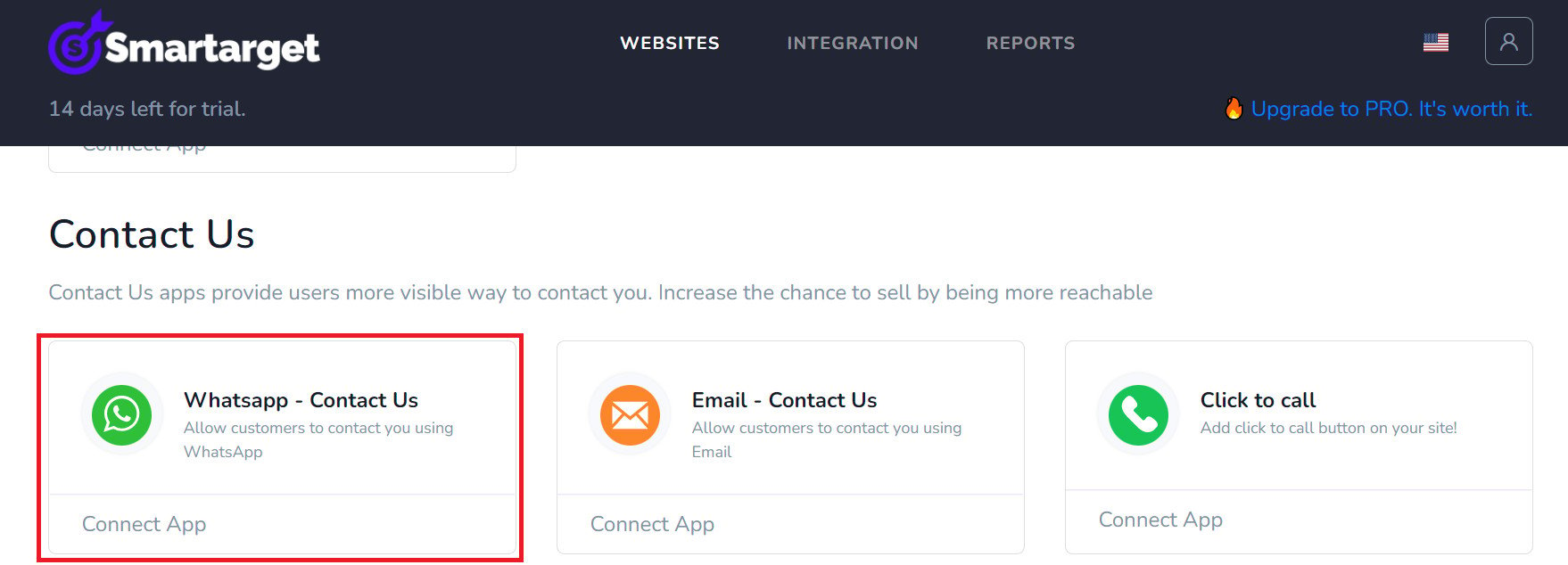
4. To add the WhatsApp button to your store, click (Whatsapp - Contact Us).
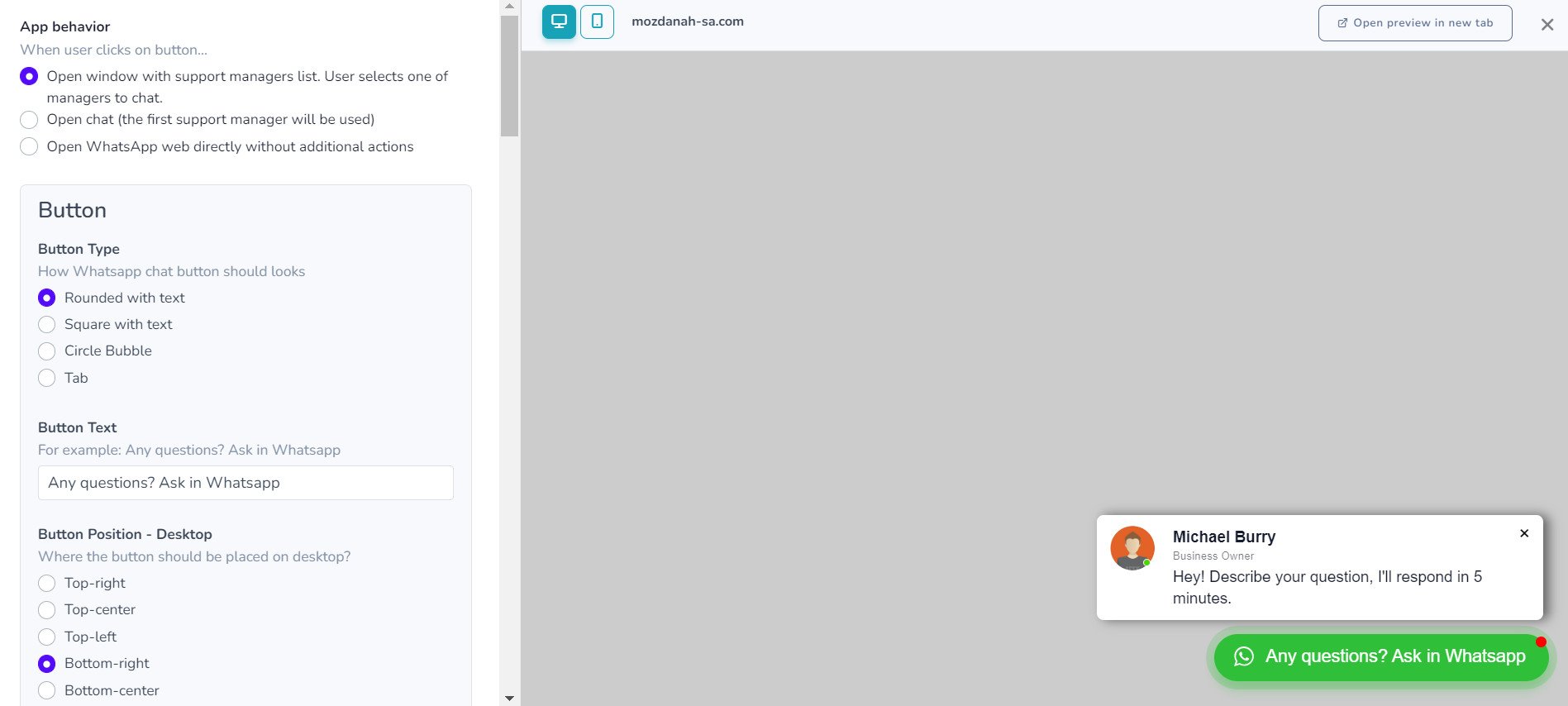
Set the button options for your store, including the number it dials and how the button looks.
Where do I copy my Smartarget user ID from?
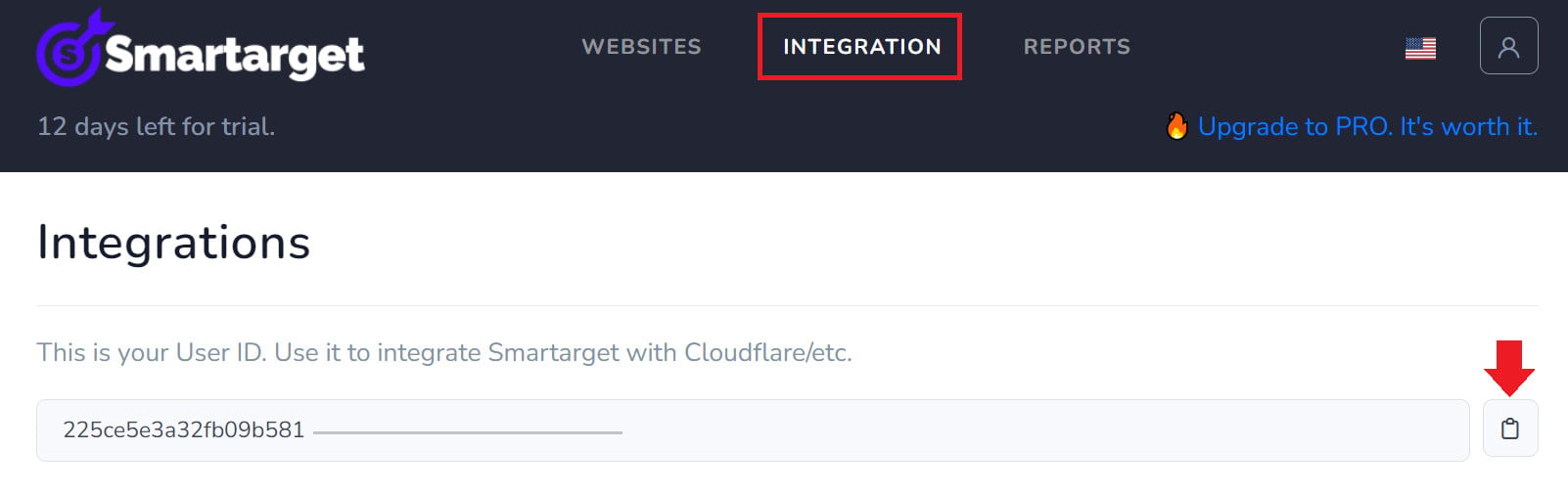
In your Smartarget account, go to the (Integration) page and click the copy button next to the user ID.
How do I remove the Smartarget app from my store?
1. From the side menu of your dashboard, click (My installed apps).

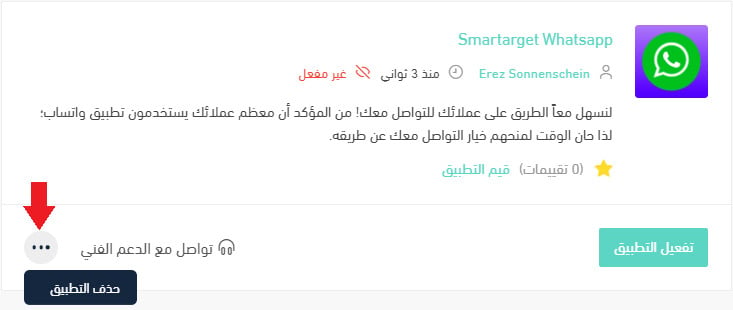
2. On the all apps page, find Smartarget, click the (...) icon, then click (Delete app), as shown below.
A WhatsApp button turns a silent visitor into a conversation — and a conversation is usually one step away from an order.