Want to add social-style stories to your storefront?
Smartarget Stories lets you publish multiple website stories using images or videos with music or audio, similar to Instagram, TikTok, and other social platforms. You can also add a call-to-action button that sends visitors to selected pages on your Salla store.
To connect Smartarget Stories to Salla, install the app and grant its requested permissions. Activate it from Installed apps, paste the User ID from your Smartarget Integration page, and save. Create and verify a Smartarget account first, add your Salla store domain, then configure the story settings.
📌 Article overview
- What Smartarget Stories does
- How to connect and activate Smartarget Stories
- How to create a Smartarget account
- Where to copy your Smartarget User ID
- How to remove the app
💡 What is Smartarget Stories?
Smartarget Stories lets you create multiple stories for your website and include images or videos with music or audio. It works like stories on Instagram, TikTok, and other social platforms. You can add a call-to-action button to direct traffic to specific pages on your store.
🚀 How to connect Smartarget Stories to Salla
1. From the dashboard side menu, click (Installed apps).

2. From the Salla App Store banner, click (Browse the Salla App Store).

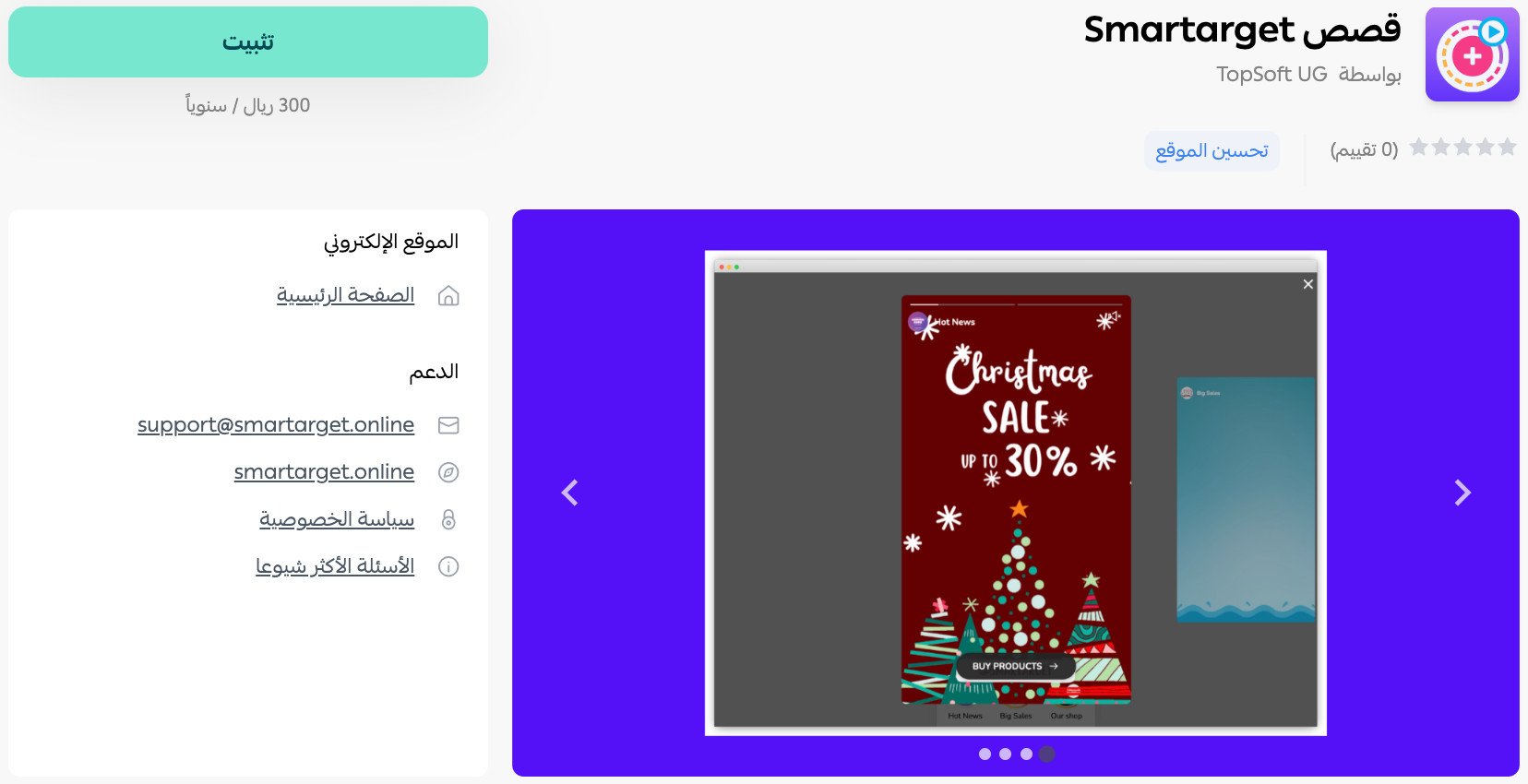
3. On the Smartarget Stories app page, click (Install).
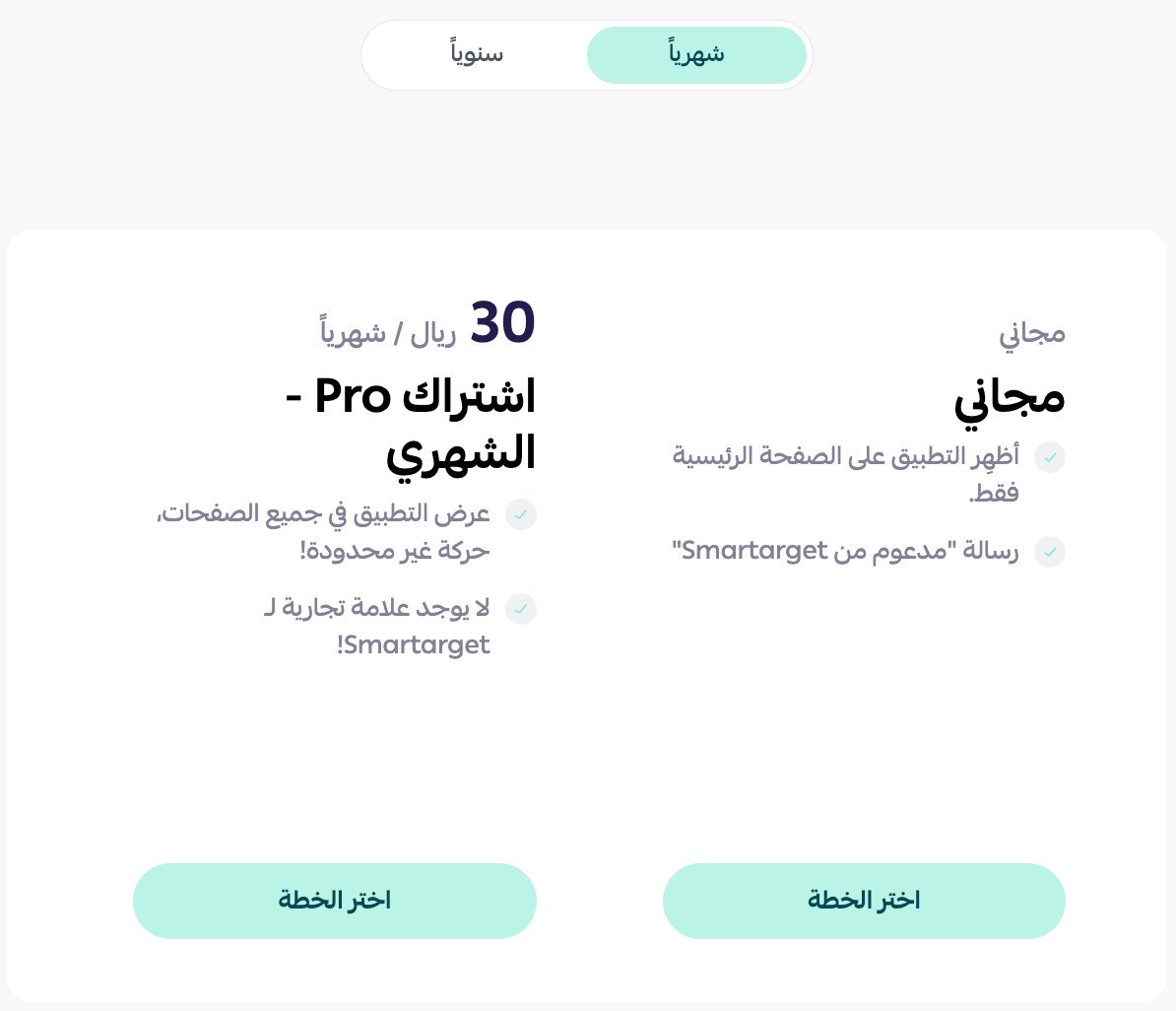
Select the plan that best suits your business.
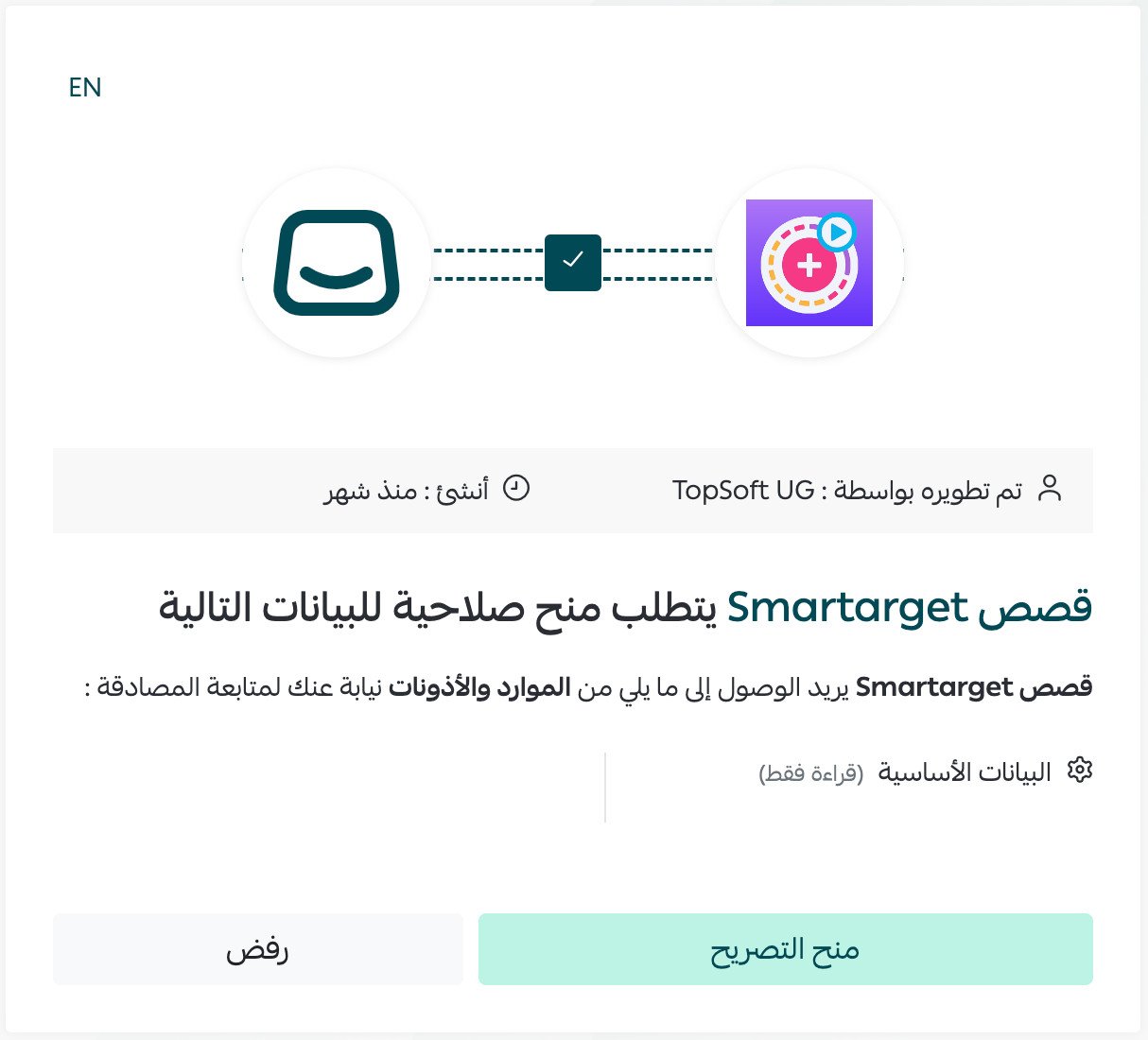
4. Review the requested permissions, then click (Grant permission).
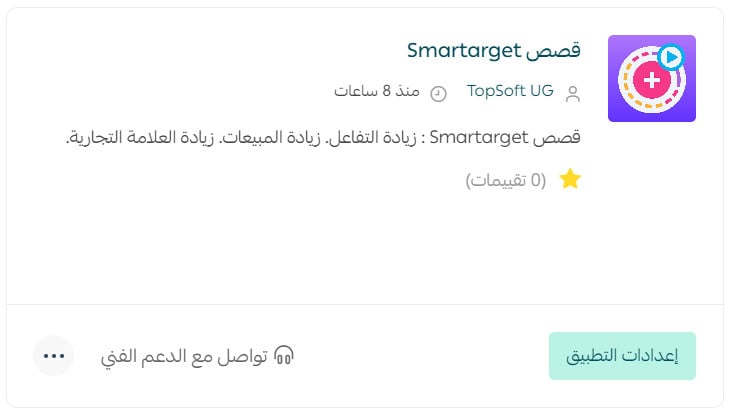
Smartarget Stories is now installed on your store.
✅ How to activate Smartarget Stories
5. On the Installed apps page, find Smartarget Stories and click (Activate app).
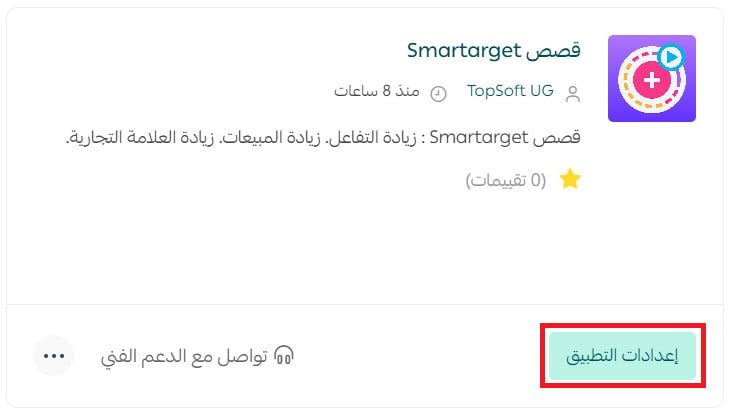
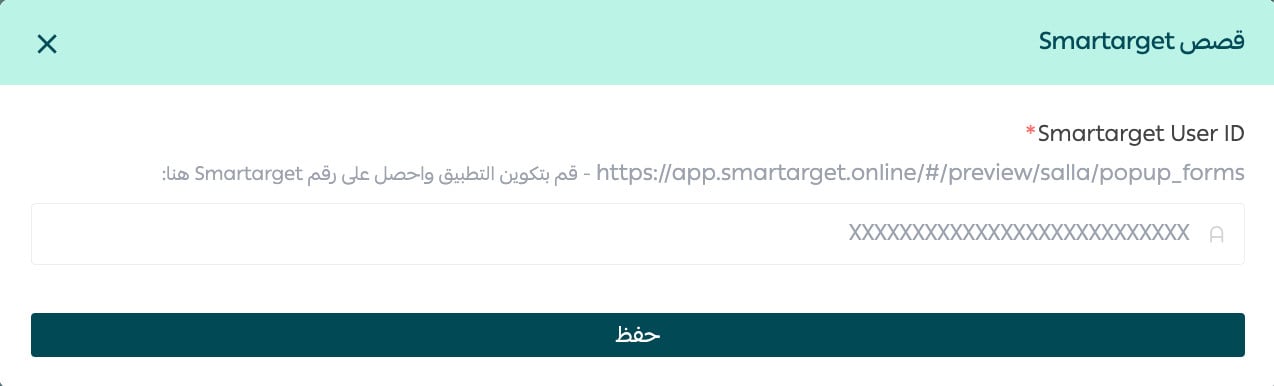
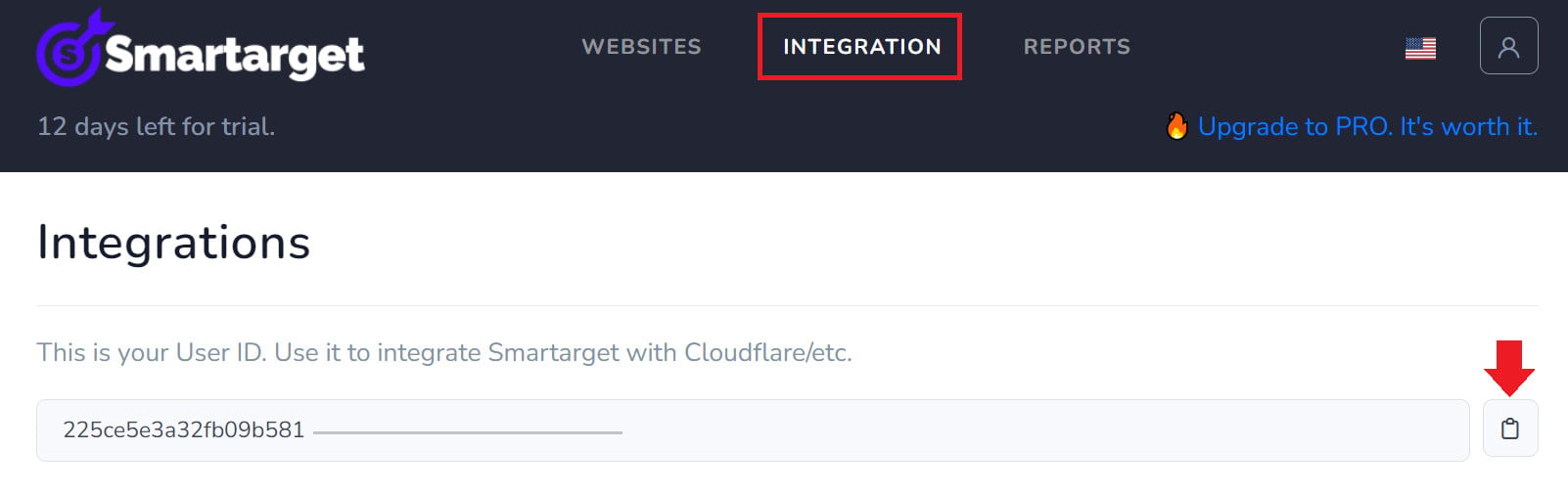
6. Paste your Smartarget account number, labeled (User ID), into the designated field, then click (Save).
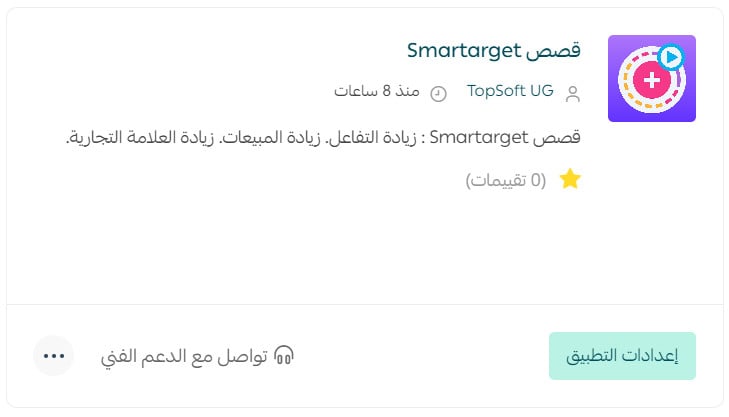
Smartarget Stories is now active on your store. Adjust its settings to suit your business.
For more details, see managing your store apps.
❓ Frequently asked questions about Smartarget Stories
How do I create a Smartarget account?
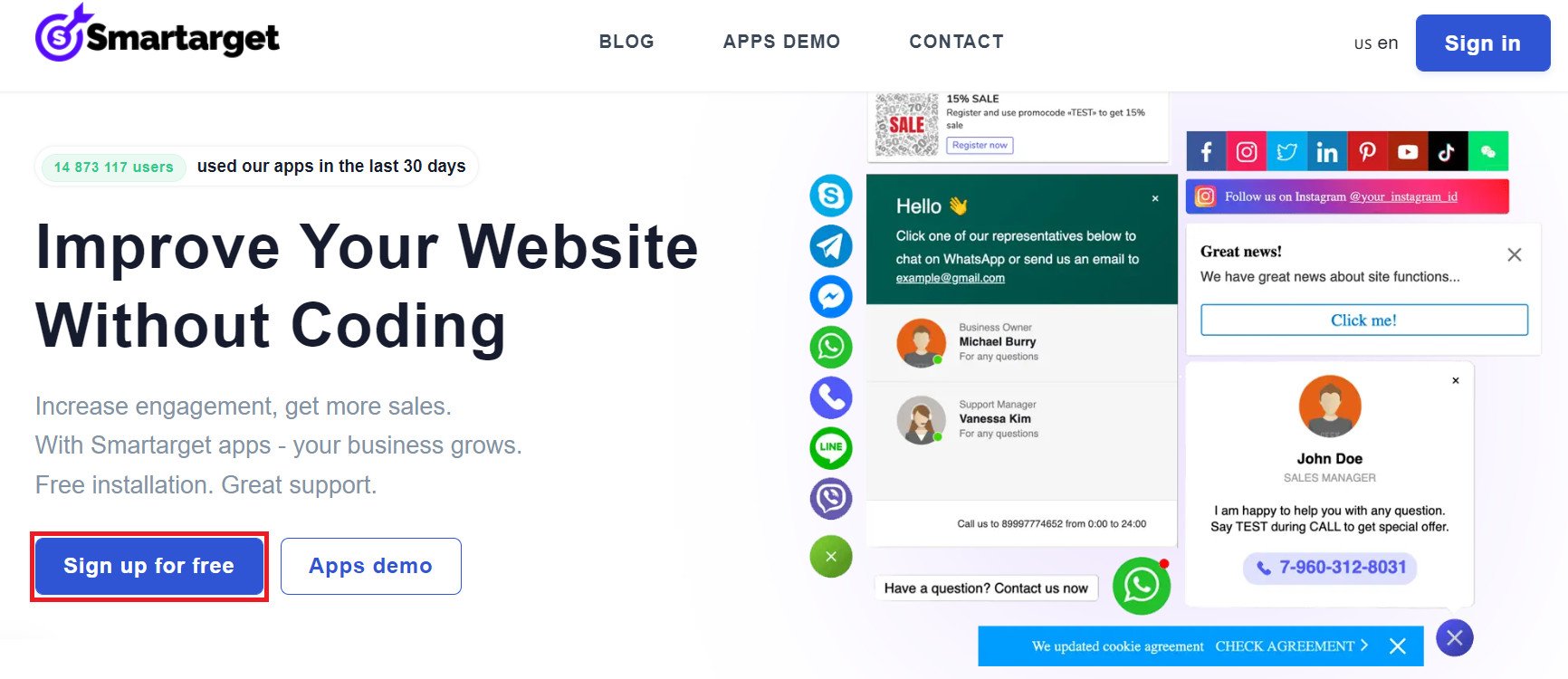
1. On the Smartarget home page, click (Sign up for free).
2. Enter the required details, then click (Register).
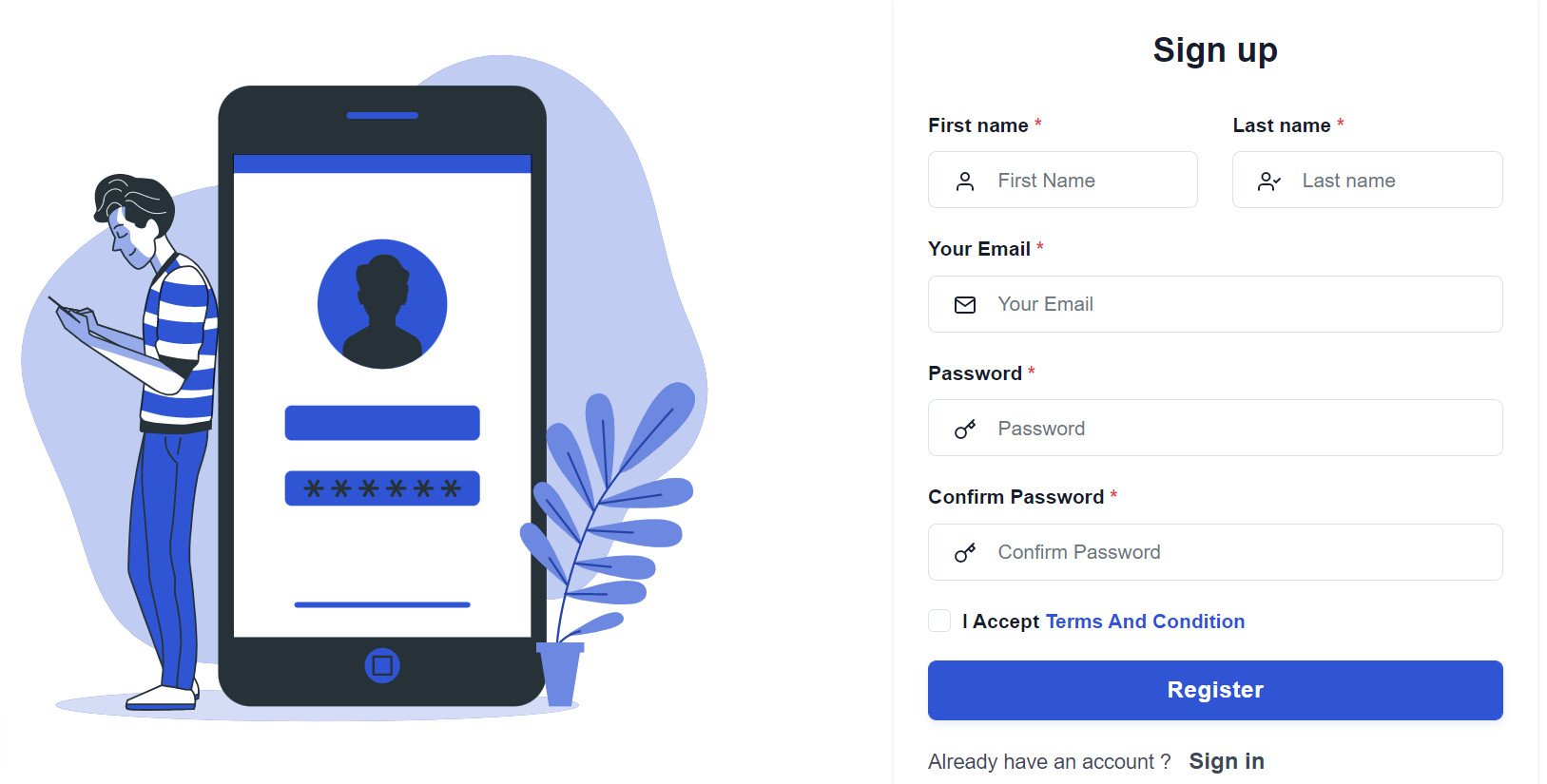
3. Confirm your account using the email you receive. Sign in, then click (Add website).
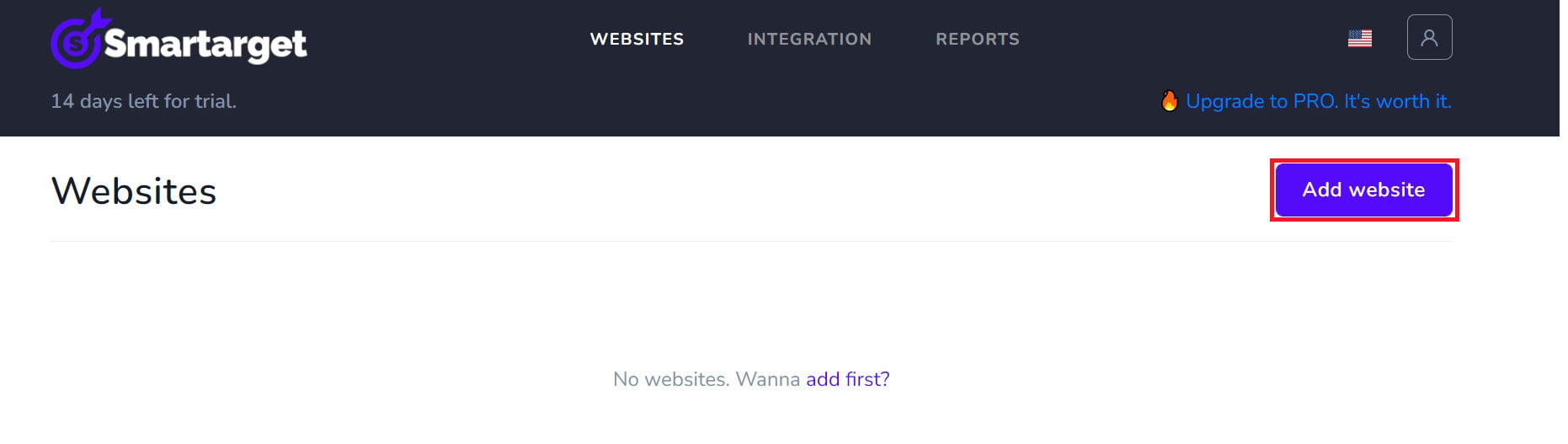
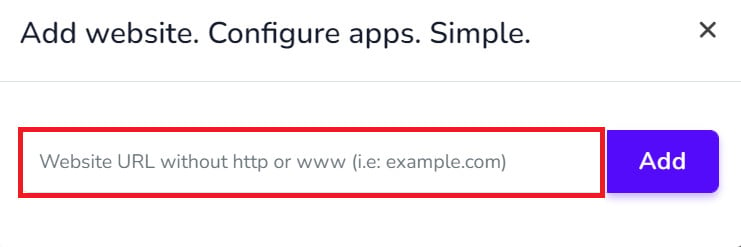
Add your Salla store domain.
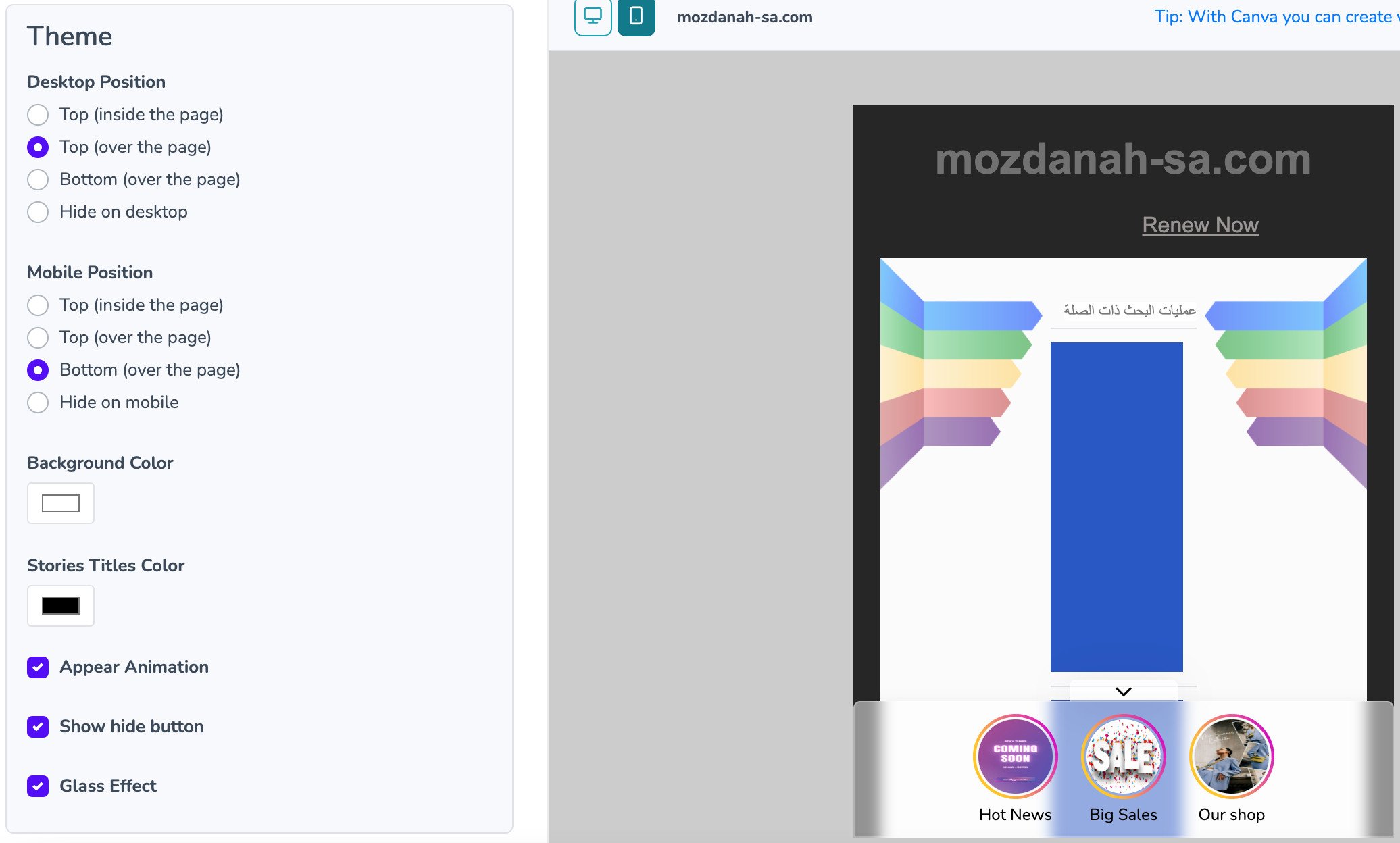
4. To configure Smartarget Stories for your store, click (Contact App). [Verify: this label appears unrelated to Stories and may be a copied instruction or an outdated Smartarget interface label.]
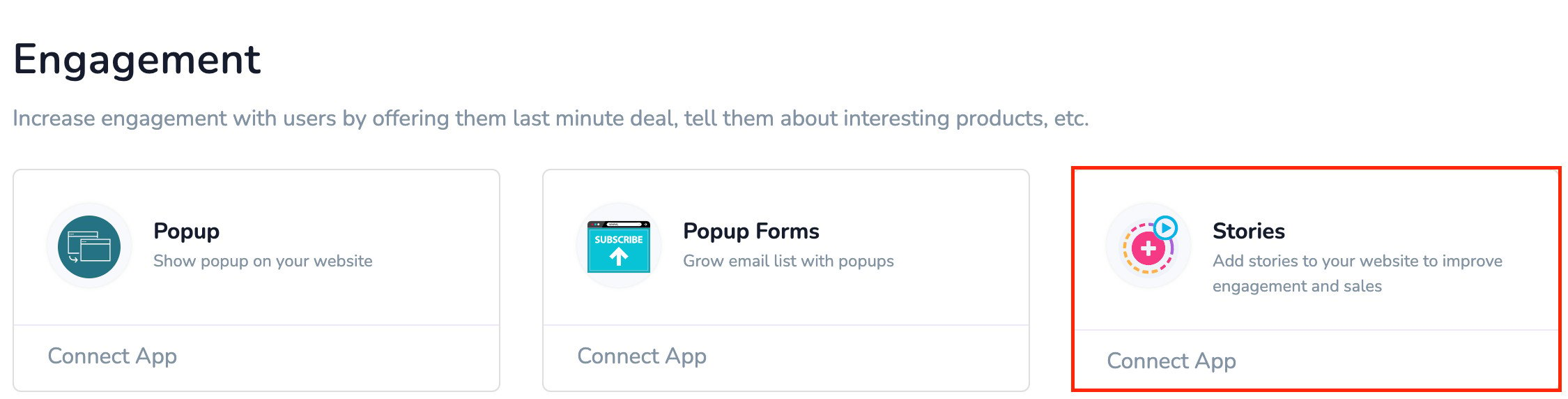
Configure the Smartarget Stories settings for your store, then click (Save setting).
Where can I copy my Smartarget User ID?
In your Smartarget account, open the (INTEGRATION) page, then click (Copy) to copy the User ID.
How can I remove Smartarget Stories from my store?
1. From the dashboard side menu, click (Installed apps).

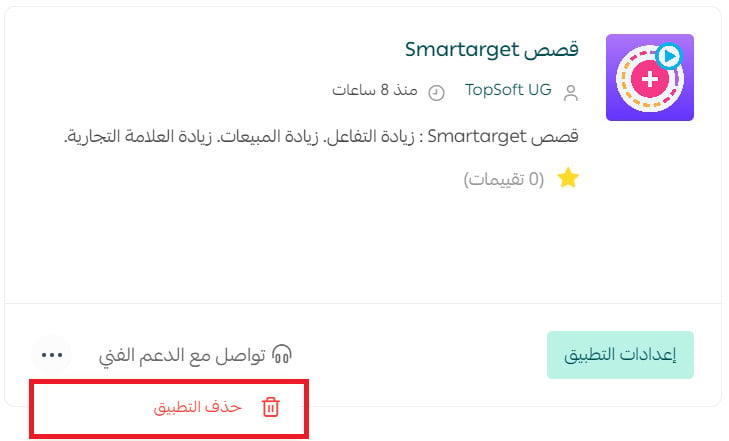
2. On the all apps page, find Smartarget Stories, click the (...) icon, then click (Delete app).
📝 Important notes
Confirm whether (Contact App) is the correct current Smartarget menu item for configuring Stories before publication.
Use the User ID from Smartarget's Integration page, verify your store domain, and test every story link and call-to-action after activation.