How do you make sure every visitor sees your offer before they leave your store?
An announcement buried on a page gets skipped. The Popup app from Smartarget puts your message in front of shoppers the moment they arrive at your Salla store, in colors and wording you control, on desktop and mobile alike. You install it from the Salla App Store, connect it with your Smartarget User ID, and set it up to match your store's design. In this guide, you'll learn how to connect the Popup app, customize it, create a Smartarget account, and remove the app.
To add popups, open (My installed apps), click (Browse Salla App Store), open the Popup app page, and click (Install). Grant the permissions, activate the app, then paste your Smartarget User ID and click (Save). Set the popup's colors, image, and text to match your store.
📌 Article overview
- What is the Popup app?
- How to connect the Popup app to your Salla store
- Frequently asked questions
🎯 What is the Popup app?
The Popup app from Smartarget is the surest way to get your announcement in front of customers when they visit your Salla store. These easy-to-use popups capture attention, and they work on both desktop computers and mobile devices.
🚀 How to connect the Popup app to your Salla store
📝 Important notes
Step 6 asks for your Smartarget User ID. If you do not have a Smartarget account yet, create one first — the steps are in the frequently asked questions below.
1. From the side menu of your dashboard, click (My installed apps).

2. From the Salla App Store banner, click (Browse Salla App Store).

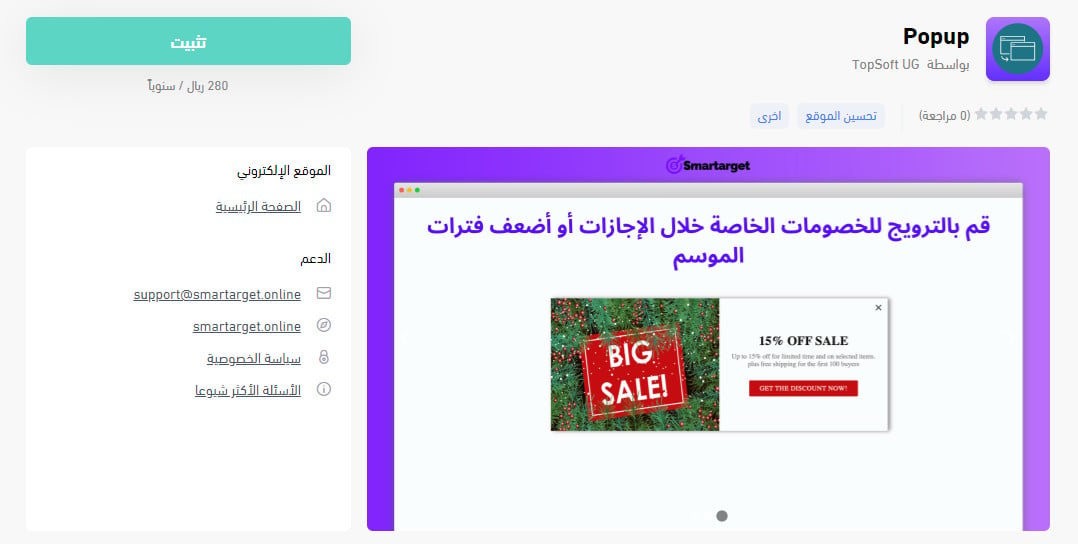
3. From the Popup app page, click (Install).
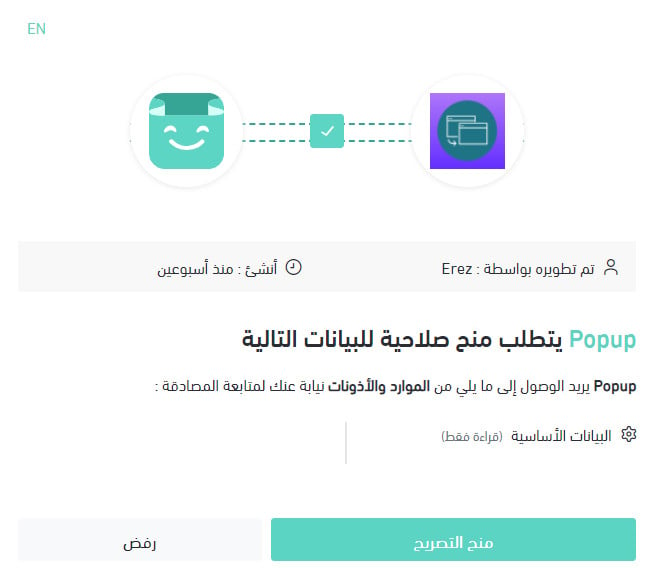
4. Review the permissions the app asks for, then click (Grant permission).
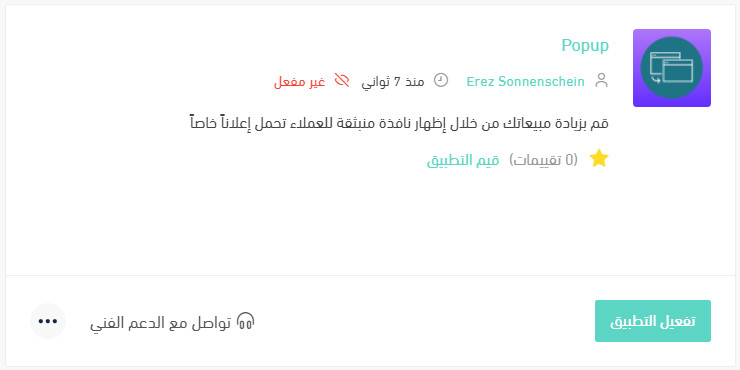
The Popup app is now installed on your store.
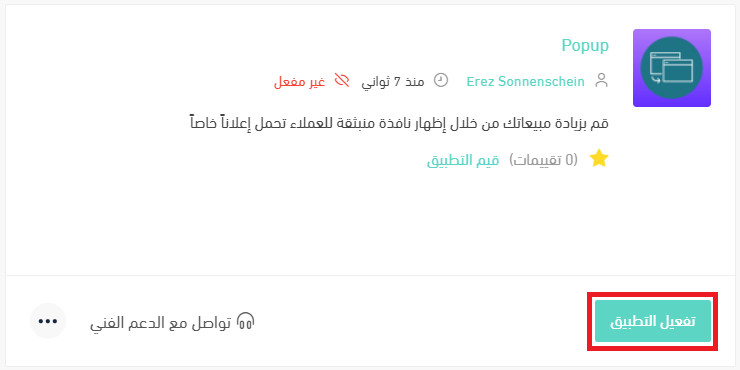
5. From the installed apps page, click (Activate app) on Popup.
6. Paste your Smartarget User ID into the field provided, then click (Save).
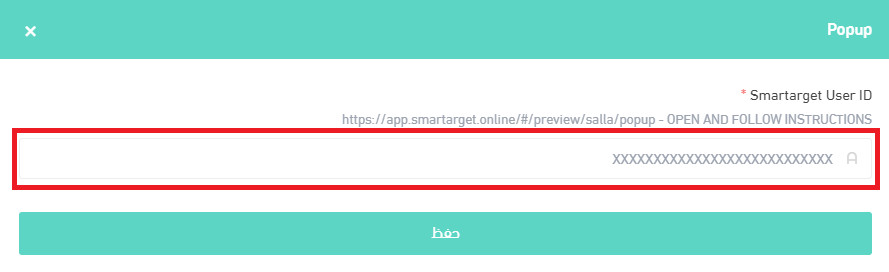
The Popup app is now live on your store. Set up the popup to suit what your business needs.
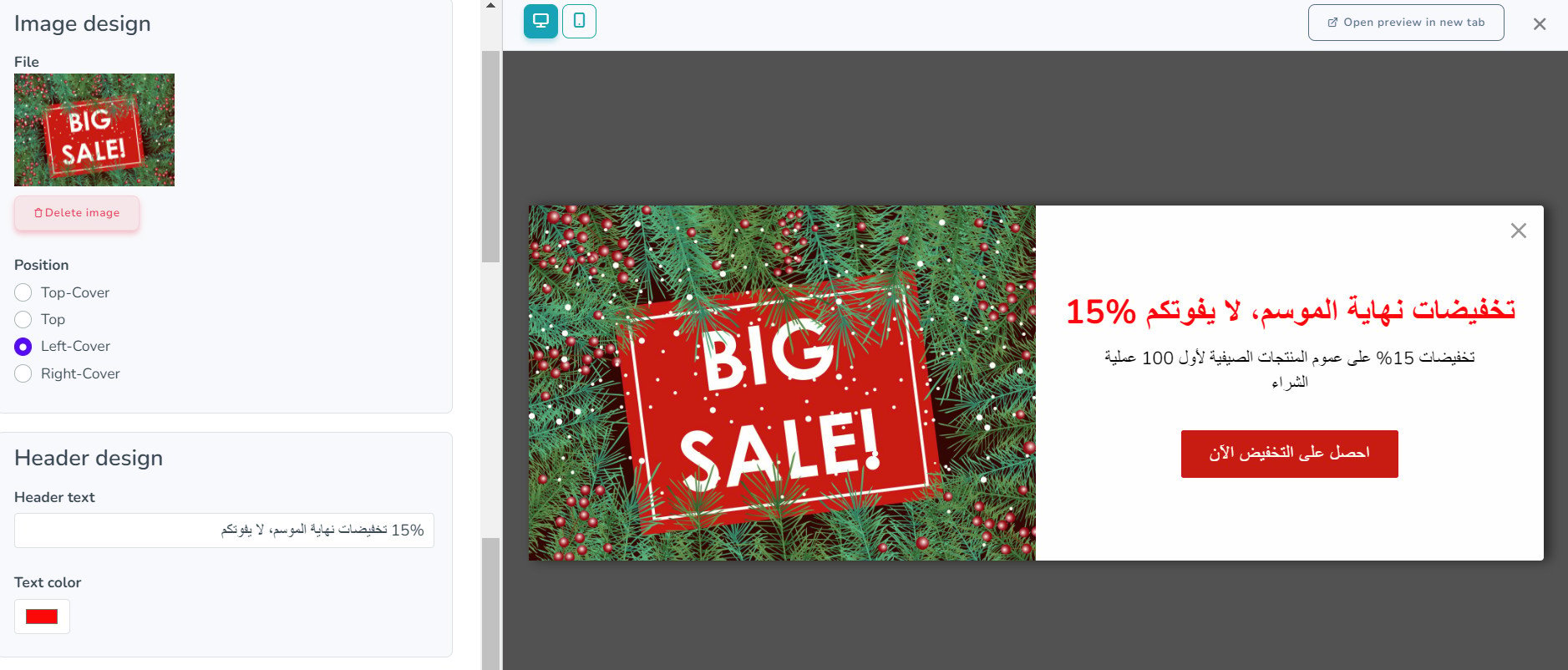
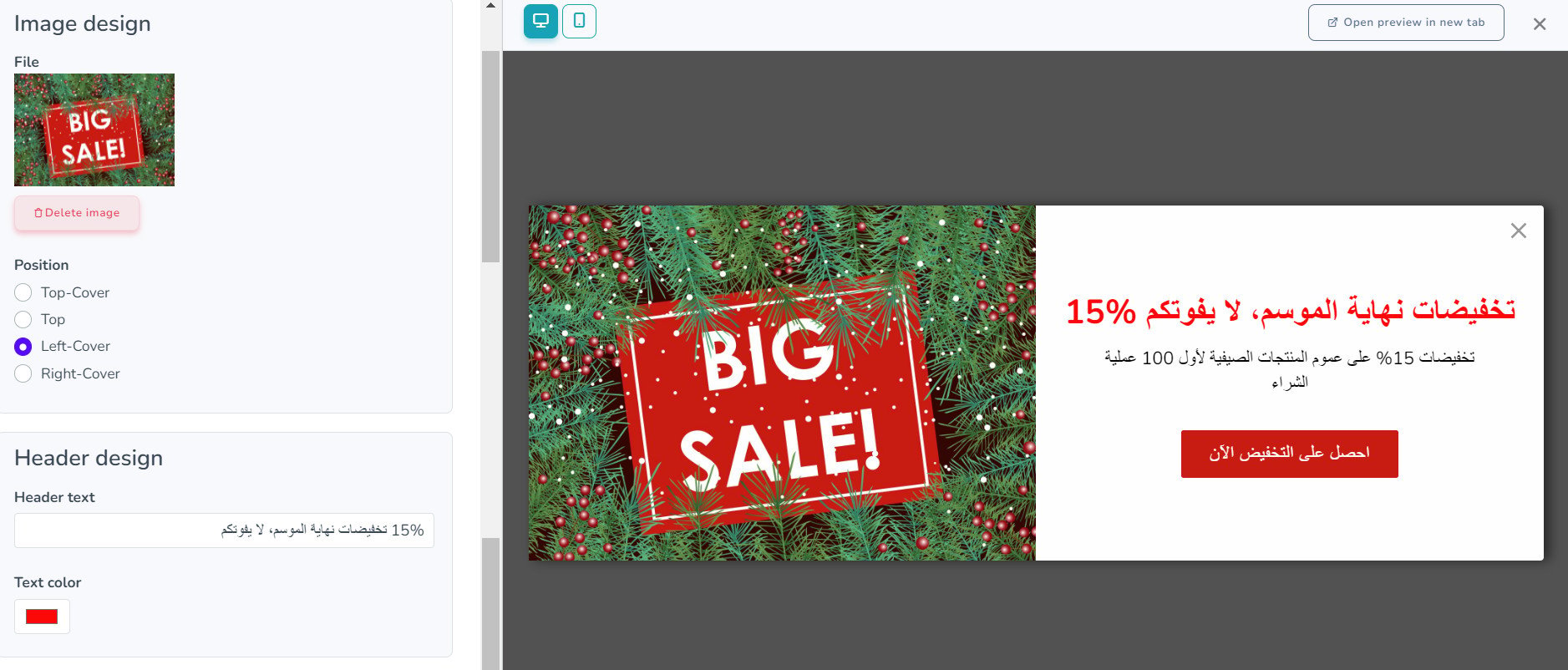
The popup then appears like this:

For more details, read managing my store's apps.
❓ Frequently asked questions
Here are the answers to the questions merchants ask most:
- Can I customize the Popup app to match my store's design?
- Does Popup work on both desktop computers and mobile devices?
- Can I use the Popup app in any language?
- How do I create a Smartarget account?
- Where do I copy my Smartarget User ID from?
- How do I remove the Popup app from my store?
Can I customize the Popup app to match my store's design?
Yes. Pick popup colors that go with your store's theme, and choose a relevant image to show alongside the popup — it helps pull more attention from customers.
Does Popup work on both desktop computers and mobile devices?
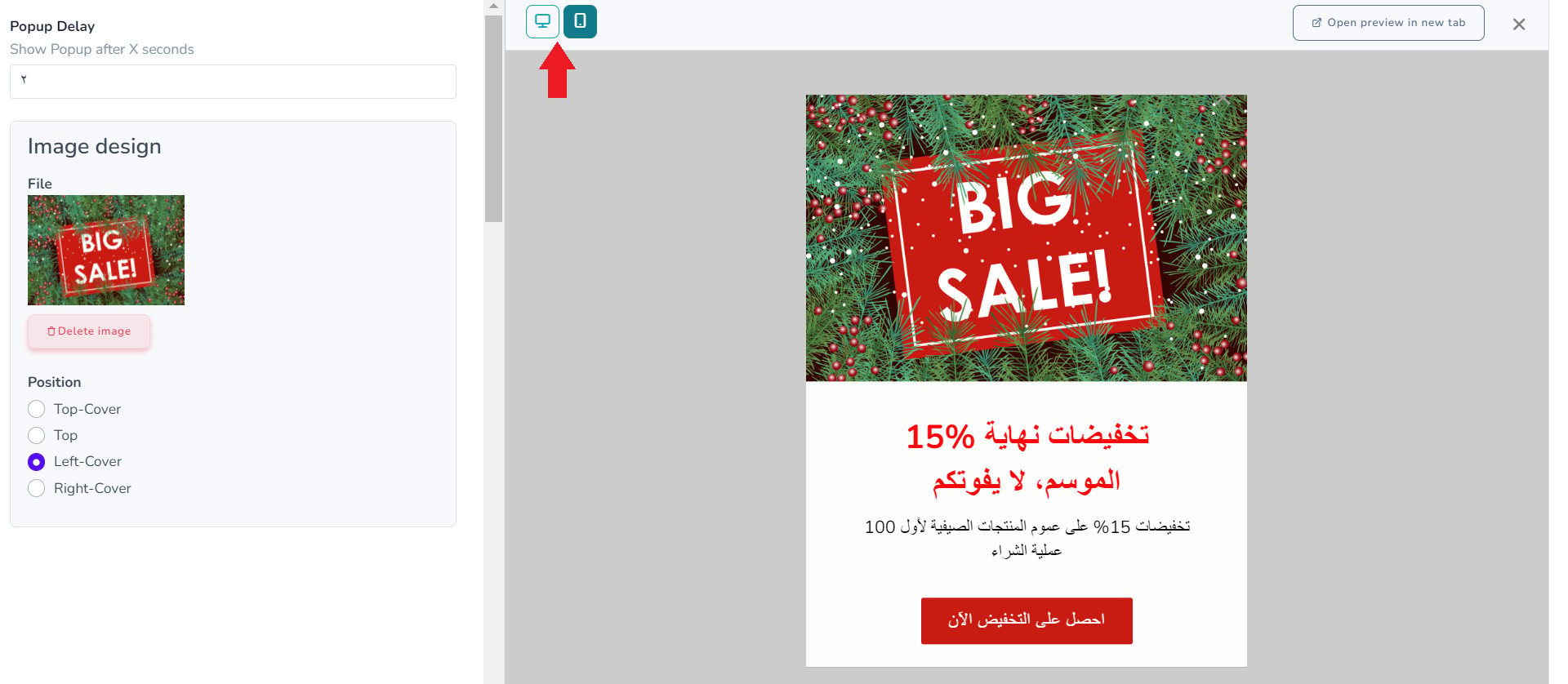
Yes. You can be confident your customers will see it on whatever type of device they are using.
Can I use the Popup app in any language?
Yes, including languages written from right to left.
How do I create a Smartarget account?
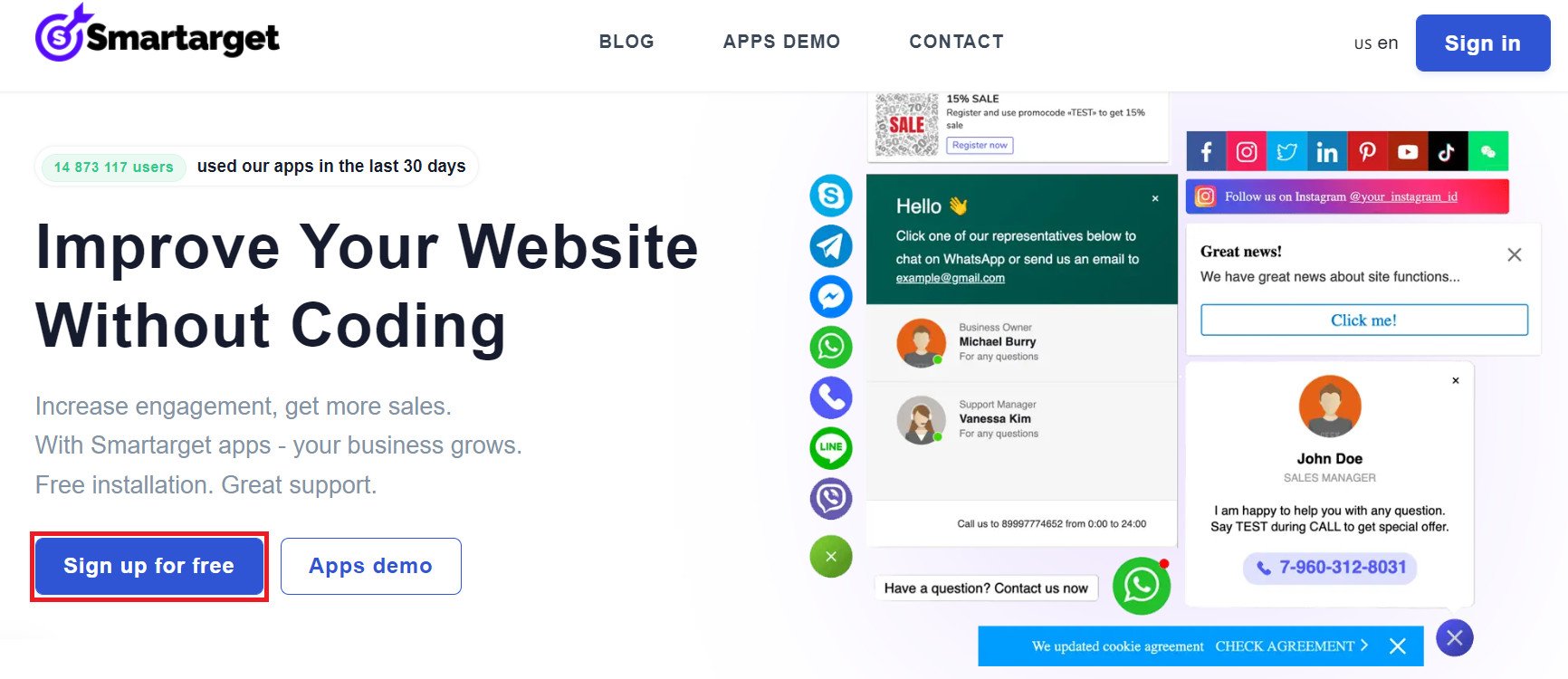
1. From the Smartarget home page, click (Sign up free).
2. Enter the details it asks for, then click (Register).
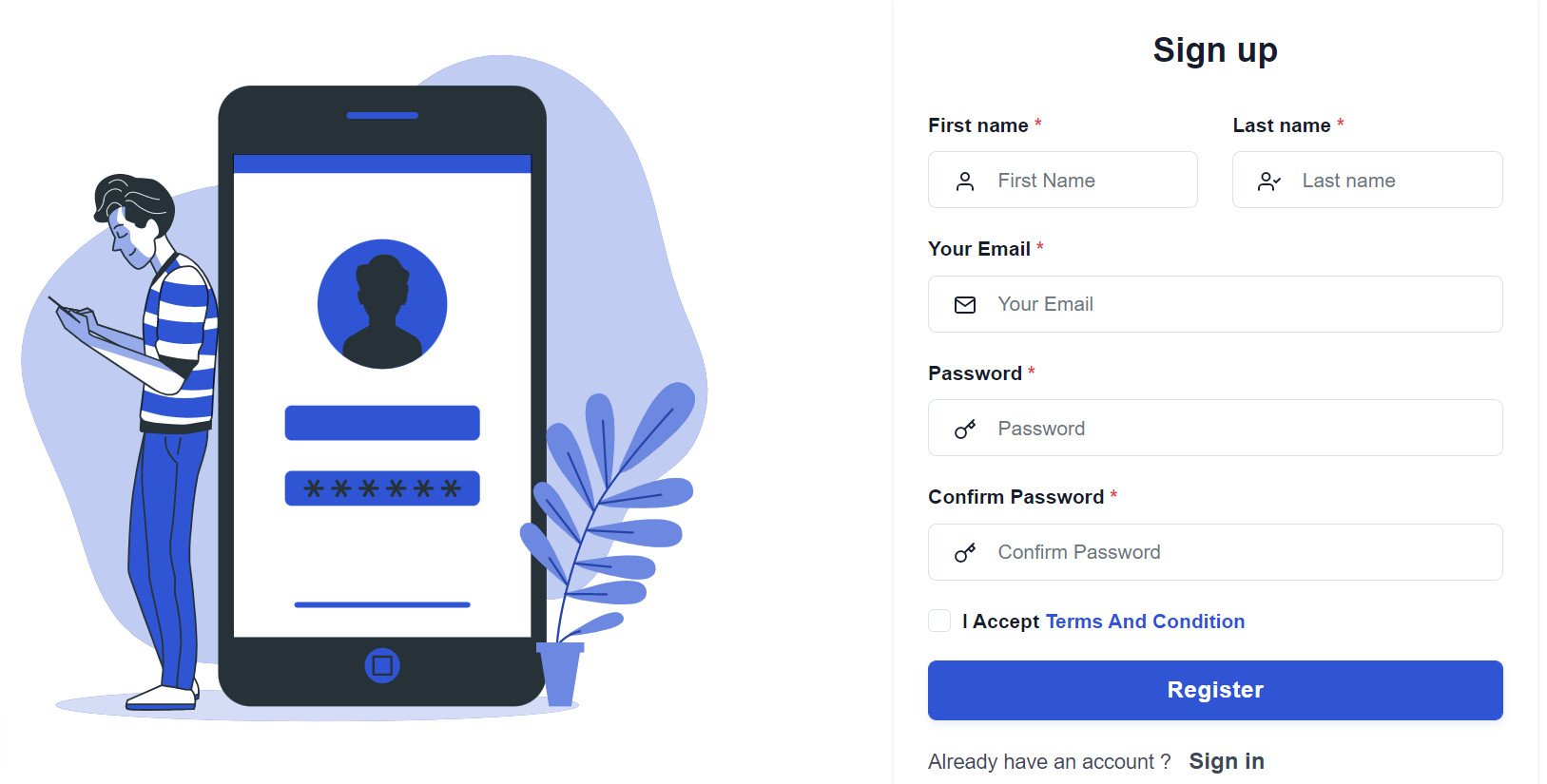
3. Confirm your account through the email you receive, sign in, then click (Add website).
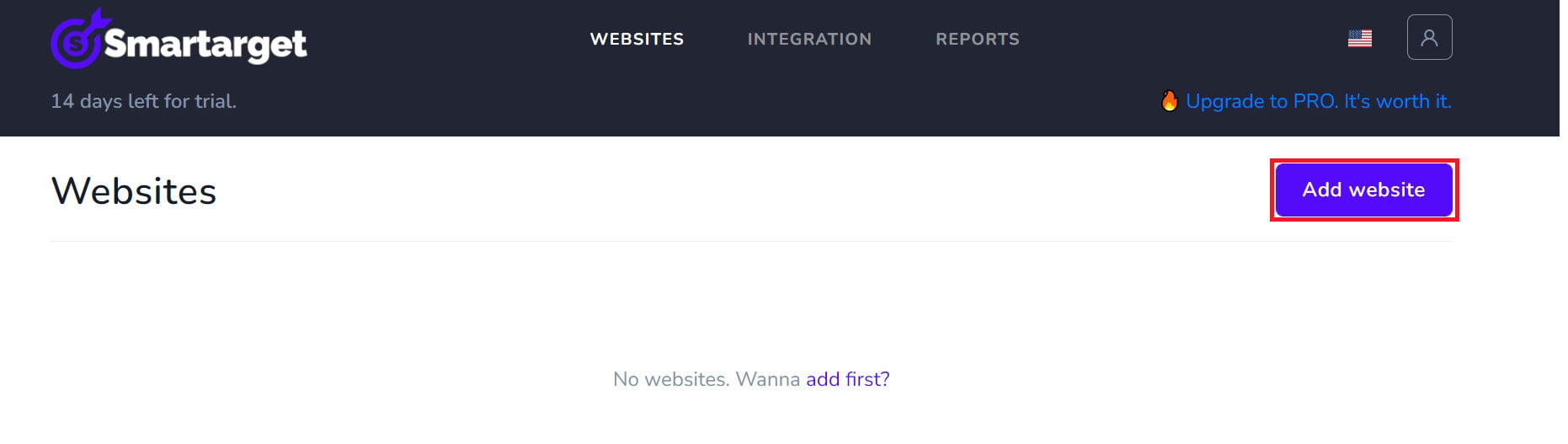
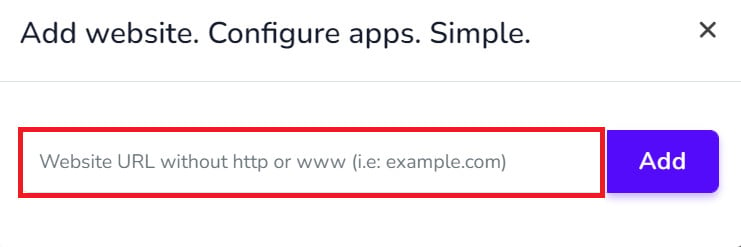
Then add your Salla store domain.
4. To install Popup on your store, click (Lucky Wheel - Contact Us). [Verify: this step names the Lucky Wheel button, which belongs to a different Smartarget app, so the button name for Popup needs confirming.]
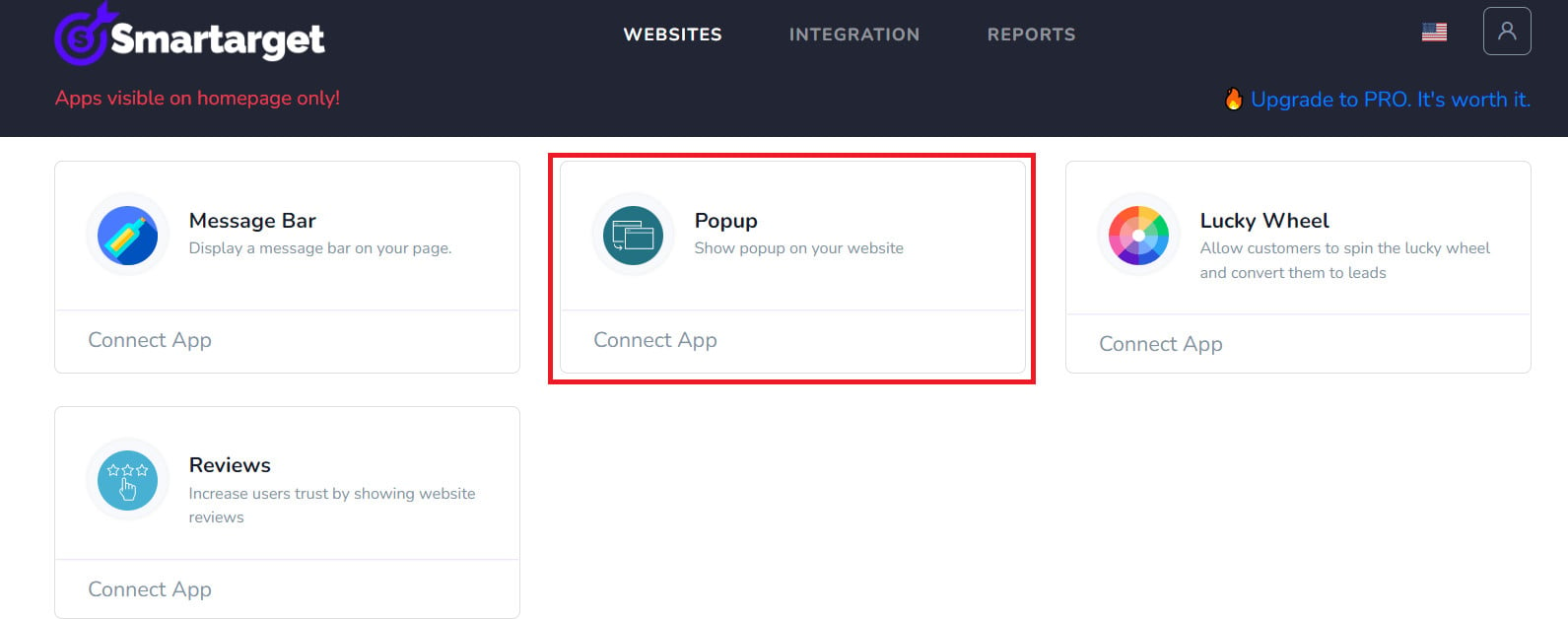
Set up your store's popup the way you want it, then click (Save setting).
Where do I copy my Smartarget User ID from?
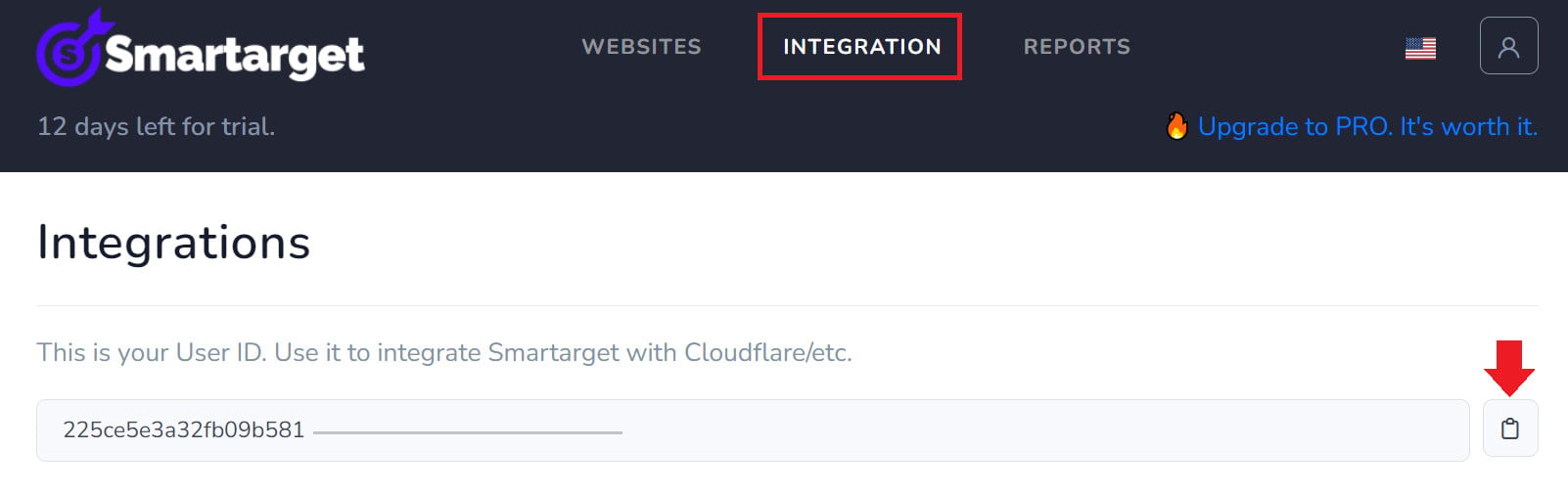
In your Smartarget account, go to the (INTEGRATION) page and click the (Copy) button to copy your User ID.
How do I remove the Popup app from my store?
1. From the side menu of your dashboard, click (My installed apps).

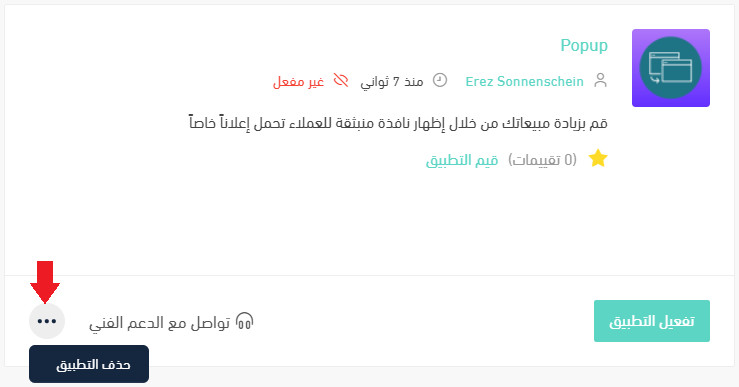
2. On the all apps page, find the Popup app, click the (...) icon, then click (Remove app), as shown below.
A popup earns its place only when it says something worth interrupting for. Lead with one clear offer, match it to your store's colors, and it will do more work than a banner ever did.