Selling in a shop and online at the same time, and never quite sure which stock number is right?
When your branches and your online store keep separate counts, someone eventually buys an item you no longer have. Rewaa is a cloud inventory and sales platform that puts both sides on one set of numbers, so retailers can manage products and orders and keep every sales channel in sync from a single place. In this guide, you'll learn how to connect Rewaa to your Salla store, match your tax settings, and link your products and stock.
Connecting Rewaa to your Salla store takes three stages: install the Rewaa app from the Salla App Store, match the VAT settings on both platforms, then install the Salla app inside Rewaa to link your account, choose one inventory location, and sync your products.
📌 Article overview
- Install the Rewaa app on Salla
- Set up tax between Salla and Rewaa
- Link your products and stock
- Frequently asked questions
What is Rewaa?
Rewaa is a cloud platform for inventory and sales management. It helps retailers run more efficiently by bringing online-store and in-shop sales together, with tools to manage products and orders and to keep different sales channels in sync from one place.
🚀 Step one: install the Rewaa app
1. From the side menu of your dashboard, click (Installed apps).

2. From the Salla App Store banner, click (Browse Salla App Store).

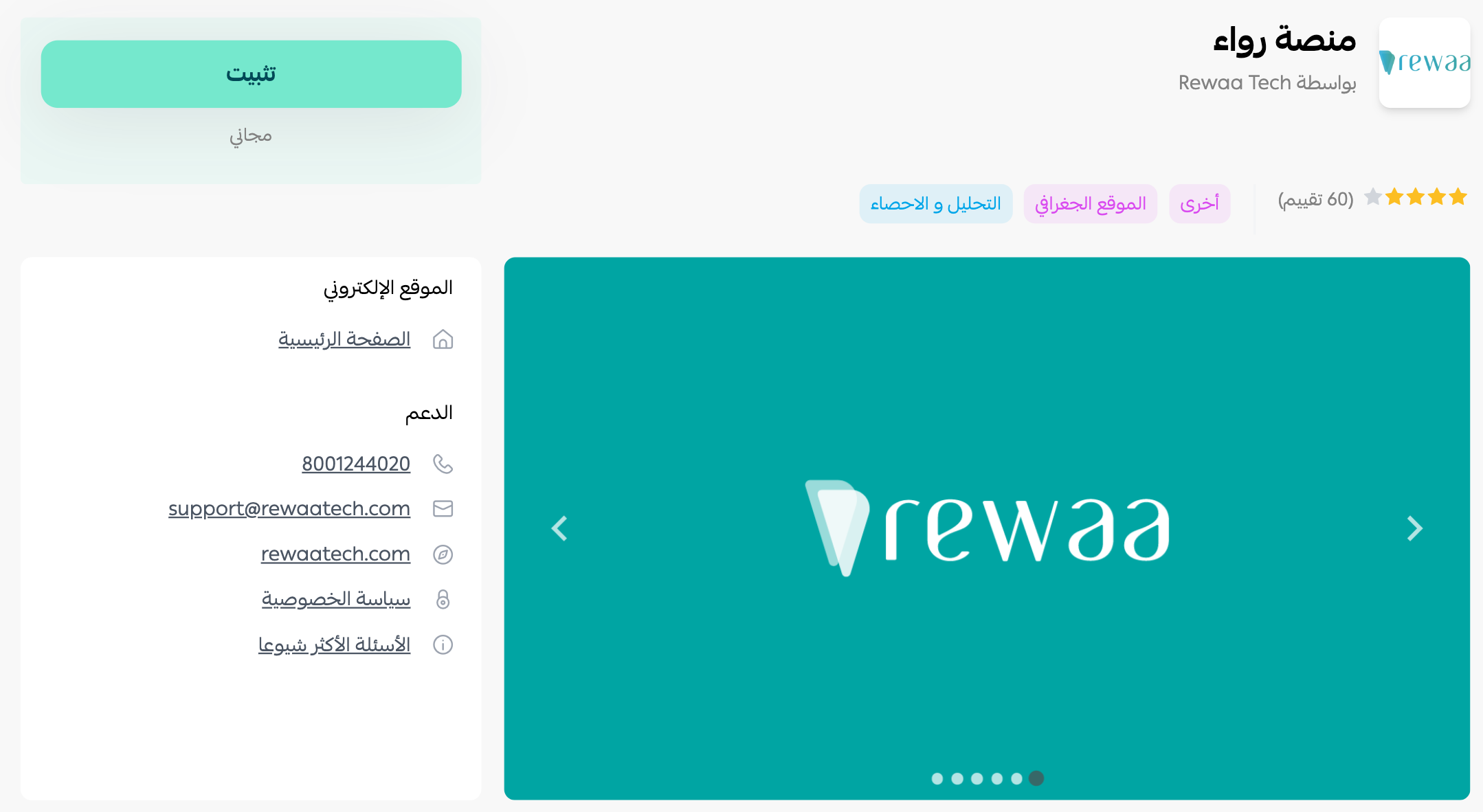
3. From the Rewaa app page, click (Install).
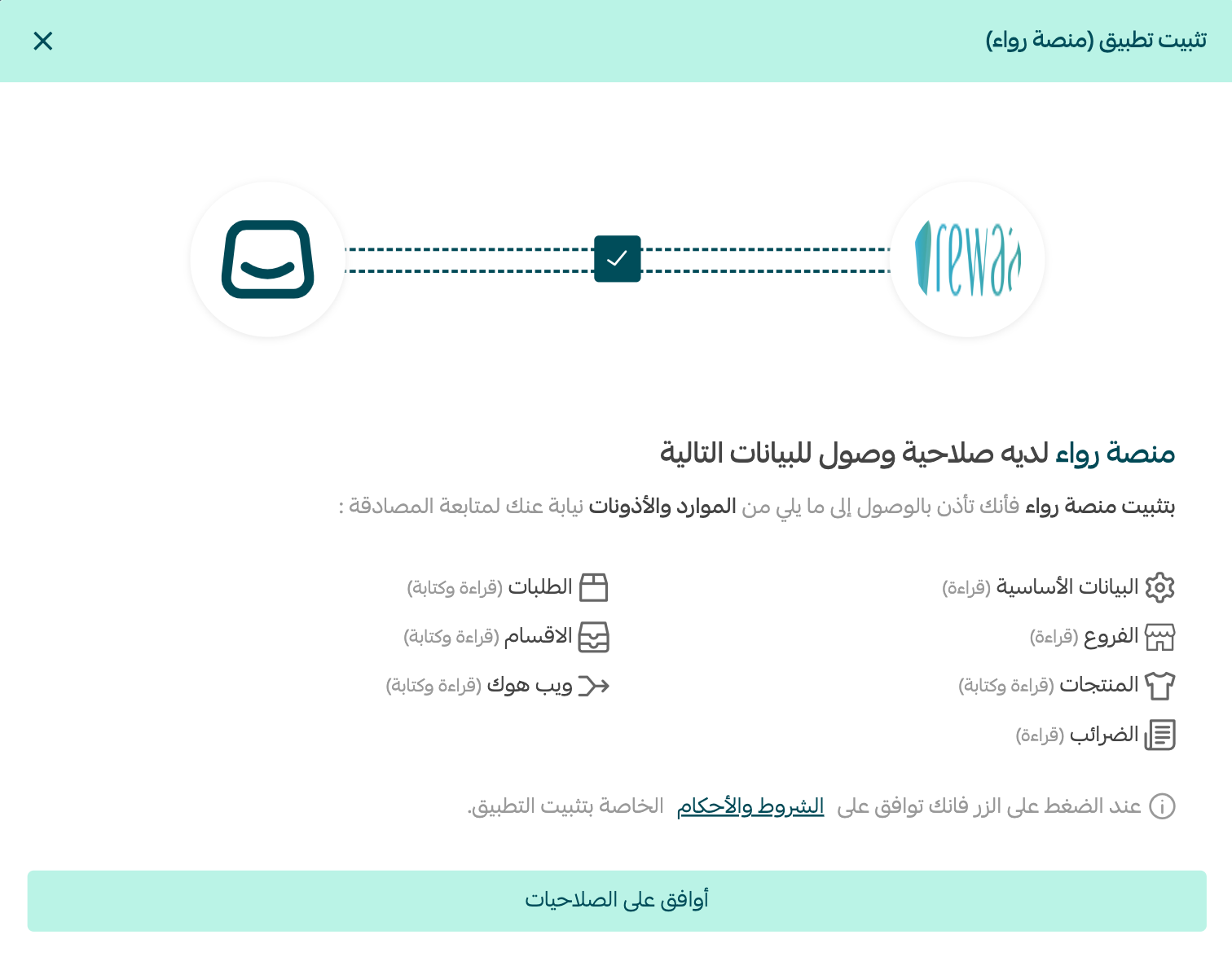
4. Review the permissions the app requests, then click (Grant permission).
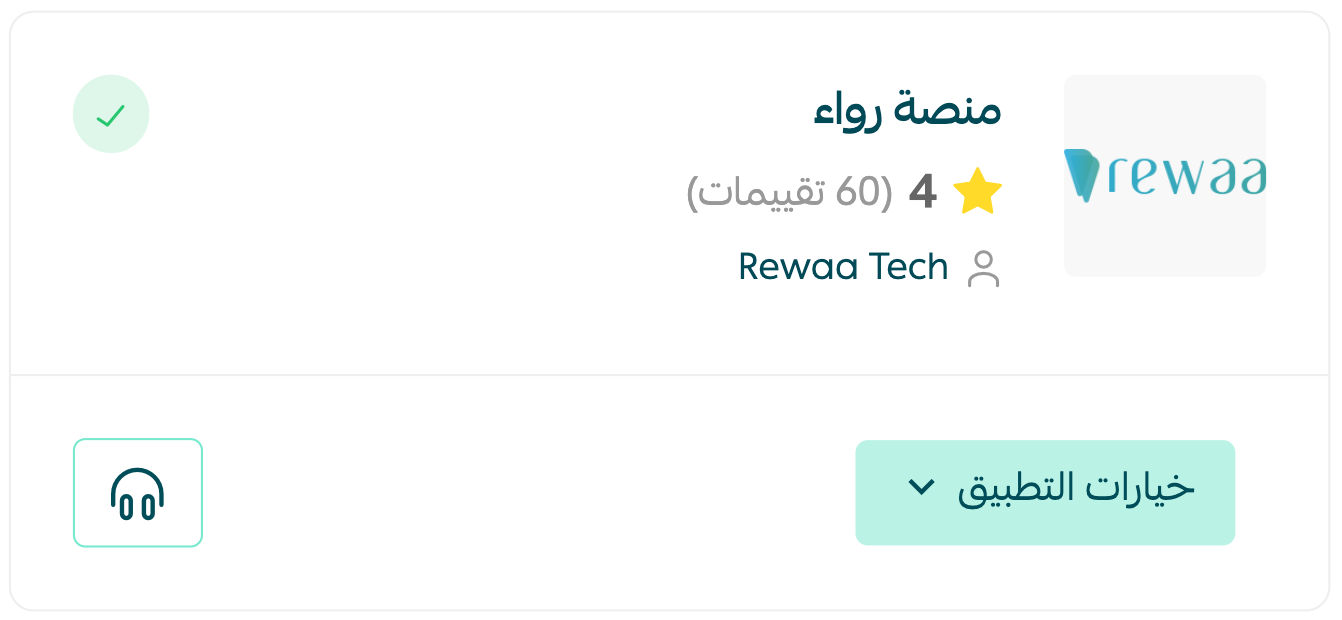
The Rewaa app is now installed on your store.
5. Go to the Rewaa platform to sign in, or click create a new account if you do not have one yet.
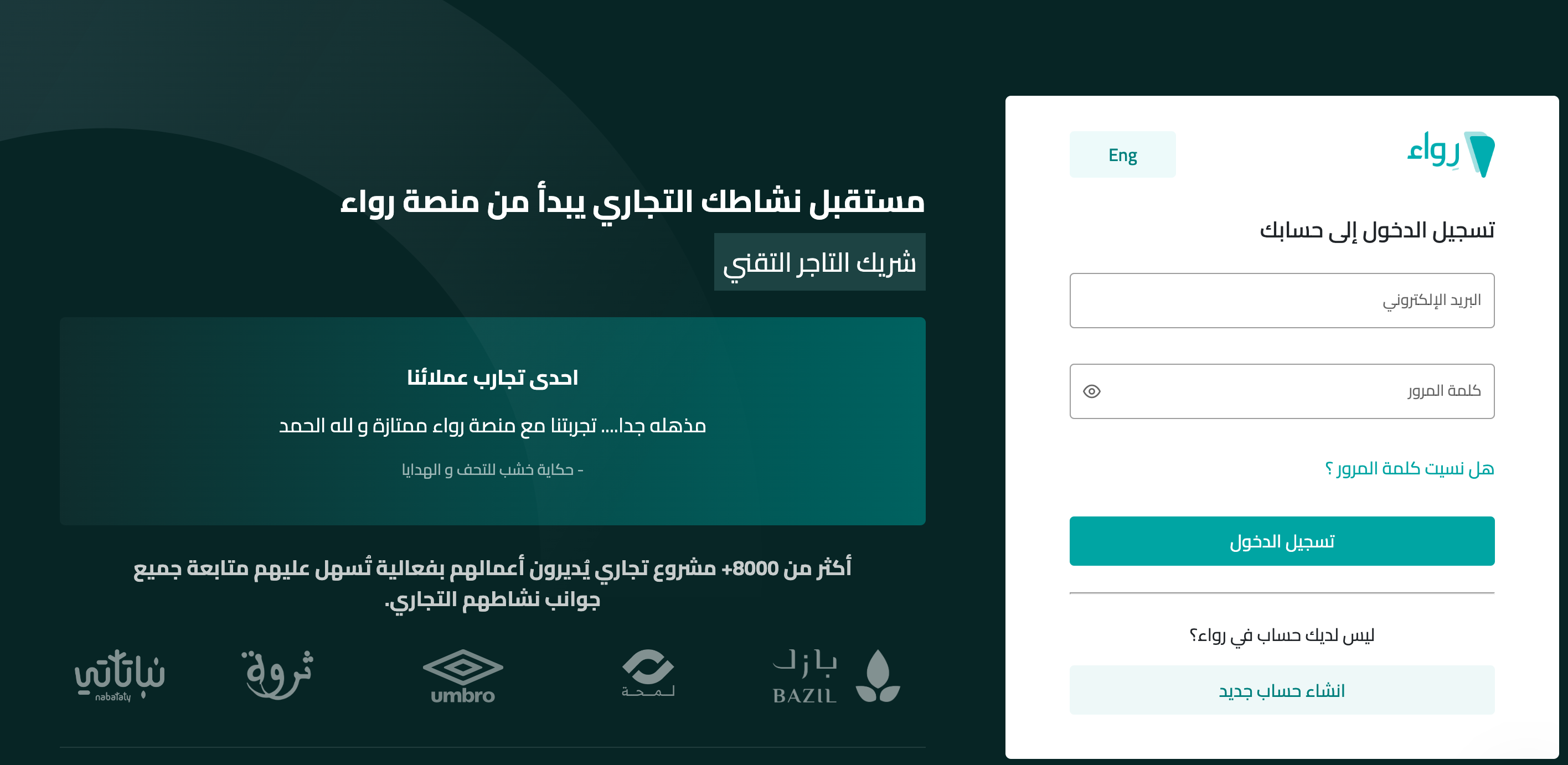
6. Enter the required details, then click (Create a new account).
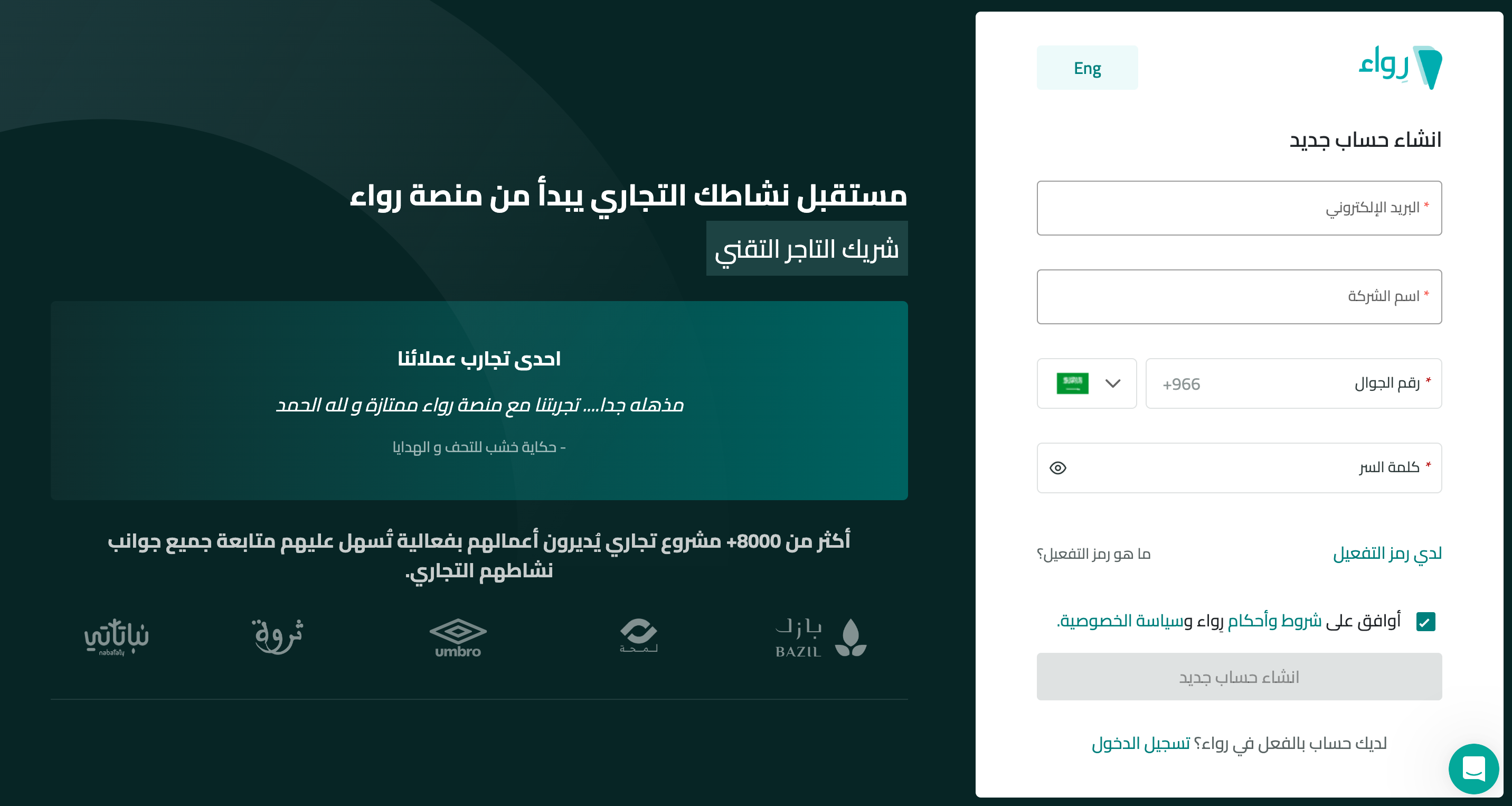
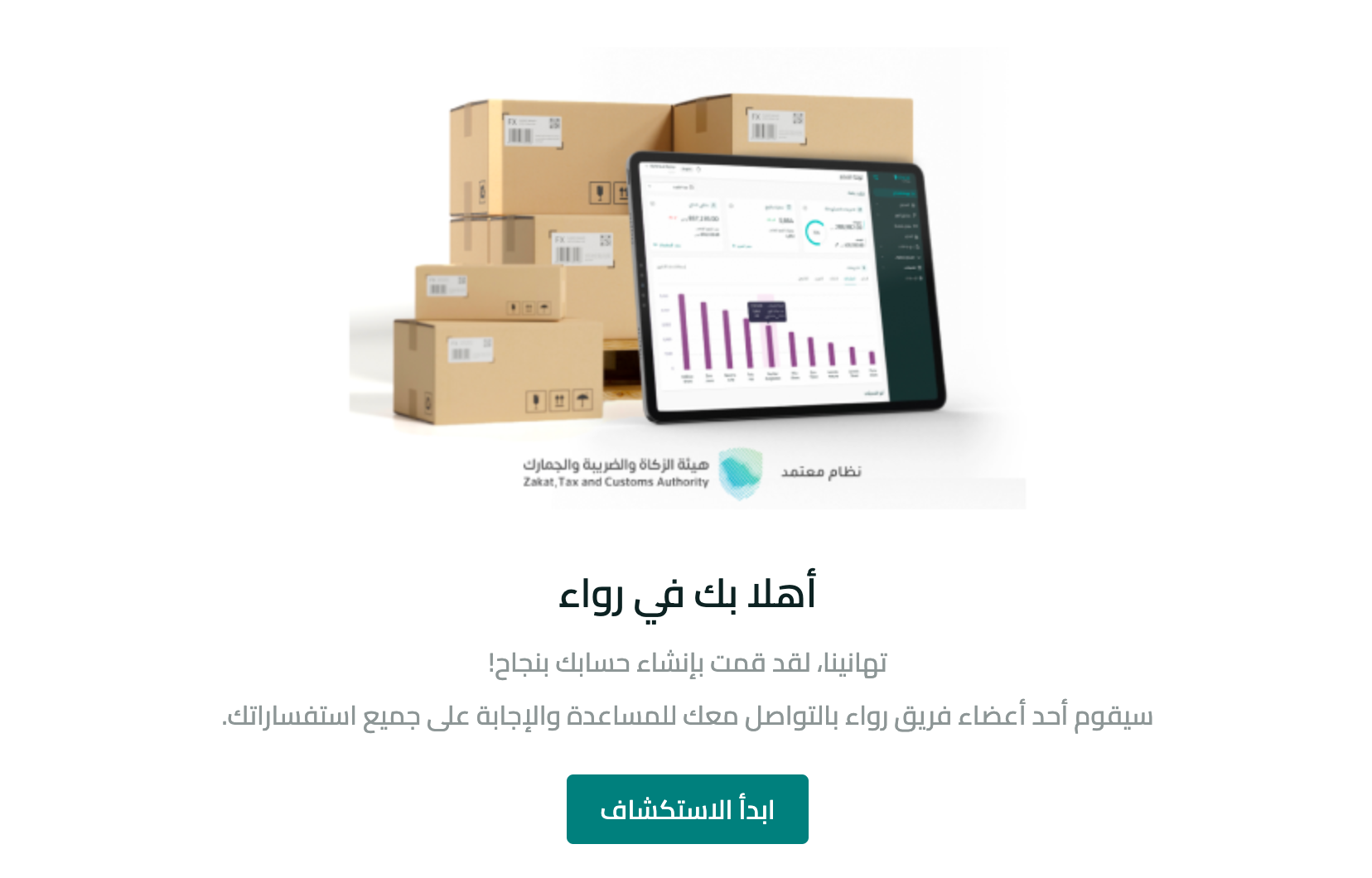
Your account is created.
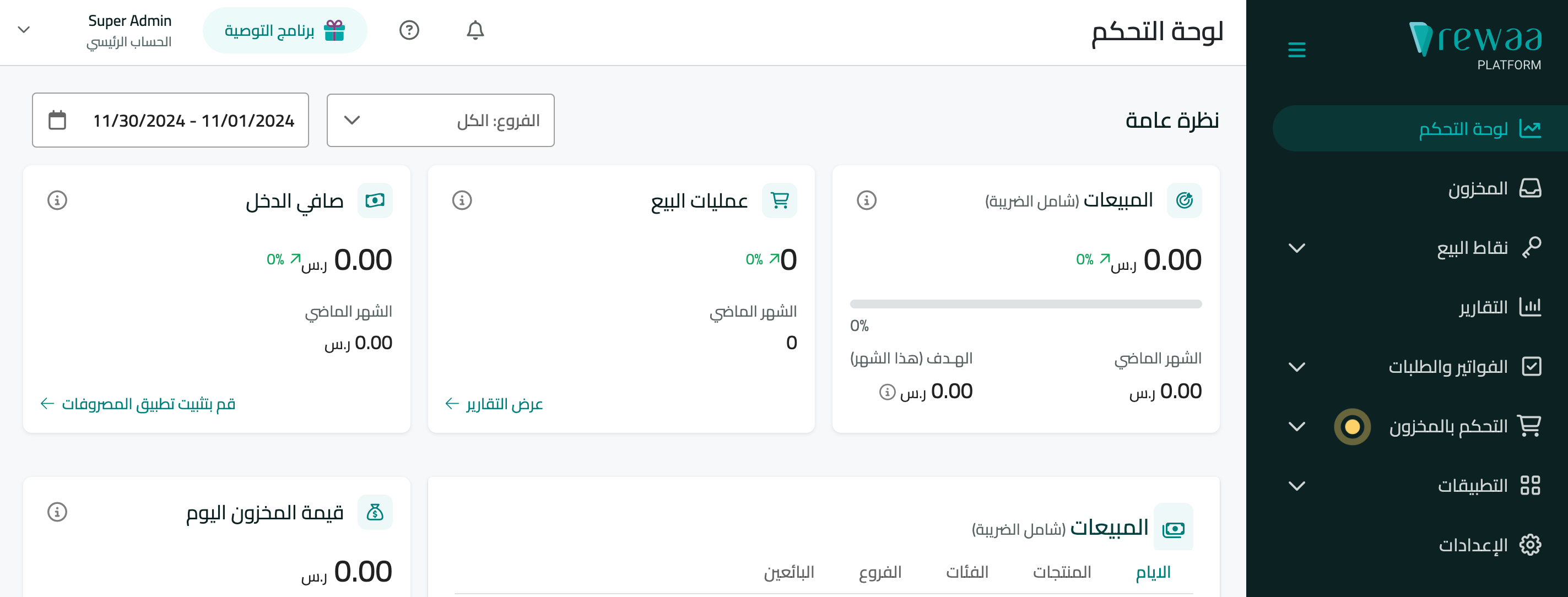
You are then taken to the Rewaa dashboard, where you can start using its features.
📝 Important notes
Run the connection when few new orders are coming into your store. That way products, quantities, and incoming orders sync into Rewaa cleanly and without errors.
For more details, see managing my store apps.
Step two: set up tax between Salla and Rewaa
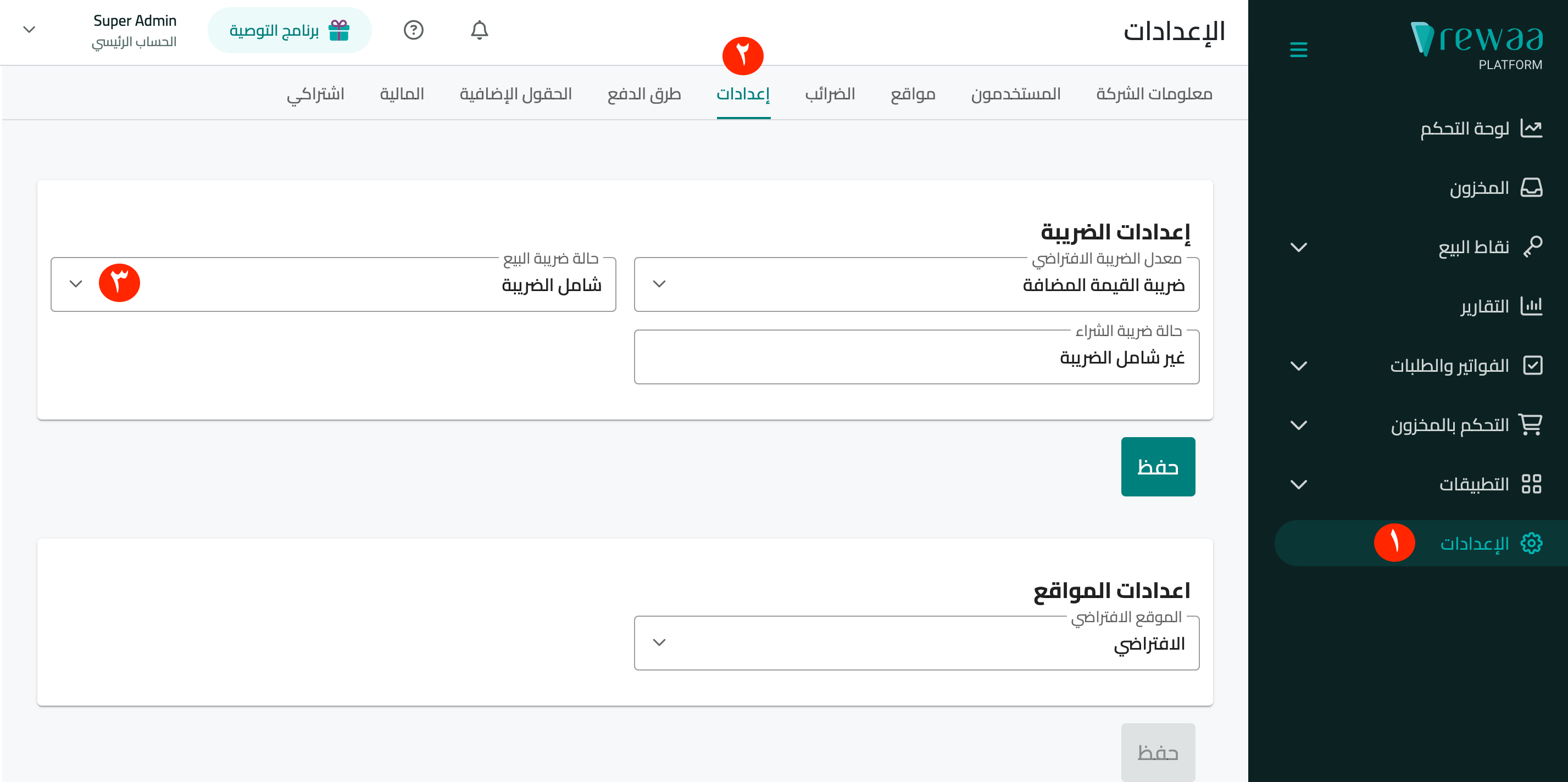
1. From the side menu of the Rewaa dashboard, click (Settings), then from the (Settings) tab click (Tax status).
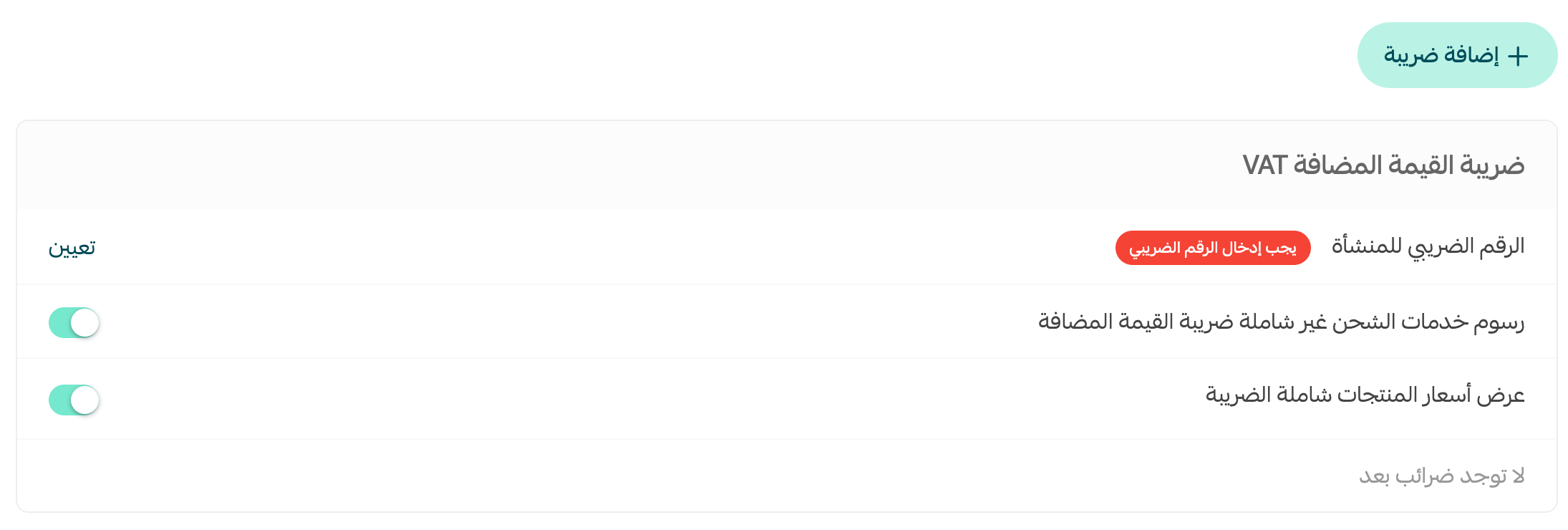
2. Go to your store on Salla, and from the side menu click (Store settings), then (VAT).

Make sure the settings match on both platforms, then go back to Rewaa to finish the steps.
📝 Important notes
- Enter your tax number on Salla for tax to be applied correctly.
- Shipping charges and shipping tax appear in Rewaa when the order is received. You can see the breakdown on the order details page or when the invoice is issued.
- Rewaa records shipping charges as sales. You can add them manually as an expense.
👣 Step three: link your products and stock
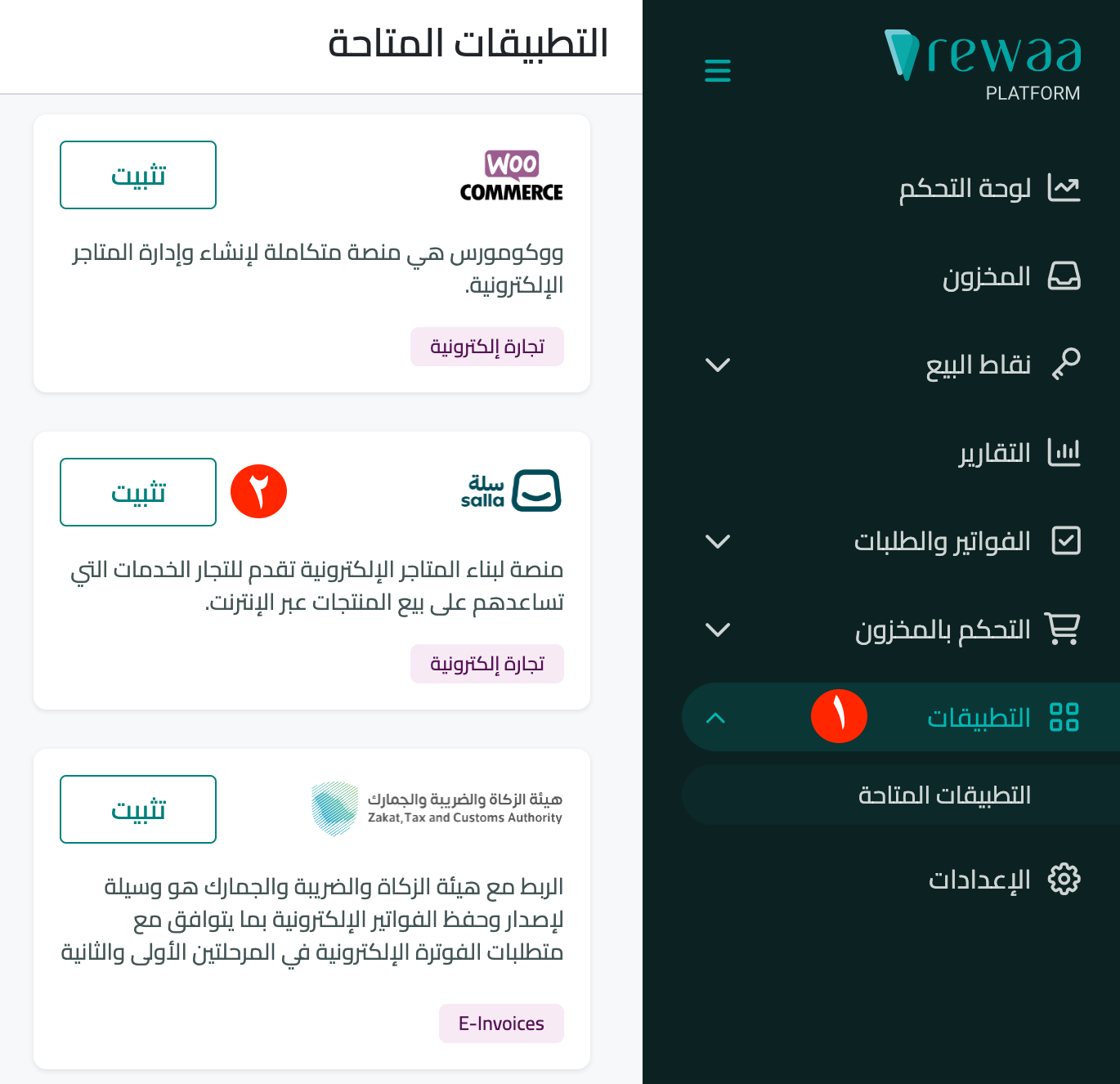
From the side menu of the Rewaa dashboard, click (Apps), then on the Salla app click (Install).
Connect your Salla account
You are taken to the app installation page. Click (Connect Salla account).
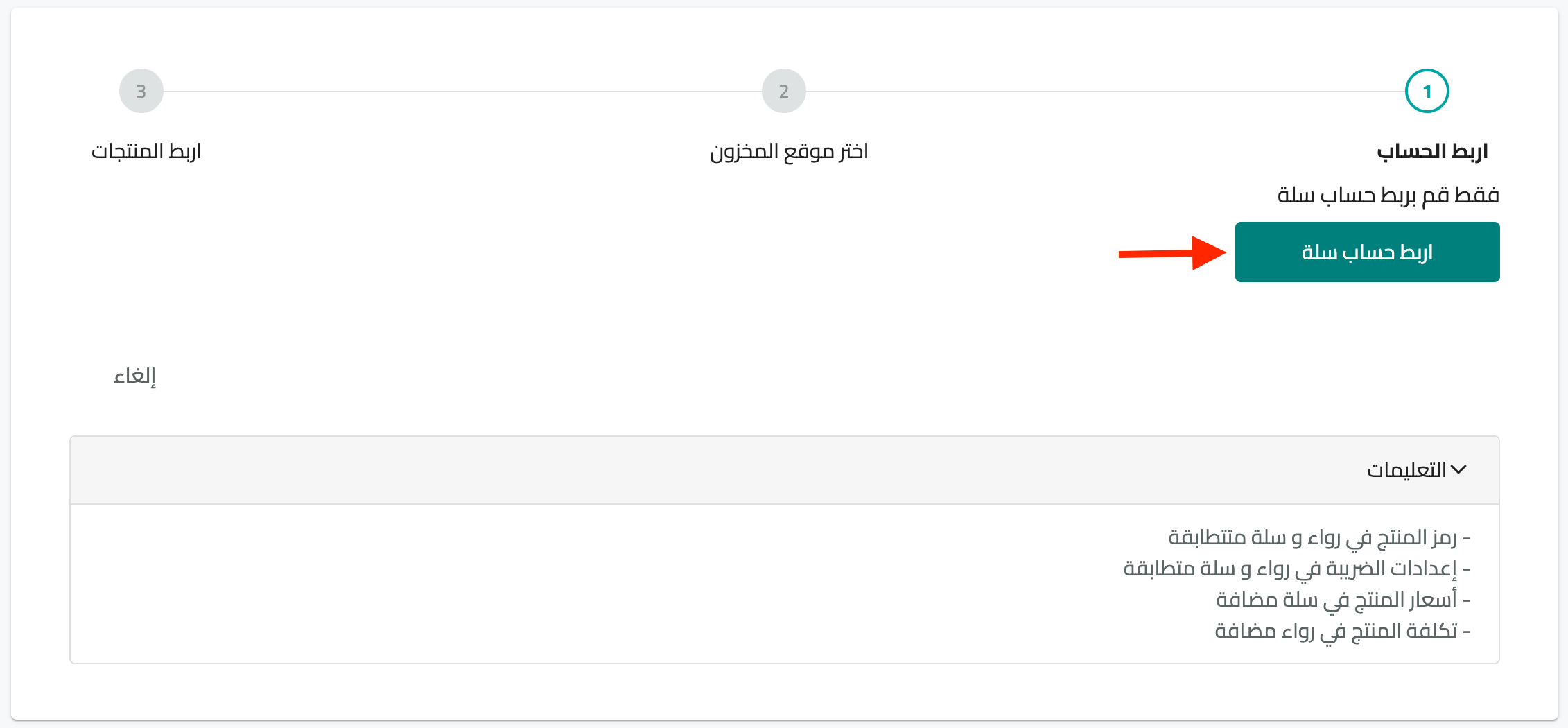
Check the following before you start the connection:
- Your products have prices on your Salla store.
- Your cost prices are set in Rewaa.
- The SKU of each product matches on both platforms.
- Mismatched SKUs break the product link between the two platforms and cause orders to arrive incorrectly.
- For a multi-option product, the link is made through the SKU of each option. For example, if you sell a glass cup in red, blue, and green, the SKU for red must match on both platforms, and the same goes for every other option.
📝 Important notes
Rewaa works in Saudi riyals (SAR), so it does not recognize products priced in another currency on other stores. For example, an order worth KWD 6 on an online store arrives in Rewaa as SAR 6, with no currency conversion.
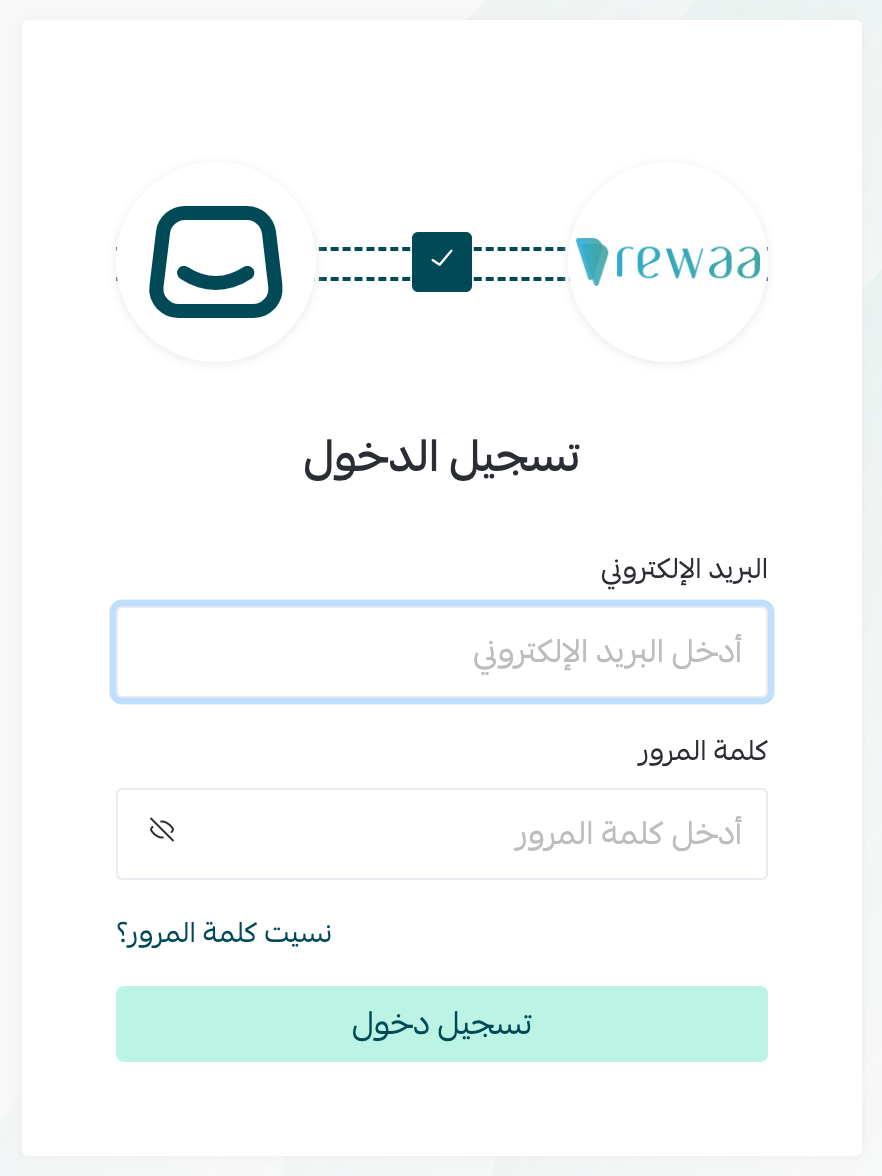
Now sign in to your Salla account as usual.
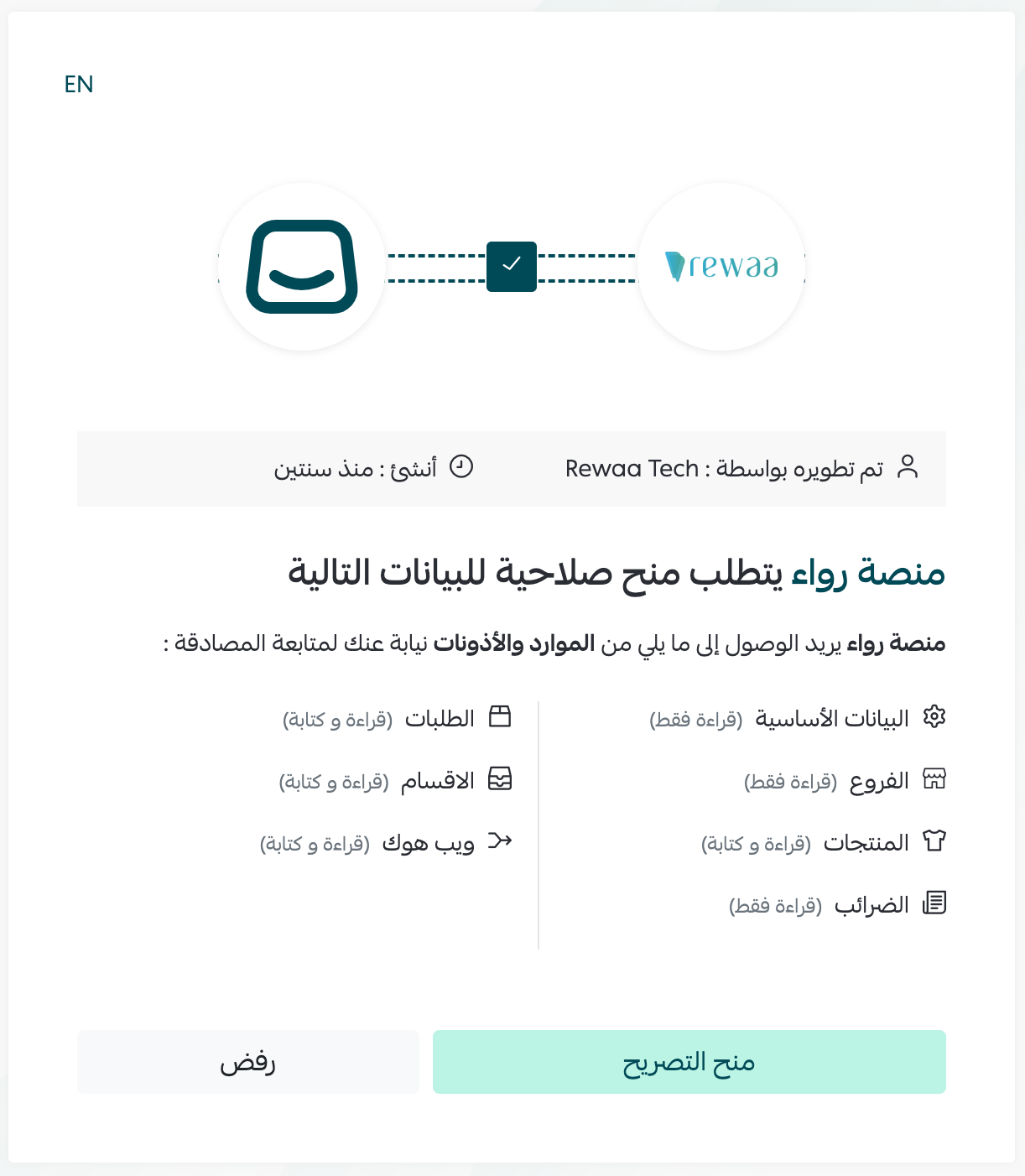
Review the permissions the app requests, then click (Grant permission).
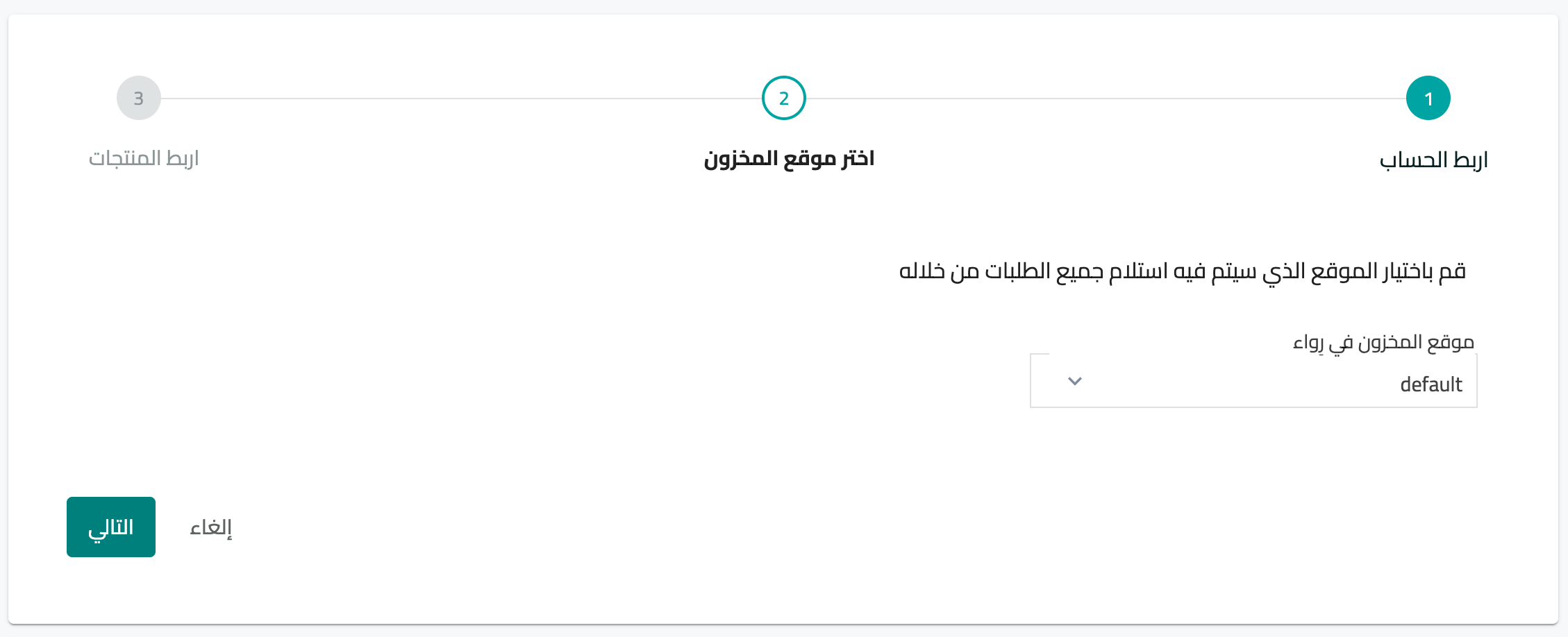
Connect the inventory location
Choose the inventory location in Rewaa, then click next.
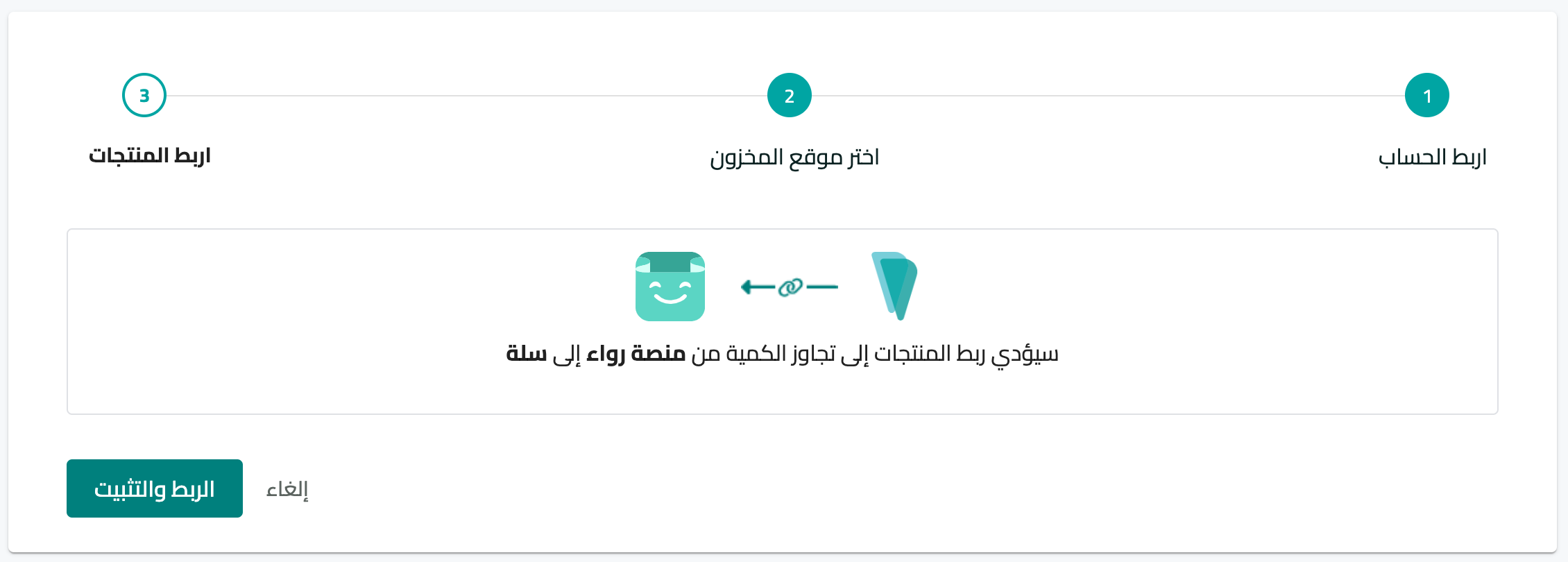
Link your products
To start linking products, click (Link and install).
Installation is complete.
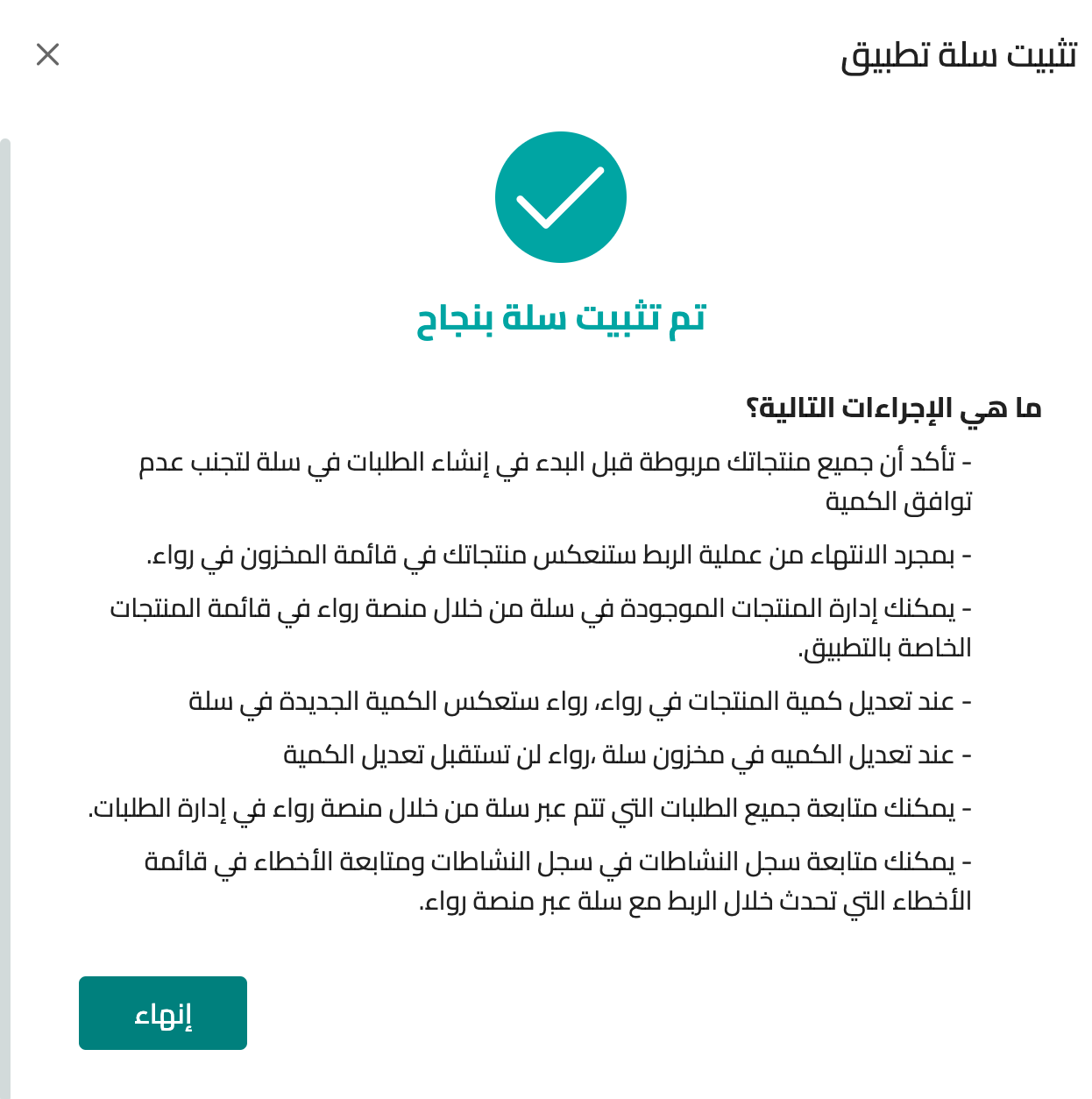
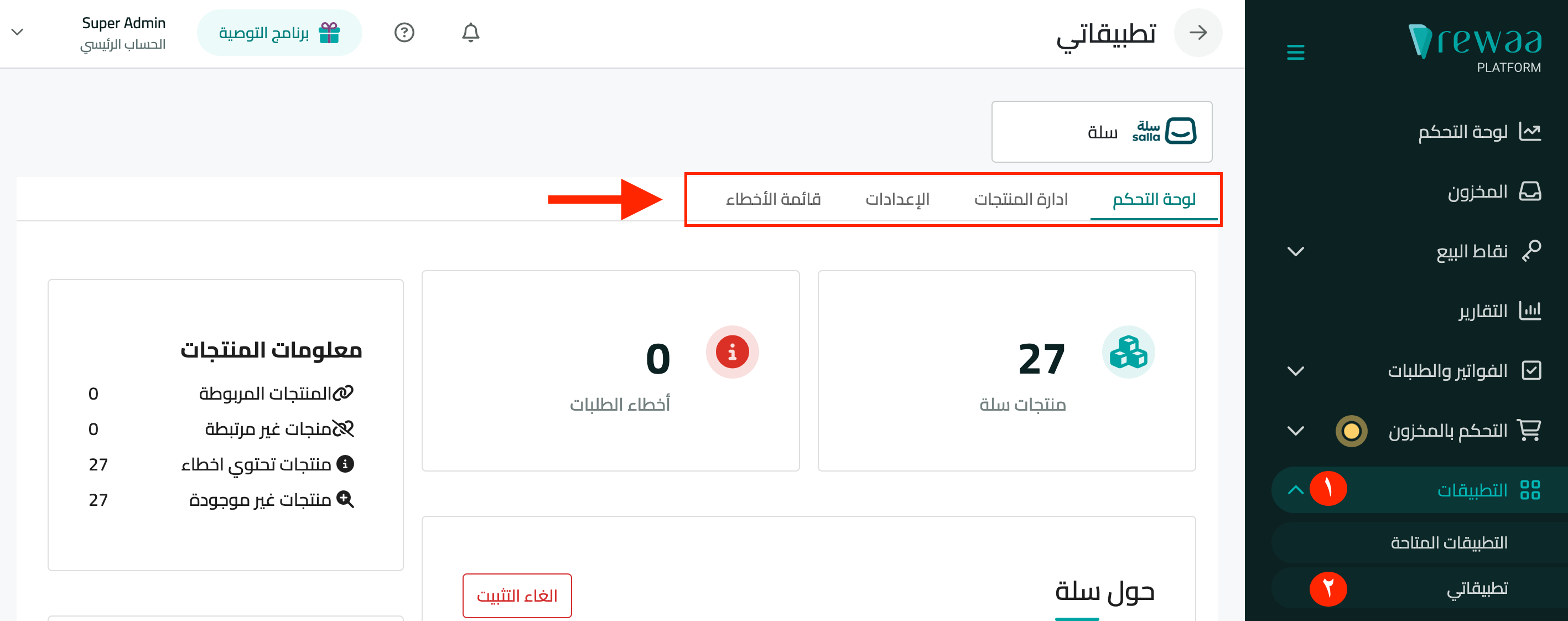
You can now manage orders and products from (Apps), then (My apps), using the options bar to run your account.
❓ Frequently asked questions
What are the requirements for connecting to Rewaa?
- You need an online store on Salla that has not already been connected to Rewaa.
- Your Salla subscription must be on the Pro plan.
- The connection covers one location only, which you choose when you install the app. For example, if you have several locations (branches) in Rewaa, pick a single location whose quantities will sync with your online store.
Which products can I link with Rewaa?
Single-option products, multi-option products, grouped products, bundle products, weighted products, and service products.
What do I gain by connecting my store to Rewaa?
Once Rewaa is connected to Salla, you can:
1. Manage products
Rewaa manages all the products of stores created on Salla, letting you publish products to the online store and control their details.
2. Manage online orders
Rewaa handles orders efficiently: it receives online-store orders, confirms the order can go ahead and the requested quantities are available, then updates the order status and sends it back to Salla.
3. Manage every sales channel from one place
Rewaa helps Salla store owners run all their sales channels by syncing stock, invoices, orders, and customers between the online store and the branches.
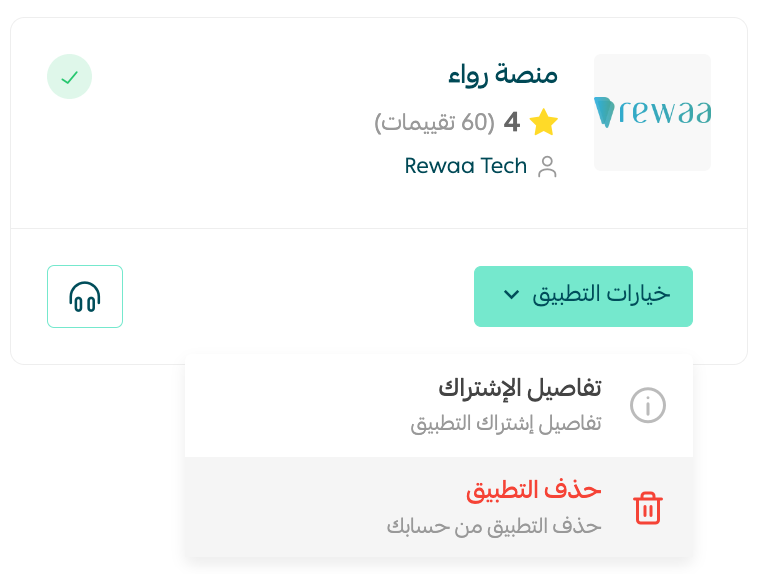
How do I remove the Rewaa app from my store?
1. From the side menu of your dashboard, click (Installed apps).

2. From the all apps page, on the Rewaa app, click (App options), then click (Delete app).