How many visitors leave your store without buying — and never hear from you again?
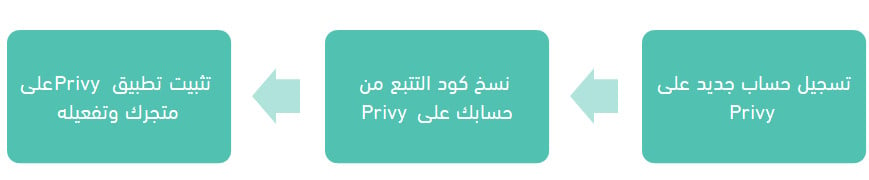
Privy is a marketing tool you can connect to your Salla store to bring email, SMS, and pop-ups together under one dashboard. Use one channel or all three: the point is that every abandoned cart, newsletter sign-up, and welcome message runs from the same place, so your campaigns stop living in separate tools. In this guide, you'll learn what Privy does, how to connect Privy to your store in three stages, and how to remove the app if you no longer need it.
Connecting Privy to Salla takes three stages: create a Privy account and add your store URL, copy your account identifier from the (Privy Code) page, then install the Privy app from the Salla App Store, click (Activate app), and paste the identifier. The app is live as soon as you save it.
📌 Article overview
- What Privy is
- How to connect Privy to your store
- Frequently asked questions
🎯 What Privy is
Privy is a multi-tasking tool that helps you get real value out of your main marketing channels. It strengthens the connection between you and your customers and gives your sales a serious lift — all from one dashboard, whether you want email, SMS, pop-ups, or all of them together.
🚀 How to connect Privy to your store
Activating Privy happens in three stages.
Stage one: create a Privy account
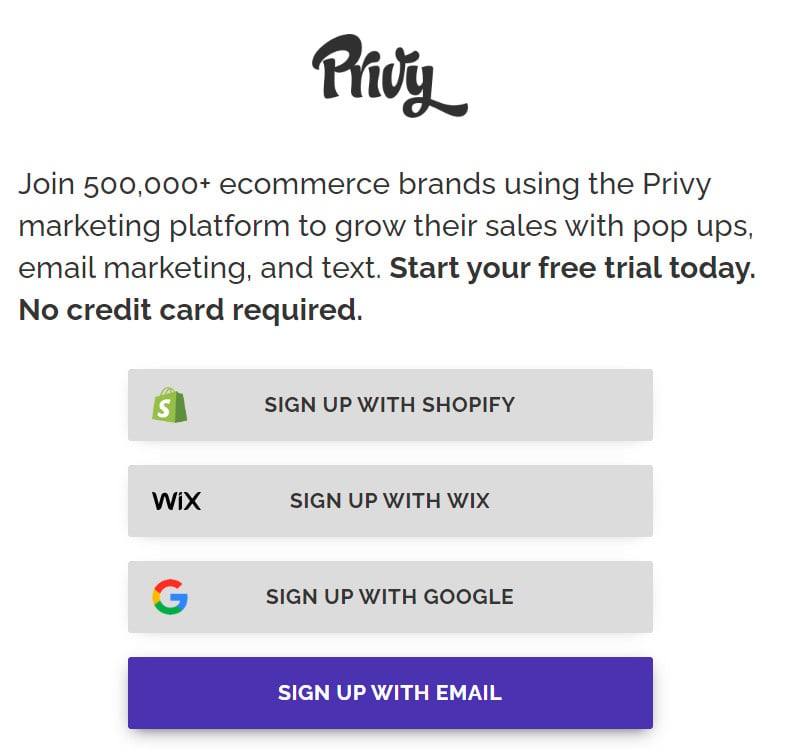
1. On Privy's sign-up page, choose the sign-up method that suits you.
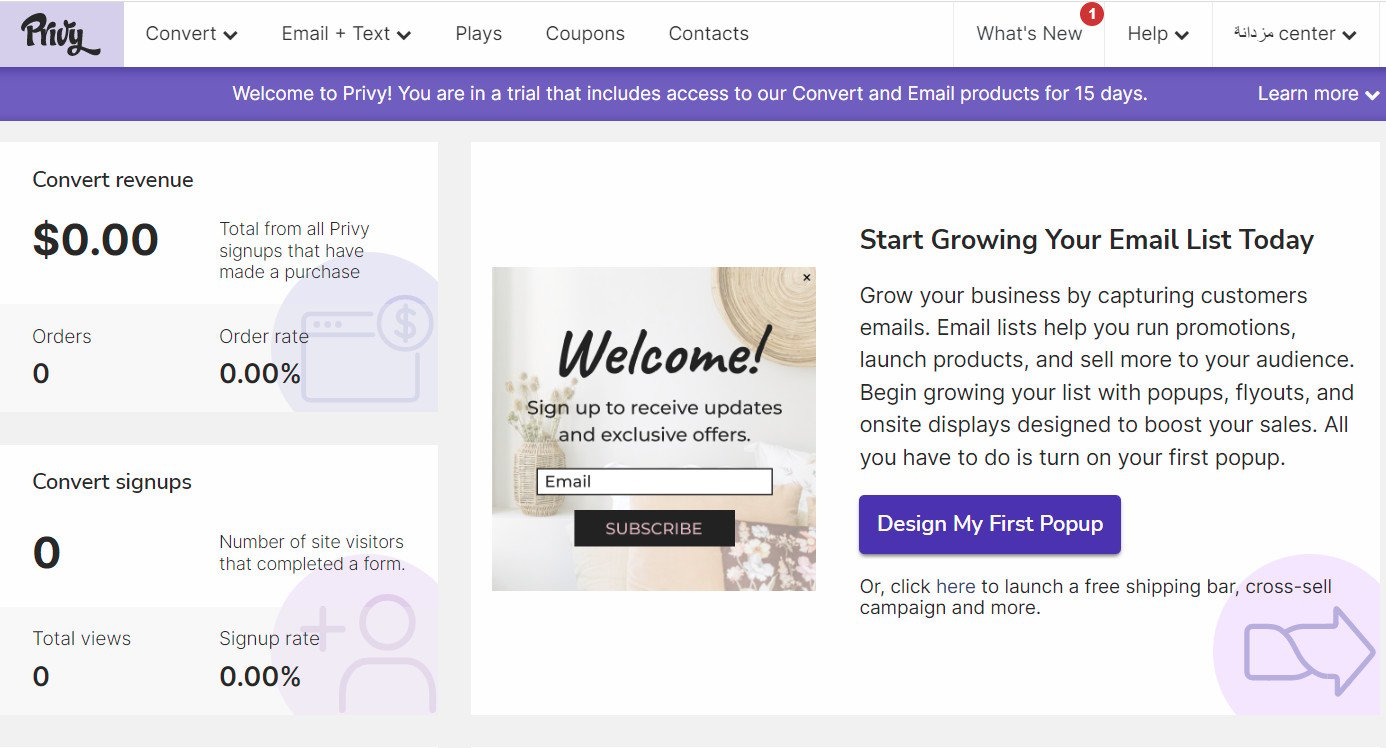
2. Once you've filled in the details and finished signing up, the Privy home page looks like this:
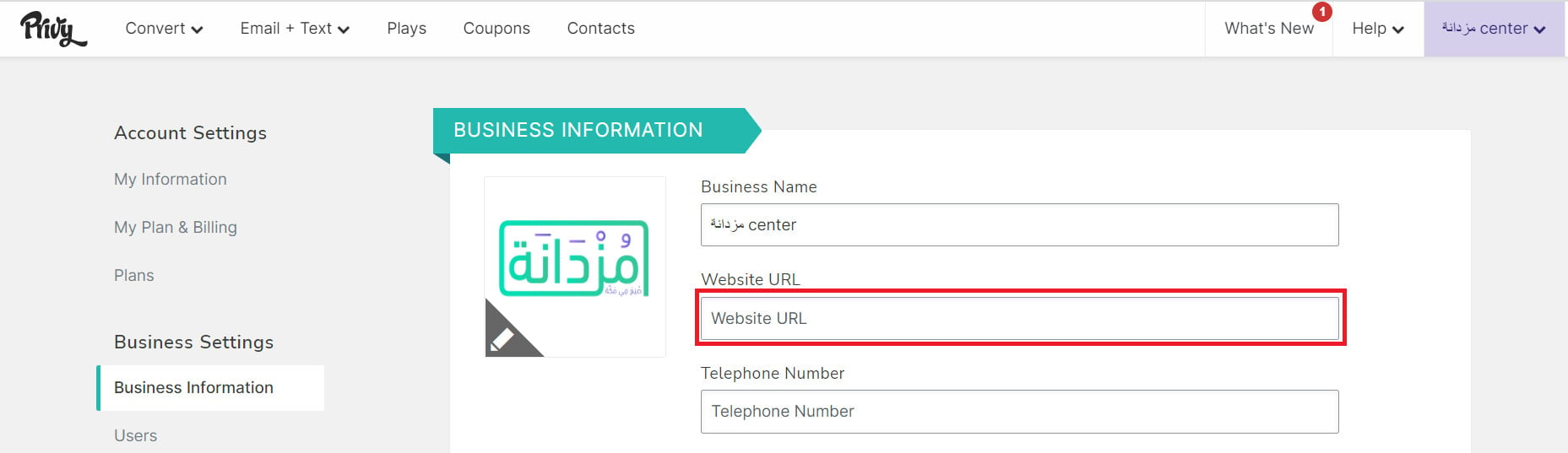
3. Finish your Privy account settings. The important one is your store URL: open your account menu and click (My Information).
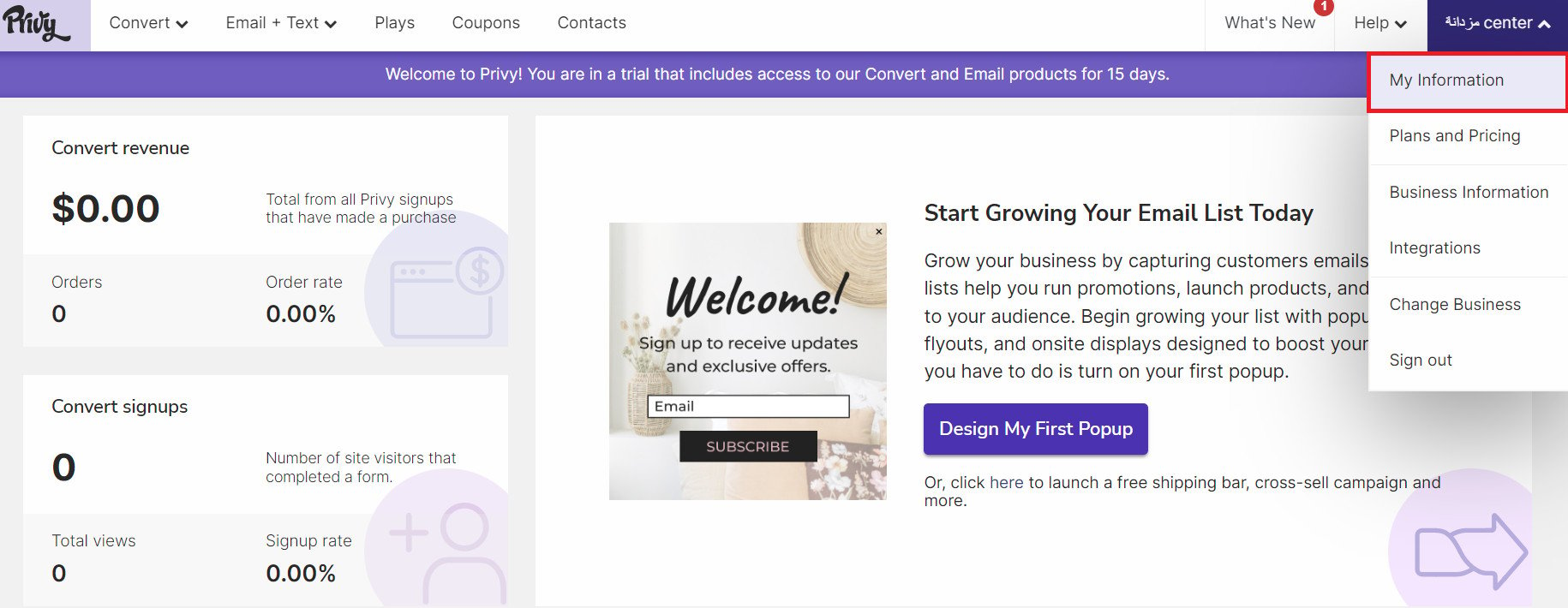
4. From the dashboard, click (Business Information), enter your store URL in the field provided, and save the changes.
📝 Important notes
Skip this stage entirely if you already have a Privy account.
Stage two: copy the tracking code from your Privy account
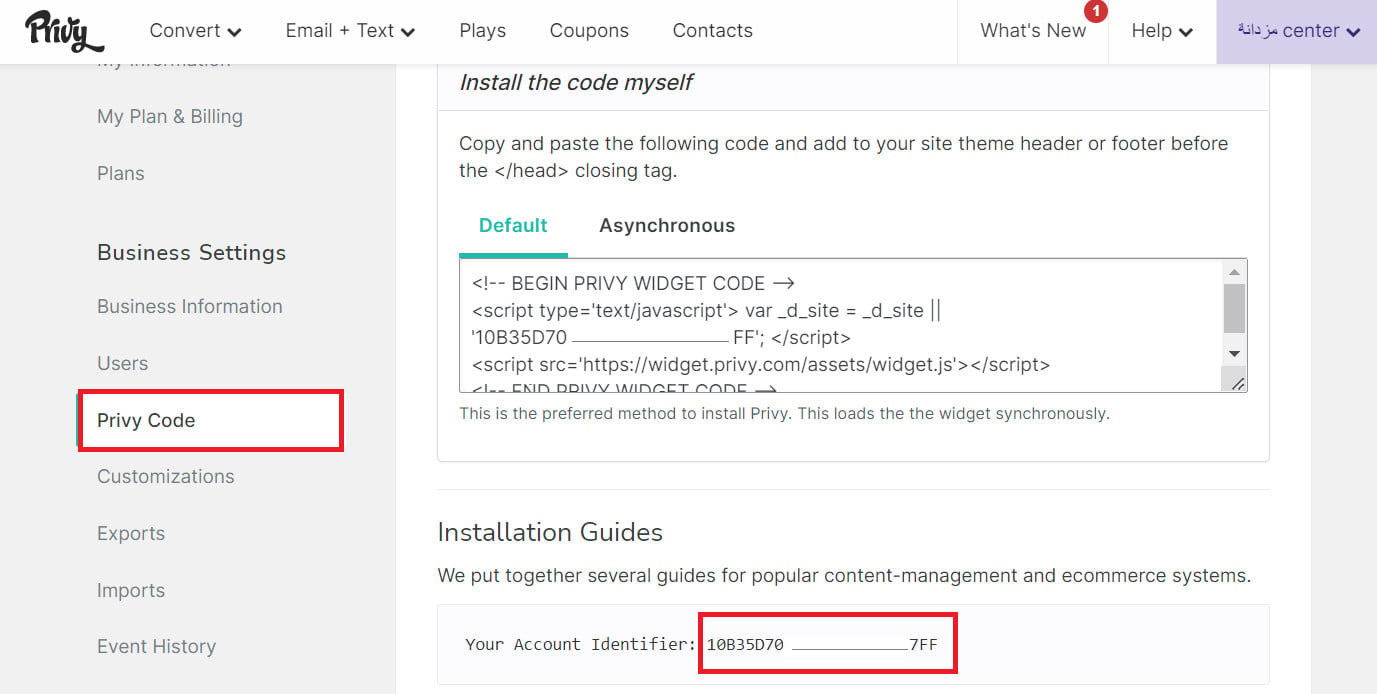
On your Privy account settings page, click (Privy Code), then copy your account number under (Your Account Identifier).
Stage three: install and activate the Privy app on your store
1. From the side menu of your dashboard, click (Installed apps).

2. On the Salla App Store banner, click (Browse the Salla App Store).

3. On the Privy app page, click (Install).
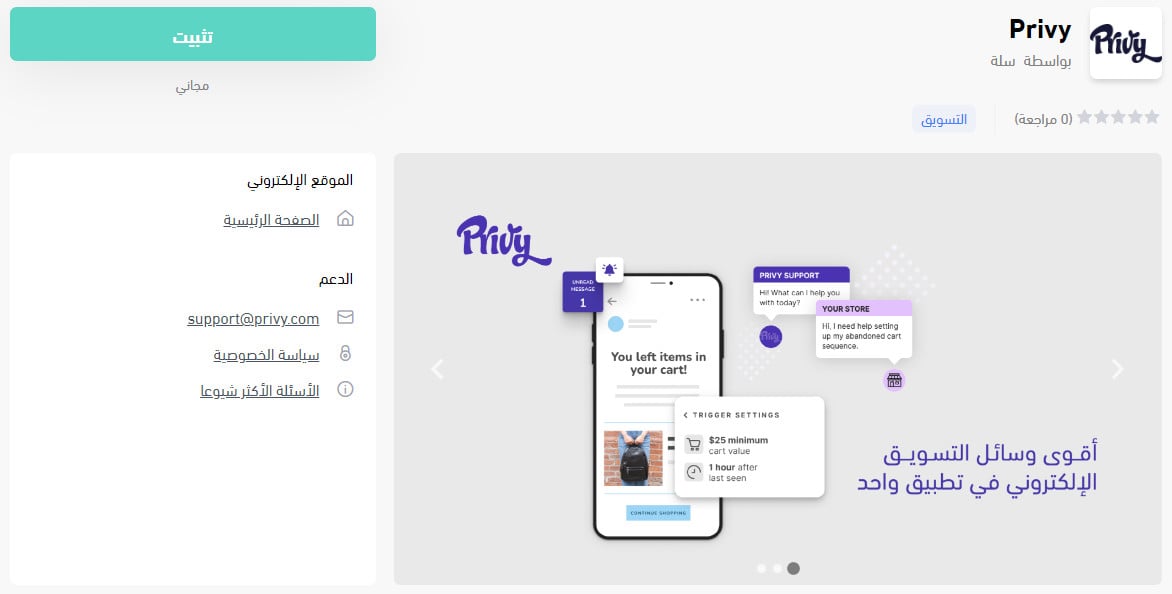
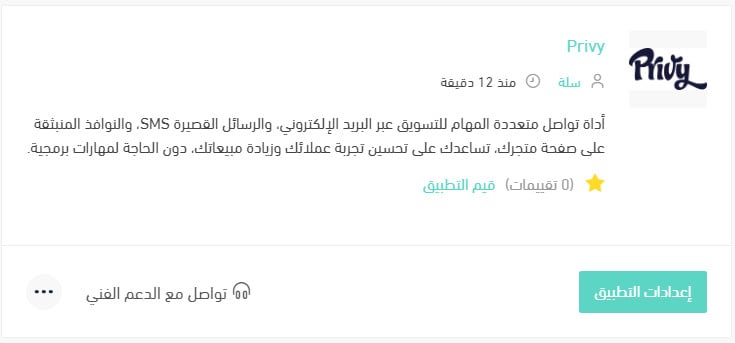
4. The Privy app is now installed and appears in your installed apps like this:
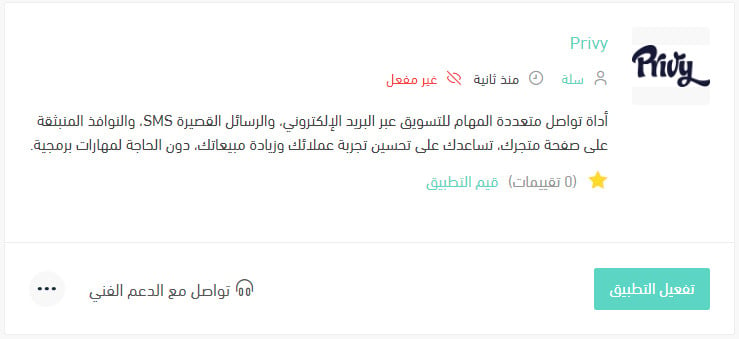
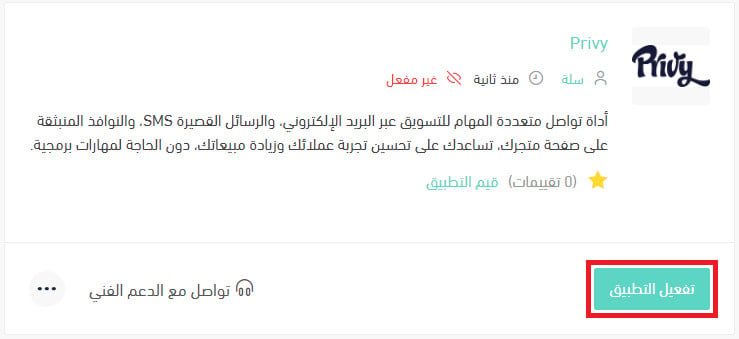
5. On the app page, click (Activate app).
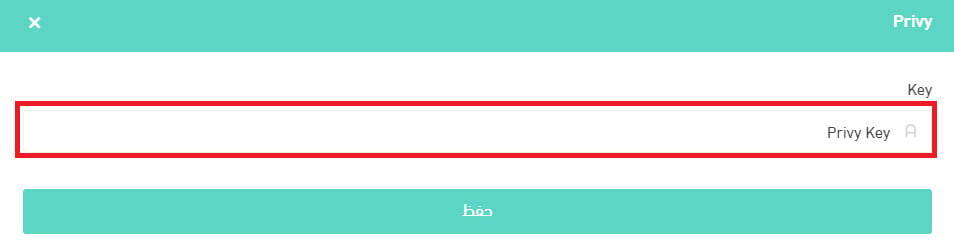
6. Paste the Privy account number you copied in the previous stage.
That's it — Privy is now active on your store.
For more detail, see Managing my store's apps.
❓ Frequently asked questions
What are the main things Privy can do?
Targeted abandoned cart recovery:
1. Show a custom pop-up the moment a customer is about to leave your store.
2. Send an automatic SMS once a cart has been sitting untouched for a while.
3. Reach customers who abandoned a cart by email, using templates you can customize.
Pop-ups that get noticed without annoying the customer:
1. Run interactive pop-ups such as a spin-to-win wheel, an offers prompt, or a newsletter sign-up.
2. Control how pop-ups look using ready-made or custom designs that match your store's identity.
Coordinated campaigns across email, SMS, and pop-ups.
Automatic measurement of campaign results and their effect on your revenue, from a single dashboard.
Email marketing automation:
1. Design newsletters from a polished template and schedule when they go out.
2. Send automatic welcome messages when a customer visits your store.
3. Organize abandoned cart reminder emails.
4. Send and follow up purchase details automatically, such as invoices and shipment status.
How do I remove the Privy app from my store?
1. From the side menu of your dashboard, click (Installed apps).

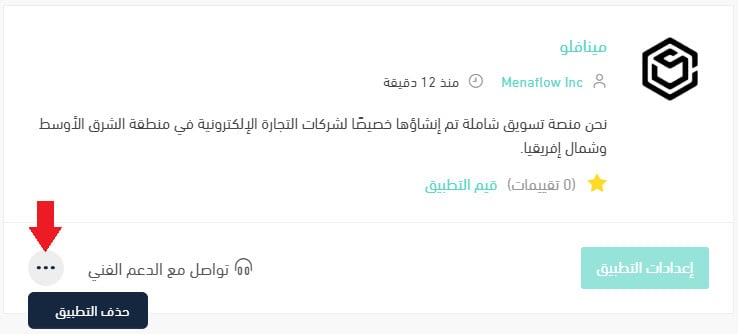
2. On the all apps page, find the Privy app, click the (...) icon, then click (Delete app), as shown below.
Do I need a new Privy account if I already have one?
No. Skip stage one, go straight to (Privy Code) in your existing account, copy the account identifier, and continue from stage two.
Where do I find my Privy account identifier?
In your Privy account settings, under (Privy Code). The number listed as (Your Account Identifier) is the one you paste into the app on your Salla dashboard.
The tools you connect matter less than the follow-up they make possible. Once Privy is linked, start with one thing — abandoned cart reminders — and add pop-ups and newsletters as you learn what your customers actually respond to.