What would you say to a visitor who is one click away from leaving your store?
PopupSmart is a ready-made pop-up toolkit you can connect to your Salla store to run on-site campaigns, build an email list, and start talking to your visitors in about five minutes. In this guide, you'll learn how to create a PopupSmart account, how to install and activate the app on your store, how to fix the "connection incomplete" error, and how to design your first pop-up.
Connecting PopupSmart to Salla takes two stages: create a PopupSmart account and copy your embed code, then install the PopupSmart app from the Salla App Store, click (Activate app), paste the code into the extraction box, click (Extract), and click (Activate connection).
📌 Article overview
- What PopupSmart is
- How to connect PopupSmart to your store
- Frequently asked questions
🎯 What PopupSmart is
PopupSmart is a professional set of ready-made tools for running advertising campaigns through pop-ups. It helps you grow ecommerce sales by building email lists and engaging the people already browsing your site — set up in about five minutes.
🚀 How to connect PopupSmart to your store
The connection happens in two stages:
1. Create a PopupSmart account.
2. Install the PopupSmart app on your store and activate it.
Stage one: create a PopupSmart account
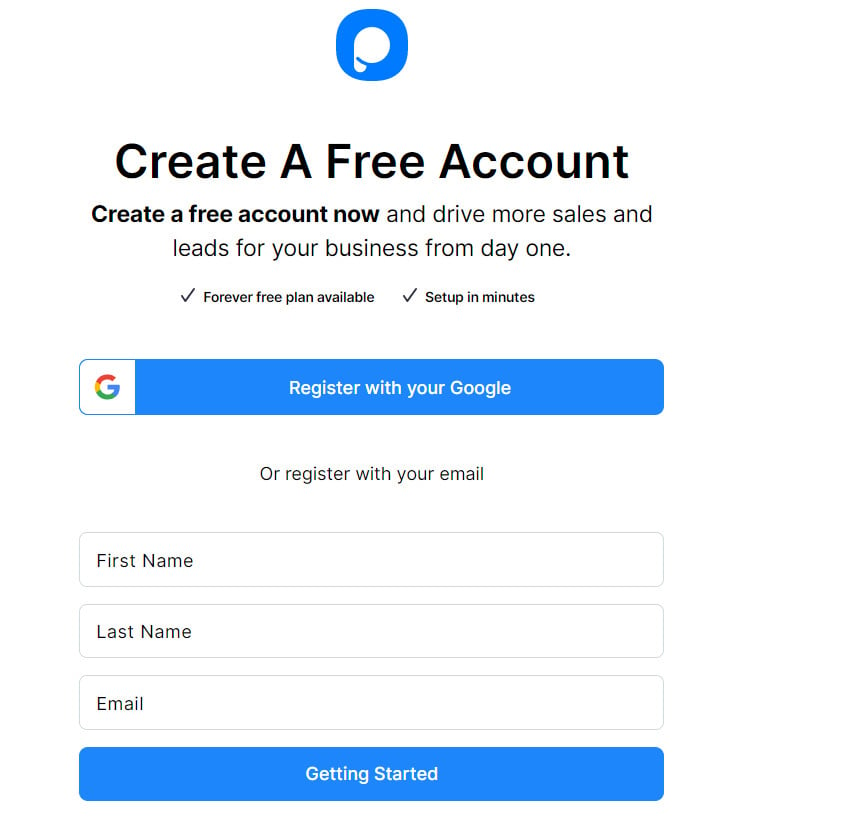
1. On the PopupSmart sign-up page, enter your email address, fill in the rest of the details, and click (Getting Started).
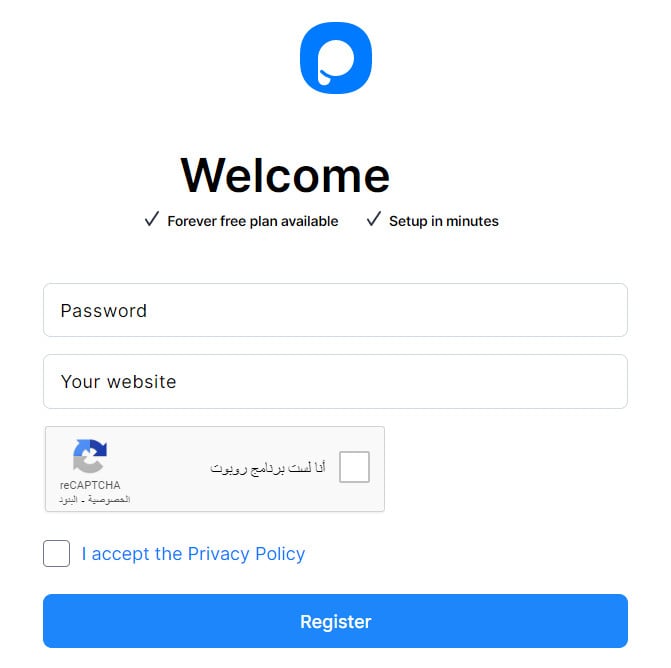
2. Enter a password for your PopupSmart account, add your store URL, accept the privacy and usage policy, then click (Register).
📝 Important notes
Your store needs its own domain before you can register. For more detail, see Buying and reserving a domain.
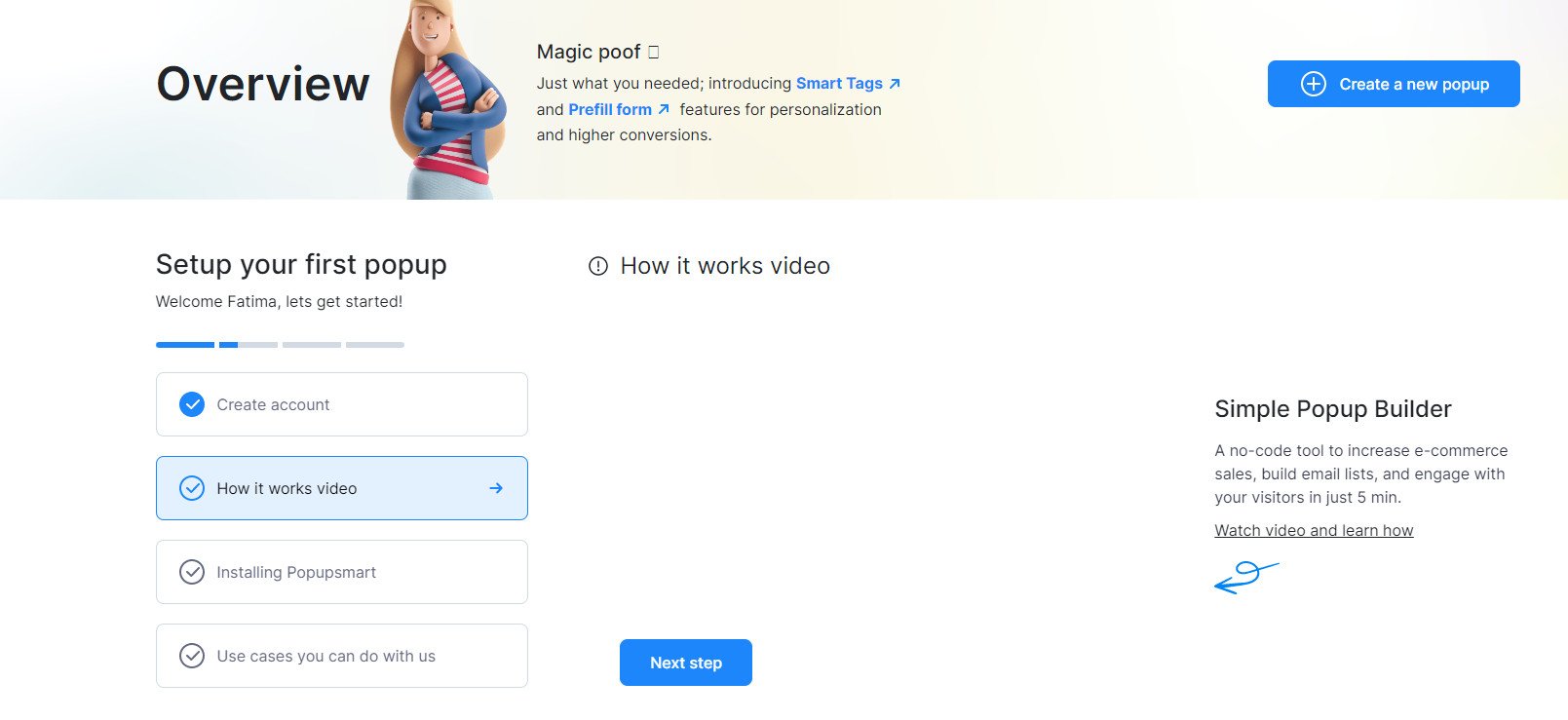
3. Finish setting up your PopupSmart account. On the (How it works video) tab, click (Next step) to move on.
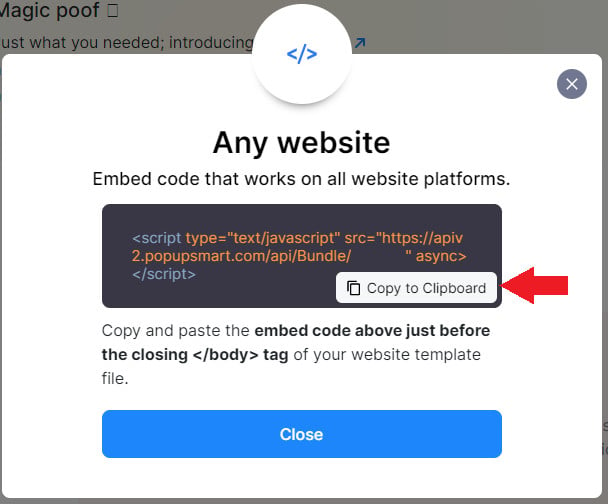
4. On the (Installing Popupsmart) tab, click (Copy to Clipboard), then click (Next step) to finish the account setup.
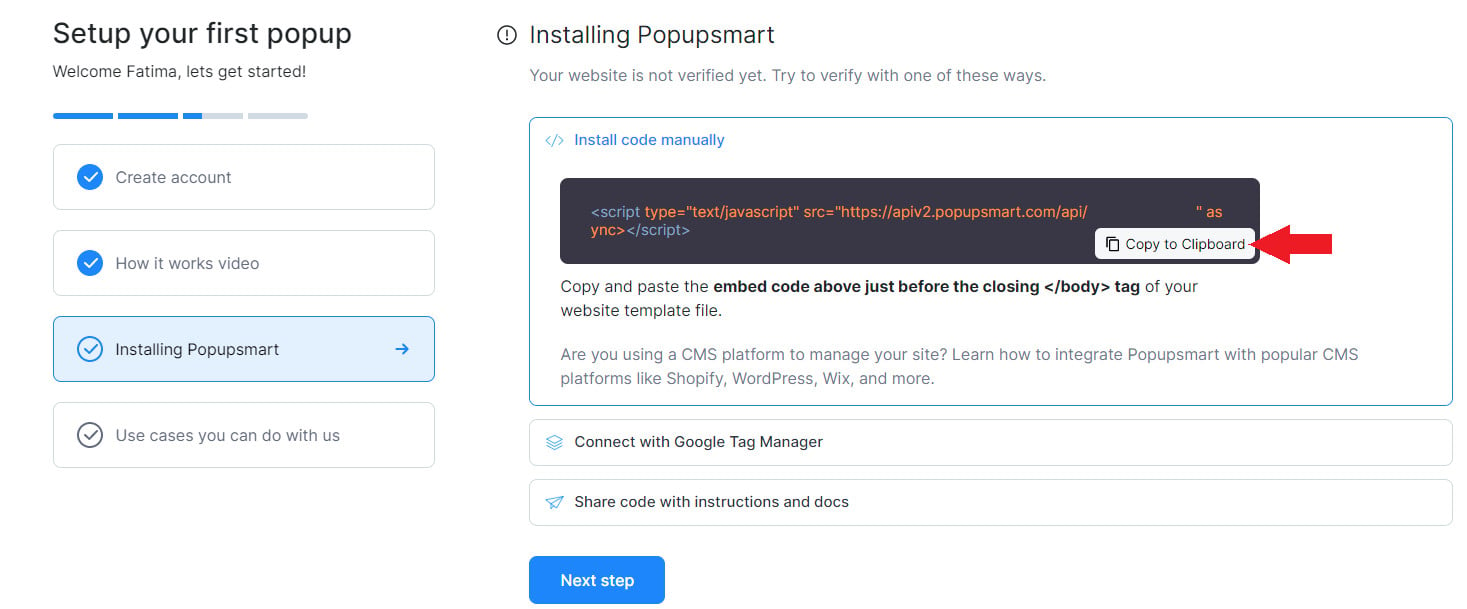
Already have a PopupSmart account? Open your account menu and click (Your embed code).
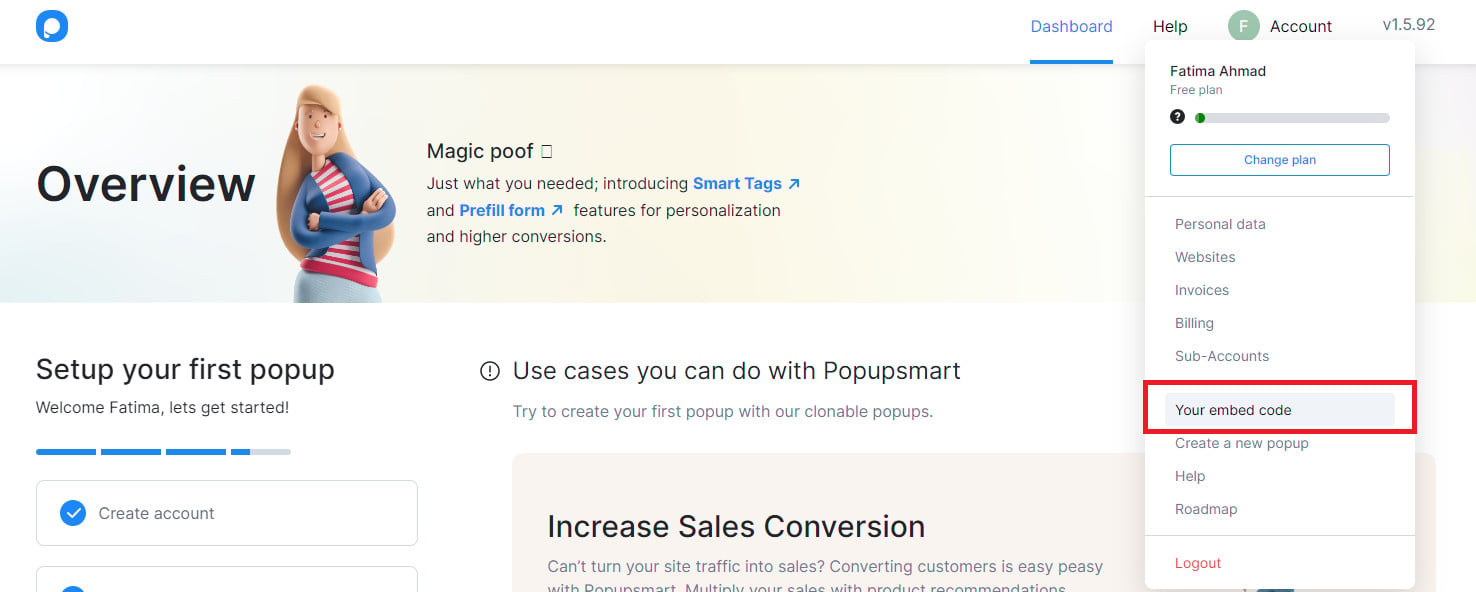
Then copy the tracking code.
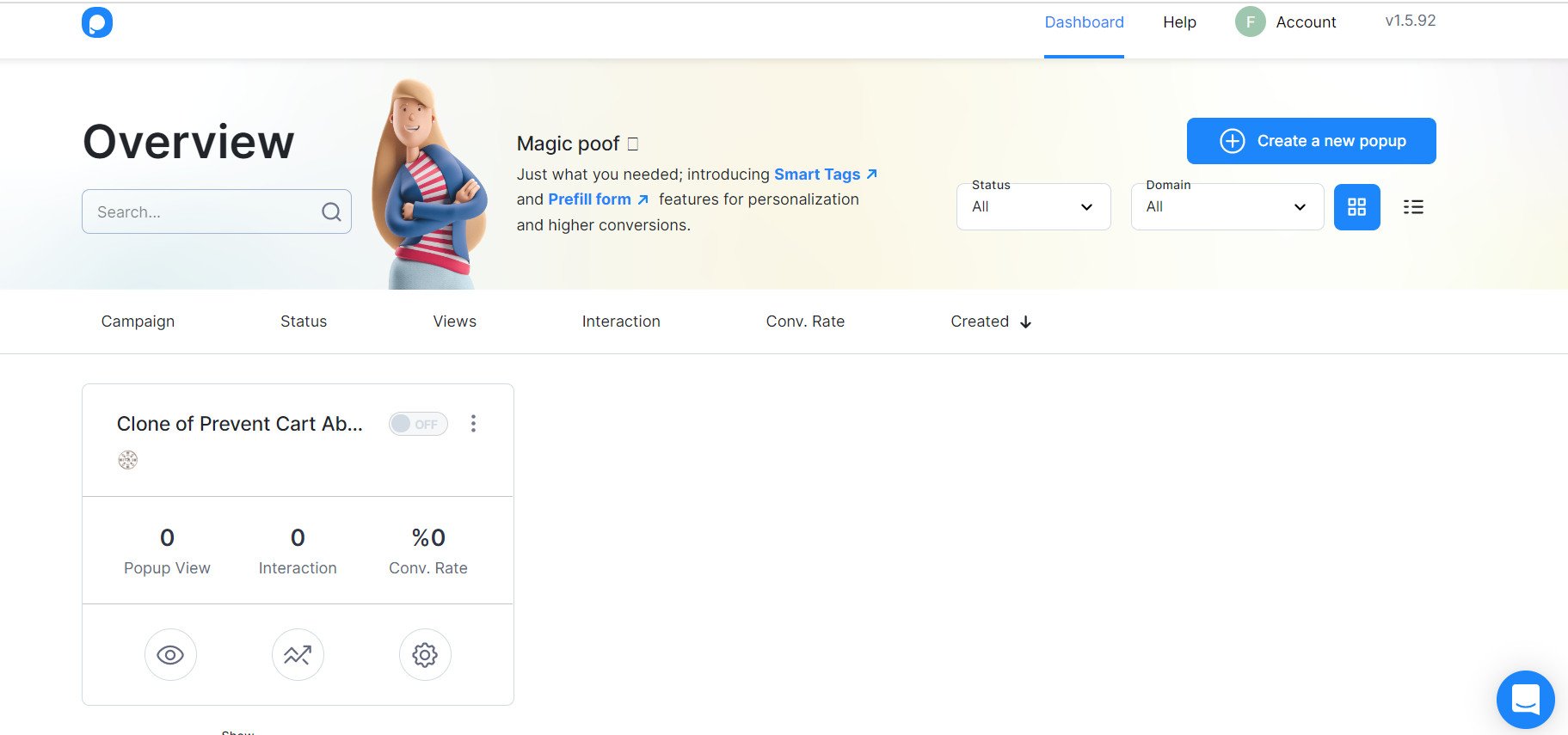
Your PopupSmart home page looks like this:
Stage two: install and activate the app on your store
1. From the side menu of your dashboard, click (Installed apps).

2. On the Salla App Store banner, click (Browse the Salla App Store).

3. On the PopupSmart app page, click (Install).
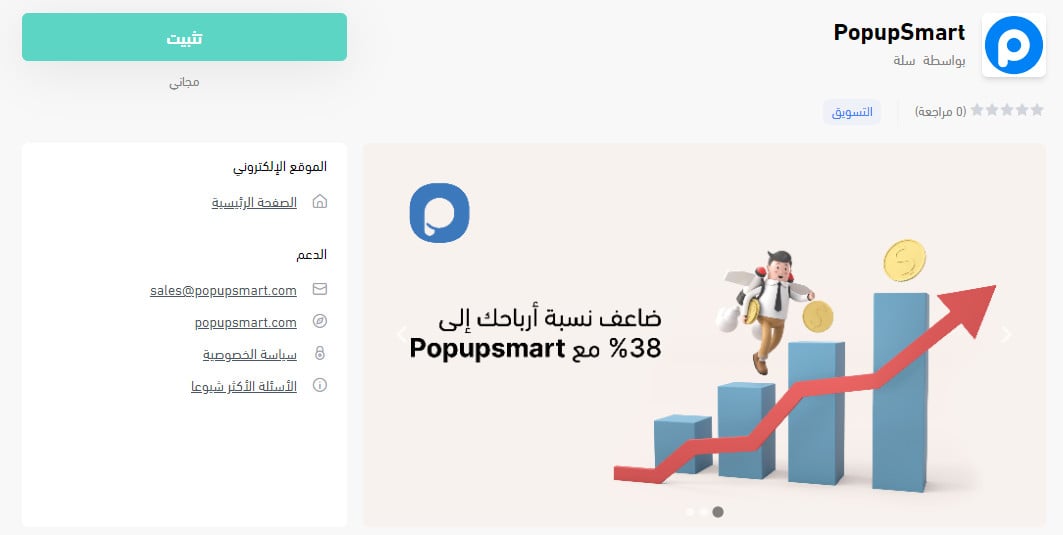
The app is now installed and appears in your installed apps like this:

4. On the installed apps page, find the PopupSmart app and click (Activate app).

5. Paste the tracking code you copied in step 4 of the previous stage into the code extraction box, click (Extract), then click (Activate connection).
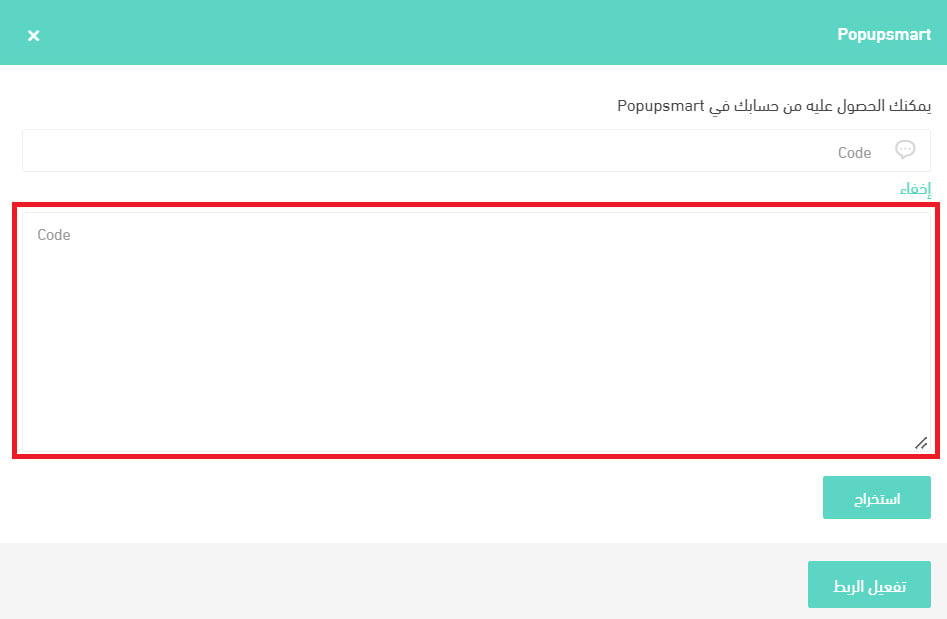
That's it — PopupSmart is active and ready to use.

For more detail, see Managing my store's apps.
❓ Frequently asked questions
What are the main things the app can do?
1. Study how your visitors behave and target them with more than 18 different targeting options.
2. Free and prepaid plans.
3. A smooth, feature-rich dashboard with tools for managing pop-up campaigns and reading performance reports.
4. Round-the-clock customer service.
5. A range of ways to grow your mailing list, target your store's visitors, and promote products to lift sales.
How do I fix the error saying the connection is incomplete?
If you see that message, here's how to clear it.
1. Click (Verify now).

2. To copy the tracking code, click (Copy to Clipboard), then click (Next step).
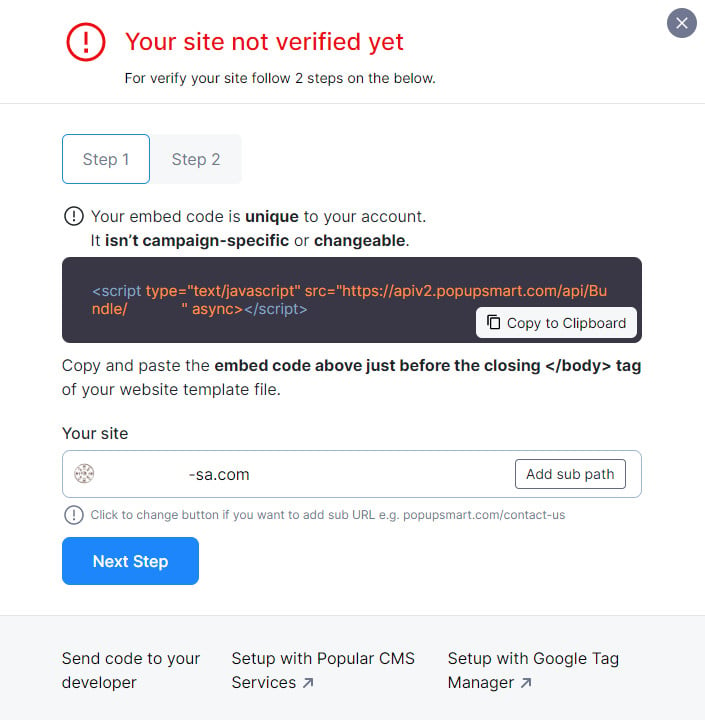
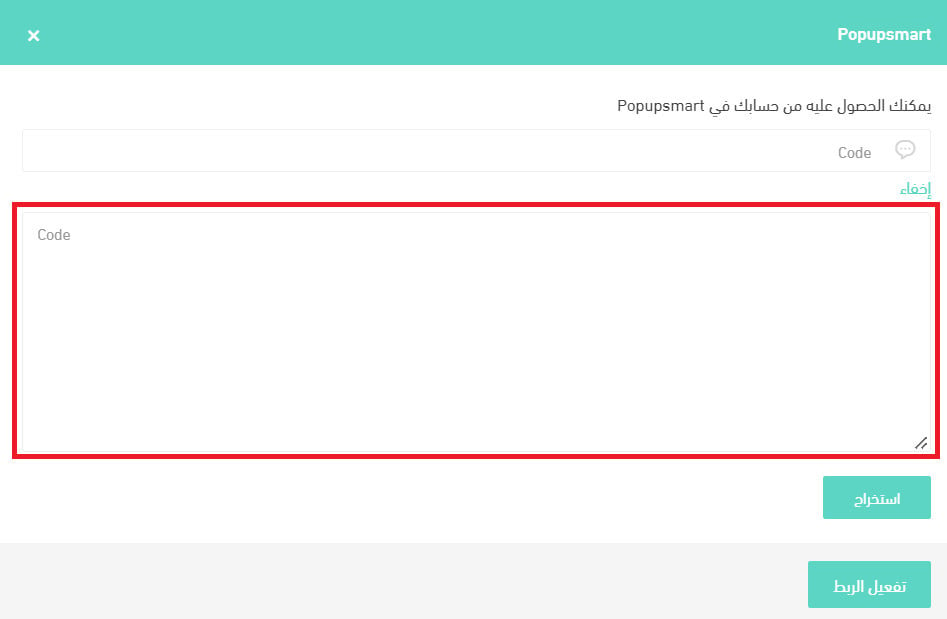
3. Go to the PopupSmart app settings, paste the tracking code, and click (Activate connection).
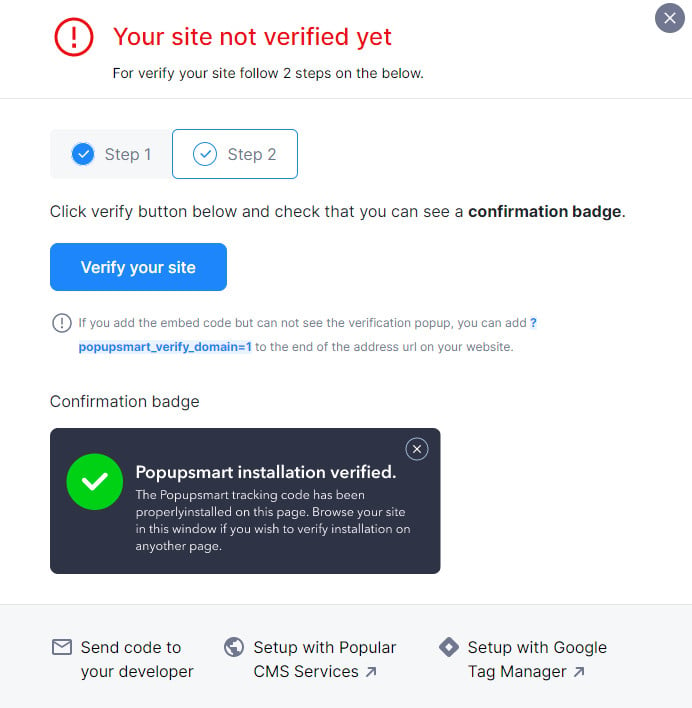
4. Wait a few minutes, go back to the verification page, and click (Verify your site).
How do I design a pop-up for my store with PopupSmart?
📝 Important notes
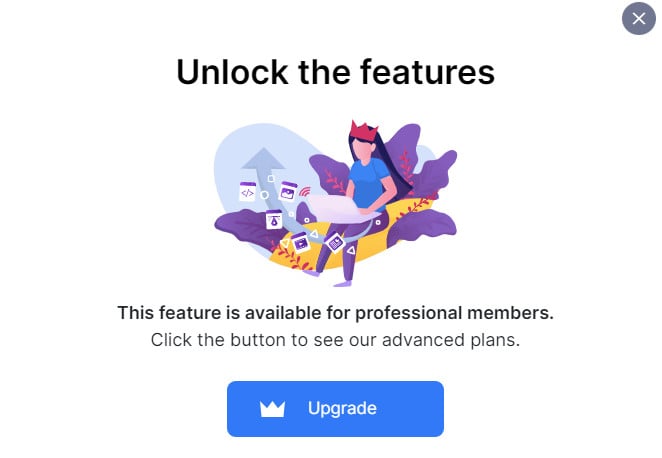
Designing your own pop-up requires upgrading your PopupSmart account.
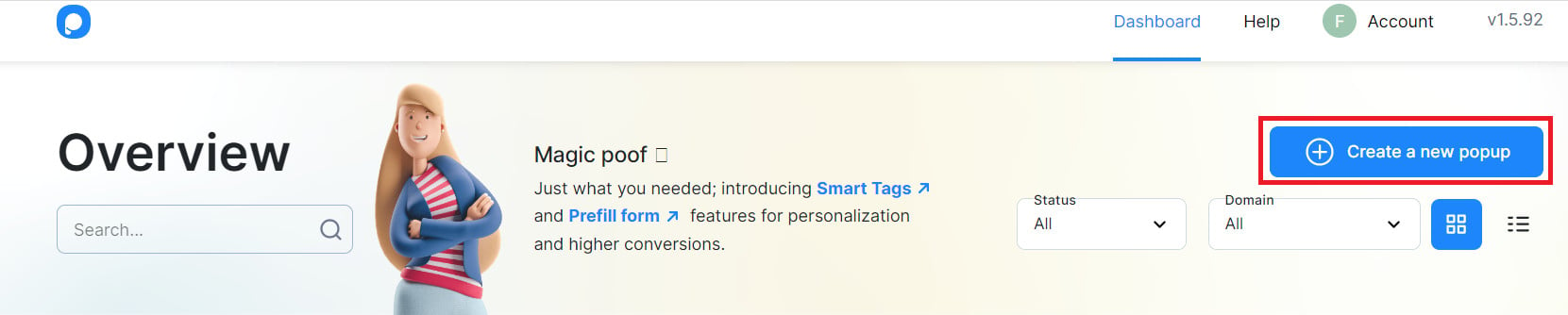
1. From your PopupSmart account page, click (Create a new popup).
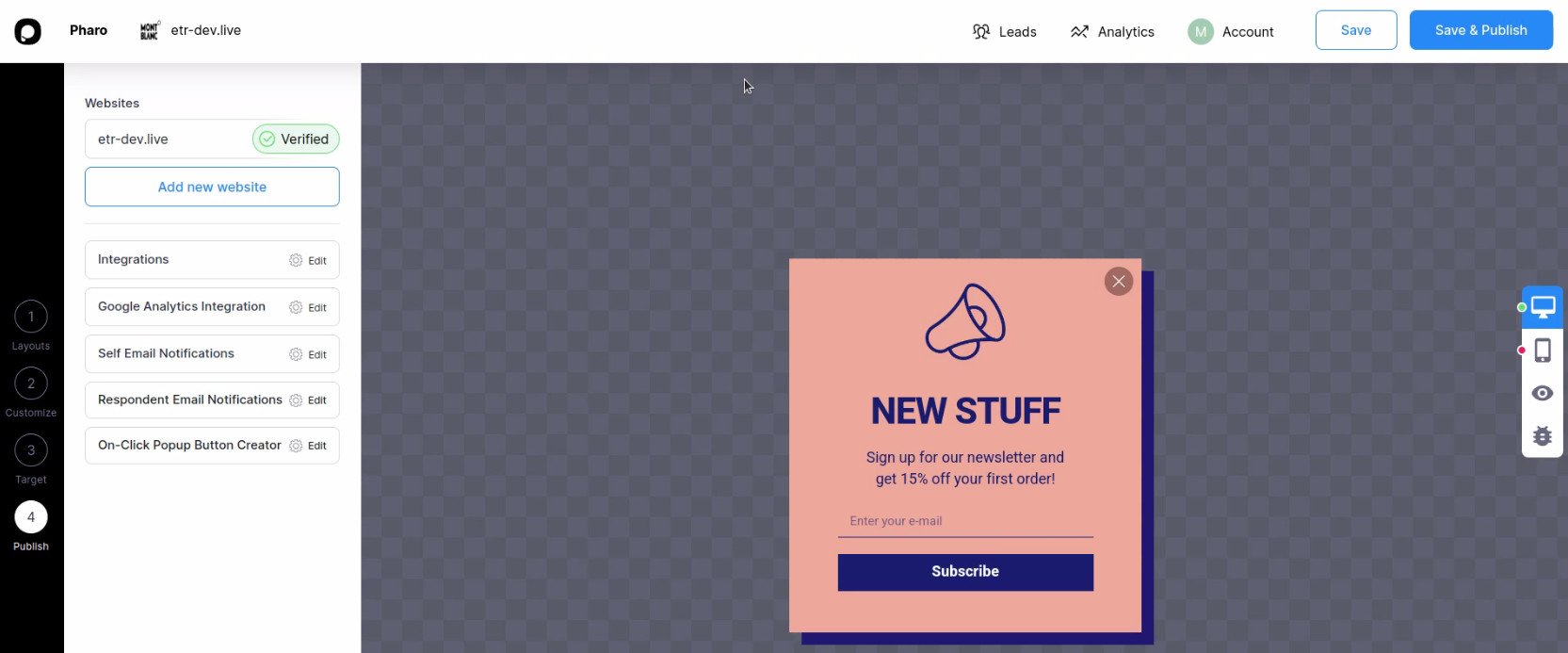
2. Choose the pop-up layout, customize how it looks, then click (Save & Publish).
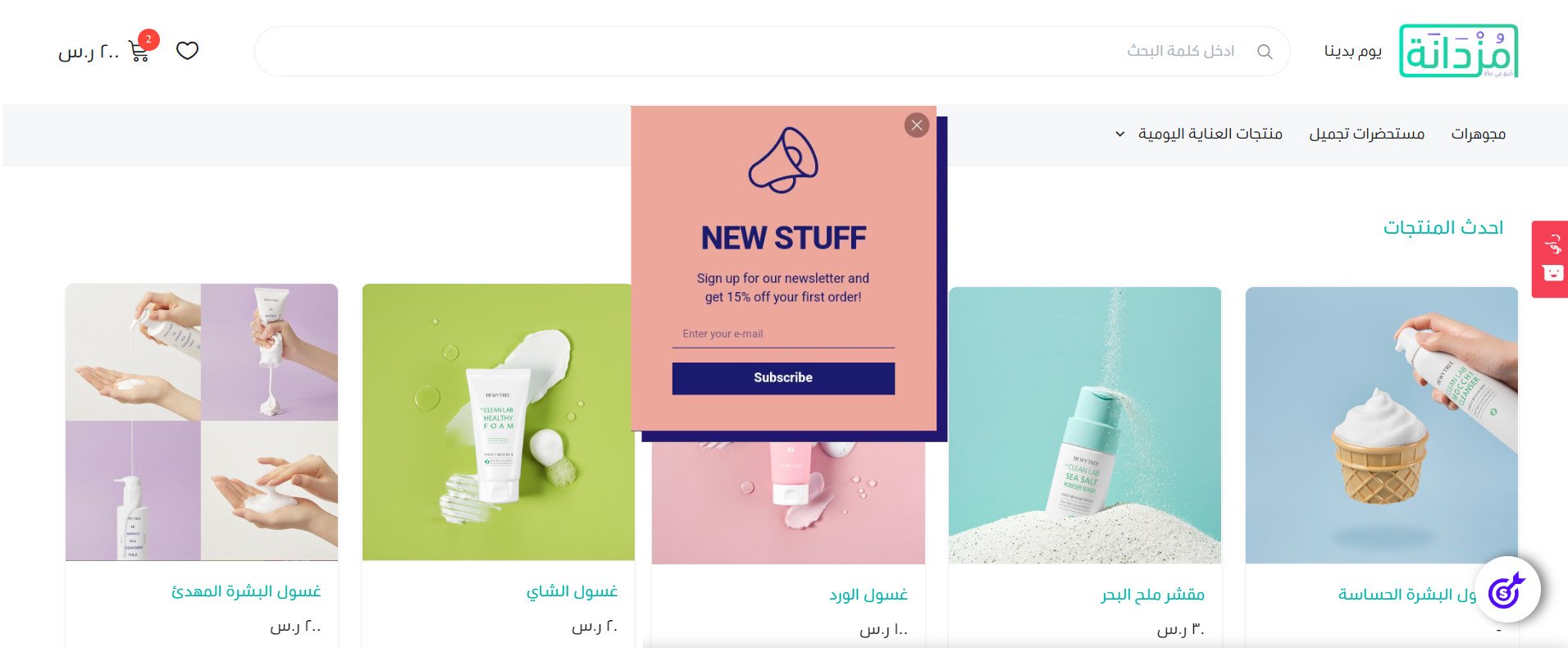
The pop-up then appears in your store like this:
How do I remove the PopupSmart app from my store?
1. From the side menu of your dashboard, click (Installed apps).

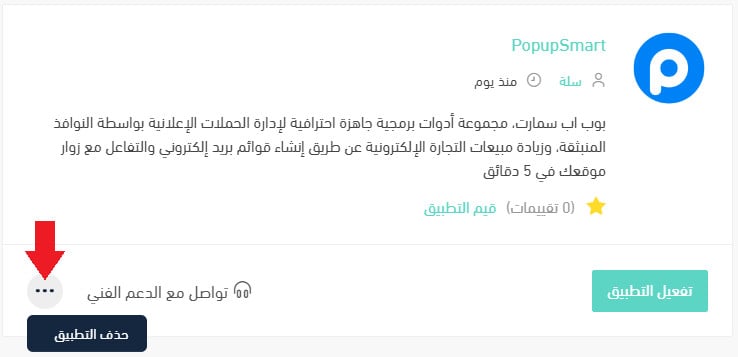
2. On the all apps page, find the PopupSmart app, click the (...) icon, then click (Delete app), as shown below.
Where do I find my embed code again?
Open your account menu in PopupSmart and click (Your embed code). That's the same code you paste into the app settings on your Salla dashboard.
A pop-up is only as good as the moment it appears. Start with one — an email sign-up on the pages people leave most — and let the performance reports tell you what to build next.