Is your team still juggling store enquiries across personal inboxes?
Connecting Outlook to your Salla store puts your business email in the same place you manage everything else. Outlook is the mail service companies lean on to keep internal communication tidy, so support requests and team messages move without anyone needing a meeting to sort them out. In this guide, you'll learn how to install the Outlook app from the Salla App Store, how to create an Outlook account if you don't have one, and how to unlink or remove the app later.
To connect Outlook to Salla, open (Installed apps) from your dashboard side menu, click (Browse the Salla App Store), open the Outlook app page, and click (Install). The app is activated automatically once installed — there is no extra setup step, and you can unlink or delete it at any time.
📌 Article overview
- What Outlook is
- How to connect Outlook to your store
- Frequently asked questions
🎯 What Outlook is
Outlook is used mainly to run email for companies and organizations. It keeps colleagues in touch without needing to meet in person, which saves a lot of time and effort when you're serving customers.
🚀 How to connect Outlook to your store
1. From the side menu of your dashboard, click (Installed apps).

2. On the Salla App Store banner, click (Browse the Salla App Store).

3. On the Outlook app page, click (Install).
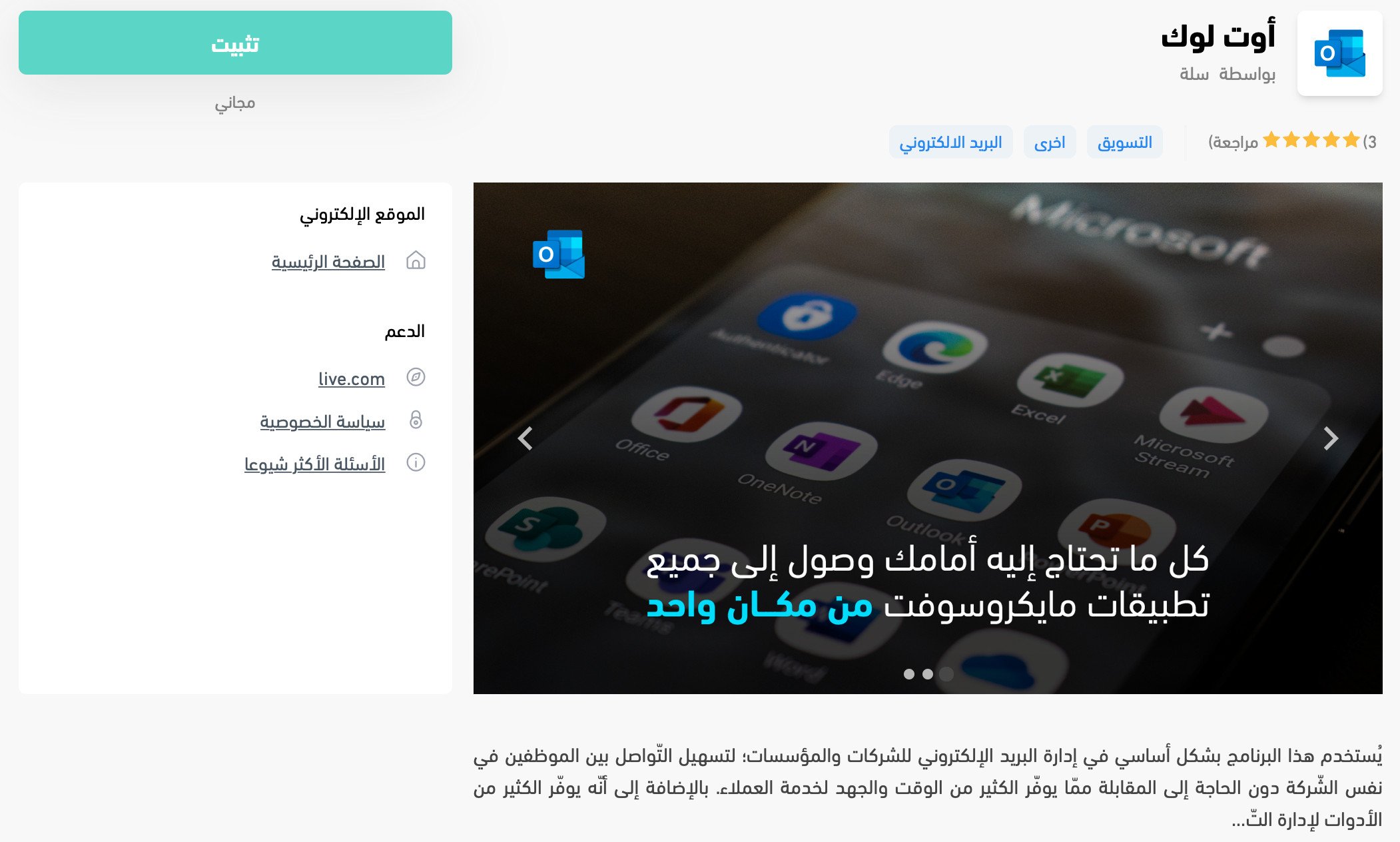
That's it — the app is installed and activated automatically.
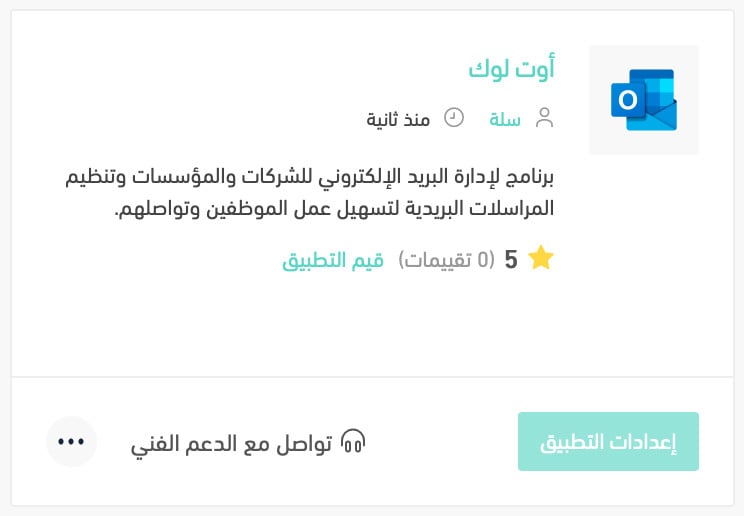
For more detail, see Managing my store's apps.
❓ Frequently asked questions
How do I create a new Outlook account?
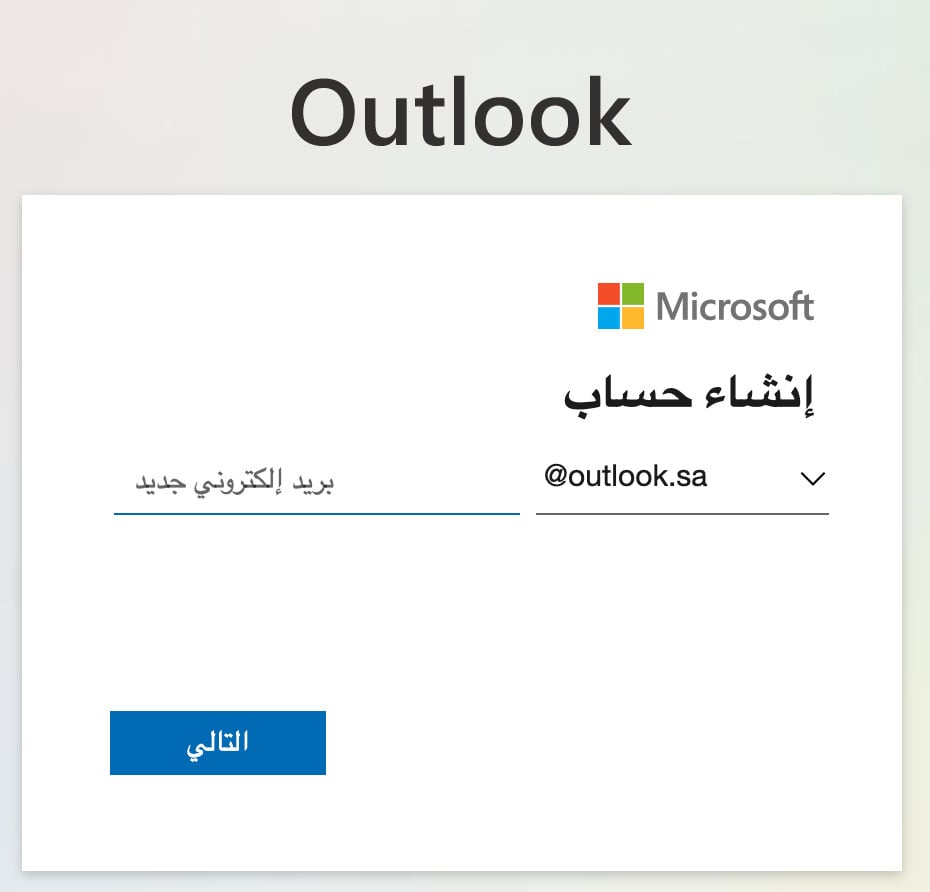
1. Go to the create a new Microsoft account page and fill in the details it asks for.
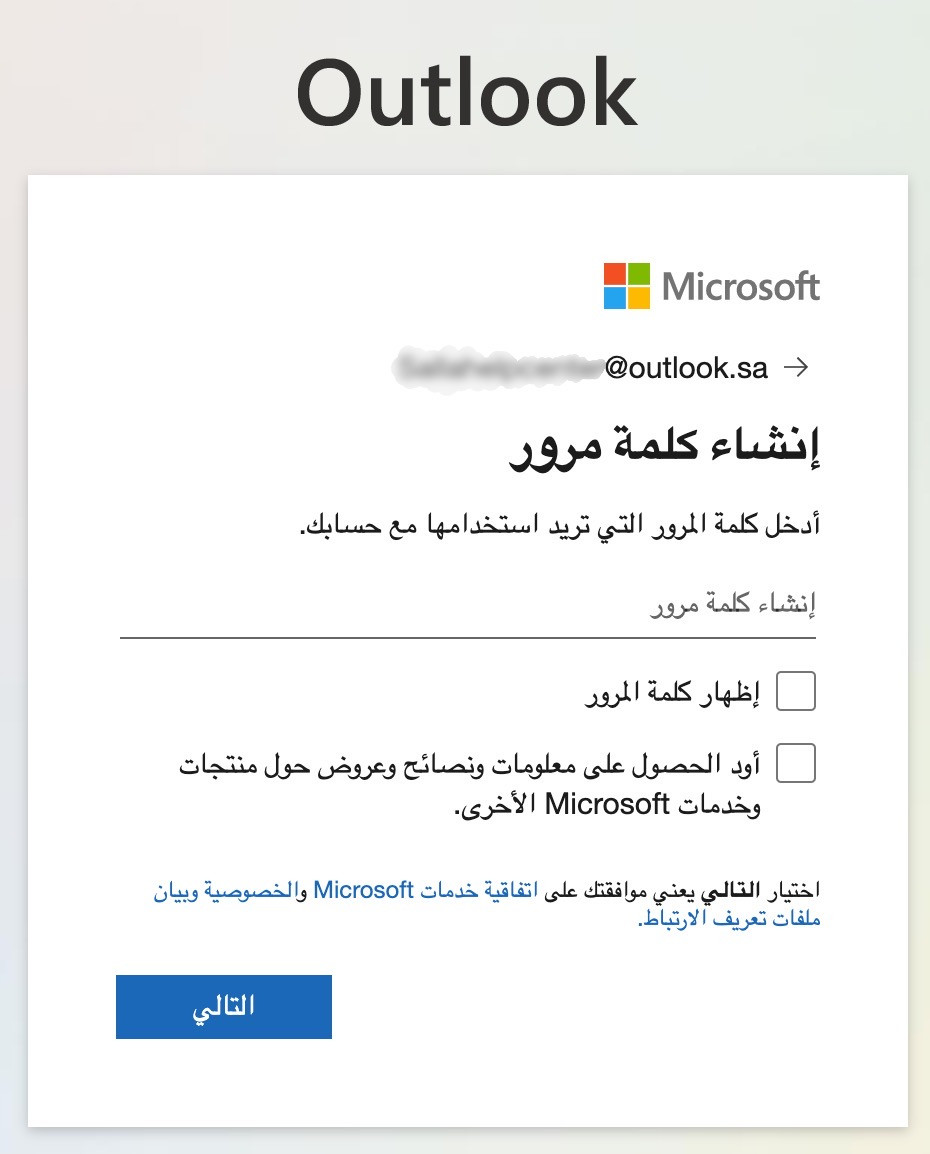
2. Type the password you want, then click (Next).
3. Enter the information needed to set up the account, then click (Next).
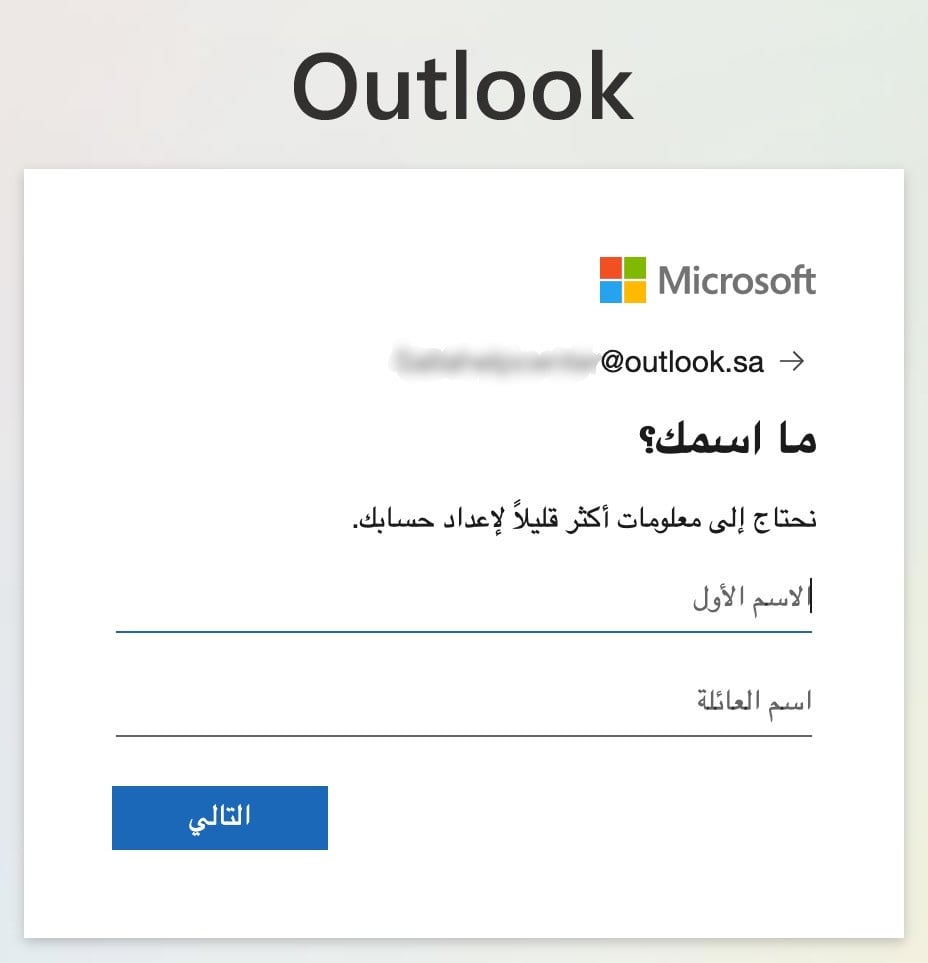
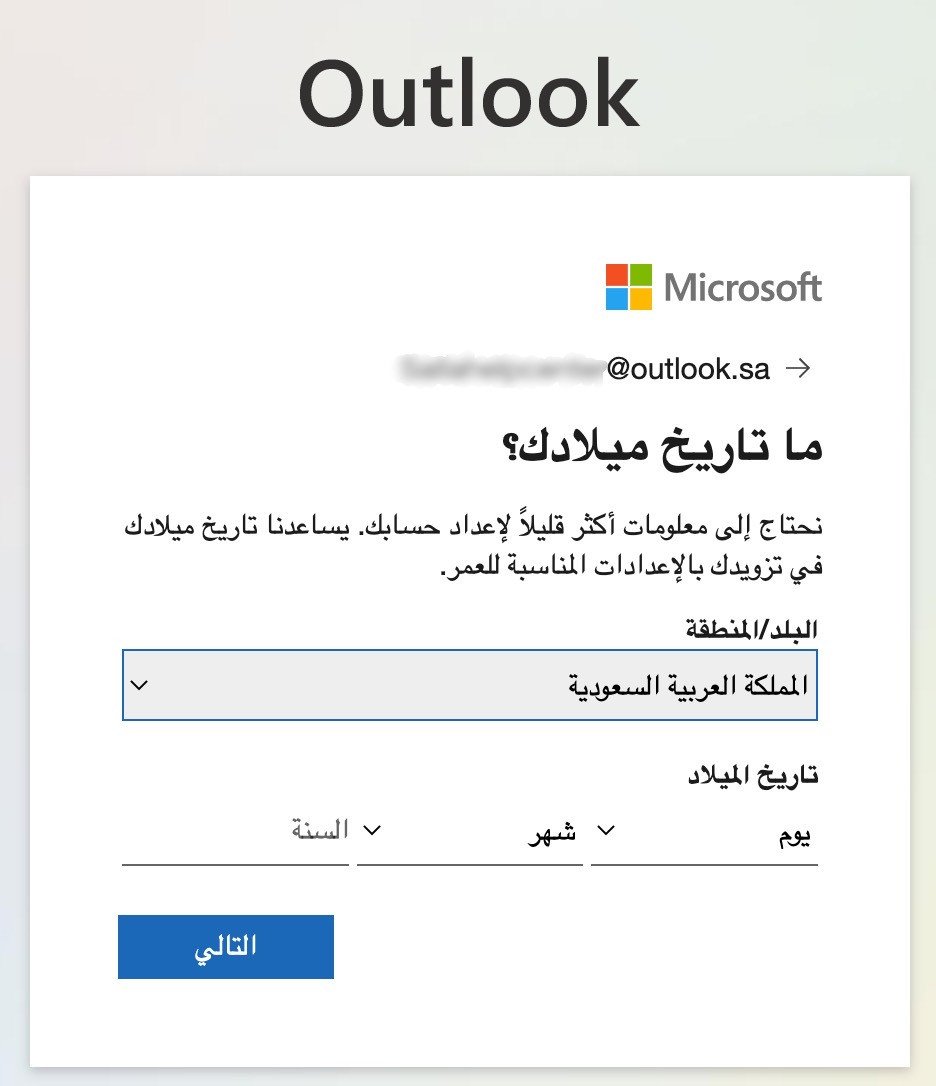
4. Add your date of birth, then click (Next).
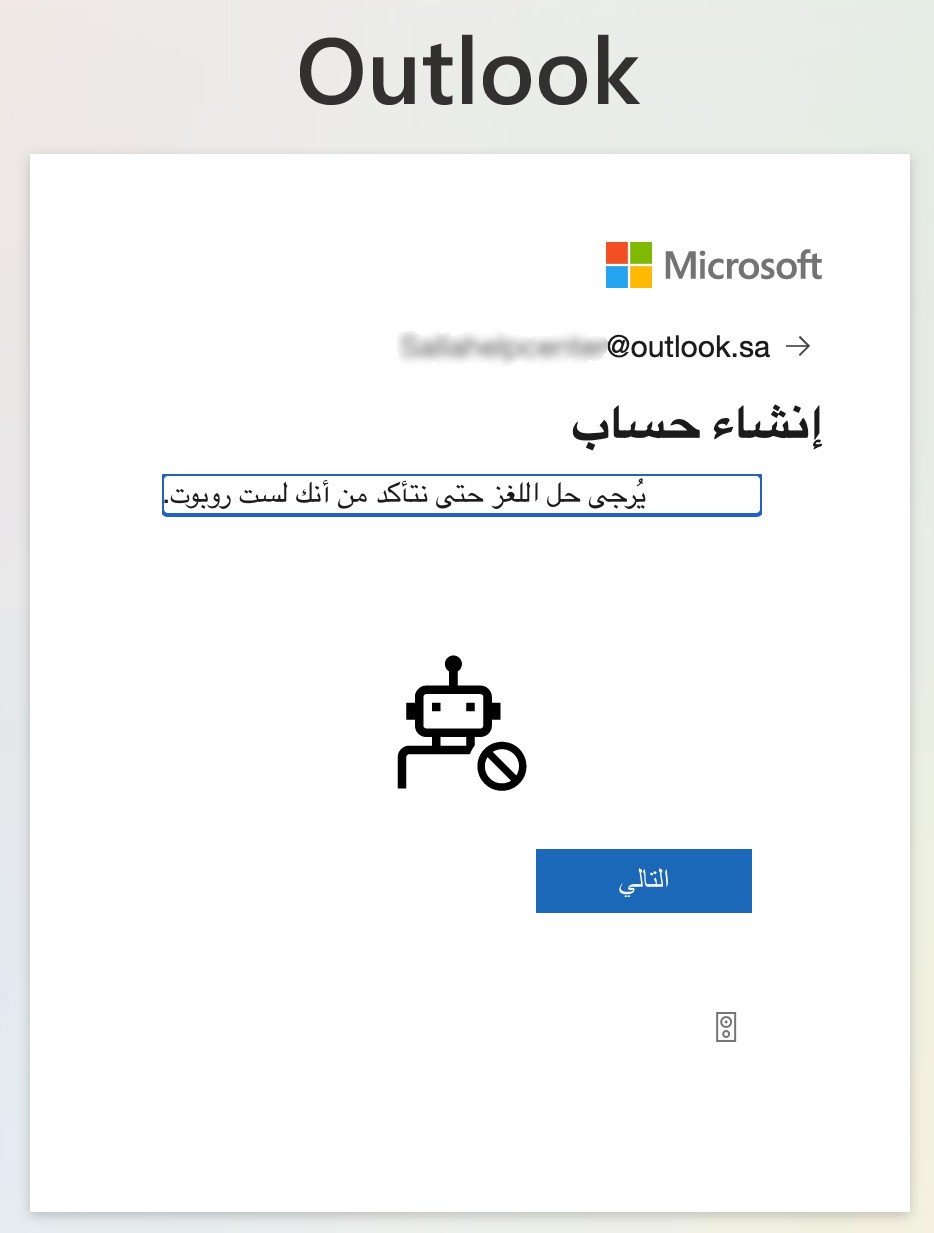
5. Start the verification step by clicking (Next).
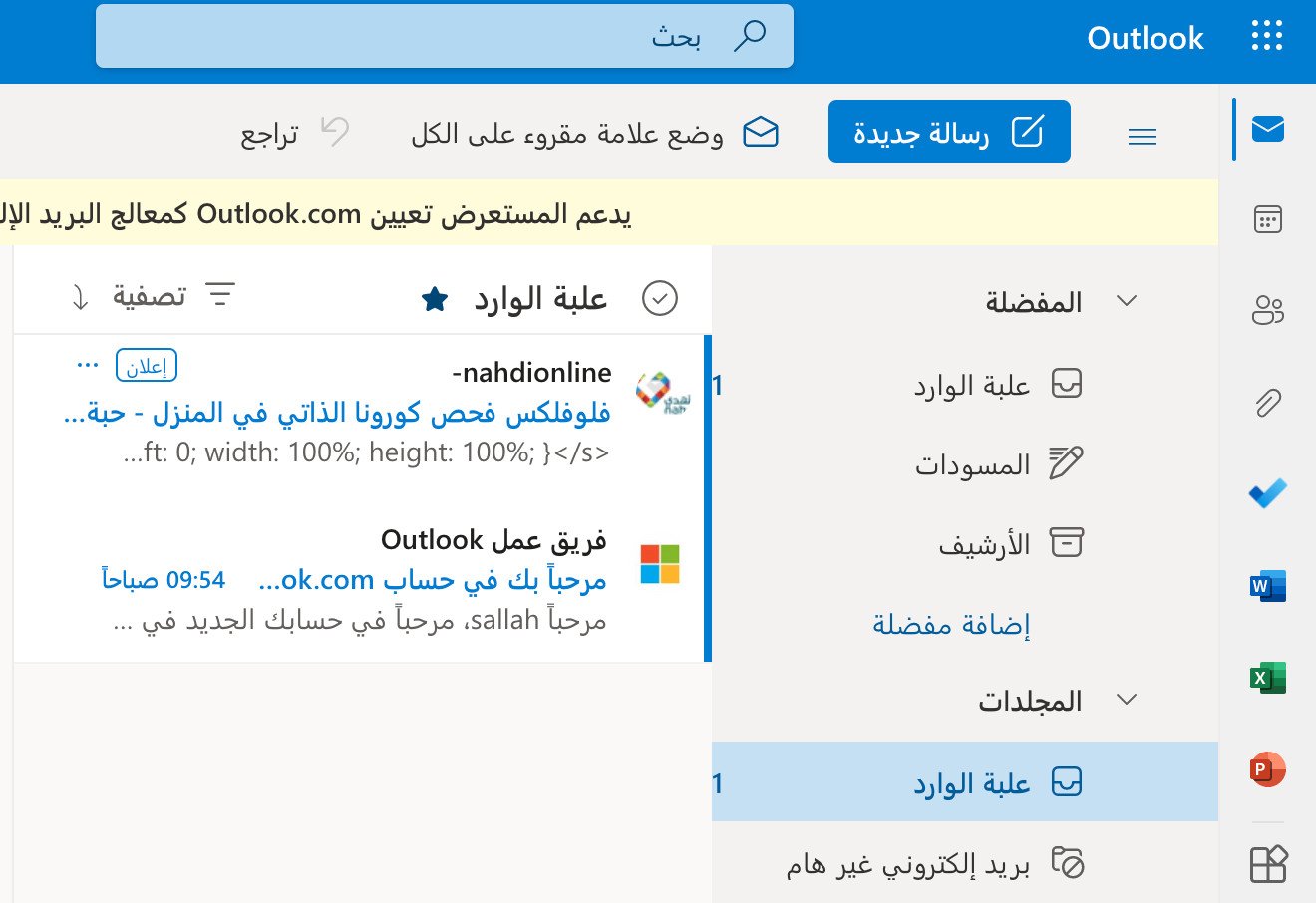
Once verification finishes, your mailbox is ready to use and the Outlook home page looks like this:
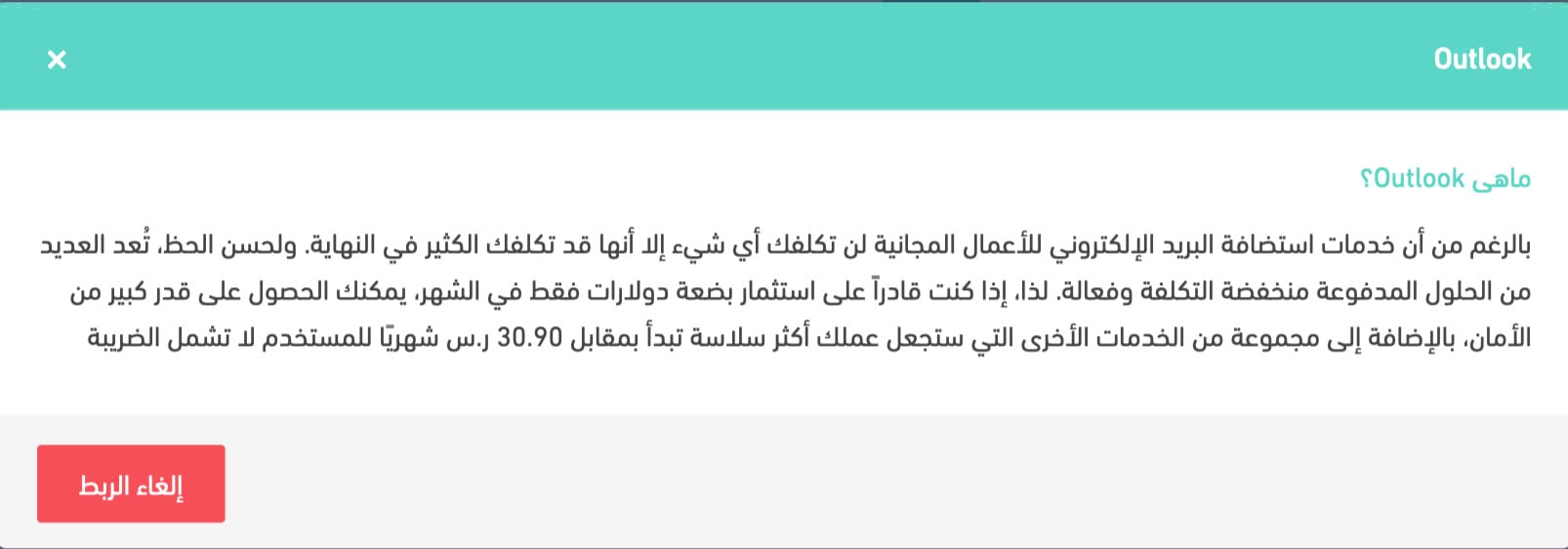
Can I unlink my store from my Outlook account?
Yes. Open the Outlook app settings and click (Unlink).
How do I remove the Outlook app from my store?
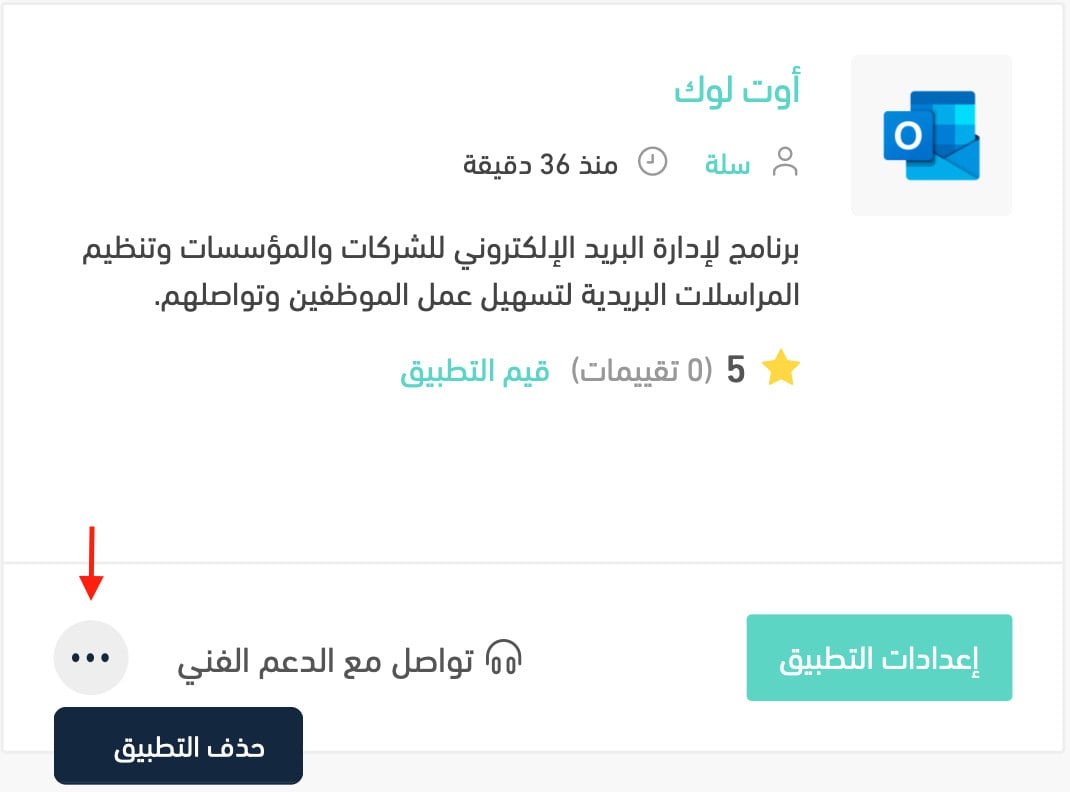
1. From the side menu of your dashboard, click (Installed apps).

2. On the all apps page, find the Outlook app, click the (...) icon, then click (Delete app), as shown below.
Where do I manage the app after installing it?
Everything lives under (Installed apps) in your dashboard side menu — that's where you open the app's settings, unlink it, or delete it.
📝 Important notes
Installing the app activates it automatically, so there is nothing else to switch on afterwards.
Getting email off personal inboxes and onto a shared business account is a small change with a big payoff: replies stop getting lost, and anyone on your team can pick up a customer conversation where someone else left it.