Are you still copying orders, customers, and stock levels into your accounting system by hand?
The Odoo integration links your Salla store to your Odoo account so the two systems stay in step. Customers, products, and orders are pushed into Odoo automatically, and stock quantities are updated back in Salla without anyone touching a spreadsheet. In this guide, you'll learn what the app does, how to install it on your store, and how to remove it if you no longer need it.
To connect Odoo, open (My installed apps) from your dashboard side menu, browse the Salla App Store, and install the Odoo app. Grant the permissions it asks for, then either set a password for the Odoo account created for you or sign in with an existing one to start syncing.
📌 Article overview
- What is Odoo?
- How to install the Odoo app on your Salla store
- Frequently asked questions
🎯 What is Odoo?
Odoo is business management software for accounting, inventory, and sales. The app connects it to Salla, adding your customers, products, and orders to Odoo automatically and keeping quantities in Salla up to date.
Connecting your store to Odoo gives you:
- Inventory, sales, and returns handled in one place.
- Customer records added and kept current.
- Product records added and kept current.
- Quantities in Salla updated automatically.
- Support for more than one company through Odoo Multi-Company.
🚀 How to install the Odoo app on your Salla store
1. From the side menu of your dashboard, click (My installed apps).

2. From the Salla App Store banner, click (Browse Salla App Store).

3. On the Odoo app page, either click (Install) to install the limited trial version.
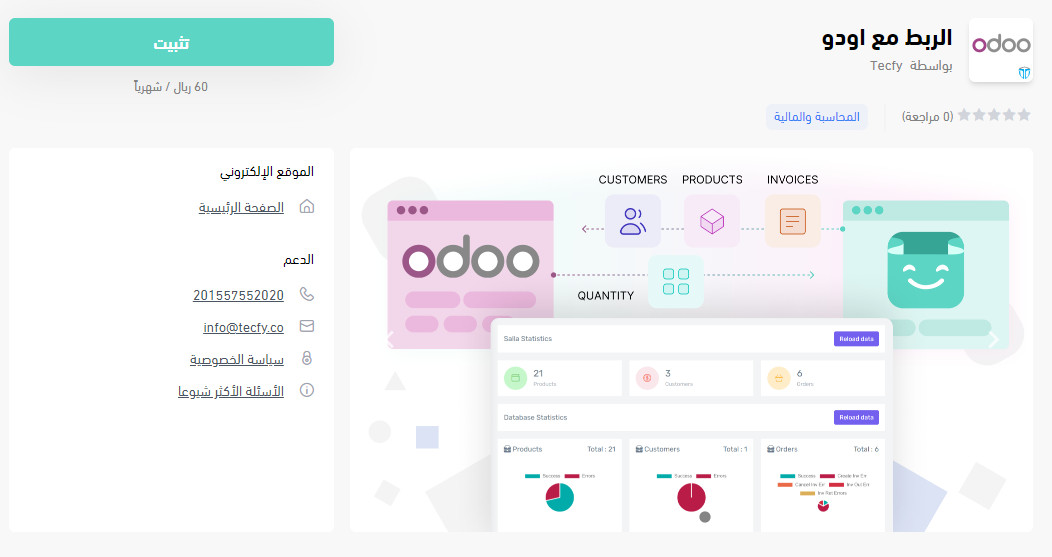
Or read the details of the professional plan, click (Choose plan), and complete the payment.
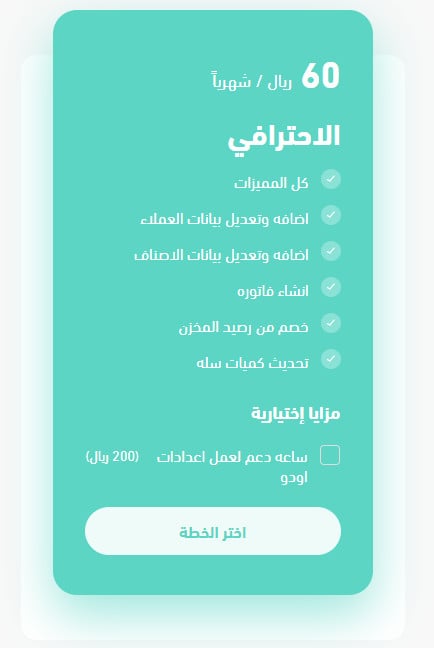
4. Review the permissions the Odoo app needs to access your store resources, then click (Grant permission).
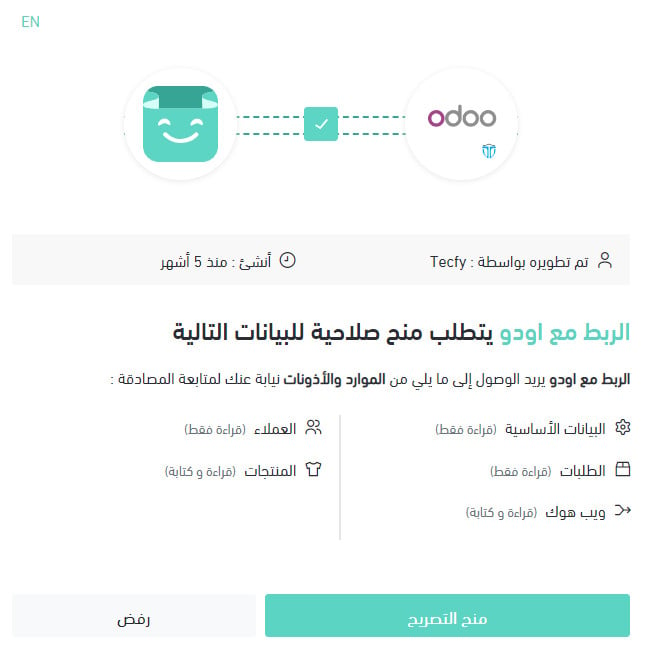
5. Set a password for your new Odoo account, which is created for you automatically, then click (Next).
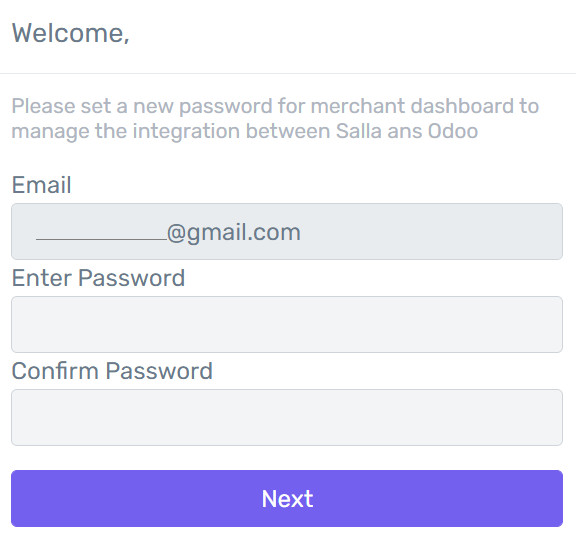
6. If you already have an Odoo account, enter its details instead and click (Next).
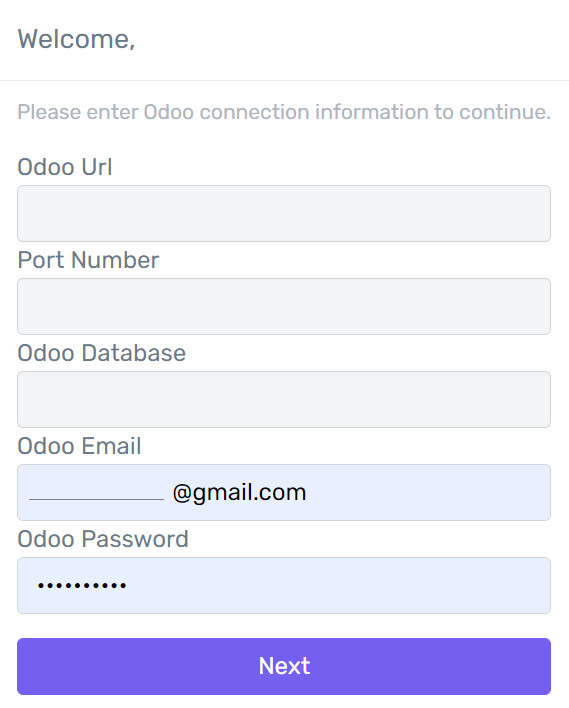
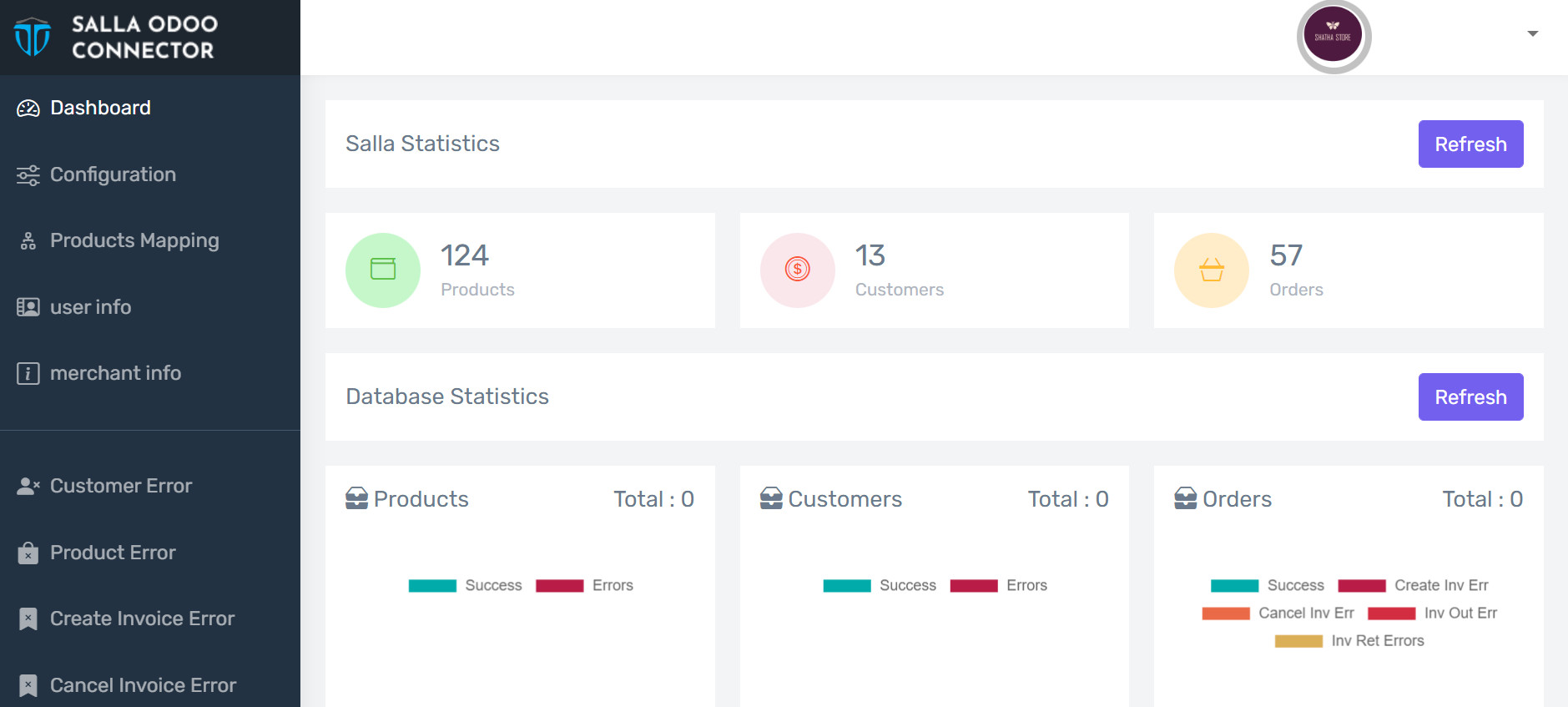
Once the sync finishes, your home page looks like this:
The app is now installed on your store.
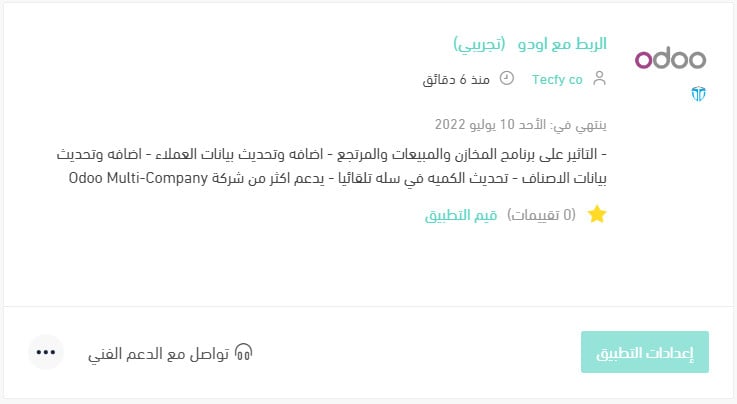
For more details, see managing my store apps.
❓ Frequently asked questions
How do I remove the Odoo app from my store?
1. From the side menu of your dashboard, click (My installed apps).

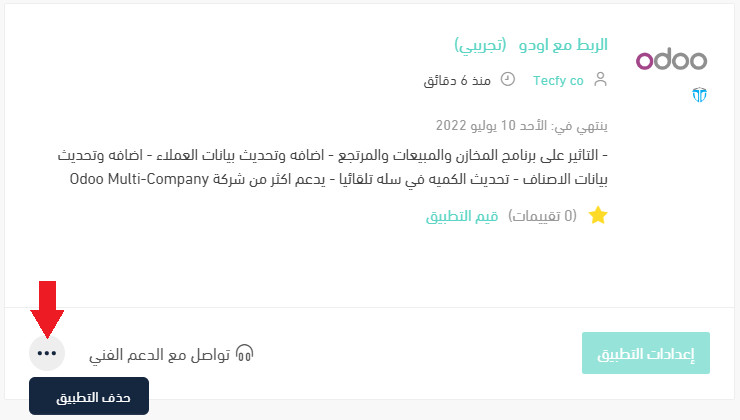
2. On the all apps page, find the Odoo app, click (...), then click (Delete app).
Do I have to pay to use the Odoo app?
No. You can install the limited trial version for free from the app page. The professional plan is a paid option you choose and pay for during installation.
Can I connect an Odoo account I already have?
Yes. At the account step, enter the details of your existing Odoo account instead of setting a password for the new one, then click (Next).
Does the app work with more than one company?
Yes. The integration supports Odoo Multi-Company, so more than one company can be handled through it.
Do I still need to update stock in Salla manually?
No. Once the two systems are connected, quantities in Salla are updated automatically as Odoo syncs.