Want to keep your Salla sales and accounting records in one cloud system?
Nerapos accounting helps merchants manage accounts, sales, profits, expenses, invoices, quotations, and operational records. It also centralizes records for customers, companies, agents, sellers, and suppliers. This guide explains how to install Nerapos from the Salla App Store, activate the integration, enter your credentials, and remove the app.
To connect Nerapos accounting to Salla, install the app, select a suitable plan, and grant the requested permissions. Activate Nerapos from Installed apps, enter your store organization ID and password, then save the settings. Request the organization ID directly from Nerapos technical support before starting.
📌 Article overview
- What Nerapos accounting is
- How to connect Nerapos accounting to Salla
- How to activate the Nerapos integration
- How to remove Nerapos from your store
- Frequently asked questions
💡 What is Nerapos accounting?
Nerapos is an Arabic cloud accounting system for managing merchant accounts and sales, monitoring profits and expenses, and issuing invoices and quotations. It also supports operational management and stores records for related parties, including customers, companies, agents, sellers, and suppliers.
🚀 How to connect Nerapos accounting to Salla
1. From the dashboard side menu, click (Installed apps).

2. From the Salla App Store banner, click (Browse the Salla App Store).

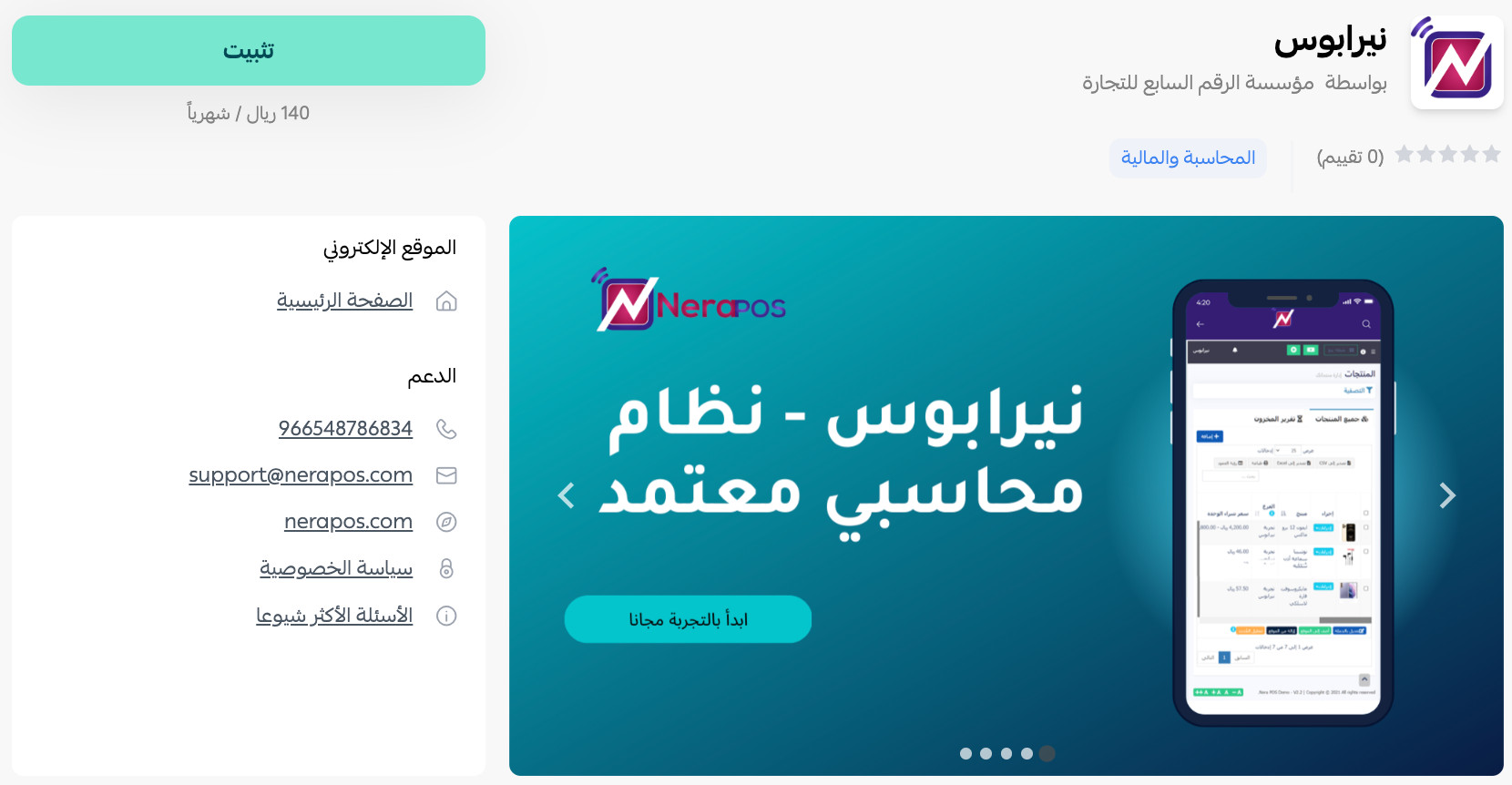
3. On the Nerapos app page, click (Install).
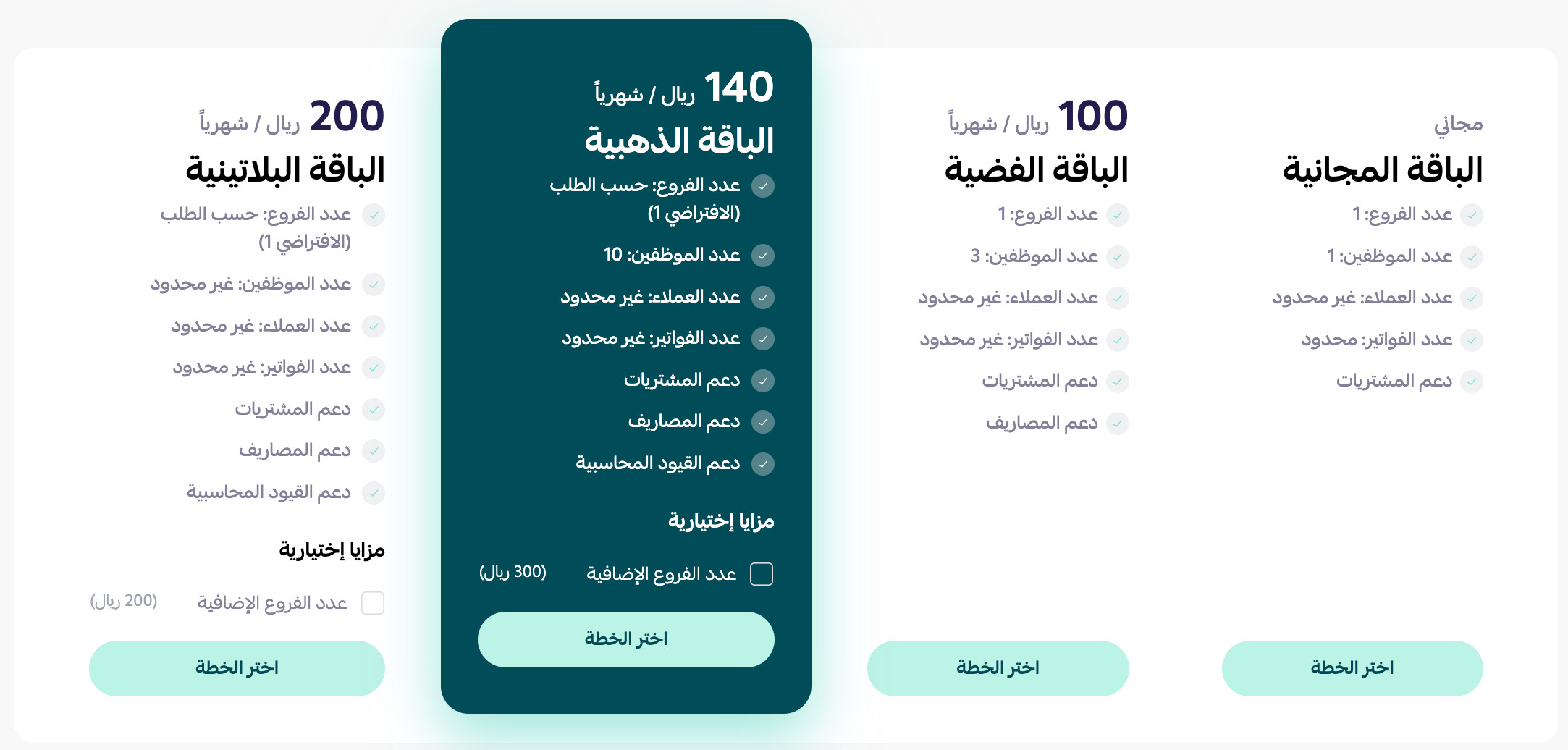
Select the plan that best suits your business.
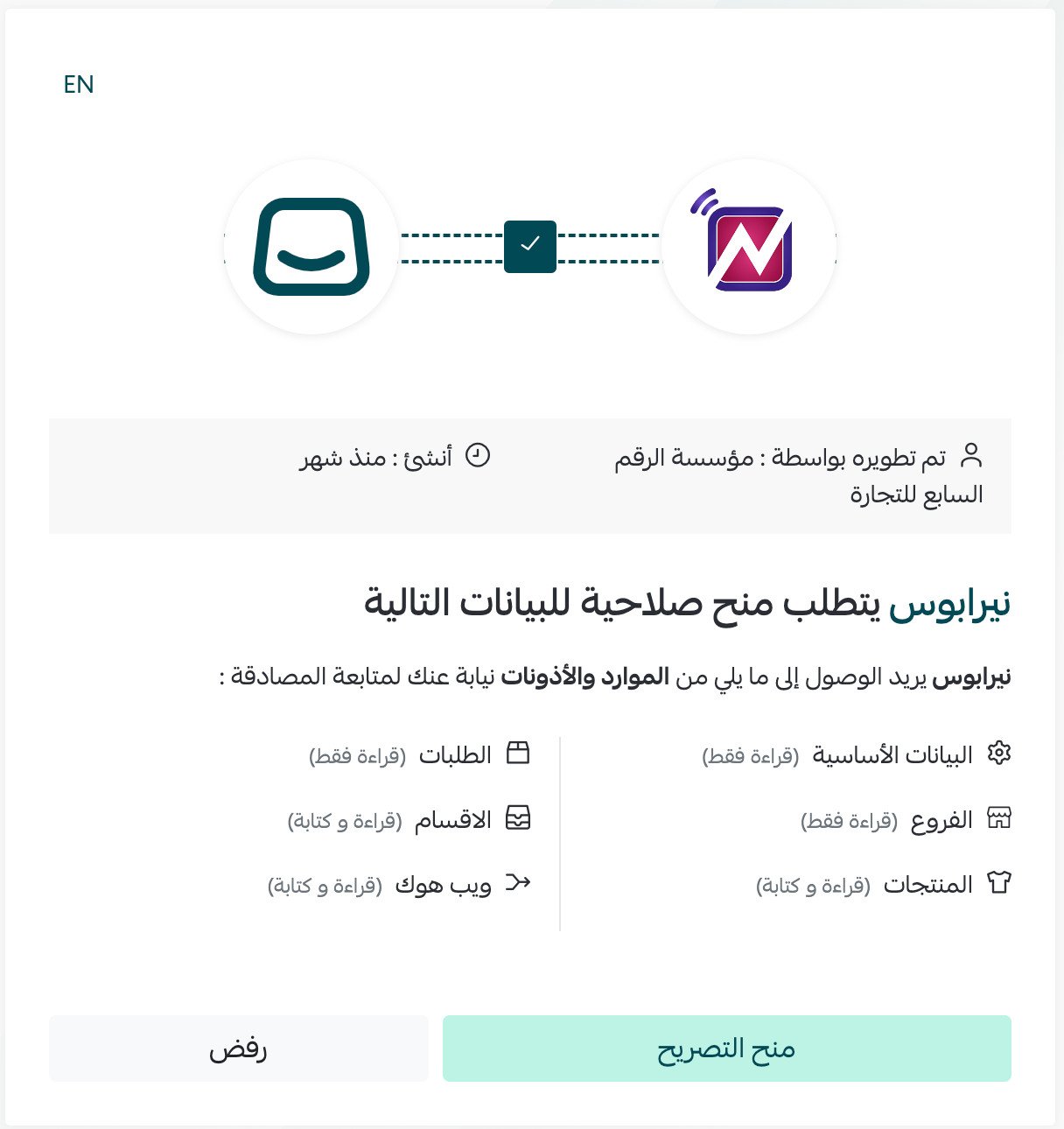
4. Review the requested permissions, then click (Grant permission).
Nerapos is now installed on your store.
✅ How to activate the Nerapos accounting integration
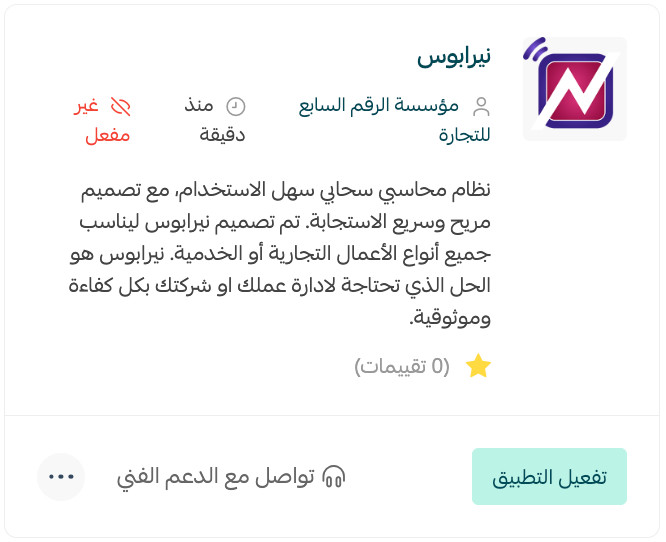
5. On the Installed apps page, find Nerapos and click (Activate app).
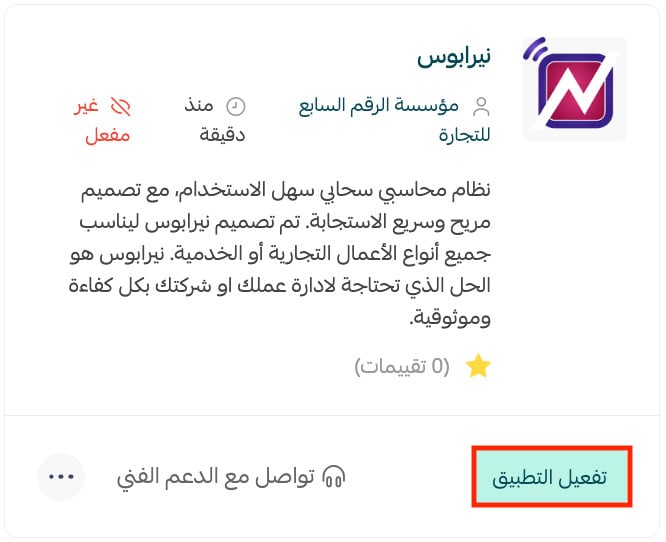
6. Paste your store organization ID into the designated field, enter the password, then click (Save).
Note: Request the organization ID from Nerapos technical support. [Verify: the source does not provide a support link or explain whether the password is created by the merchant or issued by Nerapos.]
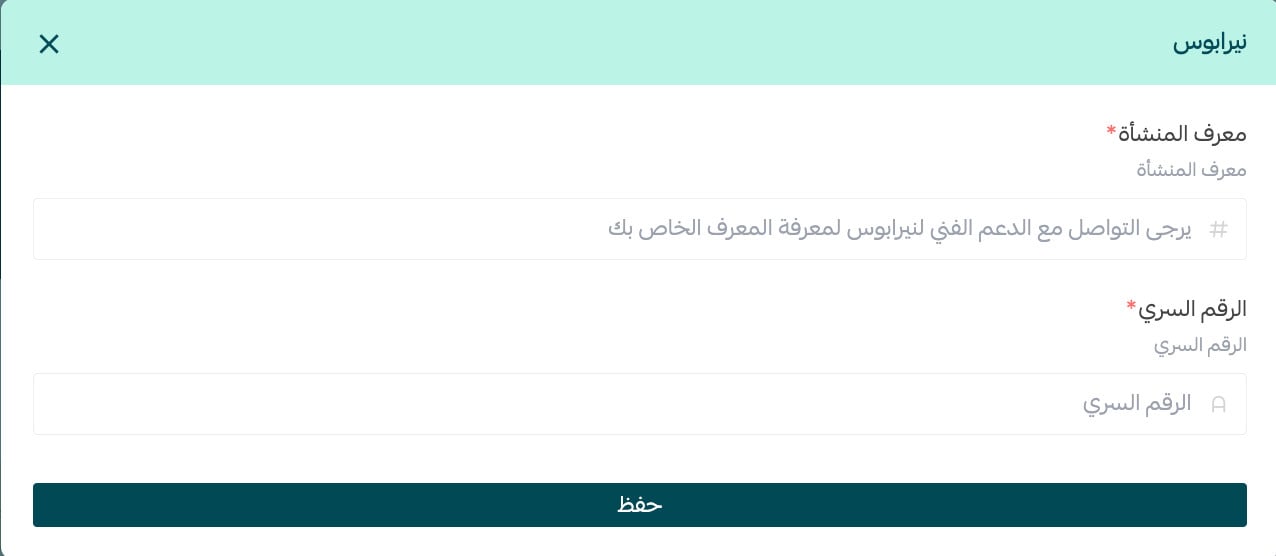
Nerapos is now active on your store.
For more details, see managing your store apps.
❓ Frequently asked questions about Nerapos accounting
Where can I review common questions about Nerapos?
See the Nerapos frequently asked questions page.
Where do I get the organization ID required for activation?
Request your store organization ID from Nerapos technical support. [Verify: the source does not provide the support channel.]
When is the Nerapos connection active?
The source states that the app becomes active after you enter the organization ID and password and click (Save).
How can I remove Nerapos from my store?
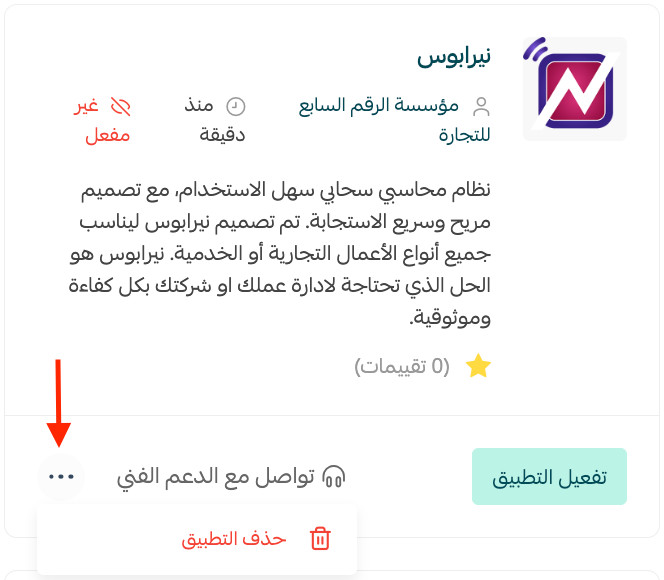
1. From the dashboard side menu, click (Installed apps).

2. On the all apps page, find Nerapos, click the (...) icon, then click (Delete app), as shown.
📝 Important notes
Confirm the official English brand styling and obtain the current Nerapos support route and credential instructions before publication.
Keep your organization ID and password secure, and review the permissions shown during installation before granting access.