How many of your customers would rather hear from you on WhatsApp than by email?
WhatsApp is where most of your customers already are — and Mottasl connects your Salla store to a WhatsApp Business number so order updates, abandoned cart reminders, and campaigns go out from it automatically. In this guide, you'll learn what the Mottasl app does, how to install it on your store, how to set up your Mottasl account, and how to remove the app if you need to.
To connect Mottasl, open (Installed apps) from your dashboard's side menu, click (Browse the Salla App Store), open the Mottasl app page, and click (Install). Choose a plan, complete payment, then click (Grant permission). Open the welcome page link, sign in with your store email, and your Mottasl account is ready.
📌 Article overview
- What is the Mottasl app?
- How to connect your store with Mottasl
- Frequently asked questions
🎯 What is the Mottasl app?
The Mottasl app links your store to the WhatsApp Business account you have activated on the Mottasl platform. That connection lets you get the most out of the strongest channel you have for reaching customers: WhatsApp.
🚀 How to connect your store with Mottasl
1. From the side menu of your dashboard, click (Installed apps).

2. From the Salla App Store banner, click (Browse the Salla App Store).

3. From the Mottasl app page, click (Install).
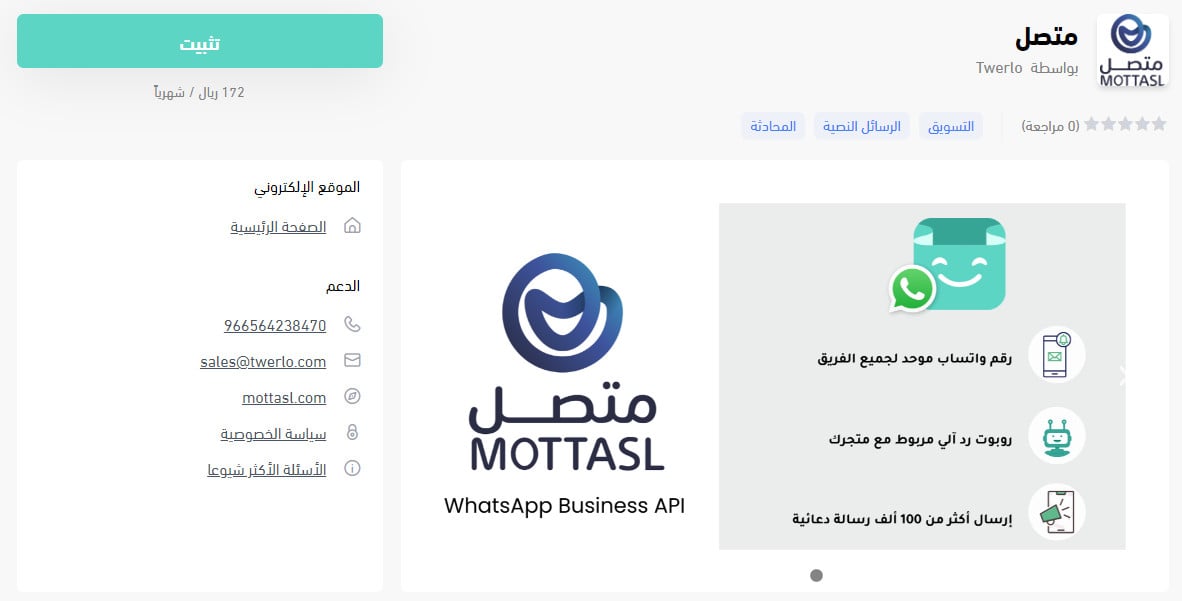
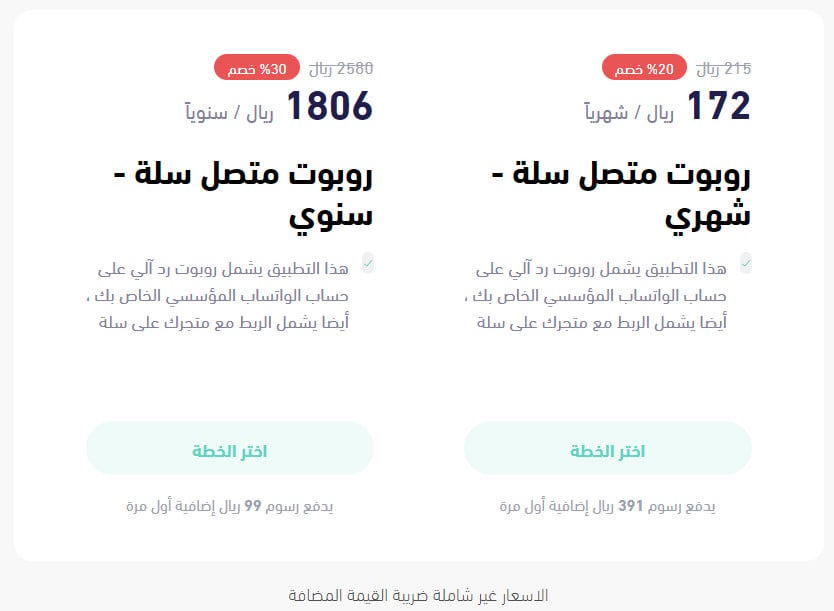
4. Choose the plan that fits your business, then click (Choose plan).
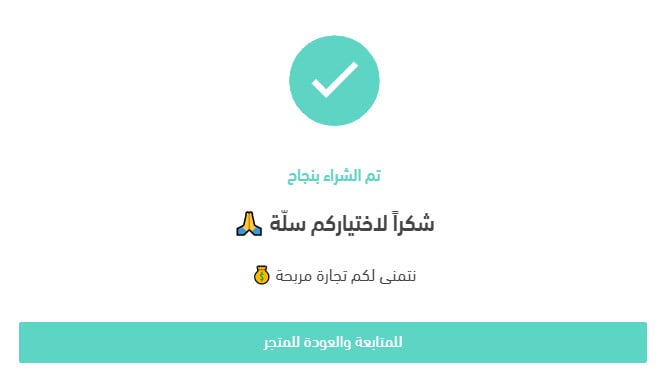
5. Once payment for the plan goes through, click (Continue and return to the store).
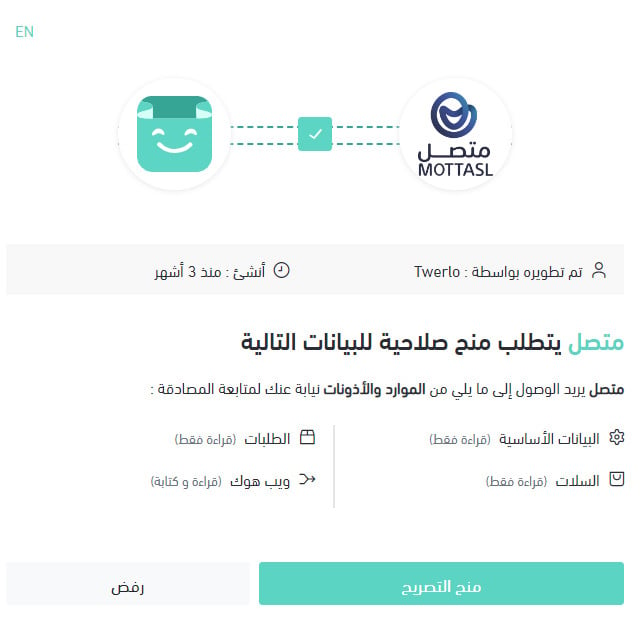
6. Review the permissions the app asks for, then click (Grant permission).
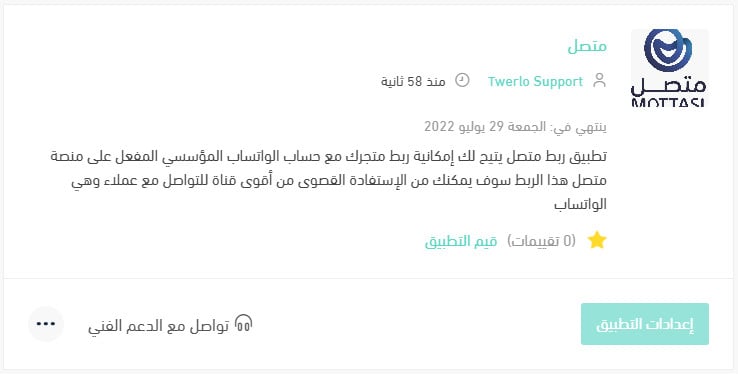
The Mottasl app is now installed, and it appears in your installed apps like this:
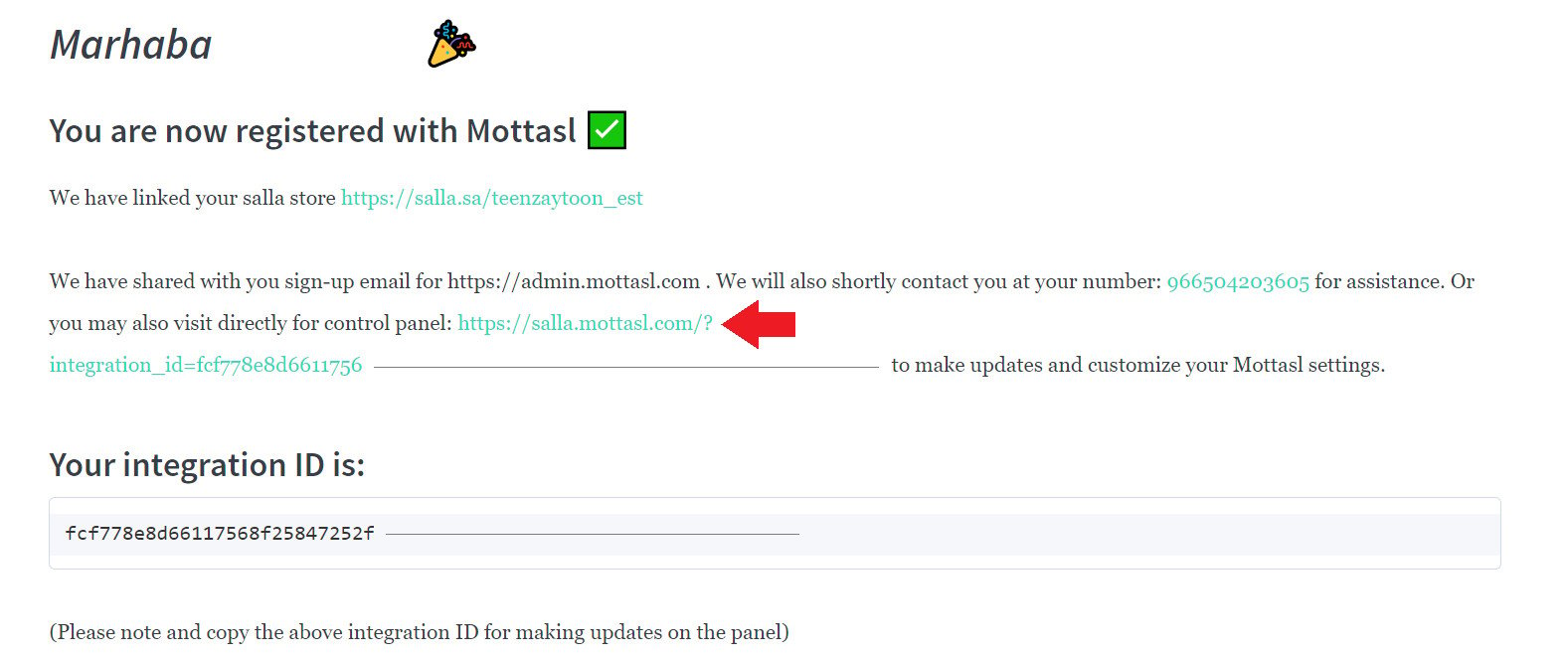
7. A welcome page opens after installation — click the link shown on it.
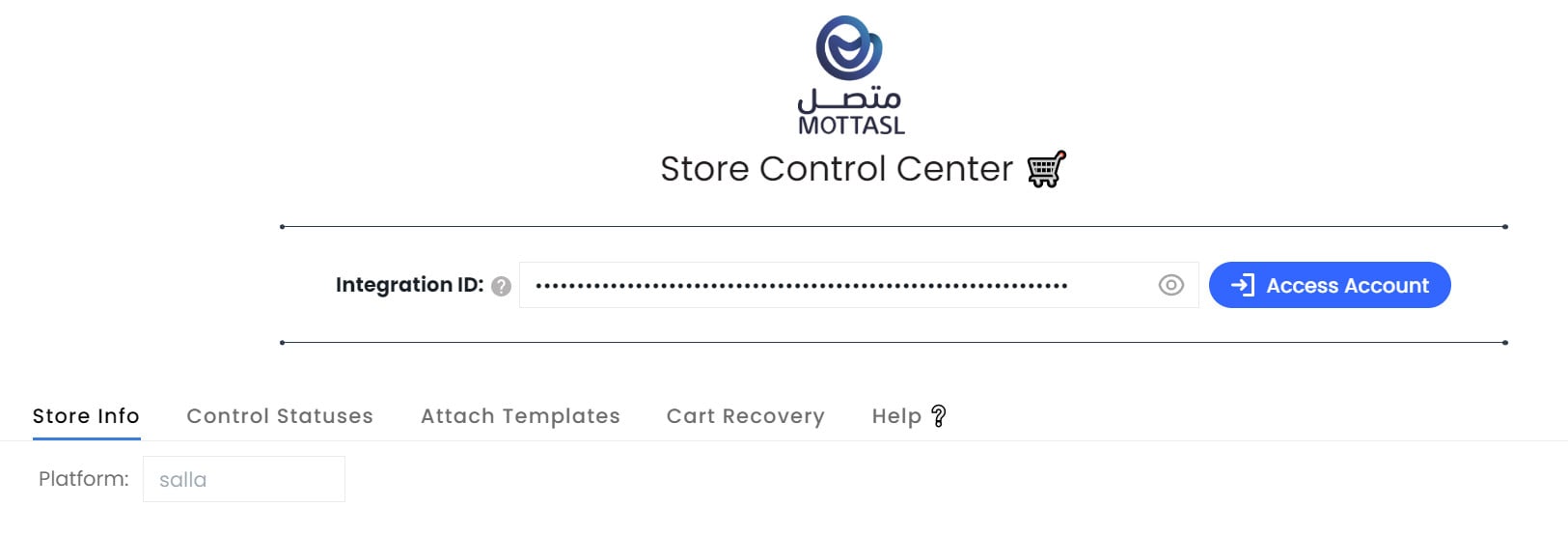
8. Click (Access Account).
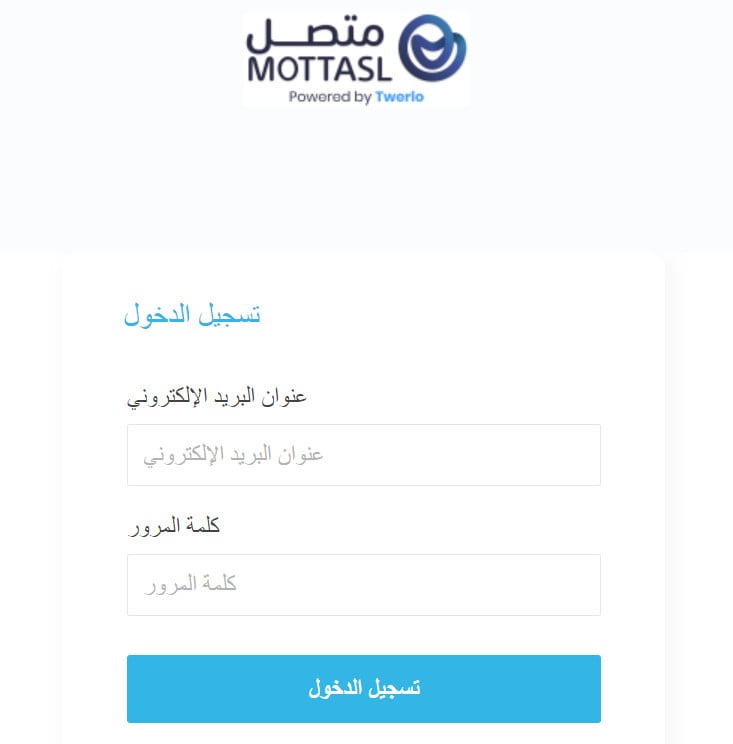
9. Enter your store's email address and your password — set the password first from the email you received.
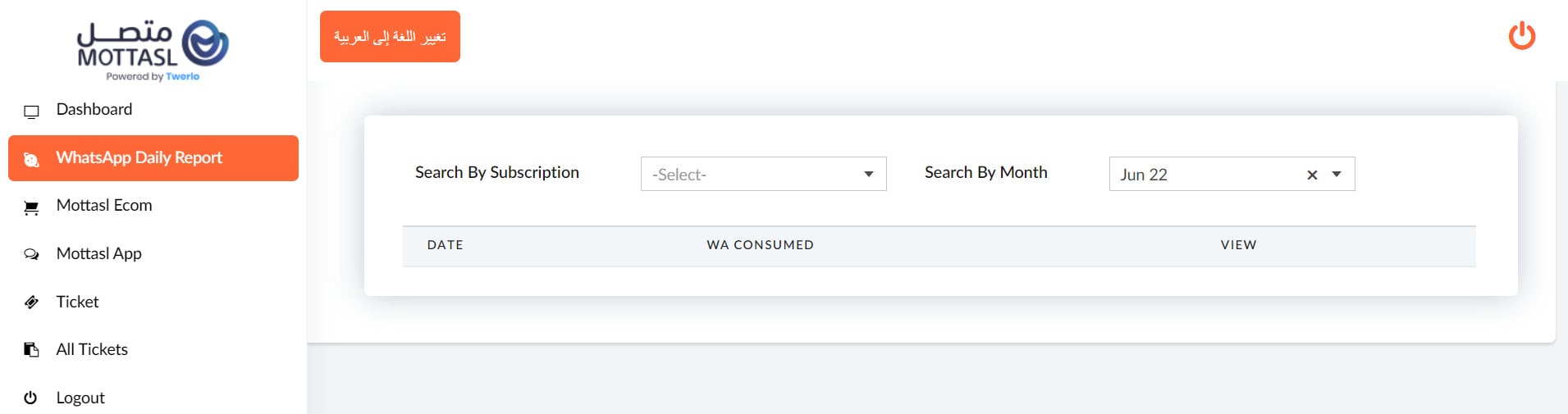
Your Mottasl home page then looks like this:
For more details, read managing my store's apps.
❓ Frequently asked questions
What can I do once my store is connected to Mottasl?
Update order status over WhatsApp
Send automated notifications of every kind from your store's WhatsApp number to your customers: order confirmed, order canceled, order delivered, shipment confirmed, and shipment updated. The app also turns on an auto-reply bot on your store's WhatsApp number, with interactive buttons you can add to make replying easier.
Target abandoned carts
Turn on automatic abandoned cart targeting through this app and the Mottasl platform. You can reach an unlimited number of customers on WhatsApp without your number being blocked, because the Mottasl platform is built to follow WhatsApp's approved policies and rules.
Run WhatsApp campaigns
The Mottasl app lets you send more than 100,000 WhatsApp messages in a single day without your number being blocked — again because the platform is built around the approved WhatsApp Business API policies and rules.
Do I need a WhatsApp Business account before I install the app?
Yes. The app connects your store to a WhatsApp Business account already activated on the Mottasl platform, so have that account in place first.
Is the Mottasl app free?
No. You choose a plan and complete payment during installation, before granting the app its permissions.
How do I remove the Mottasl app from my store?
1. From the side menu of your dashboard, click (Installed apps).

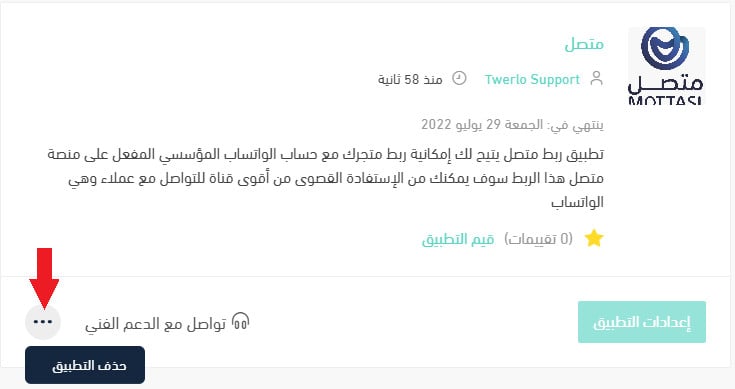
2. On the all-apps page, find the Mottasl app, click the (...) icon, then click (Remove app), as shown below.
Customers read a WhatsApp message far sooner than an email. Start with order status updates, get the wording right, and only then turn on campaigns.