Where do your customers see your latest offer before they start browsing?
Message Bar is a Smartarget app that puts a slim announcement bar at the top of your store, so every visitor sees your news without a popup interrupting them. Use it for a free-shipping threshold, a seasonal discount, a delivery delay, or anything else customers should know before they add to cart. It stays visible, and it stays out of the way. In this guide, you'll learn how to install Message Bar, connect it to your Smartarget account, and manage it from your store.
To connect Message Bar, open (My installed apps) from your dashboard's side menu, browse the Salla App Store, and install the app. Choose a plan, grant the requested permissions, click (Activate app), then paste your Smartarget user ID into the field provided and click (Save).
📌 Article overview
- What Message Bar does
- How to connect Message Bar to your store
- Frequently asked questions
🎯 What Message Bar does
Message Bar shares any update you want with your customers in a way that is hard to miss but never intrusive. The bar sits at the top of the page, stays there while shoppers browse, and can be restyled and rewritten at any time from your Smartarget settings.
🚀 How to connect Message Bar to your store
1. From the side menu of your dashboard, click (My installed apps).

2. From the Salla App Store banner, click (Browse Salla App Store).

3. On the Message Bar app page, click (Install).
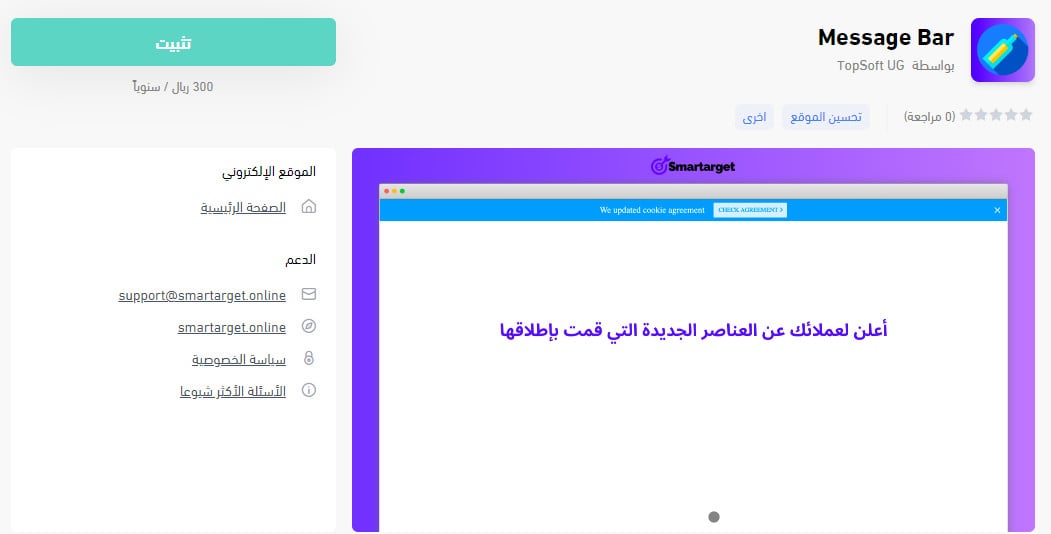
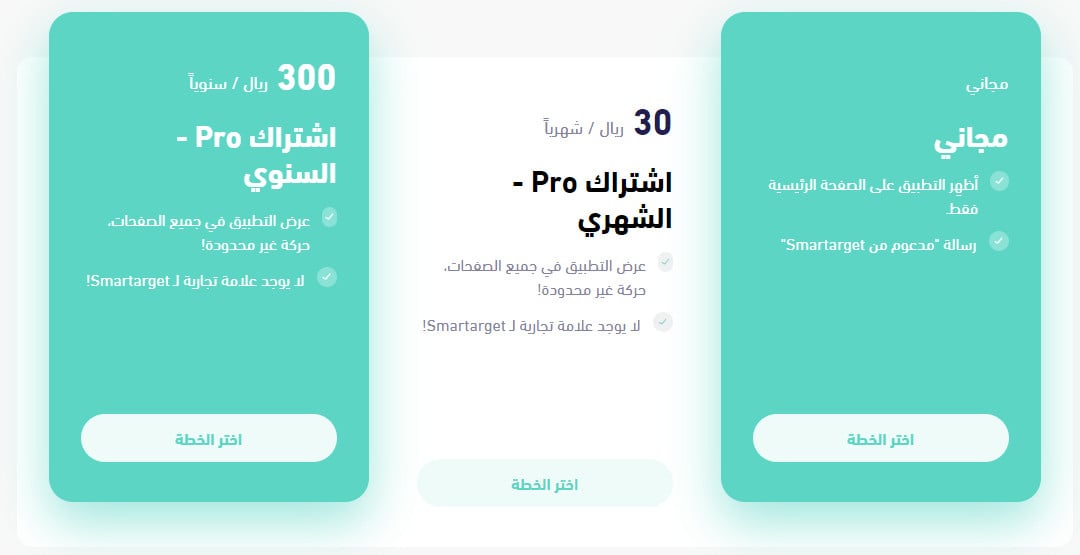
Choose the plan that fits your business.
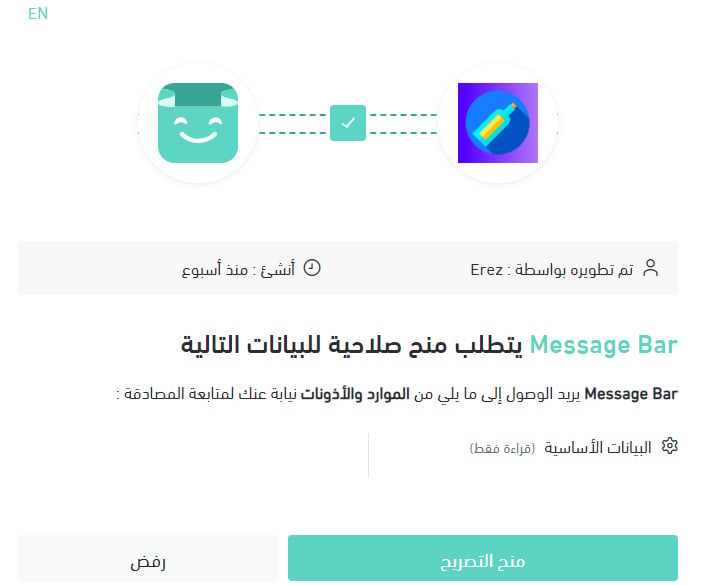
4. Review the permissions the app needs, then click (Grant permission).
Message Bar is now installed in your store.
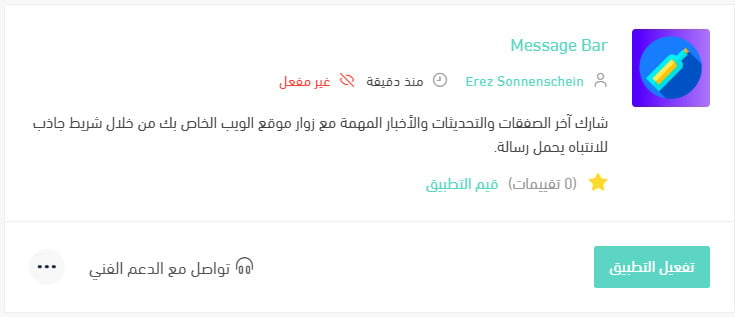
5. From the installed apps page, click (Activate app) on Message Bar.
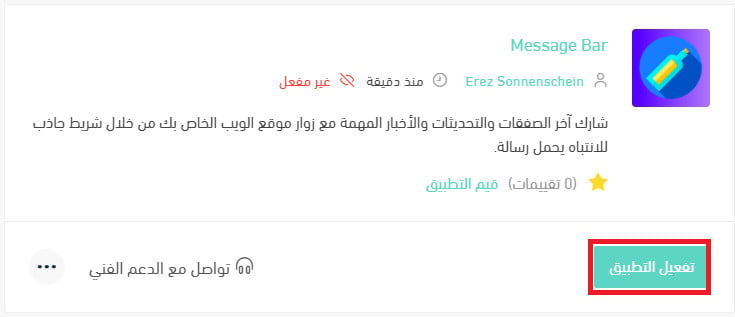
6. Paste your Smartarget user ID into the field provided, then click (Save).
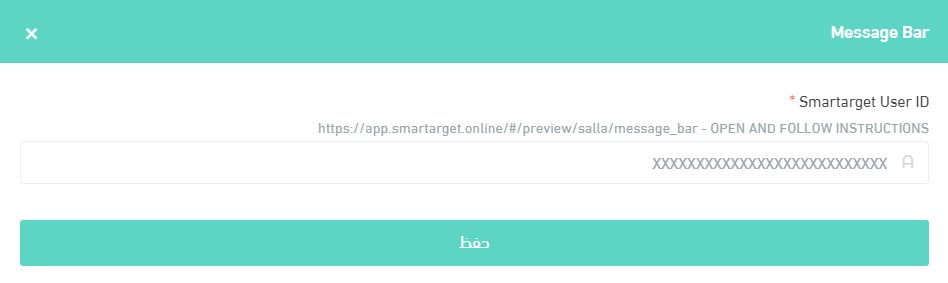
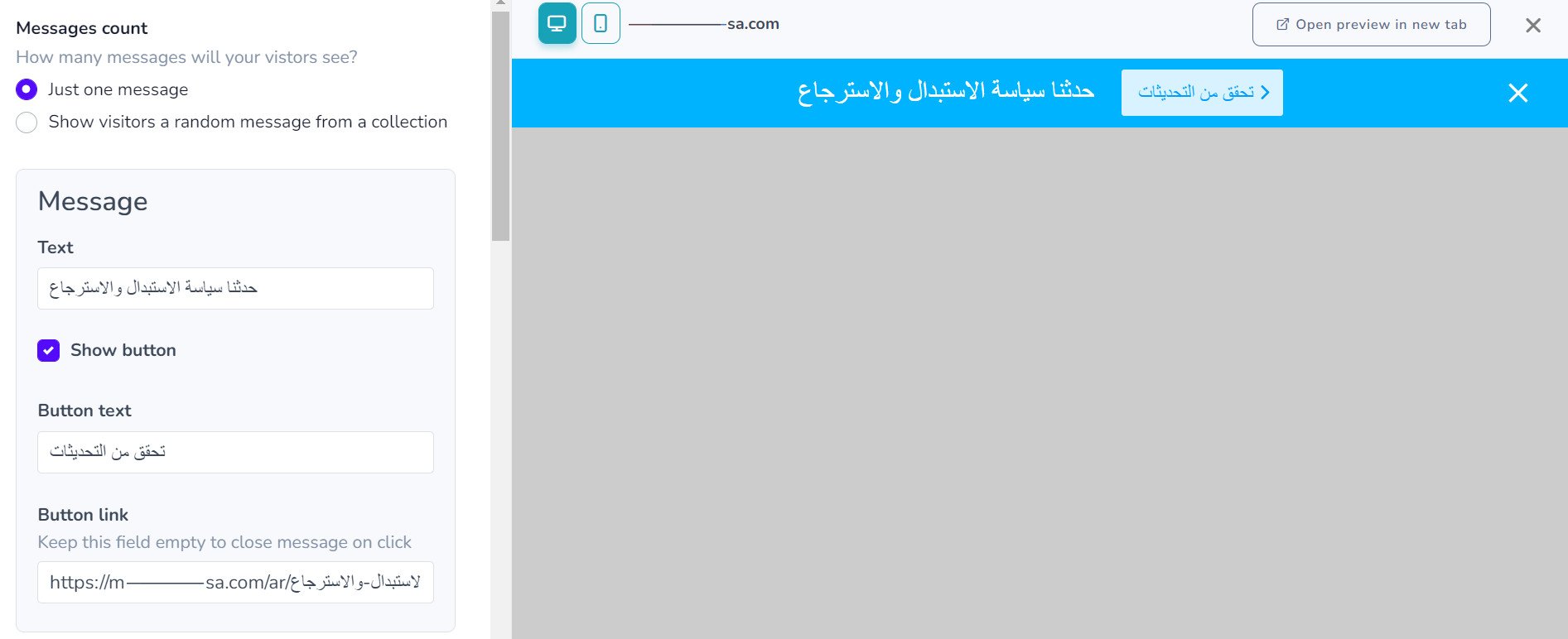
Message Bar is now live in your store. Adjust its settings to match the way your business works.
For more details, see managing your store's apps.
❓ Frequently asked questions
How do I create a Smartarget account?
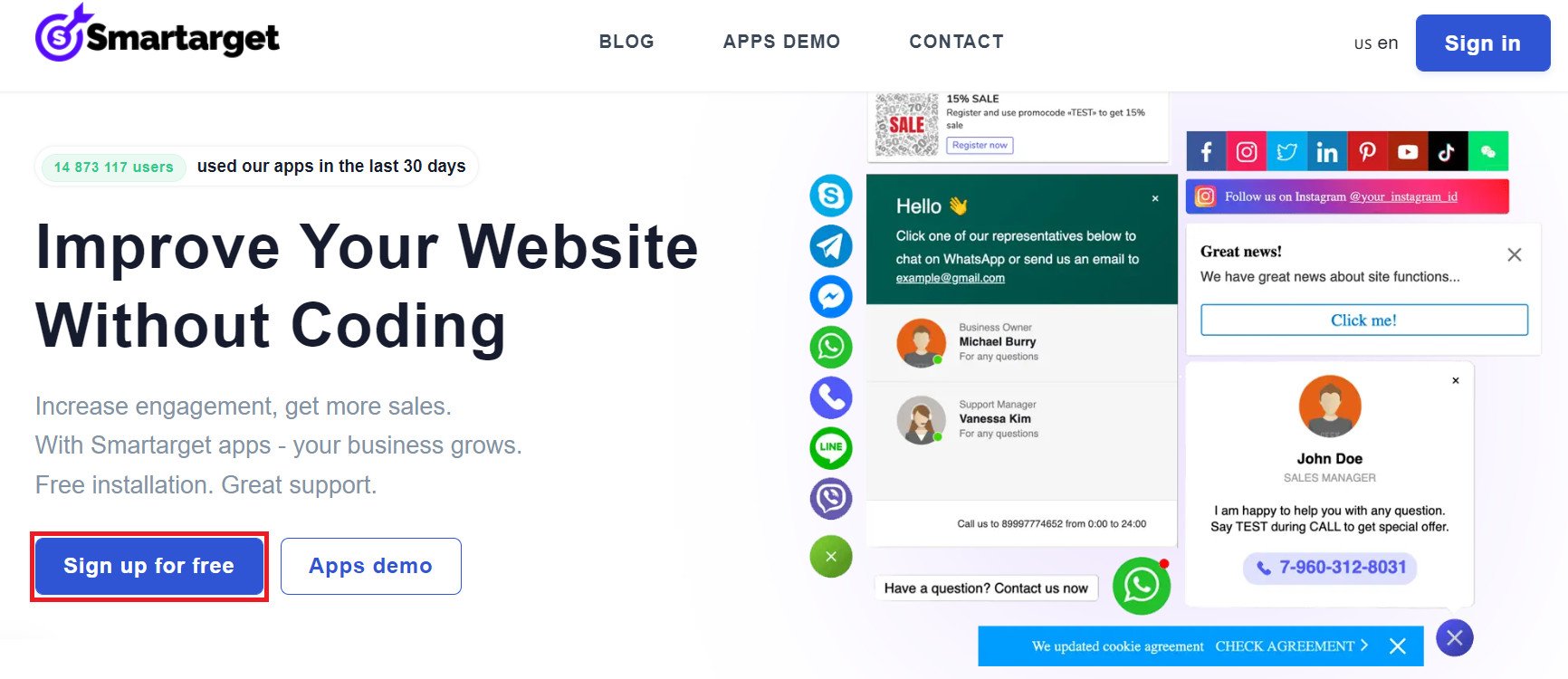
1. From the Smartarget home page, click (Sign up free).
2. Enter the required details, then click (Register).
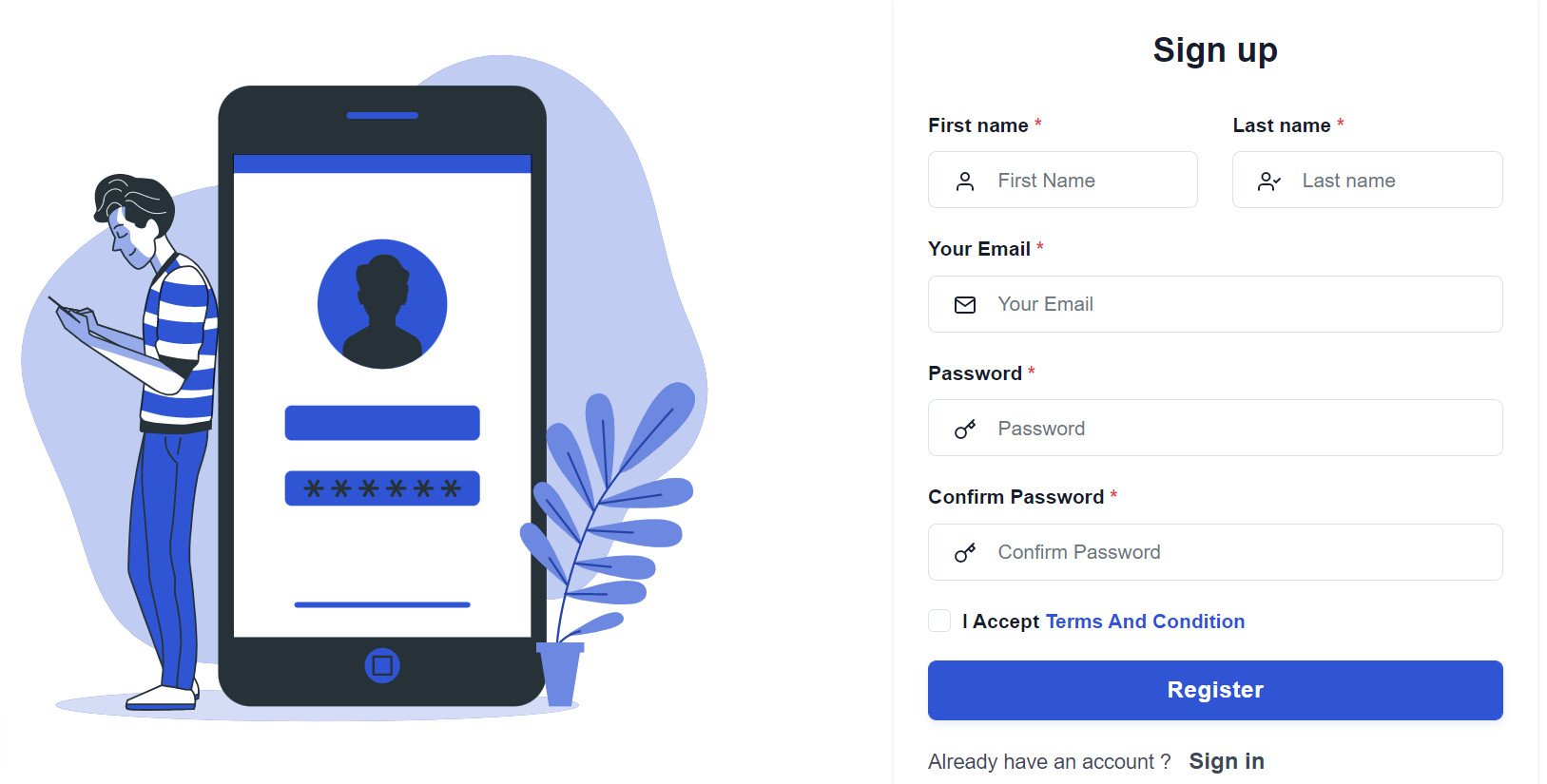
3. Confirm your account from the email you receive, sign in, then click (Add website).
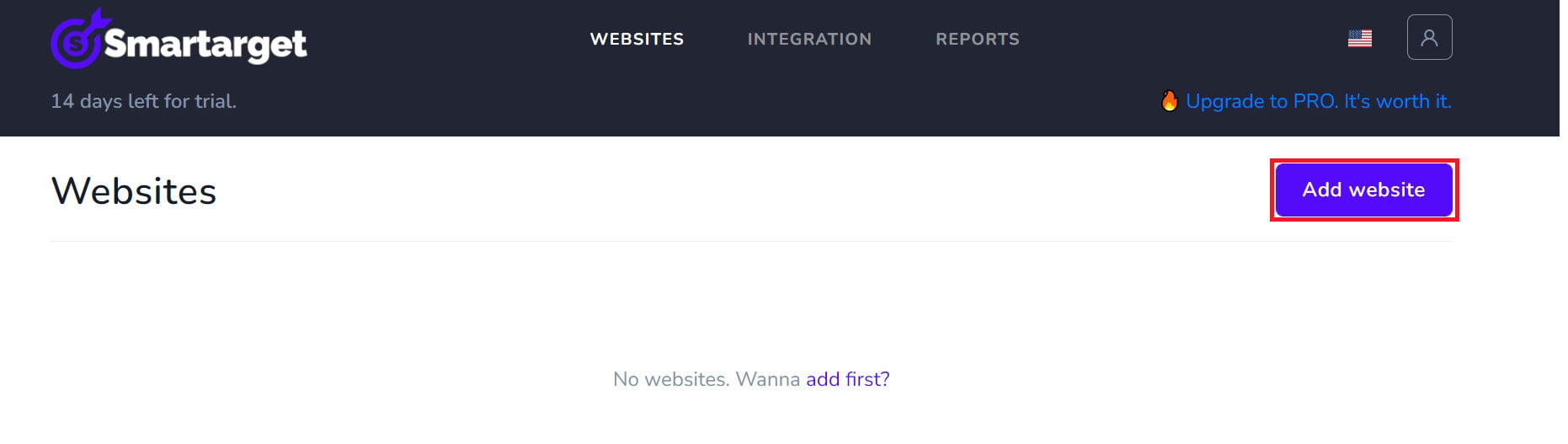
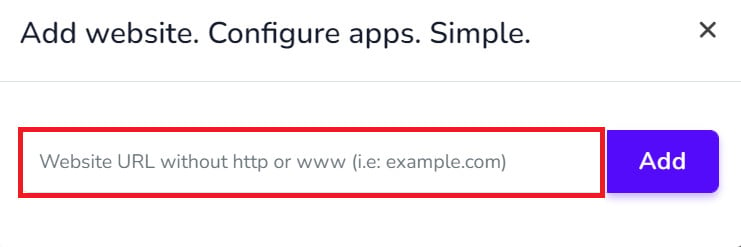
Then add your Salla store domain.
4. To add Message Bar to your store, click (Contact App).
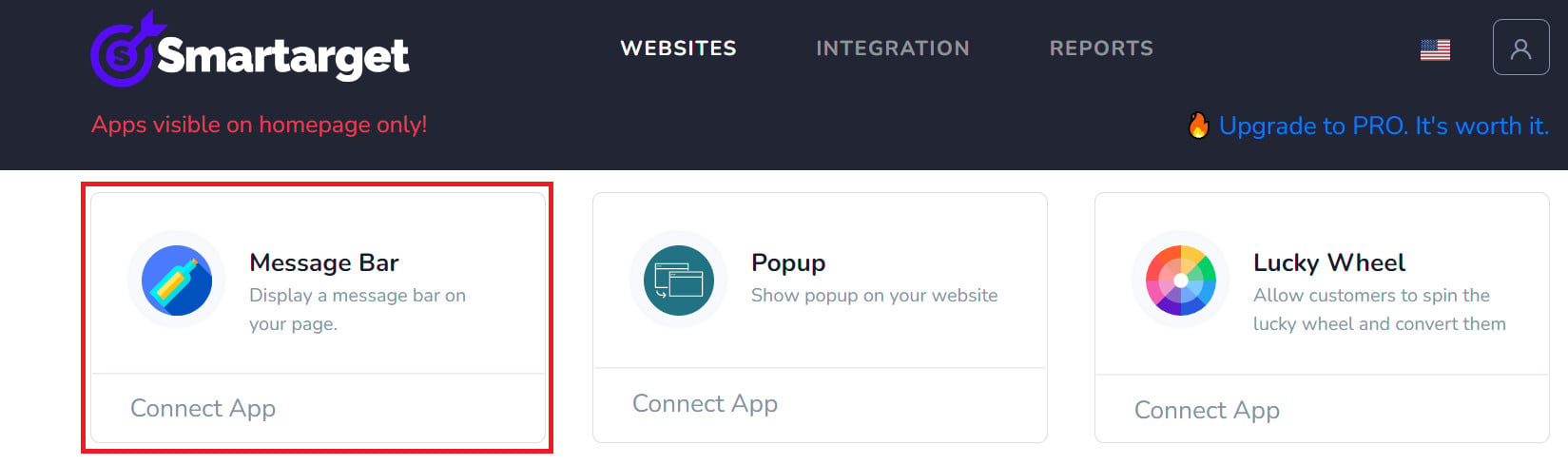
Choose the Message Bar settings that suit your store, then click (Save setting).
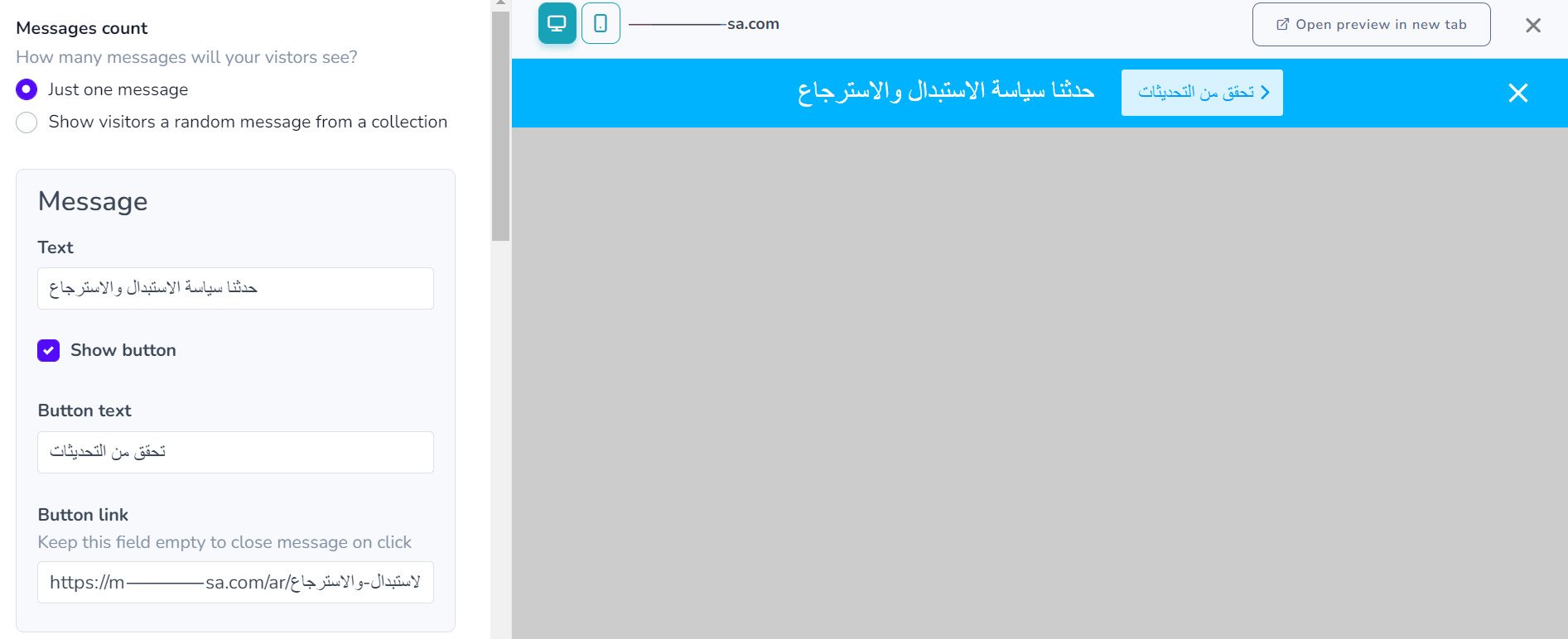
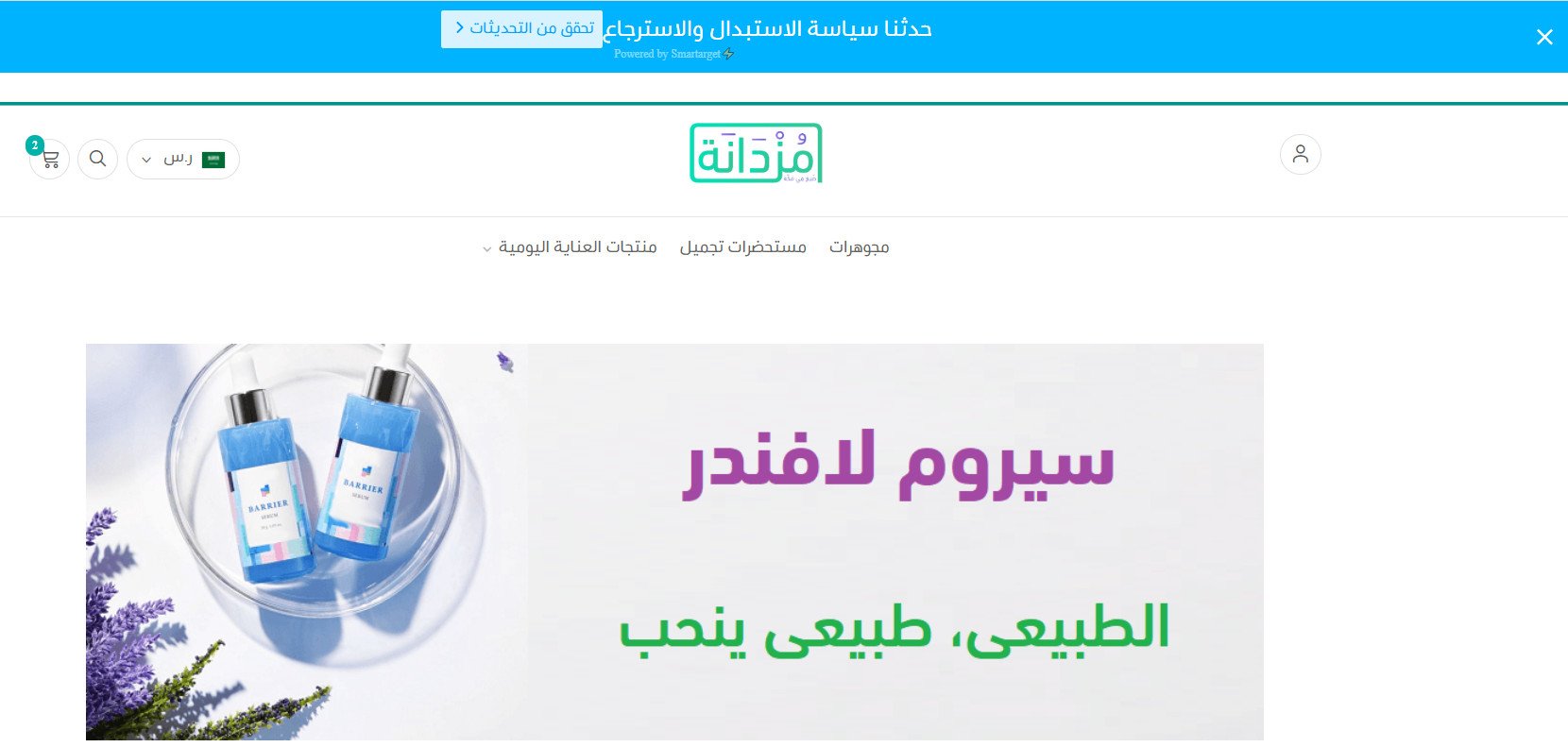
The bar then appears at the top of your storefront.
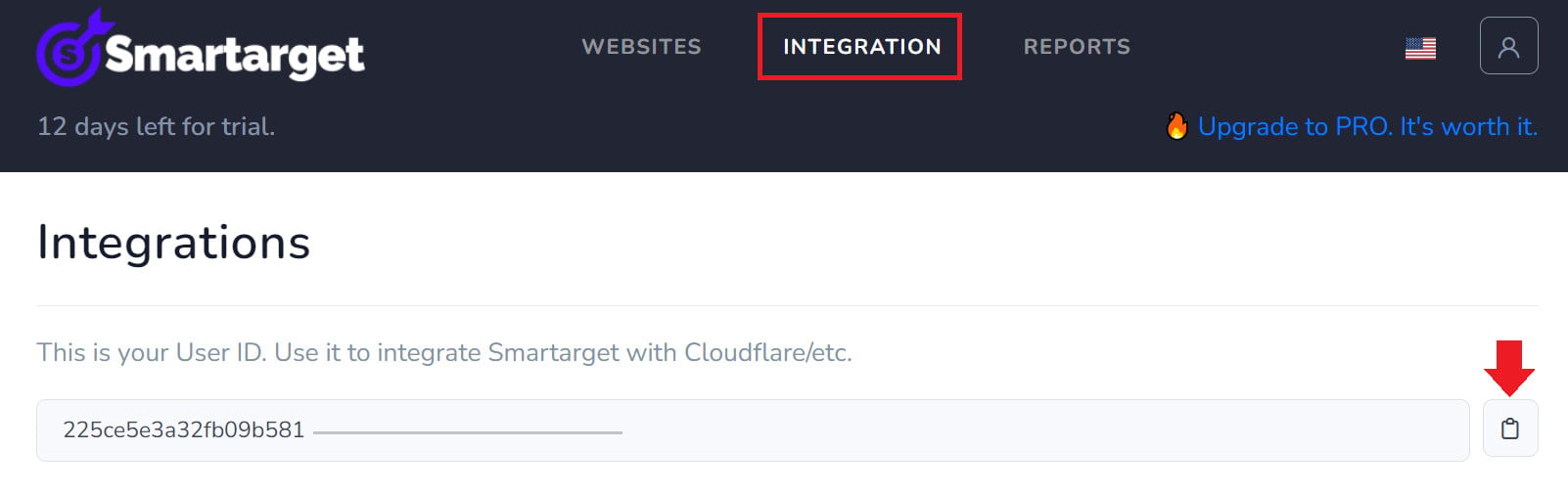
Where do I copy my Smartarget user ID from?
In your Smartarget account, open the (INTEGRATION) page, then click the copy button next to your user ID.
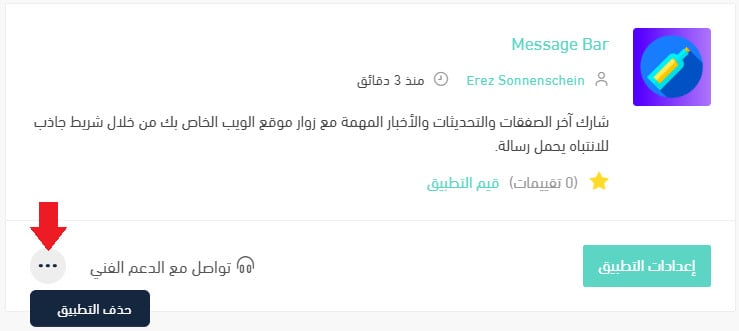
How do I remove Message Bar from my store?
1. From the side menu of your dashboard, click (My installed apps).

2. On the all apps page, find Message Bar, click the (...) icon, then click (Delete app), as shown below.
One line at the top of your store can answer the question shoppers ask most often, before they have to go looking for it. Keep the message short, keep it current, and change it the moment the offer does.