Want to help fragrance shoppers find products that match their preferences?
Kindi perfume recommendations uses artificial intelligence to understand a shopper's fragrance preferences and suggest suitable perfumes from your store. This guide explains how to install Kindi, submit your perfume catalog for connection, understand the customer recommendation journey, and remove the app.
To connect Kindi to Salla, install the app, select a plan, complete payment, and grant the requested permissions. Email an Excel file containing every perfume name in your store to the support address supplied in the source. The source says catalog connection then takes five business days.
📌 Article overview
- What Kindi perfume recommendations do
- How to install and connect Kindi
- How customers receive perfume recommendations
- How to remove Kindi
- Frequently asked questions
💡 What are Kindi perfume recommendations?
Kindi is a cloud platform for fragrance shoppers. It uses artificial intelligence to identify a customer's fragrance preferences and recommend perfumes intended to suit their taste.
🚀 How to connect Kindi perfume recommendations to Salla
1. From the dashboard side menu, click (Installed apps).

2. From the Salla App Store banner, click (Browse the Salla App Store).

3. On the Kindi app page, click (Install).
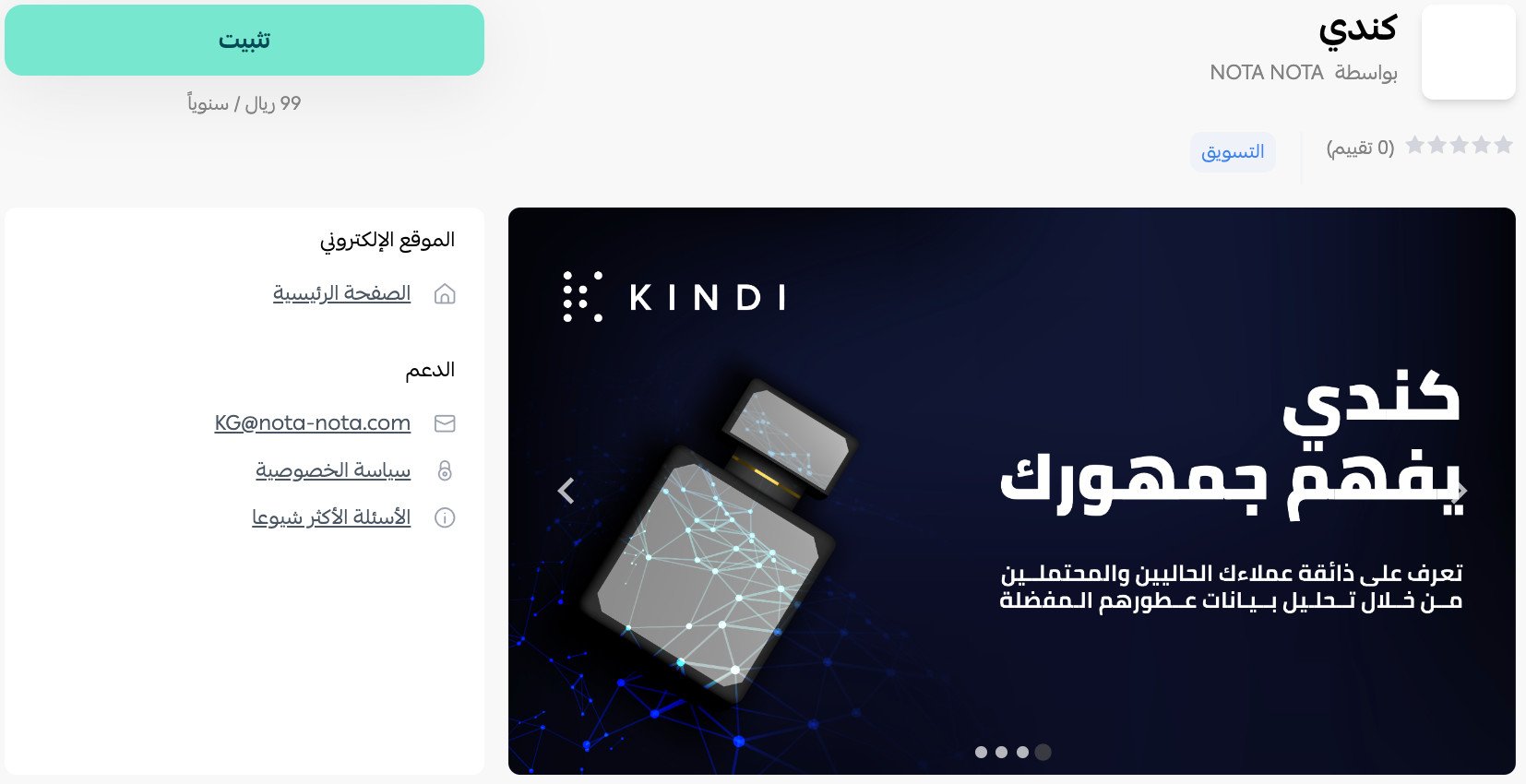
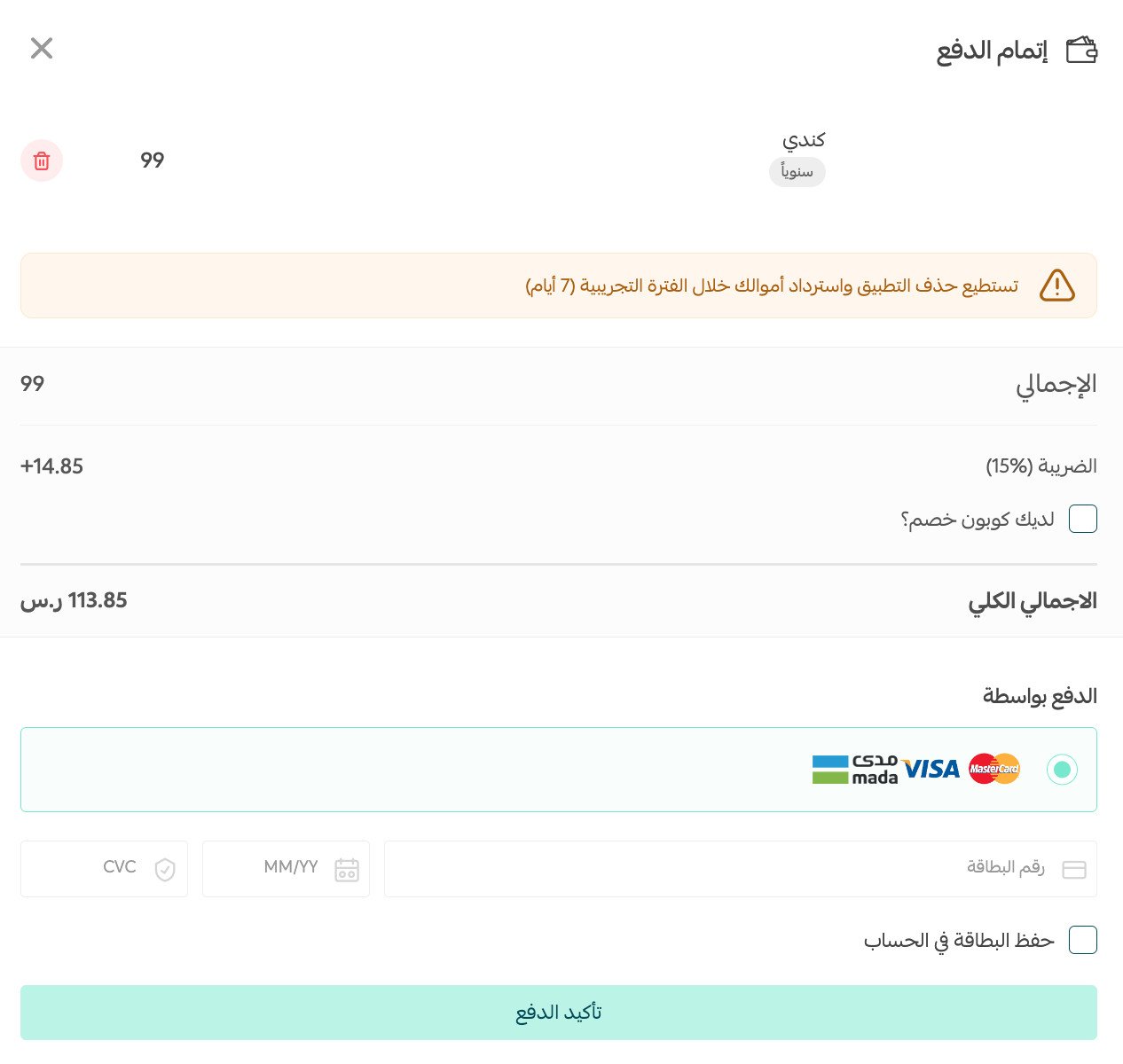
Select the plan that best suits your business.

Complete the payment details, then click (Confirm payment).
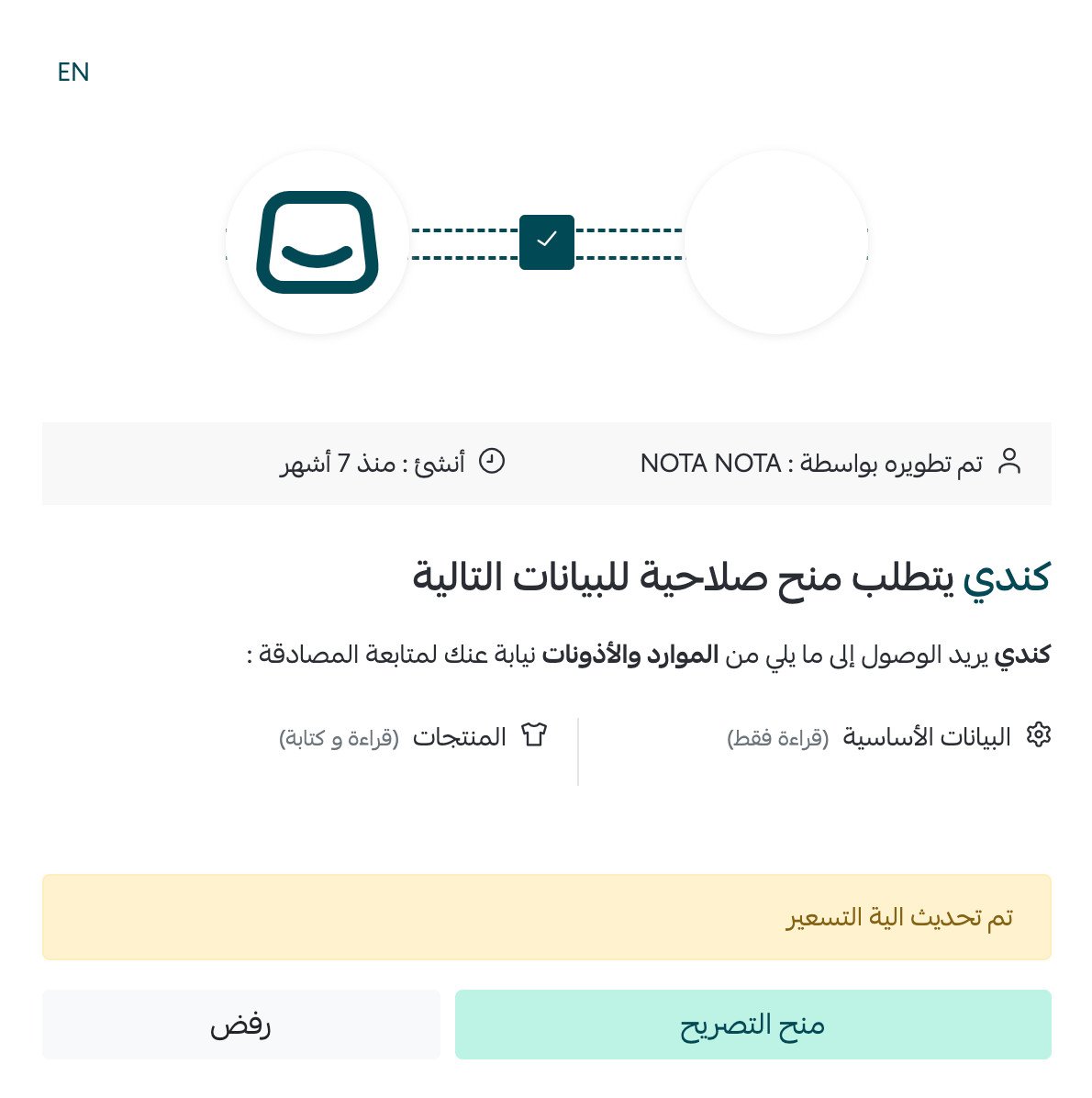
4. Review the requested permissions, then click (Grant permission).
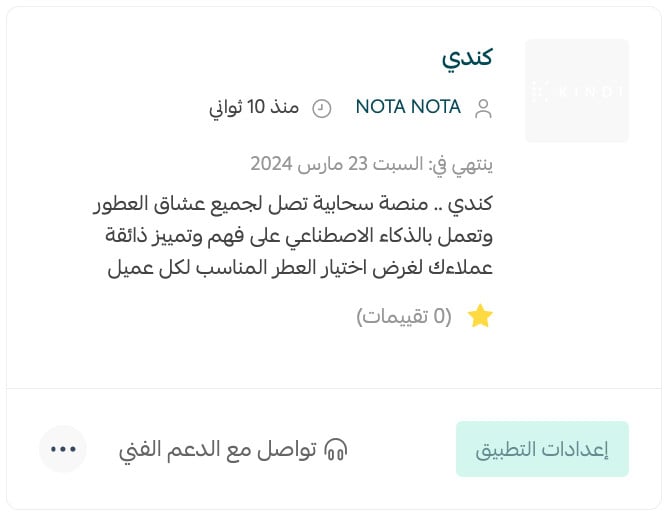
Kindi is now installed on your store.
5. Send an Excel file listing all perfumes available in your store to the technical-support email associated with the app. The source says the connection process takes five business days after the file is submitted.
Contact technical support at KG@nota-nota.com. [Verify: the current English Salla App Store listing shows a different support email, Md@nota-nota.com.]
Kindi is now active on your store. Adjust its settings to suit your business.
For more details, see managing your store apps.
❓ Frequently asked questions about Kindi perfume recommendations
What does the Kindi customer experience look like?
1. The customer clicks the purple Kindi logo icon.
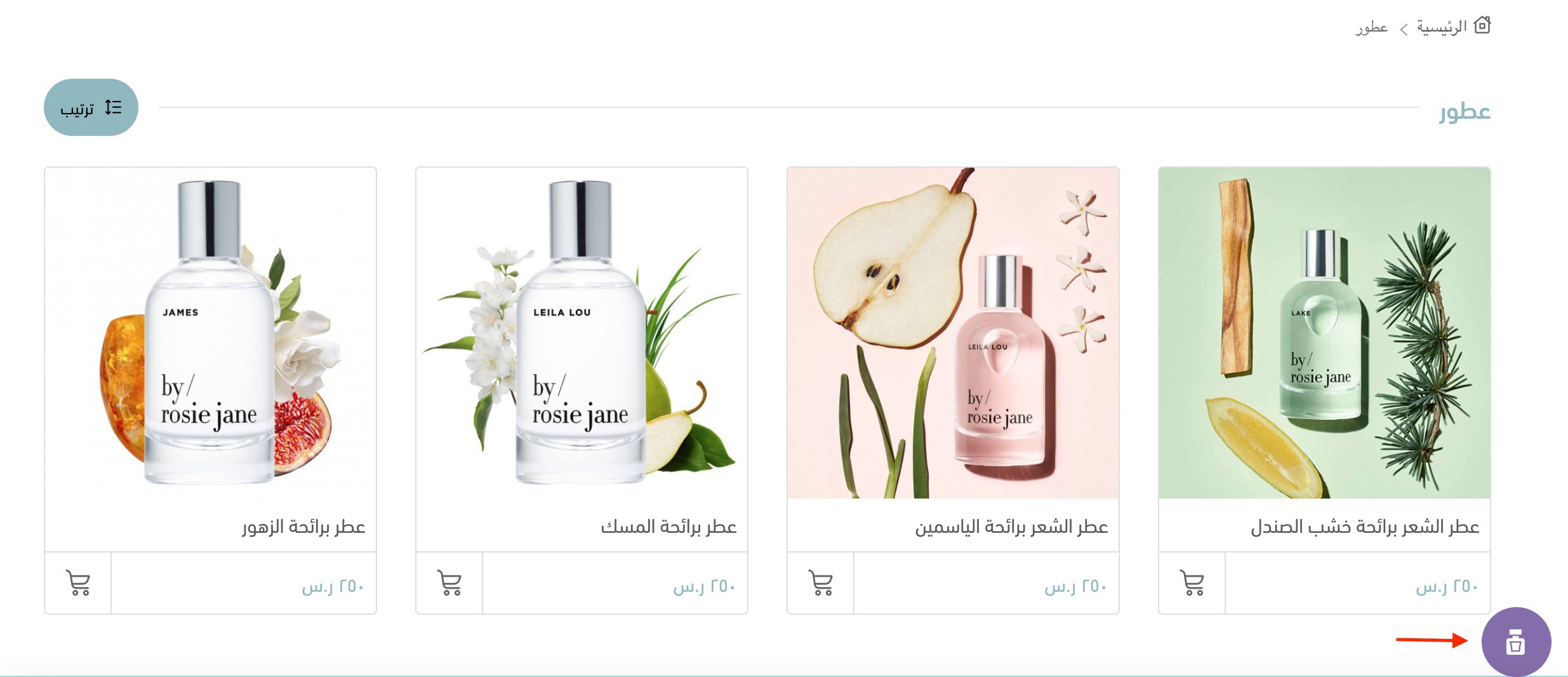
2. A short quiz opens and asks the customer to add five perfumes they regularly use to their favorites.
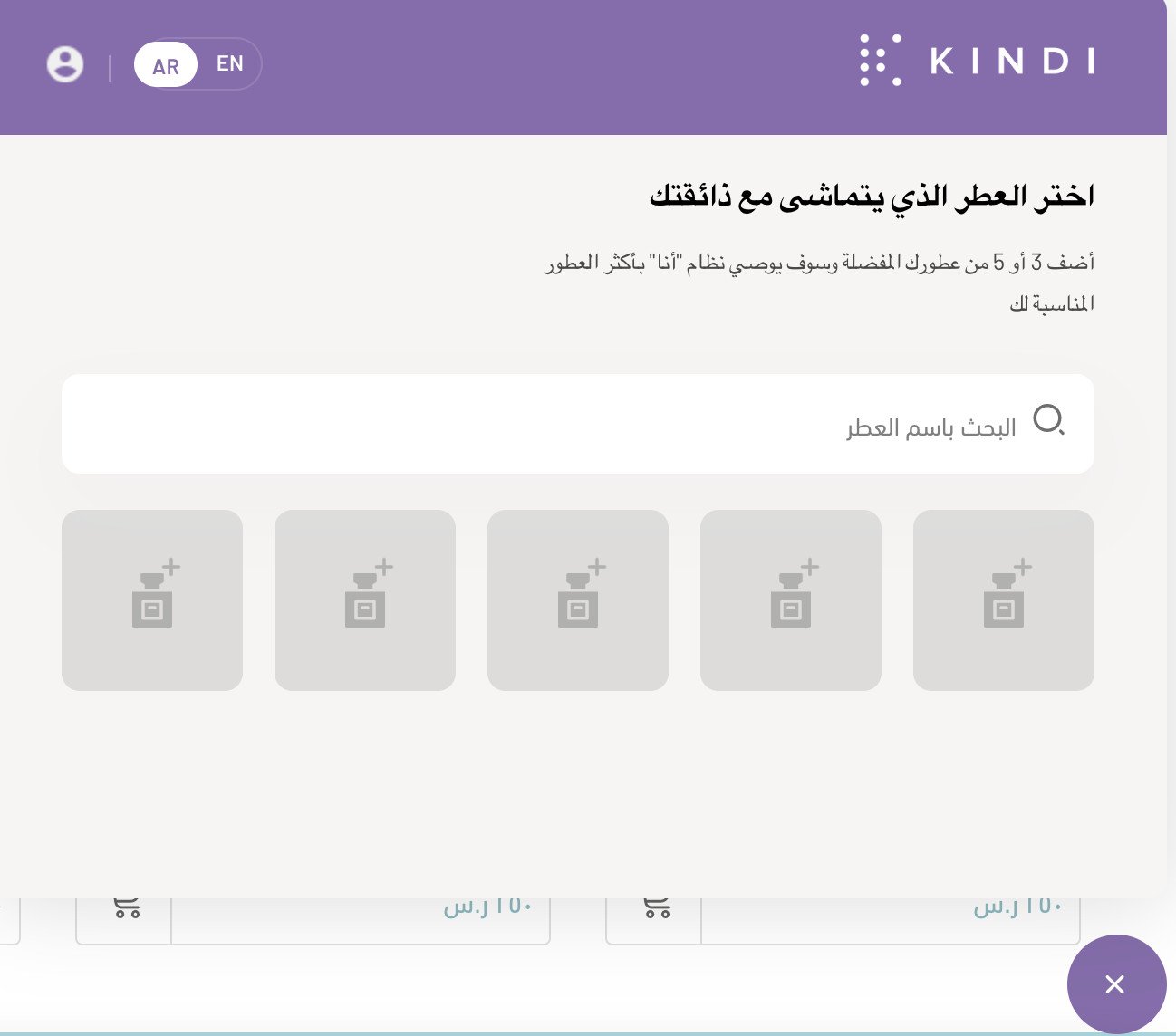
The customer can change the language at the top of the page.

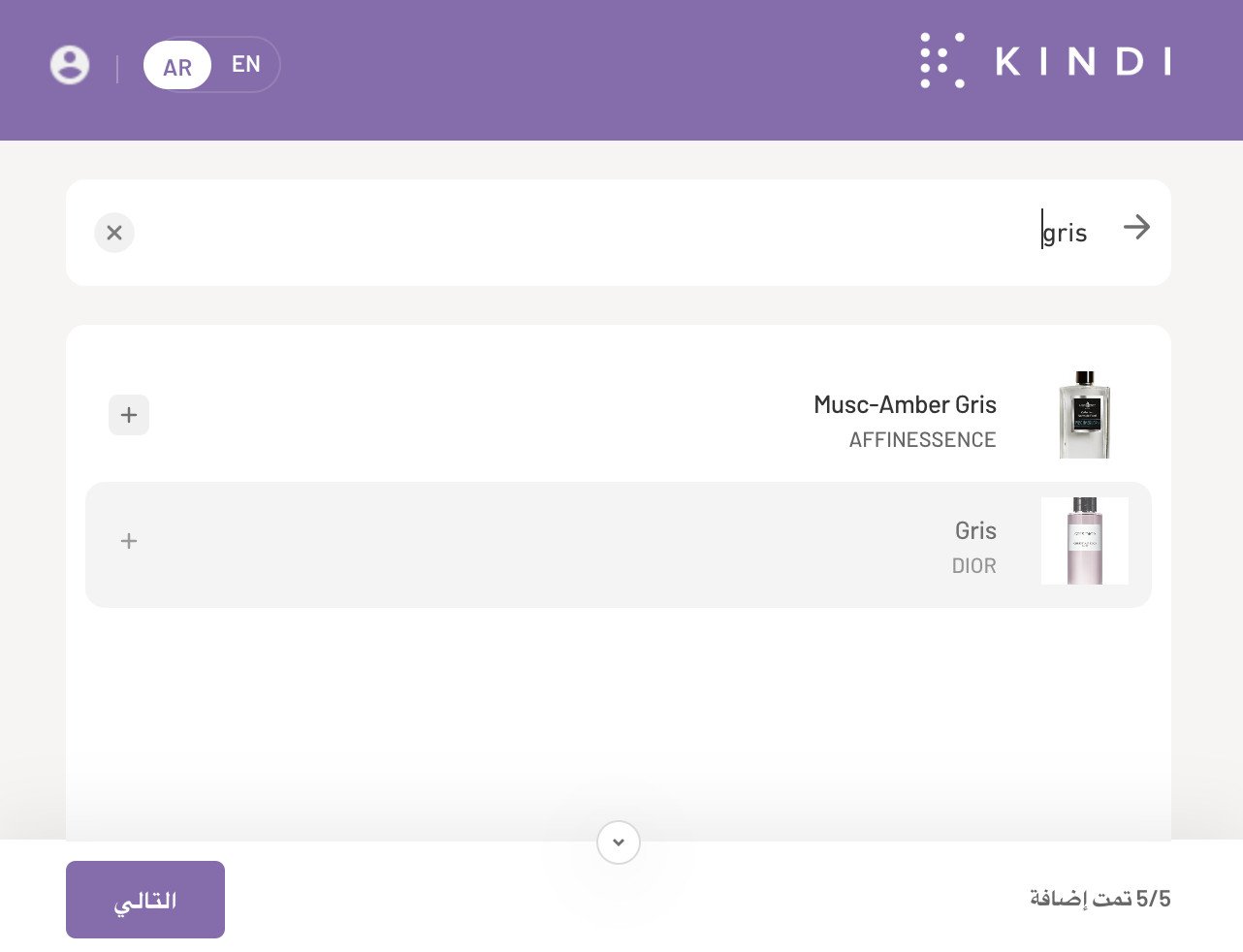
3. The customer searches for and adds favorite perfumes, then clicks (Next).
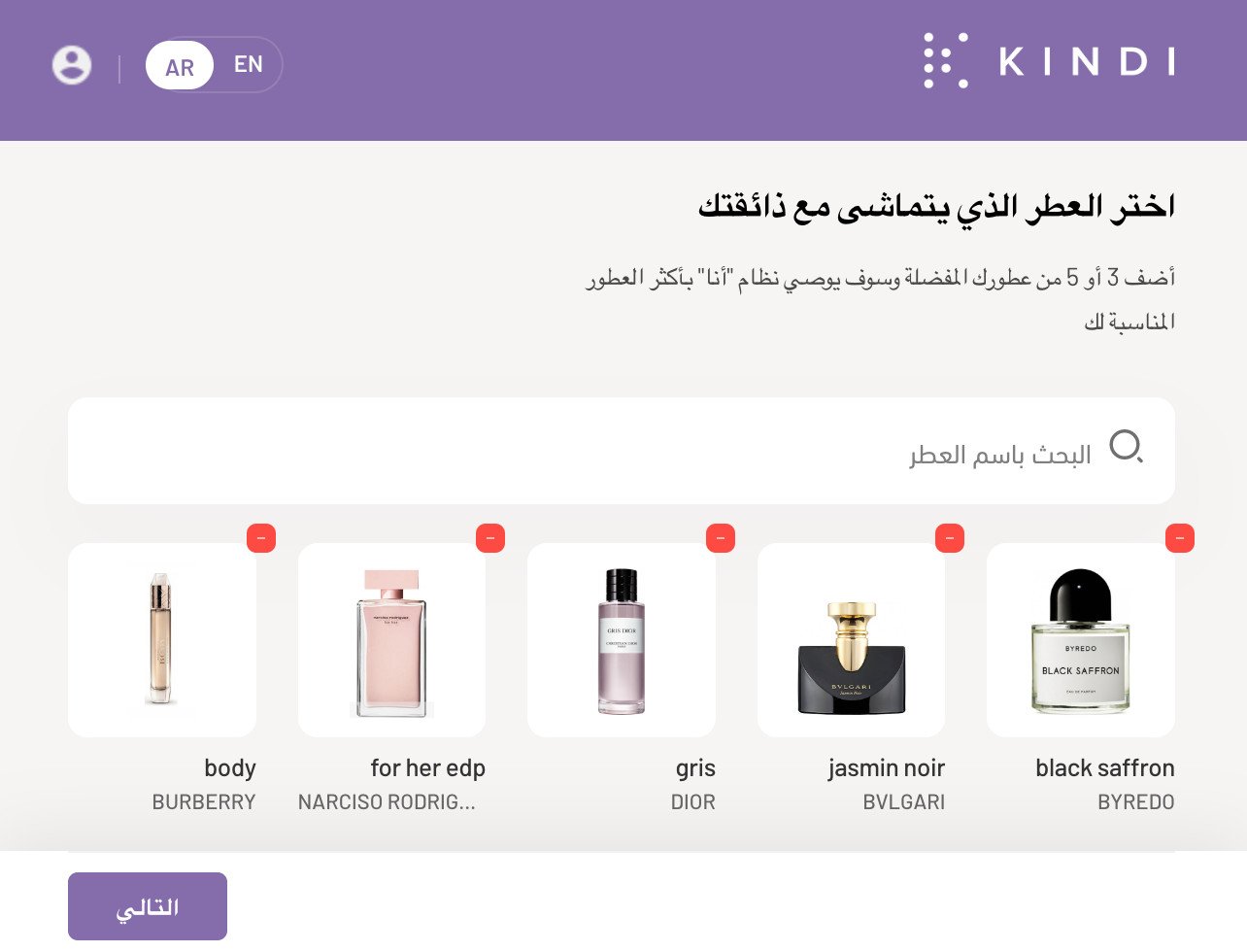
After adding five favorite perfumes, the customer clicks (Next).
Kindi uses artificial intelligence to suggest three perfumes and shows a match percentage. The customer can click (Add to cart) to continue shopping.
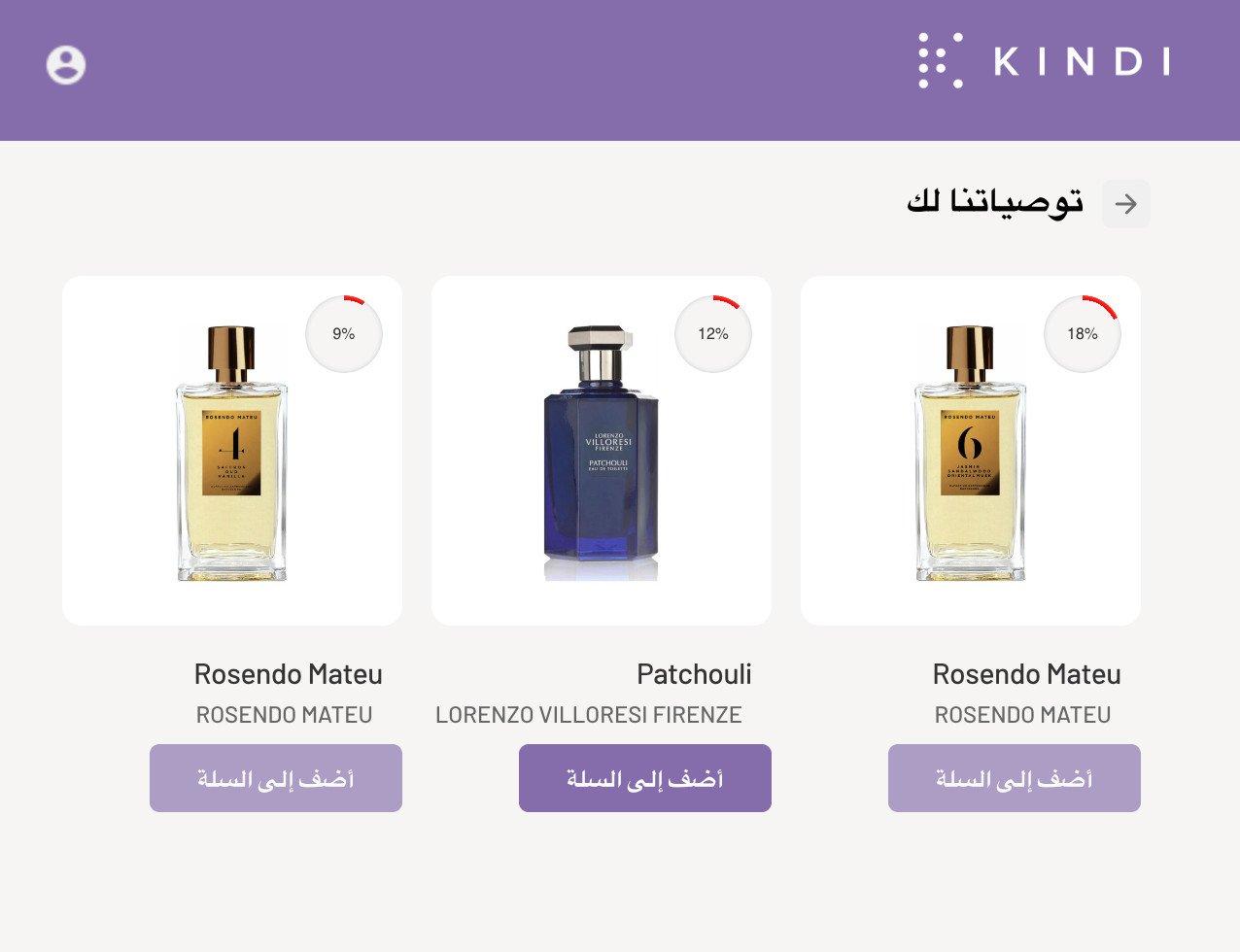
How many favorite perfumes must a customer select?
The article instructs the customer to select five. [Verify: the current Salla App Store description says customers may add 3–5 favorite perfumes.]
What catalog information must I send to Kindi?
Send an Excel file containing the names of all perfumes available in your store. The source does not specify a template or additional required columns.
How can I remove Kindi from my store?
1. From the dashboard side menu, click (Installed apps).

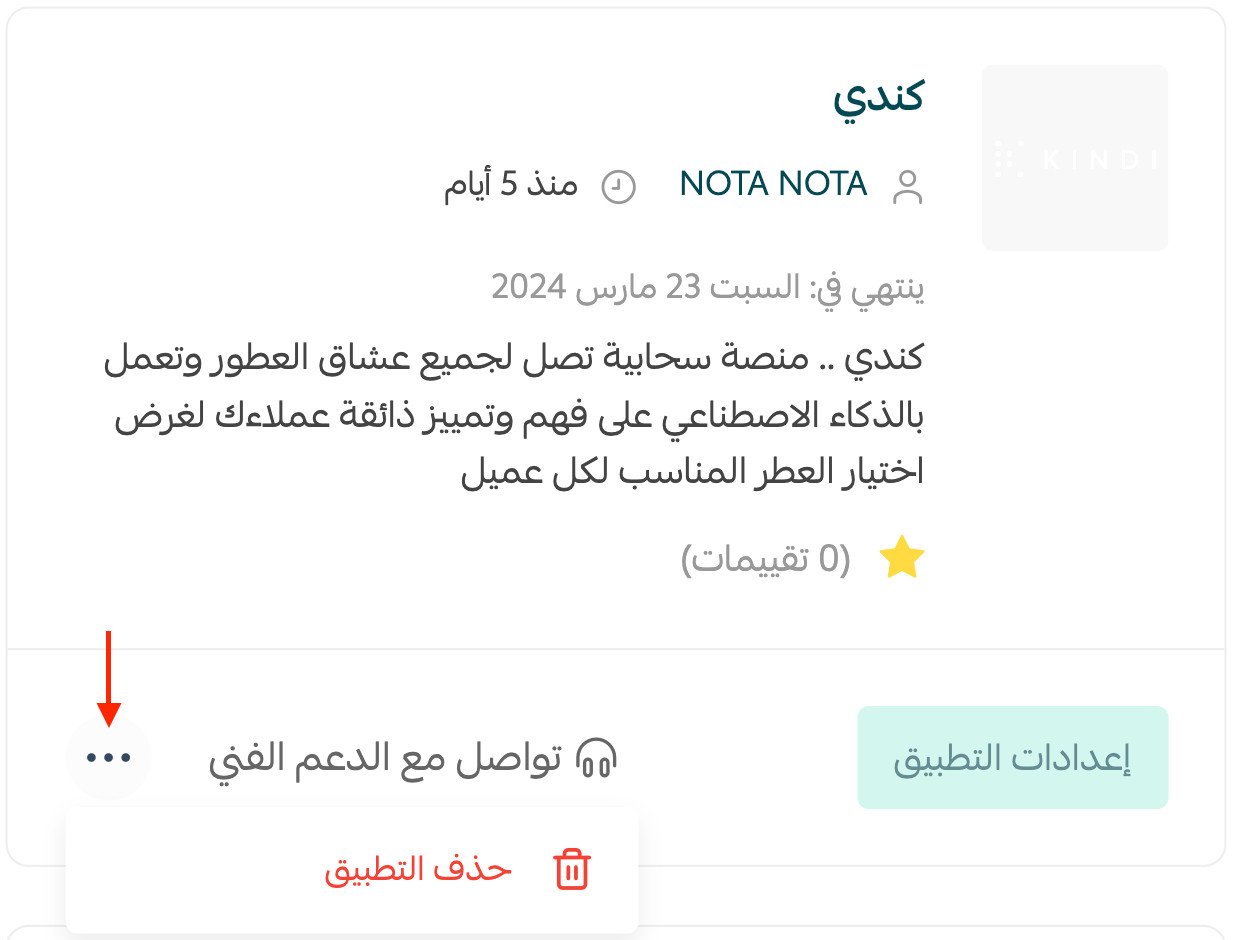
2. On the all apps page, find Kindi, click the (...) icon, then click (Delete app).
📝 Important notes
Confirm the correct support email, required catalog template, current connection time, and whether customers should choose three to five perfumes or exactly five before publication.
Keep the catalog file current so customers receive recommendations only for perfumes that remain available in your store.