How fast does a customer hear from you after they place an order — or walk away from a full cart?
Staying in direct contact with your customers is what turns a one-off order into a habit. Karzoun WhatsApp notifications sends automatic messages for new orders and abandoned carts, so you can lift your sales straight away. The Karzoun WhatsApp notifications integration is installed from the Salla App Store and set up in a few minutes. In this guide, you'll learn how to install and activate the app, connect it with your instance ID and access token, choose the messages your customers receive, and remove the app if you stop using it.
To connect Karzoun, open (My installed apps) in your Salla dashboard, browse the Salla App Store, and install the Karzoun WhatsApp notifications app as a trial or on a paid plan. Grant the permissions, activate the app, then paste your instance ID and access token, choose your messages, and save.
📌 Article overview
- What is Karzoun WhatsApp notifications?
- How to set up the Karzoun WhatsApp notifications integration
- Frequently asked questions
🎯 What is Karzoun WhatsApp notifications?
Karzoun keeps you in direct contact with your customers by sending automatic notifications for new orders and abandoned carts, so you can increase your sales immediately.
Do I need a Karzoun account before I connect?
No. When you install the Karzoun app from the Salla App Store, a new Karzoun account is created for you automatically. If you already have a Karzoun account, contact Karzoun's technical support to activate that account on your Salla store.
📝 Important notes
Check your store email or the WhatsApp messages on your phone for your default password and for the details you need to sign in to your account dashboard.
🚀 How to set up the Karzoun WhatsApp notifications integration
1. From the side menu of your dashboard, click (My installed apps).

2. From the Salla App Store banner, click (Browse Salla App Store).

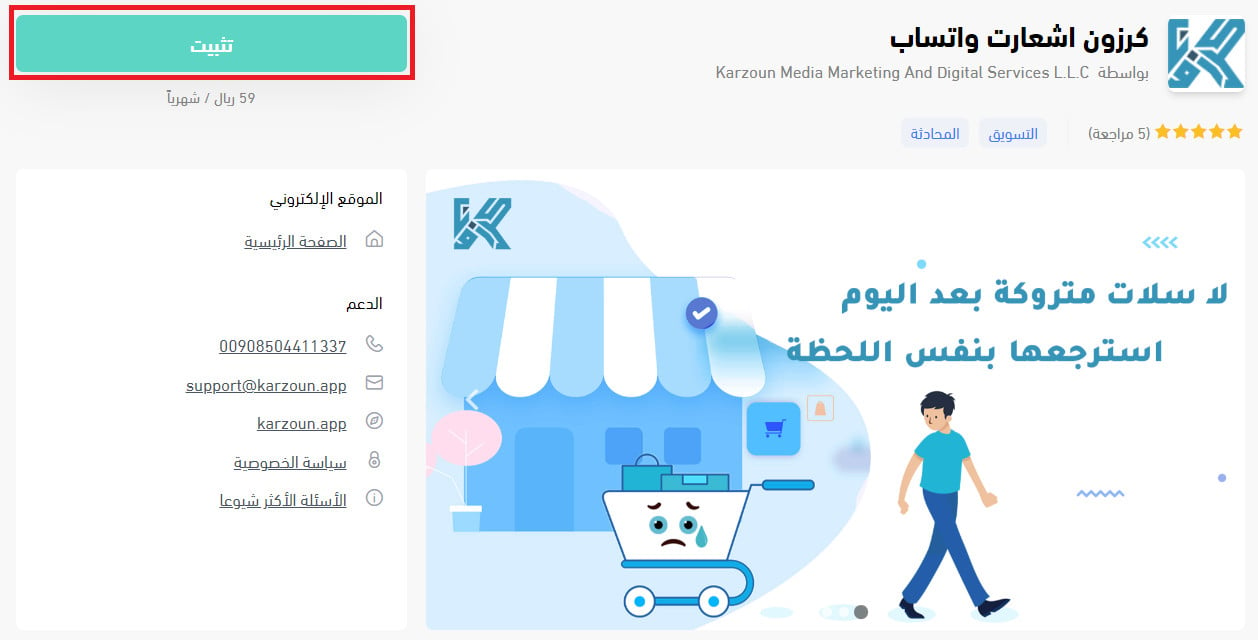
3. From the Karzoun WhatsApp notifications app page, click (Install) to install a trial version.
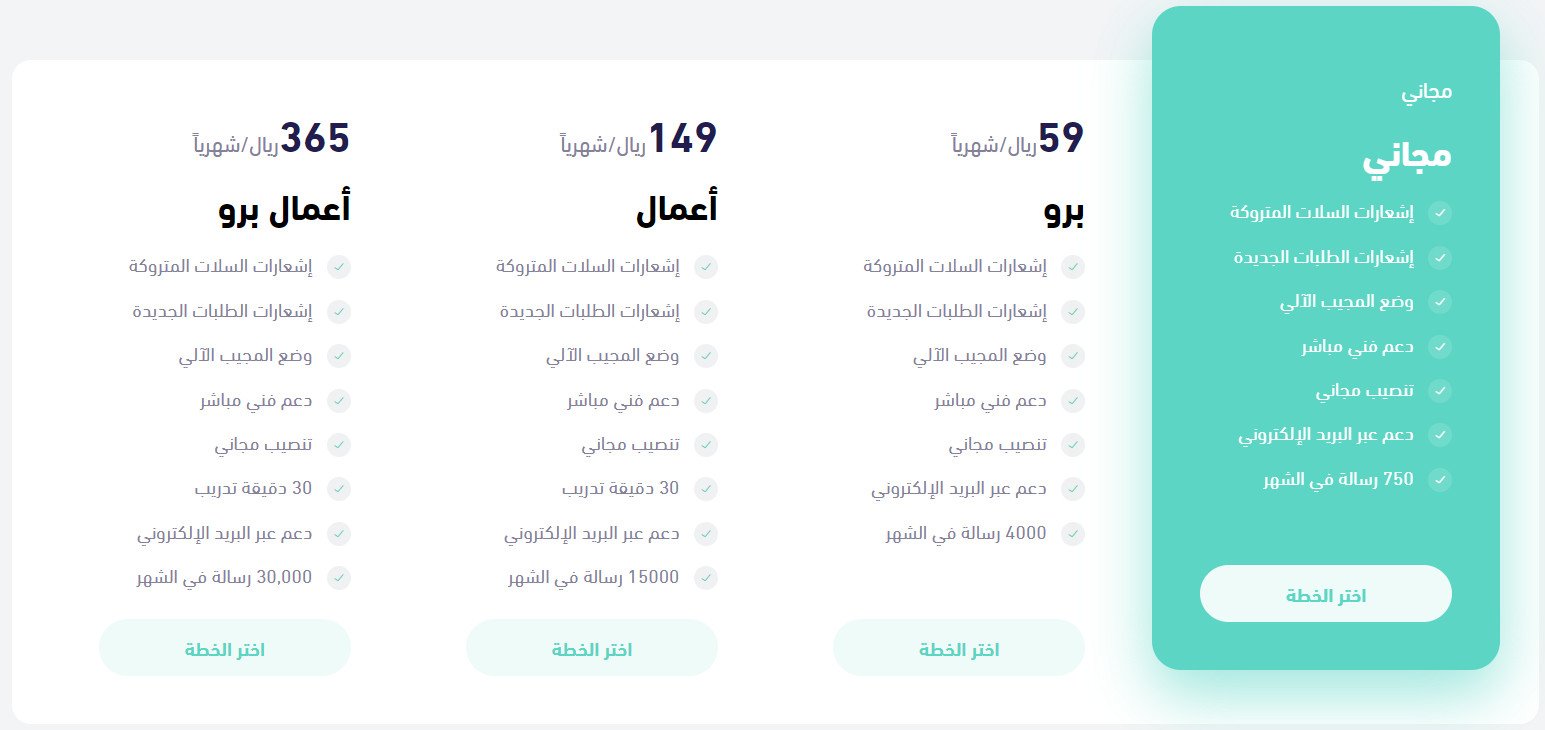
Or scroll to the bottom of the app page, click (Choose plan) on the plan that fits your needs, and complete the payment.
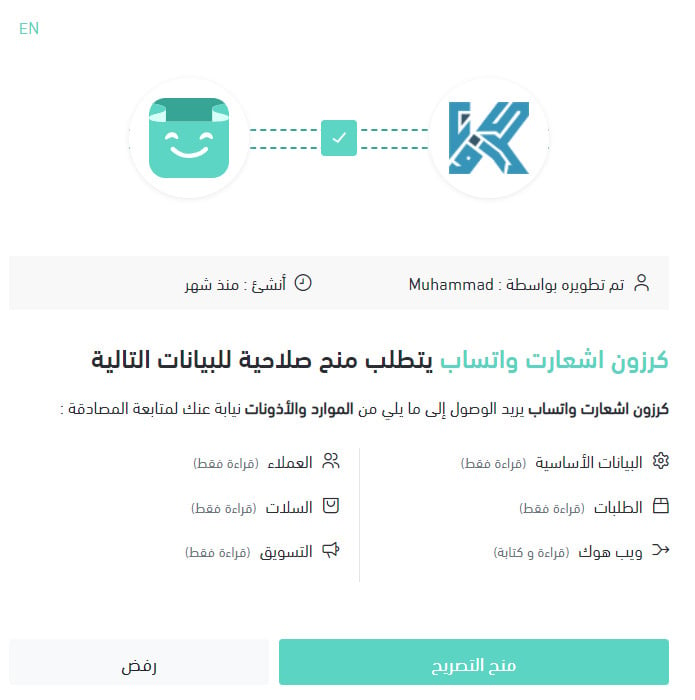
4. Review the permissions the app asks for, then click (Grant permission).
Karzoun is now installed on your store. Check your WhatsApp number or your email for your sign-in details.
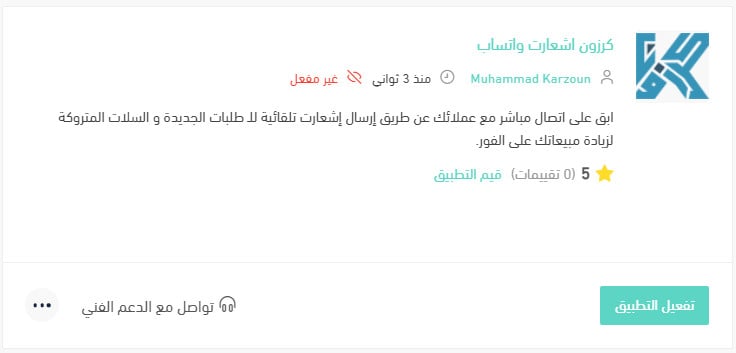
5. Click (Activate app).
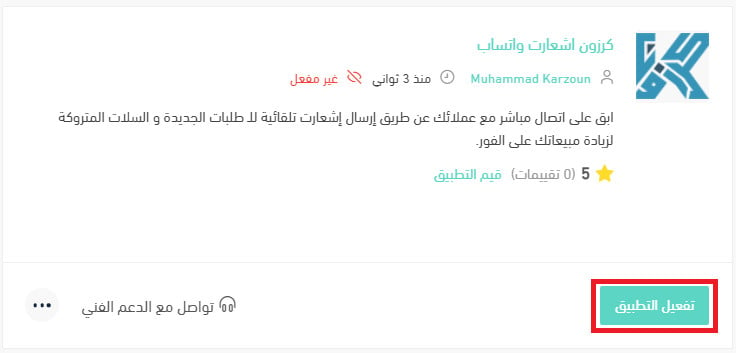
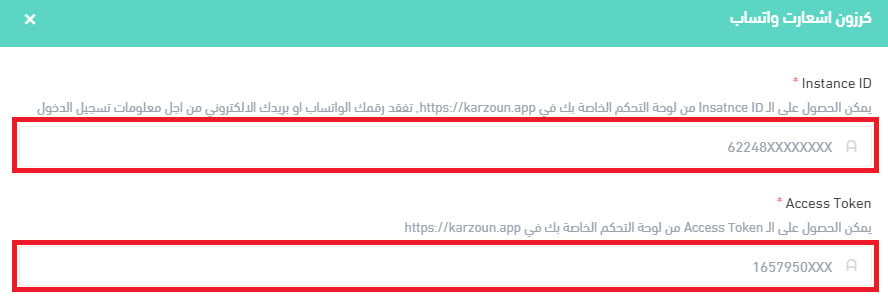
6. Copy the (Instance ID) and (Access Token) from the dashboard of your Karzoun account, then paste them into the two matching fields.
Choose the WhatsApp messages you want your customers to receive, and edit their content to suit your store.
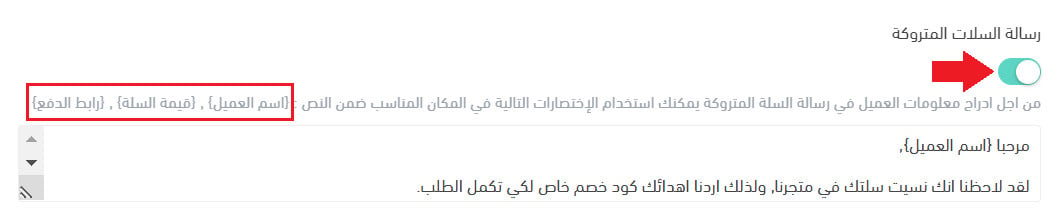
Then click (Save).
For more details, see managing my store apps.
❓ Frequently asked questions
Which notifications does Karzoun send?
Automatic WhatsApp notifications for new orders and for abandoned carts. You choose which messages go out and edit their wording before you save.
Where do I find my instance ID and access token?
Both are in the dashboard of your Karzoun account at karzoun.app. Copy them from there and paste them into the two fields in the app settings.
How do I get my Karzoun sign-in details?
They are sent to you after installation. Check your store email or the WhatsApp messages on your phone for the sign-in details and the default password.
How do I send WhatsApp notifications through Karzoun?
Karzoun has published a detailed walkthrough of how to send WhatsApp notifications through its service at this link.
How do I remove the Karzoun app from my store?
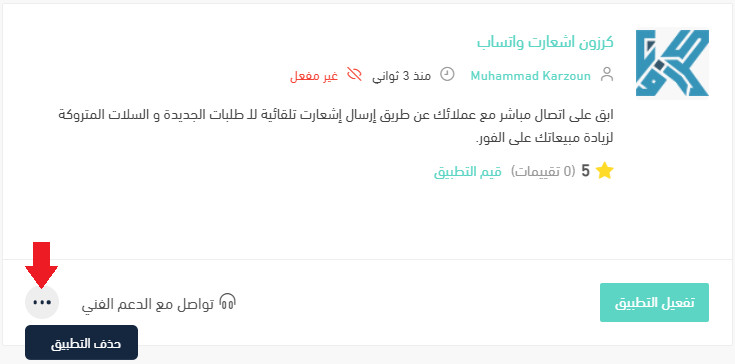
1. From the side menu of your dashboard, click (My installed apps).

2. On the all apps page, find the Karzoun app, click the (...) icon, then click (Delete app), as shown below.
An abandoned cart is not a lost sale yet — a message that arrives while the customer still remembers the product is usually what closes it.