How many customer conversations are you losing because there's no record of them?
Connecting HubSpot with Salla adds free live chat to your store and keeps every conversation, contact and deal in one place. HubSpot is free forever, gives you unlimited chats with templates you design yourself, and automates the busywork — lead scoring, follow-ups and deal tracking. In this guide, you'll learn how to create a HubSpot account, build your chatflow, install the app, and activate the connection in your Salla store.
To connect HubSpot with Salla, create a free HubSpot account, confirm your email, and build a chatflow for your website until you reach the tracking code. Copy it, install the HubSpot app from the Salla App Store, open (App settings), paste the code, and click (Activate connection).
📌 Article overview
- What is HubSpot?
- How to connect your Salla store with HubSpot
- Frequently asked questions
🎯 What is HubSpot?
HubSpot is a live chat app that's free forever. It gives you unlimited chat features with custom templates, keeps your customer contact records and activity in one place, and automates work such as lead scoring, follow-ups and deal pipeline tracking.
🚀 How to connect your Salla store with HubSpot
The connection happens in three stages:
1. Sign up for HubSpot and copy the tracking code.
2. Install the HubSpot app in your store.
3. Paste the HubSpot tracking code into your Salla store.
Stage one: sign up for HubSpot
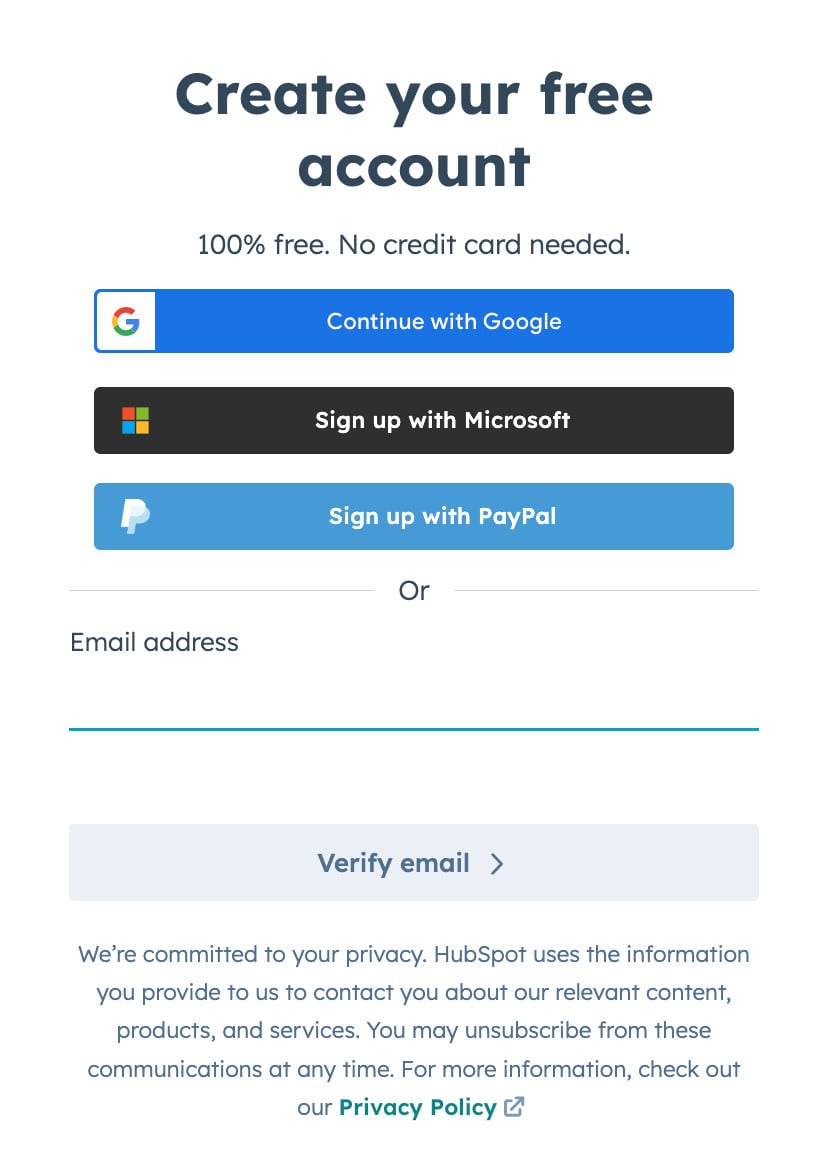
1. Go to the HubSpot sign-up page and create a new account.
2. Enter your basic details, then click (Next).
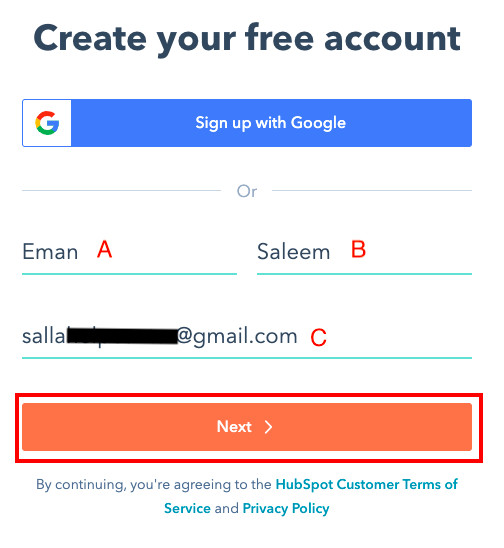
a. First name.
b. Last name.
c. Email address.
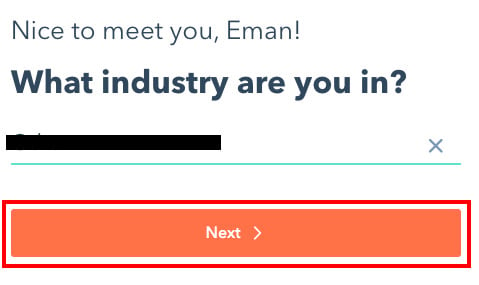
3. Choose your industry from the drop-down list, then click (Next).
4. Choose the job title that fits you best from the drop-down list, then click (Next).
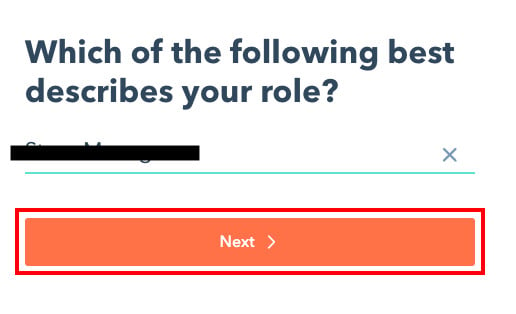
5. Enter your store name, then click (Next).
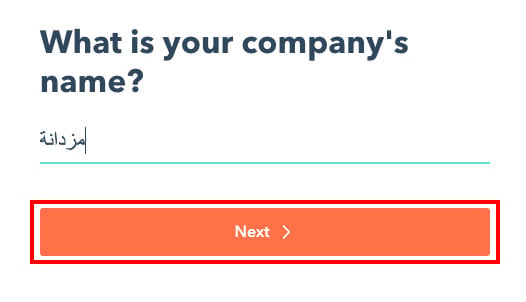
6. Choose how many employees you have.
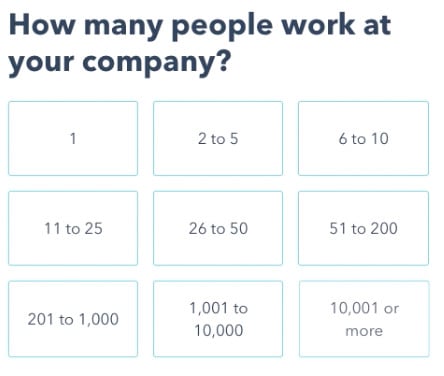
7. Enter your store link, then click (Next).
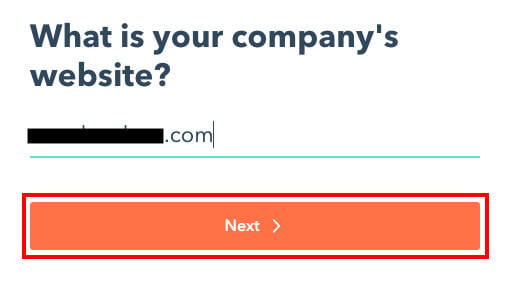
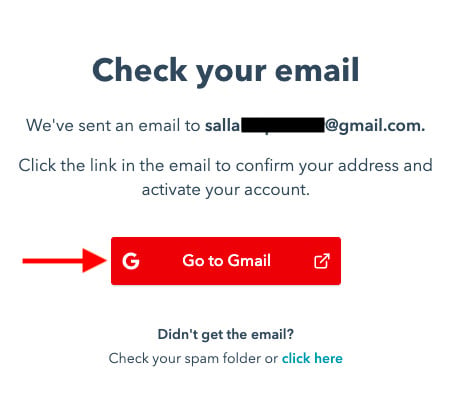
8. HubSpot sends an activation message to the email address you registered. Click (Go to email).
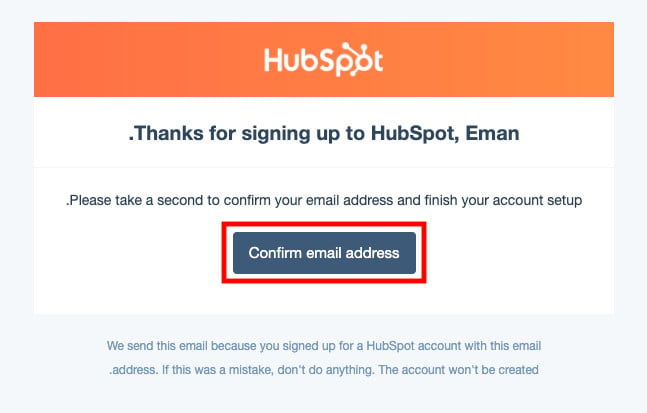
9. Open the message and click (Confirm email address) to continue the rest of the sign-up.
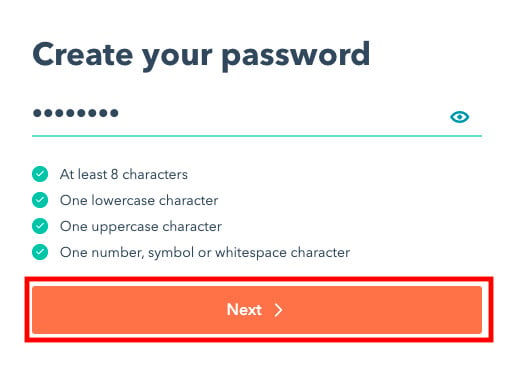
10. Enter a new password — at least 8 characters, mixing numbers, English letters and symbols.
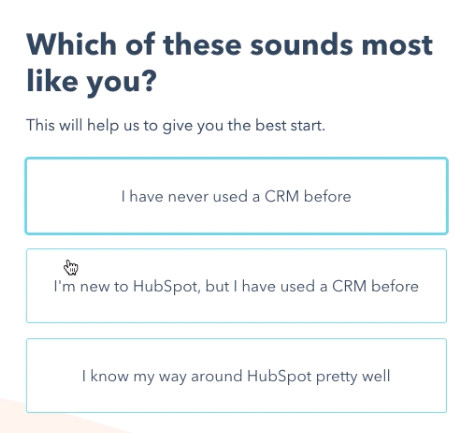
11. Choose the statement that matches your situation, such as being new to the service.
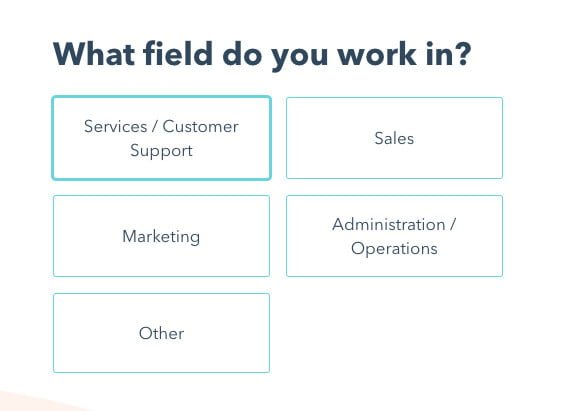
12. Choose the field you work in. Your HubSpot page then opens.
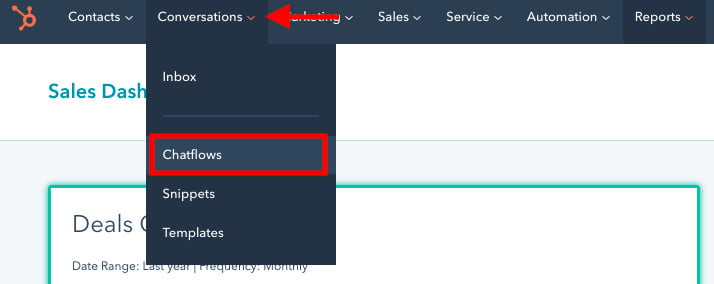
13. From the (Conversations) drop-down menu, choose (Chatflows).
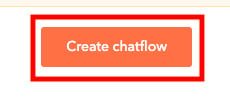
14. Click (Create chatflow).
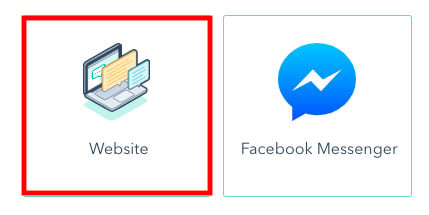
15. Choose where the chat will appear by clicking (Website).
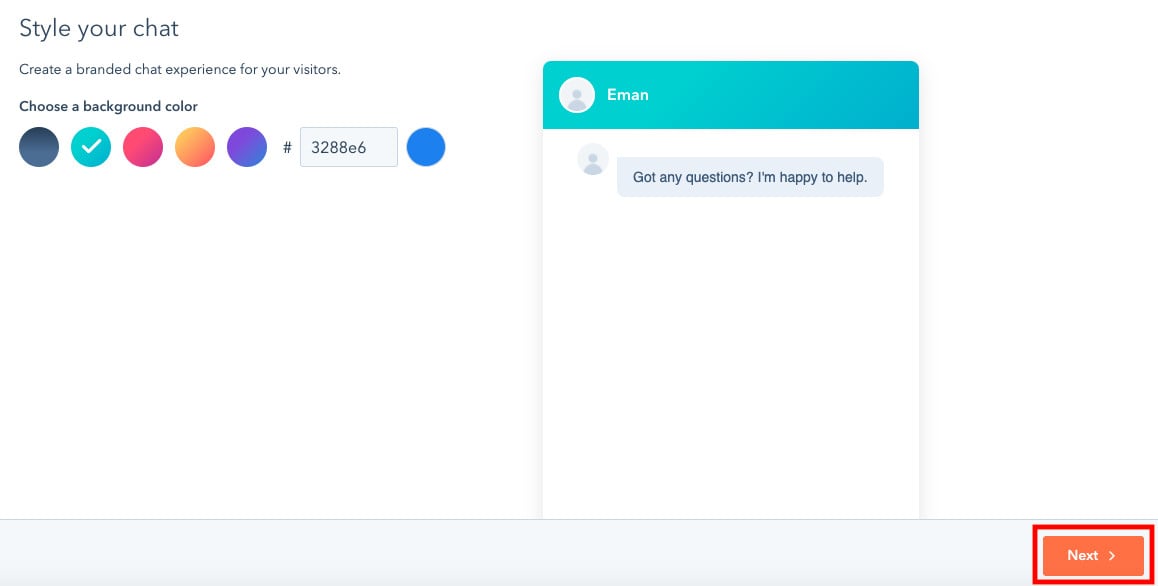
16. Pick the color your chat template appears in, then click (Next).
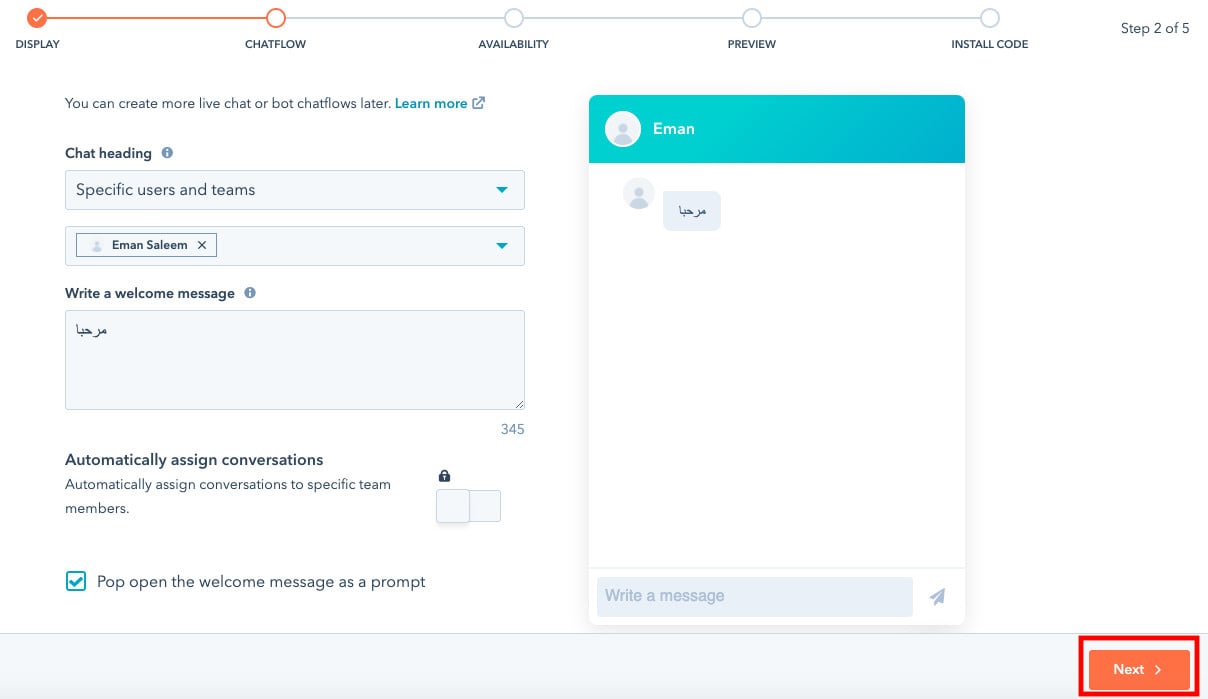
17. Choose the chat settings that suit you — the chat heading and the text of the first message — then click (Next).
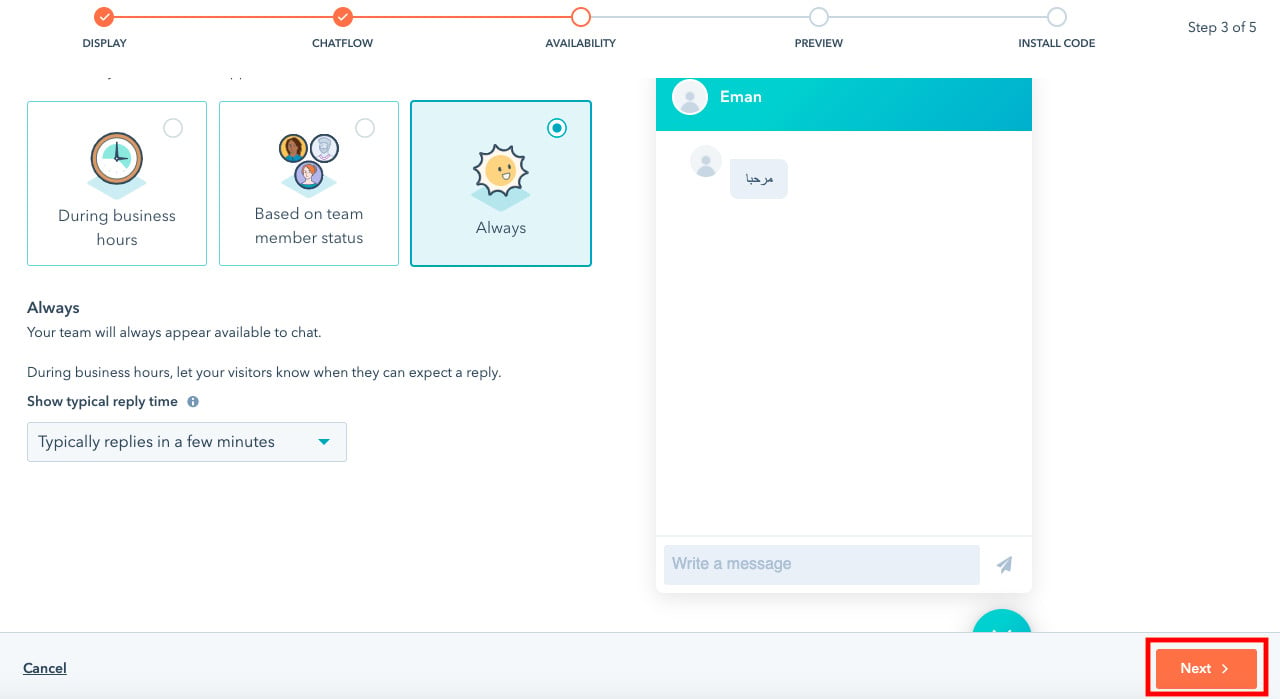
18. Set the hours when customers can chat with you, then click (Next).
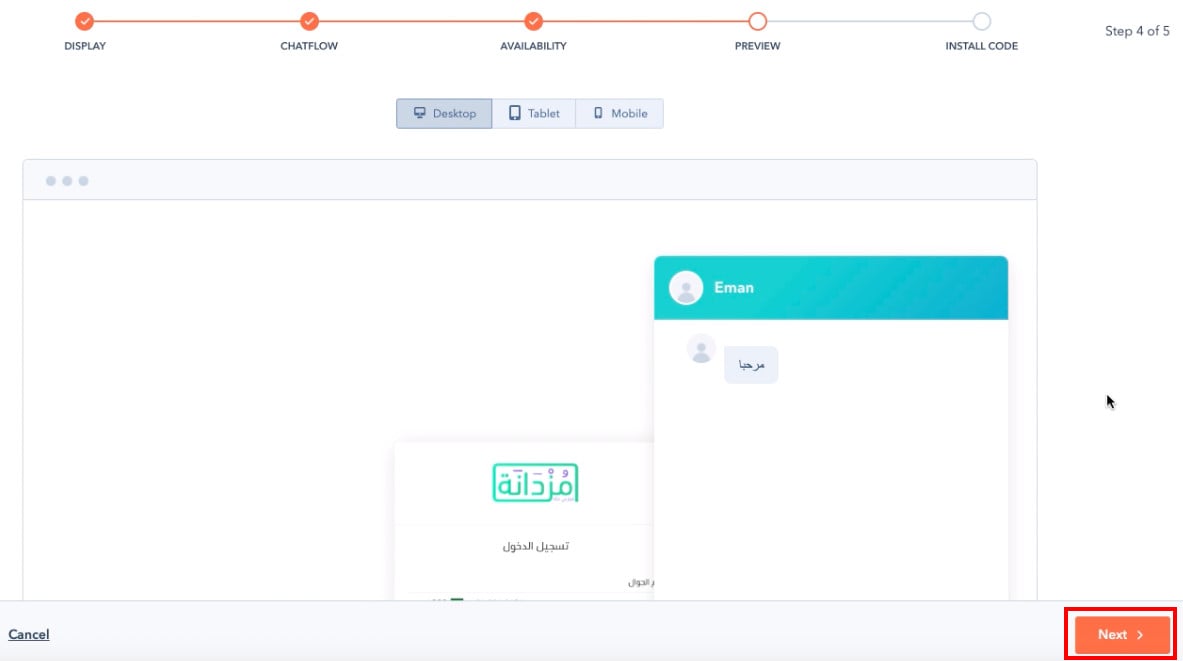
19. Preview the chat template on different devices, then click (Next).
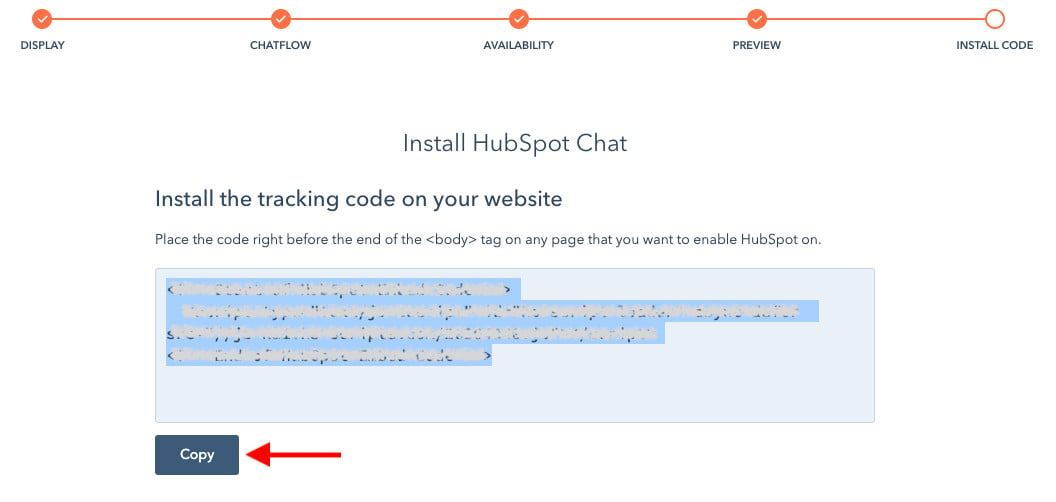
20. Copy the tracking code so you can paste it into your store.
Stage two: install the HubSpot app
1. From the side menu of your dashboard, click (Installed apps).

2. From the installed apps page, click (Browse the Salla App Store).

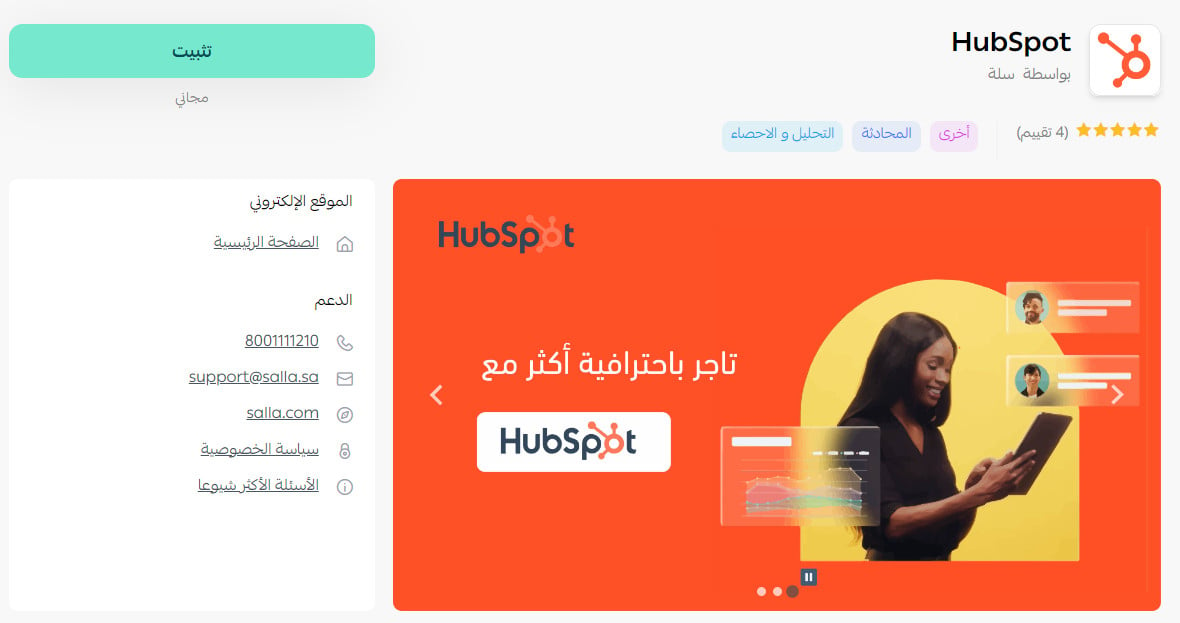
3. On the HubSpot app, click (Install).
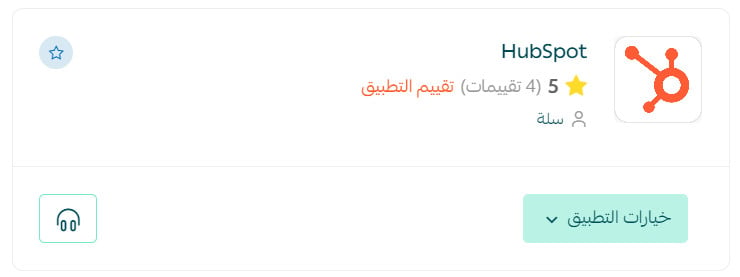
Once it's installed, the app card looks like this:
Stage three: paste the HubSpot tracking code into your Salla store
1. From the side menu of your dashboard, click (Installed apps).
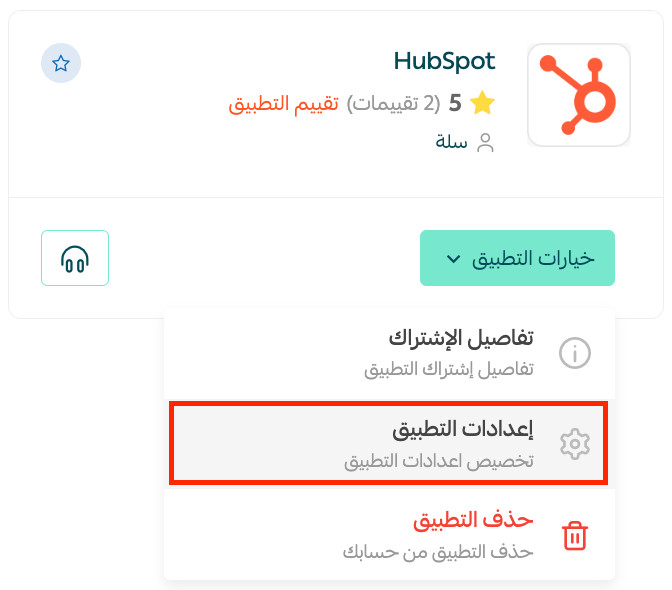
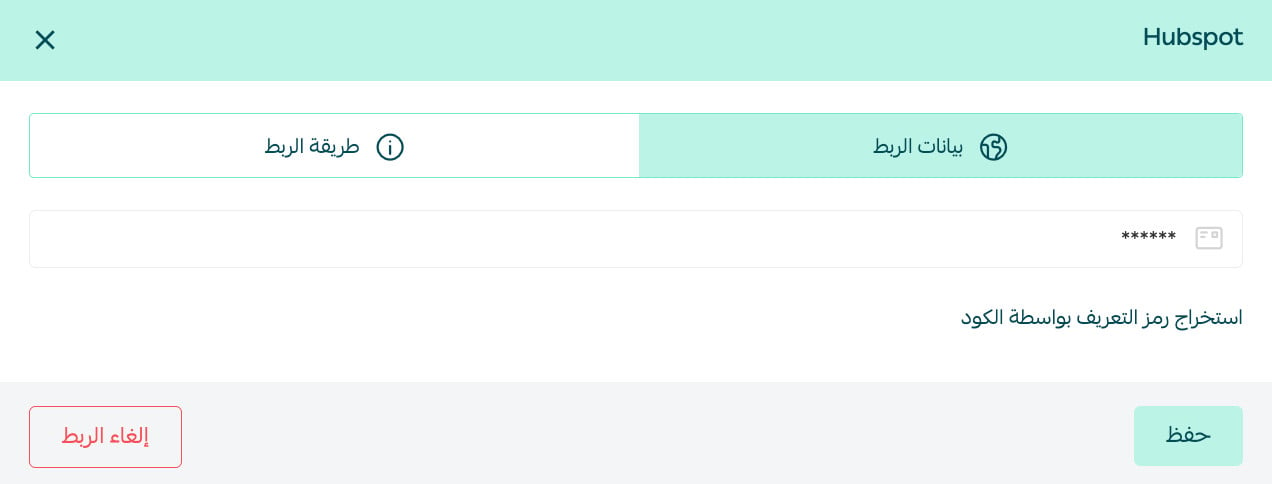
2. On the HubSpot app, click (App options), then click (App settings).
3. Paste the tracking code you copied from HubSpot in stage one, then click (Activate connection).
❓ Frequently asked questions
Why use HubSpot?
- It works for small businesses on a limited budget as well as larger ones that can do without some features.
- It gives you marketing and sales tools in one system that helps you bring in more potential customers.
- It supports 6 different languages.
Is HubSpot free or paid?
The chat app is free forever, and it includes unlimited chat features with custom templates.
Can I disconnect my store from my HubSpot account?
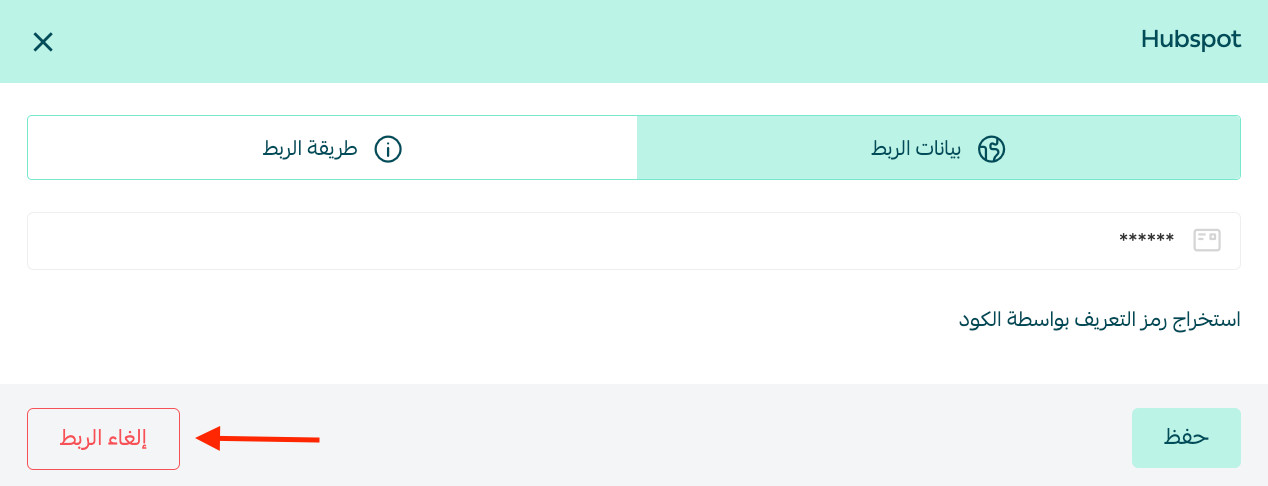
Yes. On the HubSpot connection page, click (Disconnect).